
Add Order Bumps at Checkout
The best moment to offer a small add-on is when the customer has already decided to buy. A warranty, an extra license or a starter kit at a checkout-only price often costs the buyer one tick. Without a plugin for it, you’re left with cross-sells on the cart page that most people scroll past.
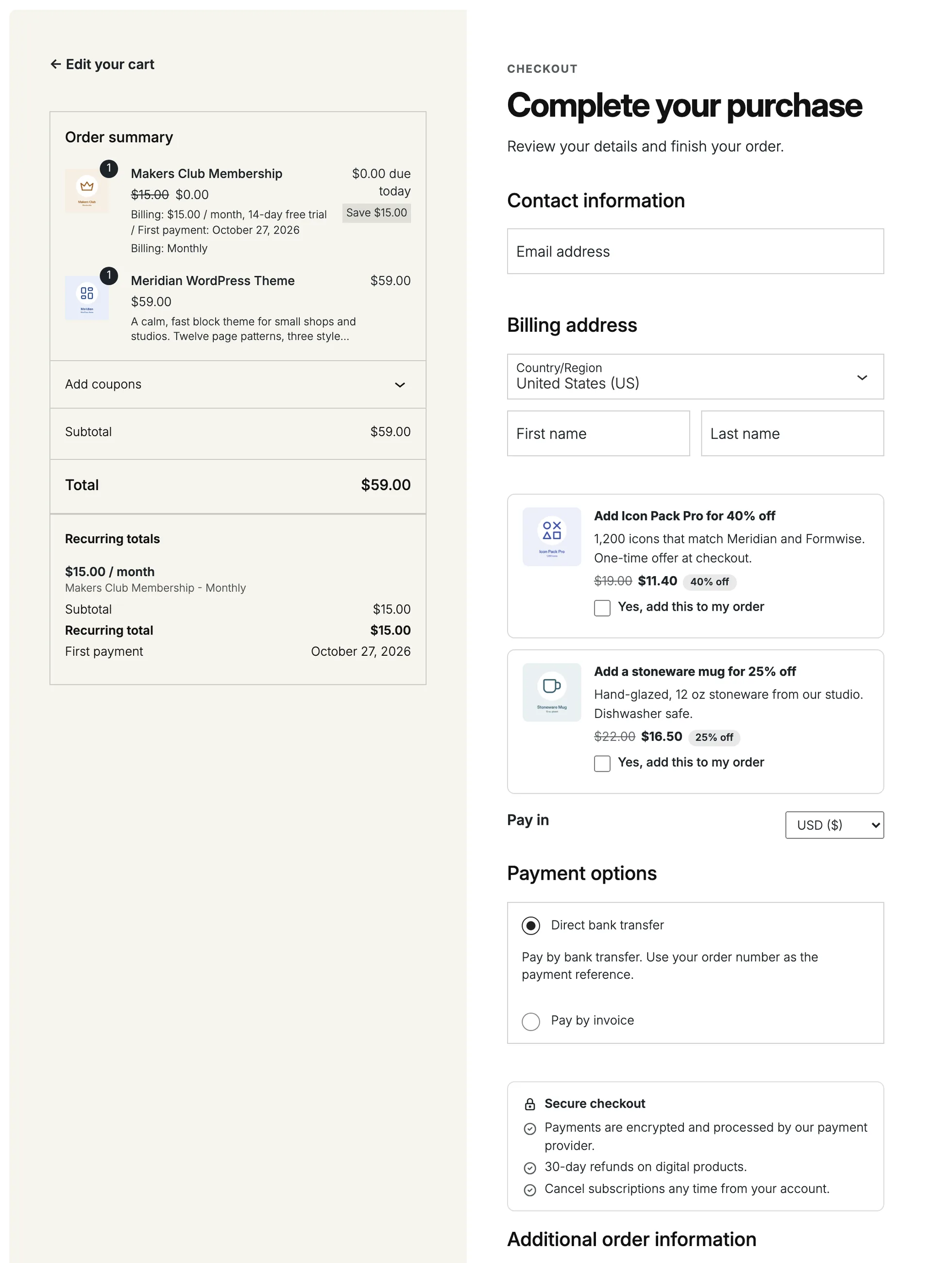
Order Bumps adds one-click offers to the checkout. Each bump is a checkbox with a headline, a price and an optional image. Ticking it adds the product to the order at the bump price, and the price is always worked out on the server. Every bump tracks how often it was shown, accepted and how much it earned.
Set the Global Options
Switch on Order Bumps from Stackless > Dashboard. Then open Stackless > Settings and choose Order Bumps under Sales & invoices. Two settings apply to every bump:
- Bumps per checkout: how many bumps a checkout can show, from 1 to 5. Default 2. When more qualify, the lowest priority numbers show first.
- Default checkbox text: “Yes, add this to my order” unless you change it.
Create a Bump
Bumps live on their own screen at Stackless > Order bumps.
- Click Add order bump.
- Fill in the Offer, What the customer sees and When to show it panels.
- Tick Show this bump at checkout.
- Click Create order bump.
Fill In the Offer
- Internal name: only you see this.
- Status: Show this bump at checkout.
- Product to offer: a simple product, subscription product or one specific variation.
- Quantity: 1 to 99. Customers can’t change it at checkout. They can only remove the offer.
- Bump price: Percentage off, Amount off, Fixed price or Regular price, plus the amount. New bumps start at 20% off.
Bump amounts are per unit and in your store currency. The price can’t go below zero, and a percentage is capped at 100.
Write What the Customer Sees
- Headline: defaults to “Add [product] to your order”.
- Description: one or two sentences, up to 1,000 characters. Links, bold and italic are allowed.
- Checkbox text: falls back to your Default checkbox text.
- Image: Product image (the default), Custom image or No image.
- Placement: Before the payment methods (the default), Just above the Place order button, or In the order summary.
Placement works on the Checkout block and the classic checkout. On the block checkout, the summary placement uses WooCommerce’s own order summary slot.
Choose When a Bump Shows
The When to show it panel holds the cart rules. A bump shows only when all of these pass:
- Cart contains any of these products, or any product in these categories. Leave both empty to show the bump on every cart.
- Hide when the cart has these products
- Hide when the cart has these categories
- Cart subtotal at least
- Cart subtotal at most
The subtotal counts items before tax and discounts, and it leaves out bump items, so a bump can’t qualify itself. Leave a subtotal box empty for no limit. Variations also match their parent product, and categories come from the parent.
A bump never shows when the offer product is already in the cart. Priority, from 0 to 999 with 10 as the default, decides which bumps win when more qualify than Bumps per checkout allows. Lower numbers show first, then the oldest bump.
Products a Bump Can’t Offer
When you save, Stackless checks the offer. If there’s a problem, the bump is saved as inactive and you’ll see a warning:
- No product chosen.
- A variable, grouped or external product. Choose a simple product or one specific variation instead.
- A variation with an attribute set to “Any”. The bump can’t pick it for the customer.
A product that’s out of stock or not purchasable doesn’t switch the bump off. It’s hidden at checkout until that changes.
What Happens in the Cart
- Bump items show an “Offer” line with the discount text, such as “20% off”, “Save” plus the amount, or “Special price”.
- If the cart stops qualifying, or you deactivate the bump, the bump item is removed from the cart.
- The price is reapplied on every totals calculation, so it can’t be changed from the browser.
- On the order screen, bump lines carry a note: Added from the order bump “[name]”.
Read the Take Rate
The Stackless > Order bumps list shows each bump’s Offer, Placement, Status, Shown, Accepted, Take rate and Revenue.
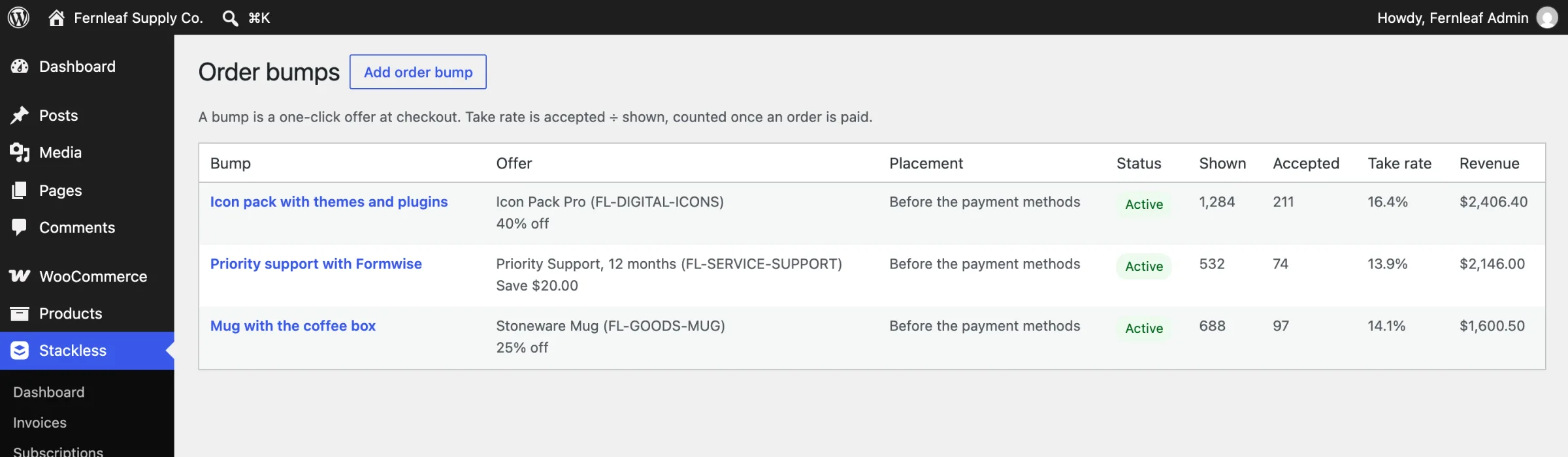
- Take rate is accepted divided by shown.
- Counts update once per order, when the order reaches a paid status. Abandoned checkouts don’t count.
- Revenue includes tax and is kept in your store currency. An accept in another currency still counts, but adds nothing to Revenue.
Row actions let you Edit, Activate or Deactivate, Reset stats, or Delete. Deleting a bump deletes its statistics too, but orders keep their items.
Good to Know
- Bumps are stored in their own database table,
{prefix}stackless_order_bumps, not as posts. - With multi-currency on, bump prices are shown in the visitor’s currency. Amounts you enter stay in your store currency.