
What Customers Can Do from My Account
Every “please cancel my plan” or “can I move to the yearly option” email costs you time, and every one that waits too long turns into a chargeback or a churned customer. Subscribers want to handle these things themselves, right away.
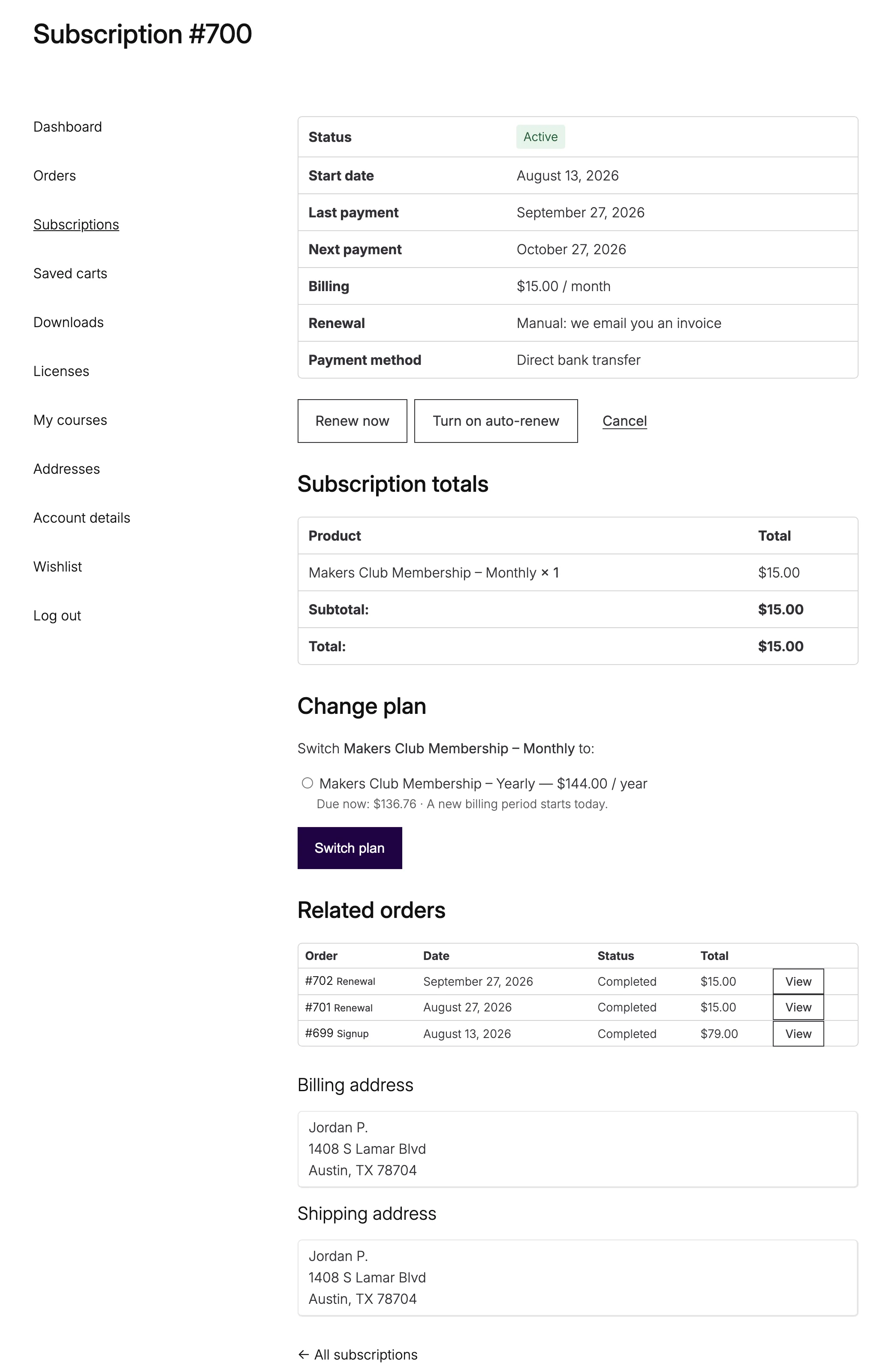
The Subscriptions module adds a Subscriptions tab to My Account. Customers see every subscription, pay a missed renewal, renew early, cancel, switch plans and change the card that renews them. You decide which of these they get under Stackless → Settings → Subscriptions.
The Subscriptions Tab
The tab sits right after Orders. Its URL slug comes from the Account endpoint setting, subscriptions by default.
The list shows each subscription’s number, status, items, next payment and recurring total, with a View button. A subscription page shows:
- Status, Start date, Trial ends, Last payment, Next payment and Ends, where they apply
- Billing, the recurring price and schedule
- Renewal: Automatic, or “Manual: we email you an invoice”
- Payment method
- Subscription totals, Related orders (Signup, Renewal or Switch) and the addresses
The Customer Actions
Buttons appear only when the action fits the subscription:
- Pay renewal: one for each unpaid renewal order. This always shows when something is owed.
- Renew now: bills the next period today and moves the following payment date forward. Needs Early renewal turned on, an Active subscription and no unpaid renewal.
- Resume subscription: undoes a cancellation that’s waiting for the end of the period.
- Turn off auto-renew / Turn on auto-renew: needs the Auto-renew toggle setting and a product set to “Automatic when the gateway supports it, otherwise manual.” Turning it on needs a saved payment method.
- Cancel: covered below.
Choose How Cancellation Works
The Customer account section has two settings. Customer cancellation turns the button on or off, and it’s on by default. When customers cancel decides what the button does:
- At the end of the paid period (default): one Cancel button. The subscription becomes Pending cancellation and access continues until the paid period ends.
- Immediately: one Cancel now button. Access ends right away and unpaid renewals are cancelled.
- Let the customer choose: both Cancel at period end and Cancel now.
On-hold subscriptions only offer Cancel now, because there’s no paid period left to run out.
Set Up Plan Switching
Switching needs two things: the Switching setting (on by default) and a switch path on the product. Paths are set on the product’s Advanced tab:
- Switch between variations: subscribers move between this variable product’s subscription variations.
- Subscription switch group: a slug like
hosting-plans. Subscribers move between all products that share it.
Customers with an Active subscription then see a Change plan section. Each option shows the new price, the amount due now, any adjustment on the next renewal, and a note when a new billing period starts today.
How Proration Works
The Proration setting has three modes:
- Credit unused time and charge the difference now (default)
- Credit unused time and apply the difference at the next renewal
- No proration: new price from the next renewal
On the same schedule, the price difference is scaled by the unused part of the current period. An upgrade is charged now with the first mode, or added to the next renewal with the second. A downgrade becomes a credit on the next renewal.
Moving to a different schedule, like monthly to yearly, with the first mode credits the unused time against the new plan. The new period starts today. If the credit is bigger than the new price, the rest carries to the next renewal.
Switch fee adds a one-time charge in your store currency to every switch.
Every switch creates a switch order. A zero total applies right away. Otherwise automatic subscriptions charge the saved method, and manual ones send the customer to pay. The plan changes when the switch order is paid, and the Subscription switched email goes out.
Carried amounts show on the next renewal as a “Plan switch credit” or “Plan switch adjustment” line. A credit never takes a renewal below zero, and whatever is left carries to the one after.
Change the Payment Method
When the Stripe or PayPal gateway is enabled, active, trial and on-hold subscriptions show a Payment method for renewals section. Customers can:
- Pick a saved card or PayPal account and click Use this payment method.
- Or click Add a new payment method, add it on WooCommerce’s Add payment method page within the hour, and they’re sent back with the new method attached to the subscription.
Picking a saved method also turns automatic renewal on, unless the product is Manual only. A failed renewal that’s waiting for a retry gets the new method too.
Limits
- Switching is for Active subscriptions. Subscriptions in a free trial can’t switch.
- Switching one item of a multi-item subscription to a different schedule moves that item to a new subscription.
- With the next-renewal proration mode, a switch to a different schedule gets no credit for unused time.
- Polar subscriptions are billed by Polar. Customers can cancel them, but can’t renew early, resume a pending cancellation, toggle auto-renew or change the payment method here. See Sell Through Polar as Merchant of Record.