
List Your Products in ChatGPT
ChatGPT can show your products when people shop in a conversation. To list them, you give ChatGPT’s merchant portal one link to a product feed, and ChatGPT fetches it on a schedule. Stackless for WooCommerce builds that feed for you from your WooCommerce catalog.
It’s the same list of products as your Google feed, with the same prices and stock, written in OpenAI’s product feed format. You set it up once. After that the feed refreshes on its own a few minutes after you change a product, and once a day.
Before You Start
- Stackless for WooCommerce 2.2.0 or newer, with a paid license. The ChatGPT feed is not part of the free Lite edition.
- Go to Stackless → Dashboard and switch on Google Product Feed. The ChatGPT feed comes with it.
- Your business verified in ChatGPT’s merchant portal. The portal walks you through this before it asks for products.
- Products that can go in the feed: published, with a price above zero and an image. The Google Product Feed guide lists everything that’s left out and why. The feed screen shows each one.
Copy Your ChatGPT Feed URL
- Open Stackless → Product feed.
- Find the ChatGPT feed URL and click Copy URL next to it. It looks like
https://example.com/stackless-feed/chatgpt.jsonl.gz. Without pretty permalinks it’s/?stackless_feed=chatgpton your site. - Check the ChatGPT settings on the same screen before you hand the URL over. They’re covered below.
Click Open feed if you want to look inside. It’s a .jsonl.gz file: gzipped text with one row per product, and one per variation when a product has several.
Add the URL in ChatGPT
- In ChatGPT’s merchant portal, go to uploading products and choose Use a hosted URL.
- Paste your feed URL into File URL.
- Leave Username and Password empty. The feed is public, like your product pages.
- Click Continue.
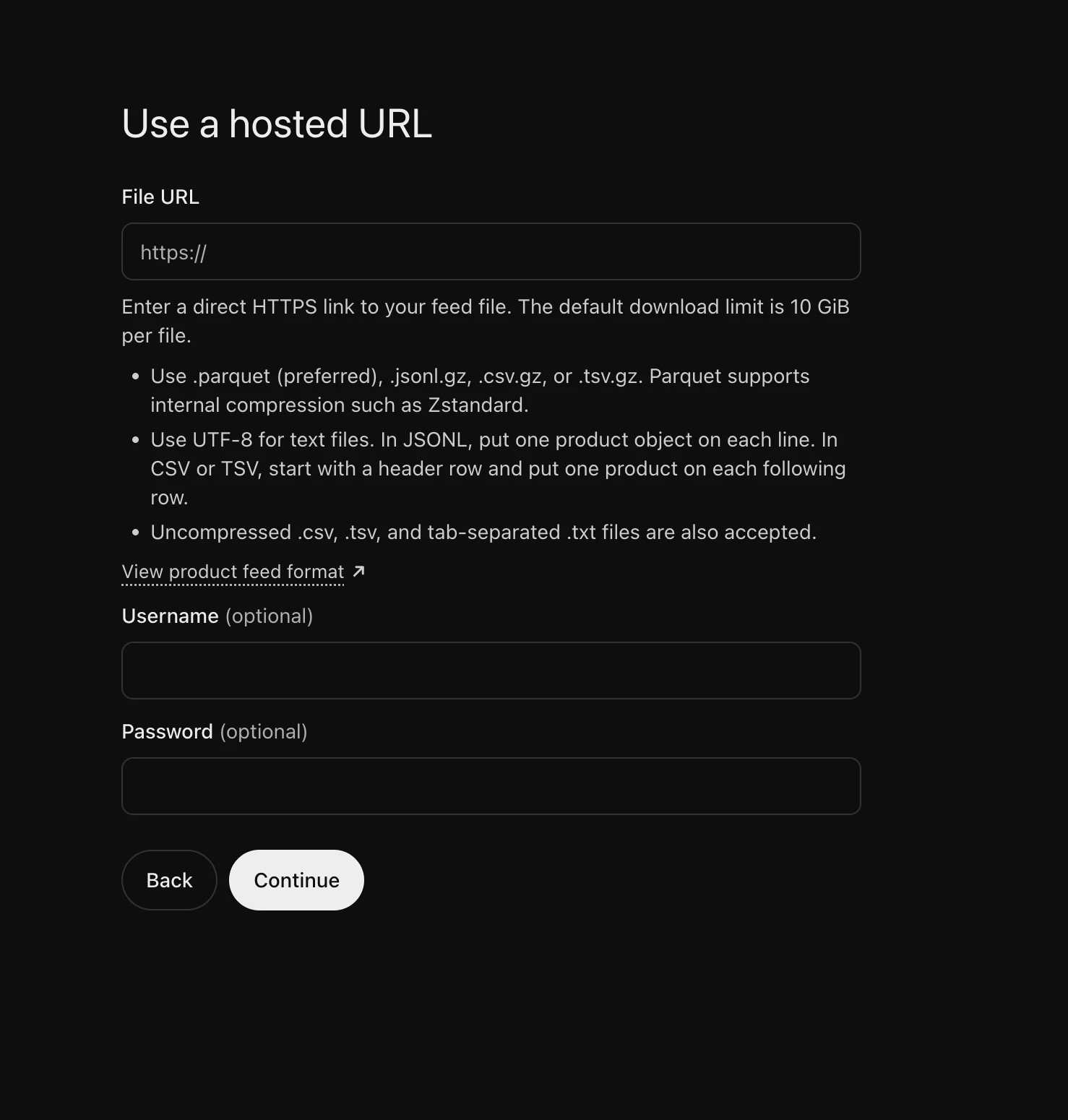
The portal lists .jsonl.gz among the formats it takes, which is what Stackless serves. If you required a secret key, the copied URL already carries it. Paste it whole and leave the username and password empty.
Set the Update Cadence
Next, the portal asks how often to fetch the file: Daily, Weekly or Every two weeks.
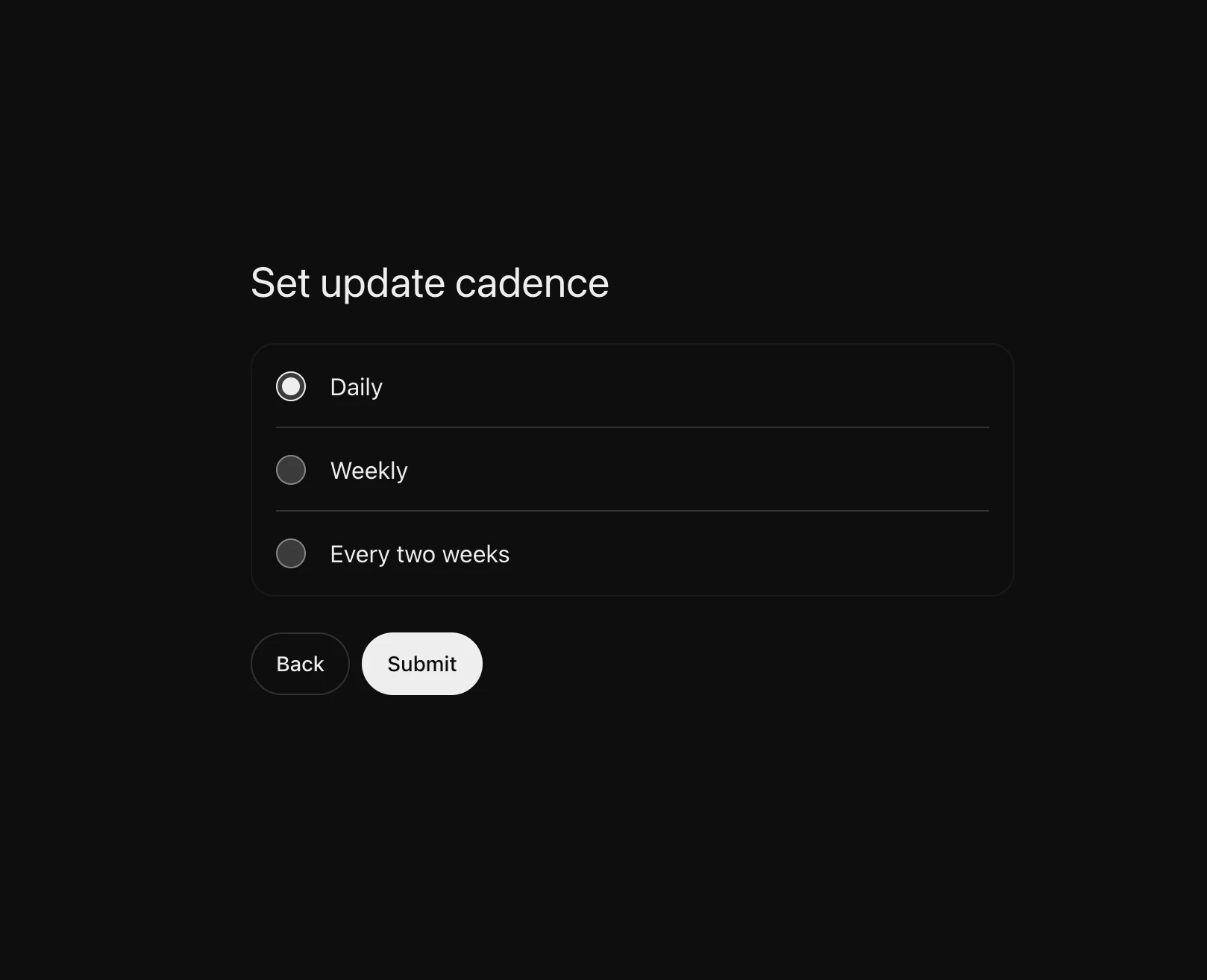
Pick Daily and click Submit. Stackless rebuilds the feed at least once a day, so a daily fetch picks up every price, sale and stock change by the next day. Weekly means a sale can end before ChatGPT sees it.
Then review the upload in the portal. It reports any rows it couldn’t use, with the reason.
ChatGPT Feed Settings
These sit with the ChatGPT feed on Stackless → Product feed. The next build uses them, a few minutes after you save. Use Rebuild now to apply them straight away.
- The ChatGPT feed switch: on by default. Switch it off and the URL returns a 404.
- Seller name: shown as the seller of every product. It defaults to your site title, and it also fills in for a product that has no brand.
- Store country and Target countries: two-letter codes. Both default to
US, which is what OpenAI’s standard upload uses. - Returns and Return window: say whether you accept returns or sell as final sale, or leave it unstated. The window, in days, is sent only when returns are accepted.
- Return policy, privacy policy and terms of service: public pages on your site. The privacy policy defaults to your WordPress privacy policy page.
What ChatGPT Receives
Each product becomes one row, and each variation gets its own row. Item IDs start with wc_ and match your Google feed, so they never change.
| Field | What Stackless sends |
|---|---|
| Title, description, link, images | The same as the Google feed: the product title with the variation name, a plain-text description, the product page and its images |
| Price and sale price | Your store currency, never a visitor’s switched currency. A sale price is sent only when it is below the regular price |
| Availability | From the stock status, by the same rule as the Google feed |
| Brand | The brand from Product details or your brand taxonomy, then the feed’s default brand, then your seller name |
| Options | Variations share a group, and each row carries its attribute names and values, like {"License": "Agency"}. |
| GTIN and MPN | Sent when you have them. A GTIN goes out only when its check digit is valid, so a typo can’t get the row rejected |
| Shipping | Free shipping for digital and virtual items, and the weight of physical ones |
| Reviews | The product’s review count and average rating, when it has reviews |
Checkout inside ChatGPT, shipping rules and ad fields need extra setup on OpenAI’s side, so the feed leaves them out. Buyers who pick one of your products go to its page on your site to buy.
Fix Common Problems
- “Too many feed requests were made”: this comes from the ChatGPT portal, not your site. Wait a few minutes and try again.
- The URL says the feed is being built: the first build hasn’t finished. Click Rebuild now on the feed screen, or run
wp stackless feed build, then try again. - The URL returns a 404: the ChatGPT feed is switched off in its settings, or Google Product Feed is off on the Dashboard. Some servers also send every
.gzaddress straight to the file system. If that’s yours, use the/?stackless_feed=chatgptaddress instead. It serves the same file. - The URL returns a 403: the feed requires a key and the URL you pasted doesn’t have it. Copy the URL again from the feed screen.
- A product is missing: check Left out of the feed on the feed screen. It names the reason for each one, such as a missing image or a zero price.
- Prices are not in US dollars: the feed uses your store currency. If ChatGPT rejects the currency, check which countries and currencies you chose when you set up the merchant portal.
For Developers
stackless_product_feed_chatgpt_item changes one ChatGPT row before it is written. Return null to leave the row out of the ChatGPT feed only. WP-CLI prints the row for one product or variation ID:
wp stackless feed item 123 --chatgpt