
 by
by
Camera counters and screenshot timestamps make it hard to find the right image in a growing media library. Once you upload those names, improving them can mean changing image URLs, updating references and keeping old links working.
You should name images for SEO before uploading: describe what the picture shows in a few lowercase words separated by hyphens. For example, macbook-pro-desk-setup.jpg is easier to recognize than IMG_4827.jpg. Keep the extension matched to the actual file format.
If you need to rename existing WordPress uploads, Media File Renamer is a plugin that can rename files and update the references it recognizes. I would back up first and test a few images on staging before using it across an existing library.
What a File Name Does in Image SEO
Google recommends short, descriptive filenames and says they provide “very light clues” about an image’s subject. Its image SEO guidance also explains the role of alt text, computer vision and relevant page content. I would treat naming as a useful upload habit, without expecting a measurable ranking gain from the name alone.
These details help give an image context. Google doesn’t publish a ranking order for this list:
- Alt text: an appropriate text alternative for the image in its page context
- Nearby content: relevant text and a caption when it adds useful context
- The page: its subject, title and description
- Structured data: eligible markup that identifies relevant images and may support rich results
- The filename: a short description that becomes part of the image URL
I’d name files before uploading because that name can carry into the URL, resized copies and the media record. Getting it right then saves the work of coordinating a rename later.
Rules for SEO Friendly Image File Names
I’d name the subject first, then add the detail that distinguishes this image, such as the view, color or screen. You should use enough words to make the file recognizable.
Describe What Is in the Picture
You should replace a camera counter or screenshot timestamp with a description you can recognize. A product photo might need the model and viewing angle; a screenshot might need the app and the setting it shows.
| Before | After |
|---|---|
IMG_4827.jpg | macbook-pro-desk-setup.jpg |
DSCF1234.jpg | golden-retriever-puppy-on-grass.jpg |
Screenshot 2026-04-14 at 10.47.31 AM.png | wordpress-plugins-screen.png |
image-final-FINAL-v2.jpg | rank-math-keyword-tracker.jpg |
I would include a detail such as the viewing angle when several files show the same product. That makes the right image easier to find when you return to the library.
Use Hyphens, Lowercase and No Spaces
Google’s URL structure guidance recommends hyphens between words. I would use blue-running-shoes.jpg consistently rather than mixing it with blue_running_shoes.jpg. Spaces are valid when encoded as %20, but hyphens leave you with a more readable URL.
WordPress’s filename cleanup handles several characters for you:
- it replaces spaces and runs of hyphens with a single hyphen
- it strips characters such as quotes, brackets, ampersands and percent signs
- it keeps underscores exactly as they are
- It generally preserves uppercase letters in the filename stem.
Blue-Shoes.jpgandblue-shoes.jpgcan be different URLs, so a mismatch may break a link depending on the server.
I’d standardize on lowercase words and hyphens before uploading. That avoids having to remember which case or separator you used for a particular file.
Add the Keyword Only When It Is in the Picture
A screenshot of a standing-desk layout could reasonably use standing-desk-small-room.jpg. A screenshot of an SEO plugin should identify the plugin or screen. You can include a relevant keyword when it accurately describes the image.
A name such as best-vpn-cheap-vpn-vpn-deals.jpg repeats search terms without identifying a useful visual detail. I would name the VPN app and the screen shown instead.
Leave Out Dates, Counters and Version Tags
Names such as hero-v3-final.jpg, product-photo-2.jpg and blog-image-2024-03-15.jpg tell you little about the subject. A model number can help: iphone-17-pro-camera.jpg identifies the product more clearly than hero-image-5.jpg. Keep dates or revision identifiers when they are needed to distinguish records or prevent an asset collision, with the subject named first.
WordPress can add suffixes of its own, including -1 for a filename collision and dimensions such as -1024x683 for a generated image size. I would leave those generated filenames alone unless a media-aware migration handles the references too.
Keep It Short
A few descriptive words are usually enough. I wouldn’t turn 3 to 6 words into a requirement or add words to reach a count. You should keep the details you need to identify the image and remove repeated keywords.
File Name and Alt Text
The filename identifies the file in its URL. Alt text conveys the image’s meaning or function on the page. I would write each for that job; they can overlap, and alt text can be a short phrase when that says enough.
- File name:
rank-math-keyword-tracker-dashboard.jpg - Alt text for a screenshot showing this information: “Rank Math keyword tracker showing 12 tracked keywords with their positions and search volume.”
You should mention a count or interface detail only when it is actually visible. For a decorative image, an empty alt="" can be appropriate; a functional image may need to describe an action or destination. You can use the W3C alt decision tree to choose the right text alternative.
Rank Math is a WordPress SEO plugin whose Image SEO settings can add missing alt attributes dynamically when the page is displayed. Its default format uses %filename%; this does not mean it has written that text into the Media Library field. I would review the result and make sure automation respects intentionally decorative images. A filename such as IMG_4827 still needs a meaningful description.
What WordPress Does to a File Name at Upload
Your uploaded image can have an original file, a full-size version and several smaller copies. I would check which ones your site uses before planning a rename.
- Filename cleanup: WordPress replaces spaces and removes several special characters. It does not generally convert the filename stem to lowercase or replace underscores.
- Unique names: WordPress normally adds a numeric suffix when a name conflicts in the destination directory. Its unique-filename handling also accounts for names that could collide with generated sizes.
- Upload location: the usual month-based path is
/wp-content/uploads/YYYY/MM/. Settings, filters or an offload service can change the location and public URL. - Resized copies: WordPress generates registered sizes when the source dimensions and image editor allow it. A generated file commonly uses a suffix such as
file-name-WIDTHxHEIGHT.jpg; it does not necessarily create every registered size. - Large images: WordPress can create
file-name-scaled.jpgand use it as the full-size attachment when an image exceeds the default 2560-pixel threshold. The image-processing code allows that threshold to be changed or disabled, and processing support affects the result. - Attachment fields: the title may come from the filename or embedded image metadata. Changing the Media Library title does not rename the file. Alt text is a separate field; the upload handler may use embedded image metadata where available.
Renaming your desktop copy after uploading leaves the website’s copy unchanged. Renaming only the server file can leave WordPress pointing at a path that no longer exists, so I’d use a workflow that updates the files and their references together.
How to Rename Images Already in WordPress
You should back up the database and uploads, then test a small set on staging. A media-renaming plugin can coordinate files and supported references, but I would still check page-builder data, custom fields and any offloaded copies before using it across the library.
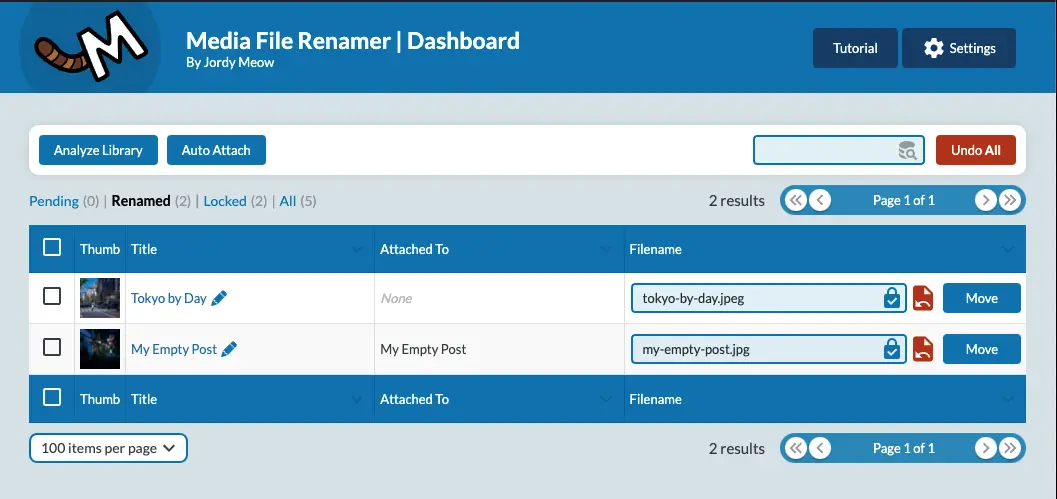
Media File Renamer
Media File Renamer, from Meow Apps, provides a renaming dashboard and can update the references it recognizes. It also offers automatic naming and metadata features; you should check the edition and settings before relying on bulk or AI options. I would review each proposed name and test representative pages first, especially if a builder stores image references in its own format.
Phoenix Media Rename
Phoenix Media Rename adds a filename field to the Media Library and supports renaming with reference updates. I would compare it for straightforward manual changes. Its optional redirect integration requires the Redirection plugin and is disabled by default, so you should check those settings separately.
Enable Media Replace
Enable Media Replace, maintained by ShortPixel, is a WordPress plugin for replacing an uploaded file. It offers 2 replacement modes. One keeps the existing filename when you upload a replacement of the same type. The other uses the uploaded file’s new name and updates links it can find. I would choose it when replacing the image as well as handling its name, then check cached and offloaded copies.
A changed image URL needs a plan for requests to the old address. Where the same image has moved, I would keep a permanent redirect to the matching new URL and update internal references. You should configure that redirect where the old request is handled: your origin, CDN or storage service. A WordPress redirect plugin only helps if the request reaches WordPress.
I’d improve new uploads first and rename existing images only for a clear reason, such as a confusing product library or an inaccurate name. For a live rename, you should test the full-size image, resized versions, page content and old URLs before expanding the batch. It is wise to prove the workflow on a staging copy first.
For a developer-led migration, I would prepare a complete file and reference map before making changes. These are the pieces that need to stay in sync:
- Inventory: list attachment IDs and titles with
wp post list --post_type=attachment --post_status=any --fields=ID,post_title --format=csv. Read each attachment’s_wp_attached_fileand_wp_attachment_metadata; the attachment GUID is not a reliable current-path field. - Rename map: record old and new paths for the original, scaled file, generated sizes and any offloaded objects. Include the URLs used in content, custom fields and responsive image markup.
- Attachment records: update file paths and attachment metadata through a media-aware process. A filesystem rename alone leaves the stored references behind.
- Database references: use exact old and new URLs when reviewing a serialization-aware replacement. WP-CLI search-replace supports
--dry-runand--skip-columns=guid. Review the affected tables and values before changing the data; a bare filename can match unrelated content. - Generated files and delivery: after paths and metadata are correct, use
wp media regenerate ATTACHMENT_IDwhere sizes need rebuilding. Check the resulting references, redirects and offloaded files. Regeneration alone does not perform a complete rename.
I would use a plugin or a developer who can account for your site’s storage and content; the commands above cover only parts of that migration. You can refer to my WordPress developer cheat sheet for more detail on the commands.
Format, Size and Delivery
I would choose the dimensions, format and compression alongside the name. A descriptive filename does not reduce a large download.
- WebP: a useful option for photos and graphics. Compare the resulting file size and visual quality with your original.
- AVIF: another option when your WordPress installation and server image library support processing it. Test the output quality and generated sizes.
- PNG and JPEG: keep them when they best suit the content or destination. PNG can preserve sharp screenshot detail and transparency; JPEG remains useful for photographic output and destinations with narrower format support.
- SVG: suitable for many logos and icons, but WordPress blocks uploads by default. Use a trusted sanitization workflow; merely allowing the extension does not make an SVG safe.
- Animation: generated GIF thumbnails can lose the animation. Check the file the page actually serves; the guide to how to add animated GIF images in WordPress covers the available options.
ShortPixel, Imagify and EWWW Image Optimizer are WordPress plugins for compression and modern-format delivery. The files created and URLs served depend on the plugin and settings, so check the output before assuming the original URL stays in use. My WordPress image optimization guide covers those choices.
WordPress can add lazy-loading and fetch-priority attributes, but themes, plugins and markup affect which images receive them. I would keep the main visible image out of lazy loading and check that an appropriate size loads promptly. You should give below-the-fold images different treatment from the image readers see first.
Sitemaps, Open Graph and Schema
Once an image is uploaded, you should check which URL each feature uses. A featured image can supply a default, but you may have separate settings or overrides:
- Image sitemaps: confirm that important image URLs are included. Rank Math and Yoast support image entries, but coverage depends on configuration and how images are embedded.
- Open Graph: choose a relevant sharing image and check its crop on the platforms you use. A 1200 by 630 image is a common starting point; services can crop and display it differently.
- Article schema: check that its image property points to a relevant, accessible image. SEO plugins may use the featured image, subject to the schema settings and overrides.
I’d update these references as part of a rename when they contain the old URL. Changing the Media Library title alone will not update the file path.
Image Names and AI Search
I would keep the same descriptive naming habit for pages you want visible in AI search. Google says its AI search features use the established SEO requirements, with no special optimization required. That does not establish a shared image-selection formula for every answer engine.
For a tutorial, I would choose a screenshot that helps readers understand the step and give it a useful text alternative. A filename alone cannot promise that an AI answer will choose the image.
The Limits
A rename changes the copies you control. Your delivery setup and outside references determine how much of the work can be automated:
A redirect helps people and crawlers reach the new image URL, but recrawling and processing take time. I wouldn’t promise that a rename will preserve or improve image-search traffic.
Some CDNs serve images through transformed or hashed URLs. If your media is offloaded to R2 or S3, you should confirm that the renaming process updates the object and the public references, and that old requests still resolve. I describe the delivery setup in how I serve WordPress assets from Cloudflare R2.
You cannot rename a copy somebody else has downloaded and re-uploaded. A hotlink still requests your old address, so the redirect at that address is how you keep that reference working.
What Quietly Ruins It
Naming only the article topic. best-wordpress-seo-plugins-2026.jpg gives less useful detail than the plugin and settings screen actually shown. I would name the image’s subject even when it differs from the page’s main keyword.
Using an unexplained counter. plugin-1.jpg, plugin-2.jpg and plugin-3.jpg are hard to distinguish later. You should add the screen or view where that information helps; a number alone does not explain the difference.
Keeping an opaque stock-library name. I would replace photo-1594737625785-a6cbdabd333c.jpg or shutterstock_1234567.jpg with a description before uploading. Keep the source ID and license in your asset records when you need them.
Image Naming Checklist
Before an upload, I would check these details:
- Choose appropriate dimensions for the layout and display density, then compress the image.
- Give the file a short, descriptive name with lowercase words and hyphens.
- Use the page’s keyword only when it describes the image accurately.
- Keep model numbers, dates or other identifiers only when they help identify or manage the asset.
- Write alt text for the image’s meaning or function on the page; use an empty alt attribute when it is decorative.
- Add a caption when it provides useful context that the reader does not already have.
- Check the featured image and any sharing-image or schema overrides.
- For a live rename, back up first, test a small set and account for old URLs, generated sizes and stored references.
FAQs on Image File Names
Do image file names really affect SEO?
Google uses filenames as a small clue about an image’s subject. I would choose a short, accurate name before upload, alongside suitable alt text and relevant page content. Renaming an existing image does not guarantee a ranking improvement.
Should I use hyphens or underscores in image file names?
You should use hyphens between words. They follow Google’s URL guidance and are easy to read. WordPress generally preserves underscores in the filename stem, so you should make the change before uploading if you want consistent hyphenated names.
Can I rename an image after uploading it to WordPress?
Yes. A media-renaming workflow must coordinate the file, attachment data and references. Changing the Media Library title alone does not rename the file. I would back up first, test on staging and plan redirects wherever the old URLs need to keep working.
Should the file name and the alt text be the same?
They can overlap when the same wording serves both purposes. The filename identifies the file; alt text conveys meaning or function in context. Alt text can be a phrase, and decorative images may need an empty alt attribute. Do not mechanically copy hyphenated filenames into every alt field.
Does the image title attribute matter for SEO?
I would prioritize an appropriate alt attribute and relevant page content. The HTML title attribute supplies advisory information and is not a substitute for a text alternative. It is also separate from the attachment title in the WordPress Media Library.
What does the -scaled suffix on my image file names mean?
It usually means WordPress created a scaled full-size copy after the image exceeded its configured large-image threshold, which defaults to 2560 pixels. The threshold can be changed or disabled, and processing support affects whether a copy is created. Keep the suffix unless your media workflow handles the related paths and references.
Should product images include the SKU?
Include a SKU when it helps you or a customer identify the item, especially in a large catalog or spare-parts store. You can combine it with a readable product description and view. Keep the naming consistent across the catalog.
Final Remarks
For your next upload, I’d name the image while its subject is fresh in your mind and check its text alternative in the page. For the existing library, you should start with the files you have a clear reason to change and prove the rename process before using it more widely.
Tell Google you want more of this.
Add Gaurav Tiwari as a preferred sourceOne tap, and this site shows up more often in your own Top Stories, AI Overviews and AI Mode. Remove it any time.
Disclaimer: This site is reader-supported. If you buy through some links, I may earn a small commission at no extra cost to you. I only recommend tools I trust and would use myself. Your support helps keep gauravtiwari.org free and focused on real-world advice. Thanks. - Gaurav Tiwari