How to Add Animated GIF Images in WordPress (Without Killing Speed)
Adding an animated GIF in WordPress takes 30 seconds: upload, insert via Image block, select full size. The catch is everything around it: resized thumbnails that freeze animation, optimizer plugins that strip frames, and 8 MB files that wreck Core Web Vitals. Here's the full workflow, plus when a muted HTML5 video beats a GIF ten times over.
 by
by
Adding an animated GIF in WordPress takes about thirty seconds: upload it to the Media Library, insert it with an Image block, and pick the full-size option. That last click is the one everyone misses, and it’s the difference between a GIF that animates and a frozen frame that makes you think WordPress is broken.
I’ve used GIFs in tutorials and product walkthroughs for years, and I’ve also watched a single careless 12 MB GIF wreck a page’s load time. So this guide covers both halves of the job: getting your animated GIF into WordPress correctly, and doing it without paying for it in speed.
How to Add an Animated GIF in WordPress (Block Editor)
A GIF is just an image file as far as WordPress is concerned, so the Image block handles everything:
- Save the GIF to your computer.
- In the post editor, add an Image block (or simply drag the GIF file straight into the editor; WordPress uploads it automatically).
- If you uploaded via the Media Library, select the GIF and insert it.
- In the block sidebar, set Resolution to “Full Size.” This is the step that preserves animation.
- Add alt text describing what the animation shows, and you’re done.
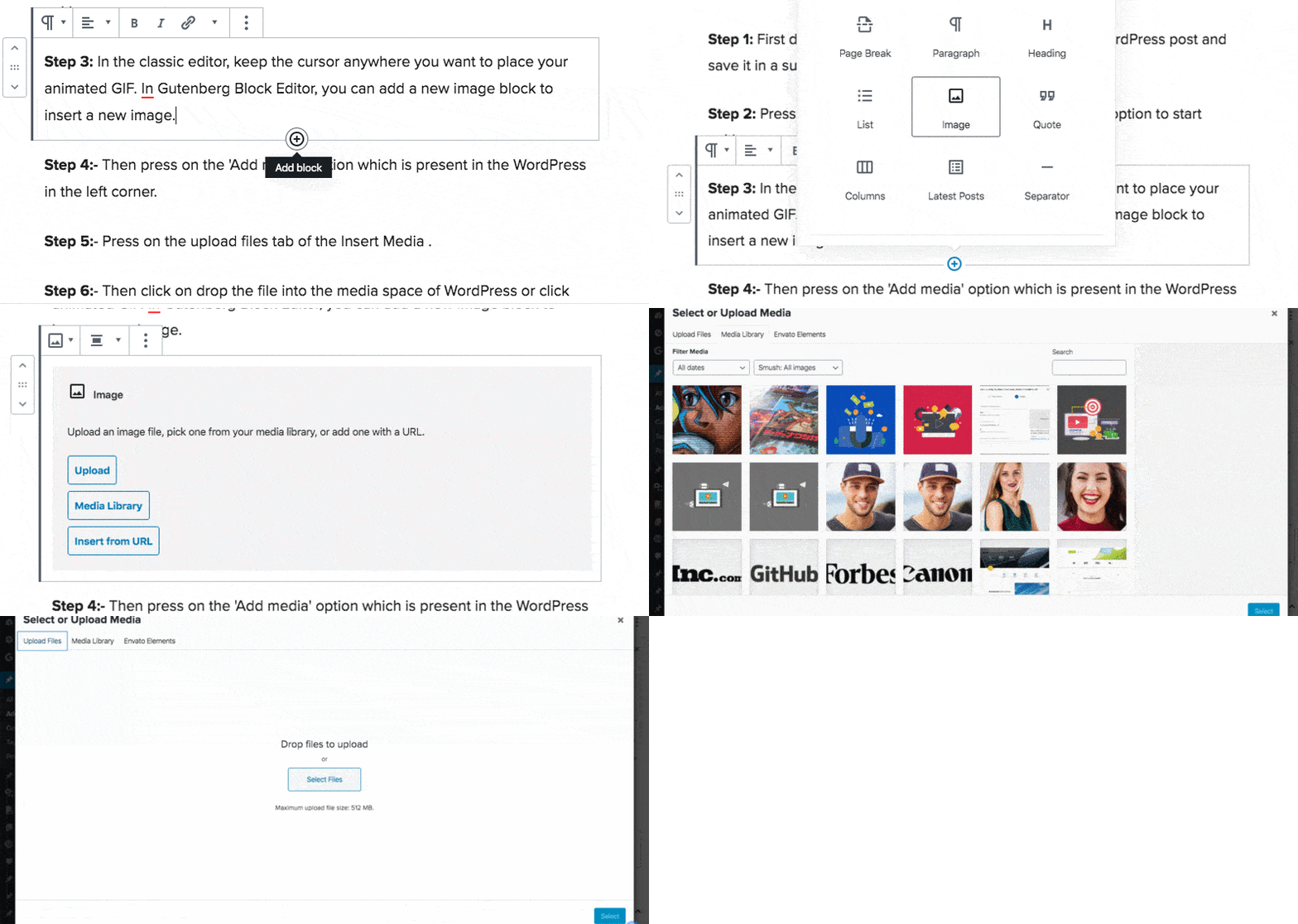
That’s genuinely all there is to the happy path. No plugin required, no settings page, nothing to configure. The rest of this article exists because the unhappy paths are common, and they all have the same three causes.
Why Your GIF Is Not Animating (3 Causes, 3 Fixes)
A frozen GIF in WordPress is almost always one of these:
1. WordPress served a resized thumbnail. When WordPress generates smaller sizes of an upload (medium, large, scaled), it keeps only the first frame. Any size except “Full Size” is a static image. The fix is the resolution dropdown from step four above. If your GIF is wider than 2560 pixels, WordPress also creates a “-scaled” version and serves that instead, so keep GIFs under 2560 pixels wide.
2. An optimization plugin stripped the frames. Image optimizers can compress a GIF into a single-frame shadow of itself. If you run one, exclude GIFs from compression (every major optimizer has this toggle in its settings) or skip optimizing the uploads folder where your GIFs live.
3. Your CDN or lazy-load swapped the format. Some CDNs auto-convert images to WebP, and older lazy-load scripts replace images with placeholders. Both can freeze GIFs. Test with the CDN bypassed; if the GIF animates, add an exclusion rule for .gif files.
GIF vs HTML5 Video: When Not to Use a GIF at All
Here’s the part most GIF tutorials won’t tell you: for anything longer than about three seconds, you shouldn’t be using a GIF. The same clip exported as an MP4 is typically a tenth of the file size at better quality.
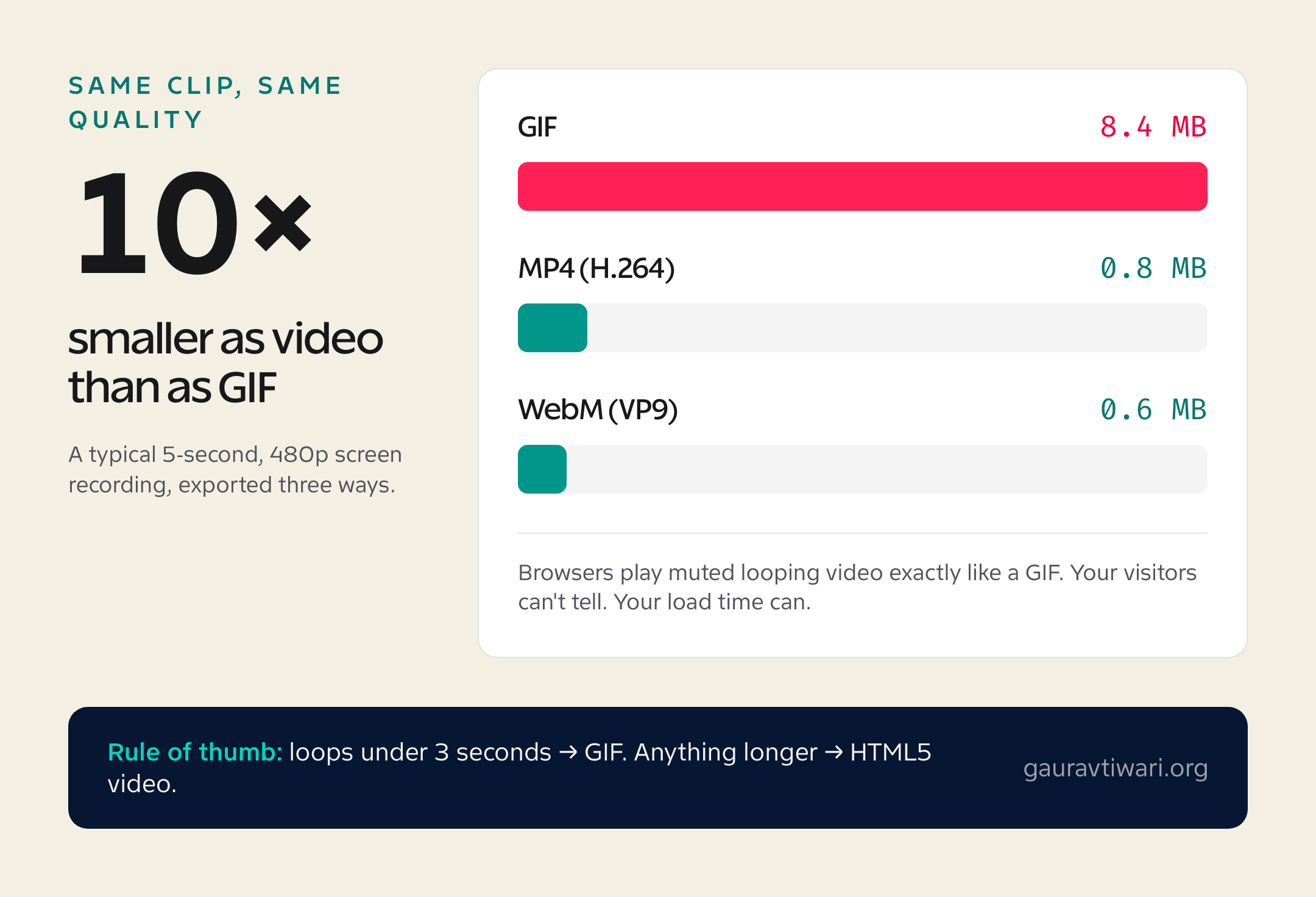
The trick is that a muted, looping HTML5 video looks identical to a GIF on the page. Add a Video block, upload your MP4, then enable Autoplay, Loop, and Muted in the block settings. Browsers allow autoplay for muted video, so your “GIF” plays exactly as before… at a tenth of the bandwidth. Convert any GIF to MP4 free at ezgif.com, or with one ffmpeg command if you’re comfortable in a terminal.
My working rule: reaction GIFs and loops under 3 seconds stay GIFs. Screen recordings, tutorials, and product demos become muted autoplay video. Your Core Web Vitals will thank you.
Keeping Animated GIFs from Slowing Your Site
GIF is a 1989 format storing every frame as a full image, which is why file sizes balloon so fast. If the GIF stays, put it on a diet:
- Budget 2 MB per GIF, hard ceiling. Past that, convert to video or trim the clip.
- Optimize before uploading. ezgif.com’s optimizer (lossy GIF mode) routinely cuts 40 to 60 percent off; gifski produces the best-quality small GIFs if you’re on a Mac.
- Reduce three things: dimensions (480 to 600 pixels wide is plenty inside a post), frame rate (10 to 15 fps reads fine), and duration (loop 3 seconds, not 12).
- Never use a GIF as the first thing on the page. A heavy animated file as your opening visual drags your Largest Contentful Paint; that’s one of the seven problems I covered in why WordPress sites load slowly.
- Let lazy loading work. WordPress lazy-loads images below the fold by default; GIFs benefit the most, since the browser skips downloading them until needed.
Embedding GIFs from Giphy or Tenor (and Why I Upload Instead)
You can embed from the big GIF libraries: Giphy pages embed via a paste-the-link approach or their embed code in a Custom HTML block, and Jetpack adds a dedicated GIF block that searches Giphy from inside the editor. It works, and for a casual blog it’s fine.
I still upload to my own Media Library instead, for three reasons. Embeds load third-party JavaScript on your page, which costs more performance than the GIF itself. Embedded GIFs vanish if the source gets deleted, leaving a broken box in a years-old post. And your media stays under your control for backups and CDN delivery. The thirty seconds you save embedding isn’t worth inheriting someone else’s uptime.
Making Your Own GIFs (the Useful Kind)
Reaction GIFs are fun, but the GIFs that actually earn their place in a post are the ones you make: a 4-second clip showing exactly which button to click beats three paragraphs of “navigate to Settings, then…”
For screen recordings, ScreenToGif on Windows and Gifox or Kap on Mac are the quickest paths from capture to optimized GIF. Record at the smallest window size that’s still readable, keep it under five seconds, and export at 10 to 15 fps. I’ve rounded up the full toolkit, including free online options, in my guide to the best free GIF makers.
The takeaway is simpler than the 740 words above it: upload, insert, full size. Then apply taste. A GIF that teaches something earns its bandwidth; a GIF that’s just decoration is a slow page with a sense of humor.
Frequently Asked Questions
How do you add an animated GIF to WordPress?
Upload the GIF through the Media Library (it’s just an image file in WordPress), then insert it into your post via the Image block. WordPress preserves the animation as long as you don’t resize or compress through certain image-optimization plugins that break GIF animation.
Why is my GIF not animating in WordPress?
The most common cause is image optimization plugins (Smush, ShortPixel, EWWW) compressing the GIF and stripping animation frames. Disable optimization for GIF files specifically, or upload via FTP. The other cause is WordPress’s automatic image resizing — large GIFs get resized into static thumbnails.
What’s the best GIF size for WordPress?
Keep GIFs under 2 MB for fast loading. Anything over 5 MB hurts Core Web Vitals badly — large GIFs are typically the worst offender for Cumulative Layout Shift and Largest Contentful Paint. Use a dedicated GIF optimizer (ezgif.com, gifski) before uploading.
Can I convert MP4 video to GIF for WordPress?
Yes. Tools like ezgif.com, CloudConvert, and ffmpeg convert MP4 to GIF in the browser. For best results, keep the source video under 10 seconds and 480p — longer or higher-resolution videos produce GIFs that are too large for web use. Consider using HTML5 video tag instead for longer clips.
Should I use GIF or HTML5 video in WordPress?
HTML5 video (MP4 or WebM) is 5-10x smaller than equivalent GIF for the same animation, with better quality and broader browser support. For animations longer than 3 seconds, always use HTML5 video. GIFs make sense only for very short loops (under 3 seconds) or memes.
How do I find good GIFs for my WordPress posts?
Giphy is the largest GIF library with API integration for WordPress. Tenor (owned by Google) offers high-quality animated GIFs. For royalty-free use, Giphy Studios, Imgur, and Reddit’s r/HighQualityGifs have the best curation. Always check GIF licensing — some are user-uploaded and copyright-protected.
What’s the best WordPress plugin for GIFs?
WP-GIF (free, basic GIF block), GIPHY for WordPress (Giphy library integration), and Lottie Files Animations (for vector-based animations that beat GIF in quality and size). For most users, no plugin is needed — WordPress’s built-in Image block handles GIF uploads.
How do I create my own animated GIFs?
Use Photoshop’s Timeline feature, Photopea (free Photoshop alternative), or dedicated tools like Gifox (Mac), ScreenToGif (Windows), or GIPHY Capture. Keep frame rates at 10-15 fps and limit duration to 3-5 seconds for web use. For tutorials and software demos, ScreenToGif is the most efficient option.
Tell Google you want more of this.
Add Gaurav Tiwari as a preferred sourceOne tap, and this site shows up more often in your own Top Stories, AI Overviews and AI Mode. Remove it any time.