7 Reasons Why Your WordPress Website is Slow (And How to Make it Faster)
Diagnose a slow WordPress website with Core Web Vitals, TTFB, autoloaded options, PHP checks, and seven fixes ordered by impact. Includes real field results.
 by
by
Your WordPress website is slow. You’ve seen it yourself: the long pause before anything paints, the hero image that pops in late, the dashboard that makes you wait between clicks. And you’ve probably read the generic advice too. “Install a caching plugin.” Great. Which one? Why? Based on what evidence?
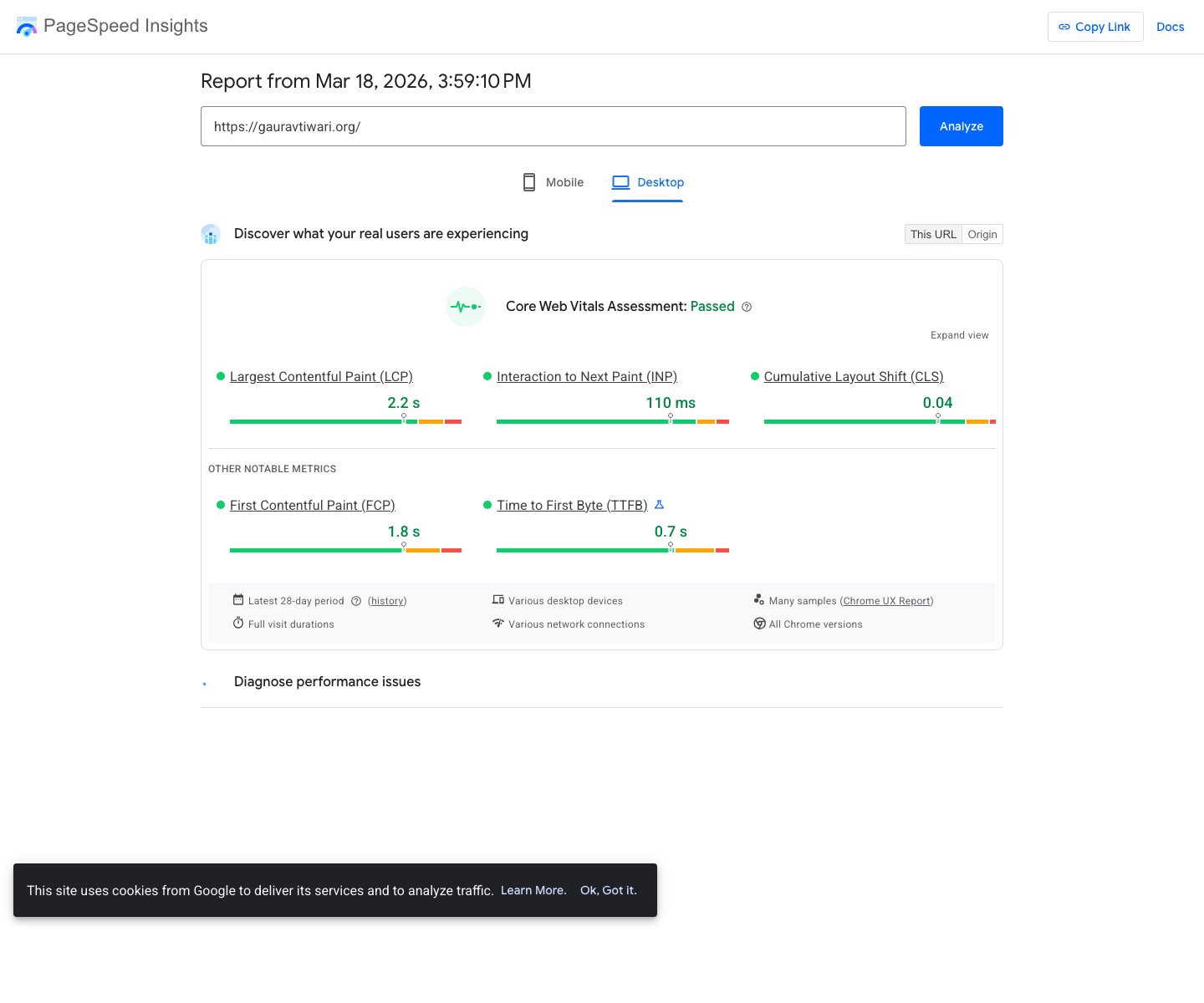
Here’s what speed-auditing hundreds of WordPress sites has taught me: when a WordPress website is slow, it almost always traces back to one of seven causes. Not seventy. Seven. My own site passes Google’s Core Web Vitals with a 2.2-second LCP and a 110-millisecond INP, and it runs on exactly the fixes below.
So let’s do this the way I’d do it in a paid audit: diagnose first, then work through the seven culprits in the order that actually moves your WordPress page speed. The Core Web Vitals thresholds remain the field-data target. WordPress 7.0.2 is the current security release as of July 2026, but updating Core alone will not fix slow hosting, uncached HTML, database bloat, or third-party JavaScript.
Proof this works: On a client store stuck on oversold shared hosting, the homepage answered in roughly 1.9s TTFB and failed Core Web Vitals. After two fixes, a move to a LiteSpeed/NVMe host and a properly configured cache, TTFB dropped to about 280ms and LCP went from 4.1s to 1.8s, no redesign and no new content. My own site holds a 2.2s LCP, a 110ms INP, and a 0.04 CLS on the same WordPress people call slow.
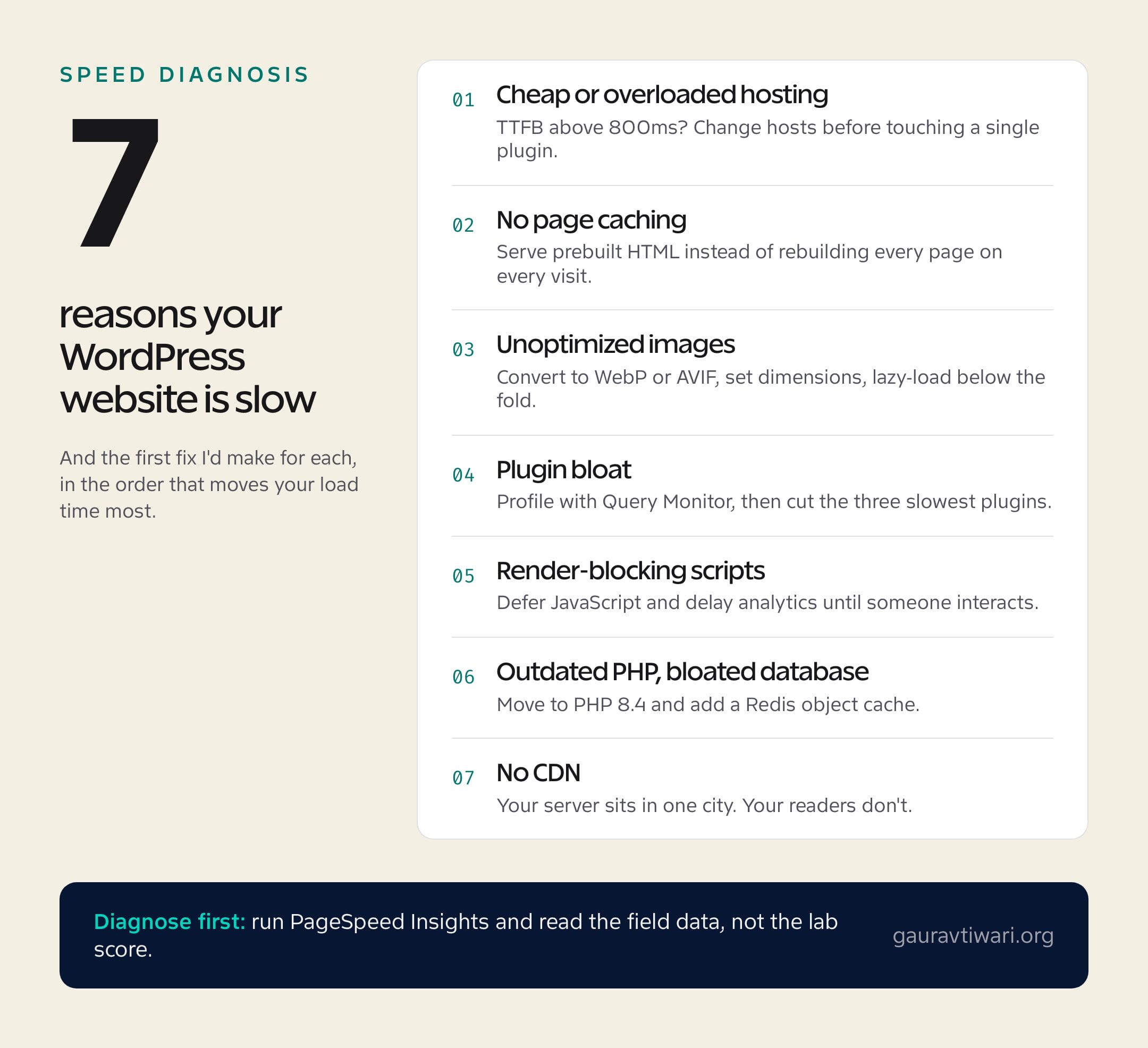
How to Diagnose a Slow WordPress Website (Do This First)
Run your homepage through PageSpeed Insights and read the field data at the top, not the lab score at the bottom. Field data comes from real Chrome users over the last 28 days. That’s what Google ranks you on, and it’s what your visitors actually feel. The lab score is a simulation, and chasing a 100/100 lab score is how people waste weekends.
Three numbers decide whether you pass Core Web Vitals:
- LCP (Largest Contentful Paint) under 2.5 seconds. How fast your main content shows up.
- INP (Interaction to Next Paint) under 200 milliseconds. How fast the page reacts when someone taps or clicks. INP replaced FID in March 2024, and it’s much harder to fake.
- CLS (Cumulative Layout Shift) under 0.1. How much your layout jumps around while loading.
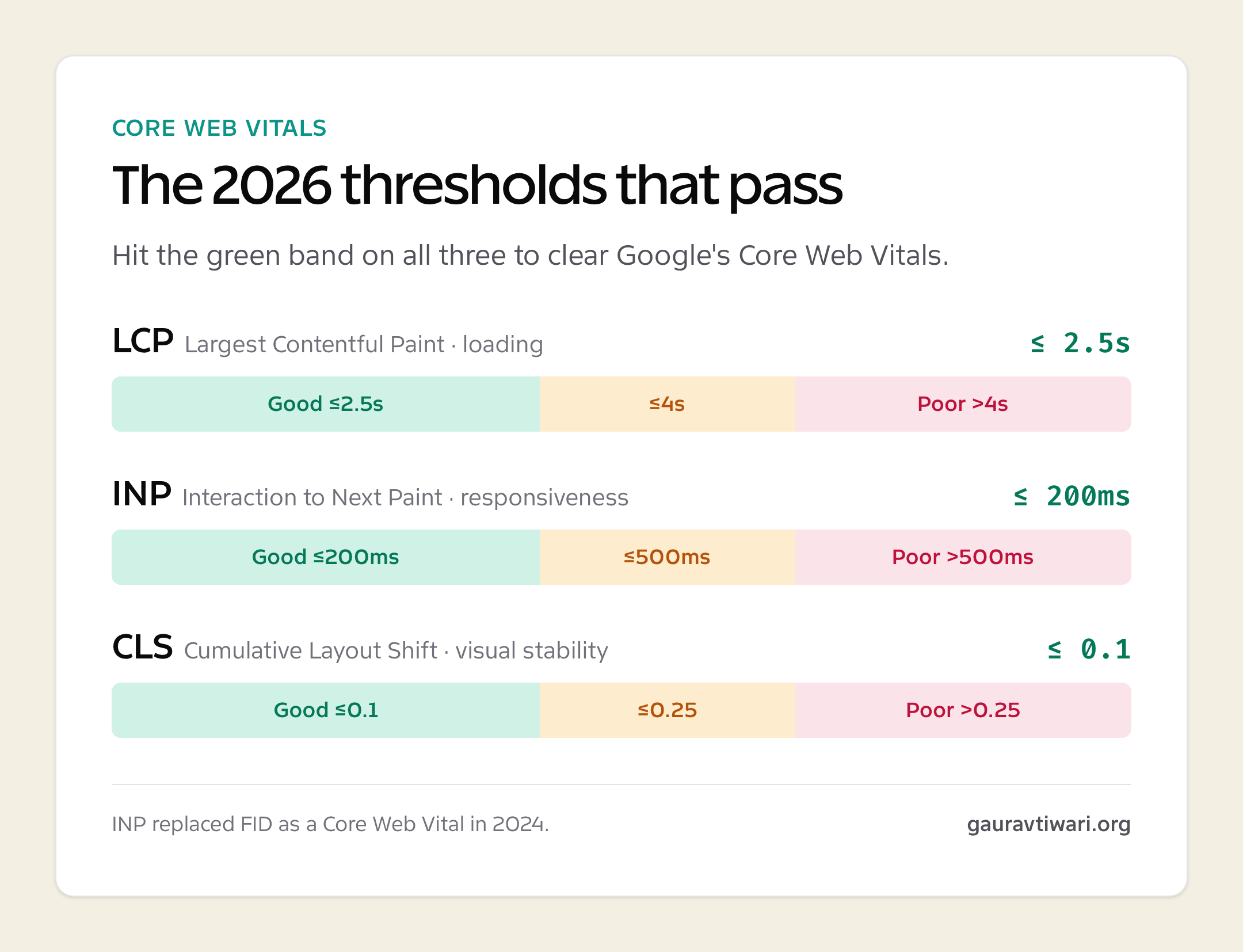
Google evaluates the three Core Web Vitals at the 75th percentile of page loads, separately for mobile and desktop. One fast test does not erase slow field data. Use the metric that fails to choose the first investigation.
| Metric | Good threshold | What a failure usually means | First check |
|---|---|---|---|
| LCP | 2.5 seconds or less | Slow server, late hero image, or render blocking | TTFB and the LCP request waterfall |
| INP | 200 ms or less | Long JavaScript tasks or busy main thread | Third-party and plugin scripts |
| CLS | 0.1 or less | Missing dimensions, late fonts, or injected UI | Images, ads, banners, and font loading |
| TTFB | 800 ms or less | Origin, database, PHP, or cache problem | Uncached HTML response |
| Autoloaded options | Keep under about 800 KB | Plugin settings load on every request | Site Health and largest wp_options rows |
One more number worth checking while you’re there: TTFB, or time to first byte. Google considers anything under 800 milliseconds acceptable. If your TTFB is above that, your problem starts at the server, and no front-end trick will paper over it. Keep that number in mind, because the first two culprits below live entirely on the server side.
I’ve written a step-by-step guide to passing Core Web Vitals if you want the deep version. For now, let’s find your bottleneck.
1. Your Hosting Is the Real Bottleneck
Here’s the uncomfortable diagnosis most speed checklists skip: sometimes your WordPress website is slow and WordPress isn’t the problem at all, your host is. If your TTFB sits above 800 milliseconds, change your hosting before you touch a single plugin. TTFB is the floor under every other metric. Your LCP can never be faster than the time your server takes to send the first byte of HTML, so no caching plugin, image trick, or PHP upgrade will rescue a slow server.
Cheap shared hosting is slow for a boring reason: overselling. Hundreds of sites share one machine, and your PHP processes queue behind everyone else’s. The hardware is often older, the PHP workers are capped low, and there’s no server-level caching. You’re not paying $3 a month for hosting. You’re paying $3 a month for a waiting line.
Every time I’ve migrated a site off an oversold shared plan onto a LiteSpeed server with NVMe storage, TTFB dropped by half or more before I changed anything else. This site runs on a LiteSpeed server with Redis object caching, and that combination is doing more work than any plugin on it.
What to look for in 2026: LiteSpeed or NGINX, NVMe storage, PHP 8.3 or newer, server-level caching, and a data center near your audience. Hostinger ticks all of those boxes on a budget, and I keep a tested shortlist in my WordPress hosting roundup if you want options at every price point.
2. No Page Caching (or a Caching Plugin Left on Defaults)
Page caching is the single biggest software-side speed win in WordPress. Without it, every visit forces WordPress to boot PHP, run dozens of database queries, assemble the page, and ship it. With it, your server hands over a prebuilt HTML file. Same page, a fraction of the work.
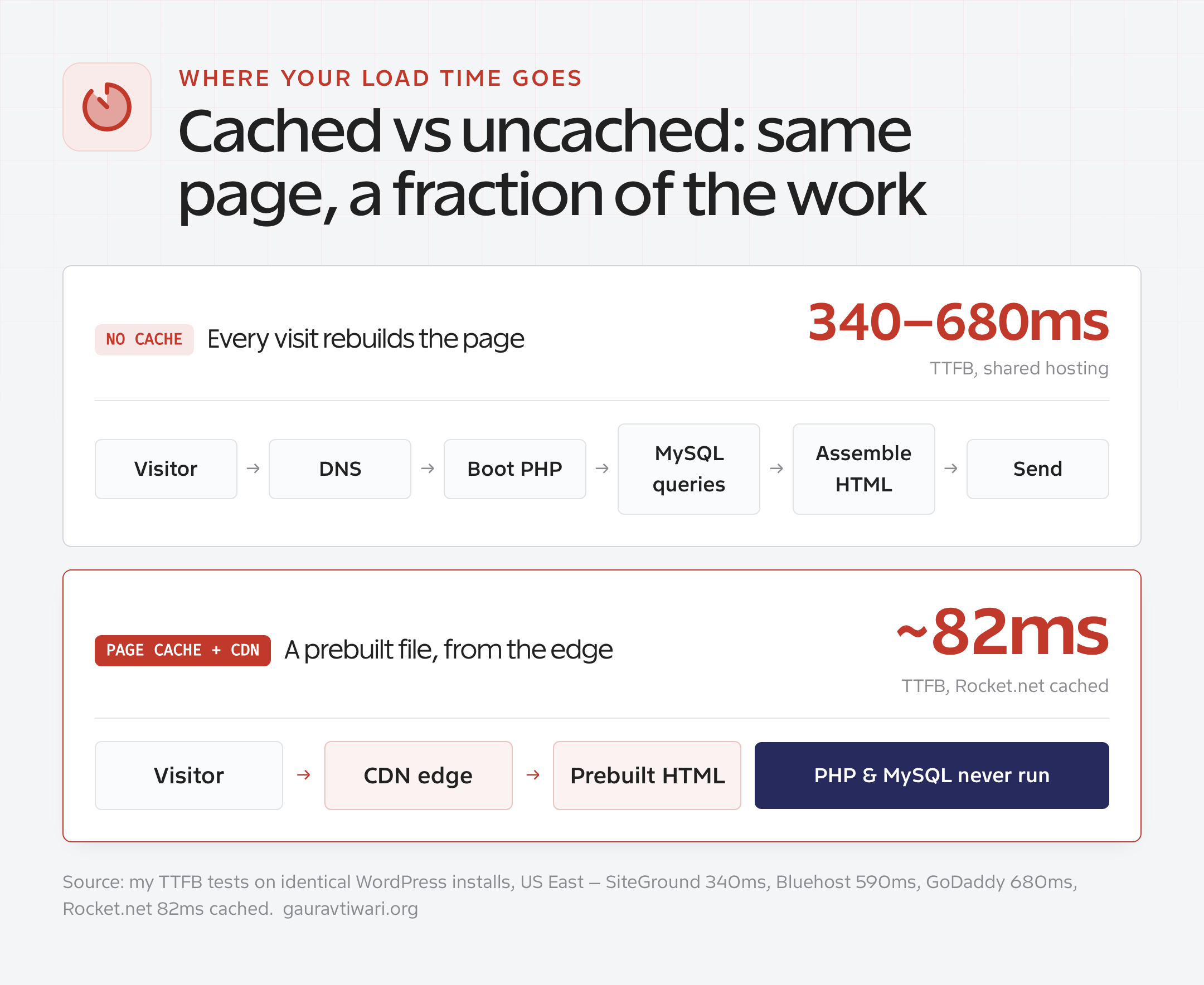
The catch? Most sites I audit either have no page cache at all, or they have a caching plugin installed and left on factory defaults, doing maybe a third of what it could.
My pick is FlyingPress at $59 a year. It handles page caching plus the harder stuff: critical CSS, lazy rendering, and delaying scripts until interaction. WP Rocket lands at the same $59 a year and is the easier install-and-forget option. Since the price gap closed, the choice comes down to results, and I compared both with real numbers in my FlyingPress vs WP Rocket test, where FlyingPress won on every metric that matters to me. On a LiteSpeed server, the free LiteSpeed Cache plugin is also excellent… if you’re willing to learn its forty-odd settings.
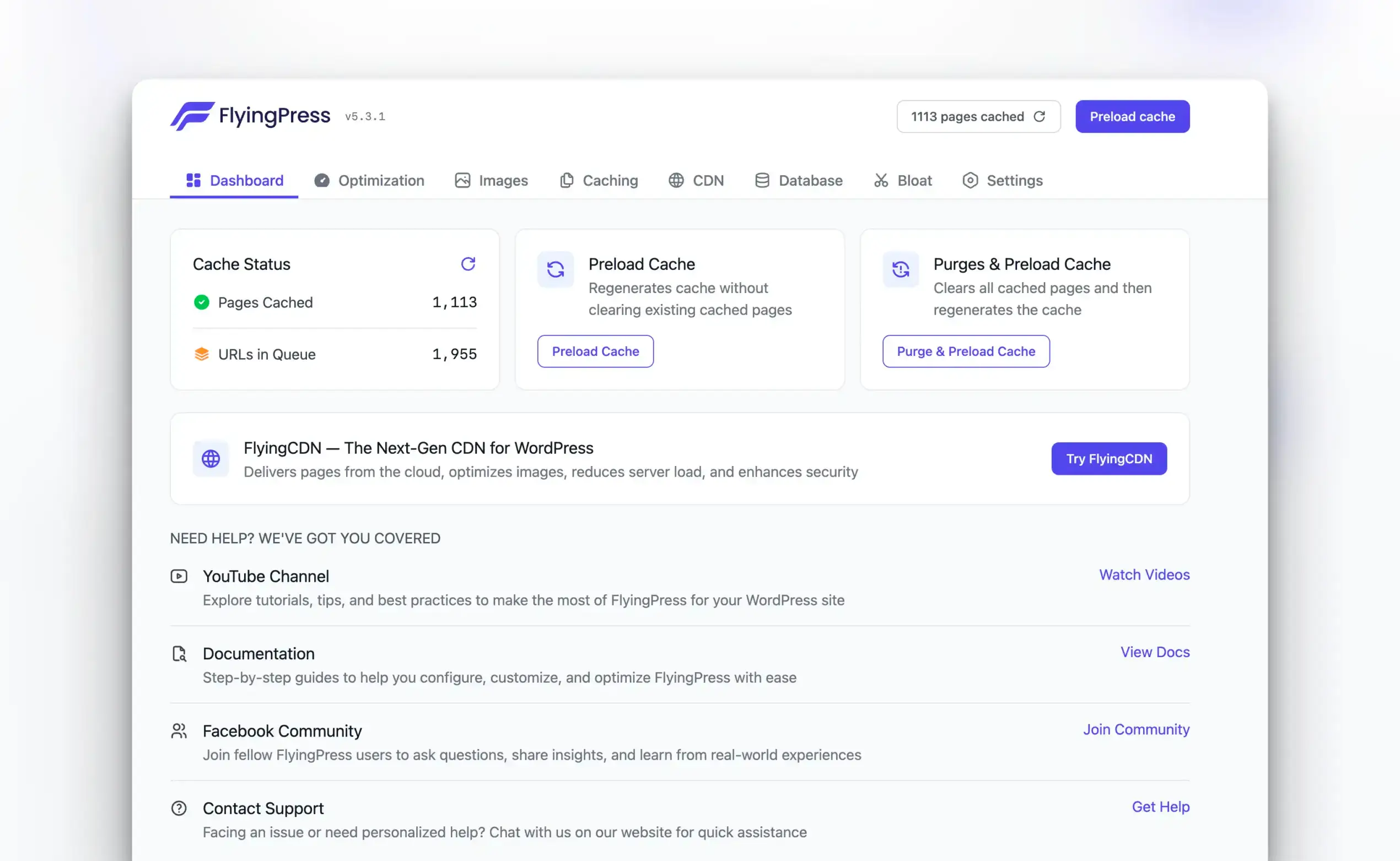
Whichever you choose, configure it. Enable page caching, cache preloading, and browser caching at minimum. A caching plugin on defaults is a seatbelt left unbuckled.
If you run the server yourself, set compression and cache headers at that layer too, so they apply before any plugin loads. On Apache or LiteSpeed, that lives in .htaccess:
# Compression (Apache / LiteSpeed)
<IfModule mod_deflate.c>
  AddOutputFilterByType DEFLATE text/html text/css application/javascript application/json image/svg+xml
</IfModule>

# Browser cache headers
<IfModule mod_expires.c>
  ExpiresActive On
  ExpiresByType text/css              "access plus 1 year"
  ExpiresByType application/javascript "access plus 1 year"
  ExpiresByType image/webp            "access plus 1 year"
  ExpiresByType image/avif            "access plus 1 year"
</IfModule>
On Nginx, the same belongs in your server block:
gzip on;
gzip_types text/css application/javascript application/json image/svg+xml;

location ~* \.(css|js|webp|avif|woff2)$ {
    expires 1y;
    add_header Cache-Control "public, immutable";
}
3. Unoptimized Images Are Eating Your LCP
On most sites I audit, images are half the page weight or more. A single 2 MB hero image can blow your LCP budget on its own, especially on mobile connections.
The fix has three parts, and you need all three:
- Convert to modern formats. WebP cuts file size by 25 to 35 percent against JPEG at the same quality, and AVIF goes further still. WordPress has supported AVIF natively since version 6.5, so there’s no excuse left. ShortPixel converts your whole media library in bulk and handles new uploads automatically.
- Lazy-load below the fold only. WordPress lazy-loads natively, but it sometimes catches your hero image too. Never lazy-load the LCP image. FlyingPress excludes it automatically; elsewhere, exclude the first image manually.
- Set width and height on every image. Missing dimensions are the most common cause of layout shift. The browser needs to reserve the space before the image arrives, or your CLS pays for it.
If you want the full routine, I walk through the exact settings I use to compress images for WordPress without visible quality loss.
4. Too Many Plugins (It’s Not the Count, It’s the Weight)
Plugin count matters less than plugin weight. Twenty lean, single-purpose plugins will outrun five heavy ones every time. A related-posts plugin that runs expensive queries on every page load hurts more than a dozen utilities that only load in wp-admin.
Find your heavy ones instead of guessing. Install the free Query Monitor plugin, load a few pages, and look at queries by component. The plugin sucking up 400 milliseconds per page load will be sitting right at the top, looking guilty.
Then there’s the page builder question. Elementor and friends output deeply nested DIVs and load JavaScript whether you need it or not. That’s weight on every single page. I’ve watched Core Web Vitals jump from failing to passing on a migration from Elementor to a lean block setup, with no other changes. If a rebuild isn’t realistic right now, Perfmatters at $29.95 a year lets you switch off scripts page by page. Its script manager alone earns the price, and my Perfmatters review shows exactly which toggles I run.
5. Render-Blocking JavaScript and Third-Party Scripts
Scripts you didn’t write are usually your worst INP offenders. Analytics, ad pixels, chat widgets, heatmaps, A/B testing snippets: each one is code the browser must fetch and execute, often before it paints your content. I’ve audited sites running Google Analytics, a Meta pixel, two heatmap tools, and a chat bubble nobody had opened in a year. That’s not tracking. That’s hoarding.
Three moves fix most of it:
- Defer your JavaScript so HTML and CSS render first. Every modern caching plugin has this toggle.
- Delay third-party scripts until interaction. Analytics and pixels load after the first scroll or tap instead of blocking the first paint. FlyingPress and Perfmatters both do this well.
- Host your fonts locally. A Google Fonts request is an extra DNS lookup and connection to another domain before text settles. Self-hosted WOFF2 files remove the round trip entirely.
And once a quarter, walk your script list and delete what you stopped using. The fastest script is the one that never loads.
6. Outdated PHP and a Bloated Database
WordPress.org recommends PHP 8.3 or newer for performance and security. WordPress 7.0 raised the minimum supported version to PHP 7.4, but PHP 7.4 is end-of-life and survives only for backward compatibility. PHP 8.4 and 8.5 are viable on current WordPress when the theme, plugins, extensions, and host stack have been tested together. Run the change on staging first.
Check yours under Tools → Site Health → Info → Server. Most hosts let you switch PHP versions from the control panel in about thirty seconds. One honest caution: if you run older or abandoned plugins, test the switch on staging first. A maintained plugin stack upgrades without drama; an abandoned one is a coin flip.
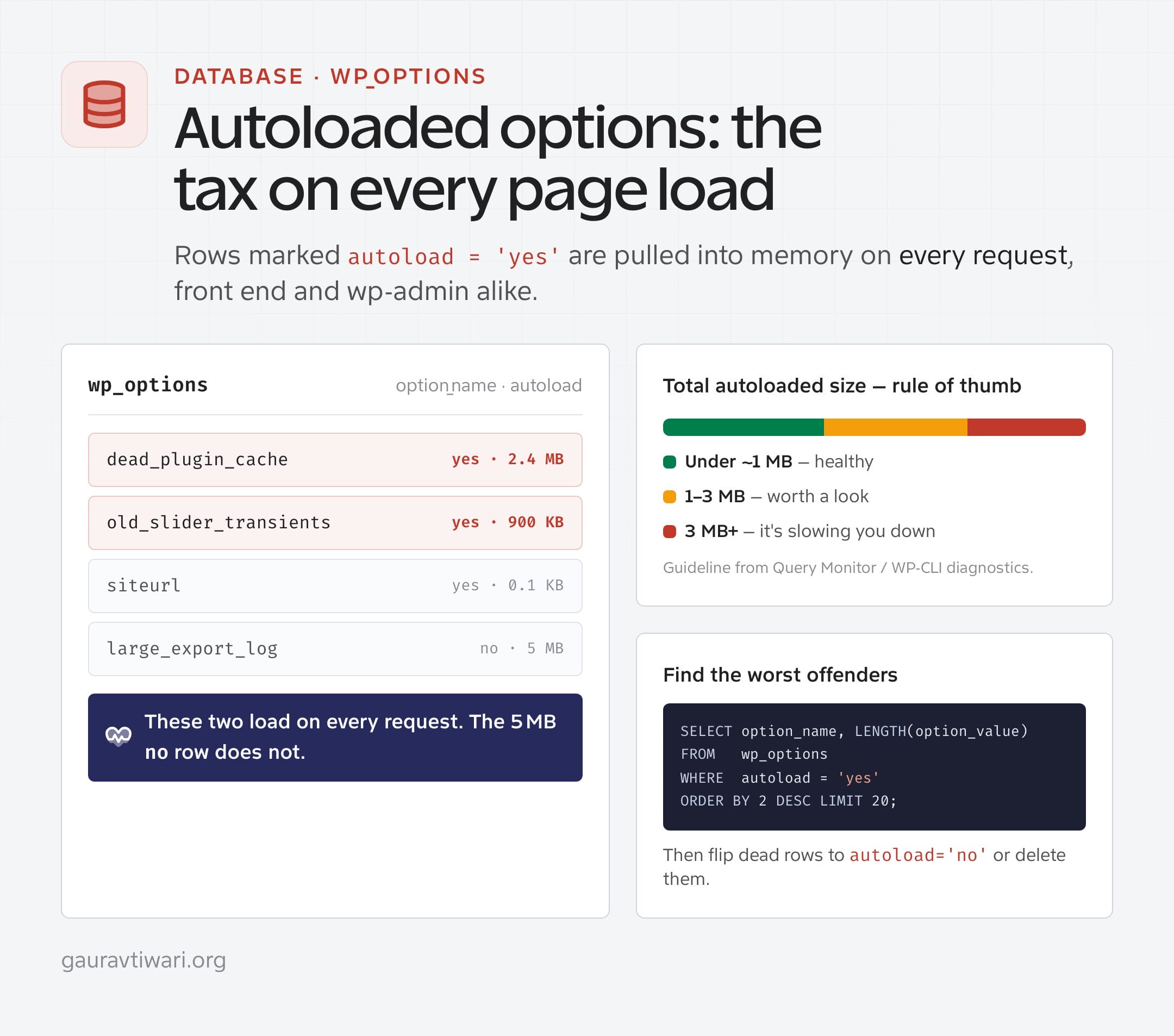
The database deserves the same attention. Years of post revisions, expired transients, and orphaned tables add up. WordPress Site Health uses about 800 KB as the recommended ceiling for autoloaded options, because WordPress reads that data on every request. I have found sites carrying several megabytes from plugins removed years earlier. Clean only confirmed waste, then add a persistent object cache such as Redis so repeated queries can be answered from memory. Before any cleanup, back up your MySQL database first.
Here’s the developer version. First, stop the database from bloating in the first place. Add these to wp-config.php, just above the /* That's all, stop editing! */ line:
<?php
// Cap revisions so the database stops growing without limit
define( 'WP_POST_REVISIONS', 5 );

// Autosave every 3 minutes instead of every 60 seconds
define( 'AUTOSAVE_INTERVAL', 180 );

// Empty trash weekly
define( 'EMPTY_TRASH_DAYS', 7 );
Then clean what’s already there. WP-CLI does it without installing a plugin, and it’s safe to rehearse on staging first:
# Delete expired transients and every stored revision
wp transient delete --expired
wp post delete $(wp post list --post_type=revision --format=ids) --force

# Reclaim space across all tables
wp db optimize
The quiet backend killer is autoloaded data. Find the worst offenders before you touch anything:
SELECT option_name, LENGTH(option_value) AS bytes
FROM   wp_options
WHERE  autoload = 'yes'
ORDER  BY bytes DESC
LIMIT  20;
Rows weighing megabytes from plugins you removed years ago are pure dead weight. Once you’ve confirmed nothing needs them, flip them to autoload = 'no' or delete them, and a sluggish wp-admin often wakes up on the spot.
7. No CDN Between You and Your Readers
Your server sits in one city. Your readers don’t. Every visitor far from your data center pays a distance tax on every file, and past a few thousand kilometers that tax gets visible. A CDN stores copies of your static files in cities around the world and serves each visitor from the nearest one.
Start with Cloudflare’s free plan: global edge network, automatic compression, and decent protection for exactly $0. If your audience is genuinely international, Cloudflare’s APO for WordPress at $5 a month caches full HTML pages at the edge, not just images and CSS. That’s the setup this site runs. For an even simpler option tuned for WordPress, FlyingCDN pairs naturally with FlyingPress. I’ve compared the field in my WordPress CDN roundup.
A CDN is a multiplier, not a cure. It makes a fast site fast everywhere. It will not rescue a 2-second TTFB or a 4 MB page. Fix culprits 1 through 6 first, then add the CDN.
Slow wp-admin? Fix the WordPress Backend the Developer Way
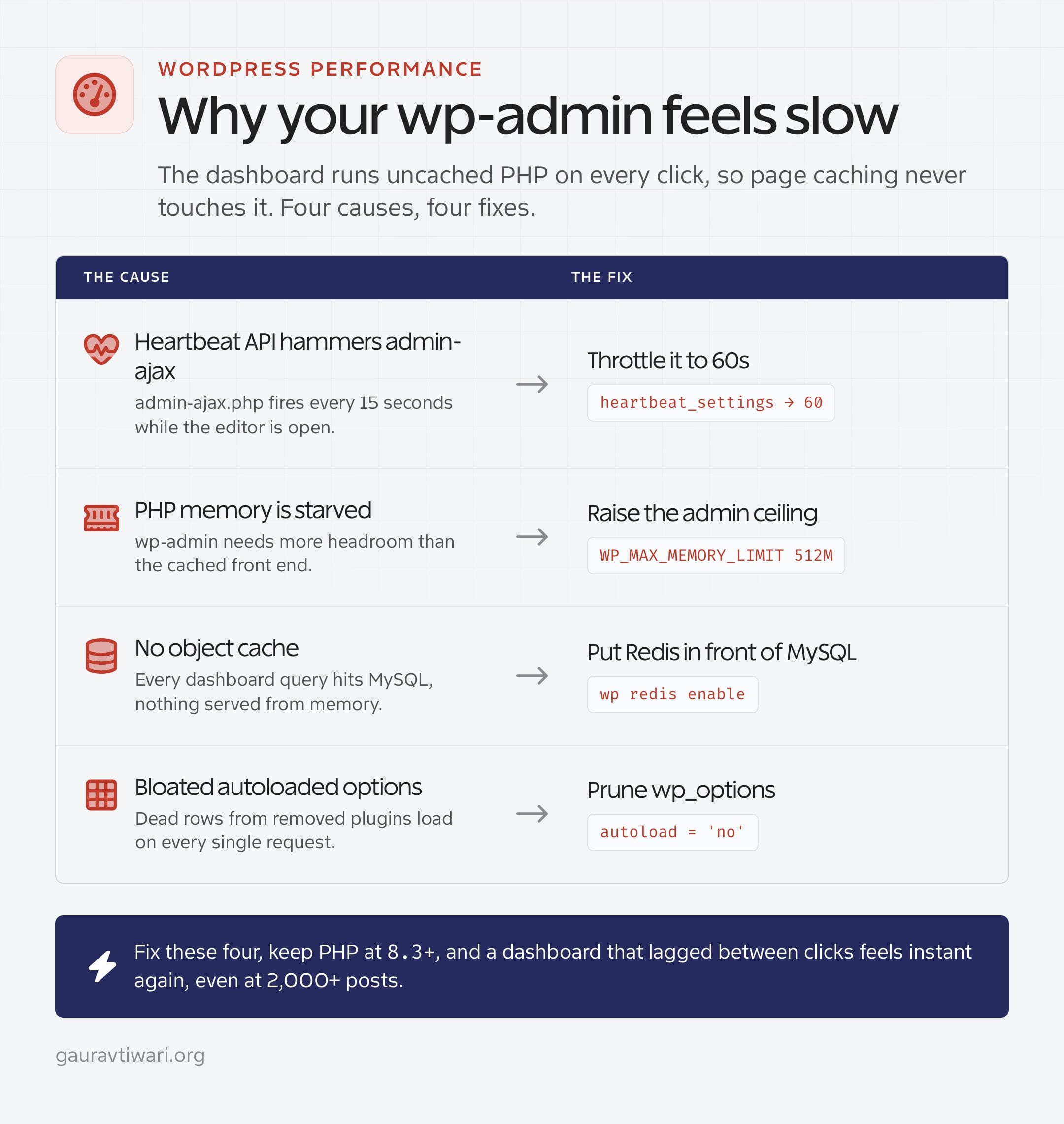
A slow wp-admin is a different problem from a slow front end, and page caching never touches it. The dashboard, the block editor, and every admin-ajax.php call run uncached PHP against the database on each click. When the WordPress backend crawls, the usual suspects are the Heartbeat API hammering admin-ajax, a starved memory limit, no object cache, and the bloated autoloaded options from the section above. Here’s how I fix each one.
Throttle the Heartbeat API
The Heartbeat API fires admin-ajax.php requests every 15 seconds while the editor is open, which pins CPU on shared hosting and makes wp-admin feel slow. Throttle it with a must-use plugin at wp-content/mu-plugins/heartbeat-throttle.php so it loads before everything else:
<?php
// wp-content/mu-plugins/heartbeat-throttle.php
add_filter( 'heartbeat_settings', function ( $settings ) {
    $settings['interval'] = 60; // seconds, up from the default 15
    return $settings;
} );

// Drop Heartbeat on admin pages that don't need live updates
add_action( 'admin_enqueue_scripts', function () {
    global $pagenow;
    if ( in_array( $pagenow, array( 'plugins.php', 'index.php' ), true ) ) {
        wp_deregister_script( 'heartbeat' );
    }
} );
Give the admin memory and an object cache
wp-admin runs uncached, so it leans on PHP memory and the database more than the front end does. Raise the admin memory ceiling and put a Redis object cache in front of MySQL so repeated queries answer from RAM. In wp-config.php:
<?php
// Front end gets 256M, wp-admin gets 512M
define( 'WP_MEMORY_LIMIT', '256M' );
define( 'WP_MAX_MEMORY_LIMIT', '512M' );

// Point WordPress at your Redis instance
define( 'WP_REDIS_HOST', '127.0.0.1' );
define( 'WP_REDIS_PORT', 6379 );
Then enable the drop-in with the Redis Object Cache plugin, or straight from WP-CLI:
wp plugin install redis-cache --activate
wp redis enable
wp redis status
Trim the dashboard itself
Finally, stop plugins from loading their widgets and pollers on every dashboard view. Drop this in the same must-use plugin or your theme’s functions.php:
<?php
// Remove heavy default dashboard widgets
add_action( 'wp_dashboard_setup', function () {
    remove_meta_box( 'dashboard_primary', 'dashboard', 'side' );    // WP news
    remove_meta_box( 'dashboard_activity', 'dashboard', 'normal' );
}, 99 );

// Only load a plugin's admin assets on the screen that uses them
add_action( 'admin_enqueue_scripts', function ( $hook ) {
    if ( 'toplevel_page_my-plugin' !== $hook ) {
        wp_dequeue_style( 'my-plugin-admin' );
        wp_dequeue_script( 'my-plugin-admin' );
    }
} );
Combine those three, keep PHP at 8.3 or newer, and a dashboard that lagged between clicks feels instant again, even on a site with thousands of posts. If the front end is only slow while you’re logged in, it’s almost always the missing object cache, not the theme.
WordPress 6.9 also changed the frontend baseline before 7.0 arrived. Core’s performance benchmarks found an average 26% reduction in CSS on a block-heavy test page across bundled classic themes, while the inline style limit increased from 20 KB to 40 KB. On the tested Fast 4G setup, the higher limit improved uncached LCP minus TTFB by about 206 ms, while adding about 30 ms to cached visits. That is a useful reminder: even Core performance work is a measured tradeoff, not a universal shortcut.
Three Fixes That Sound Smart but Barely Matter
Not everything in the average “speed up WordPress” checklist deserves your afternoon. Some of it made sense a decade ago and survives on copy-paste. Three examples I keep seeing in audits:
Combining CSS and JS files. This was real advice in the HTTP/1.1 era, when browsers opened a handful of connections and every file queued. Modern servers speak HTTP/2 or HTTP/3, which multiplex dozens of files over one connection. Combining everything into a giant bundle can actually hurt now, because one changed line invalidates the whole cached bundle. Minify, yes. Combine? Test it, and don’t be surprised when it does nothing.
Chasing a 100/100 lab score. The lab score is a simulated run on throttled hardware. I’ve seen sites score 85 in the lab and pass every field metric with room to spare, and sites score 99 while real users sat through 4-second LCPs because the test server was next door to the lab. Google ranks you on field data. Optimize for the readers you have, not the robot.
Micro-tweaks while TTFB burns. Removing query strings, disabling emojis, trimming the heartbeat API… these shave milliseconds. If your server takes 1.5 seconds to respond, you’re rearranging deck chairs. Weigh every optimization against the size of your actual bottleneck, which is exactly what the symptom table below is for.
Slow WordPress Website: Match Your Symptom to the Fix
If you only remember one thing from this article, make it this table. Diagnose by symptom, fix in order, retest after each change so you know what actually worked.
And if you’d rather just start, here’s my first hour on any slow WordPress website:
- Run PageSpeed Insights, screenshot the field data. That’s your baseline.
- Check TTFB. Above 800ms? The hosting conversation starts now, not later.
- Install a caching plugin and actually configure it. Fifteen minutes, biggest single win.
- Bulk-convert images to WebP and confirm the hero image isn’t lazy-loaded.
- Switch PHP to 8.4 from your hosting panel. Thirty seconds, free speed.
- Retest, compare against the baseline, and only then decide what deserves hour two.
| Symptom | Likely culprit | Fix first |
|---|---|---|
| TTFB above 800ms | Hosting | Move to a LiteSpeed/NVMe host |
| Every page loads slowly, every time | No page caching | FlyingPress or LiteSpeed Cache, configured |
| Hero image appears late (bad LCP) | Unoptimized images | WebP/AVIF, preload hero, lazy-load the rest |
| Page lags when tapped (bad INP) | Third-party scripts | Defer JS, delay analytics until interaction |
| Layout jumps while loading (bad CLS) | Missing image dimensions | Set width/height, reserve ad slots |
| wp-admin crawls even with caching | PHP/database | PHP 8.4, Redis object cache, prune autoload |
| Fast nearby, slow for distant visitors | No CDN | Cloudflare free plan, then APO |
| Site is slow but your own internet is fast | Server TTFB or render-blocking assets | Test TTFB, add caching, then a CDN |
| 503 Service Unavailable under traffic | PHP workers or memory exhausted | Raise PHP workers/memory, find the runaway plugin |
| Elementor or Divi pages load slowly | Builder CSS/JS bloat | Enable the builder’s optimized asset loading, delay JS |
| WooCommerce cart and checkout drag | Uncached dynamic pages | Redis object cache, disable cart fragments off-cart |
Here’s what done looks like. This is my site’s field data: every Core Web Vital in the green, on the same WordPress that’s supposedly “slow by nature.”
WordPress isn’t slow. Neglected WordPress is slow. Pick the culprit that matches your symptom, spend one focused afternoon on it, and retest. Most sites I’ve worked on didn’t need all seven fixes… they needed two, done properly. Keeping it fast after that is mostly upkeep, which is exactly why I argue for a real WordPress maintenance plan instead of a one-time speed sprint.
The Exact Stack Behind My 2.2-Second LCP
People ask what this site actually runs, so here it is. No theory, just the production setup behind the field data you saw above:
- LiteSpeed web server with NVMe storage. The TTFB floor everything else stands on.
- Redis object cache so repeated database queries get answered from memory. This is why my wp-admin doesn’t crawl despite 2,000+ published posts.
- FlyingPress for page caching, critical CSS, and delaying every third-party script until interaction.
- Cloudflare with APO serving cached HTML from the edge, so a reader in Texas and a reader in Tokyo get nearly the same load time.
- PHP 8.4, updated from the hosting panel the month plugin support stabilized.
Total recurring cost beyond hosting: about $9 a month. That’s the part nobody selling you a $200 “speed optimization package” wants to say out loud… the tools are cheap. The diagnosis is the skill.
FAQs: Slow WordPress Website
Why is my WordPress website suddenly slow?
Something changed: a plugin update, an expired cache, a traffic spike, or your host throttling resources. Check PageSpeed Insights first, then deactivate your most recently updated plugin and retest. If TTFB jumped, the problem is at your host, not in WordPress.
What is a good loading time for a WordPress website?
Aim for an LCP under 2.5 seconds in PageSpeed Insights field data, which is Google’s own threshold. Under 2 seconds feels instant to most visitors. My site sits at 2.2 seconds with caching, image optimization and a CDN doing the heavy lifting.
How many plugins are too many for WordPress?
There’s no magic number, because weight matters more than count. Twenty lean plugins outrun five heavy ones. Profile your site with Query Monitor, find the plugins adding the most query time, and replace or remove the worst offenders.
Do I need both a caching plugin and a CDN?
Yes, because they fix different problems. A caching plugin cuts the time your server spends building each page. A CDN cuts the distance files travel to reach your reader. FlyingPress plus Cloudflare’s free plan covers both for $59 a year.
Will upgrading PHP break my WordPress site?
On a maintained plugin stack, almost never. PHP 8.4 is the sweet spot in 2026 and well supported by major plugins. If you run older or abandoned plugins, test on a staging copy first. Your host’s control panel makes the switch reversible in seconds.
Why is my WordPress admin slow even with caching?
Page caching only speeds up the front end for logged-out visitors; wp-admin never touches it. A slow dashboard points to weak hosting CPU, a bloated database with heavy autoloaded options, or no object cache. Adding Redis usually makes the biggest difference.
Does a page builder slow down WordPress?
Heavy builders like Elementor add nested DIVs and extra JavaScript on every page, which drags LCP and INP. Lean block-based setups are consistently faster. If a rebuild isn’t realistic, use Perfmatters to unload builder scripts on pages that don’t need them.
How often should I retest my WordPress site speed?
Retest after every meaningful change: a new plugin, a theme update, a hosting switch. Beyond that, check field data monthly, since the CrUX dataset rolls over a 28-day window. Five minutes a month catches regressions before Google and your readers do.
My WordPress site is slow but my internet is fast. Why?
That points at the server, not your connection. When one site is slow while everything else loads fine, the delay is usually a high TTFB from oversold hosting, or render-blocking CSS and JavaScript on that page. Test the site’s TTFB from your region, add page caching and a CDN, and the gap between your fast connection and the slow page closes.
How do I fix a 503 Service Unavailable error in WordPress?
A 503 means the server couldn’t handle the request in time, usually because PHP workers or memory were exhausted, or a plugin or theme is stuck in a loop. Raise the PHP worker count and memory limit on your host, then deactivate plugins one at a time to find the culprit. If it hits under traffic spikes, the host is undersized for your visitors.
Why is Elementor or Divi so slow, and how do I fix it?
Page builders like Elementor and Divi ship extra CSS and JavaScript on every page, which drags load time and hurts INP. Turn on the builder’s own performance options (Elementor’s improved asset loading, Divi’s dynamic CSS and deferred JavaScript), add a caching plugin that delays scripts until interaction, and keep the page’s widget count sane. A lightweight base theme underneath helps more than any single toggle.
How do I speed up a slow WooCommerce store?
WooCommerce runs on dynamic, logged-in pages that page caching skips, so a Redis object cache and a host that ships it matter most. Then disable cart fragments on pages that don’t use them, keep PHP at 8.3 or newer, index and clean the database, and load store scripts only on store pages. The cart, checkout, and My Account pages are where the real slowdown hides.
Tell Google you want more of this.
Add Gaurav Tiwari as a preferred sourceOne tap, and this site shows up more often in your own Top Stories, AI Overviews and AI Mode. Remove it any time.