
 by
by
Most people go looking for a Canva alternative when Canva stops fitting one particular job. A team of five pays per person on Canva Business, a client asks for an SVG or a transparent PNG the free plan won’t export, the editor keeps nudging you toward Pro, or you’d rather your design work didn’t all depend on one company.
Switching has a cost of its own, even when the new tool is free. Your Canva designs don’t move across as editable projects, so a cheaper plan can turn into a weekend of rebuilding templates, and a free plan only helps if it lets you download the file you deliver.
For everyday social graphics, my pick is Adobe Express, Adobe’s browser-based template editor. It works the way Canva does, so there is very little to relearn, and its free plan downloads designs made with free assets.
If your starting point is a logo, Design.com is the one I’d open first. It builds the logo, then carries its colors into matching business cards, social posts and a website.
Affinity is the one I’d install for vector illustration, photo editing and page layout. It’s a free desktop app that needs a Canva account, because Canva owns it, so it solves the file problem while keeping you with the same company.
A team that builds reusable designs is better off in Figma. Photopea, Inkscape, Penpot and CorelDRAW cover narrower jobs: layered PSD files in a browser, free SVG work, open-source collaboration and professional print.
I use Canva for quick blog graphics, Figma for interface work and Affinity for vector and photo editing, and I open Inkscape now and then for SVG work. For the browser editors I don’t use day to day, I’ve gone by their current plans, export rules and documentation, because those decide whether a switch works out.
Best Canva Alternatives by Job
The quickest way to choose is to start from the file you hand over at the end. A social post, an editable client template, a slide deck, an SVG and a print-ready PDF need different things from an editor, and most of these tools are good at one or two of them.
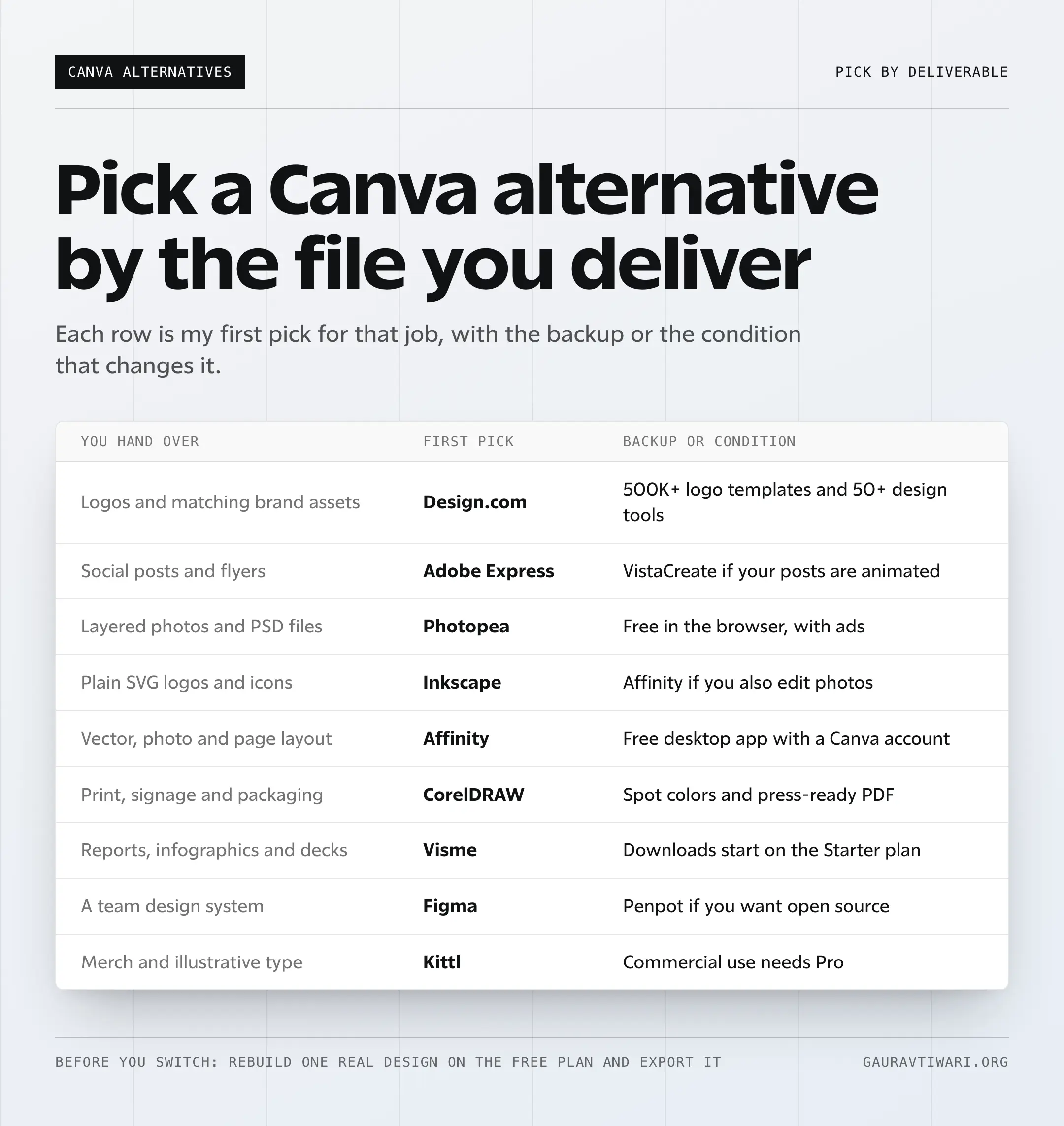
Prices below are US list prices, except Photopea, which prices in euros. Where a price says billed yearly, it’s the monthly equivalent of paying for 12 months up front.
| Tool | Best for | Free plan | Paid from |
|---|---|---|---|
| Design.com | Logos and matching branded materials | Yes; free logos, templates, and design tools | Starter $3/mo billed yearly |
| Adobe Express | Canva-style social graphics, flyers and short videos | Yes; premium assets need Premium | Premium $9.99/mo |
| VistaCreate | Animated social posts | Starter; unlimited downloads with free content | Pro $10/mo |
| Kittl | Merch, labels and illustrative type | Personal use only; exports capped at 800px | Pro $12/mo billed yearly |
| Visme | Reports, infographics and presentations | Build and share online with Visme branding | Starter $12.25/mo billed yearly |
| Easil | Locked brand templates for teams | Basic; print PDF, PNG and locks need Plus | Plus $6.25/mo billed yearly |
| Snappa | Simple static graphics | 3 downloads a month | Pro $10/mo billed yearly |
| Pixlr Express | Photo fixes with quick layouts | Ad-supported, limited saves | Plus $1.99/mo billed yearly |
| PicMonkey | Portrait retouching | Edit for free; downloads need a plan | Basic $6/mo billed yearly |
| Picmaker | Quick template variations | 3 watermark-free downloads | Starter $6/mo billed yearly |
| Photopea | PSD and layered photo files | Full editor with ads | Premium €8 for 30 days |
| Affinity | Vector, photo and layout on desktop | Free with a Canva account | Free (Canva AI needs a paid Canva plan) |
| Inkscape | Free SVG and vector work | Free and open source | Free |
| CorelDRAW | Signage, packaging and print | 15-day trial | $269/yr |
| Xara Designer Pro+ | All-in-one desktop design on Windows | 14-day trial | $16/mo billed yearly |
| Figma | Team design systems | Starter; 3 shared design files, unlimited drafts | Full seat $16/mo billed yearly |
| Penpot | Open-source and self-hosted design | Up to 8 team members, unlimited files | Unlimited $7/editor/mo |
Online Canva Alternatives
These are Canva’s closest competitors in how they work: open a browser, pick a template, change the text and download. What separates them is what the free plan lets you export, how teams are billed and which kind of design each template library is built for.
Creative Fabrica Studio is another Canva-style editor with a large font and graphics library behind it, and I’ve covered it separately in my Creative Fabrica Studio review.
Design.com
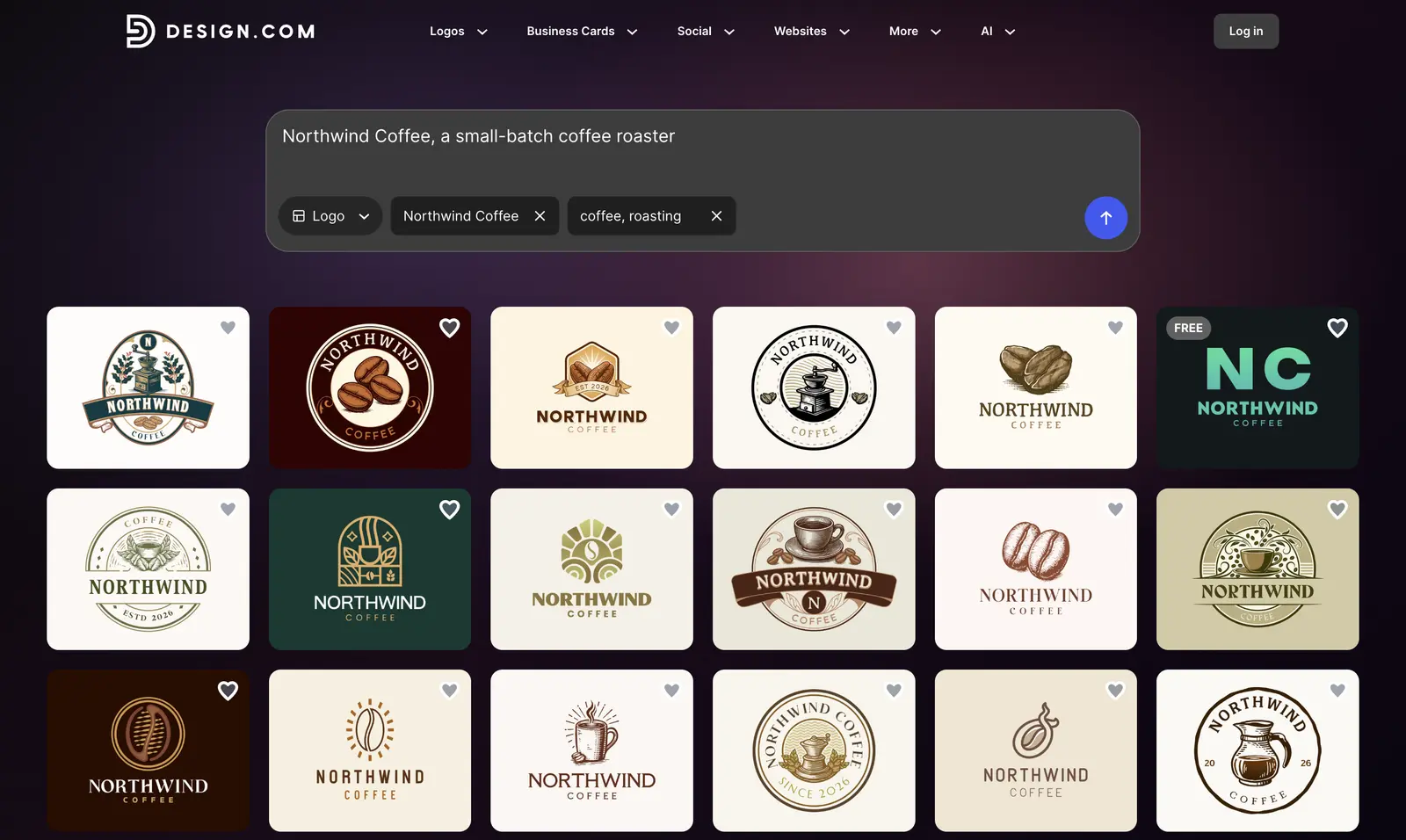
Design.com is a good Canva alternative if you’re starting with a logo and want matching designs for the rest of your business. Its AI logo generator helps you create a logo from a simple prompt, with over 500,000 professionally designed logo templates to explore. Once you’ve chosen a logo, its colors automatically carry over to business cards, social media posts, flyers, websites, and other templates across 50+ design tools.
- Free: a selection of free logos and design templates, with editing tools and download options for eligible free designs.
- Starter: $3/mo billed annually ($9/mo billed monthly), with premium logo downloads, unlimited logo edits, and full access to 50+ design tools.
- Value and Premium: Value starts at $4/mo billed annually and adds a website. Premium starts at $5/mo billed annually and includes a link-in-bio page and digital business cards.
- AI tools: an AI logo editor with chat-based changes, AI image generator, background remover, website builder, and generators for social posts, presentations, and other marketing materials.
- Export formats: PNG, JPG, SVG, EPS, and PDF for logos, with transparent backgrounds and icon-only versions available.
The main advantage over Canva is the logo-first workflow. Instead of building each design separately, you can create a logo and use its branding across matching templates. Design.com also offers AI logo editing, so you can change the design without manually adjusting every element.
You can start with a free logo and create matching branded materials before deciding whether to upgrade. I’d choose Design.com if you’re launching a business and need a logo, website, and marketing materials that look consistent.
Adobe Express
Adobe Express is the closest swap for someone who makes social posts, flyers and short videos in Canva. It’s Adobe’s template editor for the browser and phone, with the same pick-a-template, change-the-text workflow, plus Adobe Fonts, Adobe Stock and Firefly image generation built in.
- Free plan downloads designs made with free assets
- Premium: all Adobe Fonts, 200M+ Adobe Stock assets
- Brand Kits and 250 generative credits a month on Premium
- Imports PDFs as editable projects
- Free: a subset of Adobe Stock (1M+ assets), 4,000+ fonts and 5GB of storage.
- Premium: $9.99 a month in the US, billed monthly, with all Adobe Fonts, premium templates, 200M+ Adobe Stock assets, Brand Kits, 250 generative credits a month and 100GB of storage.
- Moving in: Express can import a PDF as an editable project, though complex layouts and uncommon fonts can change.
The catch is premium content. A design that uses a premium template, photo or font can need an upgrade before it downloads, so I’d build one real post from free assets before deciding the free plan is enough.
Adobe says its Firefly models are trained on licensed content such as Adobe Stock and on public-domain material. That doesn’t put every download under legal cover: Adobe’s IP indemnity applies to eligible enterprise plans and specific workflows, and Canva offers similar AI output indemnity to Enterprise customers with at least 100 paid users. If that protection matters to your business, it belongs in the contract.
I’d skip Express if your designs lean playful or hand-drawn, because the template library suits clean business and social work better. If image generation is the main job, a dedicated tool from my list of AI image generators gives you more control.
VistaCreate
VistaCreate is my pick when your social posts move. It’s the template editor from Vista (it used to be called Crello), and its free Starter plan downloads animated designs as MP4 or GIF as long as you stick to free content.
- Starter (free): a Brand Kit and unlimited downloads in PDF, JPG, PNG, MP4 and GIF using free content, from a library of 100K+ templates and 14,000+ animated elements.
- Pro: listed at $10 a month for up to 10 team members, with unlimited Brand Kits, premium assets and HD exports.
- AI on Pro: an AI Image Generator (up to 100 images a month, shared across the account), AI Writer, AI Object Remover and a background remover.
VistaCreate’s free downloads aren’t counted, which matters if you post every day. Before paying, you should check whether the templates you like are marked Pro, because premium assets are the usual reason a free design won’t download cleanly.
Kittl
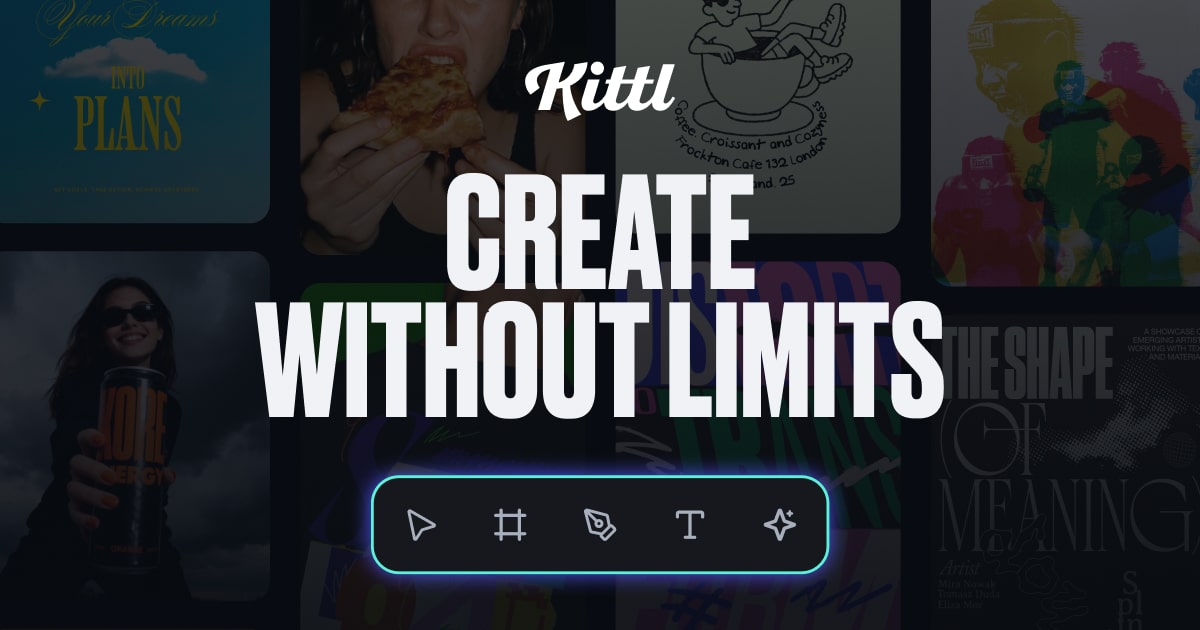
Kittl is built for illustrative work: t-shirt graphics, labels, badges and logos with curved, layered type. Canva can get there by stacking elements, while Kittl starts from typography-led templates and a curated illustration library.
- Free: personal use only, with PNG and JPEG exports capped at 800px and 72 DPI.
- Pro: $15 a month or $144 a year ($12/mo), adding high-resolution and vector exports and a commercial license.
- License limits: designs that use Kittl’s own content are capped at 500,000 copies or viewers, and that content can’t be resold as stock or registered as a trademark.
- AI: image tools run on several models, including OpenAI, Flux, Stable Diffusion and Seedream, from a token allowance.
The free plan is fine for trying the editor, but anything you sell or post for a business needs Pro, so I’d treat Kittl as a paid tool with a free demo. If a logo is the only thing you need, the tools in my guide to online logo makers are cheaper for that one job.
Visme
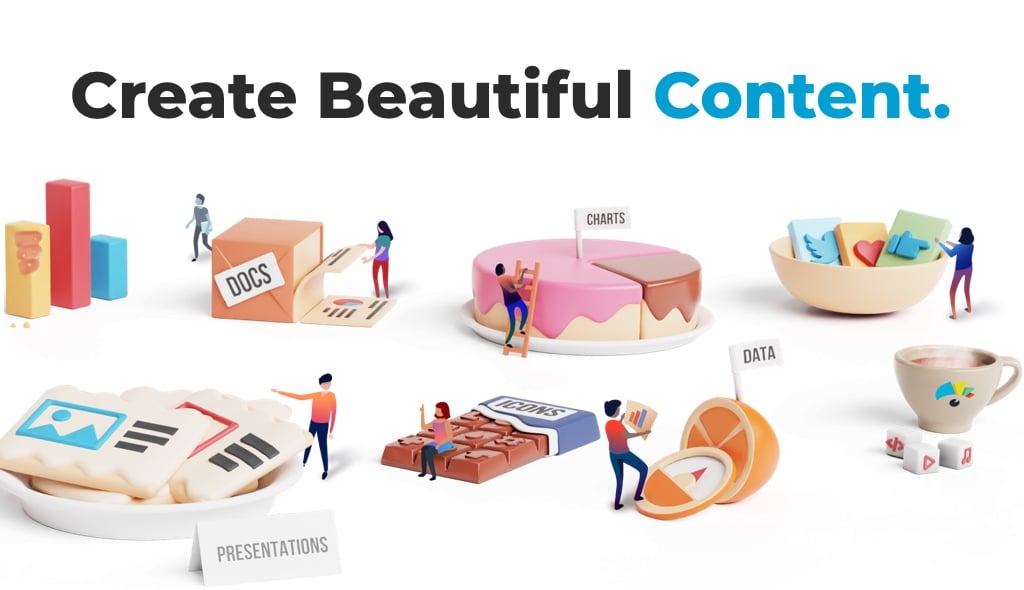
Visme is the one to choose when your work is data: reports, infographics, dashboards and presentations. Its charts and data widgets can take numbers from a spreadsheet, which keeps a report editable when the figures change.
- Starter: $12.25 per person a month billed yearly ($147/yr), with all premium assets and templates and JPG, PNG and PDF downloads.
- Pro: $24.75 per person a month billed yearly ($297/yr), adding PowerPoint, HTML5, video and GIF downloads, a Brand Kit, analytics and privacy controls.
- Basic (free): build and share projects online, with Visme branding on them.
Downloads sit in the paid plans on Visme’s pricing page, so you should budget for Starter if you need files to hand over. For live polls and quizzes inside a talk, my roundup of interactive presentation tools is the better place to look.
Easil
Easil is for a team that hands brand templates to people who shouldn’t be redesigning them. A brand manager can lock layers, fonts, images and colors in a template and still leave the headline editable.
- Basic: free, with a 30-day trial of Plus.
- Plus: $7.50 per user a month, or $75 per user a year ($6.25/mo), with PNG, print-quality PDF and MP4 exports, font and video uploads, Brand Kits and template restrictions.
Canva has full and partial template locks as well, including locks that keep formatting fixed while the text stays editable. Easil’s case is the price, at $75 per user a year against $250 per person for Canva Business, so you should try both on one of your real templates before moving a team.
Snappa
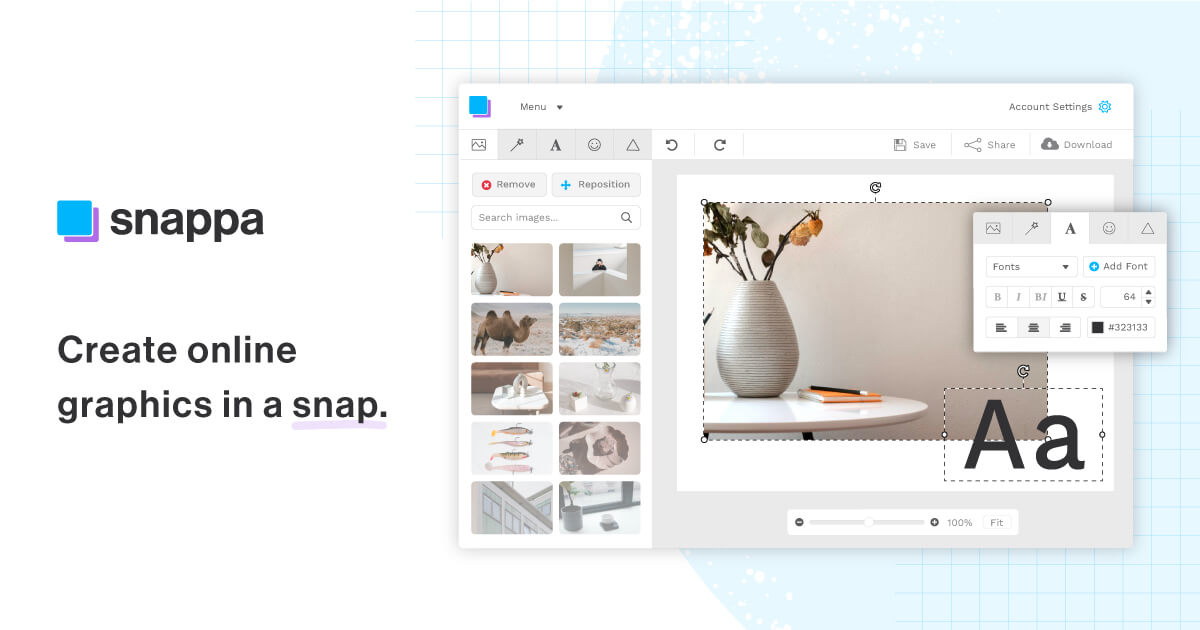
Snappa is the simplest editor here, made for blog headers and social posts that don’t move. If Canva’s menus feel crowded, Snappa has far fewer of them.
- Starter (free): 3 downloads a month.
- Pro: $15 a month, or $10/mo billed yearly, with unlimited downloads, custom fonts, background removal and Buffer scheduling.
- Team: $30 a month, or $20/mo billed yearly, for 5 users.
- Formats: JPG and PNG, with double-resolution Retina versions. There’s no SVG or animated output.
The 3-download cap runs out in a single revision round, so the free plan is a trial in practice. I’d pick Snappa only if static images are all you make.
Pixlr Express
Pixlr Express (the editor that used to be Pixlr X) suits work that is mostly photo fixing with a little layout: cutting out a product, cleaning up a background and adding text. One Pixlr subscription covers its web, desktop and mobile apps.
- Free: ad-supported, with limited saves.
- Plus: $2.49 a month, or $1.99/mo billed yearly, removing ads and the save limit, with 80 AI credits a month.
- Premium: $9.99 a month, or $7.99/mo billed yearly, with 1,000 AI credits a month on monthly billing or 12,000 for the year on annual billing.
Plus is cheap enough to be the first upgrade if the ads bother you. If cutouts are most of the job, my list of background remover tools compares the dedicated options.
PicMonkey
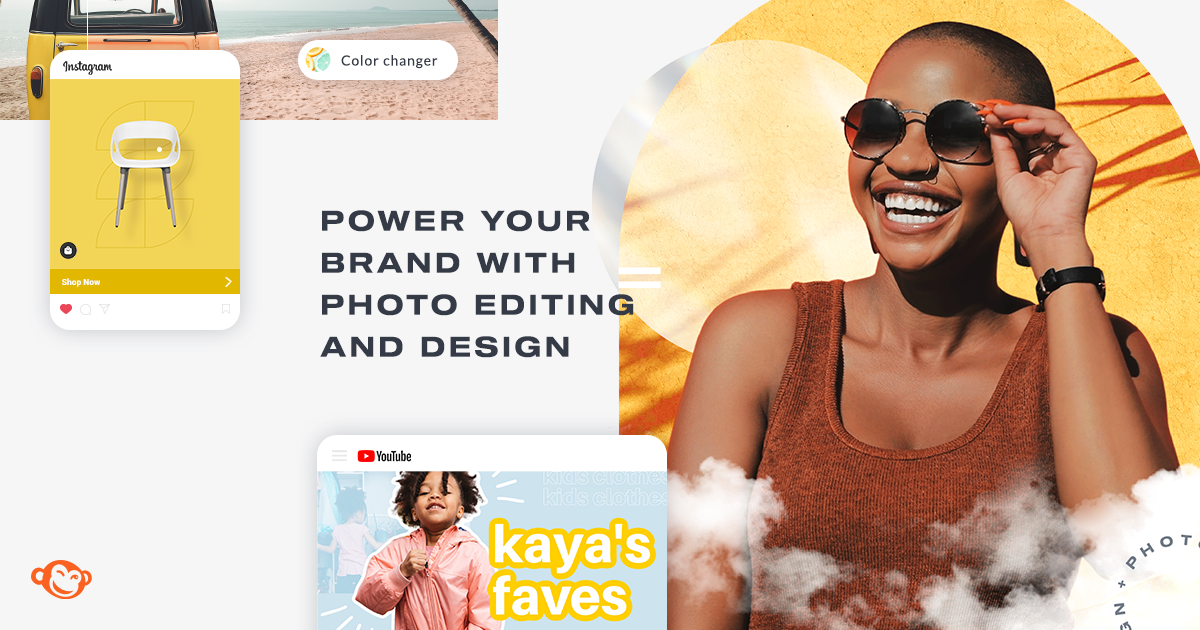
PicMonkey is a photo editor with design templates around it, and portrait retouching is its strong side. Skin smoothing, blemish removal and teeth whitening sit next to the layout tools.
- Free: edit and save to PicMonkey’s Hub; downloading and sharing need a subscription.
- Trial: 7 days, without premium stock or background removal.
- Basic: $7.99 a month or $72 a year ($6/mo), with JPG and PNG downloads.
- Pro and Business: Pro adds PDF downloads and premium stock from Shutterstock, which owns PicMonkey. Business adds multiple brand kits and team co-editing.
There’s no ongoing free way to download, so the trial is only useful for deciding. I’d pay for PicMonkey if retouching people is a regular part of your work and skip it otherwise.
Picmaker
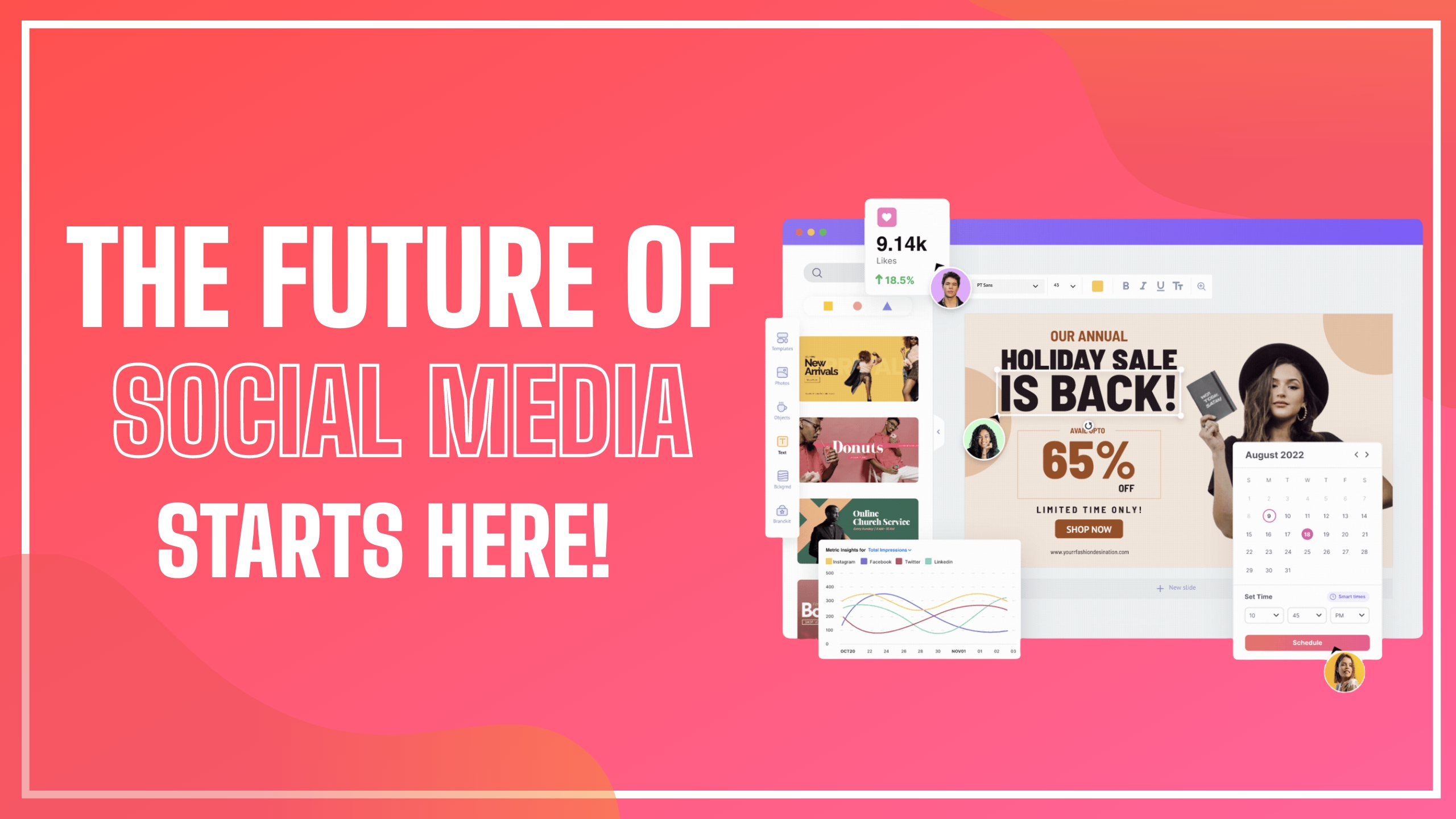
Picmaker comes from the Animaker team and leans on its MAD button, which suggests new fonts, colors, backgrounds and images for a template so you can flip through variations of one design quickly.
- Free: 3 watermark-free downloads. Paid plans have no self-service trial.
- Starter and Pro: $6 and $9 a month, billed yearly, with unlimited watermark-free downloads.
- Video: handled by Animaker, a separate product with its own subscription.
It’s useful when one post needs several looks and you don’t want to restyle each by hand. With only 3 clean downloads on Free, it’s a paid tool for anyone who posts regularly.
Photo and Vector Editors
These solve a different Canva problem. Once the job is a layered PSD from a photographer, an SVG for a developer or a cutting machine, or a print file with spot colors, you want an editor that works on the file itself rather than on a template.
Photopea, Affinity and Inkscape are free, while CorelDRAW and Xara are paid suites built for print and layout. If you’re on a Mac and photo editing is most of the work, my list of photo editors for Mac goes deeper.
Photopea
Photopea is a free, Photoshop-style editor that runs in your browser. It opens layered PSD files with the layers intact, which makes it the quickest fix when someone sends you a Photoshop file and you don’t have Photoshop.
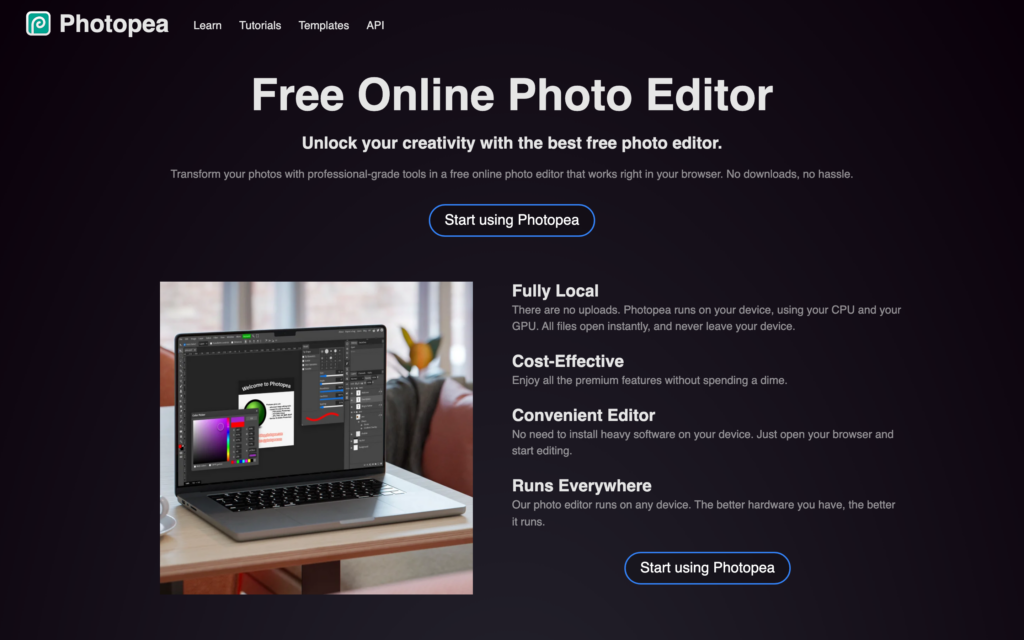
- Free: the full editor with ads and 0.5GB of cloud storage.
- Premium: one-time payments instead of a subscription: €8 for 30 days, €15 for 90 days or €50 for a year. It removes ads and adds 5GB of storage, 3,000 AI credits a month and twice the undo history.
- Files: opens PSD, AI, XD, Figma, Sketch, PDF, SVG, EPS, CDR and INDD files, among others, and saves PSD or exports JPG, PNG, SVG and PDF.
- Privacy: files open on your device without being uploaded, and the editor keeps working offline once it has loaded.
It isn’t a template editor, so a quick Instagram post takes longer here than in Canva or Adobe Express. I’d keep Photopea for PSDs and photo edits and leave social posts to a template tool.
Affinity
Affinity is the one I’d recommend for vector illustration, photo editing and page layout on a desktop, and it’s what I use for that work. The current app puts its Vector, Pixel and Layout studios in one program for Mac and Windows, and the core app is free with a Canva account.
- Vector, Pixel and Layout studios in one app
- Native INDD import and Canva Brand Kit sync
- Opens PSD, PDF and SVG files
- Files stay on your computer
- Price: free for individuals. Organizations that sign in through SSO go through Canva’s Enterprise or Education plans.
- AI: optional Canva AI features inside Affinity need a paid Canva plan.
- Imports: the September 2026 update added native InDesign (INDD) import, live Canva Brand Kit sync, a Blend Tool and scripting.
- Illustrator files: they open only when saved with PDF compatibility, and complex effects can be simplified or flattened.
- Storage: files live on your computer, and the new iPad version is still listed as coming soon.
Canva bought Affinity in 2024, so this is a different editor from the same company. That doesn’t matter if you just want better tools, and it matters a lot if Canva itself is the reason you’re leaving, in which case Inkscape and Penpot are the independent options.
Inkscape
Inkscape is the free, open-source vector editor, and SVG is its native format. It’s the tool I’d reach for when a logo or icon has to stay plain SVG for a website or a cutting machine, because what you draw is saved as SVG without a proprietary format in between.
- Price: free under the GPL, for Windows, macOS and Linux, with Windows on Arm installers since version 1.4.4.
- Formats: saves SVG, PDF, EPS and PostScript, and exports PNG for raster images.
- Print limit: no CMYK or color-managed export, so a print shop that wants CMYK files is better served by Affinity or CorelDRAW.
The interface takes some learning if you’ve only used Canva, and it isn’t built around design templates. It’s a vector tool first, so you should pair it with a template editor if you also make social posts.
CorelDRAW
CorelDRAW Graphics Suite belongs in signage, packaging, apparel and other print production. It handles multi-page vector layouts, spot colors and press-ready PDF output, and it runs on Windows and Mac.
- Multi-page vector layout
- Spot colors and press-ready PDF export
- Windows and Mac releases on the same dates
- 15-day free trial
- Subscription: $269 a year or $39 a month in the US. Indian pricing goes through resellers.
- One-time license: the 2026 edition sells for $549, but it leaves out subscriber-only features, the web apps and the AI allowance, and Corel doesn’t promise support for future operating systems.
- Platforms: the July and September 2026 updates shipped for Windows and for Apple silicon and Intel Macs on the same dates.
It’s more software than someone leaving Canva for social posts needs. Before paying for a year, you should run one real job through the trial: your fonts, your imports and the exact PDF settings your printer asks for.
Xara Designer Pro+
Xara Designer Pro+ is an all-in-one Windows app for vector illustration, photo editing, page layout and simple websites. It works offline once activated and connects to Google Drive, Dropbox and OneDrive.
- Price: $16 a month billed yearly ($192/yr) or $22 a month, plus VAT where it applies, with a 14-day free trial.
- One-time option: Xara Designer Pro V20 sells for $299.
- Platform: Windows 10 or 11, 64-bit only. Xara Cloud is a separate browser product.
Mac users can skip it. On Windows, it suits someone who wants one desktop app for print pieces, web graphics and layouts, with a one-time license available.
Collaboration and Design Systems
These two are interface design tools first. They become Canva alternatives when a team needs shared components, styles and reviews instead of one-off posts, and both take longer to learn than Canva.
Figma
Figma is my pick for a team that builds reusable designs: components, shared styles and libraries everyone pulls from. I use it for interface work, and Figma Slides and FigJam stretch it to presentations and whiteboards.
- Components, variables and Auto Layout
- Up to 200 editors in one file
- Figma Slides and FigJam included
- Free viewers and commenters
- Starter (free): 3 shared Figma Design or Sites files, 3 FigJam files and 3 Slides files, plus unlimited drafts.
- Professional: a Full seat costs $16 a month billed yearly or $20 monthly. A Collab seat is $3 or $5, and a Dev seat is $12 or $15.
- Paid features: team libraries, advanced prototyping and Dev Mode need a paid plan and the right seat.
- Scale: up to 200 editors and 500 participants can be in one file at a time.
You shouldn’t count every reviewer as a Full seat. Viewers and commenters are free, and people who only work in FigJam or Slides can sit on a cheaper Collab seat, which changes the bill for a bigger team. For a solo blogger making Instagram posts, Figma is more tool than the job needs.
Penpot
Penpot is the open-source alternative to Figma and the only tool here you can run on your own server. It’s built on open standards (SVG, CSS, HTML and JSON), so your designs stay readable outside the app.
- Professional (free): unlimited files and teams, up to 8 team members plus unlimited viewers, and 10GB of storage.
- Unlimited: $7 per editor a month, capped at $175 a month, with 25GB of storage. Enterprise is $25 per member a month.
- Self-hosting: free under the MPL-2.0 license, with unlimited users, teams and files.
Self-hosting is free to license, but someone still has to run the server, update it and back it up, so I’d use the hosted version unless your team already runs its own infrastructure. If the end goal is a website, my guide on designing websites with free tools covers the rest of that workflow.
What You Can Export for Free
A free plan is only useful if it lets you download a file you can use for the job. Four separate limits decide that, and plan pages rarely put them side by side:
- Download allowance: how many files you can save in a month, or whether you can download at all.
- Premium content: whether one premium photo, font or template in a design blocks the download or adds a watermark.
- Size and format: the resolution cap, and whether SVG, PDF and video are free or paid.
- Commercial use: whether the license lets you use the result for a business or a client.
| Tool | Free plan exports | The limit to watch |
|---|---|---|
| Design.com | Free logos and templates marked as free | Premium logo downloads and the full design tools need Starter |
| Canva Free | PNG, JPG, PDF and video from free content | Premium elements are watermarked; SVG and transparent PNG need a paid plan |
| Adobe Express | Designs built from free assets | Premium templates, photos and fonts need Premium |
| VistaCreate | Unlimited PDF, JPG, PNG, MP4 and GIF with free content | Premium assets and HD exports are on Pro |
| Kittl | PNG and JPEG up to 800px at 72 DPI | Personal use only |
| Visme | Online sharing with Visme branding | Downloads are listed under the paid plans |
| Snappa | 3 downloads a month in JPG or PNG | No SVG or animated output on any plan |
| Picmaker | 3 watermark-free downloads | Unlimited clean downloads need a paid plan |
| PicMonkey | Nothing after the 7-day trial | Downloading and sharing need a subscription |
| Pixlr Express | Saves on an ad-supported plan | Saves are limited until Plus |
| Figma | PNG, JPG, SVG and PDF | Only 3 shared design files on Starter |
| Photopea | PSD, JPG, PNG, SVG and PDF | Ads and 0.5GB of cloud storage |
| Affinity | PDF, SVG, PSD and the usual image formats | Canva AI features need a paid Canva plan |
| Inkscape | SVG, PDF, EPS and PNG | No CMYK or color-managed export |
| Penpot | SVG, PNG, JPG and PDF | Up to 8 team members on the free cloud plan |
Before I’d trust a free plan with client work, I’d make one representative design, export it in the exact format the client asked for and open the file on another device. That catches a paid requirement before you’ve rebuilt anything else.
Moving Your Canva Designs
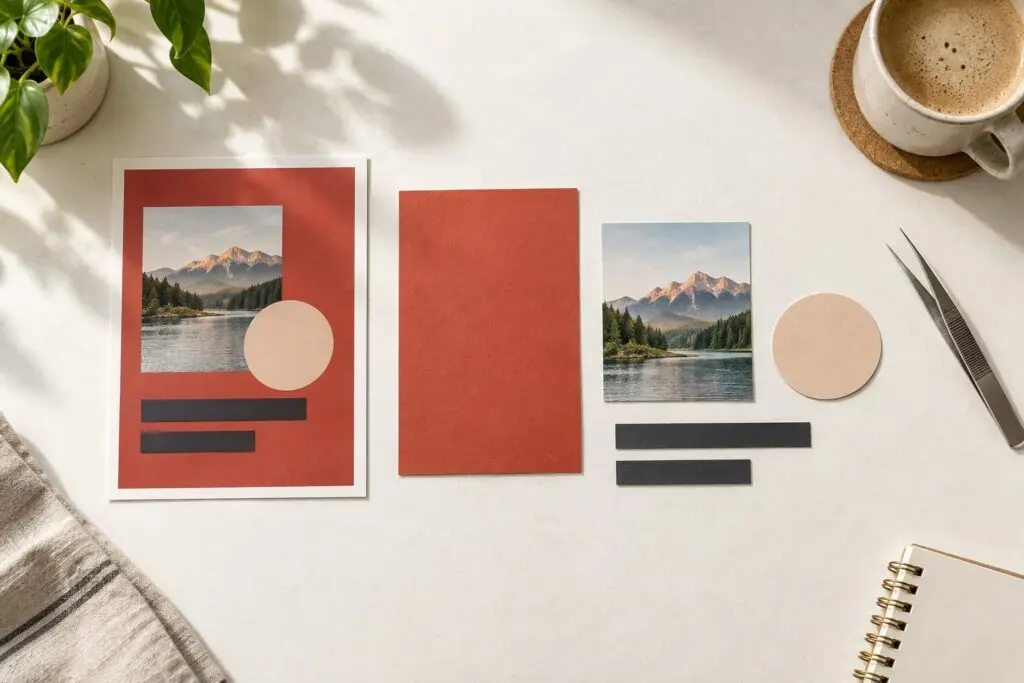
No other editor opens a Canva project directly. What you can move is an export, and the format you pick decides how much stays editable:
- PNG or JPG: a flat picture. It works as a background or a reference, but the text can’t be edited.
- PDF: the most portable choice. Adobe Express, Affinity, Inkscape and Photopea can open a PDF and keep much of its text and shapes editable, though complex layouts and uncommon fonts can shift.
- SVG: vector shapes for Inkscape, Affinity, Figma or Penpot. Canva’s SVG download needs a paid Canva plan.
- PowerPoint: the format for decks, which most presentation tools can import.
I’d test the move with one design before moving a whole library:
- Pick a design you make every week.
- Export it as a PDF, and export logos and icons as SVG.
- Import it into the new tool and check the text, fonts, images and spacing.
- Rebuild the brand colors, fonts and logo in the new tool’s brand kit, because these don’t travel with the file.
- Share it with a colleague the way you normally would and confirm they can view, comment or edit.
- Export the final file at the size and format you deliver.
Keep the Canva originals until the new workflow has produced one file you’d actually send.
Which Canva Alternative Should You Pick?
I’d route the common jobs like this:
- A logo and matching brand assets: Design.com.
- Everyday social graphics: Adobe Express, with VistaCreate as my pick if your posts are animated.
- Vector, photo and layout on a desktop: Affinity. It’s what I use, and the core app is free.
- A team with shared components: Figma, or Penpot if open source or self-hosting matters.
- Someone sent you a PSD: Photopea, in the browser.
- Logos, icons and SVG: Inkscape for free, or Affinity if you also edit photos.
- Signage, packaging and print: CorelDRAW.
- Reports and infographics: Visme on Starter or above.
- Merch and illustrative type: Kittl Pro.
If none of these beats what you have, staying on Canva is a perfectly good answer. Canva Pro costs $144 a year for one person in the US (₹4,000 in India), and Business is $250 per person a year (₹6,800 in India) when a team needs shared brand controls.
FAQs on Canva Alternatives
What is the best Canva alternative?
Adobe Express is the closest Canva alternative for everyday social graphics, flyers and short videos, because it uses the same template-first workflow and has a usable free plan. For vector, photo and layout work on a desktop, Affinity is the stronger choice, and Figma suits teams that build reusable designs.
What is the best free Canva alternative?
It depends on the file you need. Adobe Express and VistaCreate have the most usable free plans for template-based social graphics. Affinity, Inkscape and Photopea are free for vector, layout and photo editing, and Penpot is free and open source for team design work.
Can you import Canva designs into another design tool?
Not as Canva projects. You can export a design as PDF, SVG, PNG or PowerPoint and import that file. A PDF keeps the most editable text and shapes in tools such as Adobe Express and Affinity, but complex layouts and uncommon fonts can shift, so test one design before moving a library.
Is Affinity owned by Canva?
Yes. Canva bought Affinity in 2024 and relaunched it as one free app with Vector, Pixel and Layout studios. The core app needs a Canva account, and the Canva AI features inside it need a paid Canva plan.
Can free Canva alternatives be used for commercial work?
Not all of them. Kittl’s free plan is for personal use only, Picmaker allows 3 watermark-free downloads and PicMonkey needs a subscription to download at all. Inkscape places no restriction on what you make with it, and Affinity’s free app is open to independent designers, studios and teams. Stock assets inside any tool carry their own license, so check those before selling a design.
Is there an open-source Canva alternative?
Penpot is the open-source option for collaborative design, and you can host it on your own server. Inkscape is the open-source option for vector graphics. Neither is built around templates the way Canva is, so social posts take more setup.
Is Figma a good Canva alternative?
Figma is a good Canva alternative for teams that build reusable designs with shared components and libraries. Its free Starter plan allows 3 shared design files and unlimited drafts. For a solo creator who mainly makes quick social posts, it takes longer to learn than Canva and offers more than the job needs.
What happened to Stencil?
Stencil shut down on July 10, 2026, and its accounts and stored images were removed at the same time. Snappa and Adobe Express are the closest replacements for quick quote and social graphics.
Final Remarks
Canva is still a good tool, and a Canva alternative earns its place only when it does your particular job better. Adobe Express for everyday graphics, Affinity for desktop work and Figma for teams cover most of the people who leave.
Pick the design you make most often, rebuild it on the free plan of the tool you’re leaning toward and export it the way you deliver it. If that goes smoothly, switch. If it doesn’t, you’ve lost an afternoon instead of a year’s subscription.
Tell Google you want more of this.
Add Gaurav Tiwari as a preferred sourceOne tap, and this site shows up more often in your own Top Stories, AI Overviews and AI Mode. Remove it any time.
Disclaimer: This site is reader-supported. If you buy through some links, I may earn a small commission at no extra cost to you. I only recommend tools I trust and would use myself. Your support helps keep gauravtiwari.org free and focused on real-world advice. Thanks. - Gaurav Tiwari