
 by
by
Trying to design beautiful websites with free tools goes well right up to the point where each tool asks for money. The design app is free until your team needs a fourth shared file, the website builder is free until you want your own domain without its badge, and the photos, fonts and icons each sit behind a paywall of their own.
Every free plan stops at a different wall, and you generally find it after you’ve built half the site around the tool. That’s the expensive moment to switch, because your layouts, components and content are already shaped by the tool you picked, and most AI page generators run out of free credits before a landing page is even finished.
The free stack I’d use today has four parts: Figma or Penpot for layouts, Affinity or Canva for graphics, open libraries for fonts, icons and photos, and WordPress or Astro for the build. If you can work with a little code, an Astro site on Cloudflare Workers costs nothing to host, and the domain name is your only bill.
Most of these are in my own toolbox: Figma for interface work, Affinity for vectors and photo edits, Canva for quick graphics, Pen for code-first design work, and Cloudflare’s free plan in front of this site. For the builders I don’t use day to day, I’ve gone by their current free-plan rules, because those decide whether a free site can launch at all.
Best Free Website Design Tools at a Glance
Pick one of these free website design tools per stage. The last column is the free-plan limit you’ll hit first, and it decides more than any feature list does.
| Tool | Stage | Best for | Free-plan limit you hit first |
|---|---|---|---|
 Figma Figma | Layout and prototypes | Designs you’ll hand off to code | 3 shared design files with 3 pages each; drafts are view-only for others |
 Penpot Penpot | Layout and prototypes | Open-source and self-hosted design | 10GB storage, 8 team members and 7-day history on the free cloud plan |
 Pen Pen | Design inside your code editor | Developers who design with AI agents | Agent design on 5 days a month |
 Paper Paper | Layout as HTML and CSS | Teams syncing design with a codebase | 100 MCP tool calls a week, limited image generation |
 Affinity Affinity | Logos, icons, photo edits | Replacing Illustrator and Photoshop | AI tools need a paid Canva plan |
 Canva Canva | Quick graphics | Non-designers | 20 AI uses a month; premium elements are watermarked |
 WordPress WordPress | CMS sites, blogs, stores | Sites that publish often | Software is free; hosting and a domain are not |
 Astro Astro | Fast static and content sites | Developers who want plain HTML output | Needs code and a deploy step |
 EmDash EmDash | CMS on Cloudflare | A WordPress-style CMS without a server | Sandboxed plugins need Workers Paid |
 Cloudflare Workers Cloudflare Workers | Hosting | Astro, static and edge sites | 100,000 Worker requests a day; static file requests don’t count |
 Webflow Webflow | Visual builder with CMS | Learning real CSS layout visually | 2 static pages, 50 CMS items, webflow.io domain with badge |
 Framer Framer | Portfolios and landing pages | Designers who want motion | Framer domain with a banner, 1GB bandwidth, meant for non-commercial use |
 Carrd Carrd | One-page sites | Link-in-bio and simple landing pages | 3 sites on carrd.co with Carrd branding |
Which Free Stack Should You Use?
Start from where the site will live and pick the design tools around it, because the platform decides what your design has to fit. There are broadly three free stacks, and each one suits a different person.
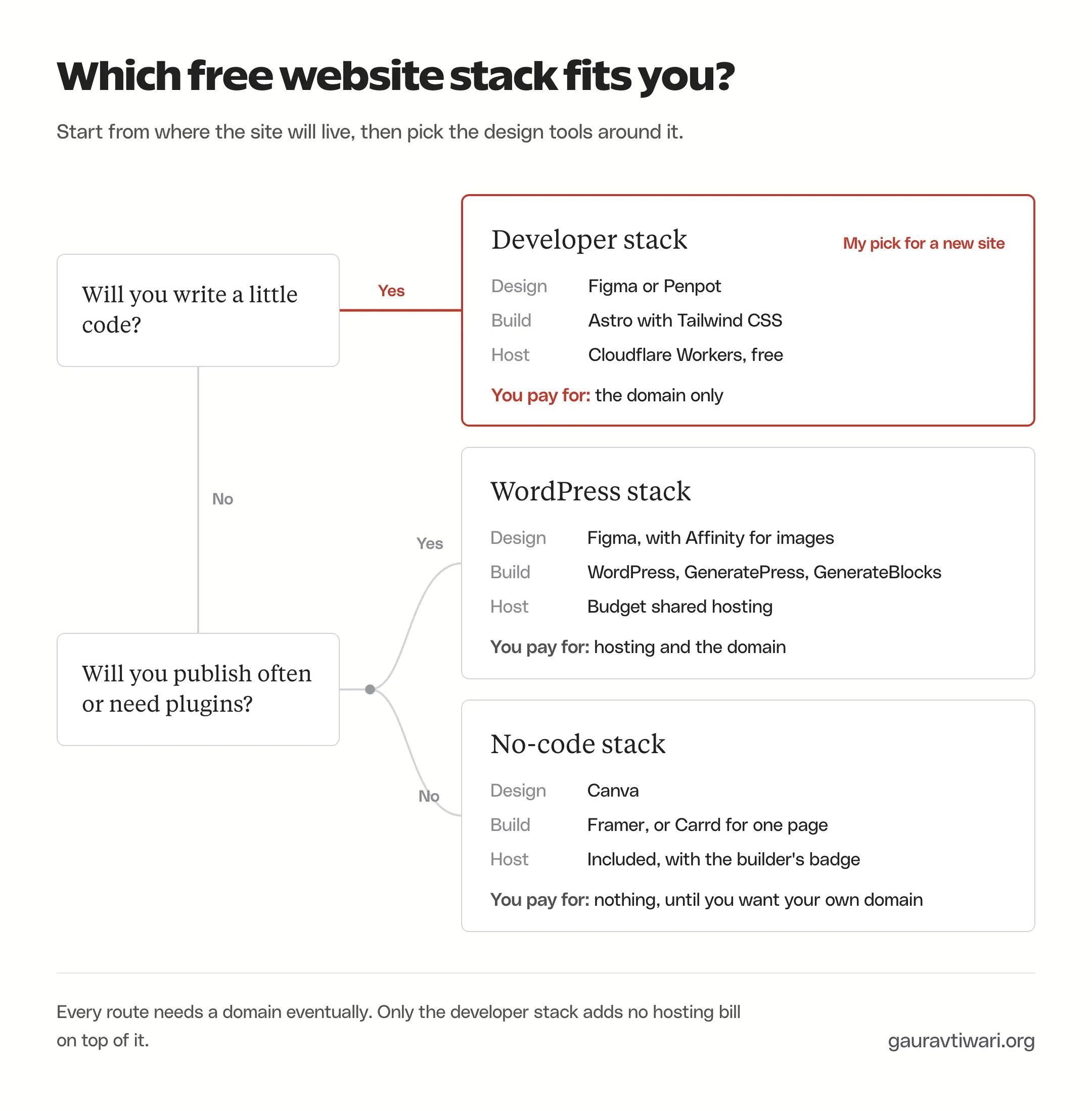
The no-code stack is Canva for graphics and Framer for the site, or Carrd when one page is enough. It’s the fastest way to get something live in an afternoon. The catch is that you live with a subdomain and the builder’s badge until you pay, and Framer’s free plan isn’t meant for commercial use.
The WordPress stack is Figma for layouts, Affinity for images and WordPress with the free GeneratePress theme and GenerateBlocks plugin. The software costs nothing, but hosting does, so this one isn’t completely free. It’s the right choice when you’ll publish often or need plugins for forms, SEO or a store.
The developer stack is Figma or Penpot for layouts, Astro with Tailwind CSS for the build and Cloudflare Workers for hosting. Only the domain costs money. It suits portfolios, documentation, landing pages and content sites that don’t need user logins, and it’s the stack I’d pick for a new site today if code doesn’t scare you.
Neither extreme works well. A no-code builder you’ll outgrow in a month wastes the design work, and a hand-coded stack for someone who never opens a terminal leaves the site frozen on launch day. It is wise to pick the stack you can still update yourself six months from now.
Free Design Tools for Website Layouts
A layout tool is where you decide the grid, spacing and hierarchy before any code exists. Figma is still the default, but its free plan has tightened, so the open-source and code-first options deserve a look too.
Figma
Figma is the browser-based design and prototyping tool most web teams use, and it’s the one I use for interface work. The free Starter plan gives you:
- 3 Figma Design files in your team space (Figma Sites files share the same 3 slots), with 3 pages per file
- unlimited drafts, which other people can view but not edit
- auto layout, prototyping, community files and plugins
- 30 days of version history
- 150 AI credits a day, capped at 500 a month
Dev Mode, team libraries and variable modes need a paid seat, and Figma Sites can build a site on the free plan but can’t publish it. For a solo designer working in drafts, the 3-file limit rarely matters. For a small team sharing files, it’s the first wall you hit, and a Professional Full seat costs $16 a month on annual billing.
Penpot
Penpot is an open-source design tool that works like Figma in the browser and can run on your own server. It’s the best free Figma alternative for most people, because its free limits apply to storage and history while the number of files stays unlimited.
- Free cloud plan: unlimited files and teams, up to 8 team members plus unlimited viewers, 10GB of storage and 7 days of version history
- Self-hosted: free with unlimited users, teams and files
- Layout: CSS Grid and Flexbox layouts that behave like the CSS they produce
- Handoff: an Inspect tab with HTML, CSS and SVG code, plus native design tokens that export as W3C token JSON
- AI: a free MCP server, so an AI agent can read and edit your files
The trade-off is a smaller plugin and community-file library than Figma’s. If your team is up to 8 people, or you’d rather not depend on one company for your design files, Penpot is the one to start with.
Pen
Pen, which used to be called Pencil, is an agentic design canvas: AI agents lay out screens on a canvas while you refine them by hand. It runs as a desktop app and inside code editors such as VS Code, Cursor and Antigravity, and it sits in my toolbox for designs that have to end up as code.
- free plan with 5 days a month of designing with an agent and 25 image or SVG generations
- unlimited MCP tool calls, so Claude Code or another agent can drive it
- Figma and HTML import, with HTML, CSS and Tailwind export
- an open JSON file format (
.pen), so your designs aren’t locked in - works with your existing ChatGPT or Claude subscription or your own API keys
The 5 agent days run out fast if you design every day, and Pro costs $16 a month. Manual editing on the canvas doesn’t use those days, so the free plan still works as a code-friendly design tool.
Paper
Paper is a design canvas built on HTML and CSS, so whatever you draw already exists as code. Its free plan allows unlimited viewers and editors, 100 MCP tool calls a week and limited image generation, with images up to 25MB.
Paper fits a team that wants design and code to share the same components and tokens. It’s younger than Penpot and Figma, with fewer templates and plugins, so I’d treat it as a second tool to try after you know what a web layout needs.
Free Graphics Editors for Website Images
Your layout tool handles boxes and text. Logos, icons, hero images and cut-out product photos need a graphics editor, and this category got much better for free users in the last year.
Affinity
Affinity is a professional vector, photo-editing and page-layout app that Canva made free in late 2025. It combines what used to be three paid apps, Designer, Photo and Publisher, and I use it for vector work and photo edits.
- free for individuals, with a free Canva account needed to download it
- vector, pixel and layout tools in one app for macOS and Windows
- exports the SVG and PNG files a website needs, from logos to icon sets
- AI tools such as generative fill, background removal and upscaling need a paid Canva plan
For a website, Affinity does the jobs people used to pay Illustrator and Photoshop for: cleaning up a logo, drawing SVG icons and cropping hero images. I’ve compared it with other free editors in my Canva alternatives guide.
Canva
Canva is the drag-and-drop design app I use for quick graphics. Its free plan is the most beginner-friendly option here:
- 1.6 million+ templates and 4.7 million+ free photos, graphics, videos and audio files
- 5GB of cloud storage
- up to 20 Standard or Premium AI uses a month
- 1 Brand Kit with 3 colors
- up to 5 live websites on a free Canva domain, with a “Designed with Canva” footer
Premium elements show a watermark until you pay for them, the background remover needs Pro and connecting your own domain to a Canva website needs Pro too. Canva sites are fine for an event page or a link page. For a business site, I’d design the graphics in Canva and build the site somewhere else. Pro costs $18 a month in the US, and India has a cheaper Pro Lite plan at ₹199 a month.
- 1.6M+ templates and 4.7M+ free assets
- 5GB storage and 20 AI uses a month free
- Free website publishing on a Canva domain
- Pro adds background remover, brand kits and custom domains
Free Website Builders and Frameworks
This is where the design becomes a website, and where free plans differ the most. WordPress, Astro and EmDash are free software you deploy yourself. Webflow, Framer and Carrd host the site for you, and their free plans are built to get you started before you upgrade.
I’ve covered the hosted builders in more depth in my roundup of free website builders. Here is how each one fits a design-first workflow.
WordPress
WordPress is the open-source content management system behind about 40% of all websites, according to W3Techs. The software is free, the official directories hold 71,000+ free plugins and about 8,700 free themes, and for designing a site it gives you:
- the block editor and site editor for layouts, templates and global styles
- the free
 GeneratePress theme (500,000+ active installs), which keeps pages light, and the free
  GenerateBlocks plugin (200,000+), which adds containers, grids and query loops
  WordPress Studio and
  Local, which run WordPress on your computer for free, so you can design the whole site before paying for hosting
GenerateBlocks is the plugin I use for everything on a page that isn’t normal content, and my GenerateBlocks review shows how far the free version goes. Hosting is the bill you can’t avoid on this route, along with the domain and your own time for updates and backups. Budget shared plans from hosts like  Hostinger cost a few dollars a month.
Astro
Astro is an open-source web framework that turns your pages into plain HTML and ships JavaScript only for the components that need it. It’s the framework I reach for first on a content site, because most content sites are mostly HTML anyway.
- free and MIT-licensed; Astro 7 is the current major version
- the company behind Astro joined Cloudflare in January 2026, and Astro stays open source
- the official adapter deploys to Cloudflare Workers with
npx astro add cloudflare - works with
 Tailwind CSS or plain CSS, and with content from Markdown files, a headless CMS or WordPress
When I pointed a fresh Astro project at this site’s WordPress REST API, it built 21 static pages in 1.88 seconds. That test and the setup are in my guide to using WordPress as a headless CMS with Astro. Astro needs code and a terminal, though, and has no visual editor of its own.
EmDash
EmDash is Cloudflare’s open-source CMS, built on Astro and designed to run on Cloudflare Workers. It reached version 1.0 on September 28, 2026, and it’s the closest thing to WordPress that runs without a server you manage.
- free and MIT-licensed, written in TypeScript
- runs on Workers with D1, R2 and KV, or on any Node.js server
- imports content from WordPress exports, the WordPress REST API or WordPress.com
- each plugin runs in a sandbox with only the permissions it declares
The plugin sandbox needs the Workers Paid plan at $5 a month, so new EmDash sites deploy on the free plan with sandboxing switched off. I’ve built 5 open-source plugins for it, from dynamic dates to lead capture, and they’re listed on my EmDash plugins page. It’s months old, so expect a much smaller theme and plugin library than WordPress has.
Webflow
Webflow is a visual builder that writes real HTML and CSS as you design, which makes it the best free tool for learning how web layout works. The free Starter plan includes:
- a webflow.io address with a “Made in Webflow” badge you can’t remove
- 2 static pages, 50 CMS items and 20 CMS collections
- 1GB of bandwidth and 50 form submissions a month
- Webflow AI and its MCP server
Webflow rebuilt its paid plans in May 2026. Basic costs $15 a month on annual billing and adds a custom domain without a CMS, and the new Premium plan at $25 a month covers what the old CMS and Business plans did. The free plan works well as a sandbox for learning, and a business site needs at least Basic for the custom domain.
- Visual control over flexbox, grid and animations
- Free Starter plan with 2 pages and 50 CMS items
- Webflow AI and MCP server included
- Premium plan for CMS sites at $25/month billed yearly
Framer
Framer is a design-first website builder with strong animation tools and AI page generation. Its free plan includes:
- a free Framer address (framer.app, or names such as framer.website) with a “Made in Framer” banner
- 1GB of bandwidth, 10 CMS collections and up to 1,000 pages
- 5MB uploads and one language
- 500 AI credits to try Framer’s agents
Framer calls the free plan ideal for non-commercial use, and the banner goes away only on a paid plan. That makes it the best free option for a designer’s portfolio and the wrong one for a business site. Basic costs $10 a month on annual billing.
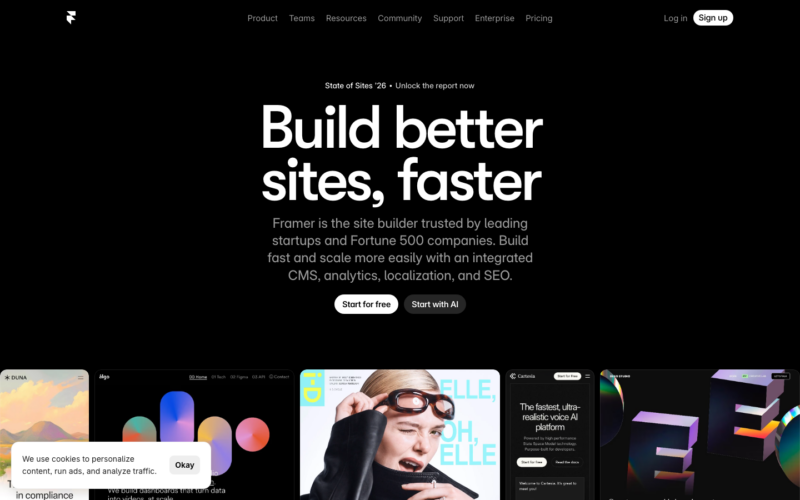
- Free plan with a Framer domain and 1GB bandwidth
- 10 CMS collections and up to 1,000 pages on free
- Motion and interaction tools built in
- Banner removed on paid plans
Carrd
Carrd builds one-page websites and does nothing else. The free plan allows 3 sites on carrd.co addresses with a “Made with Carrd” footer.
Its paid plans are the cheapest upgrade of any builder here. Pro Lite costs $9 a year and removes the branding without a custom domain, and Pro Standard at $19 a year adds custom domains and forms. If your site is one page, that’s less than most people spend on a domain.
Cloudflare Workers for Free Website Hosting
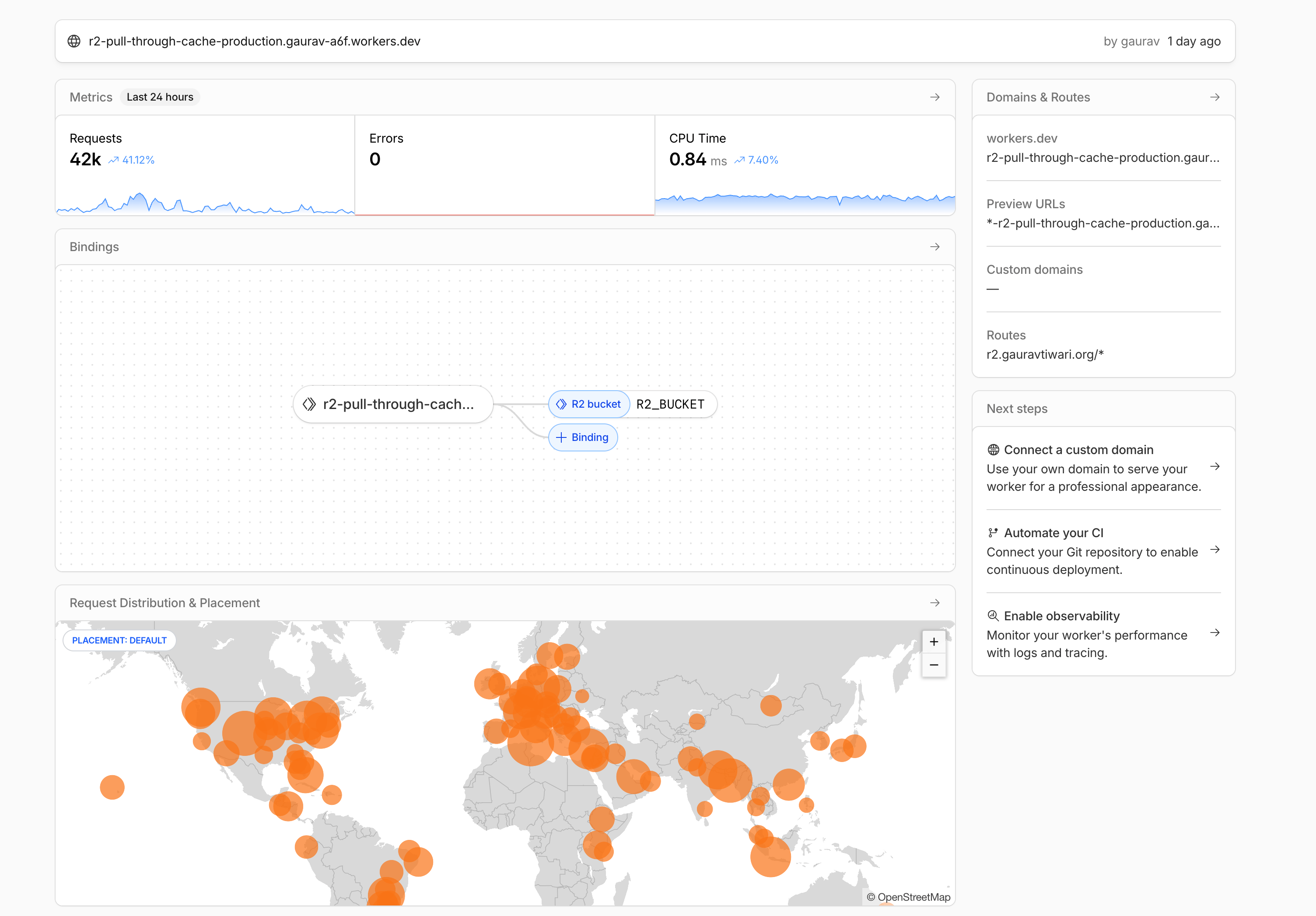
Cloudflare Workers is Cloudflare’s serverless platform: your site’s code and files run from Cloudflare’s data centers around the world instead of one server in one city. For a static or Astro site, the free plan is enough to host a real website at no cost, and Cloudflare now recommends Workers over its older Pages product for new projects.
Free Plan Limits
The numbers that matter for a website on the Workers free plan are these:
- Requests to static files are free and unlimited. HTML, CSS, images and fonts served as static assets don’t count against any quota, up to 20,000 files per deployment and 25MiB per file.
- 100,000 Worker requests a day, reset at midnight UTC. Only requests that run your code count.
- 10ms of CPU time per request and 128MB of memory.
- KV storage: 100,000 reads and 1,000 writes a day, 1GB stored.
- D1 database: 5 million rows read and 100,000 written a day, 5GB in total.
- R2 file storage: 10GB a month with no egress fees.
- Custom domains on any domain you manage in Cloudflare, plus a free workers.dev address.
The 10ms limit sounds tiny. It counts only the time the CPU spends running your code, not the time spent waiting for a database or an API, and serving a prebuilt page uses almost none of it. The limit starts to matter when every page is rendered on request. If you route every request through your Worker, each visit counts against the 100,000 daily requests, and requests beyond that fail until the reset. The Workers Paid plan costs $5 a month and includes 10 million requests.
How to Deploy an Astro Site to Workers
You need Node.js, a free Cloudflare account and a few minutes. Here’s the shortest path from an empty folder to a live site:
- Create the project with Cloudflare’s starter, which sets up Astro, the Cloudflare adapter and Wrangler (Cloudflare’s command-line tool) for you.
- Build your design as Astro components and pages. Pages are static HTML by default, which keeps them on the free, unlimited static path.
- Run the deploy command. Wrangler asks you to log in once, uploads the site and prints a workers.dev address.
- Add your own domain under your Worker’s Domains & Routes settings. The domain has to use Cloudflare for DNS.
npm create cloudflare@latest -- my-site --framework=astro
cd my-site
npm run dev
npm run deploy
npm run dev previews the site on your computer while you work, and npm run deploy builds and publishes it. After the first deploy, every change is the same last command. You can also connect a GitHub repository so each push to the main branch deploys automatically.
How I Use Workers on This Site
This site runs on WordPress, but Cloudflare’s free plan sits in front of it with Workers handling the edge logic. One Worker serves my media files from R2 storage with no egress fees, which I’ve documented in how I serve WordPress assets from Cloudflare R2. The full setup, DNS to cache rules, is in my Cloudflare for WordPress guide.
I also built GT Analytics, a free analytics tool where Workers serve the dashboard, the collector and the scheduled jobs. Neither of those needs a server of its own, which is the real point of Workers for a small site.
Workers vs Other Free Hosts
GitHub Pages, Netlify and Vercel also host static sites for free, but each has a rule that matters for a business:
 GitHub Pages is free for public repositories, with a 1GB site limit and a 100GB monthly bandwidth soft limit. GitHub doesn’t allow it as free hosting for an online business, store or SaaS.
 Netlify‘s free plan gives 300 credits a month. A production deploy costs 15 credits and each GB of bandwidth costs 20, and when one project runs out, every project on the account pauses until the next cycle.
 Vercel‘s free Hobby plan is for non-commercial, personal use only. Ads, affiliate sites and client work all count as commercial.
For a static business site, those rules make Workers the safer free choice. GitHub Pages still works well for an open-source project’s documentation, which is the job it was built for.
Free Photos, Icons, Fonts and Animations
Free assets make a site look cheap when they’re mixed from too many sources. One photo style, one icon family and two font families look more expensive than the best assets from ten different libraries.
Photos
Three libraries cover almost every website photo need, and all three allow commercial use without attribution:
 Unsplash: 6 million+ photos and illustrations with an editorial look. Paid Unsplash+ images appear in the same search results with a lock icon, so check before you build a page around one.
 Pexels: photos plus free stock video, which is the main reason to check it for a hero background.
 Pixabay: photos, illustrations and vectors. Its license doesn’t allow commercial use of images showing recognizable brands or logos.
Pick one source and one look for the whole site: the same light, the same color grading and, where you can, the same photographer. I’ve written more about choosing images in the role of stock photography in web design.
Fonts
 Google Fonts: 1,950 font families, free for commercial use. Self-hosting is allowed, and when you self-host, Google receives no visitor data.
 Fontshare: 100 families from the Indian Type Foundry, free for personal and commercial use. Self-hosting is allowed, but its license doesn’t allow modifying the files, which includes subsetting them.
Two families are enough for almost any site: one for headings and one for body text. Every extra family or weight is another file each visitor downloads.
Icons and Illustrations
 Iconify: one search across 300,000+ open-source icons from more than 200 sets, which makes it the fastest way to find a family with every icon you need.
 Lucide (1,879 icons, ISC license),
  Phosphor (9,072 icons across 6 weights, MIT) and
  Heroicons (316 icons, MIT) are complete families you can use without credit.
 Font Awesome Free has 2,163 icons under CC BY 4.0, and the attribution already sits inside the downloaded files.
 Simple Icons has 3,400+ brand logos as SVG, released under CC0, for tool lists and integration grids.
 unDraw offers free illustrations you can recolor to your brand color before downloading, with no attribution required.
Flaticon and Icons8 have huge libraries, but their free plans require a credit link on your site, which is a poor trade for a clean design. One icon family across the whole site matters more than which family you choose.
Animations
 LottieFiles is the biggest library of Lottie animations, small vector animations that play in the browser. The free workspace allows 5 private uploads and 5 public animation downloads, and its dotLottie format compresses an animation into one file that can carry dark-mode themes and hover states.
Lottie needs a JavaScript player on the page, so keep it for the one animation that explains something, such as a short product demo. A hover effect or a fade-in is lighter as plain CSS.
Free Color, Typography and Accessibility Tools
Color and type decide whether a simple layout looks designed. These free tools handle both, and the accessibility checkers make sure the result is readable by everyone, including the many visitors on a phone in bright sunlight.
Color
 Realtime Colors: free, and it previews your palette on a sample website instead of five swatches, so you see the button, the background and the body text together.
 Coolors: generates palettes with the spacebar and lets you lock the colors you like. The free plan saves 10 palettes.
 Adobe Color: builds palettes from color-harmony rules and checks contrast without an account. Saving a palette needs a free Adobe account.
A website palette needs fewer colors than people expect: a background, a text color, a muted text color for captions and one accent for links and buttons. A second accent earns its place only when it marks something different, such as an error state.
Typography
 Utopia is a free calculator for fluid type and spacing. You set a minimum and maximum size, and it writes CSS
 clamp() values that scale smoothly from a phone to a wide screen, so you don’t need separate sizes per breakpoint.  Typescale previews a fixed scale, with custom ratios on its Pro plan.
A type scale is just a base size multiplied by the same ratio at each step. With an 18px body size and a 1.25 ratio, the steps come out at 22.5px, 28.1px, 35.2px and 43.9px, which gives you clear heading levels without a jarring jump between them.
Accessibility Checks
WCAG 2.2 is the current accessibility standard, and its AA level sets the numbers that decide whether a design is readable. My guide to WCAG 2.2 compliance goes deeper, but these are the ones to design for:
- 4.5:1 contrast for normal text against its background
- 3:1 contrast for large text (24px, or about 18.7px bold) and for buttons, icons and form borders
- 24 by 24 CSS pixels minimum for anything tappable, with 44 by 44 as the stricter AAA target
Four free tools check all of this:
 WebAIM Contrast Checker tests any two colors against the AA and AAA ratios.
 WAVE marks errors directly on your page in Chrome, Firefox and Edge, and it runs entirely in your browser.
 axe DevTools runs automated tests one page at a time, with clearer fix instructions for developers.
 Lighthouse, built into Chrome DevTools, scores accessibility, performance and SEO in one report.
The European Accessibility Act has applied since June 28, 2025 to services such as e-commerce, banking and e-books sold to people in the EU, wherever the business is based. Service businesses with fewer than 10 people and no more than €2 million in annual turnover are exempt, but designing for contrast and tap targets from the start costs nothing and is far easier than fixing them later.
AI Design Tools Worth Using for Free
AI design tools are useful for first drafts. They’ll give you a layout in a minute, but the output tends to look like everyone else’s, and accessibility details such as contrast and heading order are often wrong. Their free plans are also measured in daily messages or credits, so plan to use them for exploration and finish the design yourself.
 Google Stitch: a free Google Labs tool that generates app and website screens from a prompt or a sketch, with export to Figma and to front-end code. Google hasn’t published official limits; use is metered by daily credits on your Google account.
- Figma Make: part of Figma’s free plan, it turns a prompt into a working prototype and draws on the same 150-a-day, 500-a-month AI credits. Free users can publish a Make file only through the Figma Community.
 v0: Vercel’s generator writes React and Tailwind CSS components. The free plan allows 7 messages a day.
 Lovable gives 5 build credits a day, up to 30 a month, and
  Bolt gives 300,000 tokens a day, up to 1 million a month, with Bolt branding on hosted sites.
- Canva AI allows 20 uses a month on the free plan, which is enough for a few image edits or resizes.
For a design-first workflow, I’d use Stitch or Figma Make to explore layout directions and then rebuild the chosen one with my own colors, fonts and spacing. v0, Lovable and Bolt make more sense when you want working code quickly, and their daily limits make them tools for a short sprint. For the code side of my own work I use Claude Code, which is paid, so it isn’t on this list.
How to Design a Website with Free Tools
This is the workflow I’d follow to design beautiful websites with free tools, and it works for any of the three stacks. To make it concrete, say you’re building a one-page portfolio for a freelance photographer: a hero, a grid of work, a short about section and a contact form.
Step 1: Collect References
Before opening a design tool, collect 6 to 8 screenshots of sites you like and write down the one thing you want from each: this grid, that hero crop, this caption style. Apple’s  Freeform is free on Mac, iPad and iPhone and works well as a moodboard, and I use it for visual planning. A Figma or Penpot draft does the same job on Windows.
Good free galleries include  Awwwards,
  Land-book,
  Lapa Ninja,
  SiteInspire and
  Recent, which replaced Godly. For the photographer’s portfolio, you’d look at other portfolio sites and note how they size images and how much text sits around them.
Step 2: Set Your Design Tokens
Design tokens are the named values your whole design reuses: colors, font sizes and spacing. Deciding them first is what keeps a free-tool design consistent, because every later choice picks from a short list instead of starting from zero.
For the portfolio, the token list could be as short as this:
- Colors: background #FAF8F3, text #1C1C1A, muted text #5F5E58 and an accent of #A4442A for links and the contact button
- Fonts: one serif for headings and one sans-serif for body text, both from Google Fonts
- Type scale: 18px body with a 1.25 ratio, set up as fluid sizes in Utopia
- Spacing: multiples of 8px, from 8 to 96
Check every text and background pair before moving on. In this palette, the body text scores 16.1:1 against the background, the muted text 6.1:1 and the accent 5.8:1, so all three pass AA. White text on the accent button scores 6.1:1.
Step 3: Wireframe Mobile First
Mobile devices carried 60% of web traffic worldwide in September 2026, according to StatCounter, so the phone layout deserves to be designed first. Start a 375px-wide frame in Figma or Penpot, use gray boxes and real headlines and leave color and photos out for now.
A phone screen forces the content decisions early. For the portfolio, that means a single-column work grid with large images, one line of introduction in the hero and a contact form with three fields. Once the phone version reads well, widen the frame and let the grid become three columns on a desktop.
Step 4: Design the Visuals and Export Assets
Apply your tokens to the wireframe, add the real photos and create the remaining assets: a logo or wordmark as SVG in Affinity, cropped hero images and any icons from your one icon family. Export photos at about twice the size they display at, so they stay sharp on high-resolution screens without being needlessly heavy.
Images are the largest part of most pages. The median mobile home page weighed 2.56MB in the 2025 HTTP Archive Web Almanac, and images were its biggest content type, at 911KB. Compress every photo before upload with  Squoosh or
  TinyPNG, which handles 20 images at a time on its free web tool. WebP files are 25-34% smaller than comparable JPEGs according to Google, and AVIF, which is often smaller still, now works for about 95% of users.
Step 5: Build, Test and Launch
Build the design in the stack you chose. Match the mockup’s hierarchy, spacing and overall feel rather than every pixel, because a website reflows on every screen size.
Before launch, test three things:
- Speed: run
 PageSpeed Insights and aim for the Core Web Vitals “good” thresholds, which are LCP under 2.5 seconds, INP under 200ms and CLS under 0.1. My guide to passing Core Web Vitals covers what to fix.
 - Accessibility: run WAVE on every page template and fix the errors it marks.
- A real phone: tap every button and fill in the form on an actual device, because a narrow desktop browser window won’t show you real tap targets or mobile network speed.
For the photographer, an Astro site on Workers is a good fit: the whole portfolio is static, so every image is served as a free static asset no matter how many people visit.
What Free Plans Don’t Give You
Free design software is generous. The limits that push most people to pay sit on the publishing side, roughly in the order people hit them:
- Your own domain. Webflow, Framer and Canva sites need a paid plan to connect one, and Carrd needs Pro Standard. WordPress, Astro and Workers let you use any domain, but you still buy the domain itself every year.
- Removing the badge. Webflow, Framer, Canva and Carrd all brand their free sites.
- Editing with other people. Figma drafts are view-only for anyone you invite, and Penpot’s free cloud plan stops at 8 team members.
- Traffic headroom. Webflow and Framer allow 1GB of bandwidth a month on their free plans. At 3MB per visit, an image-heavy portfolio page uses that up in about 330 visits.
- AI credits. Every AI design tool here limits free use by day or by month.
- Commercial use. Vercel Hobby forbids it outright, and Framer positions its free plan for non-commercial sites.
- Email, backups and maintenance. No free stack gives you a business email address, and on WordPress the updates and backups are your job.
Paying makes sense on the day a limit blocks something you need. For most small sites the first sensible spend is the domain, and the second is either hosting for WordPress or the builder’s cheapest plan without a badge.
Common Design Mistakes with Free Tools
An amateur-looking site usually comes from a handful of habits, whatever tools built it, and each one has a simple fix.
Too Many Fonts
Google Fonts offers 1,950 families, and the temptation is to use several. Two is the right number for most sites, one for headings and one for body text, and a single family with a few weights often looks more refined than two. Every family you add is another file to download and another voice competing on the page.
Inconsistent Spacing
Random padding is the clearest sign that a non-designer built the page. The fix is the spacing scale from your tokens: if every margin, padding and gap is a multiple of 8px, sections line up without you thinking about it. Figma, Penpot and every CSS framework let you set that scale once.
Designing Desktop First
A desktop design squeezed onto a phone always feels like an afterthought, because the content decisions were made for a wide screen. With 60% of traffic on mobile, design the narrow layout first and let the wide one add space and columns.
Mixing Template Styles
Canva’s 1.6 million templates make it easy to give every page a different look, and the result is a site that seems to come from five designers. Choose one template or direction and change only its content, colors and fonts from page to page.
Filling Every Gap
Beginners fill every bit of space with text, icons or images. Empty space guides the eye to what matters and makes the rest easier to read, and it costs nothing in any tool. When a section feels weak, removing one element usually helps more than adding another.
FAQs on Designing Websites with Free Tools
Can I design a professional website completely for free?
Yes, with one cost you can’t avoid. Free tools such as Figma, Penpot, Affinity and Canva cover the design, and WordPress, Astro and EmDash are free software. Hosted builders like Webflow, Framer and Carrd brand free sites and keep them on a subdomain. The closest to completely free is a static site on Cloudflare Workers, where hosting costs nothing and your only bill is the domain name.
What is the best free alternative to Figma?
Penpot is the best free Figma alternative for most people. It’s open source, runs in the browser, uses real CSS Grid and Flexbox layouts and exports HTML, CSS and design tokens. Its free cloud plan allows unlimited files with up to 8 team members, and the self-hosted version has no user or file limits.
Is Cloudflare Workers really free for hosting a website?
Yes, for most static and Astro sites. Requests for static files such as HTML, CSS and images are free and unlimited, and the free plan adds 100,000 requests a day for any code your site runs. You need your domain’s DNS on Cloudflare to use a custom domain, and the paid plan starts at $5 a month if you outgrow the free limits.
What are the limits of Canva’s free plan?
Canva Free includes 1.6 million+ templates, 4.7 million+ free assets, 5GB of storage, 20 AI uses a month and one Brand Kit with 3 colors. Premium elements are watermarked, the background remover needs Pro, and free websites stay on a Canva domain with a Canva footer.
Do I need to know how to code to design a website with free tools?
No. Canva, Webflow, Framer, Carrd and WordPress with a block theme all work without code. Code becomes useful when you want the free hosting route, because Astro and Cloudflare Workers need a terminal and some HTML and CSS. AI tools such as Google Stitch and v0 can write a first version of that code for you.
How long does it take to design a website with free tools?
Most of the time goes into content and decisions. Once your references and design tokens are ready, a one-page site can be designed and built in a day or two. A multi-page business site takes longer because every page needs its own content and layout.
Are AI website builders good enough to launch a site?
They’re good enough for a first draft. Tools like v0, Lovable and Bolt produce working pages quickly, but the designs tend to look generic and often miss contrast, heading order and other accessibility details. Their free plans also limit you by day, so they work best for exploring a layout that you then finish yourself.
Final Remarks
The free tools are good enough now. What separates a site that looks designed from one that looks free is the set of decisions behind it: one palette, one type scale, one icon family and a phone layout that works before the desktop one exists.
If I were starting a site today with no budget, I’d set the tokens in Realtime Colors and Utopia, design the phone layout in Penpot or Figma and get the first page live on Cloudflare Workers before designing the second. Pay for a tool only on the day its free plan blocks something you need.
Tell Google you want more of this.
Add Gaurav Tiwari as a preferred sourceOne tap, and this site shows up more often in your own Top Stories, AI Overviews and AI Mode. Remove it any time.
Disclaimer: This site is reader-supported. If you buy through some links, I may earn a small commission at no extra cost to you. I only recommend tools I trust and would use myself. Your support helps keep gauravtiwari.org free and focused on real-world advice. Thanks. - Gaurav Tiwari