How to Use WordPress as a Headless CMS with Astro
I push every article on this site through the WordPress REST API, so headless WordPress is not theory for me. Here is how to use WordPress as a headless CMS with Astro in focus: a tested build against this site's live API, WPGraphQL, auth without plugins, and when to skip headless entirely.
 by
by
I push every article on this site through the WordPress REST API. That’s not an experiment; it’s my daily publishing pipeline. So when someone asks me whether WordPress as a headless CMS actually works, I’m not answering from a diagram. Half of my WordPress life already runs through the API.
Before rewriting this guide, I ran the other half. I pointed a fresh Astro project at this site’s live API and built it: 21 static pages in 1.88 seconds, from two files of code, with no plugins on either side. That number is the whole pitch for headless WordPress.

Headless WordPress keeps the part WordPress is genuinely great at, which is managing content, and hands rendering to a front-end framework of your choice. React and Next.js still make sense for app-shaped projects. Gatsby no longer makes my list at all. And Astro has become the default I reach for, which is why this guide now leads with it.
Table of Contents
What headless WordPress actually means
Headless WordPress is a split. WordPress keeps the admin, the editor, and the database, while a separate front-end fetches your content over an API and renders every page. The “head” that gets removed is the theme layer.
- Traditional WordPress: CMS and front-end tightly integrated. One system does everything.
- Headless WordPress: CMS and front-end decoupled, talking to each other through the REST API or GraphQL.
Why teams decouple
- Flexibility: build any interface you can imagine, free of PHP and theme framework constraints.
- Performance: a static front-end serves plain HTML, which beats even a well-cached PHP render.
- Security: your public site becomes static files; the WordPress admin can hide on a separate domain.
- Scalability: front-end and back-end scale independently, and static hosting scales almost for free.
How the pieces talk
- Your WordPress install serves content as JSON, through the built-in REST API or the WPGraphQL plugin.
- A front-end framework (Astro, Next.js, Nuxt, SvelteKit) fetches that JSON at build time or request time and renders it.
One system writes. The other renders. Everything else in this guide is plumbing between the two.
The WordPress side of the setup
You don’t need a special install to use WordPress as a headless CMS. You need a normal install, ideally tucked onto a subdomain like cms.example.com, and the REST API it already ships with.
- Install WordPress normally, preferably on a subdomain so the front-end can own the main domain.
- Confirm the API works by opening
/wp-json/wp/v2/postsin a browser. JSON means you’re live. - Point a front-end at it. That’s genuinely the whole architecture.
Tools you need
- WordPress REST API: built into core, nothing to install.
- WPGraphQL (optional): version 2.19 as I write this, updated in August 2026 and tested up to WordPress 7.0. It’s the most actively maintained piece of the headless WordPress ecosystem.
- Advanced Custom Fields (optional): for structured content beyond posts and pages.
Hosting that fits the split
- Managed WordPress host for the back-end: Cloudways, Kinsta, or WP Engine. The admin still needs PHP and a database; only the public site goes static.
- Static host for the front-end: Netlify, Vercel, or Cloudflare. All three rebuild your site on a webhook and serve it from a CDN.
Astro is my front-end pick
If I were building a headless WordPress front-end today, I’d start with Astro. The reasoning is simple: most content sites are mostly HTML, and Astro is the one major framework built around that fact. It ships zero JavaScript by default and renders everything to static HTML at build time. Interactive pieces become “islands” that hydrate individually while the rest of the page stays inert and fast.
It’s also a project in motion. Astro 5 arrived in December 2024, version 7 landed in June 2026, and 7.2 is current as I write this. That release pace matters when you’re betting a production site on a framework; you’ll see why when we get to Gatsby.
The build I ran
This isn’t a hypothetical example. Here is the entire front-end I pointed at this site’s API before rewriting this guide. Two files.
src/pages/index.astro lists the latest posts:
---
const res = await fetch(
  'https://gauravtiwari.org/wp-json/wp/v2/posts?per_page=20&_fields=id,slug,title,excerpt,date'
);
const posts = await res.json();
---
<html lang="en">
  <head>
    <meta charset="utf-8" />
    <title>Latest posts</title>
  </head>
  <body>
    <h1>Latest posts</h1>
    <ul>
      {posts.map((post) => (
        <li>
          <a href={`/posts/${post.slug}/`} set:html={post.title.rendered} />
        </li>
      ))}
    </ul>
  </body>
</html>
src/pages/posts/[slug].astro builds one static page per post:
---
export async function getStaticPaths() {
  const res = await fetch(
    'https://gauravtiwari.org/wp-json/wp/v2/posts?per_page=20&_fields=slug,title,content,date'
  );
  const posts = await res.json();
  return posts.map((post) => ({
    params: { slug: post.slug },
    props: { post },
  }));
}
const { post } = Astro.props;
---
<html lang="en">
  <head>
    <meta charset="utf-8" />
    <title set:html={post.title.rendered} />
  </head>
  <body>
    <article>
      <h1 set:html={post.title.rendered} />
      <div set:html={post.content.rendered} />
    </article>
  </body>
</html>
Then npm run build. The result: 21 pages in 1.88 seconds, fetched live from this site’s REST API, rendered as plain HTML with no client-side JavaScript at all.
Fast.
Notice one quiet win in there: the fetch() runs at build time, on your machine or your CI server. The browser never makes a cross-origin request, so the CORS headaches that haunt client-side headless setups simply never happen. Notice also the _fields parameter, which tells WordPress to return only the fields you name. I use it in my own publishing scripts; it’s the difference between a lean response and downloading the kitchen sink.
Astro’s documentation keeps a dedicated Headless WordPress guide, and unlike a lot of framework docs, it’s current.
Islands, for the interactive bits
A static site still needs the occasional live component: a search box, a comment form, a currency converter. In Astro you write that one component in React, Vue, Svelte, or plain Astro, and hydrate just that component:
<SearchBox client:load />The rest of the page ships as HTML. That’s the architecture most WordPress content sites actually need: 95 percent document, 5 percent app.
Where the other frameworks fit
Astro is my default, not a religion. Two of these alternatives are healthy choices. One is not.
Next.js, for app-shaped sites
If your “site” is really an application, with logged-in users, personalization, or heavy interactivity on every page, Next.js earns its complexity. It’s on version 16 as I write this, and its incremental static regeneration lets you cache WordPress content and refresh it on a timer:
const res = await fetch('https://example.com/wp-json/wp/v2/posts', {
  next: { revalidate: 60 }, // refetch at most once per minute
});
const posts = await res.json();
Content stays fresh without rebuilding the site. For a WordPress front-end with app features, that’s the right tool. For a blog, it’s more machinery than the job needs.
Nuxt and SvelteKit
Both are healthy, actively developed, and perfectly capable of consuming the WordPress REST API or WPGraphQL with the same fetch patterns you’ll see below. My honest guidance: pick Nuxt if your team already lives in Vue, SvelteKit if it lives in Svelte. Neither will beat Astro at the pure content-site job, and neither will let you down.
Gatsby, honestly
Earlier versions of this guide recommended Gatsby for static WordPress sites. I can’t do that anymore. Gatsby’s last major release shipped in November 2022, and what ships now is occasional maintenance patches. Existing Gatsby sites keep working, but I wouldn’t start a new headless WordPress project on a framework that has stopped moving. Everything Gatsby was best at, Astro now does with less ceremony.
Connecting to the WordPress REST API
The WordPress REST API is the interface between WordPress and everything else: your front-end, your scripts, your tools. It ships with core, and it’s not just for reading. This very update went live through it; my publishing pipeline authenticates against the same API this article teaches and writes the post over HTTP. I’ve also documented how AI tools manage my links through a REST API, because once content is addressable as JSON, automation gets easy.
The endpoints
Every WordPress site exposes the REST API at the same address:
https://example.com/wp-json/wp/v2/Open it in a browser. If you see JSON, your API is live and you’ve done all the WordPress-side setup a read-only headless site requires.
Fetching posts
fetch('https://example.com/wp-json/wp/v2/posts?_fields=id,slug,title,excerpt')
  .then(response => {
    if (!response.ok) {
      throw new Error(`HTTP error! status: ${response.status}`);
    }
    return response.json();
  })
  .then(posts => {
    console.log(posts);
    // Render your posts here
  })
  .catch(error => {
    console.error('Error fetching posts:', error);
  });
Three things worth knowing about this request:
_fieldstrims the response to only the fields you name. Use it everywhere.per_pagegoes up to 100; after that you paginate withpage=2and theX-WP-TotalPagesresponse header.- Titles and content come back as
{ rendered: "..." }objects, so it’spost.title.rendered, notpost.title.
Single posts, categories, tags
Single items live at predictable addresses, and taxonomies filter with query parameters:
// One post by ID
fetch('https://example.com/wp-json/wp/v2/posts/123')
  .then(res => res.json())
  .then(post => console.log(post.title.rendered));

// One post by slug (returns an array)
fetch('https://example.com/wp-json/wp/v2/posts?slug=my-post-slug')
  .then(res => res.json())
  .then(([post]) => console.log(post.title.rendered));

// All categories, then posts in category 5
fetch('https://example.com/wp-json/wp/v2/categories')
  .then(res => res.json())
  .then(categories => console.log(categories));

fetch('https://example.com/wp-json/wp/v2/posts?categories=5')
  .then(res => res.json())
  .then(posts => console.log(posts));
The by-slug form is the one headless front-ends actually use, because your routes carry slugs, not database IDs.
Authentication without plugins
Here’s an update most old headless tutorials still get wrong: you don’t need a plugin for API authentication. WordPress has shipped application passwords in core since version 5.6. Go to your profile in wp-admin, generate one under “Application Passwords,” and send it as HTTP Basic auth:
fetch('https://example.com/wp-json/wp/v2/posts?status=draft', {
  headers: {
    'Authorization': 'Basic ' + btoa('yourusername:xxxx xxxx xxxx xxxx xxxx xxxx')
  }
})
  .then(res => res.json())
  .then(drafts => console.log(drafts));
That’s exactly how my own publishing scripts authenticate, over HTTPS only, with a password I can revoke without touching my real login. If you need token-based flows instead, the JWT Authentication plugin is still maintained, and WPGraphQL JWT covers the GraphQL side.
GraphQL, when REST gets chatty
REST answers with everything an endpoint has; GraphQL answers with exactly what you asked for, from a single endpoint. On a small blog the difference is cosmetic. On a build that touches posts, authors, categories, and custom fields for hundreds of pages, it adds up: fewer requests, smaller payloads, and queries that read like the data you want.
Setting up WPGraphQL
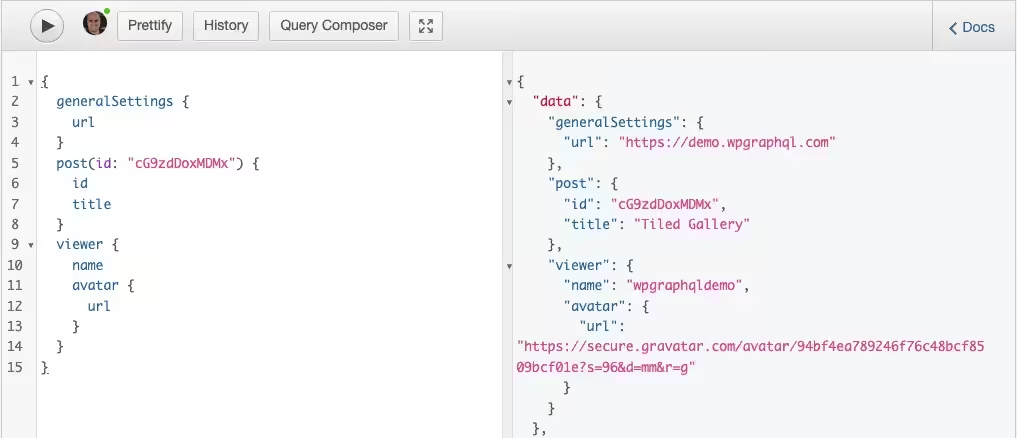
GraphQL isn’t built into WordPress, but the setup is two steps:
- Install and activate the free WPGraphQL plugin. Your site immediately exposes a
/graphqlendpoint. - Open the bundled GraphiQL IDE from your wp-admin toolbar and test queries in the browser before you write any code.
Your first queries
A GraphQL query states what you want and nothing else. This fetches the latest five posts:
query {
  posts(first: 5) {
    nodes {
      id
      title
      date
      excerpt
    }
  }
}
And from JavaScript, it’s one POST request. No client library required:
const query = `
  query {
    posts(first: 5) {
      nodes {
        id
        title
        link
      }
    }
  }
`;

fetch('https://example.com/graphql', {
  method: 'POST',
  headers: { 'Content-Type': 'application/json' },
  body: JSON.stringify({ query })
})
  .then(res => res.json())
  .then(result => {
    console.log(result.data.posts.nodes);
  })
  .catch(error => {
    console.error('GraphQL fetch error:', error);
  });
That same fetch drops straight into an Astro frontmatter block and runs at build time. Nested data is where GraphQL starts paying rent; this pulls posts with their authors and categories in one round trip:
query {
  posts(first: 5) {
    nodes {
      title
      author {
        node {
          name
        }
      }
      categories {
        nodes {
          name
        }
      }
    }
  }
}
In REST, that’s three separate requests and some client-side stitching. In GraphQL, it’s one shape.
Custom fields with ACF
If you model content with Advanced Custom Fields, install WPGraphQL for ACF (version 2.7 as I write this) and your field groups appear in the schema:
query {
  posts {
    nodes {
      title
      acfPostFields {
        customFieldName
        featuredImage {
          sourceUrl
        }
      }
    }
  }
}
React and Apollo
If your front-end is React and you’re querying at runtime rather than build time, Apollo Client handles caching and loading states for you:
import React from 'react';
import { useQuery, gql } from '@apollo/client';

const GET_POSTS = gql`
  query {
    posts(first: 5) {
      nodes {
        id
        title
      }
    }
  }
`;

const Posts = () => {
  const { loading, error, data } = useQuery(GET_POSTS);

  if (loading) return <p>Loading...</p>;
  if (error) return <p>Error: {error.message}</p>;

  return (
    <ul>
      {data.posts.nodes.map(post => (
        <li key={post.id}>{post.title}</li>
      ))}
    </ul>
  );
};

export default Posts;
For static builds, skip Apollo entirely. Plain fetch at build time is simpler and disappears from your bundle.
Common problems and honest fixes
Going headless trades one set of problems for another. These are the ones you’ll actually hit, and what fixes them.
CORS errors
When a browser on yoursite.com fetches data from cms.yoursite.com, the browser blocks the cross-origin request unless WordPress explicitly allows it:
Access to fetch at 'https://cms.yoursite.com/wp-json/wp/v2/posts'
from origin 'https://yoursite.com' has been blocked by CORS policy.
Fix it in .htaccess on the WordPress server, and allow your front-end’s origin specifically rather than *:
<IfModule mod_headers.c>
  Header set Access-Control-Allow-Origin "https://yoursite.com"
  Header set Access-Control-Allow-Methods "GET, POST, OPTIONS"
  Header set Access-Control-Allow-Headers "Content-Type, Authorization"
</IfModule>
Better fix: fetch at build time, like the Astro example above. Server-to-server requests don’t involve a browser, so CORS never applies.
SEO and missing meta
Purely client-rendered React or Vue front-ends serve search engines an empty shell, and pages get indexed without titles or descriptions. The fix is structural: render HTML on the server or at build time, which Astro, Next.js, Nuxt, and SvelteKit all do. Then pull your titles, descriptions, and canonical URLs from WordPress through the API, so the SEO plugin your editors already use stays the single source of truth, and render them into each page’s head.
Slow API responses
Every API call is a network round trip into PHP and MySQL, and an unoptimized WordPress back-end will make even a static build crawl. Three fixes, in order of impact:
- Prefetch at build time so visitors never wait on the API at all.
- Add object caching (Redis or Memcached) on the WordPress server.
- Put Cloudflare or another CDN in front of the API for cacheable GET requests.
Routing mismatches
WordPress permalinks and framework routes are two different systems that must agree, or you’ll ship broken URLs and lose rankings on a migration. The rule: make your framework’s dynamic routes mirror your existing permalink structure exactly, slug for slug. The [slug].astro file earlier does precisely this, and Next.js dynamic segments work the same way. Audit your top URLs before launch and 301 anything you genuinely must change.
Editors lose previews
This is the cost nobody budgets for. The classic “Preview” button renders through your theme, and you just deleted the theme. Writers notice immediately. WPGraphQL supports draft previews you can wire into your front-end, and Netlify and Vercel both offer preview deployments per branch. It works, but it’s real engineering effort, and if your site has multiple non-technical editors, weigh this section heavily before going headless.
Stale content after publishing
With a static front-end, hitting Publish in WordPress changes the database, not your site. You need one of two mechanisms:
- Rebuild on publish: a webhook from WordPress pings your host’s deploy hook, and Netlify, Vercel, or Cloudflare rebuilds the site.
- Timed revalidation: Next.js-style ISR refetches content on an interval without a full rebuild.
Here’s the perspective my own test gives you: if 21 pages build in under two seconds, a few hundred pages build in well under a minute. “Rebuild everything on publish” stays a perfectly sane strategy far longer than most tutorials admit.
Should you go headless at all?
Here’s the part most tutorials won’t tell you: this site is not headless. And I’m the person who just showed you a two-second headless build of it.
I stay on traditional WordPress because my publishing workflow leans on things the theme renders for me: SEO meta, product boxes, forms, structured blocks. My editors (mostly me, sometimes automation) get instant previews. And with proper caching and a CDN, the performance argument for going headless mostly evaporates for a content site. Going headless would mean rebuilding all of that plumbing for a gain my readers would barely measure.
Go headless when:
- The front-end is the product: custom interfaces, app-like interactions, design that no theme should constrain.
- Multiple channels read one content source: website, mobile app, digital signage, all from the same WordPress.
- Your team lives in JavaScript and treats WordPress purely as an editorial back office.
Skip it when you’re running a straightforward blog or a standard eCommerce setup. Traditional WordPress with a fast theme solves those problems with a tenth of the moving parts.
So don’t treat WordPress as a headless CMS as a maturity ladder you’re supposed to climb. It’s a trade: you gain a front-end with no ceilings, and you take on a second codebase, a preview problem, and a deploy pipeline. Make the trade when the ceiling is your actual problem. When it is, start with Astro, point it at the API you already have, and you’ll have a working site before your coffee cools. And if you’d rather make the trade with help, I build headless WordPress front-ends and WordPress API integrations for exactly this.
Tell Google you want more of this.
Add Gaurav Tiwari as a preferred sourceOne tap, and this site shows up more often in your own Top Stories, AI Overviews and AI Mode. Remove it any time.