
Can Apps and Trackers Bypass Your VPN? 5 Ways to Stay Private
 by
by
Using a VPN is one of the easiest ways to improve your online privacy. It hides your original IP address, encrypts your internet traffic, and makes it harder for others to monitor your connection.
But you might notice something strange. Even with a VPN connected, shopping websites still remember your preferences, social media apps recognize your account, and ads seem to follow your interests.
So, can apps and trackers bypass your VPN?
Yes, apps and websites can still identify and track you while you’re using a VPN. That’s because online tracking goes beyond IP addresses. Cookies, account logins, device fingerprints, and location permissions can all reveal information about you.
Understanding how these methods work can help you take better control of your digital privacy.
What Does a VPN Actually Hide?
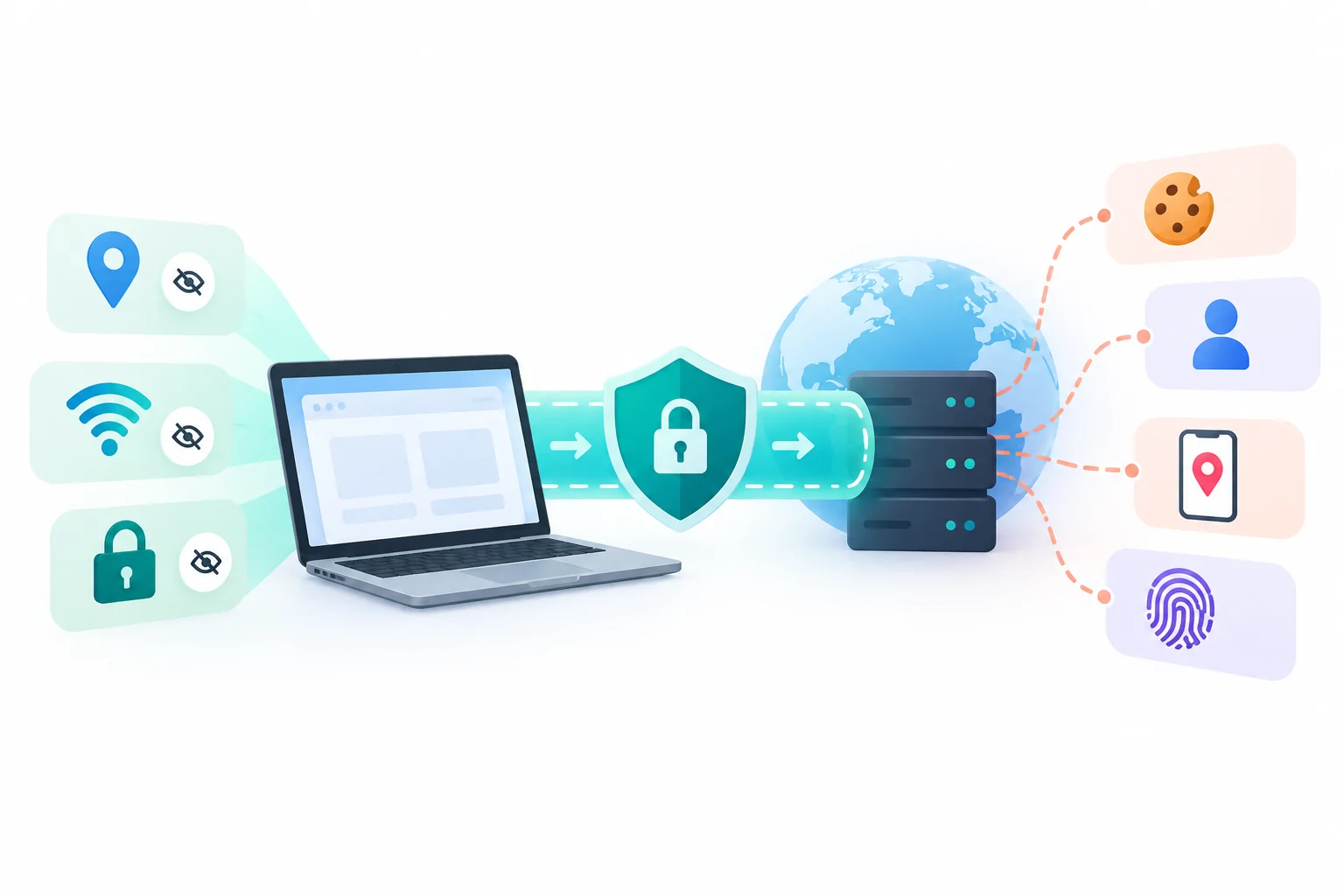
A VPN creates an encrypted connection between your device and a VPN server. Your internet traffic travels through this connection before it reaches websites or online services.
When you use a service like X-VPN, the websites generally see VPN server’s IP address instead of your original public IP. This helps reduce IP-based tracking and makes it harder to estimate your physical location from your internet connection.
A VPN also encrypts traffic between your device and the VPN server. That protects it from people monitoring your local network, including those on public Wi-Fi.
However, your IP address is only one piece of your online identity. These tracking methods work differently from IP-based tracking:
- Websites can recognize your account information.
- Browsers can store tracking cookies.
- Mobile apps may collect device or location data.
How Can Apps and Websites Still Track You With a VPN?
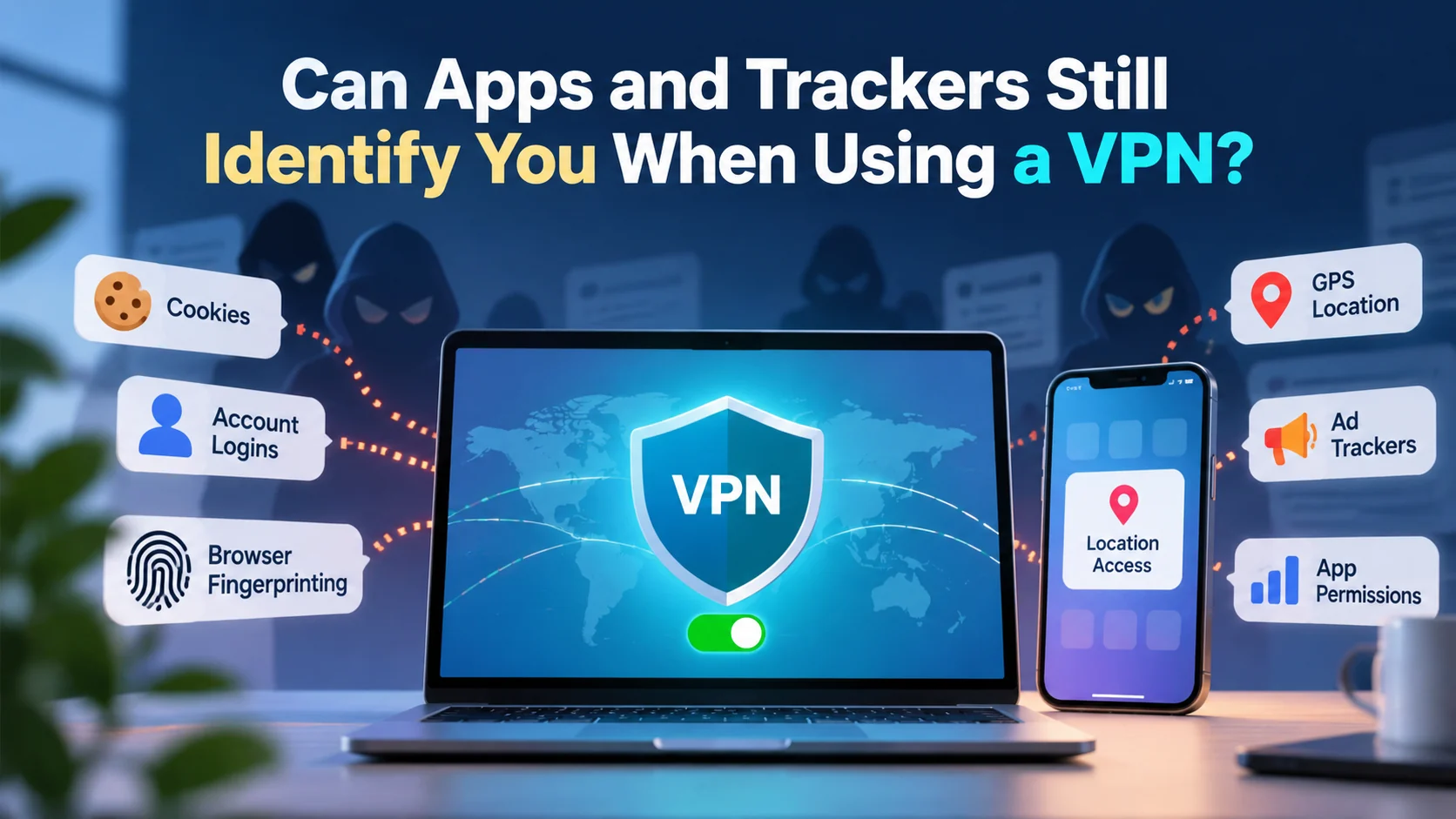
Apps and websites use several methods to recognize returning visitors, personalize content, and measure user activity. Many of these methods keep working even when your IP address changes.
1. Account Logins and Personal Information
Logging into an online account is one of the simplest ways for a website to identify you.
For example, when you sign into Google, Facebook, or Amazon, the platform knows which account you’re using. Your IP address might be different, but your profile, purchase history, and saved preferences stay connected to that account.
The same applies to mobile apps. Once you’re signed in, an app can connect your activity to your account, whether or not a VPN is turned on.
2. Cookies and Browser Fingerprinting
Cookies are small pieces of data that websites store in your browser. They help remember login sessions, shopping carts, and website preferences.
Some cookies also support tracking across visits. Changing your IP address doesn’t automatically remove them.
Browser fingerprinting works differently. Instead of relying on stored cookies, websites can examine characteristics such as:
- Your browser version
- Your screen resolution
- Your language preferences
- Your device settings
Together, these details may create a recognizable browser profile. A VPN changes your network address, but these browser characteristics generally stay the same.
3. App Permissions and GPS Location
A VPN can change your apparent location based on your IP address, but your phone has other ways to determine where you are. Many apps access location data through:
- GPS
- Nearby Wi-Fi networks
- Mobile network information
For example, a weather app with location permission may still show your actual city even when you’re connected to a VPN server in another country.
That’s because location services run separately from your VPN connection. Apps with the right permissions can keep accessing your location.
4. Advertising IDs and Third-Party Trackers
Mobile apps often include analytics tools and advertising software that collect information about user behavior.
Depending on your device settings and permissions, these tools may use advertising identifiers, app activity, or other signals to recognize users.
For example, a shopping app might collect information about products you’ve viewed and use it to personalize recommendations or ads.
A VPN encrypts the connection carrying this information, but it doesn’t automatically stop the app from collecting or sharing it.
Here’s a quick comparison:
| Tracking method | Does a VPN stop it? |
|---|---|
| IP-based tracking | Helps reduce it |
| Cookies | No |
| Browser fingerprinting | No |
| GPS location tracking | No |
| Account-based tracking | No |
| Advertising identifiers | No |
Can Apps Still See Your Real IP Address With a VPN?
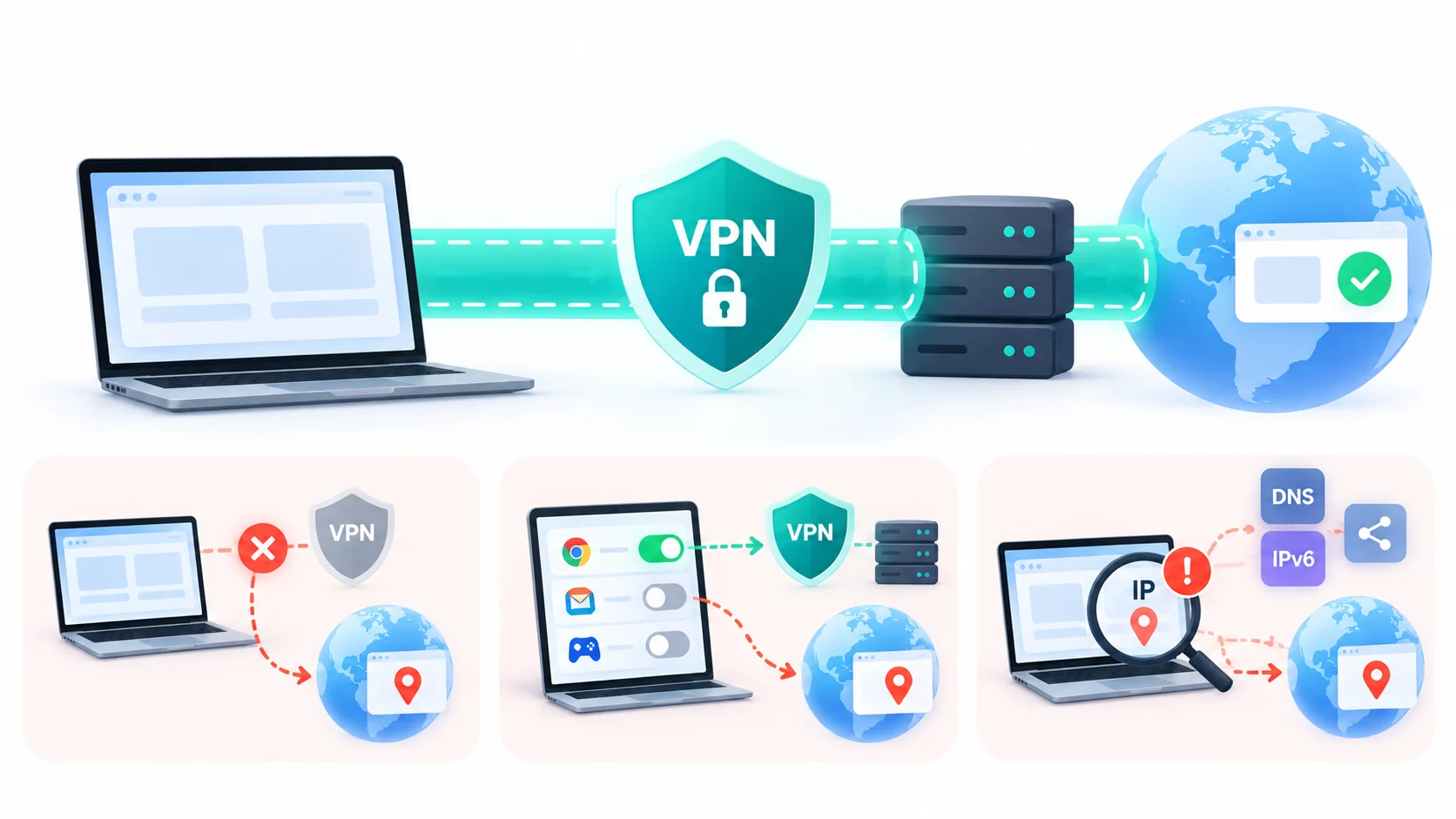
When your VPN is connected and working properly, websites and apps using the VPN connection generally see the VPN server’s public IP address.
However, certain connection settings or technical issues can expose your original IP address:
- VPN connection drops: If your VPN disconnects unexpectedly, internet traffic may return to your regular connection. A Kill Switch can help prevent this by blocking traffic when the VPN connection fails.
- Split tunneling: Some VPNs let you choose which apps use the VPN. Apps excluded from the VPN tunnel may connect using your regular IP address.
- IP and DNS leaks: Incorrect network configurations may allow IPv6 traffic or WebRTC connections to reveal IP information. DNS leaks can also expose domain lookups outside the VPN tunnel.
These issues are different from tracking through cookies or accounts. They involve how your network traffic is routed rather than how websites identify your activity.
For a more detailed explanation of VPN privacy settings, see this guide on maximizing VPN anonymity.
How to Reduce Tracking While Using a VPN
A VPN is a useful starting point for online privacy. Combining it with a few browser and device settings can help reduce other forms of tracking.
Here are 5 practical steps.
Step 1. Choose a Trusted VPN
Start with a VPN that offers strong encryption, a clear privacy policy, and reliable connection protection. This guide on how to choose the right VPN covers what to check before you pay.
Look for useful security features such as a Kill Switch and DNS leak protection. These can help protect your connection when networks change or unexpected interruptions occur.
Connect to a VPN server before browsing, especially when using public Wi-Fi in airports, hotels, or cafes. This helps protect your network traffic and reduces what websites can learn from your original IP address.
Step 2. Review Your App Permissions
Many apps request access to location services, cameras, microphones, and other device features.
Open your phone’s privacy settings and review which apps have access to this information:
- On iPhone, go to Settings > Privacy & Security > Location Services.
- On Android, open Settings > Location > App Location Permissions.
Menu names may vary by device.
For apps that don’t need continuous location access, choose “While Using the App” or turn off location permission.
Step 3. Limit Cookies and Browser Tracking
Most modern browsers include privacy features that help reduce online tracking. Open your browser’s privacy settings and look for options to:
- Block third-party tracking cookies
- Limit cross-site tracking
- Turn on enhanced tracking protection
You can also clear unnecessary cookies and website data periodically.
Clearing cookies may sign you out of websites, so you might need to log in again.
Step 4. Adjust Advertising Privacy Settings
Your phone’s advertising settings can help limit how apps use information for personalized ads.
- On iPhone, open Settings > Privacy & Security > Tracking to manage whether apps can ask to track your activity across other companies’ apps and websites.
- On Android, search your device settings for Ads or Ads Privacy to review the available advertising controls.
You can also check the privacy settings inside social media and shopping apps to manage ad personalization.
Step 5. Check Your VPN Connection
After connecting to your VPN, open an IP address checking website and confirm that the public IP it shows matches your VPN connection.
You can also use online DNS and WebRTC leak testing tools to check whether network information is being exposed unexpectedly.
If you notice an issue, reconnect to the VPN, switch servers, or review its connection settings.
Keeping your VPN app and browser updated can also help address compatibility problems and security issues.
Frequently Asked Questions
Yes. Apps with location permission may use GPS, Wi-Fi positioning, or mobile network information to determine your location.
A VPN changes the IP address websites see, but it doesn’t automatically change the location your device reports.
To limit location tracking, review each app’s permissions and turn off location access the app doesn’t need.
Incognito or private browsing keeps your browser from saving your browsing history and certain session data after you close private windows.
However, websites can still identify you through account logins, IP addresses, and browser fingerprinting.
For better privacy, combine your browser’s tracking protection features with a VPN and careful account management.
A VPN can reduce tracking based on your original IP address, but targeted advertising also uses account activity, cookies, and other identifiers.
For example, if you search for a product while logged into a shopping account, that activity may influence future recommendations even when your VPN is connected.
Adjusting your ad preferences, limiting tracking permissions, and blocking third-party trackers can help reduce this type of advertising.
Final Thoughts
Apps and websites can still track you when you’re using a VPN, but you have several ways to reduce the information they collect.
A VPN helps protect your internet connection and hide your original IP address. Browser privacy settings, app permissions, and advertising controls address other common tracking methods.
Using these tools together gives you more control over your online activity and helps make everyday browsing more private.
Tell Google you want more of this.
Add Gaurav Tiwari as a preferred sourceOne tap, and this site shows up more often in your own Top Stories, AI Overviews and AI Mode. Remove it any time.