
 by
by
The word “business” in the WordPress.com Business plan is a confusing word, to be very honest. It is not just for businesses; it is for anyone who wants more freedom and more opportunities than the Personal plan offers.
In fact, the Business plan is especially well‑suited for developers. It includes developer integrations, MCP, CLI, SSH, and everything a developer needs to host a website locally or online, to sync between them, or to move from local to online—or online to local. So the freedom is endless. The Business plan is simply misunderstood.
The WordPress.com Business plan gets bought for the wrong reason more often than any other WordPress.com plan.
People still upgrade to it to install plugins, and since April 2026 every paid plan can do that, so they end up paying $300 a year for a feature Personal includes at $48.
For a developer, Business is a different product. It’s managed WordPress hosting with SFTP, SSH, WP-CLI, a staging site and GitHub deployments built in, so you can run a client site with a proper code workflow without looking after a server. I’d shortlist it for a single developer-led site where that workflow fits, and I’d look elsewhere when you run many small sites or need control over the server itself.
If you are new to this, WordPress.com Business is Automattic’s hosted plan for plugin-powered and developer-maintained sites.
What the Business Plan Includes
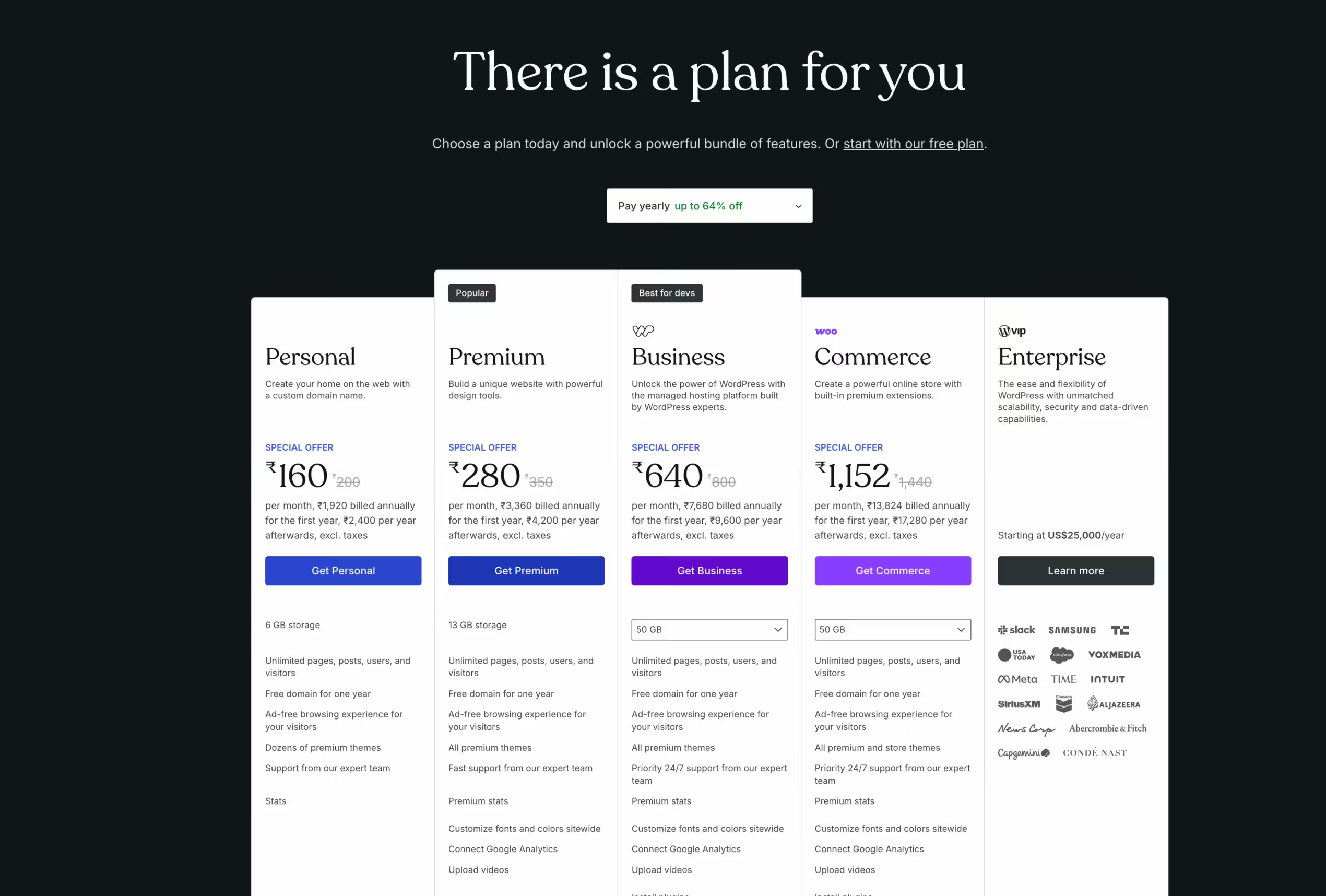
Business sits above Personal and Premium and below Commerce. The developer tools and higher storage are the reason it exists, and the bundled services are extras you should value only if you’ll use them. It can even support e‑commerce. The only difference between the Business and Commerce plans is that the Commerce plan includes certain WooCommerce extensions. If you’re not using WooCommerce at all, you don’t need to upgrade; the Business plan should be sufficient.
Since we’re talking about developers, they can do almost everything on the Business plan, as WordPress.com is opening its proprietary workflows to everyone now—especially with the advent of artificial intelligence and tools like MCP.
The tools a developer will care about:
- SFTP and SSH access, with WP-CLI preinstalled
- a staging site you can create from production and sync in either direction
- GitHub deployments that copy code from a repository branch into the site
- database access through phpMyAdmin
- PHP version switching between 8.3 and 8.4, plus server-side caching controls
- automatic Jetpack backups with one-click restores
- free migration of an existing site by WordPress.com staff, which the plan page puts at 2 to 3 business days
The bundled extras listed for Business:
- 50 GB of site storage, with videos kept out of that allowance (the pricing page lists 250 GB of dedicated VideoPress storage)
- MailPoet for up to 500 subscribers
- $200 in Blaze advertising credits, which expire after 12 months and can’t be turned into cash
- a business email account, which the pricing page lists as free for one year
But wait, that last one needs a check at checkout. WordPress.com’s email support pages describe a 3-month free trial of Professional Email instead, after which a standard mailbox costs $3.50 a month or $35 a year.
A developer who already has email, a newsletter tool and video hosting for the client should judge Business on the hosting alone and count the extras only when the client will use them.
Pricing and Billing Terms
Business costs $40 on monthly billing, $25 a month on annual billing, $20 a month on a 2-year term and $17.50 a month on a 3-year term, in USD before tax. The monthly equivalents hide very different commitments, so here is what each term actually charges:
| Billing term | Monthly equivalent | Charged upfront |
|---|---|---|
| Monthly | $40 | $40 each month ($480 a year) |
| Annual | $25 | $300 for the year |
| 2 years | $20 | $480 for 2 years |
| 3 years | $17.50 | $630 for 3 years |
The $17.50 figure is the 3-year total divided by 36, and you pay all of it at checkout. WordPress.com shows local currencies in many countries, and in some of them, India included, annual plans currently carry a first-year discount with a higher renewal price. Check the current pricing page and the renewal line at checkout before you quote a client.
There’s no public free trial of Business, but there is a refund window. WordPress.com refunds annual and multi-year plans within 14 days and monthly plans within 7 days, which is enough time to run the workflow test I describe at the end.
For client work, I’d write down 4 things before anyone pays: the upfront amount, the renewal amount, the domain and email costs after any free period, and whose account the site lives under. A cheap first year turns into an awkward email in month 13 when nobody agreed who handles the renewal.
Plugins Alone Don’t Need Business
WordPress.com opened plugins and custom themes to every paid plan on April 2, 2026. A site that needs a contact form, an SEO plugin and a page builder can run on Personal plan.
That changes how you should explain the upgrade to a client.
Business is worth paying for when the site needs SSH, staging, deployments or the restore tools, or when a developer will maintain it over time. If the honest answer is “we just need plugins”, start with Personal or Premium and move up when the workflow calls for it.
The Developer Workflow
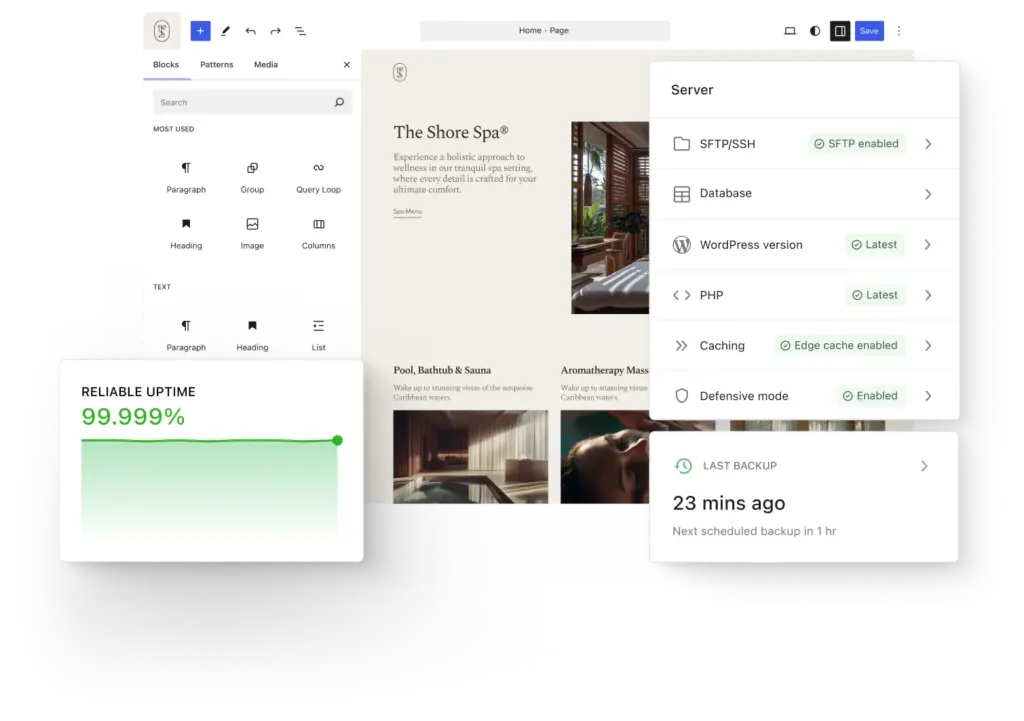
WordPress.com offers several tools for developers, including the Studio App, Studio MCP, Studio CLI, GitHub integration, staging‑to‑production connections, SSH, MCP, and much more. They have been adding many features over time, and their focus has been to keep both developers and regular users happy and in sync with the latest updates.
The workflow depends on which route you take. For example, there is a simple way to switch a local website from your system—your Studio website—to WordPress.com’s business‑plan setup. You code, you design locally, and you publish online instantly.
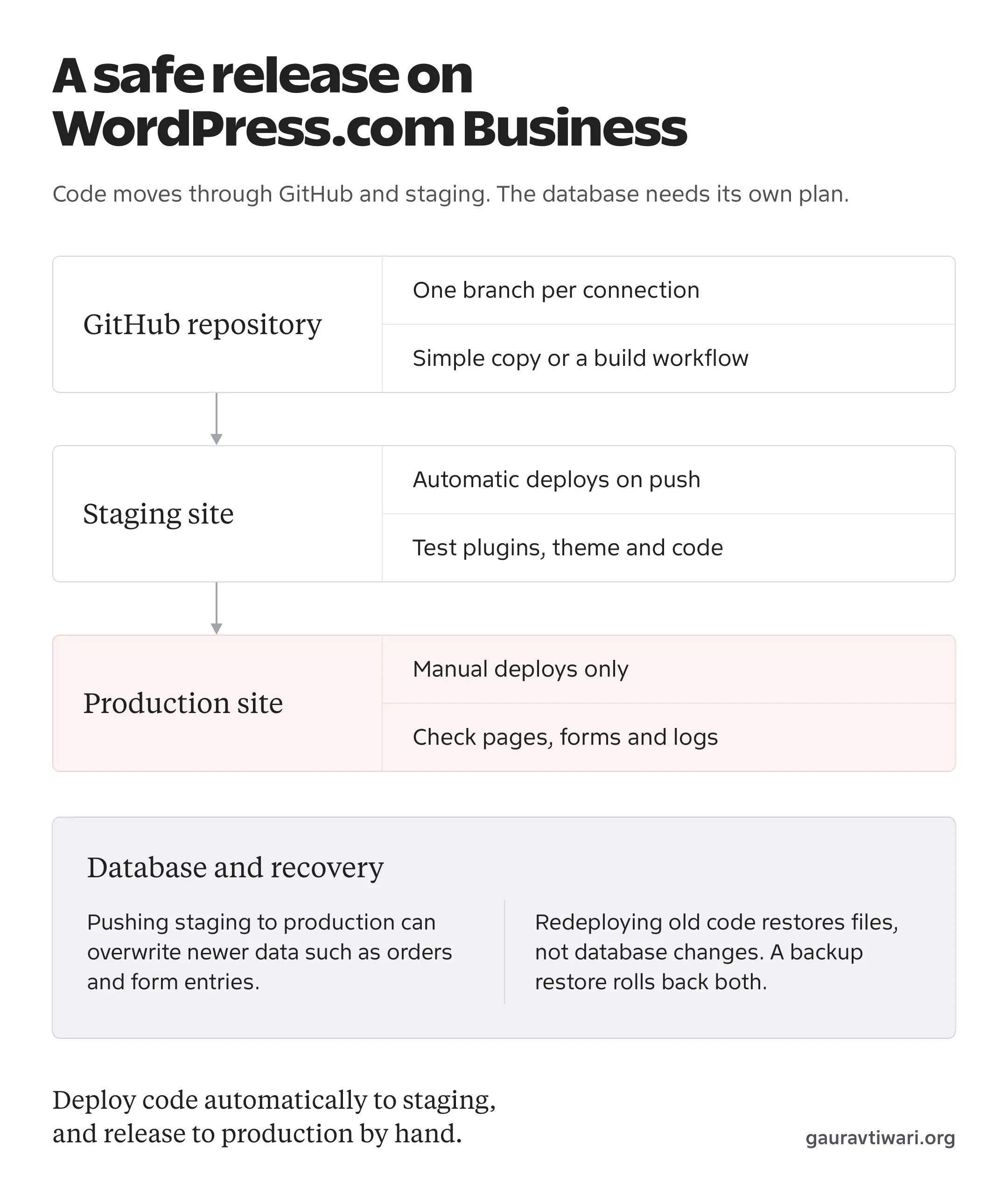
The tools make the most sense when you treat them as one maintenance workflow: inspect, test on staging, deploy and recover. Each one is solid on its own, but the value shows when they work together.
SSH and WP-CLI
SSH is switched on per site under the hosting dashboard’s SFTP/SSH settings. You create one set of credentials that works for both SFTP and SSH, toggle SSH on and connect to ssh.wp.com, and you can add an SSH key to your WordPress.com account and attach it to several sites. The SSH documentation walks through it. WP-CLI comes preinstalled, along with a few platform commands of WordPress.com’s own.
The environment is managed, and that shapes what SSH can do:
- WordPress core files and the plugins WordPress.com manages are read-only, while
wp-config.phpstays editable. - You can’t edit the PHP or Nginx configuration, use
.htaccessor load custom PHP modules such as ionCube. - The PHP memory limit is fixed at 512 MB, and WordPress Multisite isn’t supported.
- WordPress.com says it may restrict or disable some shell and WP-CLI commands.
For most WordPress work that’s fine. For a project that needs a custom PHP extension or a long-running background process, it’s the first thing to verify.
SSH access also opens the database directly, and WordPress.com doesn’t let you limit it to specific actions. I’d give SSH only to people you’d trust with the whole database, and keep inspection separate from changes: read first, confirm the site and the versions, then change things.
GitHub Deployments
GitHub deployments connect a repository to the site through the WordPress.com for Developers GitHub app and copy its files into a destination folder, such as a plugin or theme directory. The deployment guide describes 2 modes:
- Simple: copies the repository’s files as they are, with no build step
- Advanced: runs a GitHub Actions workflow first, so you can install Composer or npm dependencies, run tests and build assets before deploying
Each connection tracks one branch, and deployments run either automatically on every push or manually when you trigger them. WordPress.com recommends automatic deployments for staging and manual ones for production, which is the default I’d use for client work anyway. The last 10 runs from the past 30 days keep their logs, so you can see what went out and when.
A repository with a narrow purpose works best here. One custom plugin per repository, deploying to that plugin’s folder, is easy to reason about. A repository that tries to manage half the site’s files is where mistakes happen.
Staging
A staging site is a copy of production where you can test plugin updates, theme changes and new code before anyone sees them. Business gives you one staging site per production site, created from the hosting dashboard.
These are the details that matter in practice:
- Storage is split 50/50 between the staging and production sites.
- Staging gets a
staging-address, can’t take a custom domain and is hidden from search engines. - You can pull from production or push to production, choosing all files or specific folders and, separately, whether to include the database.
- A database sync replaces the destination’s user list, and you can’t sync individual posts or pages.
The database checkbox is the part to treat with care. Pushing staging’s database to production overwrites anything that changed on production in the meantime, such as new comments, form entries or orders. WordPress.com shows an extra warning on WooCommerce sites, but it doesn’t protect orders for you. One safeguard does exist: payment gateway settings on staging don’t overwrite production’s.
Backups and Restores
Business includes automatic Jetpack backups with one-click restores, kept for as long as the plan is active plus 30 days after it ends. You can restore the whole site to a point in time, restore selected parts, or download a backup file.
WordPress.com describes the cadence inconsistently. The pricing page calls them real-time backups, while the Business plan documentation says the plan includes daily backups, so confirm what your site actually gets before you promise a client a recovery point.
Code recovery and data recovery are different jobs, and GitHub deployments don’t have a rollback button. A manual deployment always ships the latest commit on the tracked branch, so going back means reverting the change in Git and deploying again. A site restore is the other route, and it rolls back the database and everything else that changed after that backup, so on a store with subscriptions it can even trigger renewal charges again. Know which one you need before something breaks.
Deployment Details to Check Early
A deployment workflow can look familiar and still differ in ways that matter to your team. These are the details I’d check before moving an existing release process onto Business:
- A connection deploys from a branch, and runs triggered by a tag are ignored. If your team ships tagged releases, you’ll need a release branch.
- Choosing the advanced mode can generate a
wpcom.ymlworkflow file, and WordPress.com warns that it overwrites one that already exists in the repository. - WordPress.com merges the repository’s contents into the existing destination folder, so check whether files you removed from the repository also need removing on the site.
- A
.deployignorefile at the repository root keeps test files, local config and other files out of the deployment, using the same syntax as.gitignore. - Deployments into protected WordPress.com paths fail, so point the destination at
wp-contentfolders you own.
None of these is a flaw. They’re decisions WordPress.com made for its platform, and your release process has to match them.
Where the Business Plan Falls Short
Business is a managed platform, and managed platforms have edges. These are the ones that matter to developers:
- Per-site pricing. Every site needs its own plan. 10 client sites on annual Business cost $3,000 a year, while a single server or a server-based host can hold all 10.
- No server-level control. Read-only core files, a fixed PHP setup with 2 versions to choose from, no custom modules and no Multisite.
- Incompatible plugins. WordPress.com keeps an incompatible-plugin list that includes caching plugins such as WP Super Cache and Redis Object Cache, backup plugins such as BackWPup and security plugins such as Really Simple Security, and Business doesn’t make them available.
- Jetpack and Akismet stay. They must remain installed and active on every WordPress.com site.
If your project needs something outside those edges, a different managed host will serve it better. My WordPress hosting guide compares the hosts I’d consider, including server-based options that make more sense once you run several sites.
Who Should Buy It
Business fits a specific kind of project well. I’d buy it when:
- a developer maintains one client site and wants Git deployments, staging and SSH without running a server
- the client wants one provider for hosting, security and backups, with a developer workflow on top
- the site is important enough that tested changes and one-click restores are worth $300 a year
I’d skip it when:
- the site only needs plugins and a custom theme, because Personal or Premium covers that
- you manage many small sites and the per-site price adds up faster than a server would
- the project needs server configuration changes, Multisite, a custom PHP module or a plugin on the incompatible list
Final Remarks
The WordPress.com Business plan is a reasonable managed host for a developer-led WordPress site, and it’s priced like one. At $300 a year on annual billing, compare it with other managed WordPress hosts on staging, backups, deployments and support. Shared hosting is a different product at a different price.
Before you commit a client to a long term, use the refund window for a small, reversible test: connect a demo repository, deploy a harmless change to staging, push it to production and then restore the earlier version. That one afternoon tells you more about the fit than any feature list.
FAQs on the WordPress.com Business Plan
Do I need the Business plan to install plugins on WordPress.com?
No. Since April 2, 2026, every paid WordPress.com plan, including Personal, can install plugins and upload custom themes. Business adds developer tools such as SFTP, SSH, WP-CLI, database access, staging and GitHub deployments.
Does SSH on WordPress.com give me full server access?
No. You get SSH and WP-CLI inside a managed environment. WordPress core files and WordPress.com-managed plugins are read-only, you can’t edit the PHP or Nginx configuration, and WordPress.com may restrict some commands.
Is the $17.50 a month price available month to month?
No. $17.50 is the monthly equivalent of the 3-year term, charged as $630 upfront in USD before tax. Monthly billing costs $40 a month.
Can I roll back a GitHub deployment on WordPress.com?
Not with a button. A manual deployment always ships the latest commit on the tracked branch, so you revert the change in Git and deploy again, or restore a backup.
Can I deploy from a Git tag?
No. A deployment tracks a single branch, and WordPress.com ignores runs triggered by tags. Deploy from a release branch instead.
How many sites does one Business plan cover?
One. Each WordPress.com site needs its own plan, so agencies running many sites should compare the total against a server-based host.
Is there a free trial of the Business plan?
There’s no public free trial. WordPress.com refunds annual and multi-year plans within 14 days and monthly plans within 7 days, which gives you time to test the workflow.
Tell Google you want more of this.
Add Gaurav Tiwari as a preferred sourceOne tap, and this site shows up more often in your own Top Stories, AI Overviews and AI Mode. Remove it any time.
Disclaimer: This site is reader-supported. If you buy through some links, I may earn a small commission at no extra cost to you. I only recommend tools I trust and would use myself. Your support helps keep gauravtiwari.org free and focused on real-world advice. Thanks. - Gaurav Tiwari