
 by
by
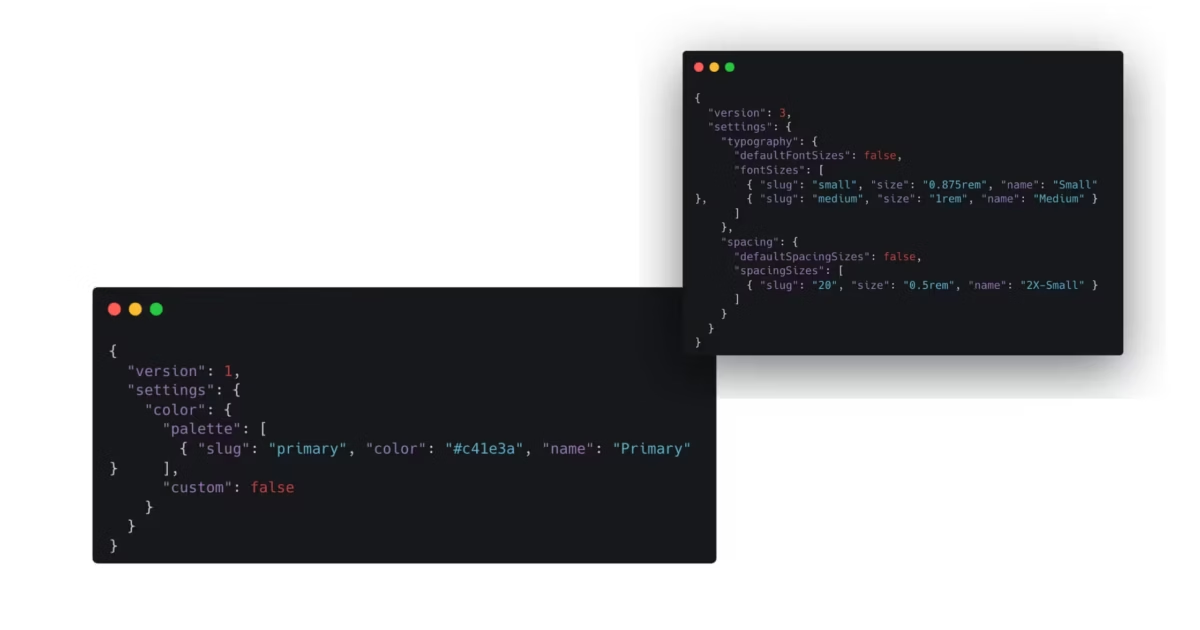
Using theme.json in classic WordPress themes gives you modern editor controls, reusable design tokens, and supported block styles without replacing header.php, single.php, or the PHP template hierarchy. The safest approach is incremental: define layout first, migrate one design decision at a time, and keep structural behavior in CSS and PHP.
It is not a conversion switch. Your theme remains a classic theme, and the Site Editor does not suddenly take over its templates. You are adding a shared configuration layer between WordPress, the editor, your theme, plugins, and user choices.
What theme.json changes in a classic theme
The WordPress Theme Handbook confirms that theme.json works with both block and classic themes. In a classic theme, it is most useful for decisions that must stay consistent between the block editor and the front end:
- editor controls for color, typography, spacing, dimensions, and supported block features;
- named presets such as a brand palette, font-size scale, and spacing scale;
- generated CSS custom properties such as
--wp--preset--color--primary; - default styles for supported elements and blocks;
- per-block limits, such as disabling color controls for Heading blocks.
It does not replace the PHP files that render the site. It also does not replace every add_theme_support() call, every stylesheet, the Customizer, or plugin-specific integration.
That boundary matters because the earlier version of this page attached theme.json support to WordPress 6.9. The file has worked in classic themes since the system arrived. WordPress 6.9 made a different improvement: it changed how classic themes load core block CSS. Keeping those systems separate prevents bad migration decisions and inflated performance promises.
Audit the theme before adding the file
Do not begin by copying a 300-line theme.json from a block theme. Start by writing down what the classic theme already owns.
Capture these values before you change anything:
- the content width and wide width used by the editor and front end;
- existing color palette slugs, names, and values;
- registered font-size slugs and their saved block classes;
- spacing utilities or variables already used in templates and components;
add_theme_support()calls related to the block editor;- editor styles loaded through
add_editor_style(); - parent-theme and child-theme responsibilities;
- any plugin or PHP filter that changes global styles data;
- user-created global styles or editor preferences that could override theme values.
Treat every existing preset slug as a compatibility contract. If saved content contains has-primary-background-color, changing the palette slug from primary to brand does not migrate that content. You have created a second token while old blocks continue to request the first one.
For a parent theme you do not control, put the new file in a child theme. For a custom theme you maintain, make the change in version control or another recoverable working copy. A valid JSON file can still change editor behavior, so recovery matters even when no PHP is involved.
Start with layout because the editor can shift
The smallest useful file is not an empty object. It declares the current schema and the widths your classic theme already uses:
{
  "$schema": "https://schemas.wp.org/trunk/theme.json",
  "version": 3,
  "settings": {
    "layout": {
      "contentSize": "720px",
      "wideSize": "1160px"
    }
  }
}
Version 3 is the current living theme.json schema and works with WordPress 6.6 or later. If the theme must support an older WordPress baseline, use the schema version supported by that baseline instead of copying Version 3 properties and hoping WordPress ignores the rest.
Replace 720px and 1160px with the theme’s real values. The content width should match the ordinary post canvas. The wide width should match the maximum width intended for blocks using wide alignment.
This is the first quiet failure mode: adding even a minimal theme.json activates WordPress’s global settings processing. The front end may still look correct because the classic stylesheet controls its containers, while the editor canvas shifts because settings.layout.contentSize is missing or wrong. The official classic-theme lesson demonstrates the same layout change.
Layout first. Everything else is easier to judge once the editing canvas matches the page readers will see.
settings exposes choices; styles supplies defaults
The cleanest mental model is this:
settingsdecides which tools and presets exist.stylesdecides the default visual values WordPress should output.
settings.color.palette gives an editor named colors to choose from. It does not make every paragraph use the primary color. styles.elements.link.color.text supplies a default link color. It does not decide whether an editor may choose a different color on a supported block.
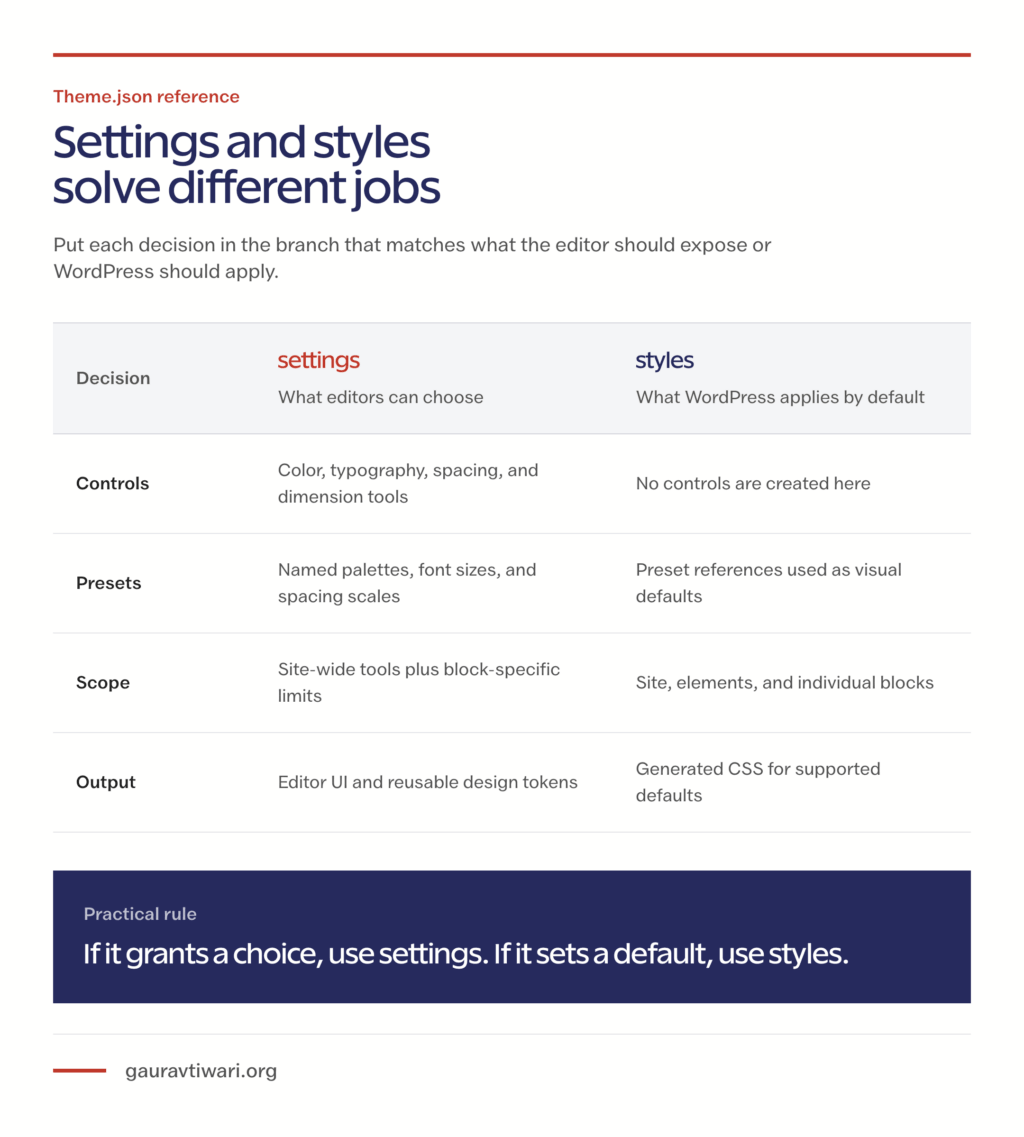
Here is the distinction in one file:
{
  "version": 3,
  "settings": {
    "color": {
      "custom": false,
      "palette": [
        {
          "slug": "primary",
          "name": "Primary",
          "color": "#d94f4f"
        }
      ]
    }
  },
  "styles": {
    "elements": {
      "link": {
        "color": {
          "text": "var:preset|color|primary"
        }
      }
    }
  }
}
The setting creates a Primary swatch and a preset variable. The style tells WordPress to use that preset for links. Once you ask whether a line grants a choice or supplies a default, most of the file becomes easier to reason about.
Build the design layer in a controlled order
After layout, move one coherent token group at a time. Colors, typography, and spacing affect both the editor UI and generated CSS, so migrating all three at once makes conflicts difficult to trace.
Move colors without breaking saved blocks
Start with the palette already registered in PHP or documented in the stylesheet. Preserve its slugs.
{
  "version": 3,
  "settings": {
    "color": {
      "custom": false,
      "customDuotone": false,
      "customGradient": false,
      "defaultDuotone": false,
      "defaultGradients": false,
      "defaultPalette": false,
      "palette": [
        {
          "slug": "primary",
          "name": "Primary",
          "color": "#d94f4f"
        },
        {
          "slug": "contrast",
          "name": "Contrast",
          "color": "#14213d"
        },
        {
          "slug": "base",
          "name": "Base",
          "color": "#fffaf0"
        }
      ]
    }
  }
}
This example deliberately disables WordPress’s default palette, custom colors, gradients, and duotone choices. That is good for a tightly governed publishing system and too restrictive for a site where editors need campaign-specific colors.
Make that decision. Do not copy the booleans as decoration.
WordPress turns each preset into a class and custom property. The primary color becomes --wp--preset--color--primary, which your legacy stylesheet can also use:
.site-cta {
  background: var(--wp--preset--color--primary);
  color: var(--wp--preset--color--base);
}
That is a practical bridge. Existing selectors remain in CSS while their values come from the same token source the editor uses.
Add typography without handing over every font rule
Typography presets are most useful for font families and a small, named font-size scale. They give editors intentional choices and generate stable variables for CSS.
{
  "version": 3,
  "settings": {
    "typography": {
      "customFontSize": false,
      "defaultFontSizes": false,
      "fluid": true,
      "lineHeight": true,
      "fontFamilies": [
        {
          "slug": "sans",
          "name": "Sans",
          "fontFamily": "system-ui, -apple-system, BlinkMacSystemFont, 'Segoe UI', sans-serif"
        }
      ],
      "fontSizes": [
        {
          "slug": "small",
          "name": "Small",
          "size": "0.875rem"
        },
        {
          "slug": "medium",
          "name": "Medium",
          "size": "1rem"
        },
        {
          "slug": "large",
          "name": "Large",
          "size": "1.375rem",
          "fluid": {
            "min": "1.2rem",
            "max": "1.375rem"
          }
        }
      ]
    }
  }
}
Keep responsive heading relationships, special component typography, print rules, and selector-specific fixes in CSS when that is where the theme already expresses them clearly.
WordPress 7.0 also added a dedicated Font Library page for block, hybrid, and classic themes. That improves font management, but it does not mean a user-installed font automatically becomes the theme’s default or belongs in every editor control. The theme still needs a deliberate typography policy.
Add spacing as a curated scale
A spacing scale is useful when it prevents arbitrary values. It is pointless when you define seven presets and also leave every freeform control open.
{
  "version": 3,
  "settings": {
    "spacing": {
      "customSpacingSize": false,
      "defaultSpacingSizes": false,
      "margin": true,
      "padding": true,
      "units": ["px", "rem", "%"],
      "spacingSizes": [
        {
          "slug": "20",
          "name": "Small",
          "size": "0.75rem"
        },
        {
          "slug": "40",
          "name": "Medium",
          "size": "1.5rem"
        },
        {
          "slug": "60",
          "name": "Large",
          "size": "clamp(2rem, 4vw, 3.5rem)"
        }
      ]
    }
  }
}
Do not switch on appearanceTools just to make the editor look modern. It is a catchall that enables multiple border, color, dimension, position, spacing, and typography controls. Enable only the controls your editors can use without breaking the design system.
Freedom is not the same as a good editing experience.
Style elements and blocks where WordPress owns the markup
Use styles.elements for shared HTML-like elements WordPress understands, including links, buttons, headings, and captions. Use styles.blocks for a named block such as core/image or core/quote.
{
  "version": 3,
  "styles": {
    "elements": {
      "link": {
        "color": {
          "text": "var:preset|color|primary"
        },
        ":hover": {
          "color": {
            "text": "var:preset|color|contrast"
          }
        }
      }
    },
    "blocks": {
      "core/image": {
        "border": {
          "radius": "8px"
        }
      }
    }
  }
}
This works well because WordPress owns the relevant block selectors and can produce matching editor and front-end CSS. A selector tied to your theme’s PHP markup, such as .site-header__menu > li, still belongs in the stylesheet.
WordPress 7.0 expands this supported surface with width and height controls, dimension presets, Paragraph text indent, and button states including :hover, :focus, :focus-visible, and :active at the theme.json level. The WordPress 7.0 field guide is the right compatibility reference.
Support is still block-specific. A property can be valid in the schema and have no effect on a block that does not declare the corresponding support. Schema validity tells you the JSON shape is allowed. It does not promise that every block consumes it.
Keep CSS and PHP for the jobs they still do better
The goal is not to move the highest possible percentage of the theme into JSON. The goal is to place each decision where WordPress and future maintainers can understand it.
| Put it in | Best fit |
|---|---|
theme.json | Editor controls, named presets, global supported defaults, element styles, block styles, layout widths, and generated custom properties |
| CSS | Theme-specific selectors, responsive structure, complex components, print rules, animations, unsupported states, third-party markup, and recovery overrides |
| PHP | Hooks, filters, conditional logic, asset loading, menus, widget areas, image sizes, template behavior, dynamic data, and theme supports without a JSON equivalent |
Uranium is a practical example of that hybrid approach: PHP provides the page and store structure, while theme.json and core-block patterns support the editable design. It is aimed at industrial catalogs, so use it as an implementation example rather than a universal theme recommendation.
Some responsibilities can move cleanly. An editor color palette registered with add_theme_support( 'editor-color-palette', ... ) maps naturally to settings.color.palette. Other comparisons are misleading. settings.layout.wideSize defines a width, while add_theme_support( 'align-wide' ) enables wide and full alignment behavior in classic themes. One is not automatically a drop-in replacement for the other.
PHP also remains useful when design tokens come from a shared settings source. WordPress exposes filters for each global-styles origin. If a brand palette must be assembled programmatically, use the wp_theme_json_data_theme palette pattern instead of maintaining two manual lists.
Do not make JSON impersonate PHP, or make it impersonate a selector language it was never designed to be.
Know which layer wins
theme.json is a cascade, not a single unquestioned file. WordPress merges data from several origins, with later origins able to override earlier values:
- WordPress core defaults.
- The active theme’s
theme.json. - The child theme’s
theme.json, when present. - User values saved through supported editing interfaces.
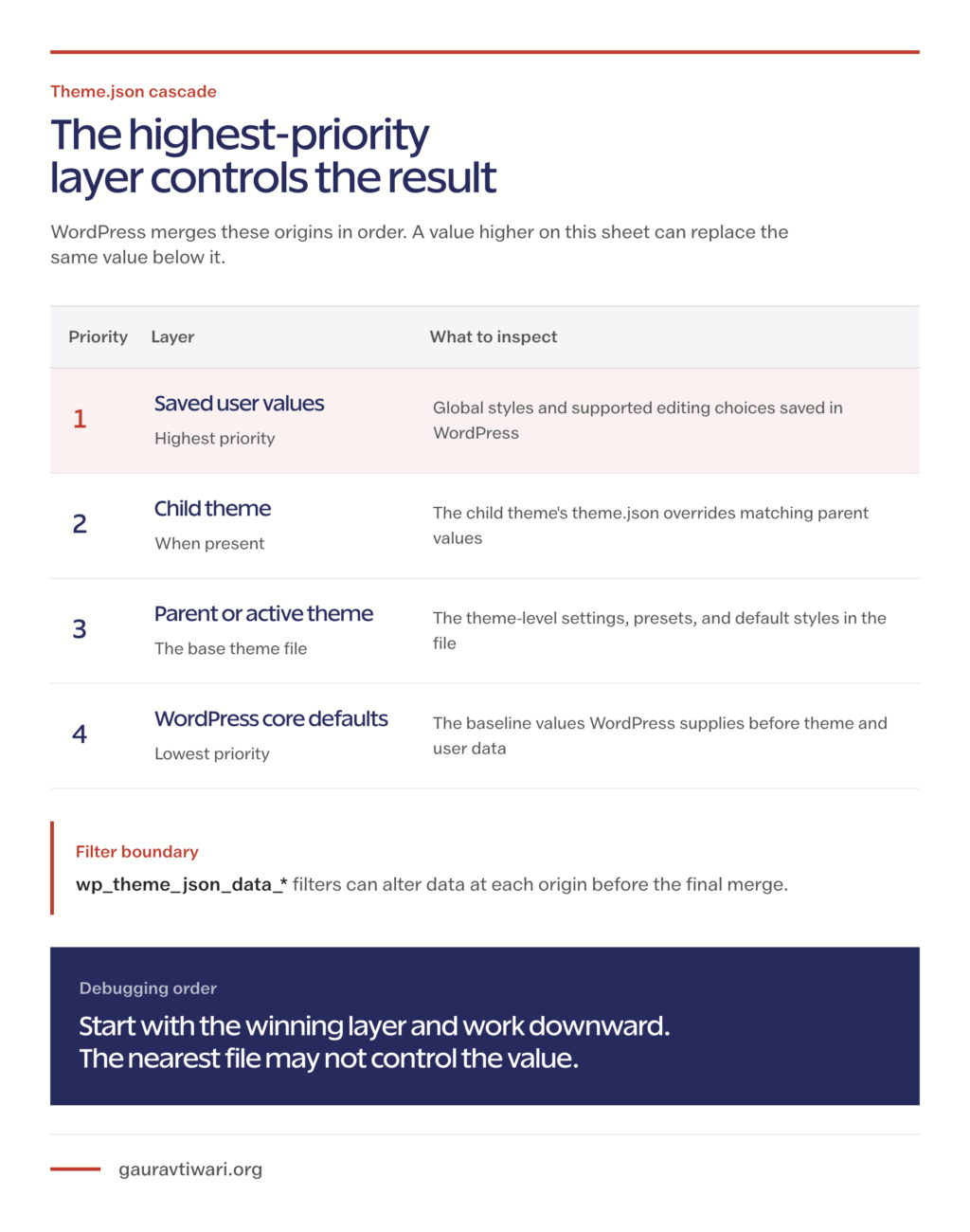
Plugins and theme code can also filter the data at those origins. That means a value that looks correct in the file may still lose later in the merge.
When the editor or front end shows an unexpected value, debug in reverse order:
- check saved user styles or block-level values;
- check the child theme;
- check
wp_theme_json_data_*filters; - check the parent or active theme file;
- then check WordPress defaults.
The nearest file is not always the winning source.
WordPress 6.9 improved CSS delivery, not theme.json support
WordPress 6.9 made classic themes load separate core block styles on demand by default. That improvement applies to classic-theme rendering whether or not you add a theme-level theme.json file.
The mechanism is specific:
- classic PHP templates print the document head before WordPress knows every block used in the body;
- WordPress buffers the completed template;
- late block styles are collected and moved into the document head;
- unused core block styles no longer need to arrive as one large upfront bundle.
The official WordPress 6.9 performance field guide measured both the benefit and the cost:
- the bundled classic themes used an average of 45% less CSS on the simple Sample Page;
- on a block-heavy theme-unit-test page, the average reduction was 26%, with results ranging from 17% to 38%;
- the average LCP improvement for the Sample Page across classic themes was about 4%;
- TTFB can increase because output buffering prevents the template from streaming the response in the old way.
Those are controlled core benchmarks, not a promise for your theme. Page caching, the blocks present, plugin assets, custom rendering, and dependencies all change the result. The field guide also documents cases where block markup that bypasses normal block rendering can miss an expected stylesheet.
So yes, WordPress 6.9 improved the classic-theme path. No, adding theme.json does not create a guaranteed performance gain, and a lower CSS total should not be marketed as a one-second TTFB improvement.
Precision beats a better-looking benchmark.
A starter theme.json for a classic theme
This starter file combines the layers from the earlier sections. It is deliberately small enough to understand and complete enough to use as a real base.
Before using it, replace:
contentSizeandwideSizewith the theme’s actual widths;- palette values while preserving any existing slugs;
- font families and sizes with the theme’s real typography;
- spacing values with the scale already used in the design;
- element and block styles that conflict with legacy CSS.
{
  "$schema": "https://schemas.wp.org/trunk/theme.json",
  "version": 3,
  "settings": {
    "appearanceTools": false,
    "layout": {
      "contentSize": "720px",
      "wideSize": "1160px"
    },
    "color": {
      "custom": false,
      "customDuotone": false,
      "customGradient": false,
      "defaultDuotone": false,
      "defaultGradients": false,
      "defaultPalette": false,
      "palette": [
        { "slug": "primary", "name": "Primary", "color": "#d94f4f" },
        { "slug": "contrast", "name": "Contrast", "color": "#14213d" },
        { "slug": "base", "name": "Base", "color": "#fffaf0" }
      ]
    },
    "typography": {
      "customFontSize": false,
      "defaultFontSizes": false,
      "fluid": true,
      "lineHeight": true,
      "fontFamilies": [
        {
          "slug": "sans",
          "name": "Sans",
          "fontFamily": "system-ui, -apple-system, BlinkMacSystemFont, 'Segoe UI', sans-serif"
        }
      ],
      "fontSizes": [
        { "slug": "small", "name": "Small", "size": "0.875rem" },
        { "slug": "medium", "name": "Medium", "size": "1rem" },
        {
          "slug": "large",
          "name": "Large",
          "size": "1.375rem",
          "fluid": { "min": "1.2rem", "max": "1.375rem" }
        }
      ]
    },
    "spacing": {
      "customSpacingSize": false,
      "defaultSpacingSizes": false,
      "margin": true,
      "padding": true,
      "units": ["px", "rem", "%"],
      "spacingSizes": [
        { "slug": "20", "name": "Small", "size": "0.75rem" },
        { "slug": "40", "name": "Medium", "size": "1.5rem" },
        { "slug": "60", "name": "Large", "size": "clamp(2rem, 4vw, 3.5rem)" }
      ]
    },
    "custom": {
      "radius": {
        "small": "4px",
        "medium": "8px"
      }
    }
  },
  "styles": {
    "color": {
      "background": "var:preset|color|base",
      "text": "var:preset|color|contrast"
    },
    "typography": {
      "fontFamily": "var:preset|font-family|sans",
      "fontSize": "var:preset|font-size|medium",
      "lineHeight": "1.65"
    },
    "elements": {
      "link": {
        "color": { "text": "var:preset|color|primary" },
        ":hover": {
          "color": { "text": "var:preset|color|contrast" }
        }
      },
      "button": {
        "border": { "radius": "var:custom|radius|small" },
        "color": {
          "background": "var:preset|color|primary",
          "text": "var:preset|color|base"
        }
      }
    },
    "blocks": {
      "core/image": {
        "border": { "radius": "var:custom|radius|medium" }
      },
      "core/quote": {
        "border": {
          "left": {
            "color": "var:preset|color|primary",
            "style": "solid",
            "width": "4px"
          }
        },
        "spacing": {
          "padding": {
            "left": "var:preset|spacing|40"
          }
        }
      }
    }
  }
}
The file is a starting point, not a finished design system. Its value is that every included decision has a clear owner and every placeholder is visible.
Quiet failure modes to check before expanding
Most bad theme.json migrations do not fail with a dramatic error. They fail as small mismatches that get patched until nobody knows which layer is authoritative.
- Invalid JSON: A trailing comma, comment, or mismatched brace can make the file fail without a useful front-end message. Use the schema in a capable editor and validate the JSON syntax.
- Wrong editor width: Missing or incorrect layout values make the editor disagree with the classic template.
- Changed preset slugs: Existing blocks keep old classes and variables, creating two design vocabularies.
- Duplicate declarations: A value in legacy CSS and another in
theme.jsoncompete through specificity and load order. - Unexpected overrides: User values, a child theme, or a
wp_theme_json_data_*filter wins later in the cascade. - Unsupported block features: Valid schema properties do nothing when the block does not support them.
- Parent-theme edits: Direct changes disappear when the parent theme updates.
- Overexposed controls: A broad switch such as
appearanceToolsgives editors choices the design cannot absorb.
The recovery rule is straightforward: identify the winning origin, remove the duplicate, and keep one authoritative declaration for that decision.
Add one layer, then remove one duplicate
Start with layout plus one token group, usually the color palette. Once those values behave correctly in your own environment, remove the PHP or CSS declarations they genuinely replace. Then move to typography, spacing, elements, and individual blocks.
That pace can feel conservative. It is also how you modernize a stable classic theme without turning the design system into a second legacy stack.
If your goal is editor controls and consistent content styling, stop there. If your real goal is to make headers, footers, and templates editable as blocks, theme.json is only one part of the job. Follow the separate classic-to-block theme migration guide for that architectural change.
The useful target is not “everything in JSON.” It is one clear source for every design decision.
Tell Google you want more of this.
Add Gaurav Tiwari as a preferred sourceOne tap, and this site shows up more often in your own Top Stories, AI Overviews and AI Mode. Remove it any time.