 by
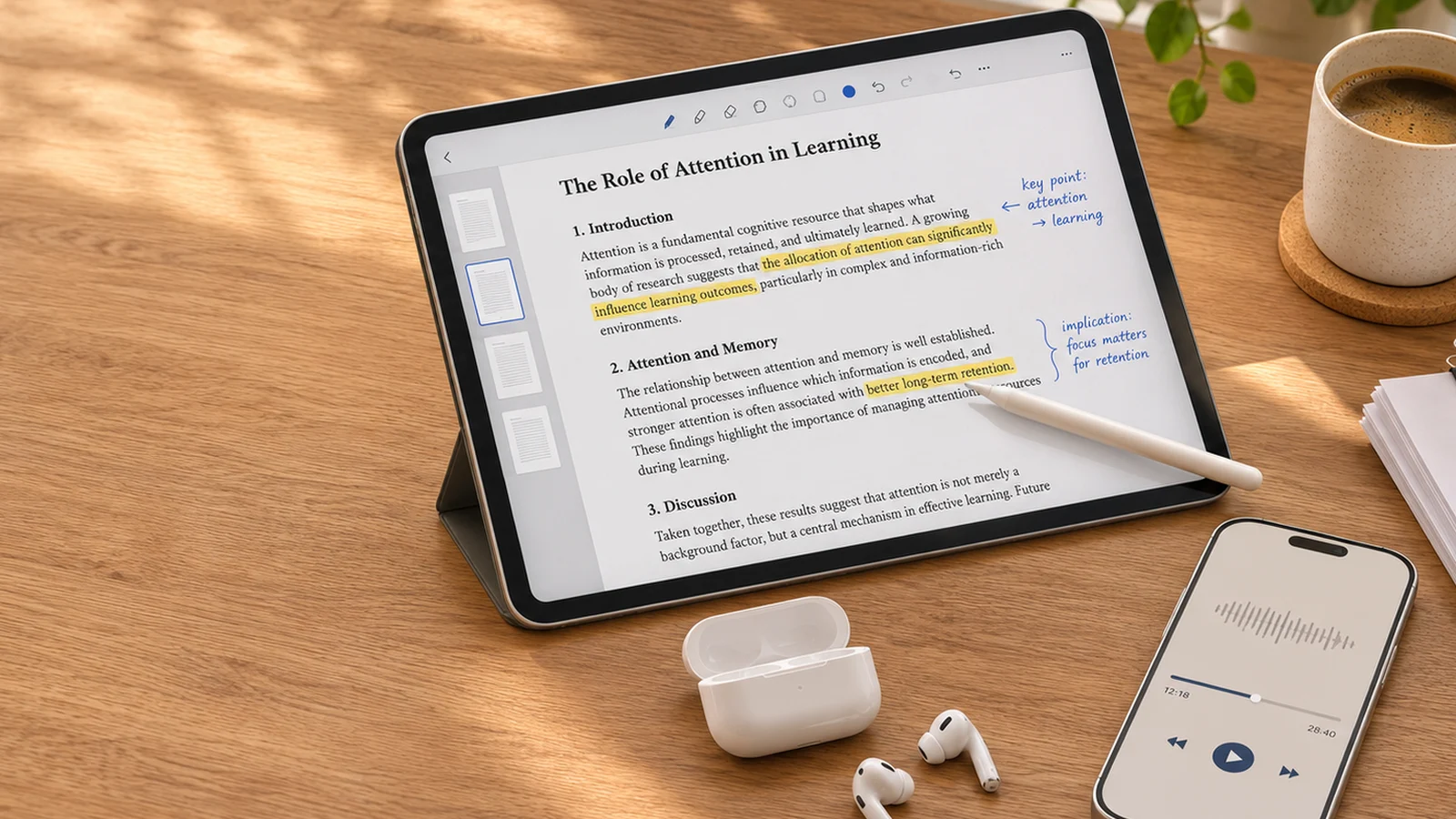
I can read a PDF on my Mac or iPad, but that doesn’t mean I always want to stare at one. Long reports, research papers, course notes and Word documents pile up fast. Listening is often the better fit when I’m walking, doing routine work or just giving my eyes a break.
The hard part is picking among the best apps to read PDFs aloud, because a good reader has to do more than pronounce words nicely. Some apps have beautiful voices but stumble on scanned pages and two-column papers. Others pull text out of a document properly but sound flat. Pay for the wrong one and you get a lovely voice reading footnotes in the middle of a sentence.
My advice is to match the app to the document, not to the voice demo:
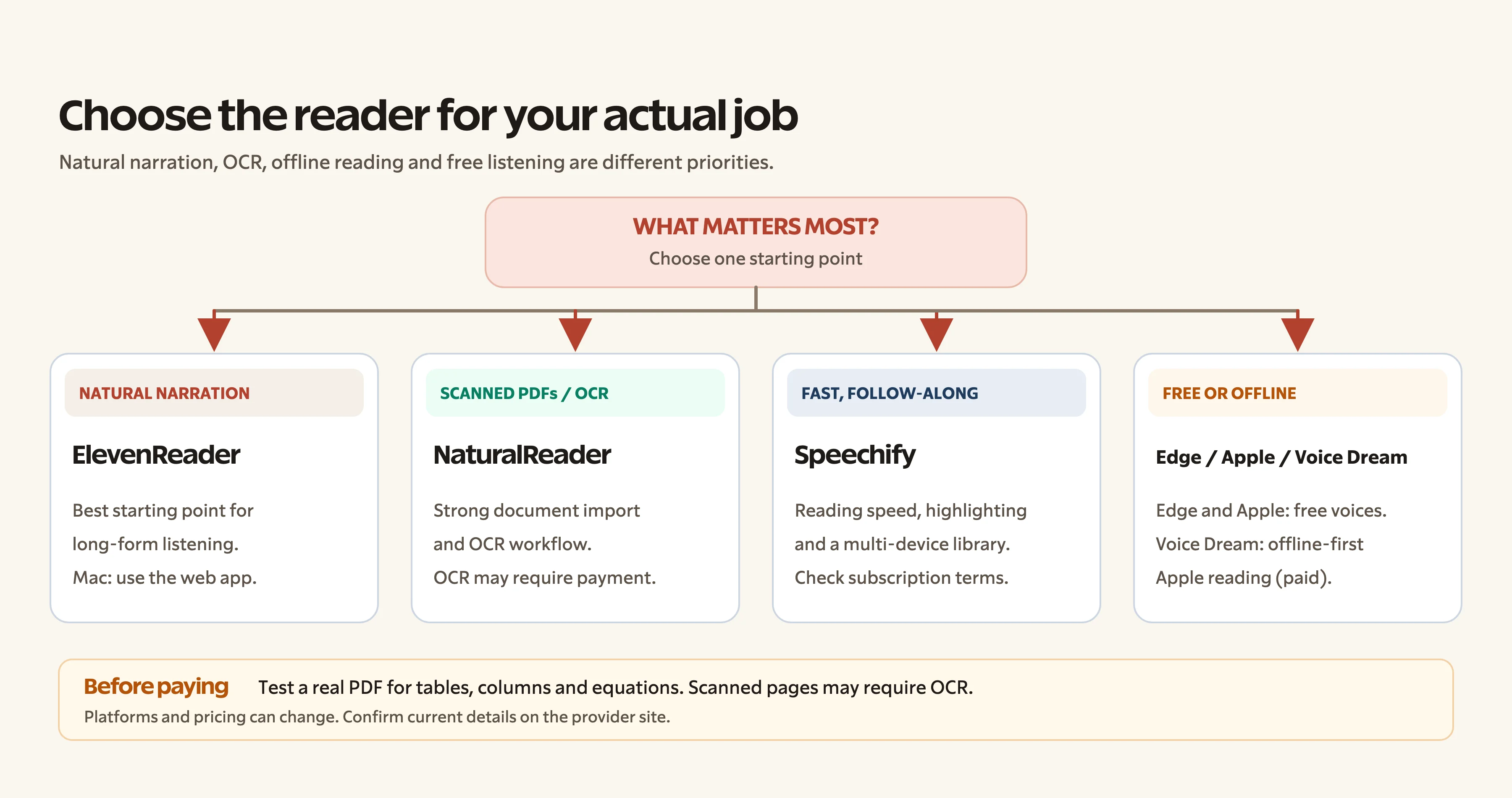
- ElevenReader is the first app I’d try for natural, audiobook-style narration.
- NaturalReader is the better pick when your PDFs are scanned and need OCR.
- Speechify suits fast listening with the text highlighted as it reads.
- Voice Dream Reader is a dedicated reading app for iPad, iPhone and Mac.
- Microsoft Edge and Apple’s built-in Read & Speak are free and worth trying before you pay for anything.
I’ve tested all six for my own reading and writing work. My routine is simple: I upload a PDF, wait for the app to render the audio, then listen on my iPad or iPhone while I annotate the same document. This guide compares them on that real use and on what each developer charges today.
If you also need to edit or annotate PDFs, my list of PDF apps for students covers that side.
Quick Comparisons
This table is the short version. Prices are the developers’ own US list prices and can differ in the App Store, in other countries and during sales.
| App | Where it works | Best for | Free option | Paid plans | Main catch |
|---|---|---|---|---|---|
| ElevenReader | iPhone, iPad, Android, web | Natural AI narration | 10 hours of uploads a month | Ultra: $11/month or $99/year | Mac use is through the web app |
| NaturalReader | Web, iPhone, iPad, Android, Chrome | Scanned PDFs and OCR | Yes, with basic voices | Lite from $13.90/month or $79/year | OCR and better voices are paid |
| Speechify | iPhone, iPad, Mac app, web, Chrome, Edge | Fast listening with highlighting | Yes, up to 1.5x with 10 basic voices | Premium: $29/month or $139/year | The most expensive monthly plan |
| Voice Dream Reader | iPhone, iPad, Mac | A dedicated Apple reading app | No | Subscription (Mac billed separately) | No Android or web version |
| Microsoft Edge | Mac and Windows browser | Free PDF listening on a Mac | Free | None | No OCR for scanned pages |
| Apple Read & Speak | iPad, iPhone, Mac | No-install listening | Built in | None | Not a document library |
What Makes a Good PDF Text-to-Speech App
A PDF isn’t one kind of file. It can hold real, selectable text, a scanned image of a page or a mix of both, and a reader handles each one differently:
- Text-based PDF: you can select and copy the words. Any reader can speak it, but the reading order still has to be right.
- Scanned PDF: each page is a picture. The app needs OCR (optical character recognition) to turn the picture into words first.
- Mixed PDF: some pages are text and some are scans, which can stop an app from offering OCR at all.
With that in mind, these are the six things I’d compare:
- Voice: how natural it sounds over an hour, not over a 10-second sample.
- Text extraction: whether it reads columns, headers, footnotes and tables in a sensible order.
- OCR: whether it can read scans, and whether that costs extra.
- Devices: iPad, Mac and web support, and whether your place syncs between them.
- Playback: speed control, text highlighting, bookmarks and offline listening.
- Cost and privacy: monthly limits, annual pricing and where your uploaded files go.
A feature listed on a pricing page isn’t the same as a feature that works on your files. That’s why the testing section further down matters more than any table.
Best Apps to Read PDFs Aloud
Each heading names the job that app does best, so you can jump straight to yours.
Best for Natural AI Narration: ElevenReader
ElevenReader is the reading app from ElevenLabs, the AI voice company. It’s the first app I’d try if you want a PDF to sound like an audiobook rather than a screen reader. Its free plan is generous enough to judge that properly.
- Reads PDF, DOCX, EPUB, Markdown and TXT files, plus web articles
- 1,000+ voices, with narrators in 90+ languages
- Free plan: 10 hours of text to speech from your uploads every month, up to 4x speed, sync between web and mobile
- Ultra: $11 a month or $99 a year, with unlimited listening to your uploads, offline downloads and a smarter import that skips headers and footers
- Apps for iPhone, iPad and Android, a web app and a Chrome extension
The catch is the Mac. There’s no Mac app, so on a Mac you listen in the browser. The header-skipping import is also an Ultra feature, so on the free plan I’d check how it handles page numbers and running headers in your own PDFs before deciding it’s the one.
Best for Scanned PDFs and OCR: NaturalReader
NaturalReader is the most document-focused app here. If your reading includes scanned textbooks, photocopied notes or photos of pages, this is where I’d start, because its OCR is built into the normal flow.
- Imports PDF, DOC, DOCX, TXT, RTF, EPUB, PPTX and ODT
- Spots a scanned PDF or image on upload and offers to run OCR, up to 50 pages at a time
- Scan to Text can re-convert a page when the text reads out of order, such as in columns
- AI Smart Filter skips page numbers, charts and tables; a pronunciation editor fixes names and terms
- Lite: $13.90 a month or $79 a year. Plus: $20.90 or $119. Pro: $25.90 or $159
OCR starts on the Lite plan, and the more natural Plus and Pro voices come with daily character limits. The free voices sound robotic, so I’d treat the free tier as a way to test extraction, not narration.
Best for Fast Listening: Speechify
Speechify is built for getting through text quickly. It highlights the words as it reads and pushes playback speed further than the others, which suits people who already listen at 2x or more.
- Apps for iPhone, iPad, Mac, Windows and Android, a web app and Chrome and Edge extensions
- Free plan: up to 1.5x speed with 10 basic voices
- Premium: $29 a month or $139 a year, with 400+ natural voices, 60+ languages, up to 5x speed and Scan & Listen
- Imports from Google Drive and Dropbox
Premium is the priciest monthly plan in this list, so the annual price is the one worth comparing. In-app and regional offers often differ from the website price, so I’d check the total at checkout before committing.
Best Dedicated Apple Reader: Voice Dream Reader
Voice Dream Reader is a full reading app for iPhone, iPad and Mac rather than an AI voice service. It keeps a proper library with notes and highlights, and it’s long been popular with people who read differently.
- Reads PDF, DRM-free EPUB, Word, PowerPoint, DAISY and web pages
- Scans printed pages with the iPhone or iPad camera and reads scanned PDFs
- Download a voice and documents to listen offline, even with the screen locked
- iCloud keeps your place, highlights and notes in sync
- Works with refreshable braille displays and has an Apple Watch app
It needs a subscription, and the Mac app has separate subscription terms. Voice quality depends on the voice you pick, so I’d sample a few before settling. There’s no Android or web version.
Best Free Option on a Mac: Microsoft Edge
Microsoft Edge reads PDFs aloud for free, and it runs on a Mac. Open the PDF in Edge and choose Read aloud from the PDF toolbar, then pick a voice and speed.
Microsoft lists PDF Read Aloud for English and Hindi among other languages, according to its Immersive Reader language support table. That makes it the free tool I’d test first for mixed Hindi and English notes.
It reads the text layer only, so a scanned PDF with no text stays silent. It also has no library, sync or progress across devices. For more no-install PDF tools, see my browser PDF toolkit.
Best Built-In Option: Apple Read & Speak
Every iPad, iPhone and Mac can already read text aloud with nothing to install. Apple groups these features under Read & Speak in Accessibility settings.
- Speak Screen on iPad reads everything on the screen when you swipe down with two fingers from the top
- Speak Selection reads only the text you select
- Accessibility Reader on iPad opens text in a full-screen view and can read it aloud
- On a Mac, Speak Selection reads selected text when you press Option-Esc
It works only when the app shows real text, so scans won’t read. It’s a speech feature, not a reading app, so there’s no library or saved place. For occasional PDFs, though, it’s free and already on your device.
How to Read a PDF Aloud on iPad, Mac and the Web
These are the quickest routes on each device. I’d start with a short, text-based PDF so you can hear how the app handles it before trusting it with a 200-page report.
On an iPad
The free route uses Speak Screen:
- Open the Settings app and tap Accessibility.
- Tap Read & Speak, then turn on Speak Screen.
- Open your PDF in Files or Books.
- Swipe down with two fingers from the top of the screen.
- Use the controller to pause, skip or change the speed.
For an AI voice, save the PDF to Files, tap Share and send it to ElevenReader, NaturalReader, Speechify or Voice Dream. Then pick a voice, listen to the first page and adjust the speed.
On a Mac
The quickest free route is Edge:
- Open the PDF in Microsoft Edge.
- Click Read aloud in the PDF toolbar.
- Choose a voice and speed from Voice options.
For selected text in any app, turn on Speak Selection in System Settings, Accessibility, Read & Speak, then press Option-Esc. For a library with saved progress, use Speechify or Voice Dream Reader on the Mac, or ElevenReader and NaturalReader in the browser.
In a Browser
- Sign in to the reader’s web app.
- Upload a sample PDF that holds nothing sensitive.
- Check that the text came through, especially columns and tables.
- Pick a voice and speed, then listen.
If the PDF is confidential, I’d read the service’s privacy and storage terms before uploading. Cloud readers keep your files on their servers.
Scanned and Two-Column PDFs
A great voice can’t fix text the app never found. A scanned page needs OCR before anything can be read, and even a text-based PDF can come out in the wrong order.
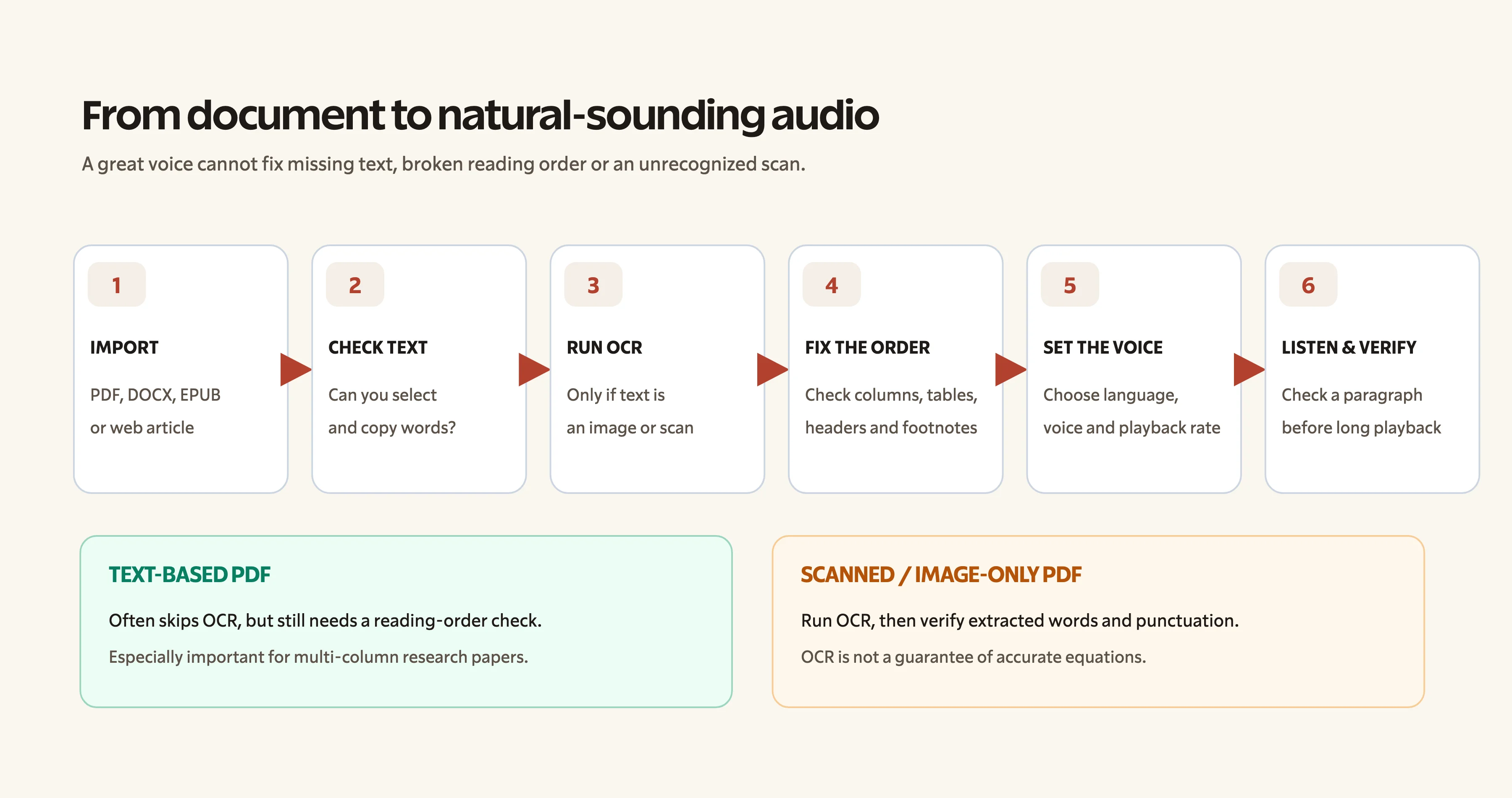
These are the parts that most often go wrong:
- Two-column papers: the app may read straight across both columns. NaturalReader’s Scan to Text can re-convert a page to fix this.
- Headers, footers and page numbers: they get read in the middle of sentences unless the app filters them.
- Tables: cells are often read as a long run of numbers with no labels.
- Equations and symbols: most readers skip them or speak them badly.
- Footnotes and citations: they can interrupt the paragraph they belong to.
- Hindi and mixed scripts: a voice that handles English well may stumble on Devanagari or on names, so a mixed page deserves its own test.
For legal, medical, academic or technical documents, I’d check important statements against the original PDF. Listening is great for getting through material, but the source is still the record.
How I Tested These PDF Readers
I tested these apps the way I actually read. I upload a PDF, let the app render the audio and then listen on my iPad or iPhone while I mark up the same document. That routine puts weight on a few things a voice demo never shows:
- Render time: how long a long PDF takes to become audio I can play.
- Background playback: whether the audio keeps going when I switch to my annotation app.
- Reading order: whether what I hear matches the page I’m marking up.
- Controls: how quickly I can pause, skip back a sentence and change speed without losing my place.
Your needs may differ, so I suggest you run the same files through every app you’re considering, on the same device. Free plans and trials are long enough for that. This is a good set to use:
- A clean 10-page text PDF
- A 5-page scan with a table on one page
- A two-column research paper with equations and references
- A Word document with headings and bullet points
- A Hindi or mixed Hindi and English document, if you read in Hindi
- A long book chapter, to judge navigation and listening comfort over time
For each app, I’d note skipped or wrong words, reading order, how the voice holds up after 20 minutes, how easy the controls are and what works offline. The app that handles your hardest file is usually the right one, even if another sounds slightly nicer on the easy file.
Free vs Paid PDF Readers
A subscription is worth it only when it fixes a problem you actually have:
- Occasional text PDFs: Edge or Apple’s Read & Speak is enough. I wouldn’t pay.
- Scanned documents every week: paid OCR, such as NaturalReader Lite, earns its price.
- Long listening as a habit: ElevenReader’s free 10 hours tells you quickly whether Ultra is worth it.
- Speed listening: Speechify Premium makes sense if you’ll use the higher speeds and highlighting daily.
I’d compare annual prices rather than monthly ones, and check the limits that matter for your use: hours, characters per day, MP3 export and offline downloads. None of these plans is unlimited in every way.
Students building a wider listening and study setup may find my guides to the best study apps for students and the best AI tools for students useful next.
FAQs on Reading PDFs Aloud
What is the best app to read PDFs aloud?
For natural narration, ElevenReader is the first app I’d try, and its free plan includes 10 hours a month. For scanned PDFs, NaturalReader is the better pick because its paid plans include OCR. For free listening on a Mac, Microsoft Edge reads PDFs aloud at no cost.
Can an iPad read a PDF aloud without installing an app?
Yes, for PDFs with real text. Turn on Speak Screen in Settings, Accessibility, Read & Speak, open the PDF and swipe down with two fingers from the top of the screen.
What’s the best free way to read a PDF aloud on a Mac?
Open the PDF in Microsoft Edge and choose Read aloud. You can also turn on Speak Selection in macOS and press Option-Esc to hear selected text.
Can these apps read scanned PDFs?
Some can. NaturalReader runs OCR on scans on its paid plans, and Voice Dream Reader reads scanned PDFs and camera scans. Edge and Apple’s built-in speech need real text and won’t read a scan.
Can they read Word documents?
Yes. ElevenReader reads DOCX files, NaturalReader reads DOC and DOCX, Voice Dream Reader reads Word documents, and Speechify imports documents too.
Do PDF read-aloud apps work offline?
Some do. Voice Dream Reader works offline with downloaded voices and documents, and ElevenReader offers offline downloads on its Ultra plan. Edge’s natural voices need an internet connection.
Can they read equations, tables and research papers accurately?
Not reliably. Tables, equations, footnotes and two-column layouts are where these apps make the most mistakes, so I’d check important details against the original PDF.
Can I listen to a PDF in Hindi?
Edge lists PDF Read Aloud support for Hindi, and the AI apps offer many languages. I’d still test a page with Devanagari text and names before relying on any of them.
Are my uploaded PDFs private?
Cloud readers store your files on their servers, and their policies differ. I wouldn’t upload confidential documents without reading the service’s privacy and retention terms first.
Can I export a PDF as an MP3?
Some plans allow it. NaturalReader’s paid plans include a monthly MP3 character allowance. Export rules and personal or commercial use depend on the app and plan.
Final Remarks
If you’re still unsure which one to pay for, I’d let your hardest PDF decide. Start free with Edge on a Mac or Read & Speak on an iPad, and you may find that’s all you need.
If you want a voice you can listen to for an hour, I’d try ElevenReader’s free plan next. If your files are scans, I’d go to NaturalReader instead. Whichever you choose, I’d upload one real PDF you need to read this week and listen while you work on it, the way I do. Then play the same messy two-column page in it before you subscribe. That one test tells you more than any voice demo.
And if a big PDF won’t upload, my guide on how to reduce PDF file size for free will help.
Want the notes that don't make it into posts?
From the Workbench is my email for people who run a site or a small product business. Each issue is one of three things:
- Releases: what I shipped, and whether it matters for your site.
- Field notes: what moved in WordPress and search, and what I'd do about it.
- Essays: building, pricing and writing, worked out the slow way.
Free, and it goes out only when there's something worth sending. No fixed schedule, no padding.