 by
Building a Mac workstation setup gets expensive fast when every dock listing promises Thunderbolt 5, 140W charging and 15 ports. I get why that’s tempting. But on a normal desk most of that bandwidth sits unused, and the same money would do more as a better SSD or a proper backup drive.
I have a MacBook Pro with the M5 Pro chip, 24GB of unified memory and a 1TB SSD, and a Mac mini on the same desk. While looking for a dock, I came across a USB-C hub with an NVMe SSD slot built in. It looked convenient, and it made me ask whether putting everything in one box is the smart way to build a workstation at all.
My advice is simple. For most people, I’d pair a good USB-C hub or a powered 40Gbps dock with a separate external SSD. Thunderbolt 5 is worth it when you move a lot of large files or run demanding displays. Owning a Mac that supports it isn’t, by itself, a reason to buy it.
Below are the budgets I’d plan around, the connection types in plain terms and the docks and SSD enclosures I’d shortlist for both Macs.
Mac Workstation Setup Budgets
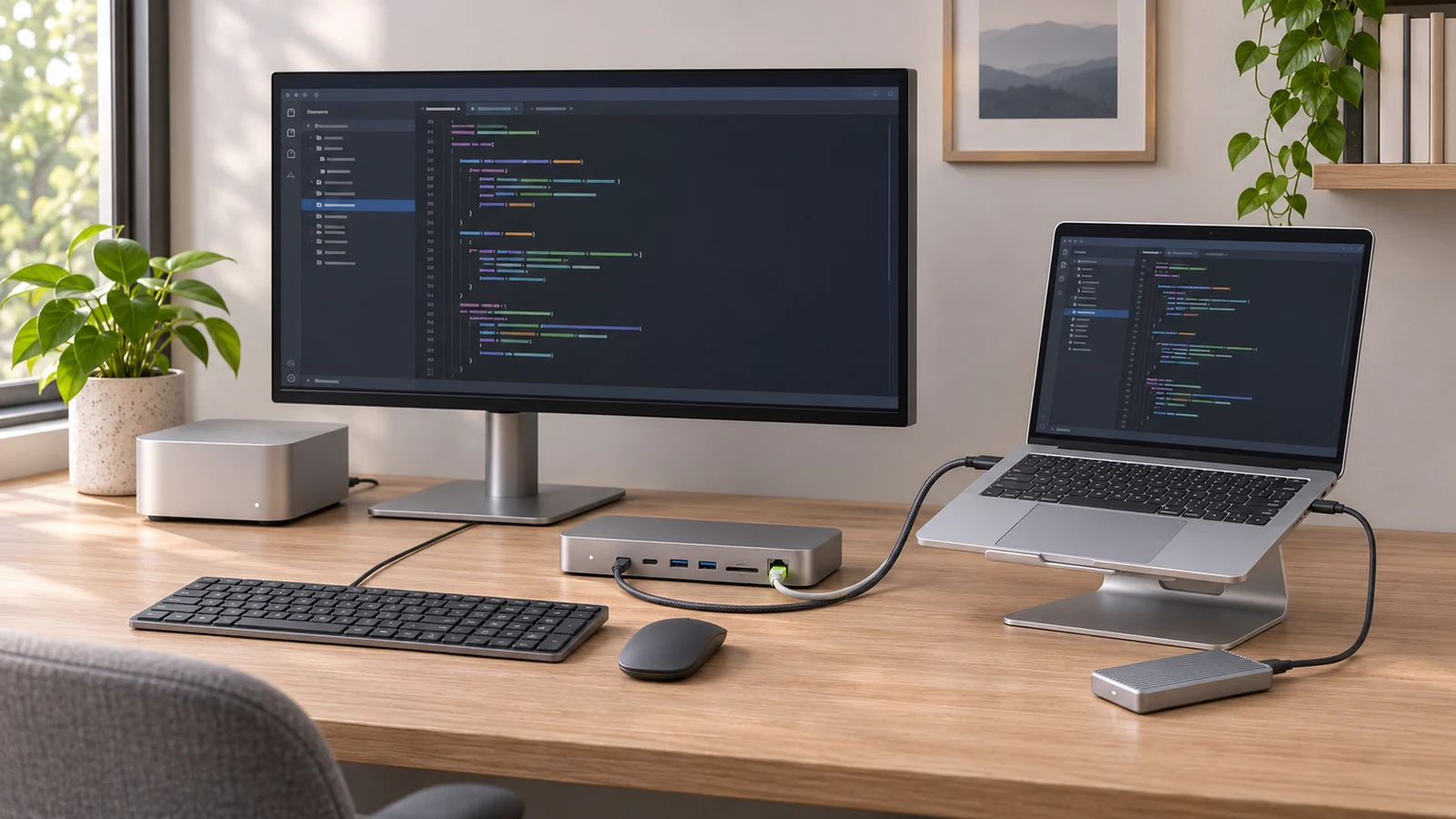
If you’re starting from scratch, these are the three setups I’d consider. If your monitor, keyboard, mouse and storage already work, keep them.
| Setup | US budget | India budget | What it includes |
|---|---|---|---|
| Value | $50-100 | ₹5,000-12,000 | A 10Gbps USB-C hub, used with an SSD you already own |
| Balanced | $200-300 | ₹20,000-35,000 | A powered 40Gbps dock and a separate 40Gbps SSD enclosure |
| High-end | $450-650+ | ₹70,000-95,000+ | A Thunderbolt 5 dock and a separate fast SSD enclosure |
These budgets cover the connection hardware only. The SSD itself, the monitor, a NAS, backup drives and taxes are extra. The rupee figures are what these setups cost in India, not a currency conversion, because Thunderbolt 5 docks sell for far more there than in the US.
If your laptop spends most of its time on a desk and you plug in several devices every day, I’d start with the balanced setup.
What a Mac Workstation Needs
I split a workstation into five jobs. One dock can cover several of them, but they are still separate needs:
- Displays: where I write, code, review websites and keep documentation open.
- Power: charging for a MacBook, which a Mac mini doesn’t need.
- Peripherals: keyboard, mouse, audio and Ethernet, which use very little bandwidth.
- Working storage: the drive that holds active projects, media libraries and course recordings.
- Backups: a separate copy on a separate drive, never another folder on the working SSD.
The internal SSD in my MacBook Pro is fast enough for active development, apps and system files. External storage helps with work that doesn’t need to live on that drive permanently, like website backups and video projects.
Before shopping, I suggest you list what you’re actually missing. If you only need two more USB ports and HDMI, a Thunderbolt 5 dock is an expensive answer to a small problem. If you unplug a monitor, charger, network cable, audio interface and drive every time you take the MacBook somewhere, a powered dock earns its price.
For the rest of the desk, my list of MacBook Pro accessories covers everyday upgrades. This guide is about how the devices connect.
USB-C vs Thunderbolt 4 vs Thunderbolt 5
USB-C is the shape of the connector. It doesn’t tell you how fast a port moves data, whether it can drive a monitor or how much power it delivers, so two docks with identical-looking ports can behave very differently.
| Connection | Maximum link rate | Raw ceiling in bytes | Best use |
|---|---|---|---|
| USB 5Gbps | 5Gbps | 625MB/s | Basic peripherals and everyday storage |
| USB 10Gbps | 10Gbps | 1.25GB/s | One monitor, basic docking, a portable SSD |
| USB4 40Gbps / Thunderbolt 4 | 40Gbps | 5GB/s | Fast storage and a full workstation dock |
| Thunderbolt 5 | 80Gbps each way | 10GB/s each way | Demanding displays and fast compatible storage |
Those byte figures are mathematical ceilings before overhead, not disk speeds. USB4 and Thunderbolt 4 can also share the same 40Gbps rate without sharing the same features. Display support, PCIe tunneling and certification can still differ.
Thunderbolt 5 also has a Bandwidth Boost mode that sends up to 120Gbps one way and 40Gbps the other. It exists for heavy display setups. It doesn’t mean an external SSD will copy files at 15GB/s.
It is wise to check the Thunderbolt version of your exact Mac before buying a dock:
- The M5 Pro MacBook Pro has Thunderbolt 5, according to Apple MacBook Pro specs.
- The standard M4 Mac mini has Thunderbolt 4, while the M4 Pro Mac mini has Thunderbolt 5, according to Apple Mac mini (2024) tech specs.
A Thunderbolt 5 dock generally works on a Thunderbolt 4 Mac, but the link runs at the older speed and some ports or display modes may behave differently. So the useful question isn’t which Mac supports the biggest number. It’s whether that number changes the work you do.
Is a USB-C Hub With an SSD Slot Worth It?
Yes, if a tidy desk matters more to you than the fastest possible storage.
The hub that started my search was the UGREEN Revodok NVMe 10-in-1 (Amazon.in), model 55735. It’s a USB-C hub with a built-in M.2 NVMe slot, so one box handles a display, storage, card readers and the usual ports. According to UGREEN, it has:
- An M.2 NVMe slot on a 10Gbps USB connection
- HDMI output at up to 4K 60Hz
- 3 USB-A ports (one at 10Gbps and two at 5Gbps) and a 10Gbps USB-C data port
- Gigabit Ethernet with SD and microSD readers
- Up to 100W power delivery input
The SSD slot is the appeal. You add a compatible NVMe drive without buying a separate enclosure, and the monitor and accessories go through the same hub.
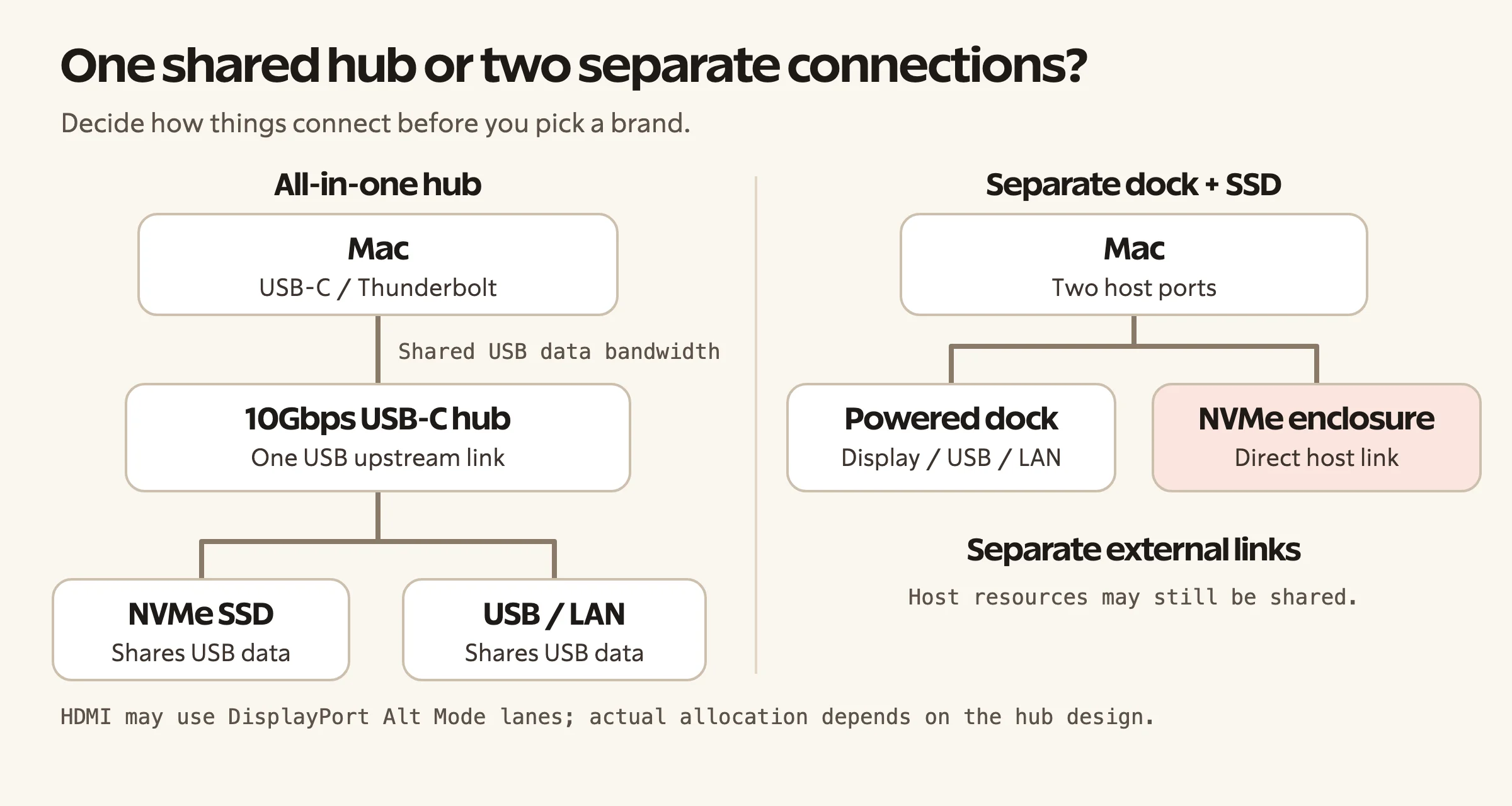
There are two catches. First, the SSD and every other USB device share one 10Gbps upstream link to the Mac. HDMI may use its own DisplayPort Alt Mode lanes, depending on the design, but the USB devices can’t each get an independent 10Gbps path.
Second, the 100W figure is the charging input, not what reaches the laptop, because the hub and its devices take their share first. I’d also budget for the SSD and a charger, since neither comes in the box.
For general office work, a 10Gbps enclosure is already reasonably fast, so I wouldn’t dismiss this hub just because my MacBook supports Thunderbolt 5. UGREEN lists it at $79.99 in the US, and it often sells for less on Amazon. In India it costs more, and I’d wait for a price near ₹8,000-9,000 rather than pay well over that for the same 10Gbps connection.
If you want a plain hub without the storage slot, my USB-C hub guide for MacBook covers other options.
How Fast Should External Storage Be?
For most developers, going from a hard drive to any decent SSD feels like a bigger jump than going from a good 40Gbps SSD to a Thunderbolt 5 one. Moving hundreds of gigabytes of video is a different job.
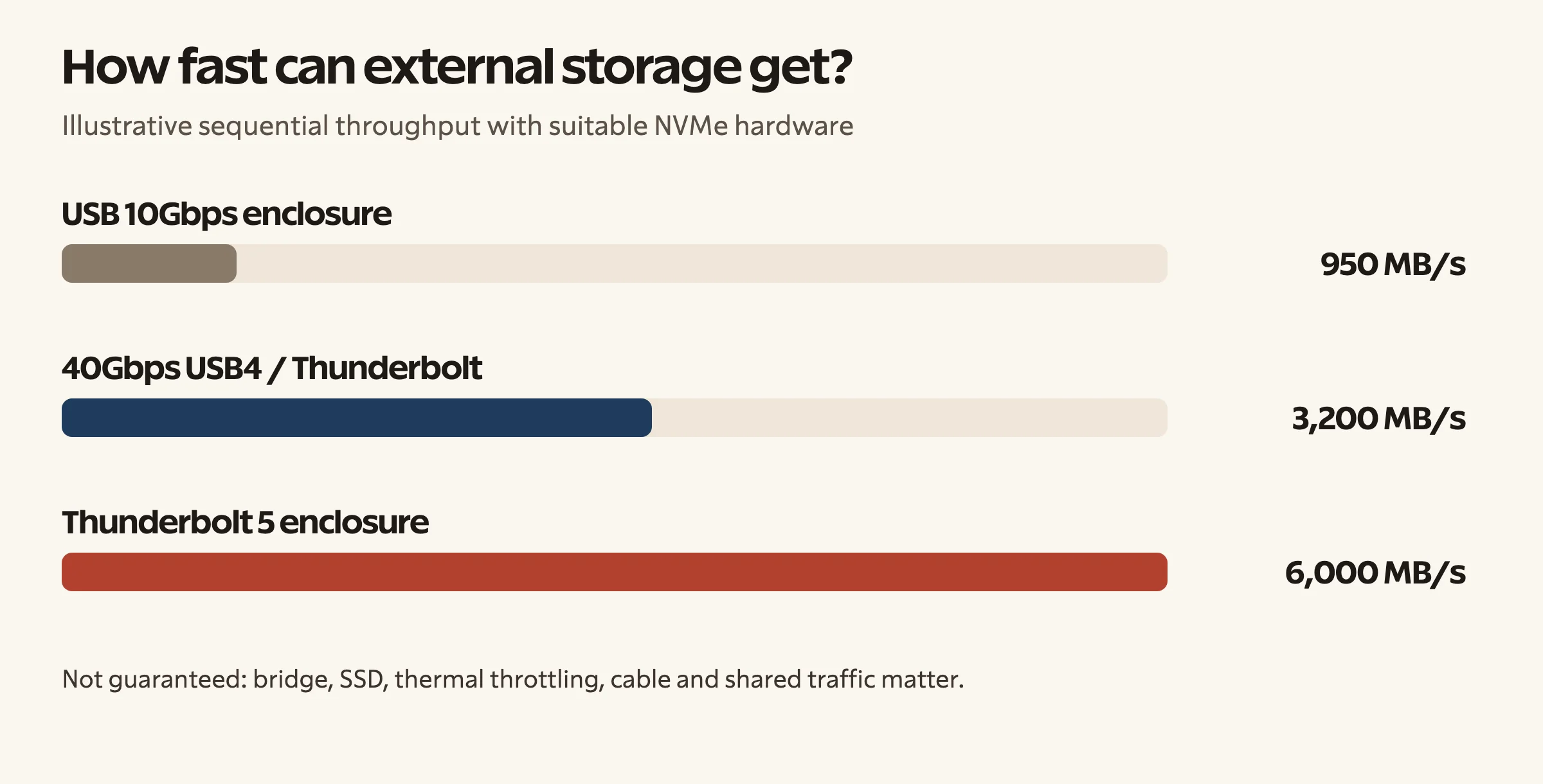
The example below uses three capable NVMe setups at steady sequential speeds of 950MB/s, 3,200MB/s and 6,000MB/s.
| Connection | Example speed | Time to copy 100GB |
|---|---|---|
| USB 10Gbps | 950MB/s | About 105 seconds |
| 40Gbps USB4 / Thunderbolt | 3,200MB/s | About 31 seconds |
| Thunderbolt 5 | 6,000MB/s | About 17 seconds |
This is a worked example, not a benchmark. It assumes one 100GB file at a constant speed, with no file system overhead, SSD cache exhaustion, encryption, heat or slower drive on the other end. I haven’t measured these setups myself.
Real development work doesn’t follow that table. Installing dependencies or copying a folder with thousands of tiny files depends more on random access, file metadata and CPU overhead than on sequential speed.
That’s why I’d put money into a 40Gbps NVMe enclosure before a Thunderbolt 5 one for ordinary development. A good SSD and a good bridge chip matter most, and a PCIe 5.0 drive isn’t automatically the right pick just because the cable says Thunderbolt 5.
A few setup choices matter as much as the enclosure:
- Format: APFS for a Mac-only working drive, with encryption if it holds client data. exFAT only when Windows or other devices need the drive too.
- Backup first: formatting erases the drive, so its current contents should be copied somewhere else beforehand.
- Fit: SSD length and capacity support, the thermal pad and the included cable.
- Cooling: a small fanless enclosure is fine for short bursts but can throttle on long writes, while a fan cools better and adds noise.
For the drive itself, my guide to the best external SSDs for content creators has more picks.
My Mac Workstation Setup
For my MacBook Pro M5 Pro, I’d use a powered dock for the monitor, Ethernet, charging and accessories. Then I’d plug a separate NVMe enclosure straight into a second Thunderbolt port on the Mac.
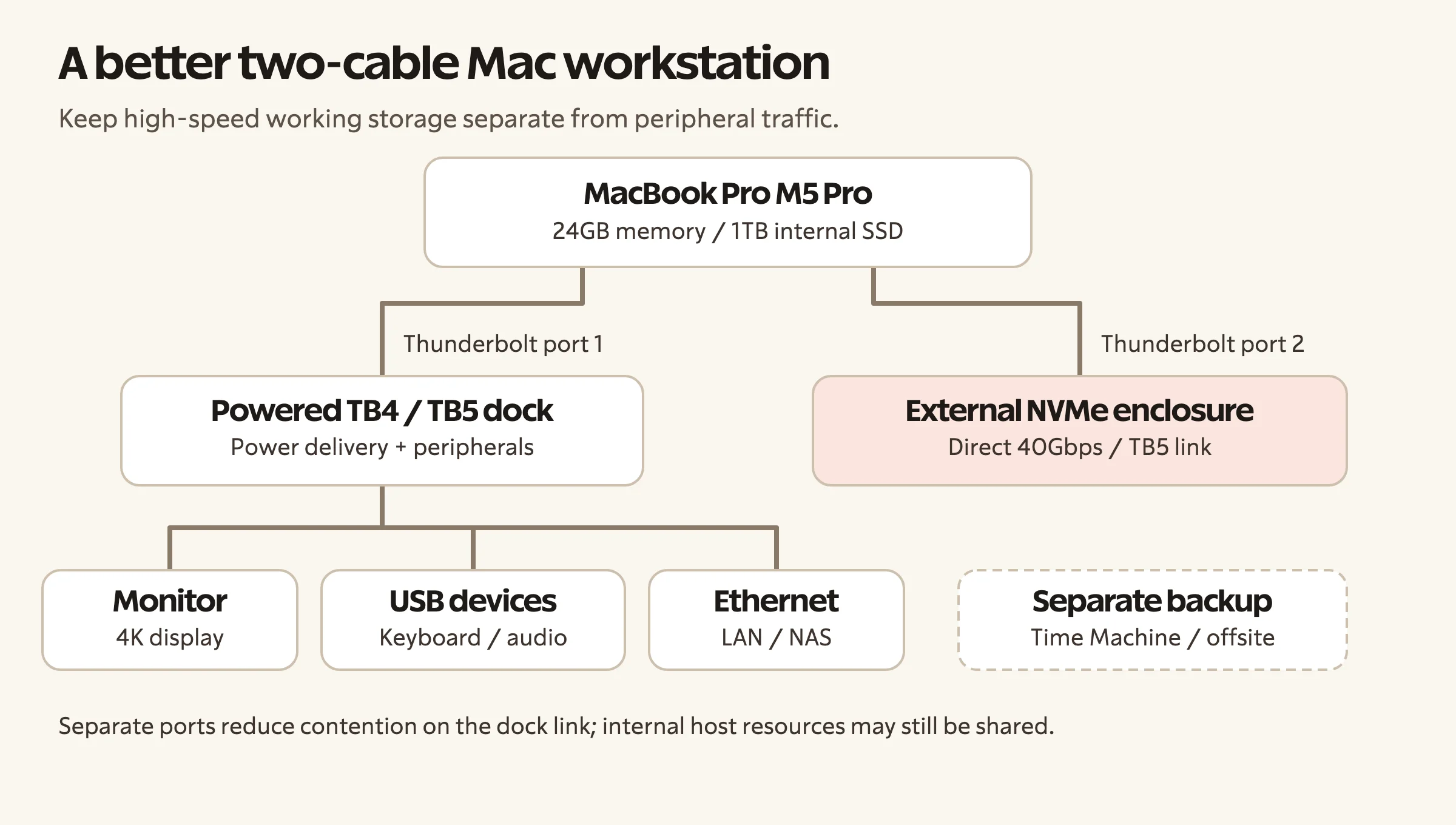
This keeps the busiest device off the dock’s upstream link. The Mac may still share some resources internally, but the storage no longer competes with the monitor and network on that one cable.
It’s also easier to upgrade. If I replace the SSD enclosure in two years, the dock stays. If I change monitors, I can pick a dock for the new display without moving my working drive.
If single-cable docking matters more to you, the enclosure can go on a downstream Thunderbolt port of the dock instead. Storage then shares the dock link, which is perfectly fine for everyday work.
The same storage layout works for a Mac mini, minus the charging. A Mac mini runs on its own AC power, so I wouldn’t pay extra for 140W laptop charging on a dock that only ever sits next to one.
Best Docks and SSD Enclosures for a Mac Workstation
There isn’t one best dock for every Mac. These are the seven I’d compare for different desks, based on manufacturer specs and current listings rather than hands-on testing.
| Product | Connection | Laptop charging | Best fit |
|---|---|---|---|
| UGREEN Revodok NVMe 10-in-1 | USB-C 10Gbps | Up to 100W input | Compact hub with a built-in SSD slot |
| ACASIS 40Gbps Mac mini Dock | 40Gbps | None (30W accessory port) | M4 or M4 Pro Mac mini with two SSD bays |
| ACASIS Thunderbolt 4 Dock | Thunderbolt 4 | Up to 85W | Budget powered dock for a laptop |
| UGREEN Maxidok Thunderbolt 5 Dock | Thunderbolt 5 | Up to 140W | Entry into Thunderbolt 5 |
| CalDigit TS5 | Thunderbolt 5 | Up to 140W | Premium all-round workstation |
| CalDigit TS5 Plus | Thunderbolt 5 | Up to 140W | 10GbE networks and heavy desks |
| ACASIS 40Gbps NVMe Enclosure | 40Gbps | Not applicable | Separate fast storage |
Prices move too often to print here, so each card has buttons for Amazon.com and Amazon.in. Before ordering, I’d check the seller, model number, warranty and included cable.
UGREEN Revodok NVMe 10-in-1
This is the hub I’d choose for a tidy, inexpensive desk with a built-in drive. 4K 60Hz HDMI and Gigabit Ethernet cover many desks, and the SSD lives inside the hub instead of on a separate cable.
Its limit is the shared 10Gbps link. That shows up when the SSD is busy while other USB devices are moving data at the same time.
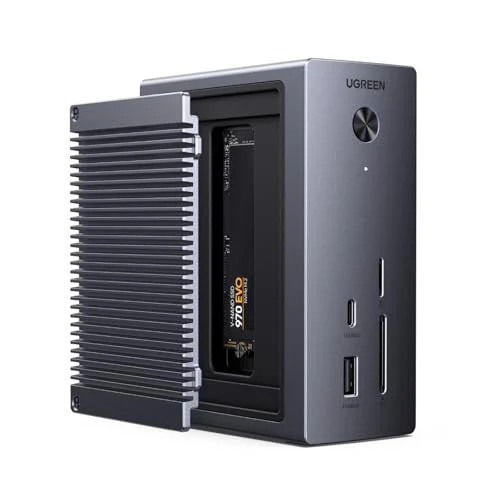
UGREEN Revodok NVMe 10-in-1 Hub
- M.2 NVMe slot on a 10Gbps USB link
- 4K 60Hz HDMI and Gigabit Ethernet
- 10Gbps USB-A and USB-C data ports
- Up to 100W power delivery input
ACASIS 40Gbps Mac mini Dock
This dock sits under a Mac mini as a stand and connects over a 40Gbps link. According to ACASIS, it has two M.2 NVMe bays rated at 20Gbps each, with RAID 0, RAID 1 and JBOD modes and up to 16TB in total.
I like having a working drive and a second drive in one compact unit. But the two bays share the 40Gbps link, and RAID 1 protects against a failed drive, not against deletion or corruption, so it isn’t a backup.
The display claim needs care on a Mac. Its two DisplayPort outputs use MST, and macOS mirrors MST outputs instead of extending them. On a Mac, I’d plan on one monitor through the dock and the second through the Mac mini’s own HDMI or Thunderbolt port. It also has a fan, so noise is worth thinking about.
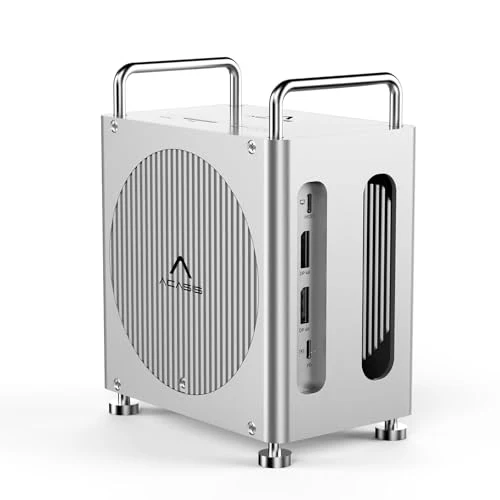
ACASIS 40Gbps Mac mini Dock with Dual NVMe
- 40Gbps host connection
- 2 M.2 NVMe bays at 20Gbps each
- RAID 0, RAID 1 and JBOD, up to 16TB
- 3 USB-A 10Gbps ports and SD/TF 4.0 readers
ACASIS Thunderbolt 4 Dock
This 11-in-1 dock is the budget way into a powered 40Gbps desk for a laptop. It has 2 downstream 40Gbps USB-C ports, 10Gbps USB-A and USB-C ports, Gigabit Ethernet, card readers, audio and HDMI plus DisplayPort outputs, with a 120W adapter in the box.
I’d pair it with a separate SSD enclosure on one of those 40Gbps ports. The catch is charging: it delivers up to 85W to the laptop, which is modest for a MacBook Pro under long heavy loads, so I’d keep the Apple charger handy. Its dual-monitor claims also depend on your Mac, because base M-series chips drive fewer external displays than Pro and Max chips.
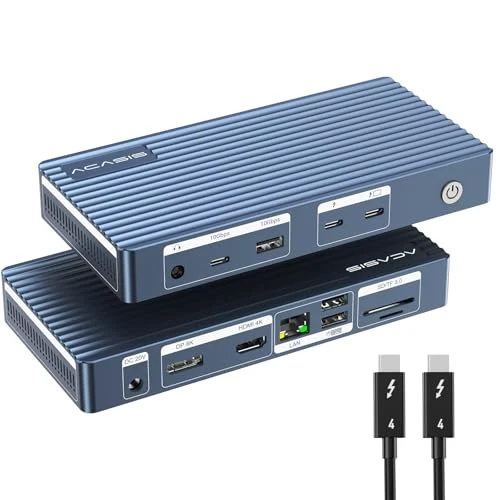
ACASIS Thunderbolt 4 Dock, 11-in-1
- Thunderbolt 4 / 40Gbps host connection
- 2 downstream 40Gbps USB-C ports
- HDMI and DisplayPort outputs
- Up to 85W laptop charging, Gigabit Ethernet
UGREEN Maxidok Thunderbolt 5 Dock
This is the cheaper way into Thunderbolt 5 than the CalDigit docks. It has 4 Thunderbolt 5 ports, up to 140W laptop charging, 2.5Gb Ethernet, a UHS-II card reader and 5 USB ports, with a 180W GaN power adapter included.
It has no HDMI or DisplayPort outputs, so every monitor connects through a Thunderbolt or USB-C port. That’s fine with USB-C monitors and means adapters for older HDMI ones. The triple-display claims on the listing are mostly about Windows. On a Mac, your chip’s display limit decides.
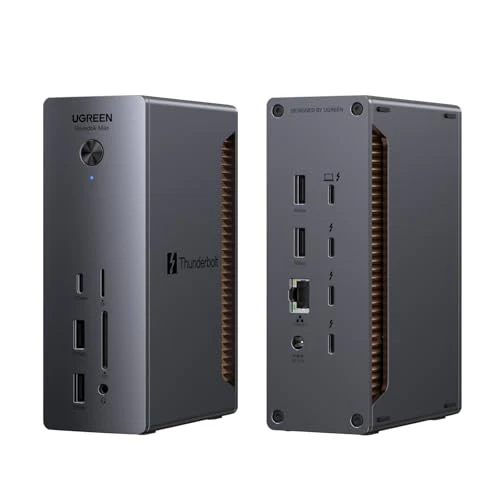
UGREEN Maxidok Thunderbolt 5 Docking Station
- 4 Thunderbolt 5 ports
- Up to 140W laptop charging
- 2.5Gb Ethernet
- UHS-II SD and microSD readers
CalDigit TS5
The CalDigit TS5 is my premium all-round choice. It’s a powered Thunderbolt 5 dock with 15 ports, 3 downstream Thunderbolt 5 ports, 2.5Gb Ethernet and up to 140W laptop charging. CalDigit launched it at $399.99.
It suits a MacBook Pro that moves between the desk and a bag often. 2.5GbE helps if the rest of your network supports it, and the downstream ports leave room for displays and fast storage.
The limit is price, especially in India, where it sells far above its US price. For one 4K monitor, a keyboard and a mouse, I wouldn’t get that money back in performance.
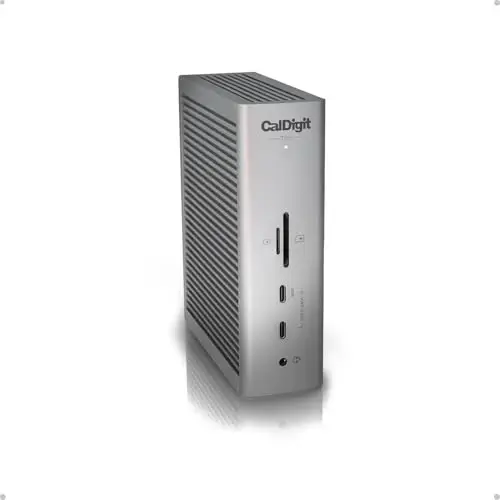
CalDigit TS5 Thunderbolt 5 Dock
- 15 ports with 3 downstream Thunderbolt 5
- Up to 140W laptop charging
- 2.5Gb Ethernet
- 240W power supply
CalDigit TS5 Plus
The CalDigit TS5 Plus adds more ports, 20 in total, and 10Gb Ethernet, with the same 140W laptop charging. CalDigit launched it at $499.99.
I’d only look at it for a 10GbE NAS, several high-bandwidth devices and a demanding display setup together. A 1GbE router and one ordinary monitor won’t use what you’re paying for.
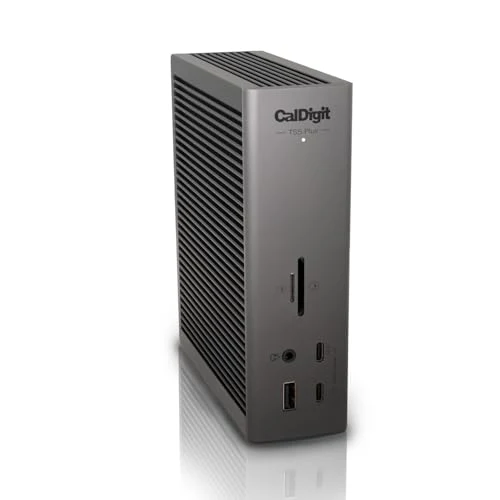
CalDigit TS5 Plus Thunderbolt 5 Dock
- 20 ports with Thunderbolt 5
- 10Gb Ethernet
- Up to 140W laptop charging
ACASIS 40Gbps NVMe Enclosure
This 40Gbps M.2 NVMe enclosure (TBU405) is the separate storage half of my setup. For my use, an enclosure plugged straight into the Mac makes more sense than paying extra for a dock with built-in storage.
It lets me pick the SSD capacity separately and move the drive between both Macs. The SSD isn’t included, and real speed depends on the drive, the Mac and cooling.
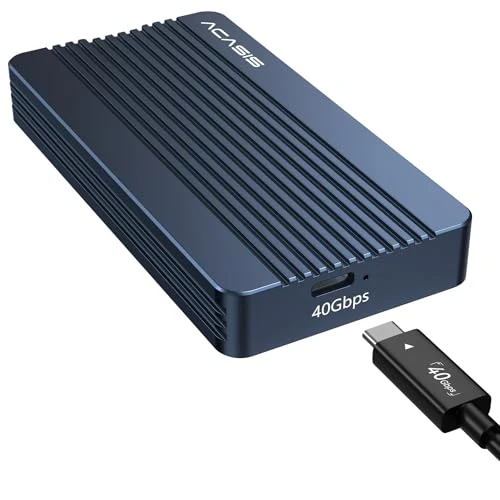
ACASIS 40Gbps M.2 NVMe SSD Enclosure
- 40Gbps USB4 and Thunderbolt connection
- Fits M.2 NVMe SSDs
- Aluminum case
- SSD sold separately
Sharing Storage Between a MacBook and Mac Mini
A dock connects peripherals to one computer at a time. It doesn’t let two Macs use the same directly attached SSD at once.
If I want the same files on both Macs, I’d start with macOS file sharing over SMB, with the drive on whichever Mac stays on most of the time. For always-on shared storage, a NAS is the better fit.
The network matters as much as the dock:
| Ethernet | Raw maximum |
|---|---|
| 1GbE | 125MB/s |
| 2.5GbE | 312.5MB/s |
| 10GbE | 1,250MB/s |
Real transfers are slower because of protocol overhead and drive speed. A 10GbE port on a dock also doesn’t make a Gigabit NAS faster, because every link in the path has to support the higher speed.
I’d keep active, heavy projects on direct NVMe storage and use a NAS for shared files, archives and backups. If you only share documents or code now and then, a NAS may be unnecessary.
RAID isn’t a backup. A mirrored drive or a RAID NAS survives some drive failures, but not accidental deletion, corruption or theft. Keep an independent copy, and an offsite copy for anything important.
What to Check Before Buying a Dock
Ports alone don’t tell you whether a dock fits your desk. This is the checklist I use when comparing them:
- Host connection: your exact Mac model and the dock’s Thunderbolt or USB4 support.
- Displays: the number of independent displays, resolutions and refresh rates on macOS with your Mac. A Windows dual-monitor claim doesn’t carry over, MST outputs mirror on macOS and DisplayLink docks need extra software.
- Power: the watts that reach the laptop, not the size of the power brick.
- Storage: NVMe compatibility, cooling, sustained speed and safe disconnect behavior.
- Networking: 2.5GbE or 10GbE only when the rest of your network can use it.
- Reliability: credible reports of sleep and wake problems, display flicker, SSD disconnects and fan noise.
- Warranty: local seller support, return terms, the included adapter and a certified cable.
During Black Friday or any other sale, I’d compare the total cost of the setup rather than the discount percentage. A cheap hub that needs a separate charger, an enclosure and extra adapters can end up costing more than a better-equipped dock.
FAQs on Mac Workstation Setup
Do I need Thunderbolt 5 for a MacBook Pro M5 Pro?
No. A USB-C hub or a 40Gbps dock is enough for most productivity work. Thunderbolt 5 is worth it for high-bandwidth displays, fast compatible external storage or several demanding devices at once.
Can I use a Thunderbolt 5 dock with a Thunderbolt 4 Mac?
Generally yes, with compatible equipment. The link runs at the older Thunderbolt 4 speed, and some display or peripheral features may not be available.
Is a USB-C hub with an SSD slot a good alternative to a separate enclosure?
Yes, when saving space and reducing cables matter most. A separate enclosure is better when sustained transfer speed, easy upgrades or keeping storage off the hub’s shared link matter more.
Does Thunderbolt 5’s 120Gbps rating mean an SSD runs at 15GB/s?
No. The 120Gbps Bandwidth Boost mode is one-directional and meant for display traffic. Storage speed is limited by the enclosure, the PCIe path, the SSD and the workload.
Can one dock share an SSD between two Macs?
No. A normal dock connects to one Mac at a time. macOS file sharing over SMB or a NAS gives both Macs access. A KVM switch can move peripherals between computers, but switching isn’t the same as both Macs using the files at once.
Can a USB-C dock power a Mac mini?
No. A Mac mini needs its own AC power. Power delivery from a dock is useful for laptops and supported accessories.
Can any USB-C dock run two independent monitors on a Mac?
No. Your Mac’s external display limit, the dock’s design and its output modes all matter, and MST outputs mirror on macOS. The manufacturer’s Mac-specific compatibility notes for your exact Mac and displays are the thing to check.
Final Remarks
If you’re still unsure whether you need Thunderbolt 5, I’d let your current desk decide. I wouldn’t replace a working setup just to use it. My MacBook Pro already has fast internal storage, and most of my work doesn’t need the fastest external SSD on the market.
If I were buying today, I’d start with a powered 40Gbps dock and a separate 40Gbps SSD enclosure, and keep my existing 4K monitor until it becomes a real limit. I’d move to a Thunderbolt 5 dock only near my target price, and only if I’d use the extra bandwidth or networking.
After that, my next money would go to reliable shared storage and backups, not another drawer of adapters. A good workstation should make work easier. It doesn’t need to be the most expensive way to connect everything.
Want the notes that don't make it into posts?
From the Workbench is my email for people who run a site or a small product business. Each issue is one of three things:
- Releases: what I shipped, and whether it matters for your site.
- Field notes: what moved in WordPress and search, and what I'd do about it.
- Essays: building, pricing and writing, worked out the slow way.
Free, and it goes out only when there's something worth sending. No fixed schedule, no padding.
Disclaimer: This site is reader-supported. If you buy through some links, I may earn a small commission at no extra cost to you. I only recommend tools I trust and would use myself. Your support helps keep gauravtiwari.org free and focused on real-world advice. Thanks. - Gaurav Tiwari