
How to Write an Issue Once and Send It with MailerPress
Writing a newsletter twice is the part nobody enjoys. You write the issue in your email tool, then copy it into WordPress for the web version, then fix the images and links that broke on the way across.
MailerHive removes the second copy. You write the issue once in the WordPress block editor, publish it on your site and MailerHive creates a matching draft campaign in MailerPress. You review that draft and send it when you’re ready.
MailerHive is my newsletter plugin for WordPress, and MailerPress is the WordPress email plugin that does the sending. MailerHive never sends anything itself, so a published issue can’t reach your list by accident.
Before You Start
You need the reading side working first, plus a list to send to:
- MailerHive 1.4.6 or newer, with issues publishing at
/newsletter/issue/. How to Publish a Newsletter Archive on Your WordPress Site covers that setup. - MailerPress, active, with a sender address configured and at least one list.
- An account that can manage settings on WordPress, for the MailerHive settings.
Choose Where Drafts Go
The email side is set on Newsletter → Settings → MailerPress:
- Under Send drafts to, tick the MailerPress lists that should receive your issues. Left empty, drafts use the mirror lists further down the page.
- Set Subject line.
{title}uses the issue title, and{newsletter}adds the newsletter name, for example{newsletter}: {title}. - Leave From name and From email empty to use MailerPress’s own sender, or fill them in to override it for newsletter drafts.
- Write the Email footer note. It sits above the Unsubscribe and Manage subscription links.
{newsletter}and{site}work here. - Click Save Changes.
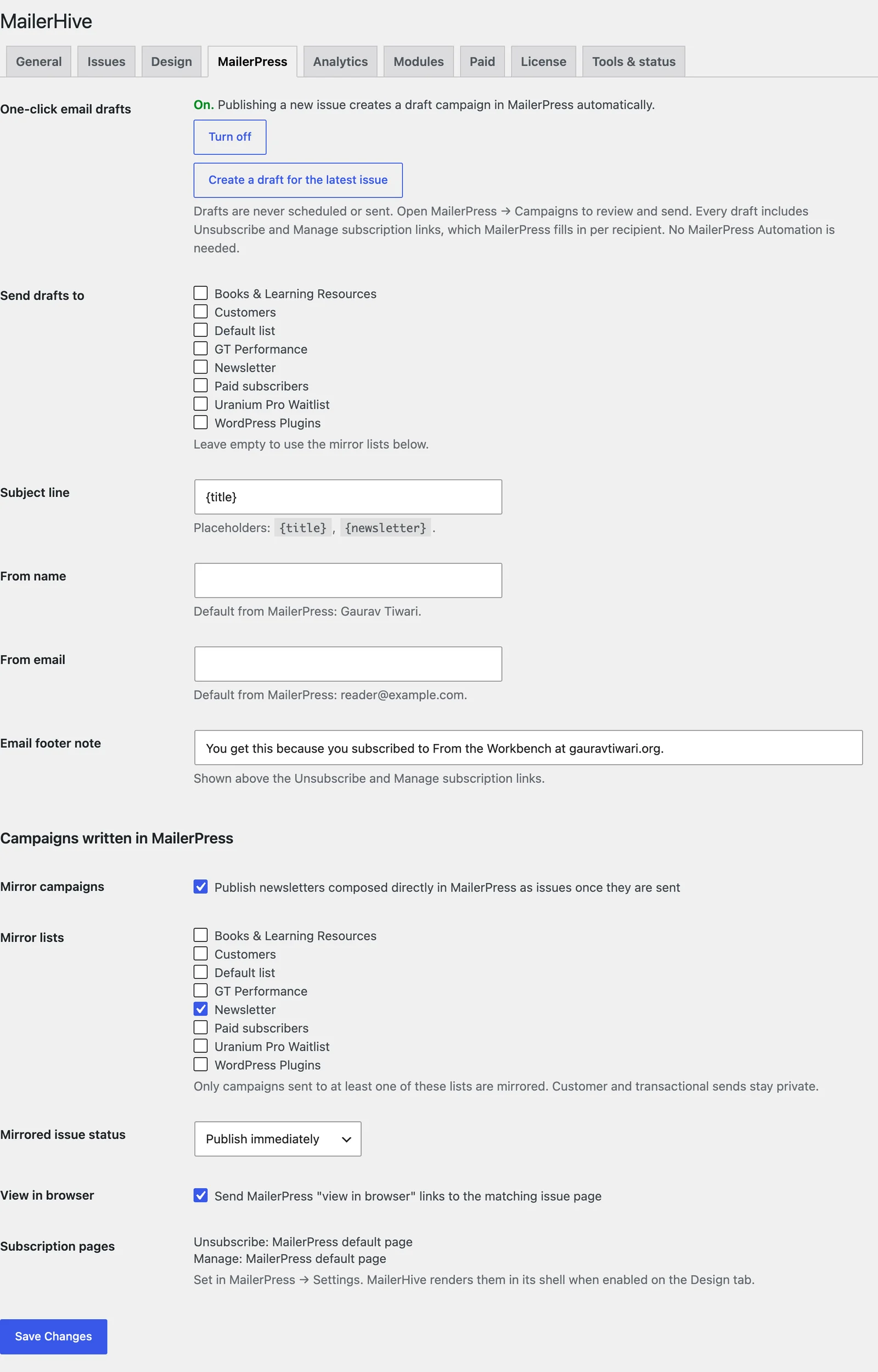
At the top of the same tab, One-click email drafts has 2 buttons. Turn on automatic drafts makes every newly published issue create a draft by itself. Create a draft for the latest issue makes one right now.
Automatic drafts are off until you turn them on.
Write and Publish the Issue
- Go to Newsletter → Write New Issue.
- Write the issue in the block editor. Headings, paragraphs, images, quotes and links all carry over to the email.
- Add a Subtitle in the Issue details box. It becomes the email’s preview text, the short line inboxes show after the subject.
- Publish.
With automatic drafts on, publishing creates the MailerPress draft. With them off, the Issue details box shows a Create MailerPress draft button after publishing, with the note “Creates a draft campaign to review and send. Nothing is sent automatically.”
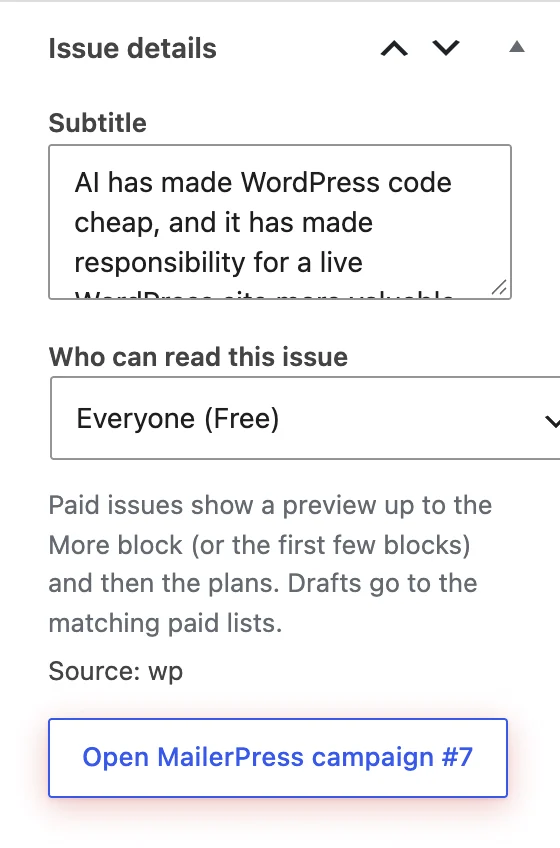
Once a draft exists, the same box links to it as Open MailerPress campaign #7, with your campaign’s number in place of 7.
Review and Send the Draft
Open the campaign from that button or from MailerPress → Campaigns. The draft contains:
- your logo or newsletter name, the date, the title and the subtitle
- a “Read this issue on the web” link to the issue page
- the issue content in a single column, up to 640 pixels wide
- your footer note, then the Unsubscribe and Manage subscription links that MailerPress fills in per reader
Send a test to yourself, check it on your phone, then send or schedule it from MailerPress.
MailerHive turns the issue into email-ready HTML, and MailerPress opens it as an HTML campaign. Small text fixes are fine in MailerPress.
MailerHive links one campaign to each issue and won’t create a second draft for it, so finish bigger changes in the issue before the draft is made. That keeps the web version and the email the same.
The Other Direction: Write in MailerPress
Some issues start in MailerPress instead. MailerHive can publish those on your site after they’re sent. The settings sit under Campaigns written in MailerPress on the same tab:
- Mirror campaigns publishes newsletters composed in MailerPress as issues once they are sent. It’s on by default.
- Mirror lists limits that to campaigns sent to at least one of the chosen lists, so customer and transactional emails stay private.
- Mirrored issue status publishes immediately, or saves the issue as a draft for review.
- View in browser sends MailerPress’s “view in browser” links to the matching issue page.
MailerHive checks for newly sent campaigns every hour. Sync MailerPress now on the Tools & status tab runs the check right away.
The Rich paste module on the Modules tab helps when you write in MailerPress. With it on, content pasted from Google Docs or the block editor into a MailerPress text, heading or list block arrives as native MailerPress blocks.
Check It Works
Publish a short test issue to a list with only your own address on it:
- The issue’s Source column in Newsletter Issues shows
wp · campaign #Nonce a draft exists. - MailerPress → Campaigns lists the draft, named “Newsletter name: Issue title”.
- The test email’s web link opens the published issue.
When No Draft Appears
| Message or symptom | What it means | Fix |
|---|---|---|
| “This issue has no MailerPress list to go to.” | No draft list and no mirror list is chosen | Tick a list under Send drafts to |
| “MailerPress is not active.” | MailerPress is off or missing | Activate MailerPress |
| “This issue already has a MailerPress campaign.” | A draft was already created for this issue | Use Open MailerPress campaign in the Issue details box |
| No draft after publishing | Automatic drafts are off, or the issue was imported or mirrored | Click Create MailerPress draft, or turn on automatic drafts |
| Click returns to the editor with no draft | The draft failed and the reason waits on the settings screen | Open Newsletter → Settings to read the message |
Automatic drafts fire only on an issue’s first publish and only for issues written in WordPress. Issues imported from Substack or mirrored from MailerPress never create drafts.
What It Won’t Do
The bridge is careful by design:
- It never sends or schedules a campaign. Every draft waits for you in MailerPress.
- It doesn’t keep the draft in sync with later edits to the issue. A draft is a copy made at one moment.
- It doesn’t rebuild the email as MailerPress blocks. The draft is HTML. Scripts, embeds, iframes and forms are removed on the way.
- It doesn’t create lists. The lists come from MailerPress.
If some issues are for paying readers only, How to Sell a Paid Newsletter Tier with FluentCart shows how paid issues pick their own lists. The email drafts reference lists every setting on the MailerPress tab.