
Design, Dark Mode and Theme Isolation
Themes are built for blog posts, and an issue rendered by the theme looks like any other post. With a sidebar, a big theme header and the theme’s own fonts around it, the reader loses the feeling of reading the email they signed up for.
MailerHive renders its pages with its own templates and keeps your theme’s styles and scripts off them, while every plugin keeps working. The Design tab controls that and the look: colors, dark mode, header and footer links and any extra CSS. Go to Newsletter → Settings → Design.
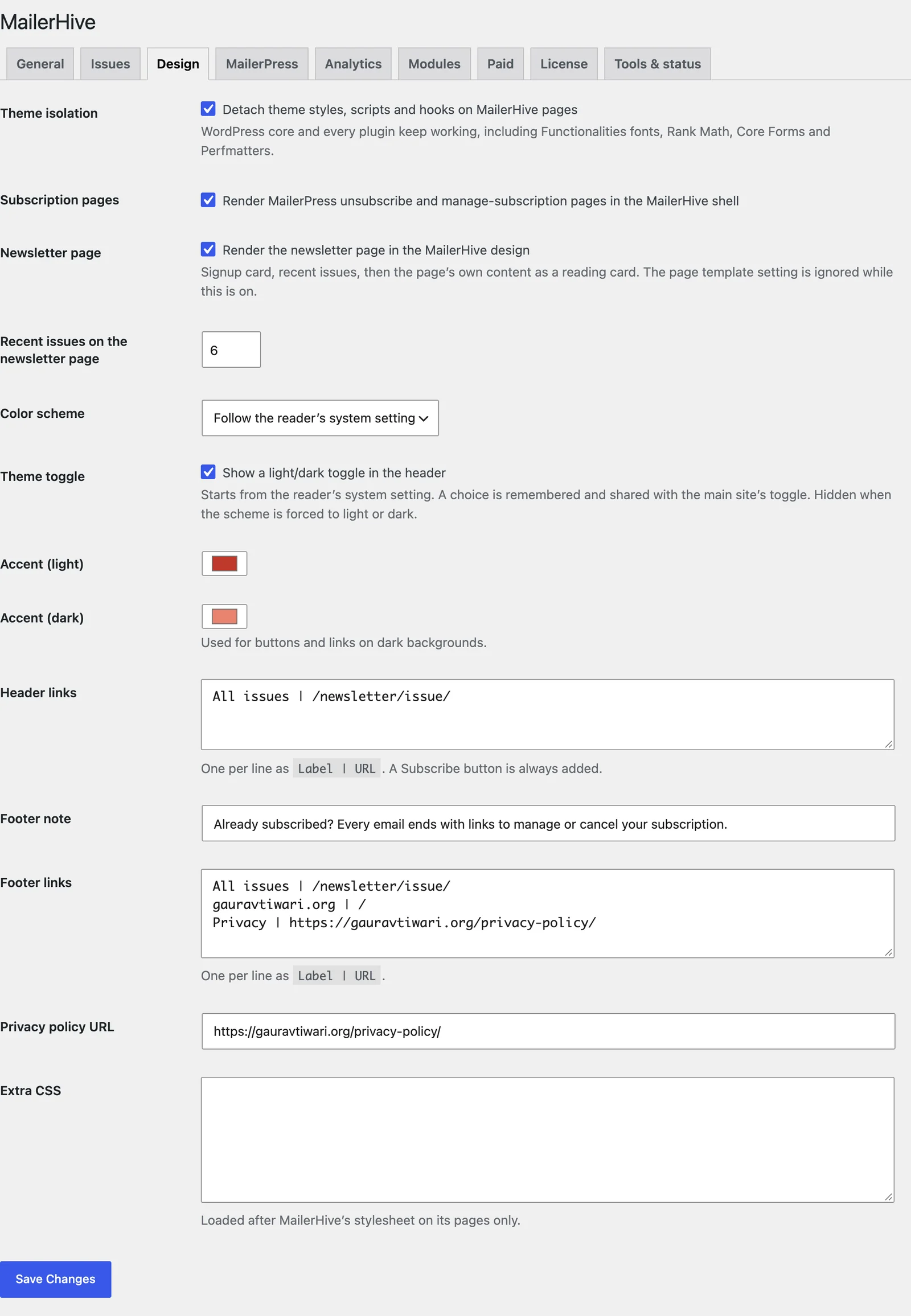
Theme Isolation
With Theme isolation on, MailerHive pages drop everything your theme adds:
- the theme’s stylesheets and scripts
- anything the theme hooks into the page head, body or footer
- Customizer Additional CSS
- the block styles generated from your theme’s
theme.json
WordPress core and every plugin keep working, including your SEO plugin, your forms and your performance plugin. MailerHive’s own templates are used even with isolation off. The setting only controls whether your theme’s assets load on top of them.
Because theme.json styles don’t load, blocks that rely on your theme’s color presets, font sizes or layout widths look plain on issue pages. Use plain blocks in issues, or add the styles you need under Extra CSS.
Subscription Pages
With Subscription pages on, MailerPress’s unsubscribe and manage-subscription pages use the MailerHive header and footer, so a reader who leaves sees the same newsletter they joined. Choose those pages under MailerPress → Settings. The MailerPress tab in MailerHive shows which pages are in use.
Color Scheme and Dark Mode
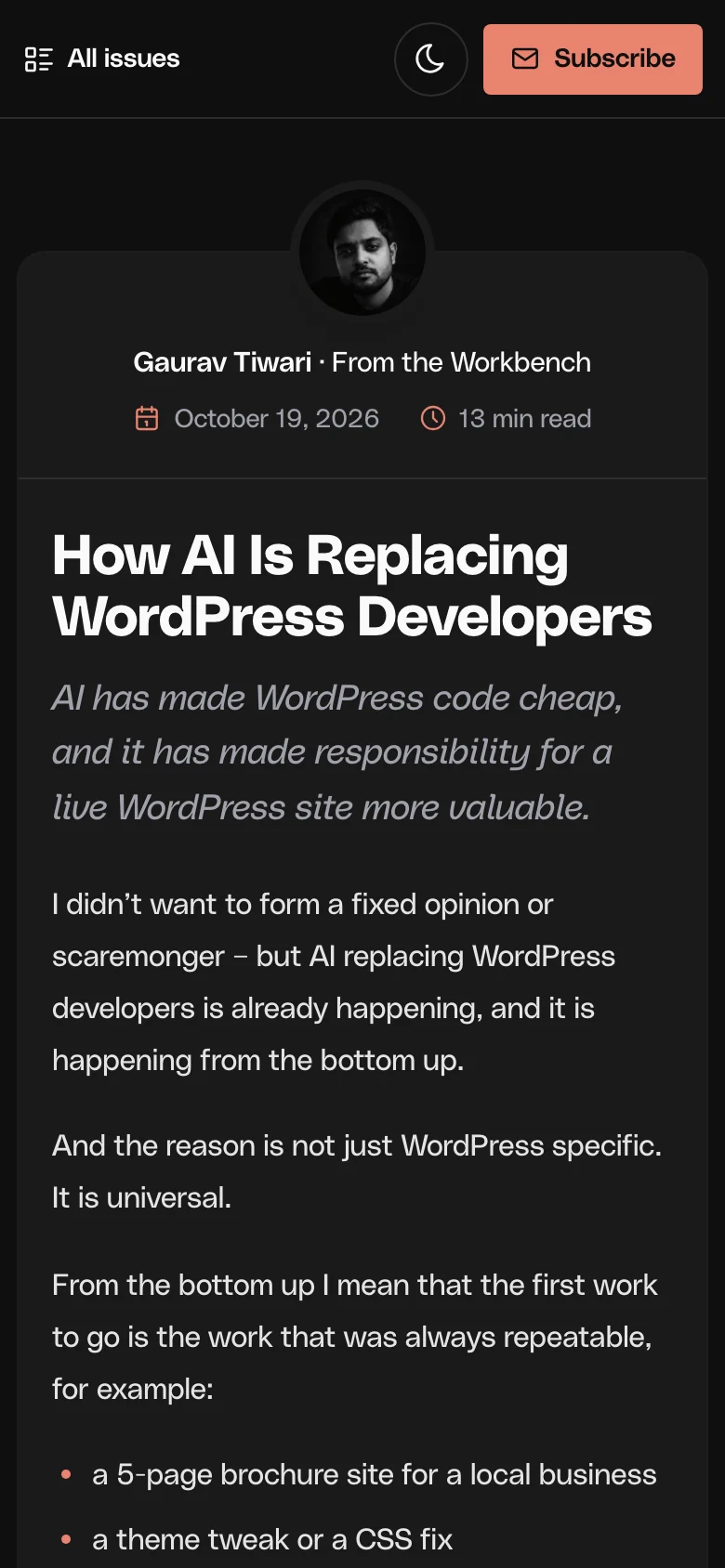
- Color scheme: choose Follow the reader’s system setting (the default), Always light or Always dark.
- Theme toggle: a light and dark switch in the header. It appears only when the scheme follows the system setting. The reader’s choice is remembered in their browser, and with Marketers Delight it’s shared with the main site’s toggle.
- Accent (light) and Accent (dark): the button and link colors. The defaults are
#C0392Bon light backgrounds and#E8836Fon dark ones.
Header and Footer
- Header links: one per line as
Label | URL. A Subscribe button is always added after them. - Footer note: the line above the footer links. The default reminds subscribers that every email ends with links to manage or cancel their subscription.
- Footer links: one per line as
Label | URL. - Privacy policy URL: used for the footer’s Privacy link.
The copyright line reads “© {year} {site}”, with the current year and your site title filled in.
Extra CSS
Extra CSS loads after MailerHive’s stylesheet, on MailerHive pages only. A few hooks help you target it:
- Body classes:
mailerhive, plusmh-issue,mh-archive,mh-landingormh-mailerpressfor each page type. - Variables:
--mh-accentand--mh-accent-hoverhold the current accent colors.
.mailerhive .mh-mail__subject { letter-spacing: -0.02em; }