
Set Up Paid Tiers and FluentCart Plans
Selling a paid newsletter usually means stitching together a store, a members plugin and an email list, then keeping all 3 in sync by hand. When a renewal fails or a reader cancels, someone has to remember to take them off the paid list.
MailerHive’s paid subscriptions module ties those together. You sell tiers through FluentCart, mark issues as paid and MailerHive keeps each reader’s access and MailerPress list in step with their FluentCart order or subscription. The module needs FluentCart, and MailerPress for the tier lists.
Turn On the Module
- Go to Newsletter → Settings → Modules.
- Under Paid subscriptions, tick Paid tiers and select Save Changes.
- Open the Paid tab.
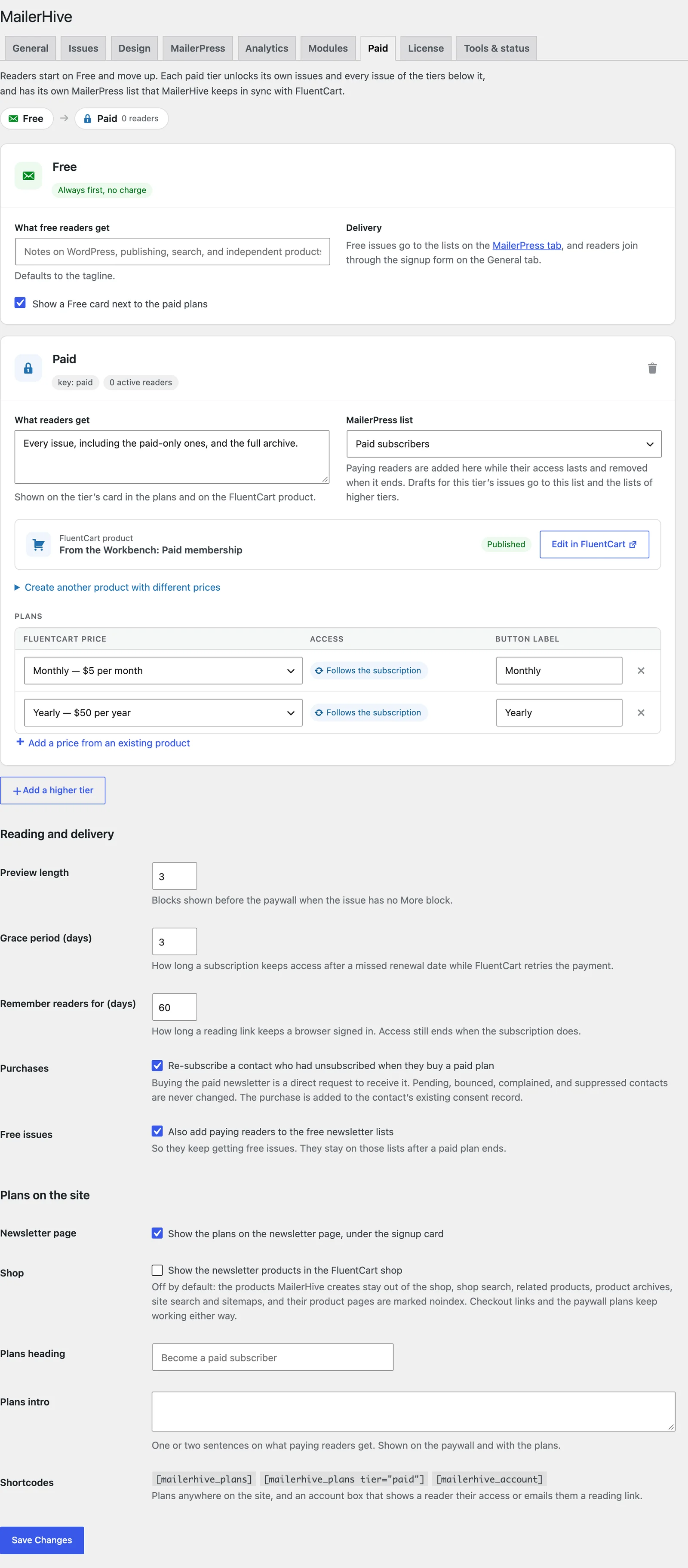
The first time you switch it on, MailerHive starts you with 2 tiers: Free, which is your existing lists and signup form, and Paid, with a new MailerPress list called “Paid subscribers”.
How Tiers Work
Readers start on Free and move up. Each paid tier unlocks its own issues and every issue of the tiers below it.
- Free is always first and costs nothing. Free issues go to the lists on the MailerPress tab, and readers join through the signup form on the General tab.
- Paid tiers follow in the order shown, lowest first. Add a higher tier adds one at the top of the ladder.
- Each paid tier has its own MailerPress list. Paying readers are added while their access lasts and removed when it ends.
A tier’s key is set from its name the first time you save it and never changes, because issues store the key. You can rename a tier freely.
Tier Settings
- Name: what readers see, such as “Insider”.
- What readers get: a sentence or two shown on the tier’s card in the plans and on its FluentCart product.
- MailerPress list: choose + Create a list for this tier, an existing list or no list at all. A new list is named “{Tier name} subscribers” when you save.
The Free card has its own Name, a What free readers get line that defaults to your tagline and Show a Free card next to the paid plans.
Create the FluentCart Product
The quickest route is one click from the tier:
- In the tier’s Sell this tier box, enter the prices. Monthly and Yearly start at 5 and 50 in your store’s currency, and Lifetime starts empty.
- Leave any price empty to skip it.
- Select Create FluentCart product. It saves your settings too.
MailerHive creates a published FluentCart product named “{Newsletter name}: {Tier name} membership”, with 1 price for each amount you entered:
| Price | How it bills | Access |
|---|---|---|
| Monthly | Subscription, renews every month | Follows the subscription |
| Yearly | Subscription, renews every year | Follows the subscription |
| Lifetime | One payment | Lifetime |
The prices are added to the tier’s plans straight away. To change the product’s text or images later, select Edit in FluentCart on the tier.
Use Prices from an Existing Product
To sell through a product you already have, select Add a price from an existing product under the tier’s plans. Each plan row has 3 columns:
- FluentCart price: pick a product price. Products that aren’t published show their status, such as “(draft)”.
- Access: a subscription price shows “Follows the subscription”. For a one-time price, set a length in days, weeks, months or years, or
0for lifetime. - Button label: the text on the plan button. Leave it empty to use the price’s own name.
A plan only shows on your site when its product is published. A price on a draft product still grants access if someone buys it through a direct link.
Reading and Delivery
| Setting | Default | What it does |
|---|---|---|
| Preview length | 3 | Blocks shown before the paywall when an issue has no More block |
| Grace period (days) | 3 | How long a subscription keeps access after its renewal date while FluentCart retries the payment |
| Remember readers for (days) | 60 | How long a reading link keeps a browser signed in |
| Purchases | On | Re-subscribes a contact who had unsubscribed when they buy a paid plan |
| Free issues | On | Also adds paying readers to the free newsletter lists, where they stay after a paid plan ends |
Buying the paid newsletter is a direct request to receive it, which is why re-subscribing is on by default. Contacts who are pending, bounced, complained or suppressed are never changed.
Plans on the Site
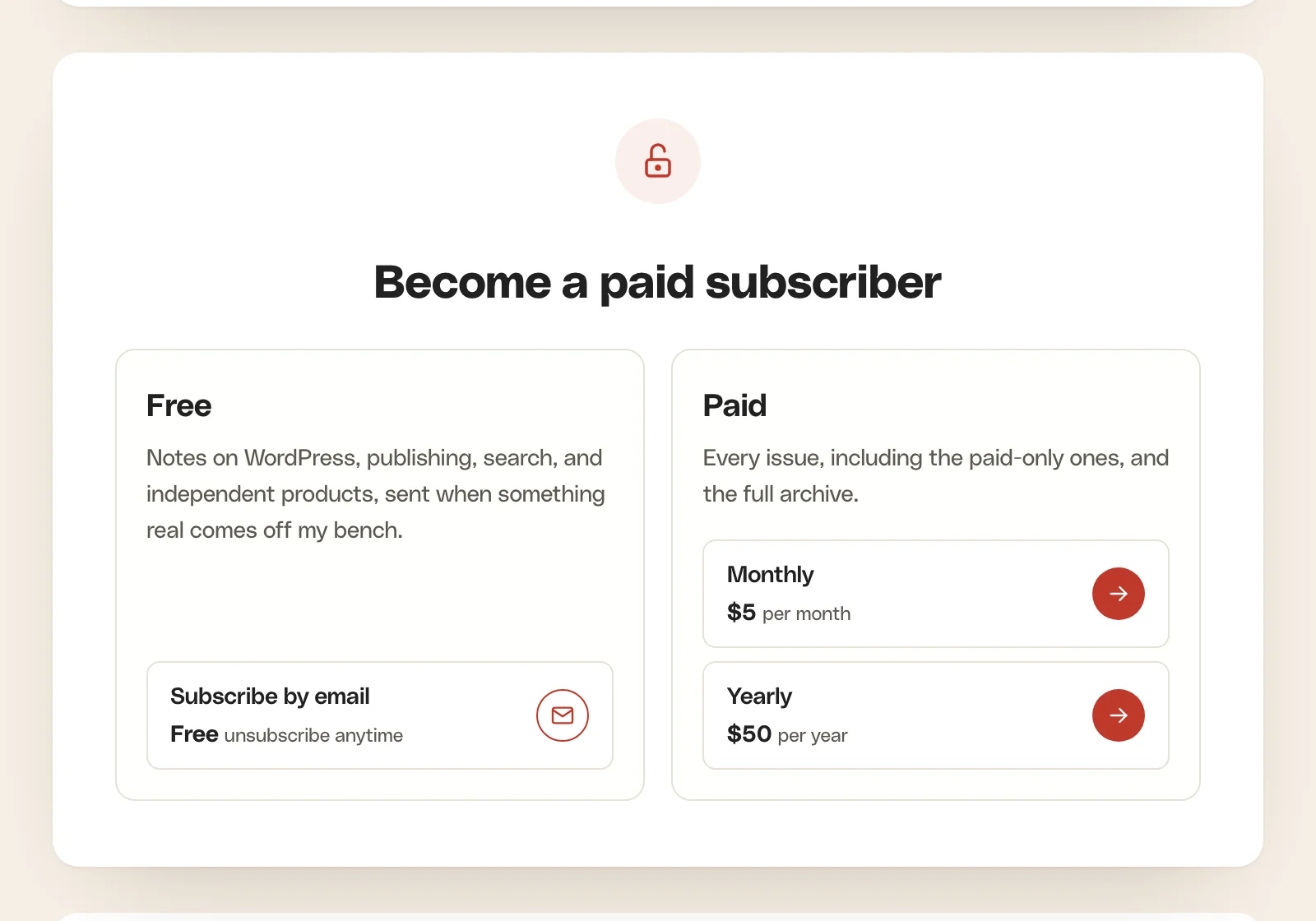
- Newsletter page: shows the plans on the newsletter page, under the signup card.
- Shop: shows the newsletter products in the FluentCart shop. It’s off by default, which keeps the products MailerHive creates out of the shop, shop search, related products, product archives, site search and sitemaps, and marks their pages noindex. Checkout links and the paywall plans keep working either way.
- Plans heading: the heading over the plans on the newsletter page. Without one, it reads “Become a paid subscriber”.
- Plans intro: 1 or 2 sentences on what paying readers get, shown on the paywall and with the plans.
The Shop setting covers products created with Create FluentCart product. A product you mapped from your existing catalog stays in your shop as it was.
Prices in the Visitor’s Currency
Plans always show your store’s base currency first, so every visitor gets the same cached page. With the multi-currency module of GT Extensions for FluentCart switched on, the page then swaps in each visitor’s price. It uses your fixed price list where you’ve set one and the exchange rate otherwise.
Removing a Tier or a Plan
The trash icon on a tier removes it after a confirmation. Issues set to that tier become free, and its readers are taken off its list.
Removing a plan has the same effect on the readers who bought it. Their access from that plan ends at the next re-check, about 30 seconds after you save. Before you remove a plan that’s still sold, stop selling it in FluentCart and let current subscriptions run out.