
Turn Issues into MailerPress Drafts
Writing an issue in WordPress and then rebuilding it block by block in MailerPress is double work, and the copy that goes out often isn’t the copy on your site. A typo fixed on the page stays in the email, or the other way round.
MailerHive turns a published issue into a MailerPress draft campaign with the subject, preview text, lists and unsubscribe links already filled in. You open it in MailerPress, check it and send it. MailerHive never schedules or sends anything on its own.
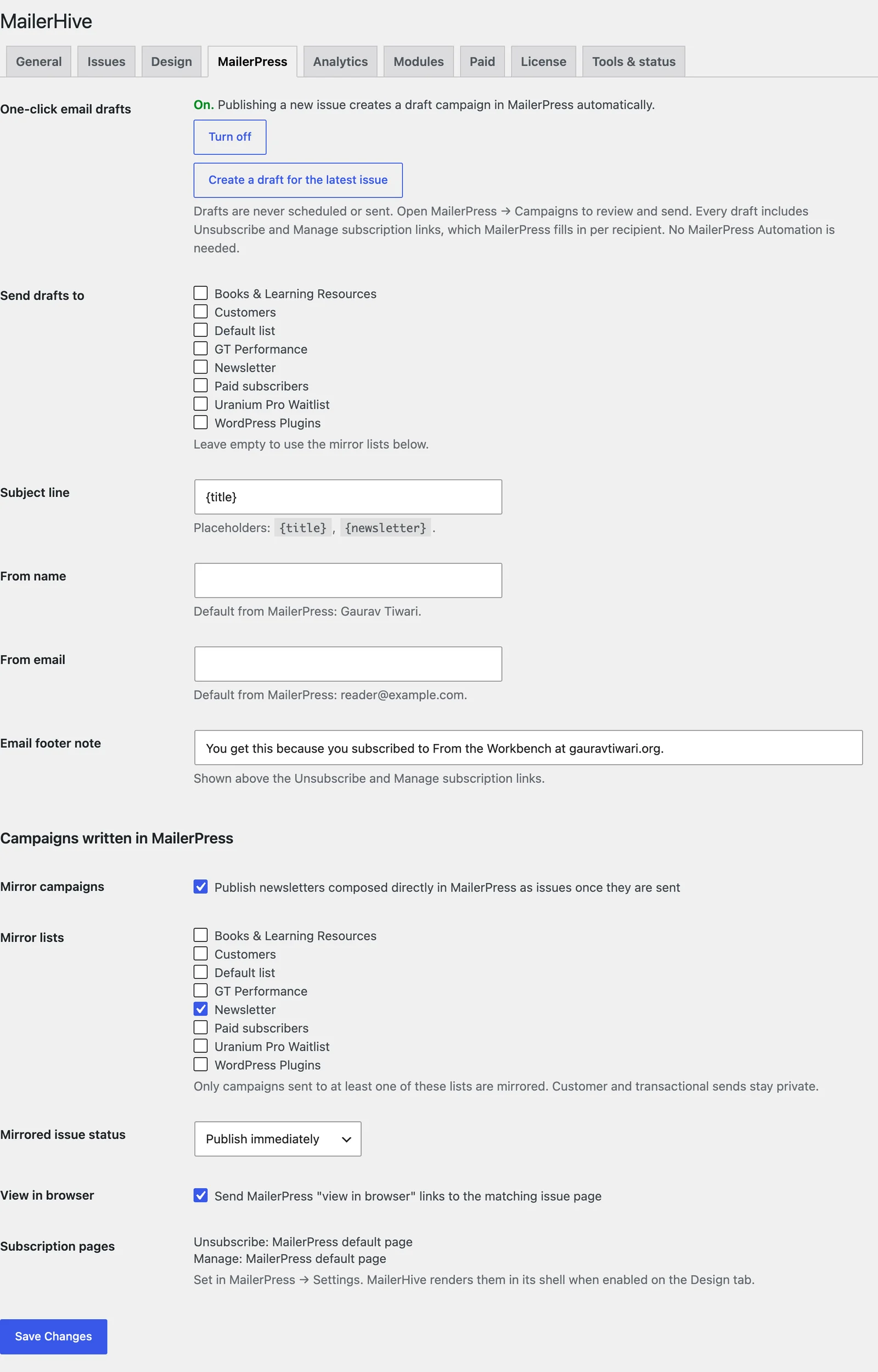
Turn On Automatic Drafts
- Go to Newsletter → Settings → MailerPress.
- Under One-click email drafts, select Turn on automatic drafts.
- Under Send drafts to, tick the lists the email should go to, then select Save Changes.
From then on, the first time you publish an issue, MailerHive creates its draft. Updating a published issue doesn’t create another one. Issues imported from Substack or mirrored from MailerPress never get an automatic draft, since they were already sent.
You can also create drafts by hand:
- Create MailerPress draft in the issue’s Issue details box, for any published issue without a campaign.
- Create a draft for the latest issue on the MailerPress tab, for the most recent published issue.
Both open the new campaign in MailerPress straight away.
Draft Settings
| Setting | Default | What it does |
|---|---|---|
| Send drafts to | The mirror lists | The MailerPress lists the draft is addressed to |
| Subject line | {title} | The email subject. {title} is the issue title and {newsletter} is the newsletter name |
| From name | MailerPress’s default sender name | The sender name on the campaign |
| From email | MailerPress’s default sender address | The sender address on the campaign |
| Email footer note | “You are receiving this because you subscribed to {newsletter}.” | The line above the Unsubscribe and Manage subscription links. {site} also works |
Paid issues go to their tier’s lists instead. Making an issue paid explains which lists those are.
What the Draft Contains
The draft is a ready-made HTML campaign with a 640-pixel layout that holds up in Gmail, Apple Mail and Outlook:
- a header with your logo, or the newsletter name, and the issue date
- the title, the subtitle and a “Read this issue on the web” link to the issue page
- the issue body, with email styling on paragraphs, links, images, H2 and H3 headings and quotes
- your footer note, then Unsubscribe | Manage subscription links that MailerPress fills in for each recipient
The campaign is named “{Newsletter name}: {Issue title}”, and its preview text is the subtitle, or the excerpt when there’s no subtitle.
A few things don’t make it into the email: embeds such as videos and tweets, forms, scripts and the featured image. The email always uses its light design, whatever the reader’s dark mode setting. Writing for the inbox has tips for issues that work in both places.
Review and Send in MailerPress
Because the draft is plain HTML, edit wording in the issue rather than in MailerPress when you can. Then the page and the email stay the same.
If you change the issue after the draft exists, the draft won’t update. Move the campaign to the trash in MailerPress, then create the draft again from the Issue details box.
Each issue gets 1 campaign. While its campaign exists, Create MailerPress draft just reports “This issue already has a MailerPress campaign.”
Messages You May See
- “Draft campaign created in MailerPress. Review it there and send when ready.” It worked.
- “MailerPress is not active.” Activate MailerPress, then try again.
- “This issue has no MailerPress list to go to.” Tick lists under Send drafts to or Mirror lists. For a paid issue, give its tier a list on the Paid tab.
- “The campaign was created but its HTML could not be saved.” MailerPress created an empty campaign. Delete it in MailerPress and create the draft again.