
Set Up Your Newsletter Name, Branding and Signup Form
Every issue page, the archive and the newsletter page share one header, one sender line and one signup form. If those still carry the defaults, readers see your site title where the newsletter name should be and a bare Subscribe button instead of a form.
All of it lives on one screen. Go to Newsletter → Settings → General, fill in the name and sender, choose the signup form and save.
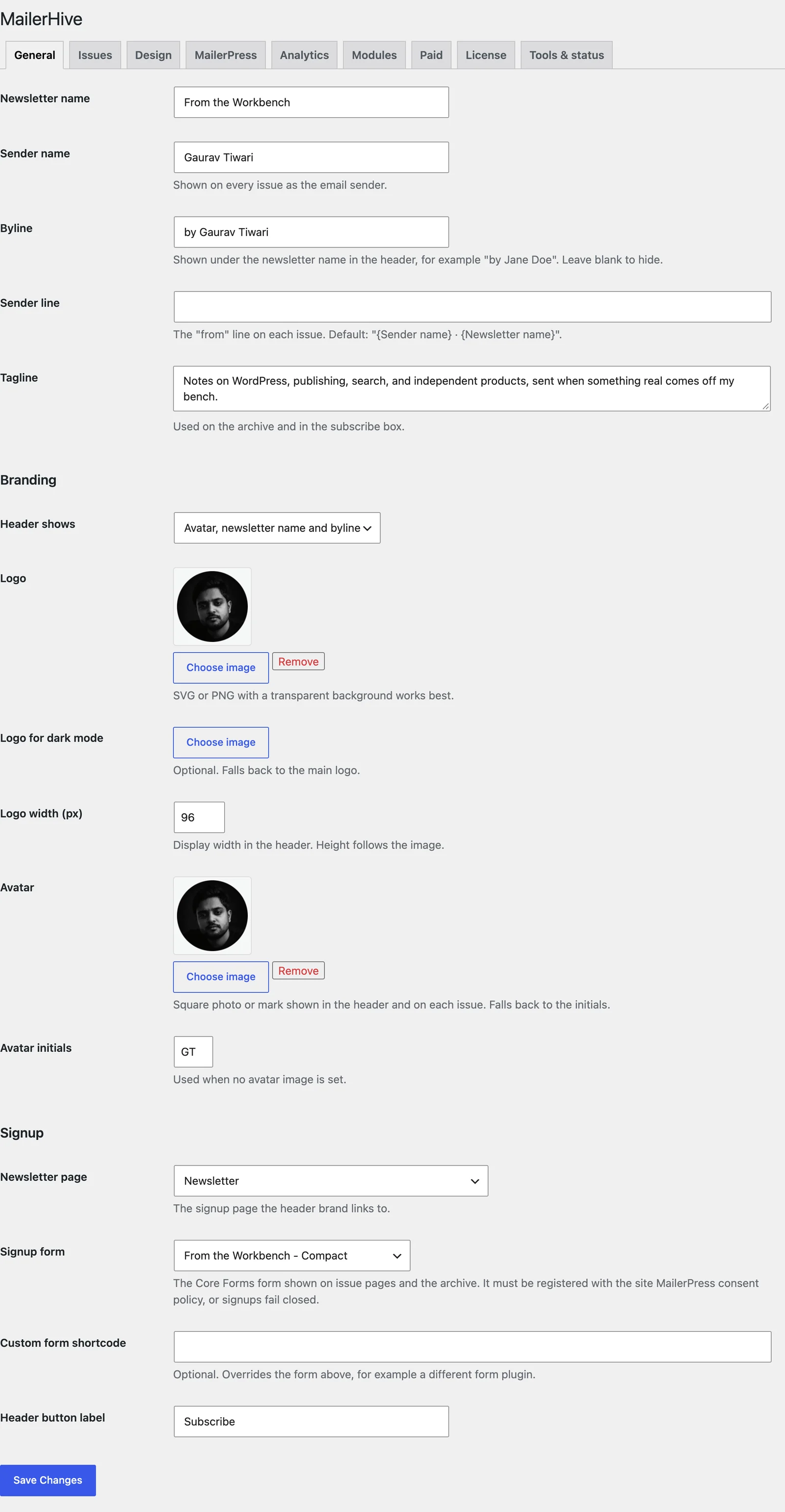
Name and Sender
| Field | What it does | When left blank |
|---|---|---|
| Newsletter name | The name in the header, on the archive and in email drafts | “{Site title} Newsletter” |
| Sender name | Shown on every issue as the sender | Your site title |
| Byline | A short line under the newsletter name in the header, such as “by Jane Doe” | Hidden |
| Sender line | The “from” line at the top of each issue | “{Sender name} · {Newsletter name}” |
| Tagline | Used on the archive and in the subscribe box | Your site’s tagline |
Branding
- Header shows: choose Avatar, newsletter name and byline, Logo, newsletter name and byline or Logo only.
- Logo: an SVG or PNG with a transparent background works best.
- Logo for dark mode: optional. Without it, the main logo shows in dark mode too.
- Logo width (px): the display width in the header, from 40 to 400. The height follows the image.
- Avatar: a square photo or mark shown in the header and at the top of each issue.
- Avatar initials: shown when no avatar image is set. Without them, MailerHive takes the first letters of the first 2 words of the sender name.
Only the main logo appears in email drafts, at up to 160 pixels wide. A logo that’s white on a transparent background can disappear on the light email background, so it is wise to keep the main logo dark.
Signup
- Newsletter page: the page the header brand links to. Choose your signup page here. The newsletter page explains how MailerHive renders it.
- Signup form: the Core Forms form shown on issue pages, the archive and the newsletter page. When the consent policy module is on, this form has to be registered with it, or signups fail closed. The consent policy covers registration.
- Custom form shortcode: any shortcode, from Core Forms or another form plugin. It overrides the form above.
- Header button label: the text on the Subscribe button in the header.
With no form set, the subscribe box shows a Subscribe button that links to the newsletter page.
Check the Result
Open /newsletter/issue/ in a private window. The header should show your name and logo, and the subscribe box at the bottom should show your form. Then set up how issues look and behave on the Issues tab.