
Install MailerHive and Activate Your License
MailerHive isn’t on wordpress.org, so WordPress can’t update it by itself. Without the free license key, every feature still works, but each new version means downloading and uploading the ZIP again.
The setup takes a few minutes. You install the ZIP, activate the plugin and paste the license key under Newsletter → Settings → License. Before the first hourly sync runs, check one mirroring setting so past campaigns don’t go live before you’ve looked at them.
Requirements
- WordPress 6.6 or newer.
- PHP 8.1 or newer.
- For the license only: the PHP sodium extension, plus
AUTH_KEYandSECURE_AUTH_KEYvalues of 32 characters or more inwp-config.php. MailerHive uses them to encrypt the stored key. Most hosts already meet both.
Install the Plugin
- Get MailerHive from the MailerHive product page. It’s free, and the ZIP and license key land in your account on GauravTiwari.org.
- In wp-admin, go to Plugins → Add New Plugin and select Upload Plugin.
- Choose the ZIP file and select Install Now.
- Select Activate Plugin.
The source code is public on GitHub if you want to read it before installing.
What Activation Sets Up
Activation fills blank settings from what your site already has. It never overwrites a value you saved, and you can run it again any time with Re-detect settings under Tools & status.
- Newsletter page: the page at
/newsletter/, if one exists. - Mirror list: the MailerPress list named exactly “Newsletter”, if one exists.
- Privacy policy URL: the one set under Settings → Privacy.
- Header and footer links: “All issues” in the header, and “All issues”, your site name and “Privacy” in the footer.
- Rybbit: the tracking tag from Marketers Delight’s header or footer scripts, when that theme is active.
- Dark mode memory: the same storage key as the Marketers Delight toggle, so a reader’s choice carries across the site.
Activation also registers the issue addresses and schedules the hourly MailerPress sync.
If MailerPress has a list named “Newsletter”, activation picks it as the mirror list, and mirroring starts switched on with Publish immediately. A few minutes after activation, the first sync publishes every sent newsletter campaign to that list as a public issue.
To review them first, go to Newsletter → Settings → MailerPress right after activating and set Mirrored issue status to Save as draft for review, or clear Mirror campaigns.
Activate Your License
- Copy your license key from your account on GauravTiwari.org.
- Go to Newsletter → Settings → License.
- Paste the key into License key and select Activate license.
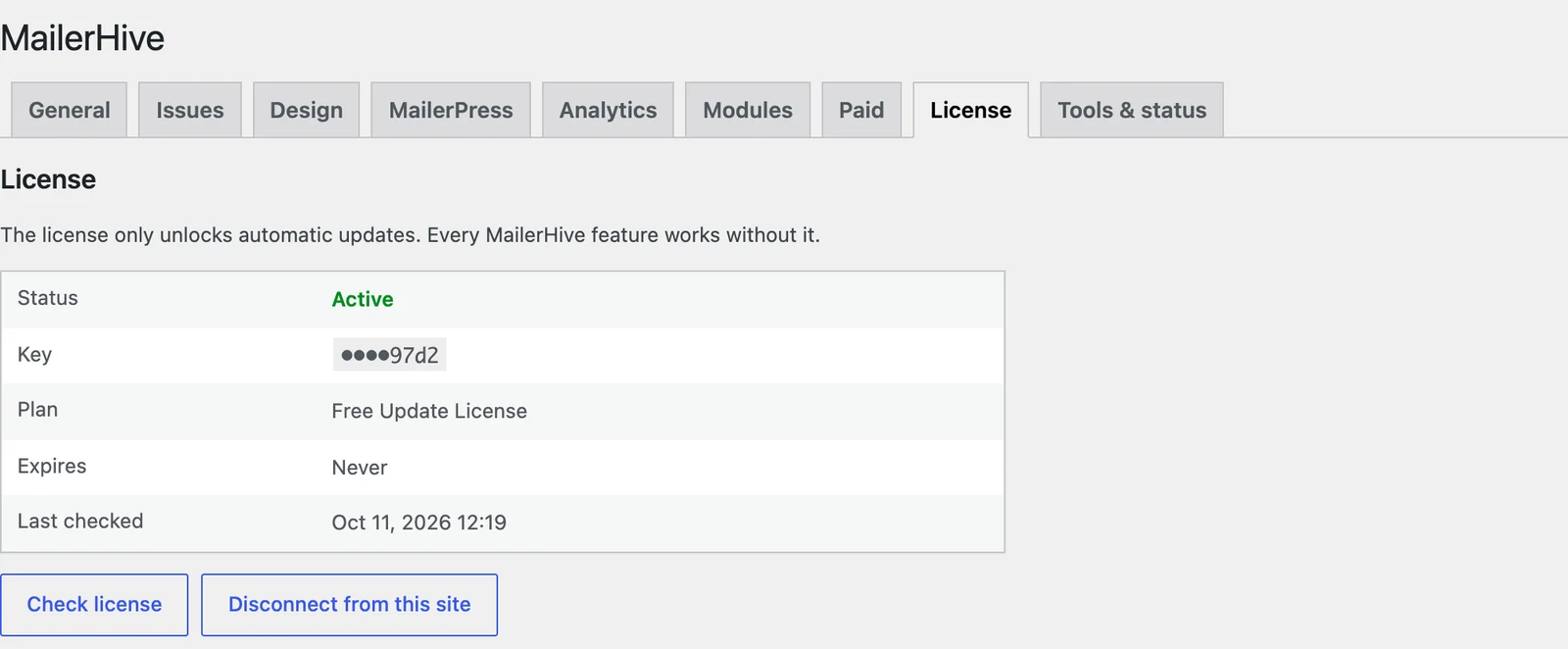
Once the key is active, the tab shows its status, the last 4 characters of the key, the plan, the expiry date and when it was last checked. A lifetime license shows “Never” under Expires.
- Check license asks the store whether the key is still active. An inactive key shows “The license is inactive. MailerHive keeps working, but updates are paused.”
- Disconnect from this site frees the seat so you can use the key elsewhere. If the store can’t be reached, MailerHive still removes the key from this site and tells you the seat may still be in use.
Until a license is active, a short reminder appears on the Plugins screen and on MailerHive’s own screens.
When Activation Fails
- “Set strong AUTH_KEY and SECURE_AUTH_KEY values in wp-config.php and enable Sodium before activating.” Add the missing salts or ask your host to enable sodium, then try again.
- “Disconnect the current license before activating another.” A key is already stored. Disconnect it first.
- “This license is not valid for MailerHive.” The key belongs to another product, or it was mistyped.
A license is tied to the site address. After you move a site to a new domain, disconnect the license and activate it again on the new address.
How Updates Arrive
With an active license, new versions show up under Dashboard → Updates and on the Plugins screen like any other plugin, and View details shows the changelog. MailerHive checks the store at most every 3 hours and installs only a package that carries the exact version it was offered.
Next, set up your newsletter’s name, branding and signup form.