
Write and Publish an Issue
An issue has to work in two places at once: as a page on your site and as an email in someone’s inbox. Write it twice and the two versions drift apart, with a fix made in one never reaching the other.
In MailerHive you write it once. An issue is a WordPress post type edited in the block editor, and the same content becomes the reading page and the MailerPress draft. Go to Newsletter → Write New Issue to start one.
Write an Issue
- Go to Newsletter → Write New Issue.
- Enter the title. It becomes the page heading and, by default, the email subject line.
- Write the body with ordinary blocks: paragraphs, headings, lists, images, quotes and buttons.
- Fill in Subtitle in the Issue details box. It shows under the title on the page and becomes the email’s preview text.
- Save the draft, then select Publish.
The issue goes live at /newsletter/issue/{slug}/. The slug comes from the title, and you can change it in the editor before you publish.
Fill in the subtitle and save the draft before you publish. The email draft is created at the moment of publishing, so a subtitle typed at the last second may not reach it. Without a subtitle, MailerHive uses the excerpt.
The Issue Details Box
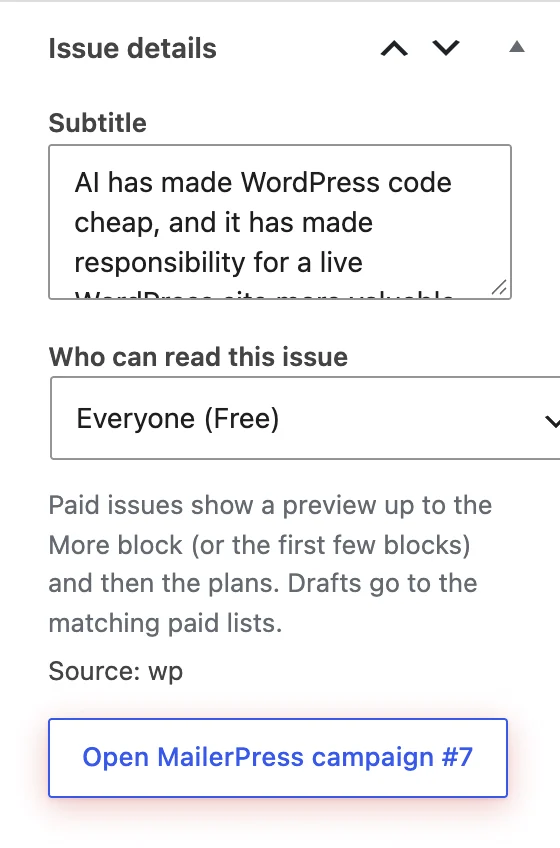
The Issue details box sits in the editor sidebar:
- Subtitle: the line under the title on the page, the dek in the email and the email’s preview text.
- Who can read this issue: appears when the paid subscriptions module is on. Making an issue paid explains the options.
- Source:
wpfor issues written here,substackfor imports andmailerpressfor mirrored campaigns. - The MailerPress button: it reads Open MailerPress campaign #7 once the issue has a campaign, or Create MailerPress draft for a published issue without one.
What Publishing Does
- The page goes live at its address and joins the archive and the feed.
- A MailerPress draft is created if automatic drafts are on under Newsletter → Settings → MailerPress. If they’re off, use Create MailerPress draft in the Issue details box. Email drafts covers both routes.
- The page cache is cleared for the issue, the archive and the newsletter page when GT Performance is active.
Updating a published issue changes the page but never creates a second campaign. A scheduled issue publishes through WP-Cron like any scheduled post, and its draft is created then.
Write for the Inbox Too
The page shows everything you write. The email is plainer, because email clients are strict about what they render.
- Embeds are dropped from the email. YouTube videos, tweets and other iframes, plus forms and scripts, don’t reach the draft. Add a linked image or a plain link instead.
- The featured image isn’t in the email and isn’t shown on the page either. Your SEO plugin can still use it as the social sharing image.
- Images stay where they are. The email loads them from your site, so keep them in the media library.
- H2 and H3 headings get email styling. H4 and smaller get none, so each email client shows them its own way.
The Issues List
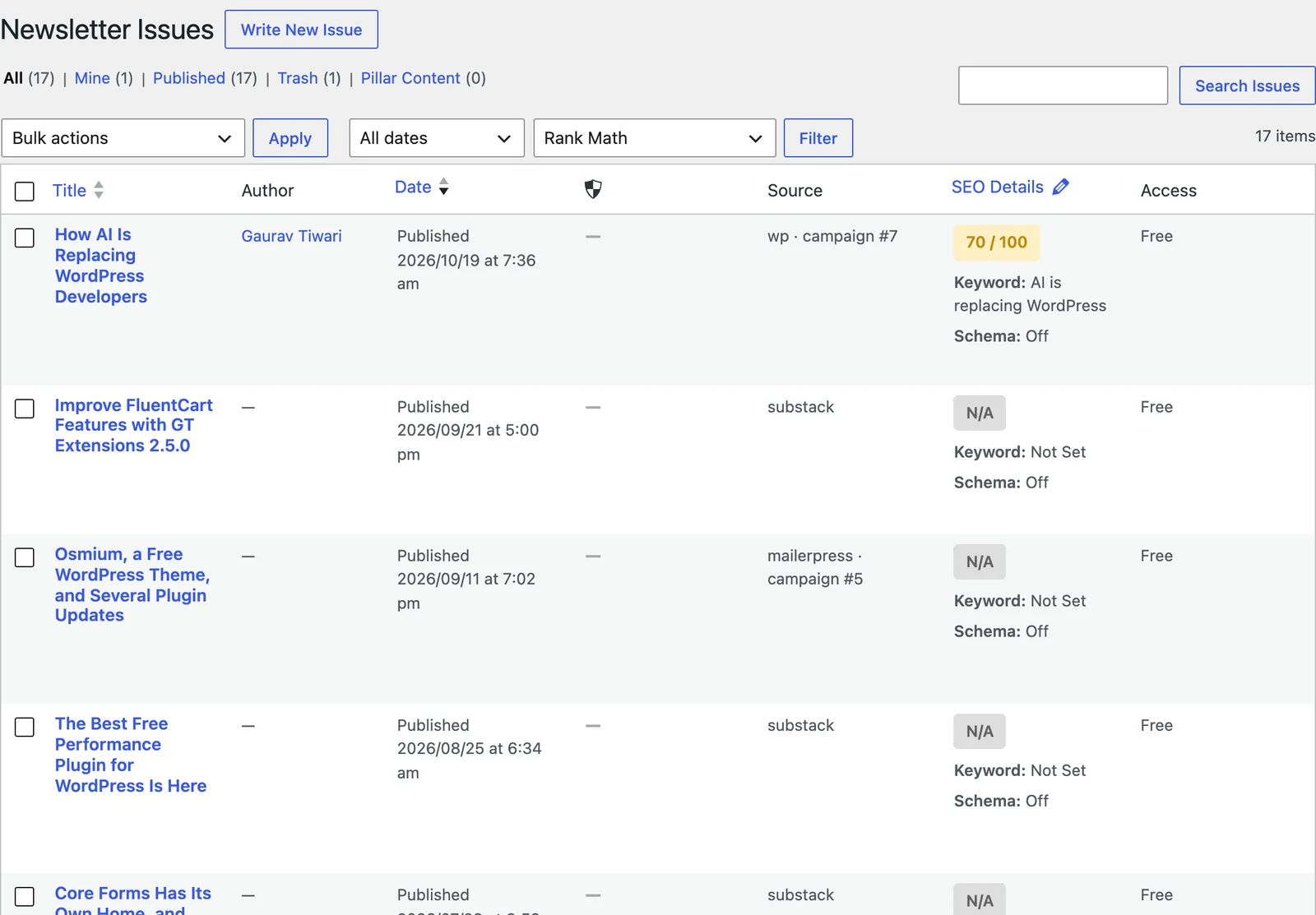
Newsletter → All Issues works like the posts list. MailerHive adds a Source column, such as wp · campaign #7, which shows where an issue came from and which MailerPress campaign it’s linked to. With paid tiers on, an Access column shows who can read each issue.