
Manage Paid Members
Sooner or later you’ll want to give someone access without a sale: a guest writer, a partner, a reader who lost their card. Doing that through a fake order in your store muddies your sales numbers.
The Paid members screen handles it without FluentCart. It lists every reader with access, lets you grant access by hand and rebuilds everyone from FluentCart when something looks off. Go to Newsletter → Paid members.
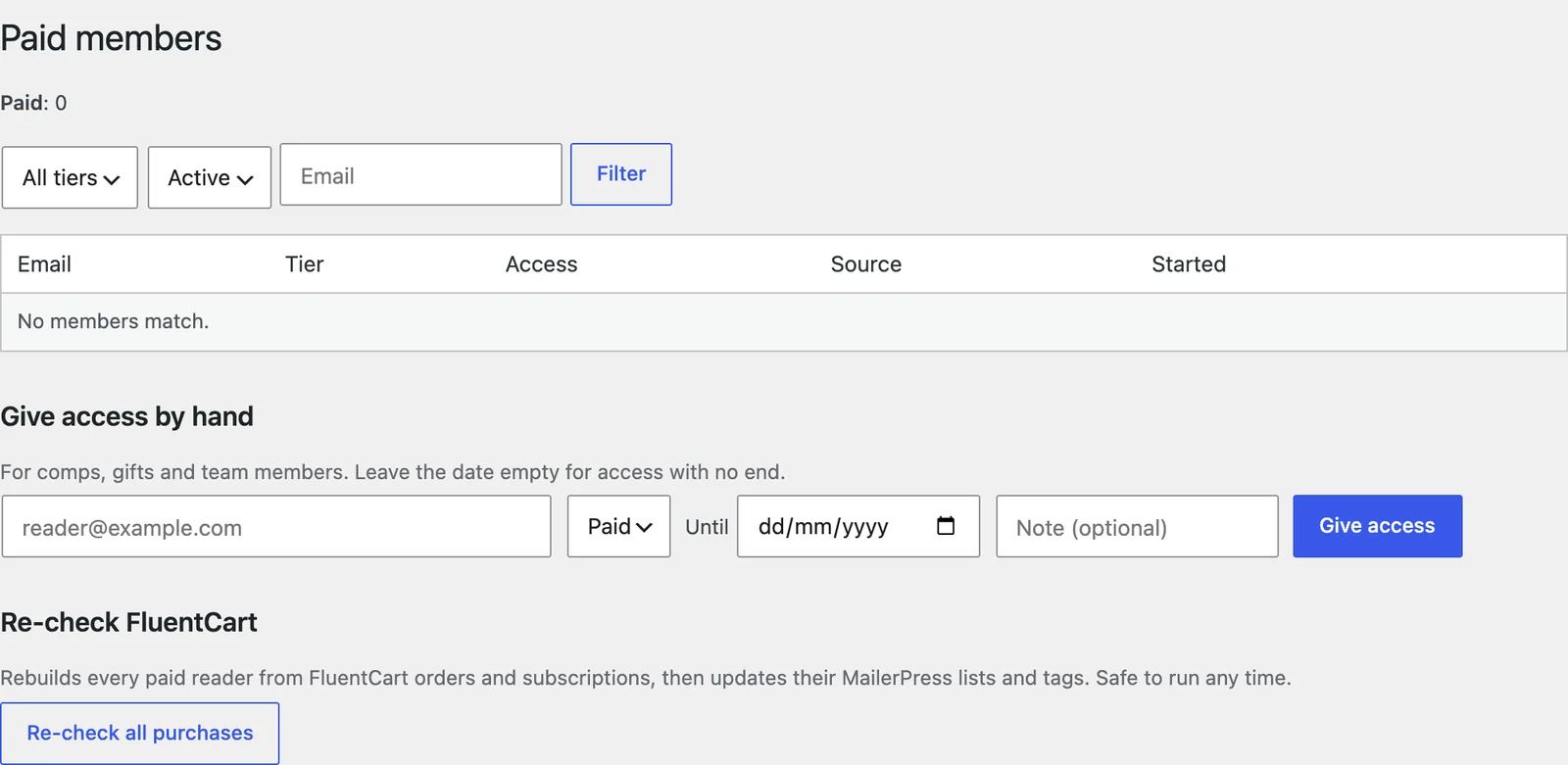
Find Members
The top line counts active readers per tier. Below it, filter by tier, by state (Active, Ended or All) and by part of an email address. The table shows 50 rows per page, most recently updated first.
| Column | What it shows |
|---|---|
| The reader’s email | |
| Tier | The tier this access belongs to |
| Access | Such as “Active until {date}”, “Active, renews around {date}”, “Active, no end date”, “Paused”, “Refunded”, “Revoked” or “Ended {date}” |
| Source | The FluentCart subscription or order it came from, linked to FluentCart, or “Manual” with your note |
| Started | When the access began |
A reader with 2 purchases has 2 rows, and MailerHive uses whichever gives the highest tier.
Give Access by Hand
- Under Give access by hand, enter the reader’s email.
- Choose the tier.
- Set Until for access that ends on a date, or leave it empty for access with no end.
- Add a note if you want one, such as “Guest writer”.
- Select Give access.
Access set to end on a date lasts until the end of that day in UTC. The reader is added to the tier’s MailerPress list right away and can request a reading link like any member.
Revoke Access
Revoke appears on manual grants only. Access from a FluentCart purchase follows FluentCart, so cancel or refund the purchase in FluentCart instead, and MailerHive updates the reader.
Re-check FluentCart
Re-check all purchases rebuilds every paid reader from FluentCart orders and subscriptions, then updates their MailerPress lists and tags. It’s safe to run any time, and it’s the first thing to try when a reader’s access looks wrong.
Export Members
There’s no export button on this screen. Use WP-CLI for a CSV or JSON copy:
wp mailerhive paid members --format=csv --all > members.csvLeave out --all to export active members only, and add --tier=paid to export a single tier. Every WP-CLI command for paid members is listed in Tools, Status and WP-CLI Commands.