
How to Sell a Paid Newsletter Tier with FluentCart
A paid newsletter needs 3 systems to agree: the store that takes the money, the site that locks the issue and the email list that sends it. Run them separately and someone always slips through, such as a reader who cancelled last month and still gets every paid issue.
MailerHive ties the 3 together. A FluentCart purchase gives the reader access to a tier, adds them to that tier’s MailerPress list and unlocks its issues on your site. When the subscription ends, access ends and the reader leaves the list.
MailerHive is my newsletter plugin for WordPress. Paid tiers run on FluentCart, the WordPress store plugin, which handles the checkout, renewals and refunds.
Before You Start
The paid setup sits on top of a working free newsletter:
- MailerHive 1.4.6 or newer, with issues publishing and MailerPress drafts working. How to Write an Issue Once and Send It with MailerPress covers both.
- FluentCart, active, with a payment method that supports subscriptions if you sell monthly or yearly plans.
- MailerPress, active, for the paid list.
Turn On Paid Tiers
- Go to Newsletter → Settings → Modules.
- Tick Paid tiers, “Sell newsletter subscriptions through FluentCart”, and save.
The first time you turn it on, MailerHive creates a tier named “Paid” with the key paid, and a MailerPress list named “Paid subscribers” for it. A new Paid members screen appears under the Newsletter menu.
Set Up the Tier
Open the Paid tab. The top shows the ladder: Free first, then each paid tier. Each paid tier unlocks its own issues and every issue of the tiers below it.
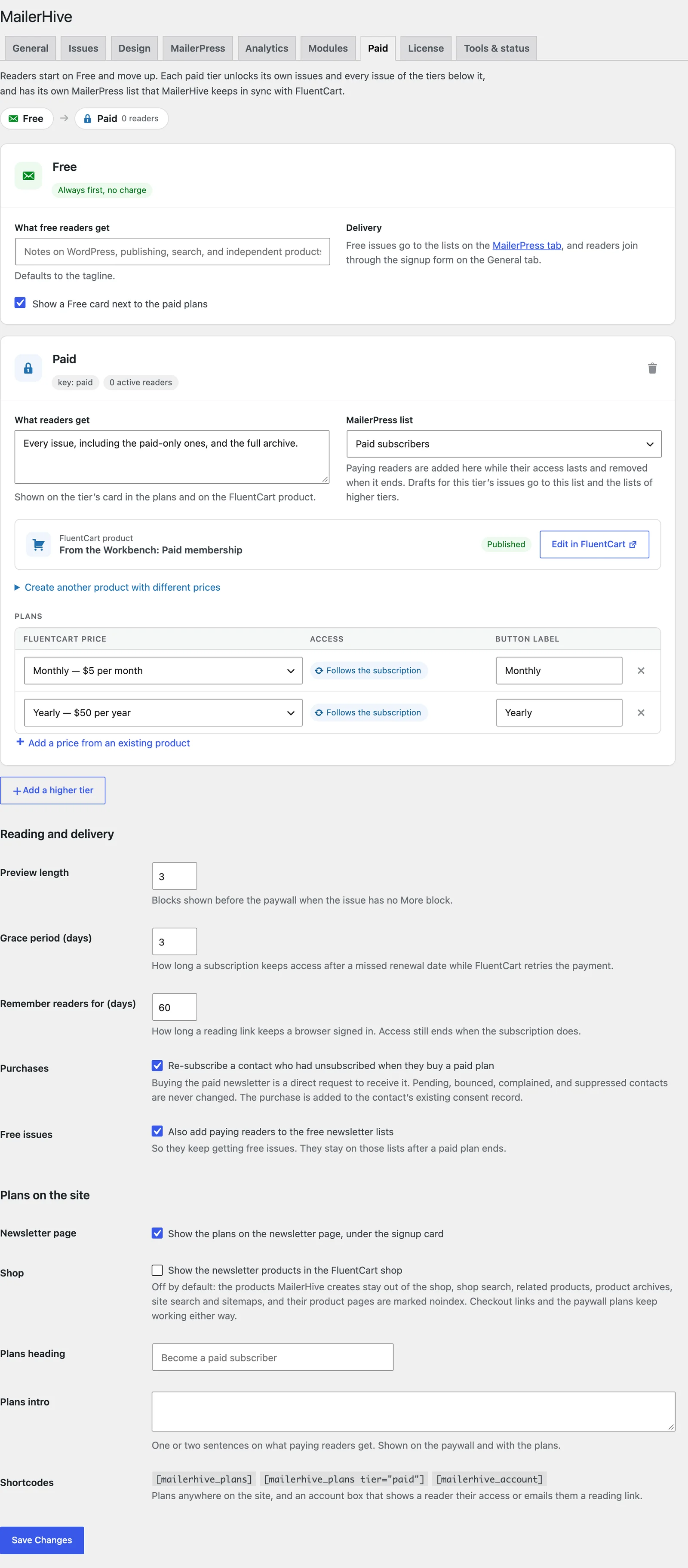
For the Paid tier:
- Write What readers get. It shows on the tier’s card and on the FluentCart product.
- Check that MailerPress list is set to “Paid subscribers”, or choose + Create a list for this tier.
- Under the FluentCart product box, set the prices and click Create FluentCart product. The defaults are 5 a month and 50 a year in your store currency, with lifetime left empty. A price you leave empty is skipped.
- Check the Plans table. Each row is a FluentCart price, with an Access pill and a Button label.
- Click Save Changes.
MailerHive names the product “Newsletter name: Paid membership” and creates it as a published digital product. The Shop setting keeps it out of your FluentCart shop, search, archives and sitemaps by default, so readers reach it from your plans and paywall.
How Access Follows the Payment
The Access column shows how each plan grants access:
| FluentCart price type | Access |
|---|---|
| Subscription (monthly or yearly) | Follows the subscription, renewal by renewal |
| One-time with a duration | A fixed term in days, weeks, months or years; buying again extends it |
| One-time with a duration of 0 | Lifetime |
A few settings under Reading and delivery shape the edges:
- Grace period (days) keeps access for 3 days by default after a missed renewal, while FluentCart retries the payment.
- Purchases re-subscribes a contact who had unsubscribed when they buy a paid plan. Bounced, complained and suppressed contacts are never changed.
- Free issues also adds paying readers to the free newsletter lists. They stay there after the paid plan ends.
When a subscription is cancelled, the reader keeps access until the paid period runs out. A paused or expired subscription ends access, and a refunded one-time purchase ends it right away. MailerHive then moves the contact off the tier’s list and tags it “Paid: Lapsed”.
Mark an Issue Paid
- Open an issue.
- In the Issue details box, change Who can read this issue from “Everyone (Free)” to your tier.
- Add a More block where the free preview should stop.
- Publish.
Readers without access see the content up to the More block, then a paywall titled “This issue is for Paid subscribers” with your plans. Without a More block, the preview is the first 3 blocks, which you can change in Preview length.
The paid issue’s MailerPress draft goes to the tier’s list and the lists of any higher tiers. Free readers never get it by email.
Let Readers Sign In
Paying readers don’t need a WordPress account. Under the paywall, “Already a paid subscriber?” takes their email and sends a reading link:
- The link works once and expires in 60 minutes.
- Opening it keeps that browser signed in for 60 days by default, set in Remember readers for (days).
- Readers with a WordPress account can sign in instead. MailerHive matches their account email and any FluentCart customer linked to it.
Put [mailerhive_account] on a page to give readers an account box. It shows each tier’s status, a Manage billing and renewals link to their FluentCart profile and a Forget this device button.
Check It Works
Buy your own plan with a test payment, or give yourself access on Newsletter → Paid members with Give access by hand. Then check 3 things:
- Paid members lists the email with the tier and its access.
- MailerPress shows the contact on “Paid subscribers”, tagged “Paid: Paid”.
- A paid issue opens in full in that browser and shows the paywall in a private window.
When Access Looks Wrong
| Message or symptom | What it means | Fix |
|---|---|---|
| “Turn on Paid subscriptions on the Modules tab first.” | The Paid module is off | Tick Paid tiers on the Modules tab |
| “FluentCart is not active. Tiers can be set up, but plans need FluentCart products.” | FluentCart is missing or off | Activate FluentCart |
| “Enter at least one price.” | Every price field was empty | Fill at least one price |
| “You are signed in as reader@example.com, which has no active subscription at this level.” | The account’s email has no active plan at that tier | Check the email used at checkout, or use a reading link |
| A buyer has no access | FluentCart hasn’t confirmed the payment yet, or a sync was missed | Click Re-check all purchases on Paid members |
What It Won’t Do
Know these limits before you announce a paid tier:
- It doesn’t take payments. Prices, taxes, renewals and refunds stay in FluentCart.
- Feeds and the REST API carry the preview only. Feed readers never see a paid issue in full, even when they pay.
- It can’t revoke a FluentCart purchase from Paid members. Only manual grants can be revoked there. Cancel or refund the purchase in FluentCart.
- It keeps the members table on uninstall, so a reinstall keeps every reader’s access history.
The paid tiers reference covers multiple tiers and every field on the Paid tab. For how cancellations, pauses and refunds map to access, see How Paid Access Follows FluentCart.