
How to Publish a Newsletter Archive on Your WordPress Site
Most newsletters live only in inboxes. Once an issue is sent, a new reader has no way to see what you write, and asking someone to subscribe blind is a hard sell.
A newsletter archive on your WordPress site fixes that. Every issue gets its own page with a share link, and the archive lists them all by year. The signup box sits under every issue for readers who like what they see.
MailerHive is my newsletter plugin for WordPress. It adds a Newsletter Issues post type, an archive and a newsletter landing page, and connects them to MailerPress for sending. The steps below set up the reading side, and the next guide covers sending.
Before You Start
The archive works on its own. The signup form and email sending need 2 more plugins:
- MailerHive 1.4.6 or newer. The free license only unlocks automatic updates, so every feature works without it.
- Core Forms, for the signup form shown on the archive and under each issue.
- MailerPress, for the list that form adds subscribers to and for sending issues by email.
- Pretty permalinks under Settings → Permalinks, because issue URLs use a rewrite base.
All MailerHive settings live under Newsletter → Settings, on 9 tabs from General to Tools & status.
Name the Newsletter
Start on the General tab. These fields appear on every issue and on the archive:
- Newsletter name and Sender name. The sender line on each issue reads “Sender name · Newsletter name” unless you set Sender line yourself.
- Byline, such as “by Jane Doe”, shown under the name in the header. Leave it blank to hide it.
- Tagline, which becomes the archive intro and appears in the subscribe box.
- Under Branding, choose what Header shows: an avatar, a logo with text or a logo alone. A Logo for dark mode is optional and falls back to the main logo.
- Under Signup, pick your Core Forms form in Signup form, and pick the page readers subscribe from in Newsletter page.
- Click Save Changes.
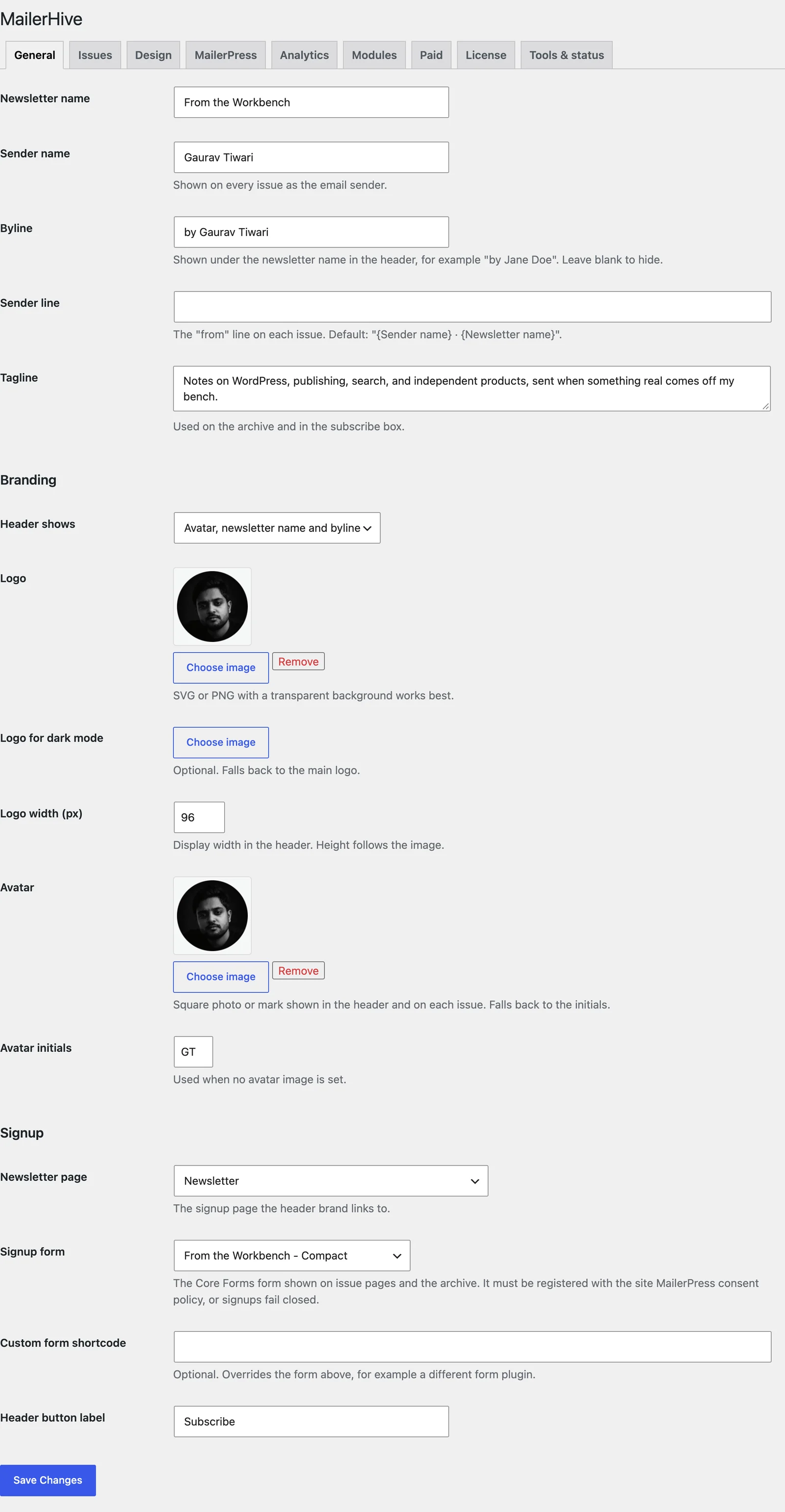
The signup form has to be registered with the site’s consent policy, or signups fail closed. How to Keep Newsletter Signups Consent-Safe walks through that registration.
Set the Archive Address
Open the Issues tab next. It controls the URLs and what appears around each issue:
- Issue URL base is
newsletter/issueby default. Issues live at/newsletter/issue/your-issue/and the archive at/newsletter/issue/. - Archive title defaults to “Newsletter name: every issue”.
- Archive intro defaults to your tagline.
- Subscribe box shows the signup box under every issue and on the archive. It’s on by default.
- Subscribe heading sits above the form, “Get the next issue” by default.
- Subscribe facts are short lines under the form, one per line. The defaults are “Free”, “No fixed schedule” and “Unsubscribe anytime”.
- Issue navigation and Share links add previous and next links and a share bar to each issue.
- External links adds
rel="nofollow noopener"to every link that leaves your site.
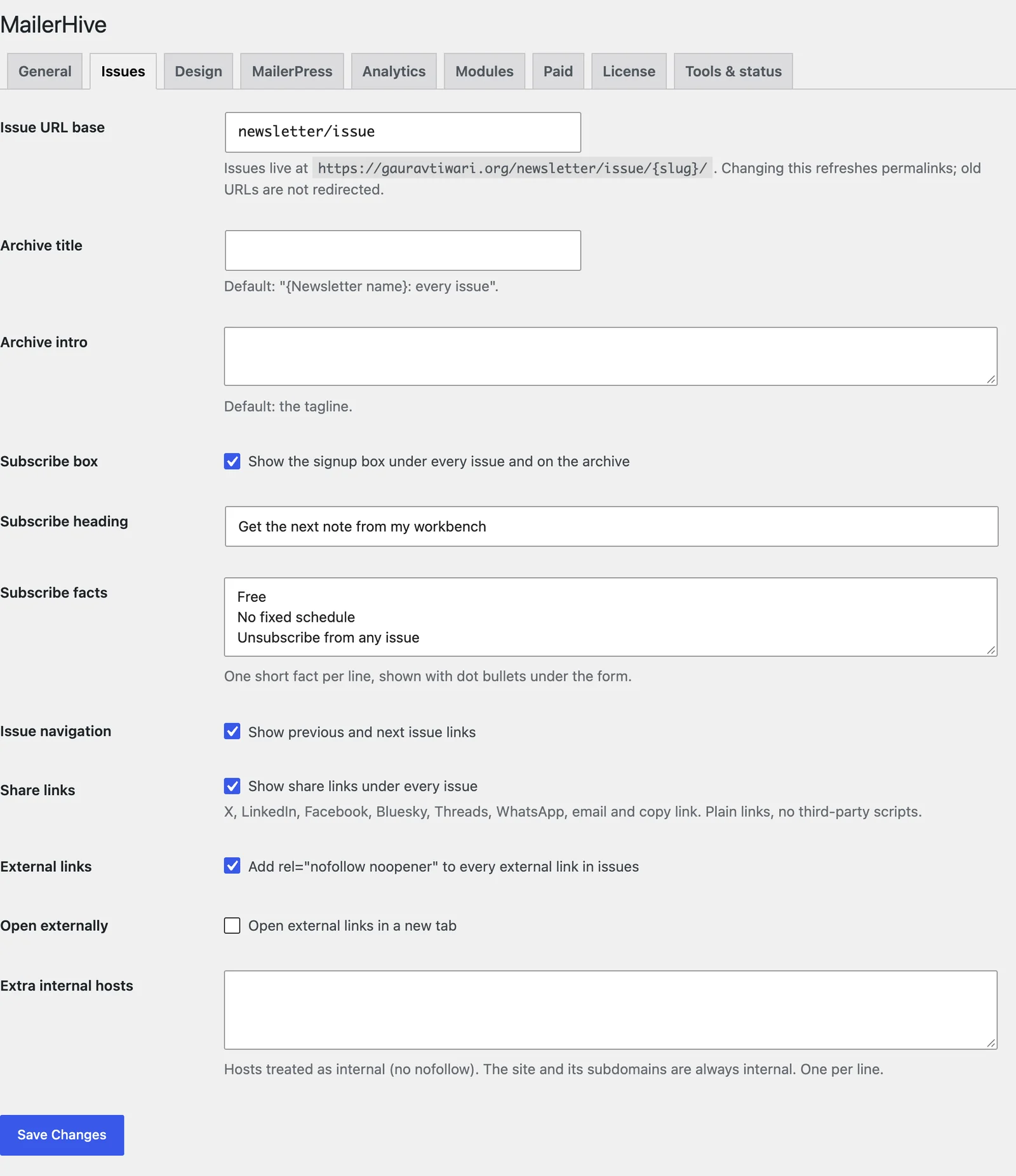
Choose the URL base before you publish anything. The help text is plain about it: “Changing this refreshes permalinks; old URLs are not redirected.”
Pick the Design
The Design tab decides how issue pages look:
- Theme isolation detaches your theme’s styles, scripts and hooks on MailerHive pages, so issues read like a clean email page. WordPress core and every plugin keep working.
- Color scheme follows the reader’s system setting by default, or stays always light or always dark.
- Theme toggle adds a light and dark switch to the header when the scheme follows the system.
- Accent (light) and Accent (dark) color the buttons and links.
- Newsletter page renders your chosen signup page in the MailerHive design: a signup card, recent issues and then the page’s own content.
MailerHive always renders issues and the archive with its own templates. Turning theme isolation off brings your theme’s stylesheets back onto those pages, but it doesn’t swap in your theme’s templates.
Publish the First Issue
- Go to Newsletter and click Write New Issue.
- Write the issue in the block editor, the same way you’d write a post.
- In the Issue details box, add a Subtitle. It shows under the title and in the archive. Without one, MailerHive uses the excerpt.
- Publish.
The issue page shows your avatar or logo, the sender line, the date, the reading time, the title and the subtitle. Under the content come the share bar, the previous and next links and the subscribe box.
Check It Works
Visit these 3 addresses, using your own URL base if you changed it:
/newsletter/issue/shows the archive, grouped by year with the newest first./newsletter/issue/your-first-issue/shows the issue page.- Your newsletter page shows the signup card and the recent issues.
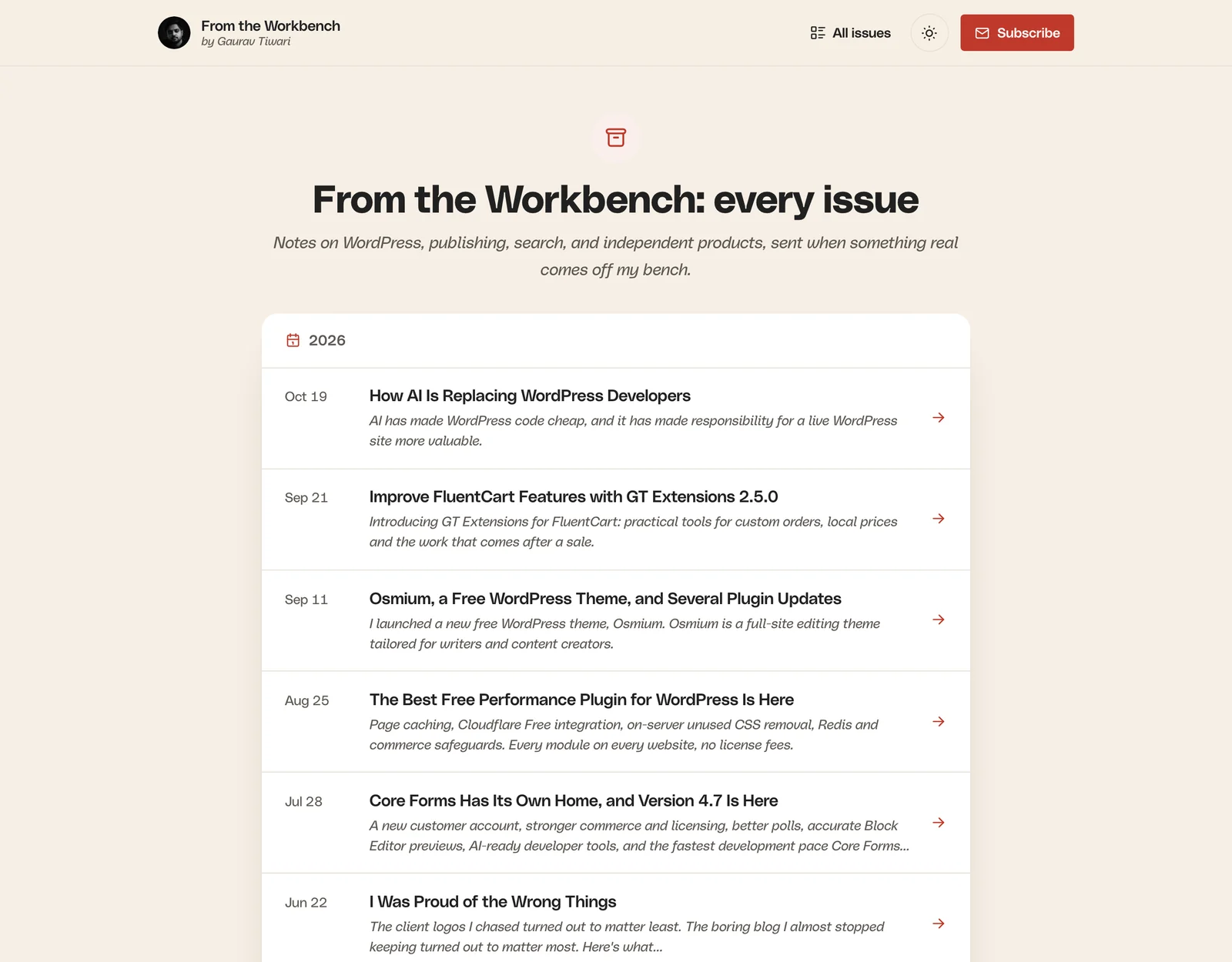
Readers who prefer RSS get the standard WordPress feed for issues at /newsletter/issue/feed/.
When Something Is Missing
| What you see | Why it happens | Fix |
|---|---|---|
| “The first issue is on its way.” | No issue is published yet | Publish an issue |
| A 404 on the archive or an issue | Permalinks weren’t refreshed after a URL base change | Click Refresh permalinks on the Tools & status tab |
| A Subscribe button instead of a form | No signup form is chosen | Pick a Core Forms form under General → Signup form |
| The form shows but signups fail | The form isn’t registered with the consent policy | Register it on the Modules tab |
| A 404 or “This feed is disabled.” on the feed | Another plugin or the theme disables custom feeds | Re-enable feeds in that plugin |
What It Won’t Do
The archive is simple on purpose:
- It doesn’t number issues. Issues are ordered by publish date, and the newsletter page shows the total count, but no issue carries a number like “#42”.
- It doesn’t redirect old issue URLs when you change the URL base.
- It doesn’t use your theme’s single or archive templates. Issues always use MailerHive’s own layout.
- It doesn’t send anything. Sending runs through MailerPress, which the next guide sets up.
With the archive live, How to Write an Issue Once and Send It with MailerPress turns each issue into an email draft. The archive and newsletter page reference covers every setting on those pages.