
How to Move a Substack Archive to WordPress
Your best issues sit on a Substack subdomain you don’t control. Moving to your own site and leaving them behind means starting over with an empty archive. Copying them by hand means fixing every image and every link between posts.
MailerHive imports Substack posts as newsletter issues on your WordPress site. Each post keeps its title, subtitle and publish date, and its images are copied into your media library. Links from one imported post to another are rewritten to point at your site.
MailerHive is my newsletter plugin for WordPress. The import reads each post from Substack’s public post data, so you don’t need a Substack export file.
Before You Start
Get these ready first:
- MailerHive 1.4.6 or newer, with the archive set up. How to Publish a Newsletter Archive on Your WordPress Site covers it.
- Your Substack subdomain, the
yournamepart ofyourname.substack.com. - The slug of every post you want, the part after
/p/in each post’s address. Foryourname.substack.com/p/why-i-left, the slug iswhy-i-left.
Collect the slugs from your Substack archive page. MailerHive has no way to list a publication’s posts on its own, so the list you give it is the list it imports.
Import from the Dashboard
- Go to Newsletter → Settings → Tools & status.
- Scroll to the last tool in the Tools list.
- Enter the Publication subdomain, such as
yourname. - Paste the slugs into Post slugs, one per line.
- Click Import from Substack and wait. Every post and image is fetched in one request, so a long list takes a while.
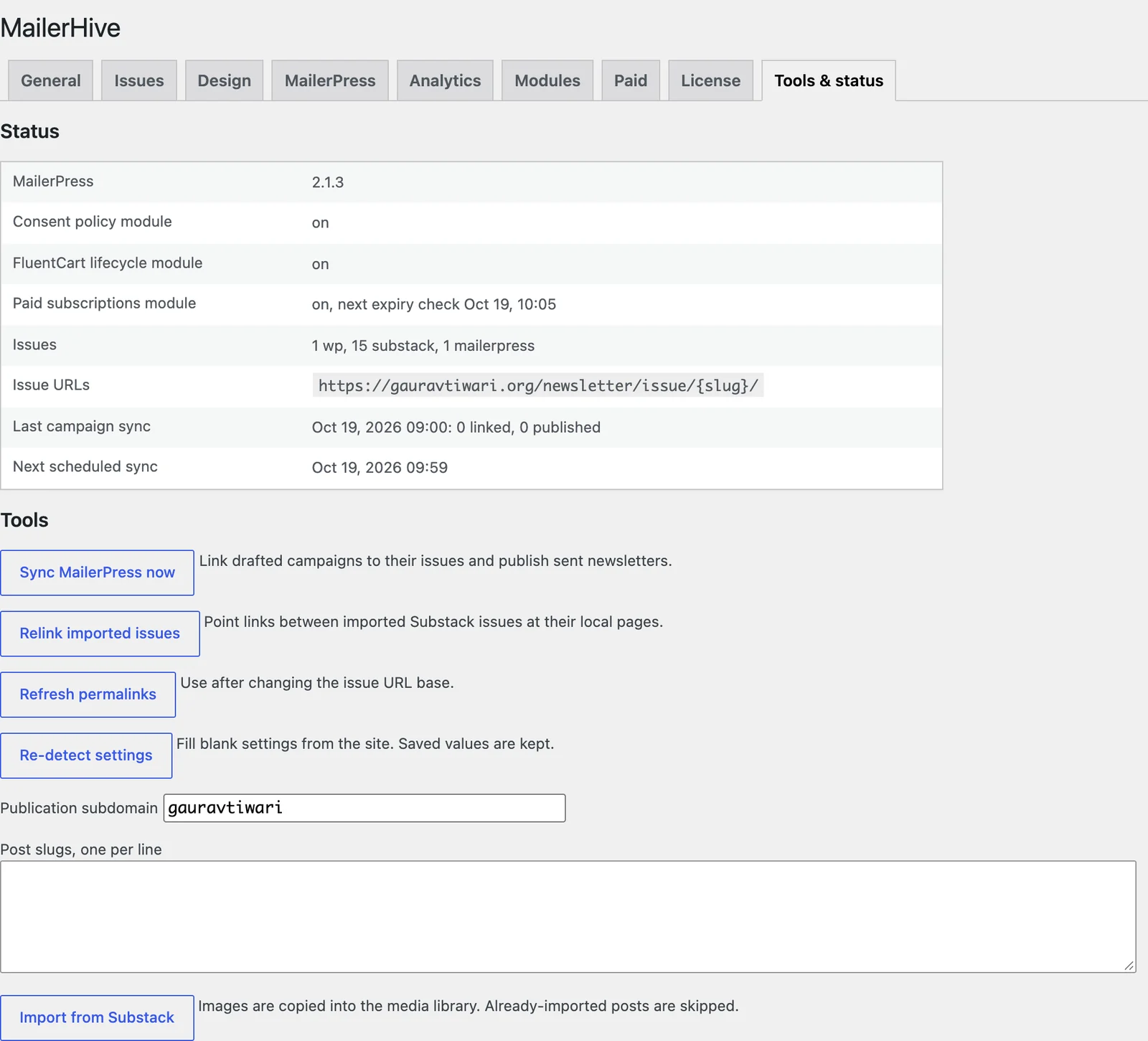
When it finishes, MailerHive shows a result for each slug. To save the subdomain for next time, set Substack publication under Imports on the Modules tab.
Import with WP-CLI
For a long archive, WP-CLI is easier to watch and can preview first:
wp mailerhive import-substack why-i-left first-issue --publication=yourname --dry-run
wp mailerhive import-substack why-i-left first-issue --publication=yourname --user=1
The dry run prints each post’s title, date, length and image count without saving anything. Pass --user with your user ID, so the issues get an author.
With a single slug, --title and --slug override the imported title and the WordPress slug.
What Comes Across
Each Substack post becomes a published newsletter issue:
- Title and body from the post.
- Subtitle, saved as both the issue subtitle and the excerpt.
- Publish date, the original Substack date.
- Slug, the Substack slug, so
/p/why-i-leftbecomes/newsletter/issue/why-i-left/. - Images, downloaded into your media library. The first image becomes the featured image when the issue has none.
- Source, marked “substack” in the issue list, with the original address saved on the issue.
Substack’s subscribe buttons, share widgets, embedded post cards and scripts are stripped on the way in. Footnote markers are kept.
Fix Links Between Posts
Old issues often link to each other on Substack. After an import, MailerHive rewrites any link to an imported Substack post so it points to the matching issue on your site. Both yourname.substack.com/p/slug and substack.com/@yourname/p/slug forms are covered.
When you import in batches, run the relink again after the last batch, so earlier posts pick up links to later ones. Click Relink imported issues on the Tools & status tab, or run:
wp mailerhive relinkCheck It Works
Open Newsletter → Newsletter Issues. The imported posts show “substack” in the Source column, with their original dates.
Then open 2 or 3 imported issues and check the images. An image that failed to download keeps its Substack address, so right-click it and confirm it loads from your own domain.
When a Post Doesn’t Import
| Result | What it means | Fix |
|---|---|---|
| “Enter the Substack publication subdomain.” | The subdomain field was empty | Enter yourname, without .substack.com |
| “No slugs given.” | The slug list was empty | Paste one slug per line |
| “not found on Substack” | The slug or subdomain is wrong, or the post was deleted | Copy the slug from the post’s address again |
| “already imported” | An issue from that Substack address exists | Nothing to do. Duplicates are skipped |
| A short or cut-off issue | The post is paid, and Substack’s public data likely carried only its free preview | Paste the full text into the issue by hand |
What It Won’t Do
The import moves posts, not the whole publication:
- It doesn’t import subscribers. Export them from Substack and bring them into MailerPress through its contact import.
- It doesn’t import comments or Substack’s paid or free audience setting. Every imported issue is free until you set Who can read this issue yourself.
- It doesn’t import drafts. Imported issues are published immediately with their original dates.
- It doesn’t redirect your Substack addresses. Substack controls those, so link to your new archive from your Substack about page.
- It doesn’t send anything. Imported issues never create MailerPress drafts.
Once the archive is in, How to Keep Newsletter Signups Consent-Safe sets up the signup form for new readers. The Substack import reference lists every cleanup rule.