
 by
by
You can accidentally block Googlebot while trying to block AI training in Cloudflare. The Training setting named Block also stops mixed-use crawlers, so leaving Search on Allow will not protect their access.
To keep search access, I recommend Disallow AI Training, with Search set to Allow and Bot Preference Sync enabled. You should check the Google-Extended tradeoff before saving: it covers the documented Gemini grounding uses as well as model training.
Cloudflare AI Crawl Control lets you monitor AI crawler requests and manage their access to your site. When your web traffic passes through Cloudflare, it can block requests before they reach your hosting server.
Which Cloudflare Settings to Use
You can keep your site available for search while restricting the documented training uses. I’d decide each use separately and then choose the controls that express that policy.
For a training restriction that keeps search open, this is the starting configuration I recommend:
| Control | Set it to | What it does |
|---|---|---|
| Search | Allow | Allows search crawlers under this setting; other controls and rules still apply |
| Training | Disallow AI Training | Publishes no-training preferences for Accountable mixed-use crawlers and blocks other covered training crawlers |
| Agent | Leave as it is | Governs assistants fetching a page for a user, which is a separate decision |
| Bot Preference Sync | On | Writes your Search, Training and Agent choices into robots.txt |
I would keep the Agent policy unchanged while you adjust Training. It governs assistants such as ChatGPT-User fetching a page at someone’s request, which needs its own access decision. Changing one policy at a time makes an unexpected result easier to trace.
Bot Preference Sync is the feature that writes your crawler preferences into robots.txt. It is available on every plan, including Free, and it prepends its block to whatever robots.txt you already serve rather than replacing the file.
Robots.txt preferences depend on the crawler following them, as Google’s own documentation explains. This setup combines those preferences with access restrictions for the crawlers Cloudflare blocks at the edge. It cannot guarantee that every scraper will respect your policy.
Disallow AI Training vs Block
Cloudflare classifies Googlebot, Bingbot and Applebot as mixed-use crawlers because their operators can use fetched content for both search and AI purposes. A request-level block prevents the crawler from fetching the page for either use. Cloudflare’s September 15, 2026 Training policy change brought these crawlers within the scope of Block.
You can choose between these 4 Training options:
- Allow: adds no Training-category block. Other category settings and firewall rules can still deny a request.
- Disallow AI Training: publishes the applicable no-training preference through Bot Preference Sync. Mixed-use crawlers that Cloudflare designates as Accountable remain allowed for search. Other covered training crawlers are blocked at the edge, including the dedicated training crawlers from Amazon, Anthropic, Meta and OpenAI. This option applies only to Training.
- Block on pages with ads: blocks Training-category crawlers, including mixed-use ones, on pages Cloudflare detects as serving ads.
- Block: blocks covered Training-category crawlers on all pages, including mixed-use Googlebot, Bingbot and Applebot.
You should check how each option treats the crawlers you want to keep:
| Crawler | Disallow AI Training | Block |
|---|---|---|
| Googlebot | Allowed for search; no-training preference published through the Google-Extended token | Blocked, search included |
| Bingbot | Allowed for search; Bot Preference Sync does not yet convey a Bing no-training preference | Blocked, search included |
| Applebot | Allowed for search; no-training preference published through the Applebot-Extended token | Blocked, search included |
| GPTBot, ClaudeBot and the training crawlers from Meta and Amazon | Blocked at the edge | Blocked at the edge |
| OAI-SearchBot and other search-only crawlers | Governed by the Search setting | Governed by the Search setting |
I’d check the saved Training value carefully because choosing Block can prevent Googlebot from reaching your pages.
You should choose Training Block only when you intend to deny mixed-use crawlers access for search as well. Search set to Allow cannot override that restriction.
Cloudflare migrates existing settings, but I would still review the saved values. Its migration table maps the legacy Block AI choices to Search Allow, Training Disallow AI Training and Agent Block on pages with ads. Existing granular Training Block selections also migrate to Disallow AI Training, while existing Search and Agent choices are preserved.
You should use Disallow AI Training when you want mixed-use crawlers to keep search access. Since September 15, 2026, Training Block also denies Googlebot, Bingbot and Applebot access; Search set to Allow does not override it.
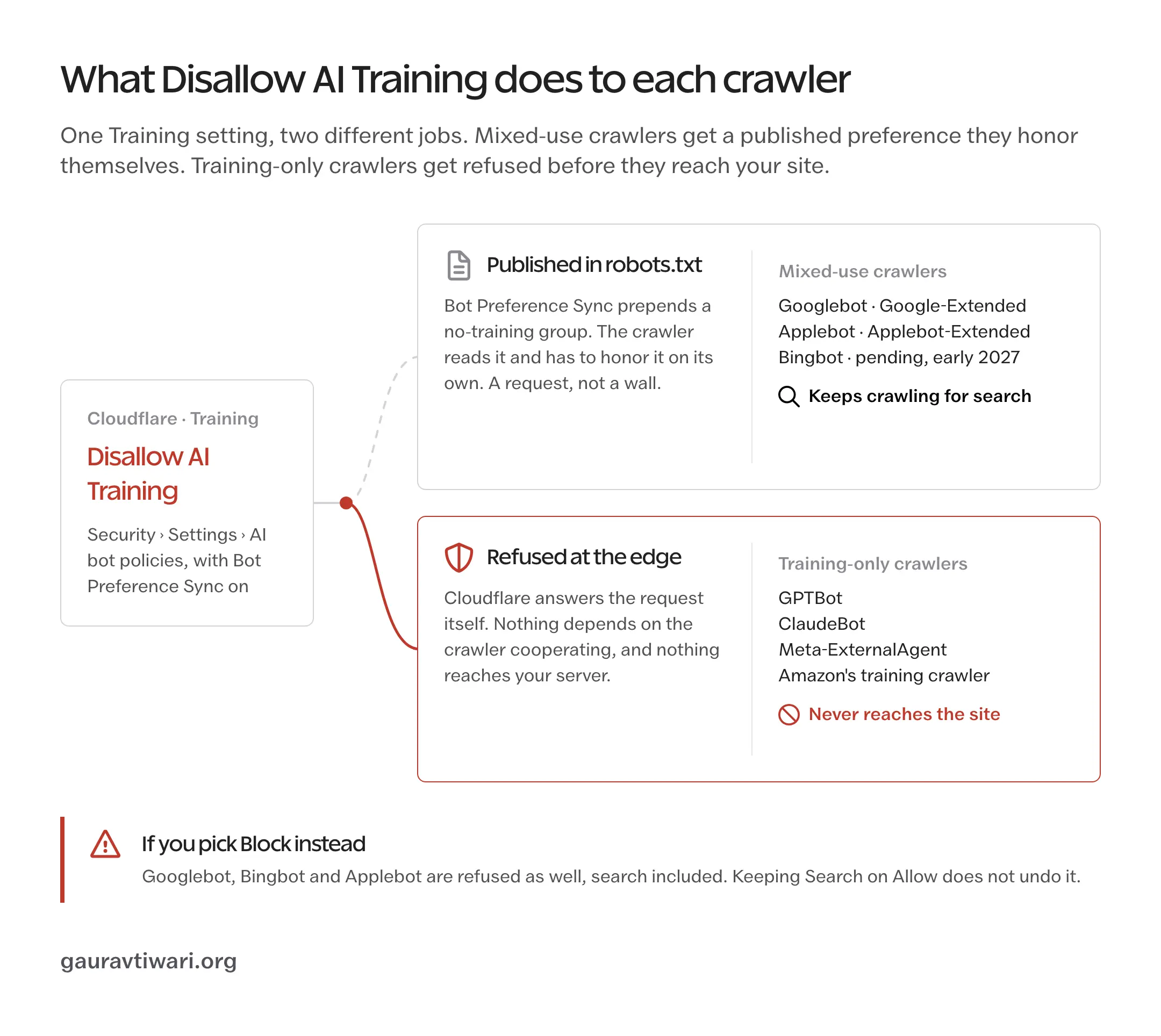
Googlebot and Google-Extended
Googlebot fetches pages. Google-Extended is a robots.txt token that controls specified uses of the content Google collects, including Gemini training and certain grounding products. Google’s crawler documentation confirms that Google-Extended has no separate HTTP user-agent string. You should express that preference in robots.txt; a firewall rule looking for a Google-Extended request will not control those uses.
The rule itself is 2 lines:
User-agent: Google-Extended
Disallow: /
Google says Google-Extended does not affect inclusion or ranking in ordinary Search. The token covers Gemini model training and the Gemini grounding products named in Google’s documentation. Disallowing it therefore restricts those grounding uses as well as training; it is not a blanket opt-out from every Google AI search feature.
I keep Google-Extended allowed on my own site because I want the Gemini grounding uses that the token covers. That also leaves the content available for Gemini training. If you want to refuse that training, you should accept the grounding restriction too; Disallow AI Training publishes the opposite preference for the domain.
Apple draws the same line. Applebot crawls, and Applebot-Extended only decides whether the crawled data may train Apple’s foundation models. Apple’s documentation says a page that disallows Applebot-Extended can still show up in its search results.
I would match each restriction to the use you object to and keep the crawler access you still need.
The Cloudflare Setup
Before you change anything, you should save the current state. Copy your public robots.txt into a file, take screenshots of the AI bot settings and of any custom firewall rules that mention bots and note the time. That is your rollback point and, later, your before-and-after evidence.
Confirm Traffic Passes Through Cloudflare
Cloudflare can only enforce the edge-level part of this setup if it sits in the request path. Using Cloudflare as your registrar or as your DNS host is not enough on its own.
You should open the DNS records for your domain and look at the hostname people actually visit, including www if that is what you use. A proxied record shows the orange cloud and sends web traffic through Cloudflare. A DNS only record, grey cloud, sends visitors straight to your host and skips every rule you are about to set. I have written up the full DNS, SSL and cache side in my Cloudflare for WordPress setup guide if you are starting from zero.
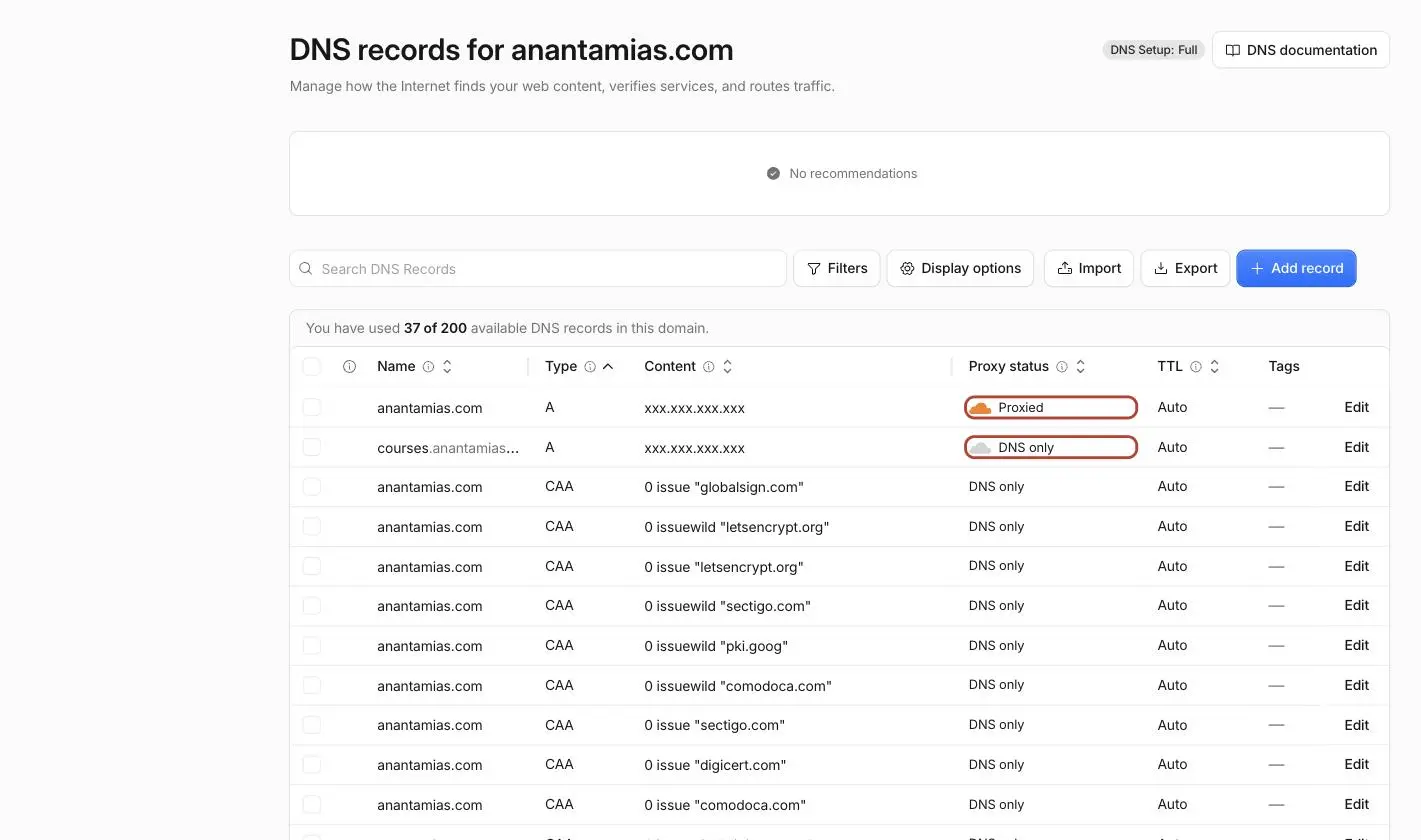
You should leave mail, verification and unrelated service records alone during this change. If your host manages Cloudflare for you, ask where the crawler policies are controlled before changing DNS; the dashboard you can access may not control the traffic path in use.
Open the AI Bot Policy Controls
You should select your domain in Cloudflare, then open Security > Settings > Configure AI bot policies. The AI bot policy settings separate Search, Training and Agent.
You should set Search to Allow and Training to Disallow AI Training, leaving Agent unchanged for this task. After saving, reload the page and confirm the values before checking crawler access.
If your dashboard still shows only the legacy Block AI bots controls, you should confirm the migration with Cloudflare support before making a change. Some documentation still carries the older options, so a similar label is not enough to establish how the setting behaves.
Turn On Bot Preference Sync
You should enable Bot Preference Sync so Cloudflare publishes your category preferences in robots.txt. It is enabled by default for new domains under the documented onboarding setup; on an existing domain, check the saved value rather than assuming it is on.
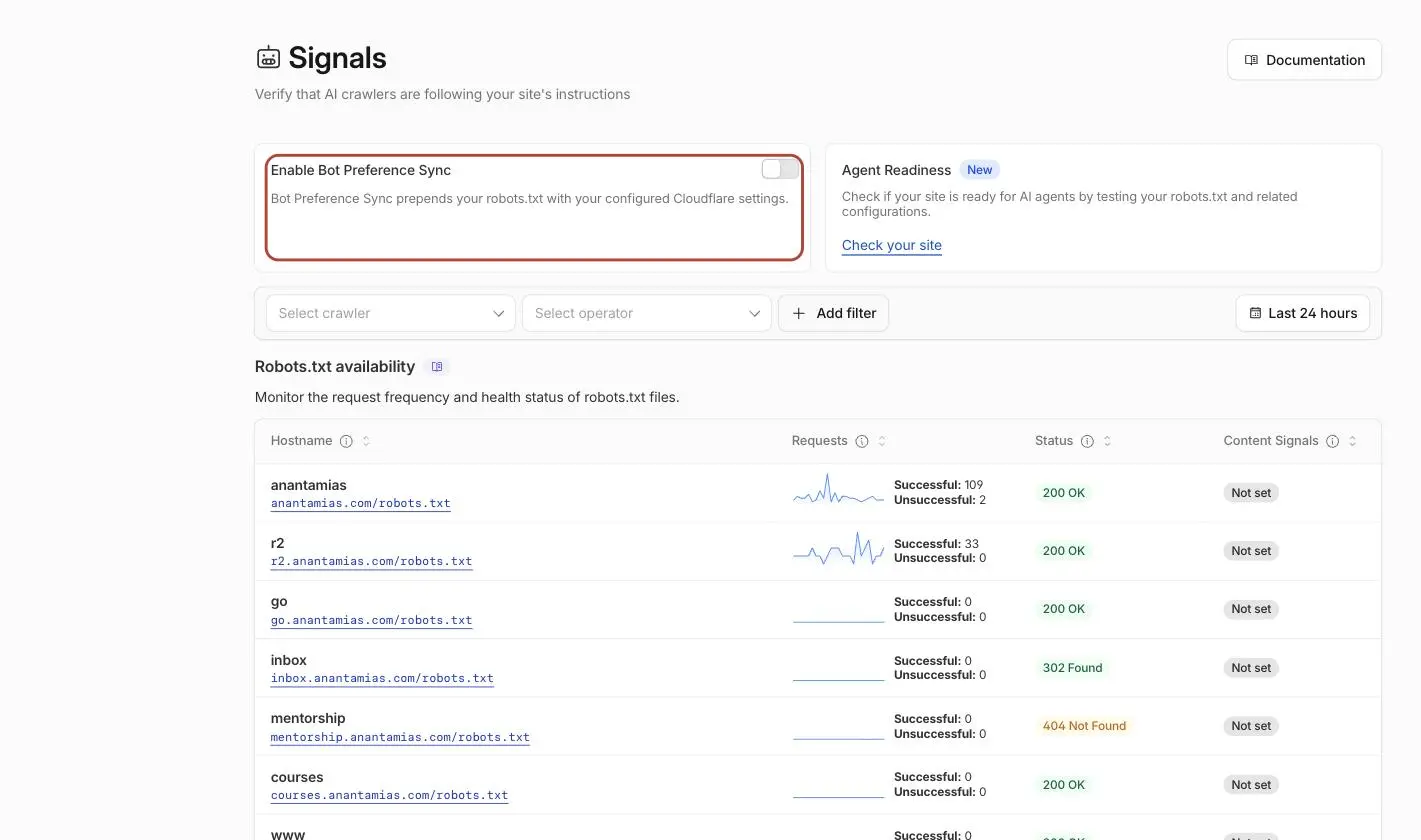
For cooperating mixed-use crawlers, the sync publishes a usage preference that the operator must honor. For dedicated training crawlers covered by the control, Cloudflare blocks requests at the edge. Those are different forms of enforcement.
Cloudflare prepends its generated block to your existing robots.txt, preserving the original lines. You should still read the combined result because specific user-agent groups can change which rules apply. Bot Preference Sync follows category settings and does not read custom firewall exceptions. If you have an arrangement with one company, I would maintain the usage preferences manually so the public file and the access rules express the same policy.
Review Older Rules
Cloudflare migrates the old settings, but it does not audit the rules you wrote yourself. A crawler marked Allow in the AI bot controls can still be blocked by a custom WAF rule that runs before it, and a skip rule that bypasses WAF custom rules can let a blocked crawler straight through. Cloudflare documents both directions of that conflict.
You should look for these conflicts:
- rules that target every bot, or every request with a crawler-like user agent string
- rules that block an entire company’s network range
- country blocks that happen to cover a crawler’s data center
- skip rules added during an incident and never removed
When you find a conflict, you should change the rule responsible and repeat the affected check. I’d keep unrelated firewall protections enabled.
Verify the Setup
After saving the settings, I’d check the public file, Google’s access to important pages and the results of real crawler requests separately:
Inspect the Public robots.txt
You should open the file on your live hostname:
https://example.com/robots.txtYou should replace example.com with your domain and inspect what the public URL returns. A plugin editor may show a different version. Check these details:
- the file is readable plain text, not an HTML error page
- your sitemap lines and your own Disallow rules are still there below the Cloudflare block
- a group that names Google-Extended disallows the content you meant to protect
- no group aimed at Googlebot, or at every crawler through
User-agent: *, disallows the whole site
Google uses the most specific group that matches its crawler. A User-agent: * group with Disallow: / applies when no more specific matching group takes precedence; it does not override an explicit Googlebot group. Google combines applicable groups of equal specificity. You should check the effective group and its rules rather than relying on their order in the file.
You should check each relevant subdomain separately because robots.txt applies to its own host, protocol and port. A correct file on example.com does not establish what blog.example.com returns. Cloudflare’s per-hostname robots.txt report can help you find missing files and redirects.
Run a Live URL Test in Search Console
You should inspect your homepage in Google Search Console and choose Test live URL. Then repeat it on an important article, a category page and a product or service page, because a rule that spares the homepage can still catch a path deeper in.
You should read the crawl permission, the page fetch result and the indexing permission, and open the tested page to confirm Google received your real content rather than an error or a challenge screen. If you have never set the tool up, my Google Search Console setup guide covers verification and the reports worth reading.
A successful live URL test shows that the inspection tool can reach that URL at that time. I’d also check ordinary crawler requests, since another path or security rule can produce a different result.
Check Real Crawler Requests
You can use Cloudflare’s security events, its traffic analytics or your server logs to look at Googlebot’s real requests after the change, and confirm these reach the pages they should.
You should verify Googlebot requests with Google’s published IP ranges or a reverse DNS check followed by a matching forward lookup. A Googlebot user-agent string by itself does not establish that Google sent the request.
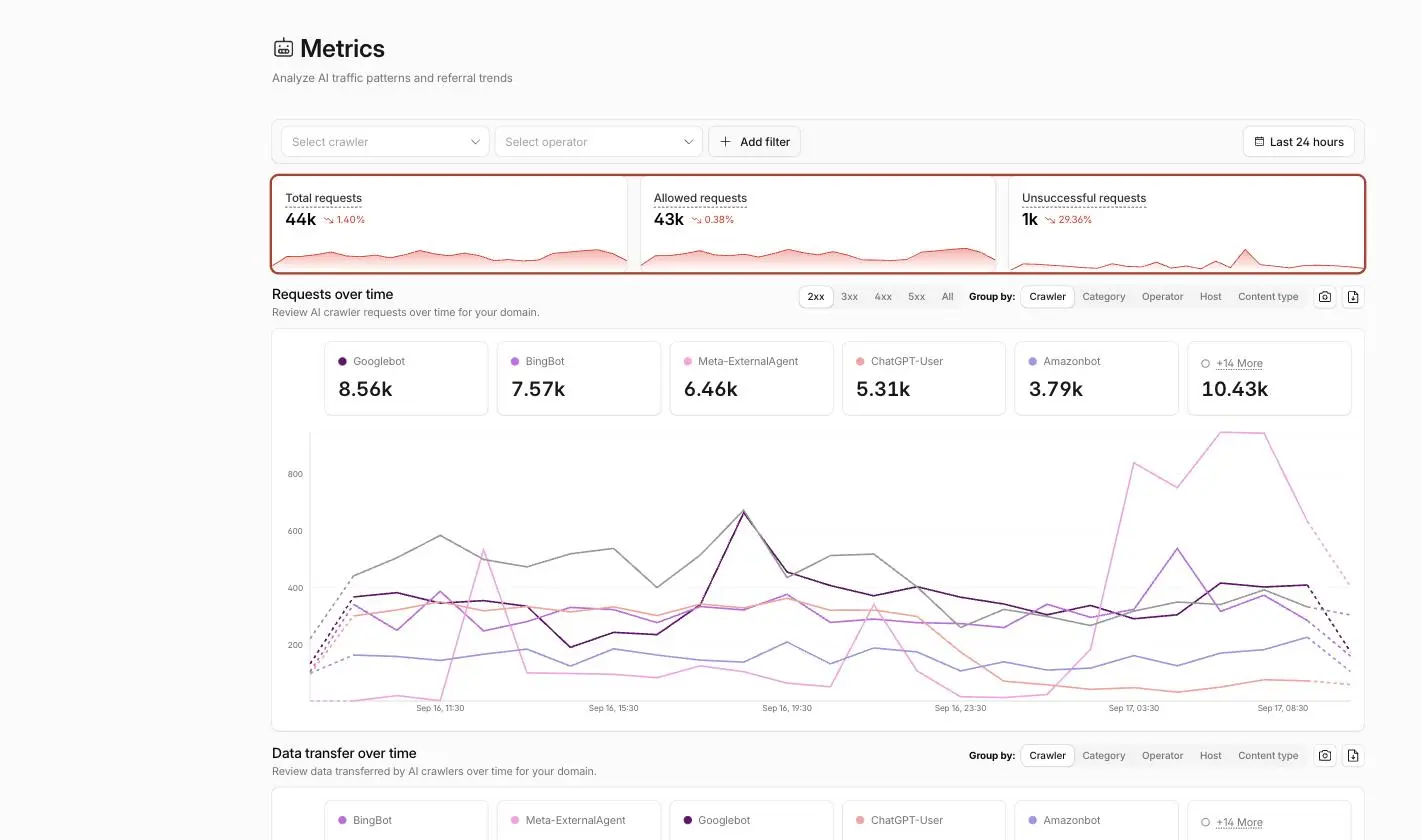
In AI Crawl Control, you can inspect the crawler list and compare allowed and unsuccessful requests. You should check the response status and matching rule before treating an unsuccessful request as evidence of your block; other errors can produce that result. Free-plan detection identifies well-known crawlers by their user-agent strings, so the report does not establish who is behind every request that looks like a browser.
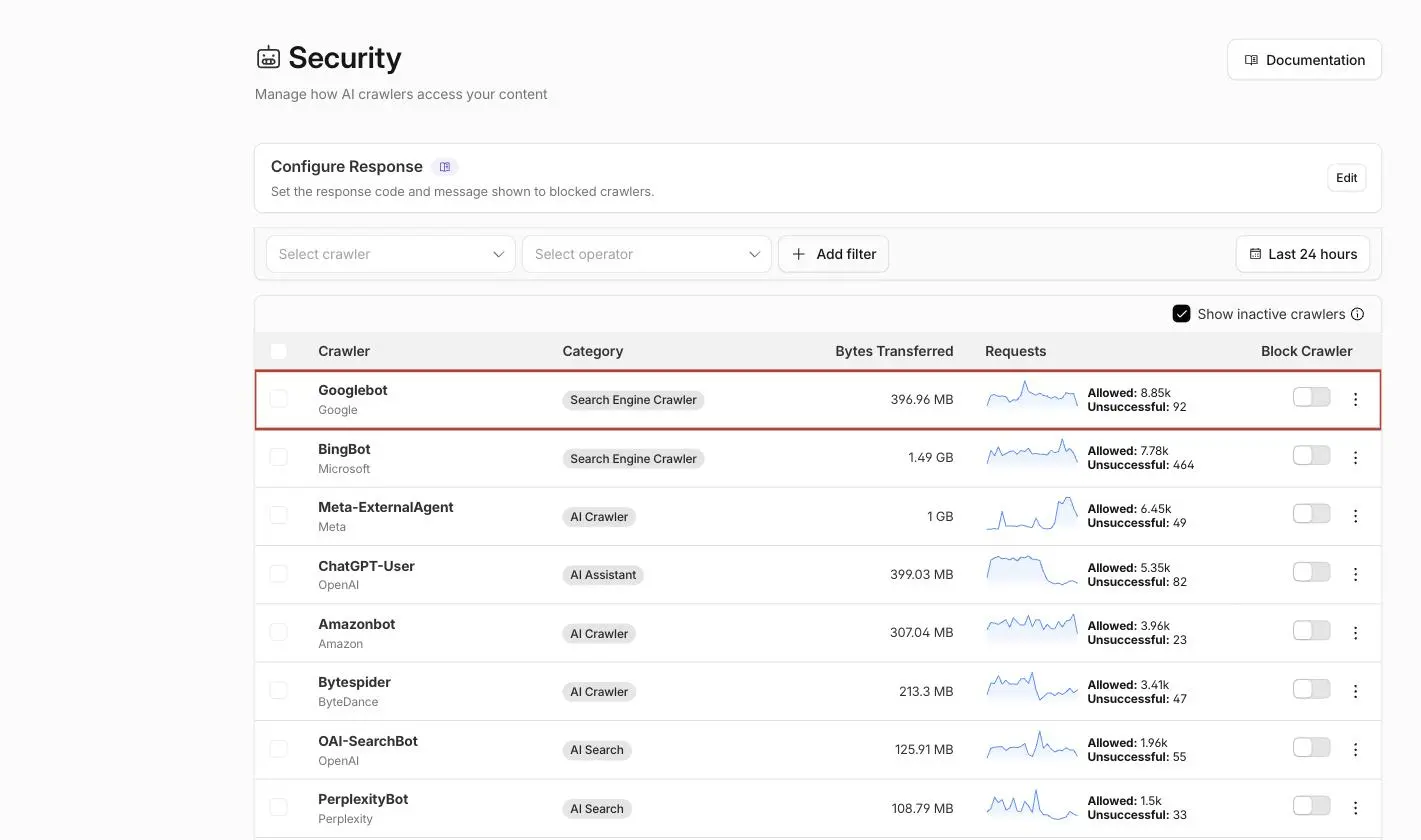
Record when you changed the policy, then compare similar time periods and inspect the rule or response behind any change in requests.
Check the File Google Actually Fetched
Search Console’s robots.txt report shows the version Google last fetched, whether the fetch succeeded and previous versions from the last 30 days. It also lets you request a recrawl of the file, which is the right move after a real correction.
Google generally caches robots.txt for up to 24 hours and may keep it longer when a refresh fails. You should compare the last fetched version and its timestamp in Search Console with the file your browser receives. Waiting a day alone does not prove Google has picked up the change.
Cloudflare’s robots.txt violation report compares current directives with past requests. A newly added rule can make earlier, previously allowed requests appear as violations. You should check their timestamps before concluding that a crawler ignored the new policy.
Your access logs can show which requests received a page. They do not show how an operator later used that content, so I would keep access checks separate from claims about training compliance.
The WordPress Layer
WordPress generates robots.txt on the fly when no physical file exists, and plugins filter that output. Its default includes the crawl rules for the admin area, so replacing the whole file with a copied list of AI bots throws away useful lines you did not know were there.
A physical robots.txt can be served by your web server before WordPress runs. When WordPress generates the response, active plugins and filters can change it; their hooks and priorities determine the result. Cloudflare then prepends its managed block when Bot Preference Sync is enabled. I would identify the layer producing the public response before editing another copy.
You should keep one clear owner for your ordinary crawl directives and inspect the combined public response after a change. If it still shows old content, identify the cache serving that URL before purging anything. You can compare the rules with my WordPress robots.txt guide; another robots.txt editor will not help if WordPress is not serving the file.
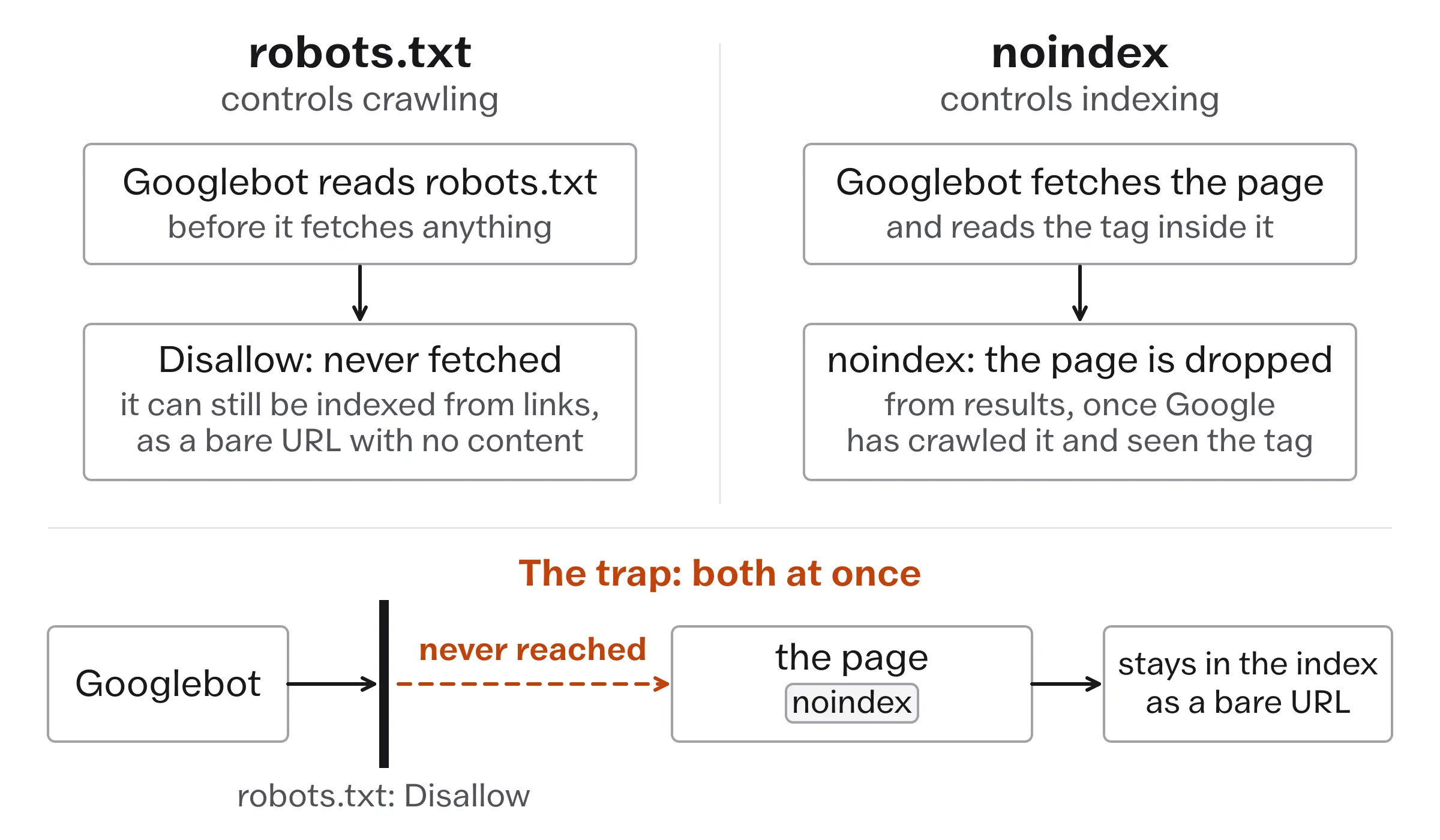
I would keep noindex out of a training-only change. It affects search indexing and can remove the visibility you want to preserve.
A Manual robots.txt Alternative
You can maintain the training preferences in robots.txt yourself when you need finer control than the category-wide sync provides. I would merge these starter groups for Google, Apple and OpenAI into the file you already serve:
User-agent: Google-Extended
Disallow: /

User-agent: Applebot-Extended
Disallow: /

User-agent: GPTBot
Disallow: /
The Google and Apple tokens retain the limits explained above. OpenAI’s crawler documentation separates GPTBot for potential training collection from OAI-SearchBot for ChatGPT search. You can disallow GPTBot while allowing OAI-SearchBot, keeping search eligibility subject to OpenAI’s other requirements.

You should merge these starter groups into your existing file and review any groups that already name the same token. Google combines applicable groups of equal specificity, so a later duplicate is not a replacement for an earlier rule. Check each operator’s documented behavior rather than assuming group order decides it.
My own file also contains a Content-Signal line to state training and search preferences. Google’s robots.txt documentation does not list it as a substitute for Google-Extended, so I would keep the operator-specific rule when expressing a Google training preference.
Manual directives, like Cloudflare’s generated ones, are preferences. They tell a cooperating operator what you want. They do not stop a scraper that never reads the file.
Bing and the noarchive Tag
Cloudflare says Microsoft is building a domain-level no-training preference for robots.txt, with early 2027 as its target. Until that support launches, Disallow AI Training keeps Bingbot available for search but does not convey a Bing no-training preference through robots.txt.
Microsoft’s documented route today is the noarchive robots meta tag. It goes in the HTML head, not in robots.txt, and the basic form is:
<meta name="robots" content="noarchive">Bing’s NOARCHIVE policy excludes tagged content from the generative foundation-model training and Bing Chat answers described there, while preserving eligibility for ordinary search results. You should choose it only if you accept that answer-visibility tradeoff too.
You should check for an existing nocache directive while you are in there. When both are present, Microsoft treats the page as NOCACHE, which permits more use than NOARCHIVE on its own, and the stricter tag you just added loses.
Bing’s URL removal tools are the wrong instrument for a training-only policy, because removing pages from Bing search is not the objective here. Bing Webmaster Tools has its own AI performance report, which is the better place to see how Bing’s AI features are using you.
The AI Overviews Control
You can manage AI Overviews, AI Mode and generative AI features in Discover through Search Console’s Search generative AI control, under Settings. Google made this control available worldwide on August 31, 2026.
The control governs whether your site’s links and content appear in AI Overviews, AI Mode and the generative AI features in Discover. Google says it is not used as a ranking or inclusion signal for the rest of Search, and it does not affect AI training at all. It also comes with a plain cost: exclude your site and you receive no traffic or impressions from those features, while content from other sites still fills them.
I would leave this control unchanged when your goal is to restrict training while keeping search referrals. It deserves a separate decision about where you want your content to appear. If you want those referrals, the guide to earning citations in AI search covers that work.
Troubleshooting
When something looks wrong, you should narrow the diagnosis instead of adding another blocking rule on top.
| Problem | Check first |
|---|---|
| Google cannot fetch an important page | The saved Training value, the matching security event and the robots.txt group that applies to Googlebot |
| The dashboard looks right but a crawler is blocked | A separate custom rule, a skip rule or a host-level restriction that runs first |
| A blocked crawler still receives pages | Whether the request comes from that crawler at all, the hostname it hit and rules that skip enforcement |
| Your plugin’s robots.txt differs from the public file | Which layer generates the final response: physical file, WordPress, plugin or Cloudflare |
| AI Crawl Control shows no relevant requests | Proxied DNS on that hostname, the hostname selected in the report and the time range |
For rollback, you should restore the saved value for the change that caused the problem and repeat the same checks. Keep unrelated protections in place.
The Limits
Cloudflare’s free AI crawler controls identify well-known, self-identifying crawlers by their user-agent strings. A scraper that disguises itself may escape that detection, although other security rules can still block it. Cloudflare documents more advanced detection for Enterprise plans with Bot Management. I would treat the free controls as a useful policy and access layer, with limits on what they can identify.
These settings govern future access and documented uses. They do not reverse training that already happened or establish that an operator deleted an earlier copy.
You still need a separate decision for Bing’s noarchive tag while its robots.txt training control remains unavailable.
For Google, the same Google-Extended token covers both model training and the documented Gemini grounding uses. You cannot permit those grounding uses through that token while disallowing its training uses.
Logs provide evidence of access, not downstream training compliance. That limit applies whether you manage the directives manually or through Cloudflare.
What Quietly Ruins It
You should choose Disallow AI Training when you want mixed-use crawlers to keep reaching the site for search. Training Block intentionally denies that access too.
I’d change one policy at a time so you can connect an unexpected result to the setting that changed.
You should verify a Googlebot request’s source before using it to judge search access. A curl request with a Googlebot user-agent string only tests how your server handles that request.
Before adding another robots.txt editor, you should identify which layer serves the public file. A plugin change cannot repair a stale physical file that the web server serves first.
You should check the request dates behind a robots.txt violation spike. Older requests can be evaluated against your new directives and appear as violations.
If a test fails, you should identify the matching restriction instead of switching off the whole firewall. Retest the specific change you make.
FAQs on Blocking AI Training
Why do Googlebot requests continue after I disallow training?
Because Google-Extended is not a separate crawler. It governs what Google may do with pages that Googlebot already fetched, so the requests in your logs look the same before and after the change. Continued Googlebot crawling is expected, and it is not evidence that the preference failed.
Does allowing an AI agent mean allowing training?
No. These are separate decisions, and Cloudflare keeps them as separate settings for that reason. OpenAI, for example, documents ChatGPT-User for user-initiated fetches separately from its search and training crawlers, and it says robots.txt rules may not apply to those user-initiated requests at all. The Agent policy deserves its own decision on its own terms.
Can Cloudflare stop every AI scraper?
No. Robots.txt requires cooperation, and free-plan AI crawler detection uses user-agent strings to identify known crawlers. A disguised scraper may evade that detection, though other security rules can still apply. You can publish a policy and block covered requests without assuming that every public-page copy has been prevented.
Final Remarks
I’d save the current state, change the Training policy and verify the public response and crawler access before moving on. Review Bing’s tag and Google’s generative-search control separately, because each governs a different use of your content.
Tell Google you want more of this.
Add Gaurav Tiwari as a preferred sourceOne tap, and this site shows up more often in your own Top Stories, AI Overviews and AI Mode. Remove it any time.