by
by
The WordPress part of my robots.txt is four lines. Everything after that is an AI-crawler policy, which is the only part of this file where the decisions are still interesting. I’ve watched people paste twenty-line templates into it for years, and I’ve never once seen those extra lines fix a ranking problem. I have seen them break rendering, hide a noindex tag, and quietly deindex a site that got promoted from staging.
So here’s the whole file, the reasoning behind every line, the twelve lines I refuse to add, and the four bugs I found in my own copy while writing this. Copy it if you run a blog, a business site, a portfolio, or a small store. Don’t copy it if you run a million-URL marketplace with faceted navigation, because your crawl problems are real and this file won’t touch them.
Quick answer: Keep the WordPress Core rules (Disallow: /wp-admin/, Allow: /wp-admin/admin-ajax.php), add your full XML sitemap URL, and add named groups only for the AI training crawlers you’ve decided to opt out of. Every other line is a liability until a server log tells you otherwise.
The WordPress robots.txt file I’d deploy today
This is the policy I run across my sites, with the domain swapped out. Open gauravtiwari.org/robots.txt or gatilab.com/robots.txt and check it line for line against what’s printed here. Replace example.com, confirm the sitemap path your own SEO plugin publishes, and you’re done.
# Base rules for everything not named below.
User-agent: *
Disallow: /wp-admin/
Allow: /wp-admin/admin-ajax.php

Sitemap: https://example.com/sitemap_index.xml

# Content signals for AI crawlers (contentsignals.org)
Content-Signal: ai-train=no, search=yes, ai-input=yes

# Training crawlers: opted out.
# Stacked user-agent lines share the single rule beneath them.
User-agent: GPTBot
User-agent: ClaudeBot
User-agent: anthropic-ai
User-agent: cohere-ai
User-agent: Applebot-Extended
User-agent: Meta-ExternalAgent
User-agent: FacebookBot
User-agent: Bytespider
User-agent: Amazonbot
User-agent: Diffbot
Disallow: /

# Search, citation, grounding, and user-requested crawlers: allowed.
# The wp-admin rules are restated because a named group inherits nothing.
User-agent: OAI-SearchBot
User-agent: ChatGPT-User
User-agent: OAI-AdsBot
User-agent: Claude-SearchBot
User-agent: Claude-User
User-agent: PerplexityBot
User-agent: Perplexity-User
User-agent: Google-Extended
User-agent: Google-CloudVertexBot
User-agent: Applebot
User-agent: Meta-ExternalFetcher
User-agent: Amzn-SearchBot
User-agent: Amzn-User
User-agent: DuckAssistBot
User-agent: YouBot
Disallow: /wp-admin/
Allow: /wp-admin/admin-ajax.php
Two things in there are worth stealing even if you ignore the rest. Consecutive User-agent lines form one group that shares the rules beneath them, so a fifteen-crawler policy costs fifteen lines instead of forty-five. And the second group restates the wp-admin rules rather than assuming them, which is the part almost everyone gets wrong.
Two of those tokens are dead. anthropic-ai and cohere-ai were retired in favor of the newer names, and I’ve left them in because an obsolete line costs nothing and old crawler names occasionally resurface. If Common Crawl matters to you, add CCBot to the training group, since a great many models have trained on that dataset.
Notice what isn’t there. No feed blocks, no tag archives, no /wp-includes/, no Crawl-delay, no query-string wildcards, no allow-list for the search crawlers I want. Every one of those is a line I’ve deleted from a client site at some point, and the deletion never hurt.

What each line is actually doing
User-agent: *opens the group that applies to every crawler without a group of its own.Disallow: /wp-admin/keeps compliant bots out of the administration directory. It saves crawl requests. It secures nothing.Allow: /wp-admin/admin-ajax.phpcarves the AJAX endpoint back out, because public front-end features still call it.Content-Signaldeclares intent on training, search, and AI input. No major crawler acts on it yet, so treat it as a position on record rather than a control.- The training group stacks nine crawler names above a single
Disallow: /. One group, one rule, nine crawlers. - The search group stacks the crawlers I want and repeats the wp-admin rules, because a named group inherits nothing from the wildcard group.
Sitemap:takes the complete, absolute URL. A relative path is ignored, and the line is global rather than scoped to any one group.
The grouping rule that quietly breaks these files
This is the part almost every “ultimate robots.txt” post gets wrong, and it’s the single most useful thing in this article.
A crawler obeys exactly one group: the most specific one that names it. Groups do not stack and they do not inherit. The moment you write User-agent: OAI-SearchBot anywhere in the file, that crawler stops reading your User-agent: * group entirely. So a well-meaning block like this does the opposite of what its author intended.
# Broken. Looks welcoming, quietly opens the admin directory.
User-agent: *
Disallow: /wp-admin/
Allow: /wp-admin/admin-ajax.php

User-agent: OAI-SearchBot
Allow: /
OAI-SearchBot now has permission to crawl /wp-admin/, because its own group never inherited the disallow. The Allow: / line granted nothing it didn’t already have, since an empty restriction was the default. You took a crawler that was behaving and handed it your admin directory.
There are two correct fixes, and the second is better.
- Don’t name the crawler at all. It stays under the wildcard group and keeps every rule you wrote there. Fewer lines, but your file no longer documents which AI crawlers you welcome.
- Name it and restate the rules. Stack the crawlers you’re allowing into one group and repeat the wp-admin lines underneath. Longer, explicit, and self-documenting. This is what I run.
# Correct. Named, and nothing is assumed.
User-agent: OAI-SearchBot
User-agent: Claude-SearchBot
User-agent: PerplexityBot
Disallow: /wp-admin/
Allow: /wp-admin/admin-ajax.php
The rule: naming a crawler opts it out of every other group in the file. Whatever you want it to obey, write it again inside its own group. There is no inheritance in robots.txt.
The twelve lines I deliberately left out
Most WordPress robots.txt templates are inherited folklore. Someone blocked /wp-includes/ in 2011 when Google couldn’t render JavaScript, and the line has been copied forward ever since by people who never checked whether it still made sense.
| Template line | What it actually does | Verdict |
|---|---|---|
Disallow: /wp-includes/ | Blocks core scripts and styles that Google may need to render the page. | Delete it. |
Disallow: /wp-content/plugins/ | Same problem, one directory over. Breaks rendering of anything plugin-driven. | Delete it. |
Disallow: /wp-content/uploads/ | Blocks your own images out of Google Images. | Delete it. |
Disallow: /*.js$ / /*.css$ | Guarantees a broken render in the URL Inspection tool. | Delete it. |
Disallow: /wp-login.php | Publishes your login path to everyone reading the file. Stops no attacker. | Delete it. |
Disallow: /?s= and /search/ | Blocks internal search URLs your SEO plugin already noindexes, and hides that noindex from Google. | Only with log evidence. |
Disallow: /*?replytocom= | Blocks URLs that already canonicalize to the post, so Google can’t read the canonical. | Delete it. |
Disallow: /tag/ or /category/ | Treats an indexing decision as a crawl decision. Use noindex if you don’t want them. | Delete it. |
Disallow: /feed/ | Breaks feed discovery for readers, aggregators, and podcast clients. | Delete it. |
Crawl-delay: 10 | Google doesn’t support the field at all. Bing reads it; Google skips it. | Delete it for Google. |
Allow: / in the wildcard group | Grants permission that already existed. Harmless, but it’s noise in a file you want to audit at a glance. | Optional. |
Noindex: /path/ | Never a supported robots.txt field. Google stopped honoring it in 2019. | Delete it. |
The internal-search row is the one people argue with me about, so here’s my evidence. On one of my WordPress sites I pulled a full day of raw origin log lines: roughly 65,000 requests. Internal search URLs accounted for fewer than ten of them. Blocking a pattern that generates seven requests a day, at the cost of hiding a noindex directive, is not a trade I’d make.
That’s the whole test. Open your logs, count the requests a pattern actually generates, and only then decide whether it deserves a line. This belongs inside a wider technical SEO audit rather than a copy-paste session.
I ran this audit on my own file and found four bugs
Before publishing this, I held gatilab.com to the same standard. The file had been fine for months, I’d written it myself, and I expected to change nothing. I was wrong four times over, and the last one is the reason I rewrote this article.
- I was blocking PerplexityBot. That’s Perplexity’s search crawler, the one that cites and links you. It sat in a list captioned “opt out of AI training crawlers,” which it isn’t. I’d been quietly opting out of Perplexity citations while believing I’d opted out of training.
- I was allowing a user agent that doesn’t exist. The file had a group for
PerplexityBot-User. Perplexity’s actual token isPerplexity-User. That group had never matched a single request. - I was allowing a retired token.
Claude-Webhas been superseded byClaude-SearchBotandClaude-User. Neither was named, so neither was affected by anything I’d written. - Four crawlers had their own
Allow: /groups with nothing else in them, which is the grouping trap from earlier. Every one had been detached from myDisallow: /wp-admin/rule by the very lines meant to welcome it. The fix wasn’t to delete those groups, it was to restate the wp-admin rules inside them.
All four are fixed, and both my sites now run the pattern printed at the top of this article. Open gauravtiwari.org/robots.txt or gatilab.com/robots.txt and check. That’s the point of publishing the thing.
Three layers were fighting, and two had already lost
Finding those bugs was the easy part. Working out which file to edit took longer, because gatilab.com turned out to have three sources of robots.txt running at once.
- Rank Math held a clean four-line version in its editor. Never served.
- A must-use plugin was appending a carefully maintained AI-crawler policy through the
robots_txtfilter. Never served either. - A physical
robots.txtin the document root, written months earlier and never touched again. This one won every request, because the web server returns it before WordPress loads.
I’d written that filter deliberately. I’d have told you with total confidence that it controlled my AI policy. It had been dead code the entire time, shadowed by a stale file I’d forgotten existed. If it can happen on a site I maintain myself, it can happen on yours.
The fix is boring: pick one layer, delete the other two, and leave a comment in the survivor saying it’s the source of truth. I kept the physical file, because the layer that already wins is the honest choice.
Then the cache lied to me twice
I fixed the file, reloaded the public URL, and saw the old rules. Fixed it again, reloaded, still the old rules. The edit was correct both times. Cloudflare was serving a cached copy, and adding a query string didn’t help because the cache key ignored it.
The only check that told the truth was requesting the file from the origin server directly, with the CDN taken out of the path. If you’ve edited robots.txt recently and it looked like nothing happened, this is probably why, and the answer isn’t to edit it a third time.
# Ask the origin directly, skipping the CDN entirely.
curl -sk -H "Host: example.com" https://YOUR.ORIGIN.IP/robots.txt
Purge the CDN afterward, then confirm on the public URL. Two crawlers had already fetched the stale version while I was working, which is a reminder that the file is being read constantly and a bad edit propagates faster than a good one.
What robots.txt controls, and what it can’t touch
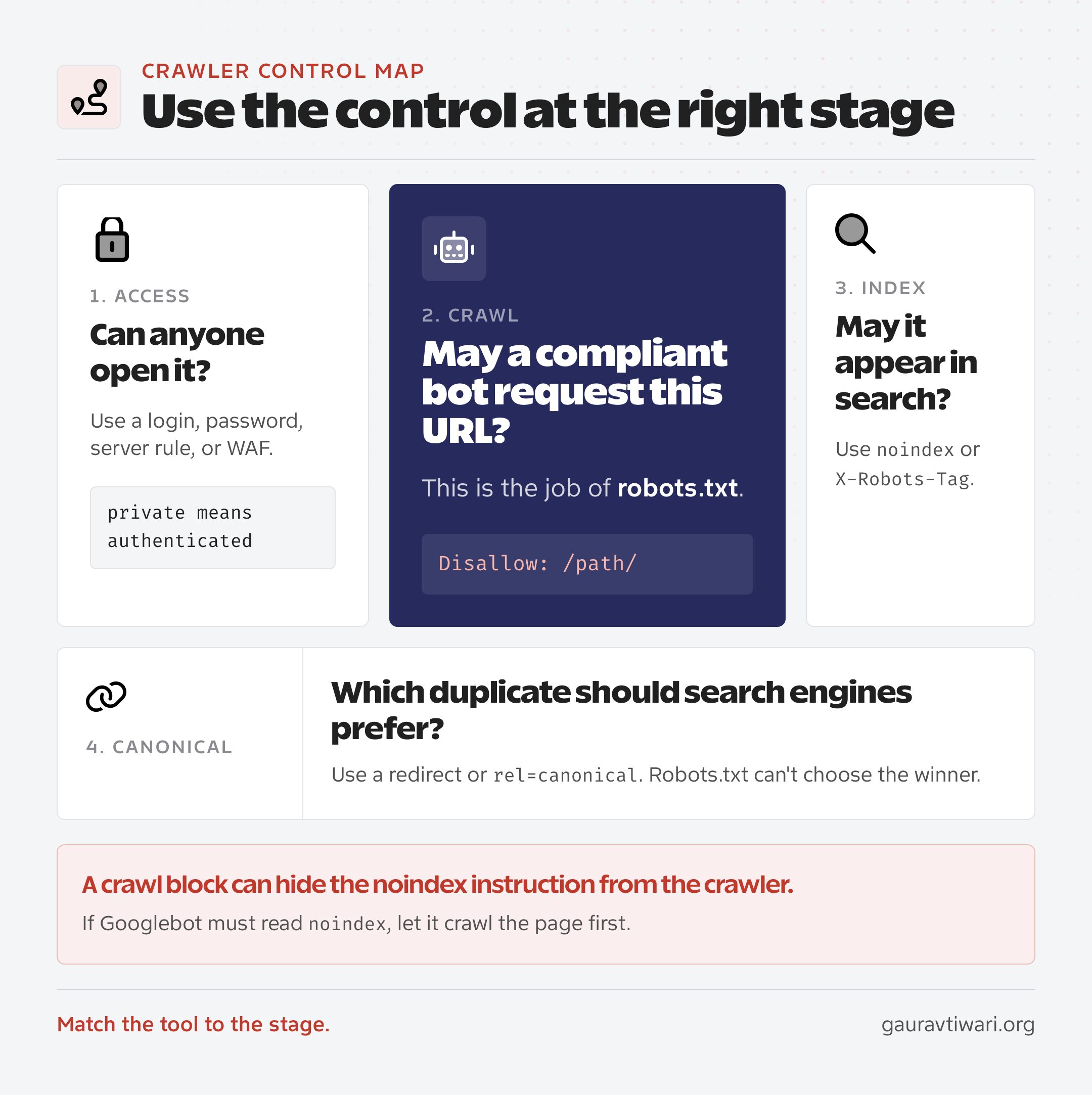
Robots.txt manages crawler requests. That’s the entire job. Most expensive mistakes happen when someone reaches for a crawl rule to solve an indexing, security, or canonicalization problem.
| Goal | Correct tool | Why |
|---|---|---|
| Reduce crawling of a URL pattern | robots.txt | The rule is checked before a compliant bot requests the URL. |
| Keep a page out of search results | noindex or X-Robots-Tag | The crawler has to fetch the page to read the instruction. |
| Protect private content | Login, password, or WAF rule | Robots.txt is public and voluntary. It isn’t access control. |
| Consolidate duplicate URLs | Redirect or rel=canonical | Canonicalization is an indexing signal, not a crawl permission. |
| Remove a URL urgently | Search Console removal plus a lasting fix | The removal tool is temporary. The page still needs noindex, auth, or deletion. |
| Stop a scraper that ignores you | Rate limit, WAF, or IP block | Compliance is voluntary. Enforcement happens at the server. |
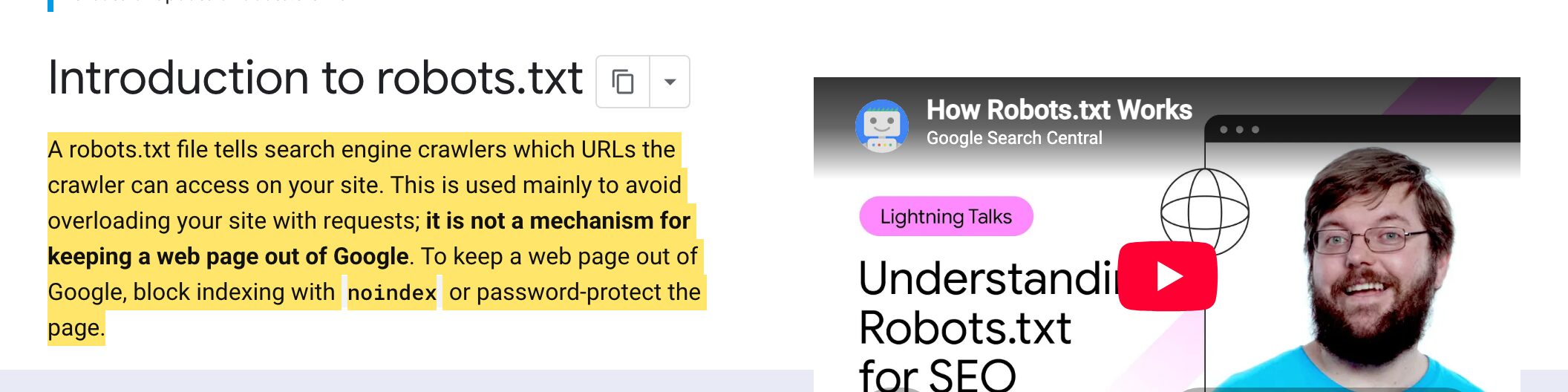
Google states it plainly: robots.txt is for managing crawler traffic, and it isn’t a mechanism for keeping a page out of Google. A blocked URL can still surface as a bare result when Google finds links pointing at it.
Which sets the trap I see most often. Someone adds noindex to a page, then disallows the same page for good measure. Googlebot never fetches it, never reads the directive, and the URL sits in the index indefinitely. Let the crawl through, let Google process the tag, then watch it drop.
Security rule: never list a confidential path in robots.txt and assume it’s hidden. The file is public by design, and it’s one of the first things an attacker reads. Staging sites, invoices, client portals, and private downloads need authentication or a server rule.
Where WordPress robots.txt actually lives
The WordPress robots.txt location trips people up because there’s usually no file to find. You open your file manager, see nothing in the root, and assume the site has no robots.txt. Then you load https://example.com/robots.txt and there it is.
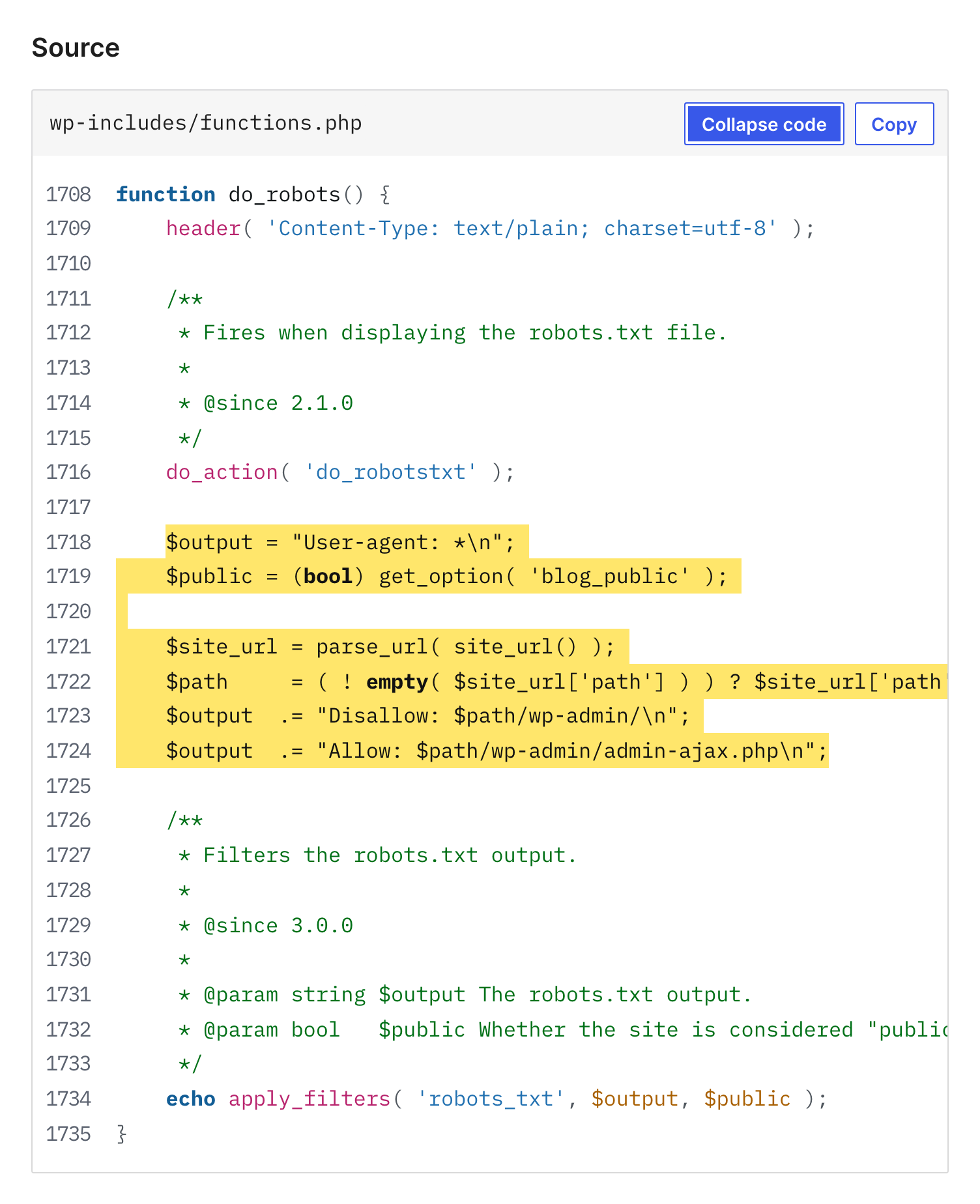
WordPress generates it on the fly. The do_robots() function prints the wildcard group, blocks /wp-admin/, allows /wp-admin/admin-ajax.php, and hands the output to the robots_txt filter, which is where plugins and custom code inject their own lines.
Four layers can produce the file your visitors see, and they don’t all agree with each other.
- Virtual file: WordPress Core or an SEO plugin generates the response when
/robots.txtis requested. - Physical file: a real
robots.txtin the document root, served by the web server before WordPress ever loads. This one wins. - Plugin editor: Rank Math or Yoast SEO stores rules that feed the virtual response.
- Server or CDN override: Nginx, Apache, LiteSpeed, or a Cloudflare Worker can return something else entirely.
Pick one and delete the rest. The classic failure looks like a successful save: you edit the file in Rank Math, the plugin says “saved,” and the public URL never changes, because a physical file has been sitting in the root since a migration two years ago.
Should you block AI crawlers in WordPress robots.txt?
This is the only part of the file where the decision is genuinely interesting in 2026, and it’s the part most templates handle badly by lumping every AI bot into one blocklist.
Split them by purpose first. Training crawlers collect text to build models. Search crawlers index pages so an AI answer can cite and link you. User-triggered fetchers grab a single page because a human asked a question about it. Blocking all three is a decision to disappear from AI answers, which is very different from declining to be training data.
| Crawler | Published purpose | My stance |
|---|---|---|
| GPTBot | OpenAI model training | Blocked |
| ClaudeBot | Anthropic model training | Blocked |
| Google-Extended | Gemini training and grounding | Allowed, reluctantly. One token covers both jobs, so blocking training also costs Gemini answer visibility. Google says either way has no effect on Search ranking. |
| Applebot-Extended | Apple model training | Blocked. Plain Applebot still crawls for Siri and Spotlight. |
| meta-externalagent | Meta foundation-model training and product indexing | Blocked, with a caveat below. |
| CCBot | Common Crawl, an open dataset many models train on | Blocked |
| OAI-SearchBot | ChatGPT search discovery and citation | Allowed |
| Claude-SearchBot | Claude search indexing | Allowed |
| PerplexityBot | Perplexity search results | Allowed |
| ChatGPT-User / Claude-User | Fetching one page because a user asked | Allowed |
| Perplexity-User | User-requested fetch | Allowed anyway. Perplexity says this agent generally ignores robots.txt. |
| Bytespider | ByteDance crawler | Blocked, but enforced at the edge. See below. |
OpenAI, Anthropic, Perplexity, Meta, and Google all publish these tokens themselves. Treat the vendor documentation as the authority, because the names change faster than the blog posts that copy them.
What my server logs actually show
I pulled a full day of raw origin log lines from one of my WordPress sites before writing this, because the assumptions in most AI-crawler posts don’t survive contact with real traffic. Three things surprised me.
- Meta’s training crawler was the single busiest bot on the site, pulling more than twice the request volume of Googlebot. If you care about training opt-outs, that’s the line doing the most work in your file, and almost no template includes it.
- GPTBot barely showed up. OpenAI’s search crawler outnumbered its training crawler by more than sixty to one. Anyone who blocked “OpenAI” by blocking GPTBot alone changed almost nothing about their actual bot traffic, and anyone who blocked both gave up the citations too.
- ByteDance’s Bytespider crawled harder than most AI bots combined, and it’s been repeatedly documented ignoring robots.txt. A
Disallowline for it is a statement of preference. A firewall rule is the thing that stops it.
The Meta caveat is worth stating plainly, because I’m recommending a line with a cost. meta-externalagent handles training and direct product indexing, so blocking it may reduce how Meta AI surfaces your content. I’ve accepted that trade. If Meta AI referral traffic matters to your business, don’t copy that line from me without thinking about it.
None of this replaces writing pages that AI engines want to cite in the first place. If AI visibility is the actual goal, the file is a permission slip, and my AI search optimization checklist covers the work that follows.
Is the Content-Signal line worth adding?
Cloudflare introduced a Content-Signal field that separates search, AI input, and AI training into three declarations, and rolled it out across millions of managed domains. Cloudflare’s own generated files attach it to a user-agent group; plenty of hand-written files park it near the top instead. Since nothing currently reads it, placement is academic.
Content-Signal: ai-train=no, search=yes, ai-input=yesMy honest read: add it if you want the declaration on record, but don’t expect it to do anything yet. Google has said publicly that it doesn’t act on the field, and no major crawler has committed to honoring it. It’s an unsupported field, so compliant parsers skip the line harmlessly. That’s the entire risk profile, and right now it’s also the entire benefit.
I keep it because a declared position costs nothing and may matter later. I don’t count it as protection, and neither should you.
How to edit robots.txt in WordPress
Use whichever layer already owns the file, then verify the public URL. Running two editors at once is how stale rules survive for years.
Method 1: Rank Math
- Switch Rank Math to Advanced Mode.
- Open Rank Math SEO > General Settings > Edit robots.txt.
- Replace the contents with your reviewed rules and save.
- Load
https://yourdomain.com/robots.txtin a private window and confirm what came back.
If the editor is greyed out, a physical file exists in the root and Rank Math is telling you it can’t win. My Rank Math review covers the rest of the plugin, but the robots editor itself should stay boring, and that’s a compliment.
Method 2: Yoast SEO
Yoast exposes a file editor under its tools when server permissions allow it. Create or edit the file there, save, then verify the public URL. If your host hides the editor, use the server method rather than loosening file permissions to make a plugin happy.
Method 3: A physical file
Create a UTF-8 plain-text file named robots.txt in the document root that serves your domain. On a standard install that’s the directory holding wp-config.php, but managed hosts and Bedrock setups often use a different root, so confirm before you upload. This method wins every conflict, which makes it both the most reliable option and the easiest one to forget about.
Method 4: The robots_txt filter
If your rules belong in version control, use the filter. This beats asking a future maintainer to remember a production-only setting, provided your deployment process is already trustworthy.
add_filter( 'robots_txt', function ( $output, $public ) {
    if ( ! $public ) {
        return $output;
    }

    $output .= "\nUser-agent: GPTBot\nDisallow: /\n";
    $output .= "\nSitemap: https://example.com/sitemap_index.xml\n";

    return $output;
}, 20, 2 );
The $public check matters. When a site is set to discourage search engines, WordPress serves a blanket disallow, and you don’t want your custom lines fighting that on a staging install. Robots.txt is a small part of choosing a WordPress SEO plugin, so weigh sitemaps, schema, and redirects more heavily.
The four-line base file, the AI-crawler opt-out groups, a ready-to-paste robots_txt filter, and the curl checks I run after every edit.
How to test the file after you change it
Test the public response, never the textarea inside a plugin. What Googlebot receives is the only version that exists.
curl -i https://example.com/robots.txtYou want HTTP 200 and content-type: text/plain. A branded 404 page, an HTML security challenge, or a redirect to the homepage all mean something upstream is intercepting the request.
- Confirm the source: the public text should match the layer you actually edited, not one of the other three.
- Test real URLs: a published post,
/wp-admin/,/wp-admin/admin-ajax.php, and any custom path you added. - Check Google’s view: run URL Inspection in Search Console and look for crawl permission or fetch errors.
- Wait out the cache: Google generally caches robots.txt for up to 24 hours, and may hold it longer if it can’t refresh. Your CDN caches it too.
- Watch the error behavior: Google treats a 404 as “no restrictions,” but sustained 5xx responses can pause crawling of the whole site for 12 hours and then fall back to a cached copy.
- Recheck every host: the file governs one host, protocol, and port. A file on
wwwsays nothing about the bare domain, andshop.example.comneeds its own.
Search Console earns its own setup here, because it surfaces the indexing, sitemap, and canonical problems that a robots.txt edit will never reveal. My Google Search Console setup guide walks through the property and sitemap configuration if that part isn’t done.
WordPress robots.txt mistakes worth checking today
The costly errors are small. One slash, one wildcard, one staging rule that survived a launch. Read your file as if every broad pattern will eventually match something you care about, because it will.
Disallow: /left over from staging. This blocks the entire host for every compliant crawler, and it’s the single most expensive line in this article.- A named group that orphans your wildcard rules. Any crawler you name stops reading
User-agent: *. - Blocking assets Google needs to render. CSS, JavaScript, themes, plugins, and uploads all belong crawlable.
- Using a crawl block where you meant noindex. The blocked URL can still appear as a bare listing.
- Advertising private directories. The file names those paths for anyone curious, and secures none of them.
- A relative sitemap path. The
Sitemapfield needs the complete absolute URL. - Editing the layer that loses. A physical file, a server config, or a CDN rule beats your plugin every time.
- Forgetting subdomains. Every host needs its own policy, including the ones you inherited.
- A file over 500 KiB. Google stops parsing past that point, which is only reachable if someone has been pasting templates for a decade.
Clean permalinks, real internal links, accurate canonicals, and a sitemap that lists only indexable URLs prevent far more crawler waste than any blocklist. My SEO-friendly WordPress setup covers those foundations, and they’re where the actual gains live.
Frequently asked questions
These are the questions I get whenever someone opens this file for the first time and finds it shorter than expected.
What is the best robots.txt for WordPress?
The shortest one you can fully explain. For most WordPress sites that means the Core rules for /wp-admin/ and /wp-admin/admin-ajax.php, your absolute XML sitemap URL, and named groups only for AI training crawlers you have chosen to block. Longer templates add risk without adding ranking value.
Where is the WordPress robots.txt file located?
The public location is always the root URL, such as https://example.com/robots.txt. There is often no file on disk, because WordPress generates the response virtually through do_robots(). If a physical robots.txt does exist in the server document root, it overrides whatever WordPress or your SEO plugin would have produced.
How do I edit robots.txt in WordPress?
Use the Rank Math or Yoast SEO editor, upload a physical UTF-8 text file to the document root, or add rules through the robots_txt filter in code. Pick one method only. After saving, load the public /robots.txt URL in a private window and confirm the response, because a physical file or CDN rule can silently override a plugin.
Should I block AI crawlers in robots.txt?
Decide by purpose, not by company. Blocking training crawlers such as GPTBot, ClaudeBot, Google-Extended, Applebot-Extended, meta-externalagent, and CCBot keeps your content out of model training. Leaving search crawlers such as OAI-SearchBot, Claude-SearchBot, and PerplexityBot allowed keeps you eligible to be cited and linked in AI answers.
Does blocking Google-Extended hurt my Google rankings?
No. Google states directly that Google-Extended does not affect a site’s inclusion in Google Search and is not used as a ranking signal. It only controls whether your content can be used to train Gemini models and to ground answers in Gemini Apps and Vertex AI.
Can robots.txt keep a page out of Google?
No. Robots.txt stops compliant crawlers from requesting a URL, but Google can still index that URL when it finds links pointing to it. Use a noindex meta tag or an X-Robots-Tag header for search exclusion, and remember the crawler needs access to the page to read either one.
Does Google support Crawl-delay in robots.txt?
No. Google supports four fields only: user-agent, allow, disallow, and sitemap. Crawl-delay is ignored, as is the unofficial noindex field that Google stopped honoring in 2019. Bing does read Crawl-delay, so the line is not useless everywhere, just useless for Google.
What I’d do on your site this afternoon
Open your public robots.txt and read it line by line. Delete anything you can’t defend with a specific URL example and a reason. If a line has been there since a migration and nobody remembers adding it, that’s not a reason.
Then confirm the sitemap URL resolves, check that no crawler you care about has been orphaned into its own group, and add the AI training opt-outs only if that’s a decision you’ve actually made rather than one you inherited. A short WordPress robots.txt is easier to audit, easier to test, and dramatically harder to get catastrophically wrong.
Do the boring check too. Find out which layer is really serving the file, and read it from the origin rather than from your CDN. I’ve been writing about this stuff for 18 years and I still found four bugs in my own file this week, one of which had been costing me AI citations for months. The file is short. That’s exactly why nobody looks at it.
Tell Google you want more of this.
Add Gaurav Tiwari as a preferred sourceOne tap, and this site shows up more often in your own Top Stories, AI Overviews and AI Mode. Remove it any time.