
 by
by
For free AI dictation, I’d start with Handy on desktop or Kaze on a compatible Mac. If you already pay for Raycast Pro, try its included dictation before buying another app.
I currently use Raycast’s built-in dictation, and I like it a lot.
Choose around the apps and languages you use. If you need offline processing, check both speech recognition and text cleanup: either stage can send data to a cloud service.
Quick Comparisons
Your operating system and need for offline processing determine which apps you can use. An existing subscription may also include dictation, saving you the cost of a separate app.
I compare documented features and costs here. Your own prompts and messages are the useful test of accuracy.
| Your Situation | Start With | What You Get |
|---|---|---|
| You only need occasional voice typing | Built-in dictation | Voice entry included with your device or writing app |
| You want free dictation on macOS 26 or later | Kaze | Local model options and automatic paste with clipboard restoration |
| You want free offline dictation from Google on a Mac | Google AI Edge Eloquent | On-device dictation into any app with a hotkey |
| You want a free, open-source desktop app | Handy | Local recognition on macOS, Windows and Linux |
| You want recognition and cleanup to run locally | Parrot | Free local speech and cleanup models; Linux integration requires X11 |
| You want free local dictation without an account | Spokenly | Unlimited local processing, with optional paid cloud features |
| You use Linux with Wayland | Voxtype | Desktop keybindings and documented text-insertion tools |
| You want local dictation plus a cloud allowance | OpenWhispr | Unlimited local use and 2,000 managed-cloud words per week |
| You already pay for Raycast Pro | Raycast | Native Dictation included in the subscription |
| You move between desktop and mobile | Wispr Flow | Mac, Windows, iOS and Android apps; free allowances vary |
| You want to choose recognition and cleanup models separately | Superwhisper | Separate voice and language-model settings |
| You prefer a one-time Mac license | VoiceInk | A paid Apple Silicon Mac app with local transcription |
Aqua Voice and Typeless are also worth comparing if technical vocabulary or more extensive text cleanup is the reason you’re shopping. Their plan differences matter more than another general-purpose “best overall” label.
Best Free AI Dictation Tools
The tools below provide free local transcription. Some also offer cloud processing, so the selected model and cleanup settings determine whether you incur provider charges.
Kaze
Kaze is a free Mac dictation app to try before buying VoiceInk or Superwhisper. It runs from the menu bar: hold a shortcut, speak, then release to paste the transcript into the app you’re using.
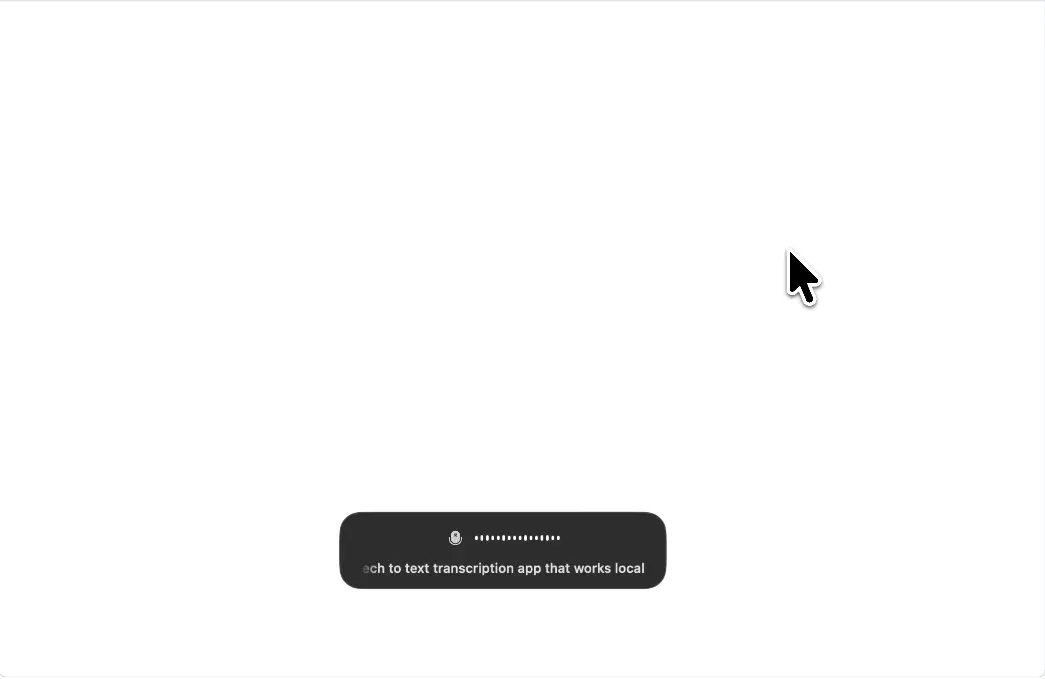
- Price: free, under the MIT license; a ready-to-install Mac download is available from GitHub Releases.
- Requirement: macOS 26 or later, with microphone and Accessibility permissions.
- Recognition choices: downloaded Whisper or Parakeet models for local transcription; Apple’s Direct Dictation is another selectable mode.
- Editing controls: custom vocabulary and configurable text-processing instructions.
- Clipboard behavior: the app saves and restores the clipboard around its automatic paste.
For a free local setup, download a Whisper or Parakeet model and keep Cloud AI enhancement and formatting off. The released app includes those optional cloud settings and uses your provider key, which can create usage charges. Its local Apple Intelligence features also depend on availability on your Mac. Kaze’s released processing code.
Kaze’s macOS requirement rules it out for an older installation. On a compatible Mac, its combination of a global shortcut and clipboard restoration addresses the repeated copy-and-paste step without requiring a paid plan.
Handy
Handy recognizes your speech locally and inserts the text into the app you’re using. I’d try it if you want a free, open-source option across Mac, Windows and Linux.
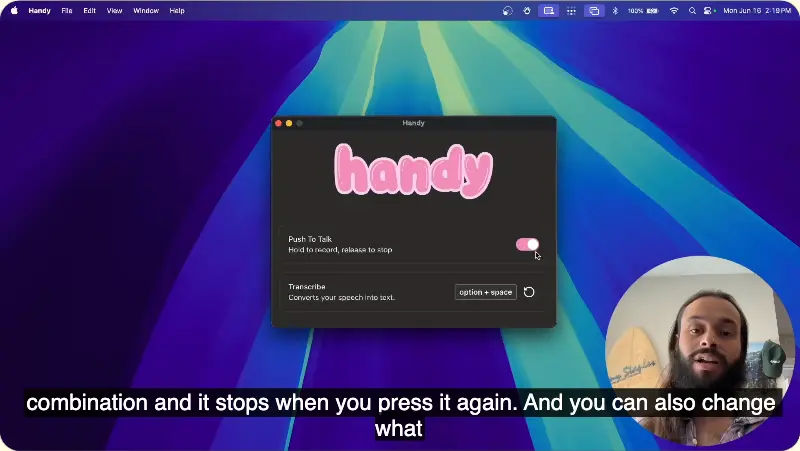
The Handy project provides:
- Price and license: free, under the MIT license.
- Platforms: macOS, Windows and Linux.
- Core workflow: download a model, choose a shortcut, speak and insert the transcript.
- Post-processing: supported; check the selected processor if you need the entire workflow to stay offline.
The practical qualification is text insertion. Handy documents platform-specific setup, and its Wayland support on Linux is limited. Test pasting into your email composer early, because a clean transcript inside the app is only half the job.
I’d test the ordinary shortcut-and-paste workflow before tuning post-processing. Post-processing goes through an API provider you configure with a key and base URL, so leave it off for a fully offline setup.
Parrot
Parrot is worth comparing if you want both speech recognition and text cleanup to run locally. It includes a local language model for cleanup, so removing filler words doesn’t require sending the transcript to a hosted rewriting service.
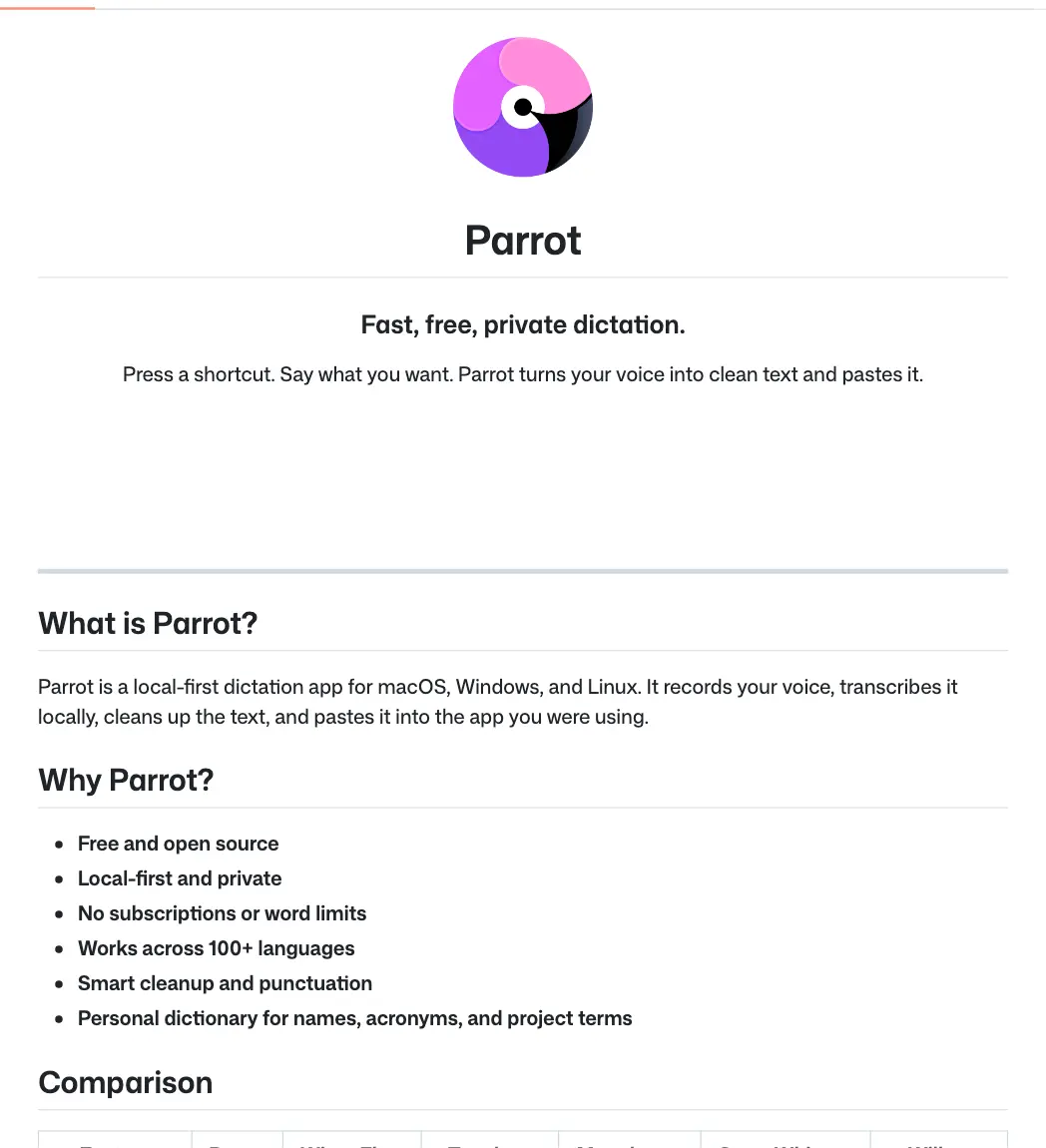
- Price: free and MIT-licensed, without a subscription or word limit.
- Downloads: packaged apps for macOS, Windows and Linux.
- Customization: a personal dictionary and an editable cleanup prompt.
- Processing: speech and cleanup models run on the computer; model downloads and app updates require network access.
The Linux qualification is substantial: Parrot’s documented Linux release supports X11, but automatic paste and global shortcuts aren’t implemented for Wayland. Windows insertion can also fail when the destination app runs with administrator privileges. Parrot’s platform and privacy details.
That makes Parrot a candidate for local cleanup on Mac, Windows or Linux X11. On Wayland, use Voxtype instead. Parrot is also a young project: its latest release, v0.2.1, shipped on May 31, 2026.
Spokenly
Spokenly provides free local dictation without an account or a weekly word limit. Its paid plan adds managed cloud processing.
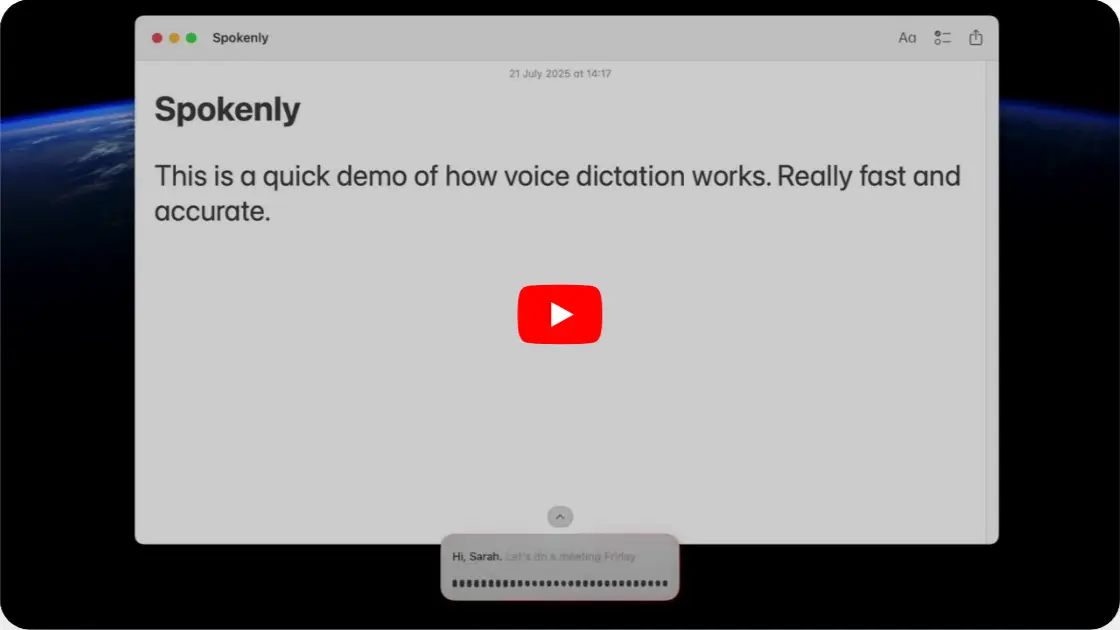
Its plan details include:
- Free local dictation: unlimited use without an account.
- Local models: Whisper and Parakeet options.
- Bring your own API keys: no additional charge from Spokenly, with provider usage billed separately.
- Optional Pro: $99.99 annually for managed cloud features.
- Listed platforms: macOS, Windows, Linux and iOS.
Spokenly isn’t open source. It identifies that distinction in its own comparison with OpenWhispr, which makes Handy or OpenWhispr more relevant if access to the code is part of your requirement.
The free plan’s local cleanup runs on Apple Intelligence, according to its pricing table. Apple Intelligence exists only on supported Apple devices, so Windows and Linux users get local transcription without that cleanup.
Pro becomes relevant if you want Spokenly to manage cloud transcription and text cleanup for you. The free local plan can remain your everyday dictation tool if you don’t need those cloud features.
OpenWhispr
OpenWhispr lets you compare an on-device model with managed cloud transcription in the same desktop app. You can try both before deciding whether to pay for unlimited cloud use.
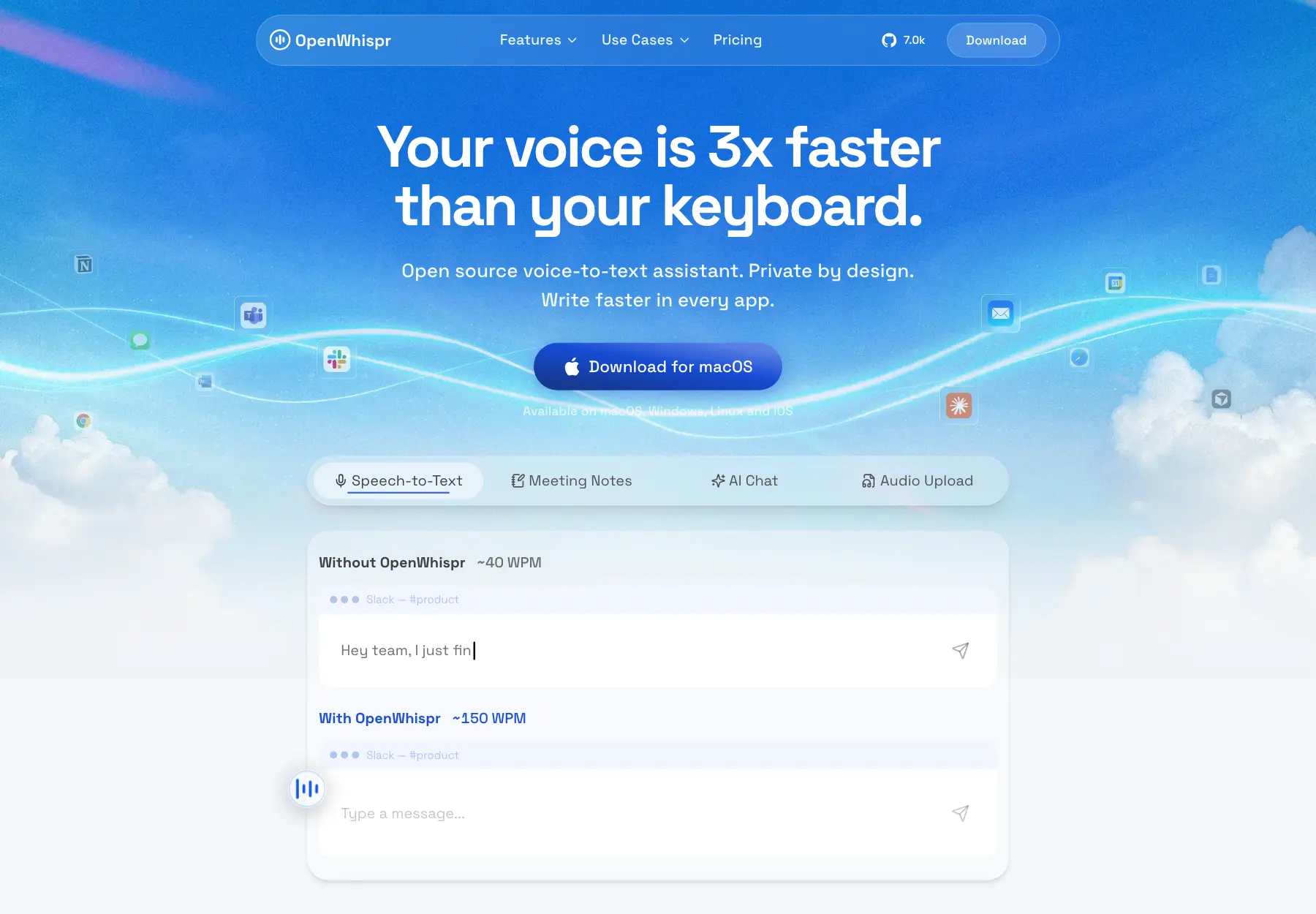
Its pricing includes:
- Free local dictation: unlimited.
- Free managed-cloud transcription: 2,000 words per week.
- Your own API keys: supported, with provider costs separate.
- Pro: $80 per year for unlimited managed cloud transcription and additional features.
- Platforms: macOS, Windows and Linux, plus an iOS app; the desktop app is MIT-licensed.
Those are three different cost arrangements. Running a local model has no per-use cloud provider bill, the managed free allowance resets weekly, and your own API key can create usage charges even while the app remains free.
OpenWhispr’s security documentation also distinguishes these routes. Local transcription stays on the device; your own key sends audio to the provider you select; managed cloud processing goes through OpenWhispr’s service. Optional cloud sync can store transcript history remotely.
The public desktop code lets you inspect the software. The hosted service still runs on OpenWhispr’s servers, and your own provider account keeps its own terms.
Voxtype
Voxtype provides push-to-talk dictation for Linux, including Wayland desktops. Its documentation covers shortcuts configured through the desktop or window manager and the tools needed to insert the transcript at the cursor.
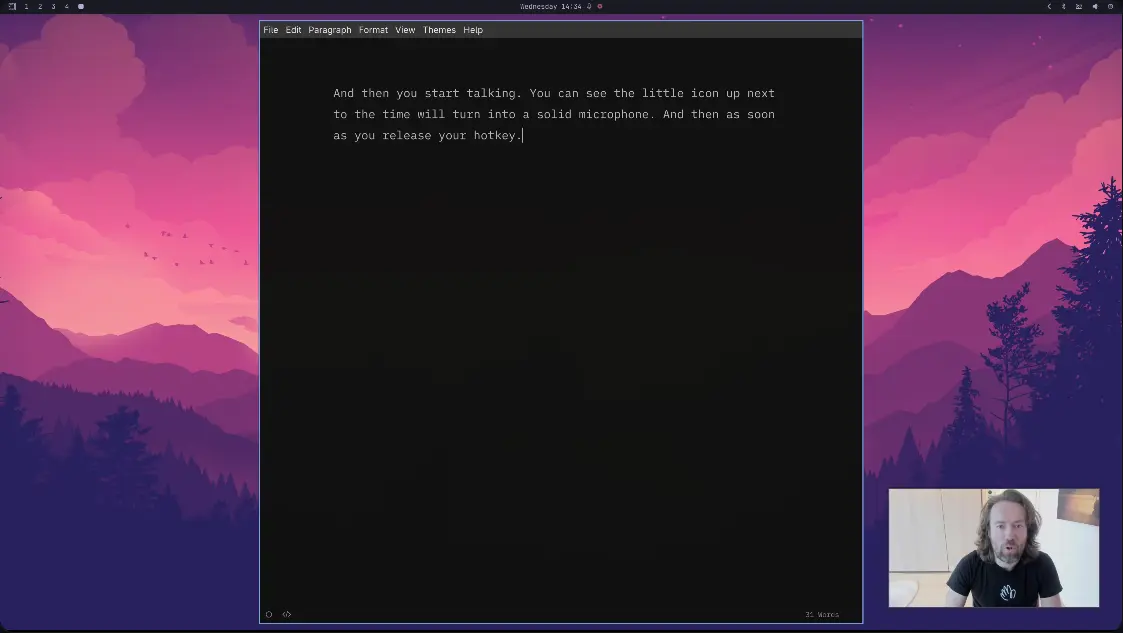
- Price: free, under the MIT license.
- Platforms: Linux and macOS; the project provides prebuilt packages.
- Recognition: local by default, with optional remote processing.
- Text handling: word replacements and spoken punctuation, plus optional processing through a local language model or a script.
The setup is more technical than installing a Mac menu-bar app. You may need to configure your desktop’s shortcut and install a text-insertion utility such as wtype. Voxtype’s setup documentation explains the platform-specific steps.
Voxtype is a better fit when you want dictation integrated with a Linux desktop you already configure yourself. Keep any optional post-processing local if avoiding cloud charges or transcript uploads is the reason you chose it.
What AI Dictation Should Do
I’d separate recognition, cleanup and rewriting before choosing the settings:
- Speech recognition turns the sounds you make into words. It needs to hear a name or amount correctly before anything else can work.
- Cleanup removes a false start or fixes punctuation while preserving the thought. If you correct Tuesday to Wednesday, Wednesday should survive.
- Rewriting changes the expression or structure. Making a rough explanation into a formal email is a bigger intervention than removing an “um.”
Cleanup is useful. Rewriting should be intentional. A dictation app that makes a sentence sound more professional while quietly strengthening a promise has created more work for you, even if the grammar looks better.
When I compare dictation with typing, I count the whole task:
Time to usable text = speaking time + waiting for insertion + review and correction time.
That last part can change the result completely. A transcript that appears immediately but needs careful repair may take longer than typing the same message yourself.
The AI writing tools you use afterward have a different job. Dictation should first get your instruction or explanation into the text field without deciding what you meant to ask.
Paid AI Dictation Tools
A paid app should reduce correction time or provide a feature your free option lacks. Several apps below offer free allowances, so you can compare their output before subscribing. Dollar amounts are in U.S. dollars unless stated otherwise; regional checkout prices and taxes can differ.
Raycast
Raycast is my first recommendation for someone who already has Pro. Its native Dictation feature is part of that plan. Before paying for another app, dictate a prompt or email with Raycast and check how much time you spend correcting it.
- Price: Pro costs $10 month to month or $96 annually. Native Dictation isn’t included in the permanently free launcher. Raycast pricing.
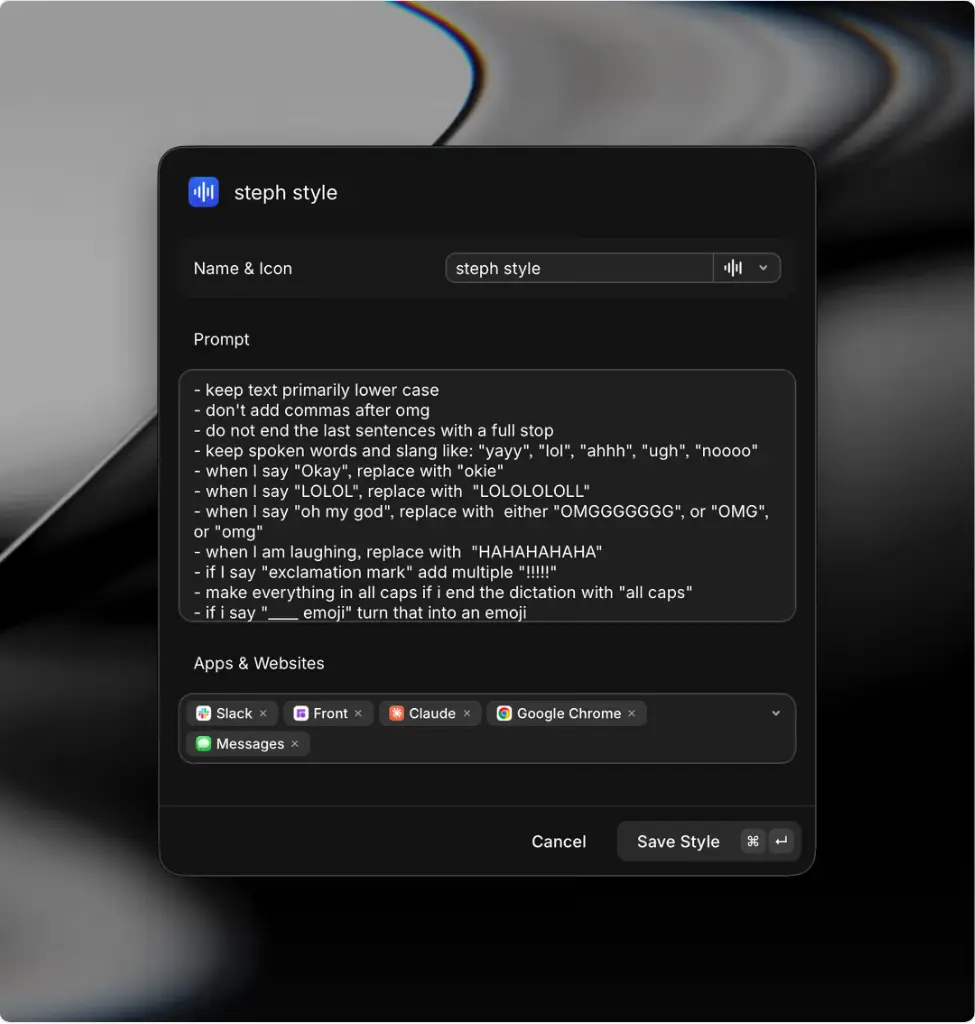
- Controls: custom vocabulary (up to 50 words) and global instructions let you specify names and writing preferences. App Context can use nearby text to help interpret what you’re saying. Dictation manual.
- Output: a shortcut starts dictation, and the result can be pasted into the active app or copied to the clipboard, depending on your settings.
The vocabulary should contain names the app repeatedly mishears. Cleanup instructions should specify which changes you want, such as removing filler words or fixing punctuation. A request to “make this professional” also invites changes to your wording.
Raycast is not an offline recommendation. Its privacy documentation says audio goes to a speech-to-text partner. Dictation history is stored locally, and enabling App Context adds nearby text and app details to that request. Its no-training and retention commitments don’t change where transcription happens. Raycast dictation privacy.
This is Raycast’s native feature. A third-party dictation extension from its store can have a different provider and privacy policy. The WordPress Manager extension is a separate part of my Raycast workflow, too.
Wispr Flow
I’d shortlist Wispr Flow when you want voice input across desktop and mobile. Try it on each device you use, since insertion and editing can feel different across platforms.
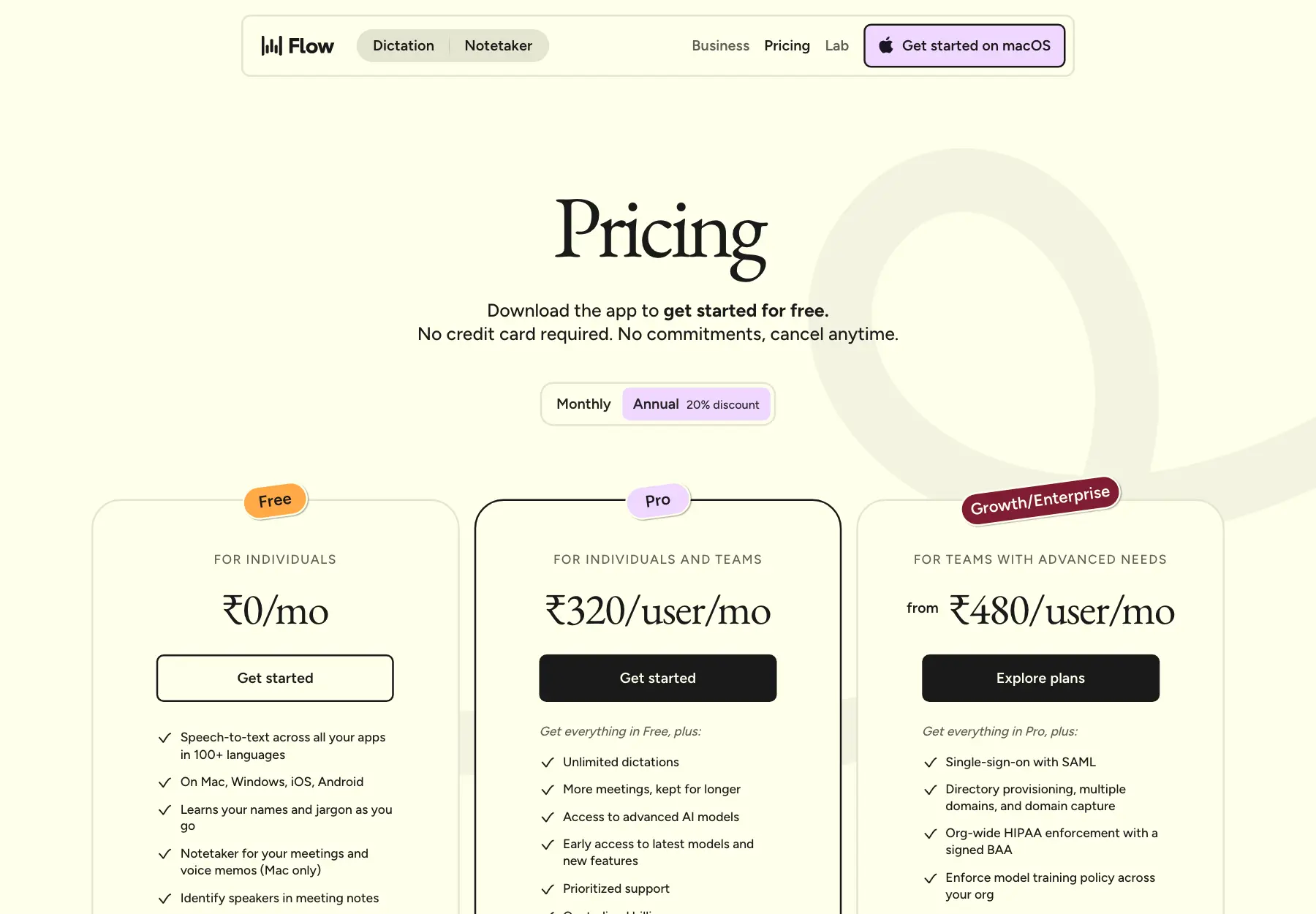
Its pricing page lists:
- Platforms: Mac, Windows, iOS and Android.
- Free desktop allowance: 2,000 words per week.
- Free mobile allowance: the pricing comparison lists 1,000 words per week.
- Android: supported; check your in-app allowance before relying on an unlimited free offer.
- Pro: $15 monthly or $144 annually for unlimited dictation; students get 50% off.
Indian readers should also compare the local purchase route. The Indian App Store listing lists ₹400 for the monthly Pro plan and ₹3,849 annually.
Flow’s transcription runs in the cloud. Its settings separate permission to use dictation data for model improvement from cloud storage of your dictation history, so these should be checked individually. Wispr privacy controls.
If you’re choosing between Flow and Raycast, I’d compare them in the same email composer and AI prompt box. Check whether each app inserts the transcript where your cursor is, without requiring you to copy it from a separate window.
Superwhisper
Superwhisper makes more sense when you want control over how speech becomes text. It separates the voice model, which recognizes speech, from the language model that processes the transcript. That gives you room to keep ordinary dictation restrained while using another mode for more deliberate rewriting. Superwhisper features.
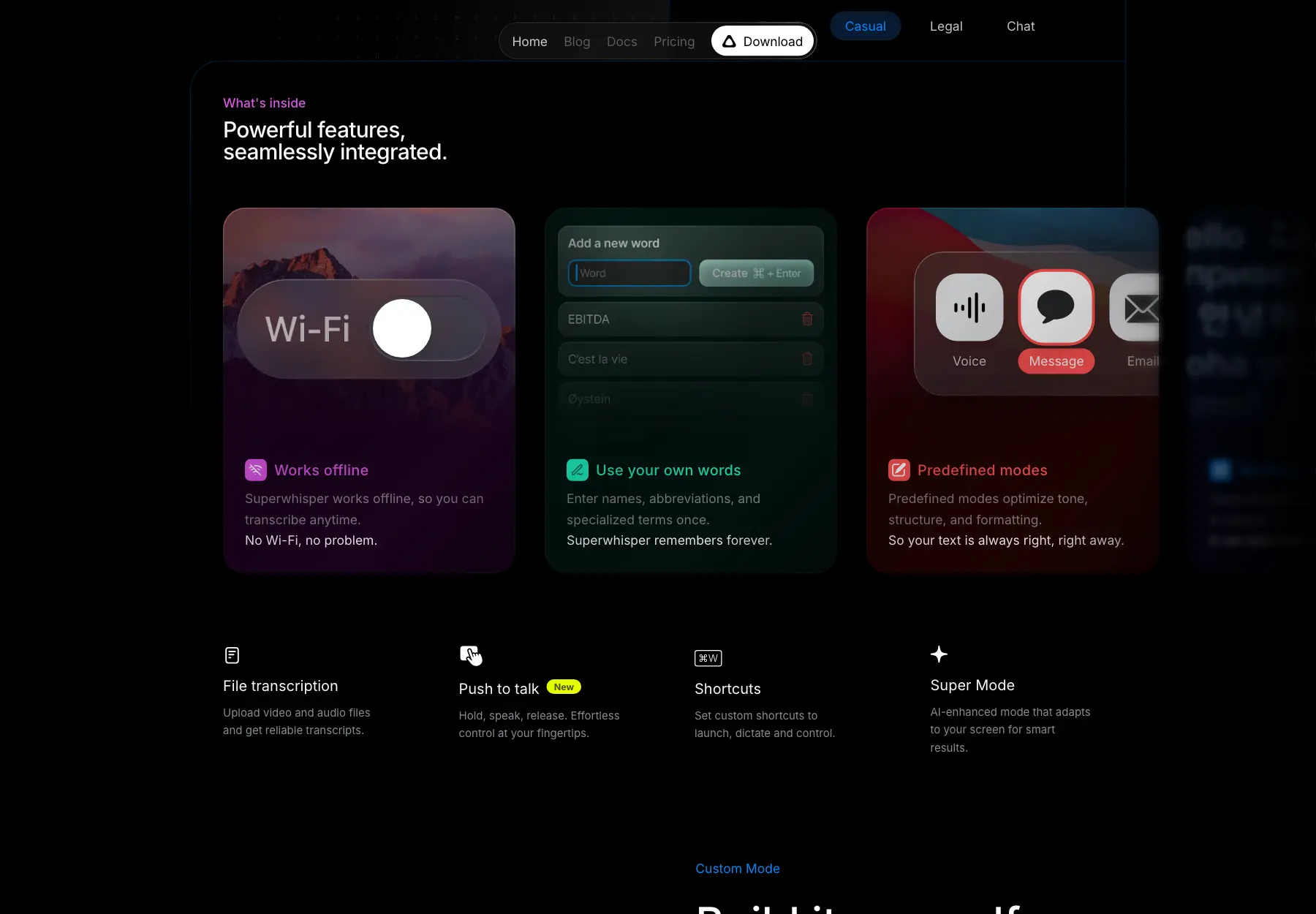
The Pro documentation lists:
- Monthly: $8.49.
- Annual: $84.99.
- Lifetime: $249.99.
- License coverage: unlimited Macs and Windows PCs, plus your iPhone and Android phone.
The free plan includes local Whisper models, custom vocabulary, text replacements and up to 2 modes, and the homepage offers 3,000 words of Pro features to try first. Pro adds cloud models, Parakeet, AI modes and other advanced features. I’d begin with a local Whisper model if your goal is free offline dictation. Superwhisper’s plan comparison.
Windows also has feature gaps. Its documentation lists configuration syncing and simulated keypresses among the features still being developed. A license covering several platforms doesn’t mean each app has identical behavior. Windows feature support.
Superwhisper is worth considering if you want to choose where recognition runs and configure text cleanup separately. If you mostly want to press a key and speak, those model choices add setup decisions you may not need.
VoiceInk
VoiceInk is the one-time purchase I’d consider for local transcription on an Apple Silicon Mac. Its Mac license covers the app; enabling optional cloud enhancement sends the transcript off the computer.
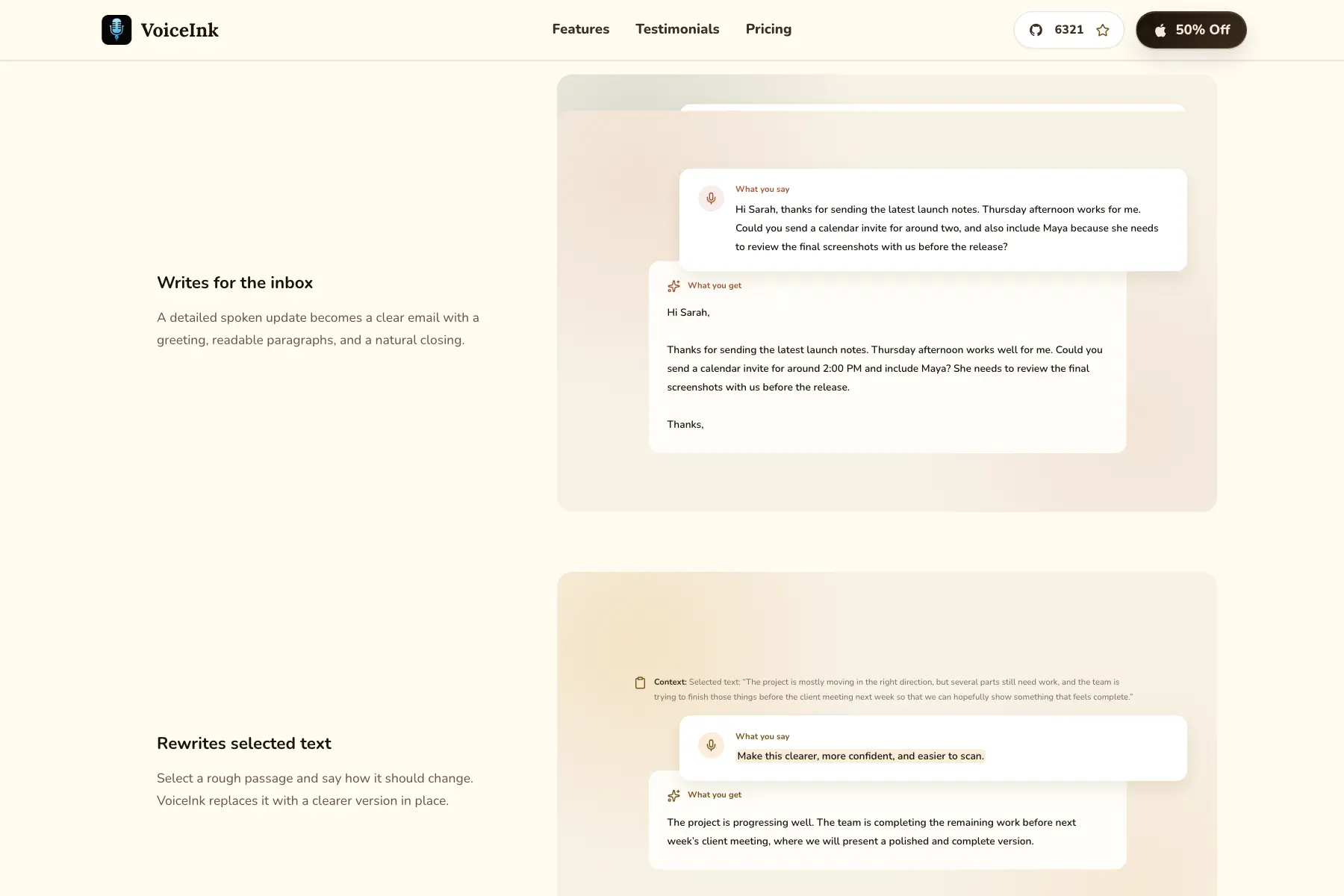
The VoiceInk website lists:
- Licenses: $25 once for 1 Mac, $39 for 2 Macs and $49 for 3, with lifetime updates.
- Hardware: Apple Silicon; macOS 14.4 or later.
- Transcription: local processing on the Mac.
- Optional cloud enhancement: sends the transcribed text for processing when enabled.
If you enable cloud enhancement, your transcript leaves the Mac even though speech recognition happened locally. I’d leave it off for an offline workflow.
VoiceInk’s Mac source code is available under GPLv3, and you can build it yourself. The paid download gives you the packaged app and license management.
VoiceInk also lists an iPhone and iPad app. It’s free during its beta and becomes a one-time purchase after that.
Aqua Voice
Aqua Voice belongs on the shortlist if specialized vocabulary and detailed AI prompts are what ordinary dictation keeps getting wrong. Its custom instructions and dictionary give you ways to tune those inputs, though the result still needs to be judged on the terms you use.
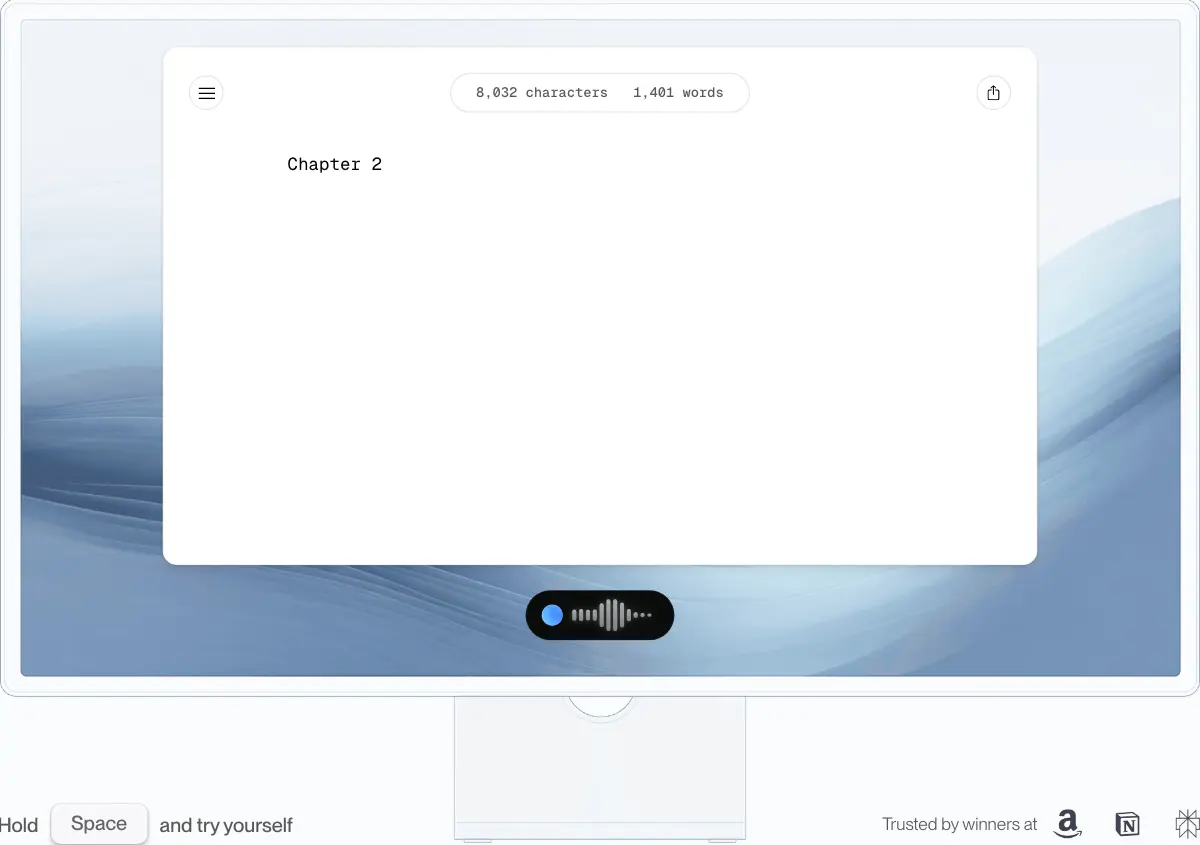
I would check these plan and platform details against the mode you want to use:
- Starter: 1,000 introductory words, not a weekly allowance.
- Pro: $10 monthly or $96 annually.
- Platforms: Mac, Windows and iPhone; Android is waitlist-only.
- Processing: cloud dictation needs an internet connection. Aqua says offline availability varies by platform, app version and mode; confirm support for your setup.
Realtime Mode is a separate buying condition. It belongs to Max at $30 monthly or $288 annually, rather than the standard Pro plan for new subscribers. Existing subscriptions from before the change may retain it. Realtime plan details.
Aqua’s live transcript appears in its toolbar; the message goes into the destination app when you finish. That is different from watching every word appear directly in the email or prompt box.
Max also has a “send it” command. While comparing results, I’d use its Paste Only setting so a recognition mistake doesn’t become a submitted message before you’ve read it. Speed is helpful only if you retain control of the final text.
Typeless
Typeless is worth comparing if you want more help turning disorganized speech into finished prose. That also makes it a tool to evaluate carefully for how much it changes your wording.
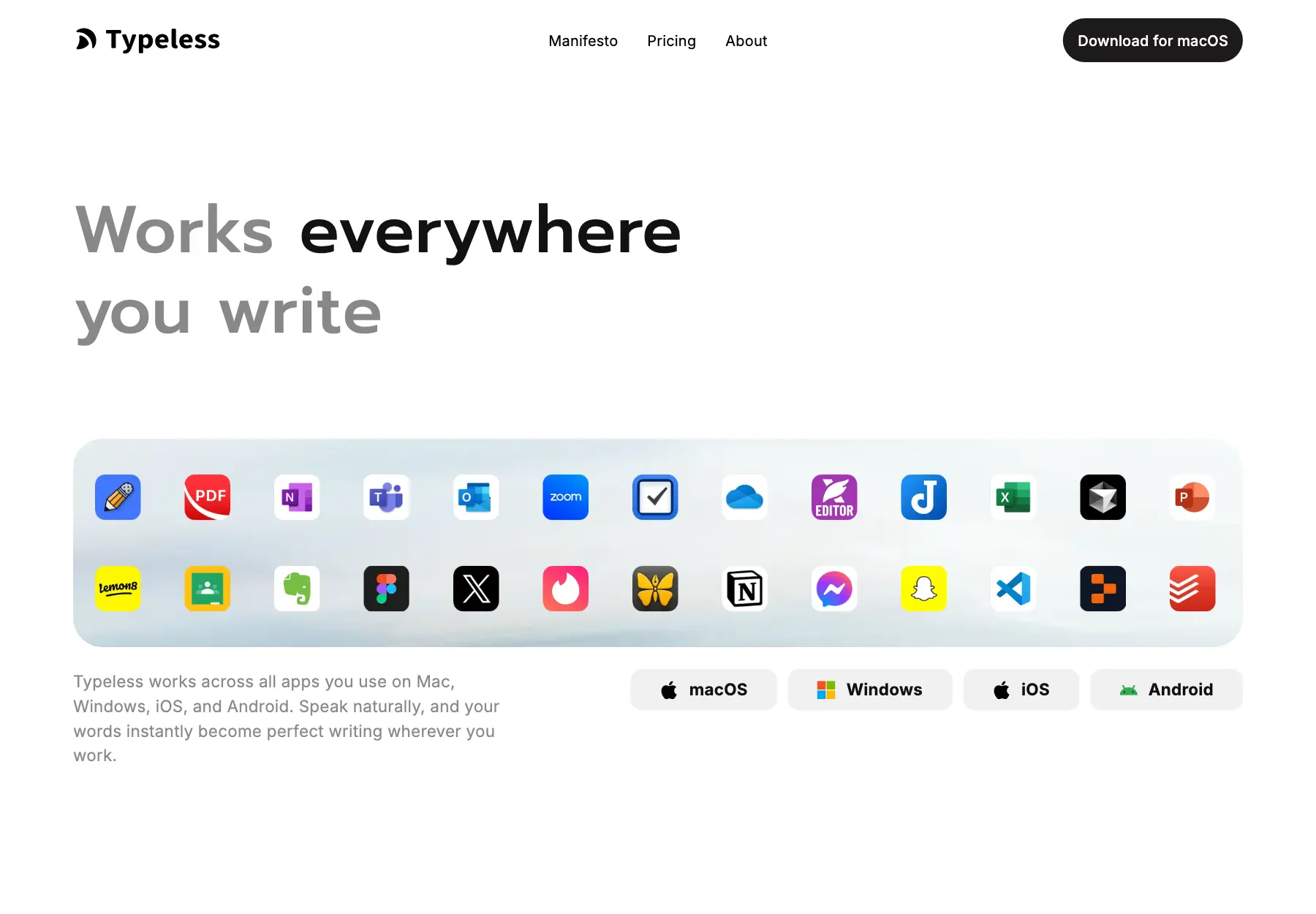
Its pricing page lists:
- Free: 2,000 words a week with standard accuracy, cut from 8,000 on September 22, 2026.
- Pro: $30 month to month or $144 annually, with enhanced accuracy and unlimited words.
- Platforms: macOS, Windows, Linux, iOS and Android.
- Personalization: a dictionary and writing-style controls.
The $12 a month is the annual plan divided by 12. Trying Pro for a single month costs $30.
Try the free plan with your own writing before upgrading. The vendor’s standard and enhanced accuracy labels don’t tell you how many corrections your speech will need.
Typeless performs transcription in the cloud. Its data controls say audio isn’t stored, while history stays on your device unless you enable cloud sync. Local history is different from local processing. Typeless data controls.
For your own writing, the useful test is whether the cleanup retains your qualifications and ordinary phrasing. A polished paragraph is a poor result if you need to put your meaning back into it.
Other Dictation Options
MacWhisper suits you if you also transcribe recordings. Google’s Eloquent is free, offline and strongest on the Mac right now.
MacWhisper
MacWhisper makes sense if you also need to transcribe recordings. Its direct-download Mac app includes system-wide dictation, and Pro is listed at €64 as a one-time purchase.
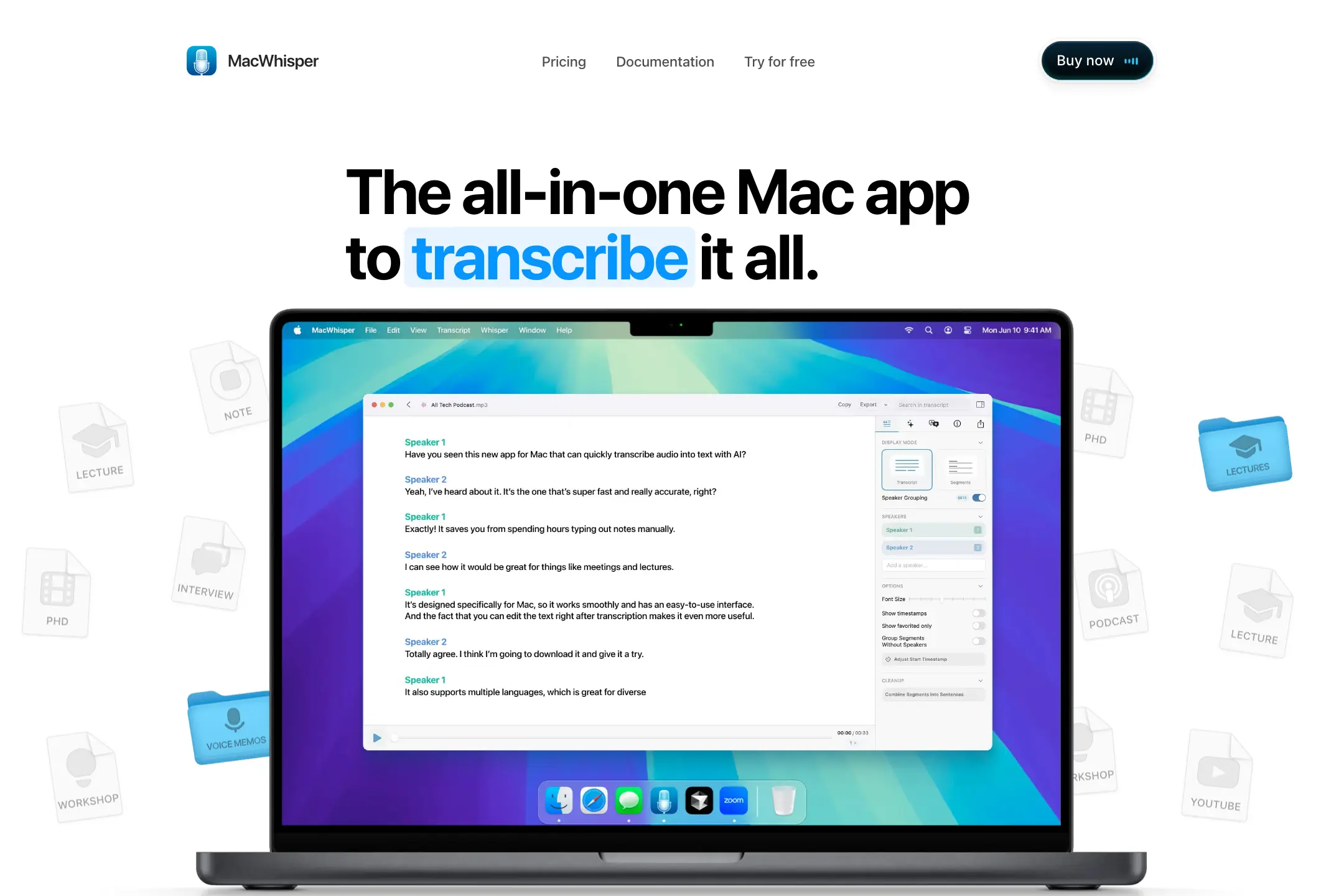
The edition matters:
- MacWhisper direct download: the developer’s documented route for dictating into text fields on your Mac.
- Whisper Transcription from the App Store: a related product with different features, sold as a weekly, monthly or yearly subscription.
- License keys: the direct-download license doesn’t activate the App Store edition.
The developer explains those edition differences. If system-wide dictation is why you’re buying, follow the direct-download route instead of assuming the similarly named App Store app is equivalent.
Google AI Edge Eloquent
Google AI Edge Eloquent is free dictation that runs on your device, and the Mac app is now the stronger half. Google’s June 3, 2026 announcement says the Mac version runs its whole feature set on-device and dictates into any app with a hotkey, plus Voice Edit. Both downloads are on its official page.
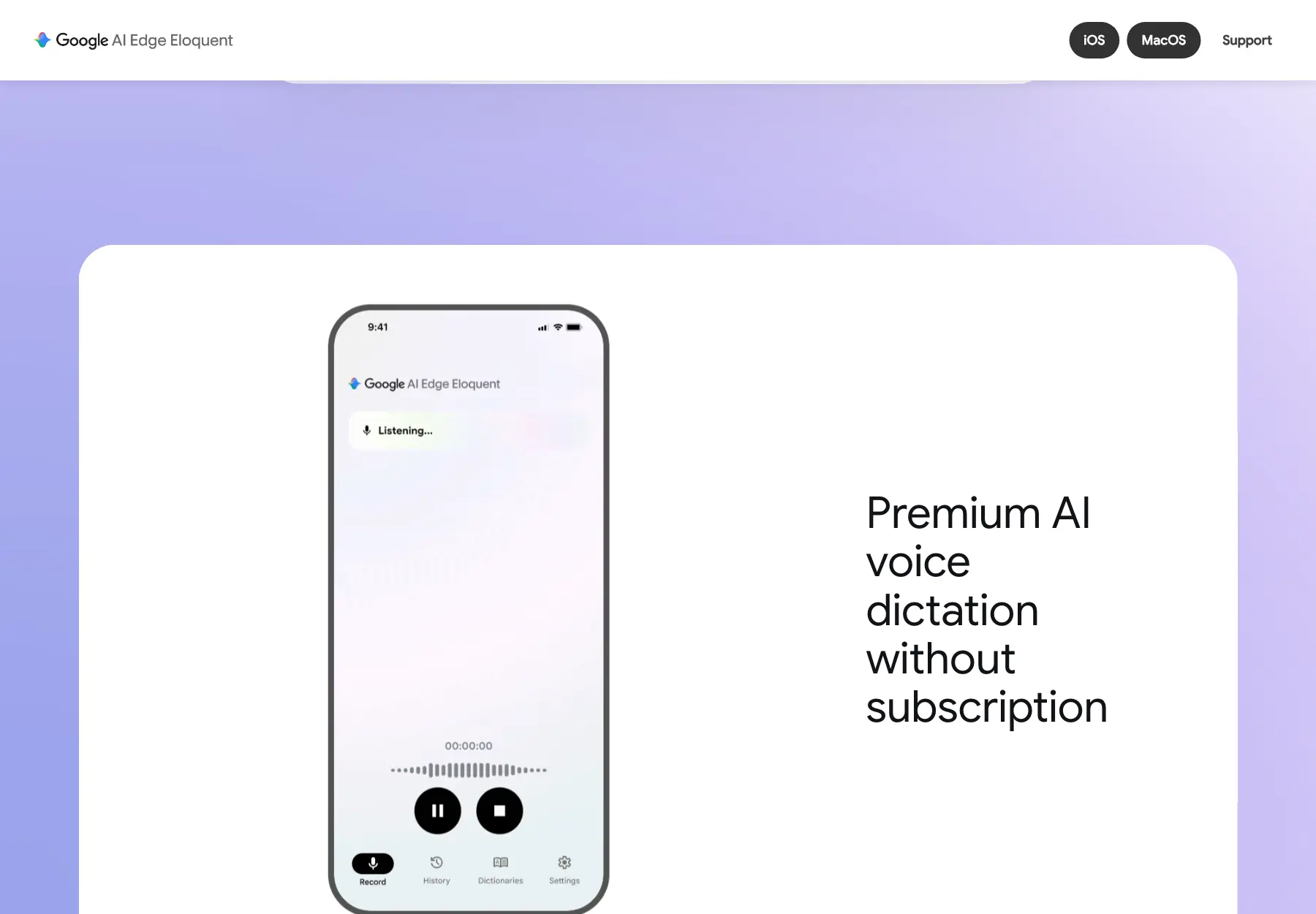
Its iOS listing describes unlimited, free offline dictation, but there are qualifications:
- Keyboard integration is still described as forthcoming in that listing.
- Models require an initial download.
- Google’s developer responses say some text styles and non-English polishing may require connectivity.
On iPhone, the missing keyboard is the catch: you dictate inside Eloquent and move the text yourself. On a Mac, it’s a free offline rival to Kaze and Handy, and I’d put it through the same insertion test before switching.
Free Voice Typing Tools
An included tool should get a fair chance before you buy anything. For occasional messages or short notes, advanced cleanup may save too little work to justify another app.
| Tool | Where It Fits | Important Condition |
|---|---|---|
| Apple Dictation | Ordinary text entry on a Mac | Keyboard settings show whether dictation runs on your device; macOS 27 adds a more accurate on-device model for M3 or later Macs with at least 12GB of memory |
| Windows Voice Typing | Text boxes on a Windows PC; opened with Windows + H | Needs an internet connection; Copilot+ PCs add Fluid dictation, which cleans up text with on-device models |
| Google Docs Voice Typing | Writing documents in Chrome, Edge or Safari | A document workflow, not a universal desktop input tool |
| Gboard | Voice entry through the Android keyboard | Available features vary by language and device |
If one of these already produces text you can use with little correction, that is a good reason to keep it.
Windows Voice Access is a separate feature from Voice Typing. It supports broader hands-free PC control and uses on-device recognition that can work offline after setup. Someone who needs help controlling the computer should consider that wider capability. Microsoft Voice Access.
If your only destination is ChatGPT, its own dictation is another starting point. The microphone records a prompt and returns editable text before you send it; conversational Voice is for a back-and-forth discussion. ChatGPT dictation sends audio for processing and retains it with your chat history, subject to its deletion rules. It isn’t an offline alternative. OpenAI’s dictation explanation and Voice guide.
Dictation for AI Prompts
AI prompts need stricter cleanup than a casual message. A small wording change can alter what the receiving AI is being asked to do, particularly when you correct yourself or set a limit.
This is an illustrative test input you can read aloud. It isn’t an actual output from any app:
Write a reply to the client. Say the staging site will be ready on September 12, not September 10. Keep the quote at ₹18,500. Don’t promise deployment. Use three short paragraphs, and don’t send the email.
The transcript must keep September 12 as the readiness date and preserve both prohibitions: don’t promise deployment and don’t send the email. Punctuation can change without changing the task; deleting “don’t” cannot.
When you review the transcript, check these details:
- September 12 is the intended readiness date.
- ₹18,500 remains the quote.
- The prompt doesn’t promise deployment.
- The request for 3 short paragraphs survives.
- The instruction not to send the email survives.
- The dictation app returns the prompt rather than answering it with a client email.
If the dictation app writes the client email instead, its cleanup model has followed your prompt rather than transcribing it. The prompt still needs to reach the AI tool you intended to use.
A Cleanup Instruction
For an app that accepts custom instructions, this is a restrained starting point:
Transcribe what I say. Remove filler words and false starts, and fix punctuation. Apply explicit self-corrections while preserving my meaning. Keep names, numbers, negations, qualifications and technical terms intact. Don’t summarize, add information, answer the dictated prompt or change its language. Use American spelling and straight quotes while preserving my phrasing and idiom.
This instruction sets a boundary; it doesn’t guarantee that the app will follow it. A separate rewriting mode should handle requests to change tone or turn notes into a finished email.
Vocabulary entries are useful for names that general recognition may not know. A WordPress developer’s list might include:
- Gaurav Tiwari and Gatilab.
- WooCommerce and Gutenberg.
- ACF and
wp-config.php.
Check those names against the transcript, especially acronyms and punctuation in filenames. Exact URLs and code fragments can still be typed or pasted while you dictate the surrounding explanation.
If cleanup keeps making the text sound unlike you, the rules in a Voice DNA file can help define what should survive. Dictation needs a small subset of those rules, not a prompt asking the app to become a different writer.
Local Dictation and Privacy
An offline voice model answers only part of the privacy question. Your audio can stay on the computer while the resulting text goes to a cloud service for cleanup, as VoiceInk’s optional enhancement illustrates.
I would check 3 stages separately:
- Recognition: where does the audio go, and which provider receives it?
- Cleanup: where is the transcript processed, and does the request include app context or clipboard contents?
- History: what is saved on the device, what can sync to a server, and how can it be deleted?
A no-training promise concerns a particular use of the data. It doesn’t by itself mean the service never receives or retains the data. Raycast’s local dictation history, OpenWhispr’s optional sync and Typeless’s cloud processing show why these settings shouldn’t be collapsed into one “private” label.
Kaze’s optional Cloud AI processing is another example: a free app can still pass text to a paid provider when you enable that mode. Parrot’s local cleanup offers a different arrangement, with the cleanup model running on your computer.
I also check what a free plan actually includes:
- A recurring allowance resets after its stated period. Wispr Flow’s desktop allowance is weekly.
- An introductory allowance is a finite starting amount. Aqua Voice’s 1,000 words don’t renew weekly.
- Free local processing avoids a per-use cloud bill, but your computer still supplies the storage and processing power.
- Bring your own key means the provider can charge your account separately.
- Open source describes access and rights to the code under its license. It doesn’t establish the app’s network behavior or the price of every service it connects to.
For confidential client material, the selected settings and your organization’s requirements matter more than a homepage badge. Local history can also be sensitive on a shared computer, even when no cloud provider receives it.
How to Test a Dictation App
A useful trial compares the finished text in the applications where you write. You don’t need a studio microphone or a large benchmark to find out whether a tool creates less work for you.
Start with your included tool and one shortlisted alternative. Use the same microphone, similar room noise and the same tasks:
- A messy AI prompt: include a false start and a correction like the date change above.
- A professional email: check whether the app adds a promise or makes the tone stronger than you intended.
- A 2-minute explanation: include natural pauses and check for omitted details.
- Technical vocabulary: use the product names and filenames your work depends on.
- Text insertion: try an email draft, a browser form, an AI prompt box, a native editor and a Gutenberg draft if you use WordPress.
Run each task more than once. First compare the defaults, then add the same relevant vocabulary and cleanup rules where the apps support them. Keep a model’s first-load delay separate from repeated use so you understand both the occasional wait and the normal experience.
For each attempt, record the total time until the text is ready, the corrections you made and any lost meaning. A pasted transcript in the wrong field counts as an insertion failure, even if every word is accurate.
Hindi and Mixed-Language Dictation
English, Hindi and mixed Hindi-English speech need separate trials. A product that lists both languages can still stumble when you switch between them mid-sentence.
The intended output should be explicit:
- English speech written in English.
- Hindi speech written in Devanagari.
- Hindi speech written in Romanized Hindi.
- Mixed speech with the language changes preserved.
Translation into English is a different task again. Check that the selected model supports the language you need, then judge whether the app preserved it rather than silently translating or polishing it into something else.
After those trials, time yourself typing a similar piece and correcting it. The comparison should end when both versions are ready to use, not when the microphone stops listening.
The Limits
Dictation won’t resolve an unclear thought for you. An app can turn a rambling explanation into neat sentences while leaving the underlying request ambiguous, or make it appear more certain than you intended.
It also doesn’t verify the facts you dictate. A correctly transcribed wrong date is still a wrong date, and exact code needs its own review even when the surrounding explanation reads well.
Your working environment can be the deciding factor. Speaking client information in a shared room may be inappropriate regardless of where the model runs. Sometimes the keyboard is simply the more suitable input method.
Common Dictation Mistakes
Turning every utterance into polished prose can remove useful hesitation. “We might be able to finish this” shouldn’t become a firm commitment because a style setting prefers confident sentences.
Automatic sending removes your chance to catch an error. During a trial, text should remain editable before it becomes an email or an instruction to another tool.
Buying an annual plan after a convincing demo commits you before you know how the app handles your ordinary work. The free allowance or a month of paid use can reveal problems that a prepared sample never touches.
Timing only recognition rewards the wrong part of the process. Review and correction belong in the comparison, particularly when a mistake changes an amount or instruction.
Final Remarks
Start with the dictation you already have and one alternative that addresses a specific problem, such as misheard names or copying transcripts between windows.
Dictate the sample prompt in both apps, correct each transcript and compare the total time. A paid app should save you correction or copying time, or meet a requirement your current tool can’t, such as offline use.
Tell Google you want more of this.
Add Gaurav Tiwari as a preferred sourceOne tap, and this site shows up more often in your own Top Stories, AI Overviews and AI Mode. Remove it any time.
Disclaimer: This site is reader-supported. If you buy through some links, I may earn a small commission at no extra cost to you. I only recommend tools I trust and would use myself. Your support helps keep gauravtiwari.org free and focused on real-world advice. Thanks. - Gaurav Tiwari