
The Core Table Block
The Core Table block shows a published dataset as a table. Visitors can search it, sort it, filter it and page through it, and it still renders fully without JavaScript.
Add the Block
- In the block editor, insert Core Table from the Widgets category.
- Select Choose dataset, or Create dataset to build a new one.
- Pick a dataset in Choose a dataset. The picker searches as you type.
By default the picker lists published datasets only. Users who can edit datasets also see Show datasets I can edit, which includes unpublished drafts. Only published data ever appears on your site.
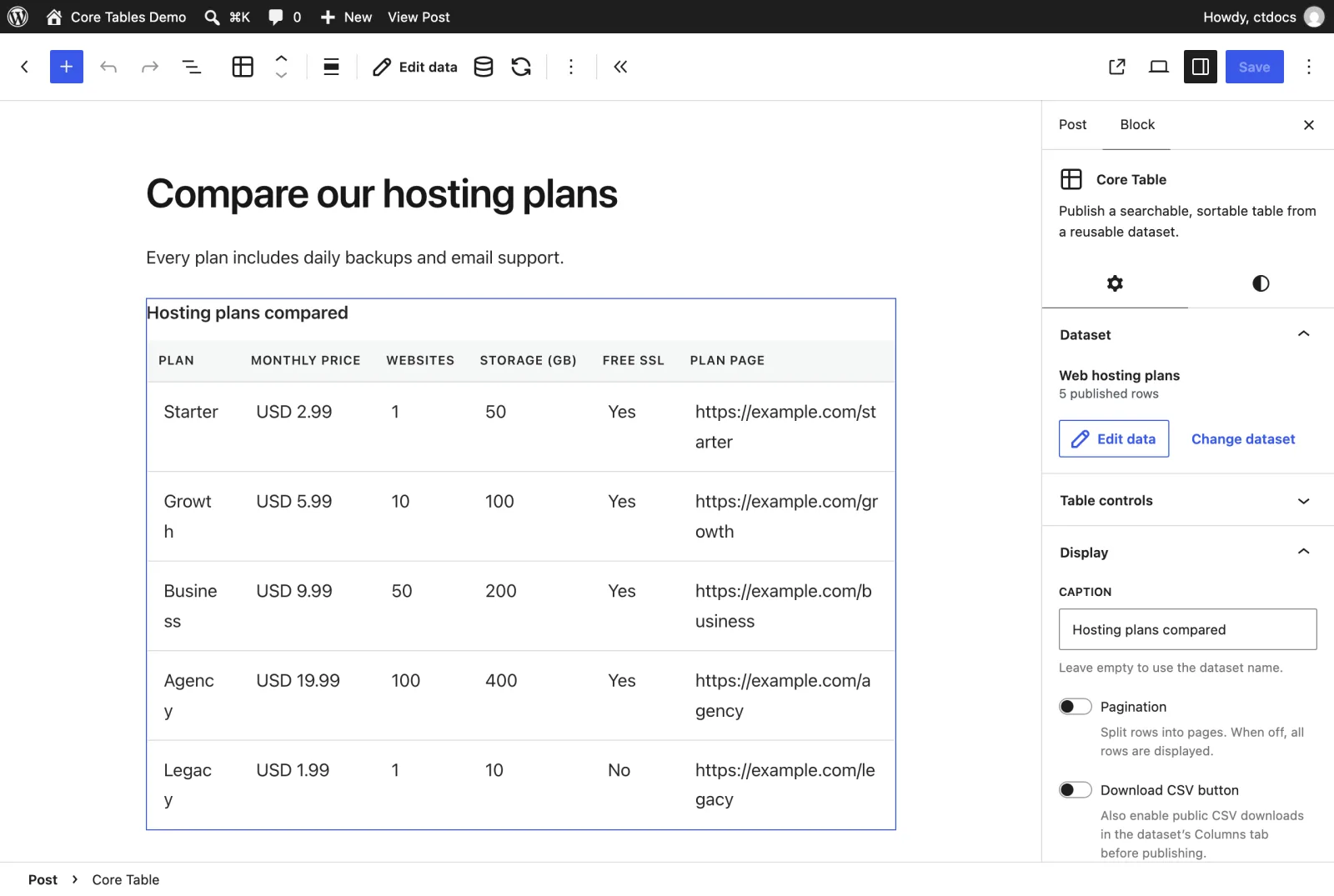
Dataset Panel
The Dataset panel shows the dataset name and how many published rows it has.
- Edit data opens the dataset editor, when you’re allowed to edit that dataset.
- Choose dataset or Change dataset picks another one.
The block preview always shows the published revision. An unpublished dataset shows a notice with Edit and publish data, Retry preview and Choose another dataset.
Saving the post doesn’t publish the dataset. Publish it from the dataset editor.
Table Controls
The Table controls panel is collapsed by default.
| Setting | Default | What it does |
|---|---|---|
| Column filters | Off | Adds one filter box per column. Filters match the exact value |
| Search | On | Adds a search box that matches part of any public cell |
| Sortable headings | On | Makes each heading a sort button |
| Sticky header | Off | Keeps the heading row visible while the table scrolls |
Display Settings
| Setting | Default | What it does |
|---|---|---|
| Caption | The dataset name | Text above the table. Leave it empty to use the dataset name |
| Pagination | Off | Splits rows into pages. When off, every row shows |
| Rows per page | 10 | 1 to 100, shown only when Pagination is on |
| Download CSV button | Off | Adds a Download CSV button for visitors |
| Mobile layout | Horizontal scroll | How the table fits small screens |
The 3 mobile layouts are:
- Horizontal scroll, where the table keeps its columns and scrolls sideways.
- Stack rows on phones, which turns each row into a stacked card on screens up to 600 px wide.
- Stack rows on phones and tablets, which does the same up to 900 px.
The Download CSV button needs one more step. The dataset must have Allow visitors to download public columns as CSV switched on in its Columns tab, and that revision must be published. Until then, the block’s help text reminds you to turn it on.
Table Appearance
The block’s Styles tab has a Table appearance panel. Each setting defaults to Use site default, which follows Appearance Settings.
- Table style: Clean, Striped rows or Cell borders.
- Row spacing: Compact, Comfortable or Spacious.
- Corner shape: Square, Subtle or Round.
- Accent color, with Use site color to clear it.
- Reset block appearance clears every override at once.
The accent must be a 6-digit hex color, such as #2271b1. An override that isn’t valid falls back to the site setting on its own; the block’s other overrides still apply.
The usual WordPress color, spacing and font size controls are there too.
Toolbar
The block toolbar has Edit data, Change dataset and Refresh preview. Use Refresh preview after publishing a dataset from another tab.
How the Table Behaves for Visitors
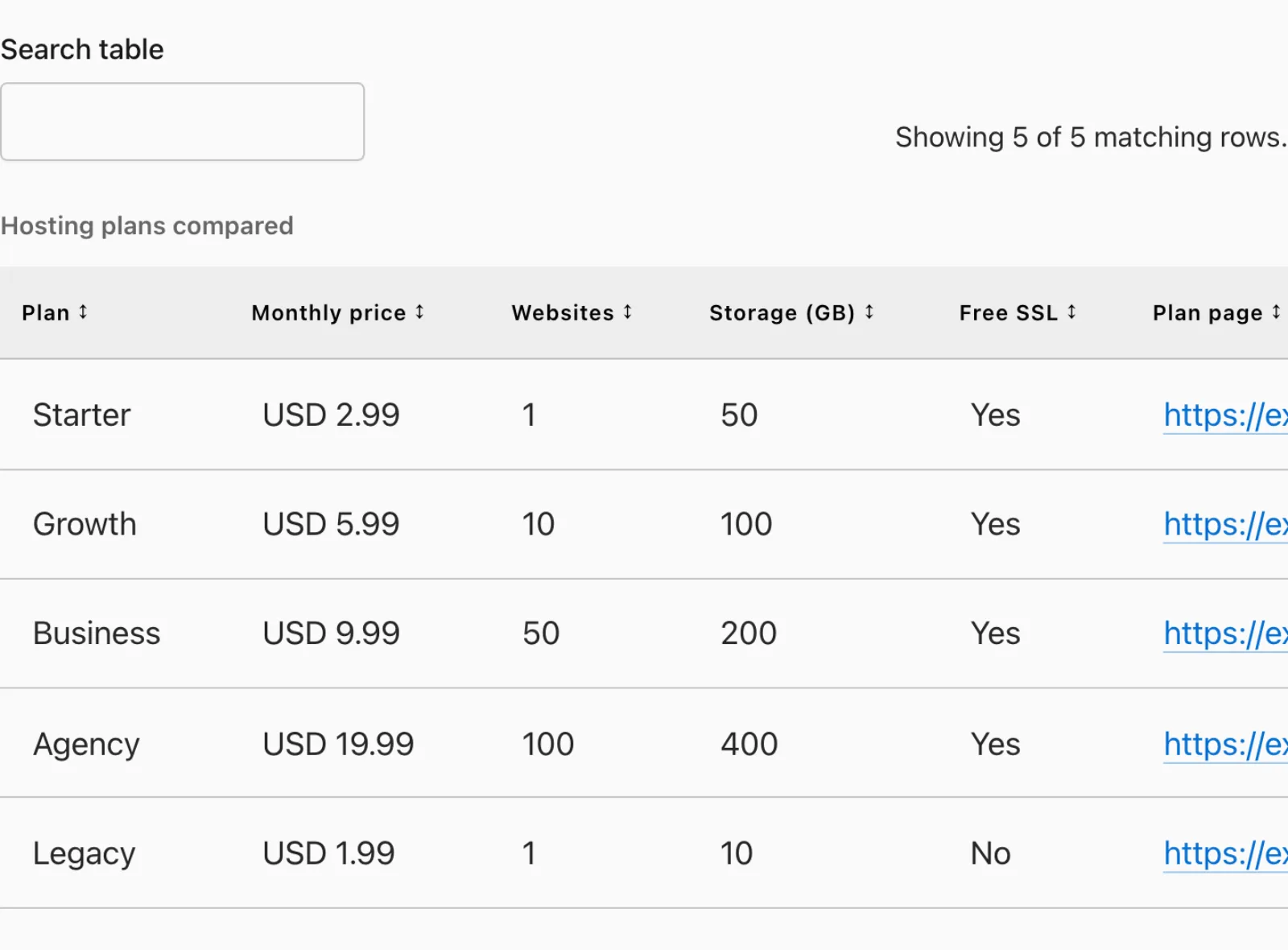
- Search matches part of any public cell, except image columns.
- Sorting toggles between ascending and descending. Numbers, prices and Yes/No sort by value, and text sorts by your database’s rules. Empty cells always sort last. Image columns can’t be sorted.
- Column filters match the exact value. A number filter needs a plain number, and a Yes/No filter takes true, false, 1 or 0.
- The status line reads “Showing 5 of 5 matching rows.” or “Page 1 of 3. 25 matching rows.”
- Stacked layouts add a Sort rows menu, because the headings are hidden on small screens.
The whole table is in the page HTML, so it reads fine without JavaScript. Page links still work then too.
With JavaScript on, the table reloads its rows from your site’s public REST API to power search and sorting. If a security plugin blocks anonymous REST requests, visitors see “The table could not be refreshed. The last loaded rows are still shown.” and search stops working.
When Nothing Shows
If the dataset is unpublished, trashed or deleted, visitors see nothing. Logged-in editors see “Choose and publish a Core Tables dataset to display it here.” A dataset also needs at least one public column before it can be published.
Related Docs
- The Core Chart Block shows the same data as a chart.
- [The [coretable] Shortcode](https://gauravtiwari.org/docs/core-tables/tables-and-charts/coretable-shortcode/) has every setting as an attribute for classic themes.
- How to Update One Table Across Many Posts at Once shows how one dataset feeds many blocks.
For a step-by-step walkthrough, see How to Move Your TablePress Tables to Core Tables.