
How to Let AI Build Your Tables with Site Agent
Turning research into a table is tedious. You collect the numbers in one place, retype them into WordPress, fix the column types and then copy the embed code into the post.
An AI client can do most of that for you. You give it the data or the task, it builds the dataset on your site and it hands back the block or shortcode to place. Publishing still waits for your word.
Core Tables is my plugin for reusable tables and charts in WordPress. It ships a core-tables skill for Site Agent, my plugin that connects AI clients such as Claude to a WordPress site. Core Tables itself sends nothing to any AI service.
Before You Start
You need:
- Core Tables 1.1.0 or newer, on WordPress 6.9 and PHP 8.3 or newer.
- Site Agent 0.4 or newer, connected to your AI client, with its PHP tool turned on.
- A WordPress account with Core Tables access. Every command runs as the connected user, with that user’s permissions. An editor can create and publish their own datasets. Plugin imports need an administrator.
How the Skill Works
When Core Tables is active, it registers the core-tables skill with Site Agent. Your AI client reads it through Site Agent’s list-skills and get-skill tools and learns the commands.
The client then runs core_tables_agent() through Site Agent’s PHP tool. A create call looks like this:
return core_tables_agent('dataset.create', [
  'name' => 'Hosting plans',
  'rows' => [
    ['Plan' => 'Starter', 'Price' => '$2.99', 'Sites' => 1],
    ['Plan' => 'Business', 'Price' => '$9.99', 'Sites' => 25],
  ],
]);
Column types are detected from the values, the same way as a pasted table. The result is a private draft.
Ask for a Table
You don’t need to write the code. Ask in plain words, for example:
- “Create a Core Tables dataset called Hosting plans from this list, keep the Notes column private, and don’t publish it.”
- “Show me the columns and types you created.”
- “Change the Price column to a currency in USD and publish the dataset.”
- “Give me a Core Chart block that compares WordPress, Shopify and Wix by year as a line chart.”
The skill tells the client to publish only when you ask, and to leave cells empty when it doesn’t know a value. It is wise to say “don’t publish” in your first message anyway, so you review the draft yourself.
Review Before It Goes Live
Open Core Tables in wp-admin. The new dataset is listed as Draft.
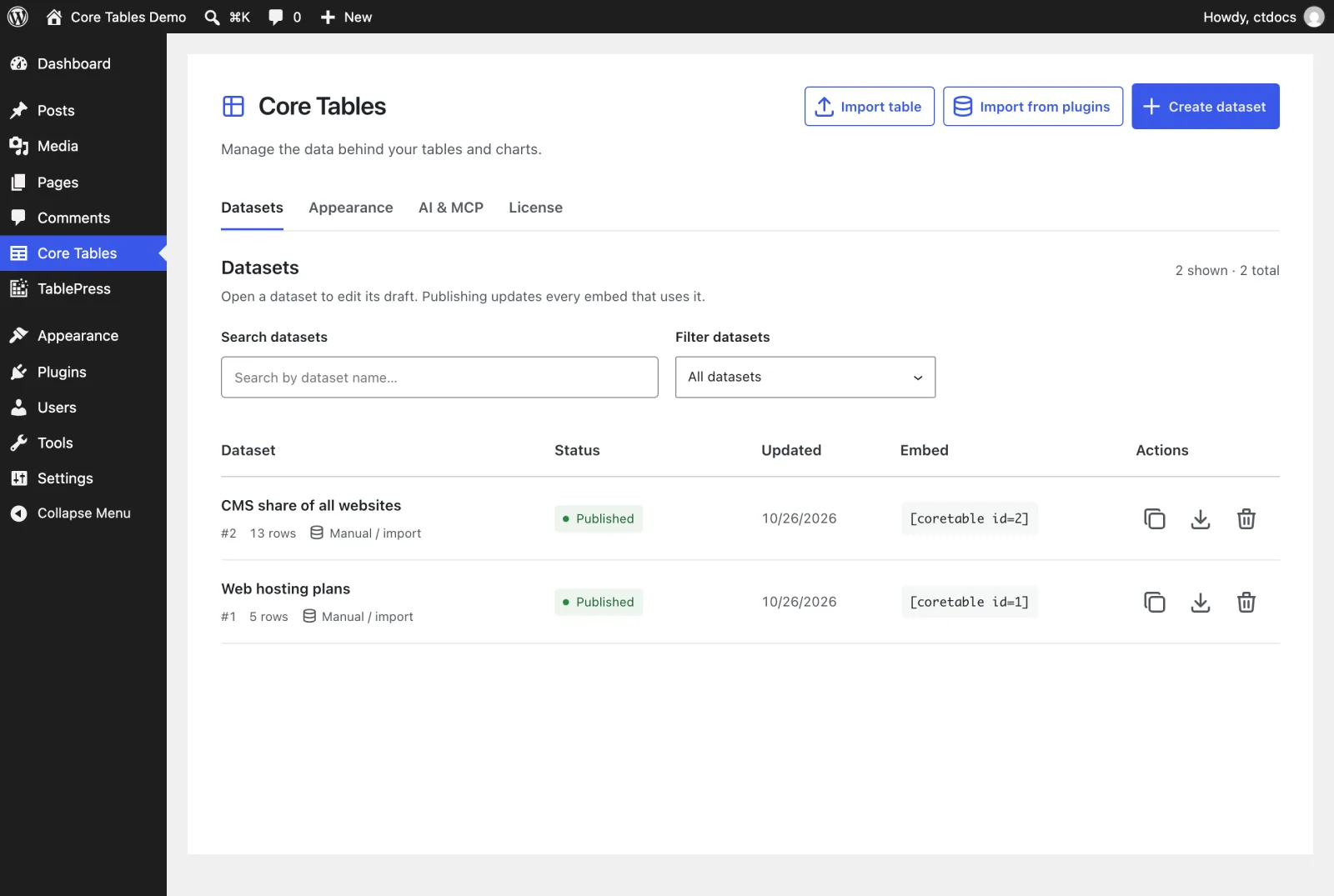
- Open it and check the Columns tab: types, Public toggles and labels.
- Fix anything on the Data tab.
- Publish from the editor, or tell the client to publish.
When the dataset is published, the client’s dataset.embed call returns block markup such as <!-- wp:core-tables/table {"datasetId":12} /--> and a shortcode such as [coretable id=12]. For a chart it can pass up to 6 series as value_columns and a value_axis_label.
What the Client Can Do
| Command | What it does |
|---|---|
datasets.list | Lists datasets you can edit |
dataset.get | Reads a draft’s columns and rows |
dataset.create | Creates a draft from rows or pasted CSV, Markdown, HTML or JSON |
dataset.update | Replaces or appends rows, renames or changes columns and privacy |
dataset.publish | Publishes the current draft |
dataset.embed | Returns block markup and a shortcode for a published dataset |
dataset.export | Exports a draft as CSV, JSON, HTML or Markdown |
import.preview | Previews pasted content without saving |
import.sources and import.plugin | Lists and imports TablePress, Ninja Tables, wpDataTables and WP Table Builder tables (administrators only) |
Updates need the dataset’s current version number. If someone else saved in between, the update fails instead of overwriting their work, and the client reads the dataset again.
Large Tables
Site Agent’s PHP tool accepts and returns about 64 KB per call. For a big table, the client creates the dataset with the first batch of rows and adds the rest with dataset.update and append_rows. It reads large drafts in pages with offset and limit.
Other MCP Clients
Without Site Agent, Core Tables can expose 11 WordPress abilities through the official WordPress MCP Adapter. Go to Core Tables > AI & MCP:
- Turn on Expose read abilities through MCP to let connected clients find published tables and the drafts they may edit.
- Turn on Expose write abilities through MCP only if clients should create, save and publish drafts.
- Click Save settings.
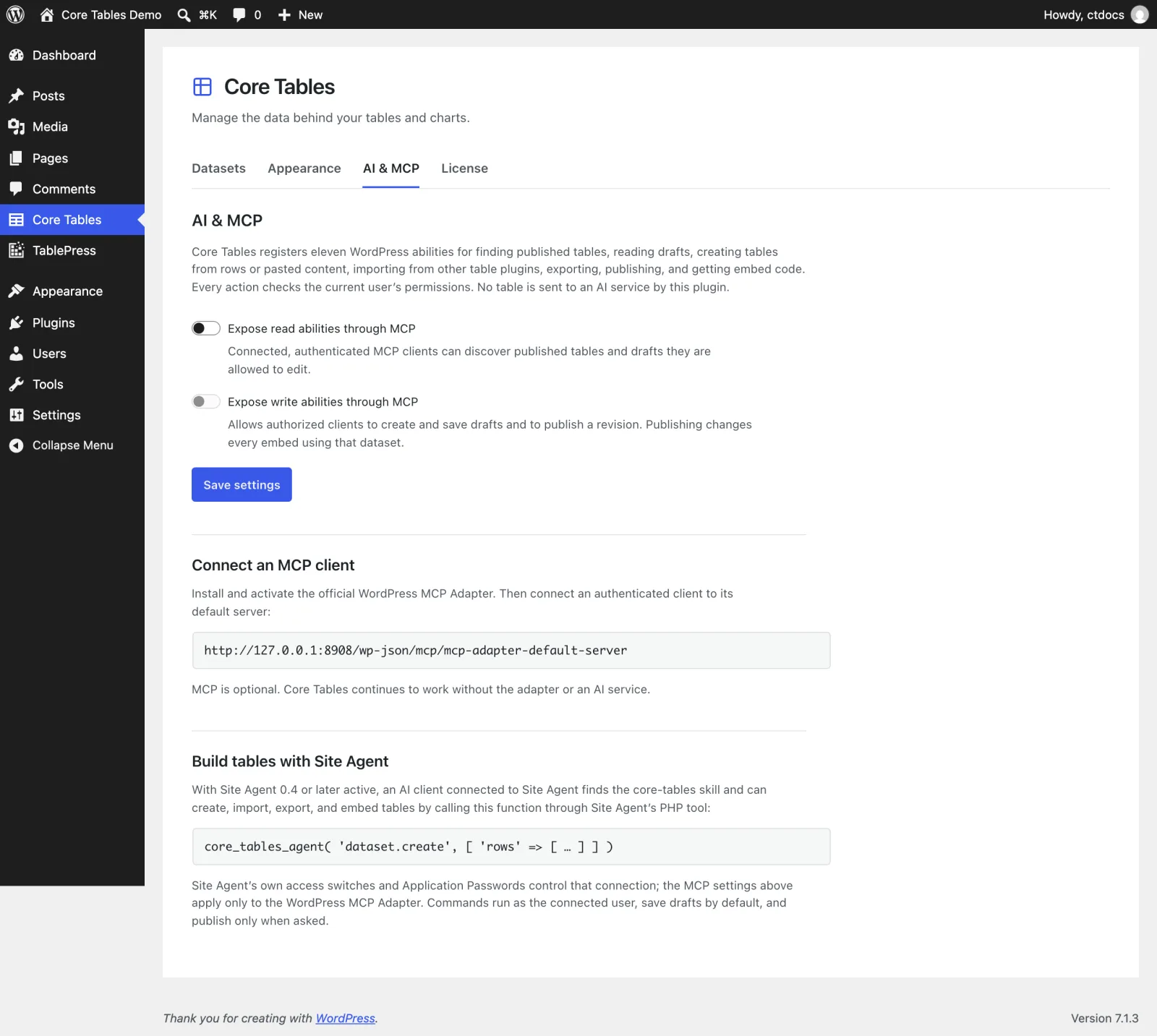
Both switches are off by default. They only control the MCP Adapter. Site Agent’s own access settings control the Site Agent connection.
When Something Is Missing
| What you see | Why it happens | Fix |
|---|---|---|
| “This WordPress user cannot edit Core Tables datasets.” | The connected user has no Core Tables access | Connect as an administrator or editor |
| “Publish the dataset before embedding it. Unpublished datasets render nothing.” | Embed was asked for a draft | Publish first |
| “This dataset changed in another editor. Reload before trying again.” | The dataset changed since the client read it | Ask the client to read it again and retry |
| A price column saved as text | One value had a unit or note in it | Ask the client to clean the values or send typed columns |
What It Won’t Do
The skill keeps the AI inside your rules:
- It doesn’t get more access than the connected user. Same permission checks as the admin screens.
- It doesn’t publish on its own. It publishes only when you ask.
- It doesn’t write to the database directly. Every change goes through the plugin, so revisions and validation stay intact.
- It doesn’t send your data anywhere. Core Tables talks to no AI service. Your client and Site Agent decide what the model sees.
The full command list is in the Site Agent reference, and the 11 abilities are covered in the abilities and MCP reference.