
The Dataset Editor and Column Types
The dataset editor is where you build and change the data behind your tables and charts. It opens from Core Tables in wp-admin and from the Edit data button on any Core Table or Core Chart block.
Open the Editor
- Create dataset opens an empty editor with the Blank dataset template.
- Clicking a dataset name on the Datasets screen opens it for editing.
- Edit data on a block opens the same editor for that block’s dataset.
- Import table opens a new dataset straight on the Convert table tab.
The modal is titled Create dataset for a new dataset and Edit dataset for an existing one.
The Layout
At the top sit the Dataset name field, a count such as “5 rows · 7 columns” and a state badge:
- Draft means the dataset has never been published.
- Unsaved changes means you’ve edited something since the last save.
- Published means the current draft is the live revision.
Below that are 6 tabs: Data, Columns, Import CSV, Convert table, Google Sheets and Revisions.
The footer holds Undo, Preview public columns, Save draft, Publish dataset… and Close. Publish dataset… only appears for users who can publish.
If you close with unsaved edits, Core Tables asks Discard unsaved changes? Your last saved draft and the published table stay as they were either way.
The Data Tab
The Data tab is a grid of your rows, 25 per page. Use Previous rows and Next rows to move between pages.
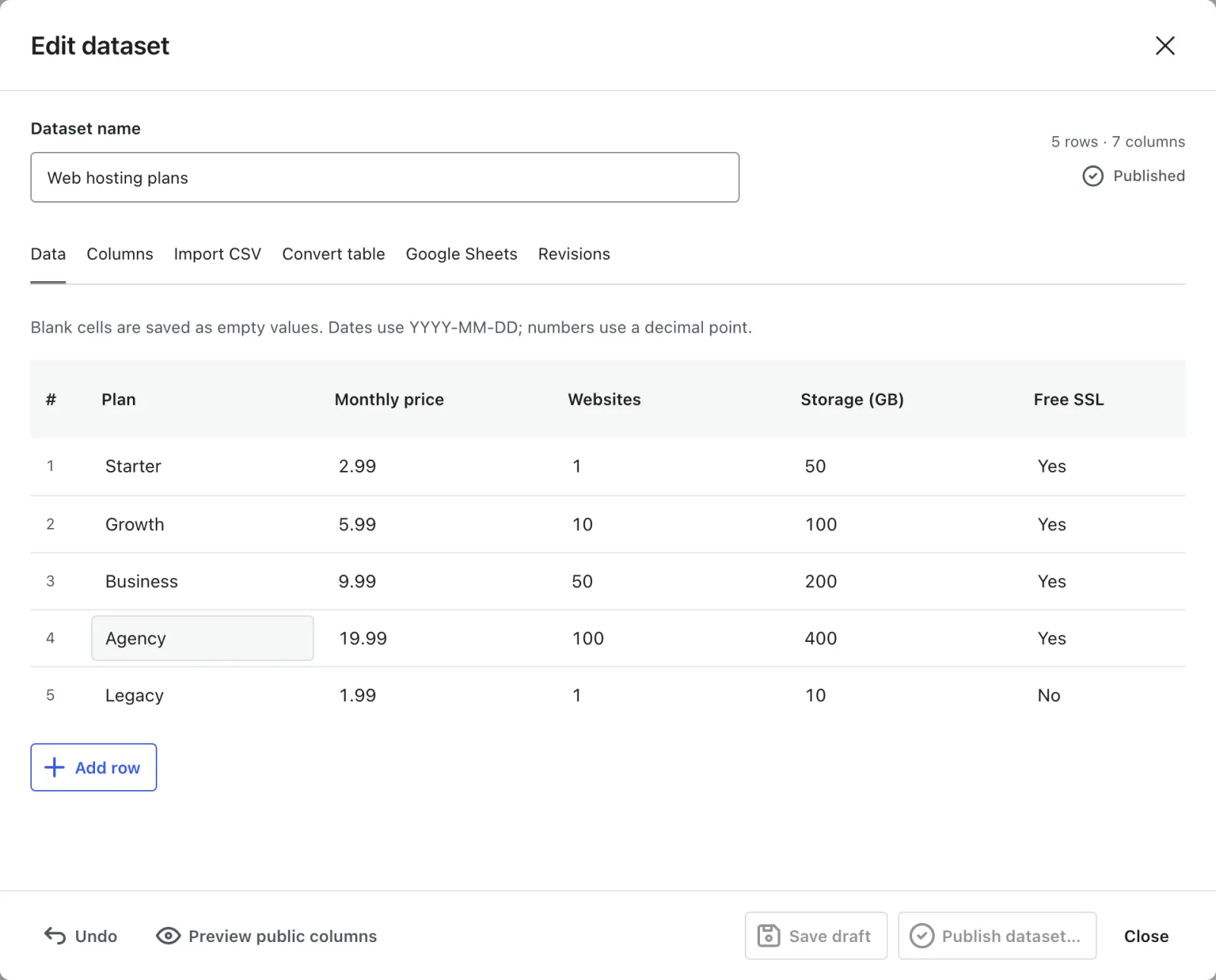
- Add row adds an empty row at the end and jumps to its page.
- Remove deletes that row from the draft.
- A Private tag in a column heading marks a column visitors never see.
- Blank cells are saved as empty values, and show as a dash on your site.
The cell editor depends on the column type:
- Text, Number, Currency, Date and URL use a plain text field.
- Yes / No uses a menu with Empty, Yes and No.
- Rich text offers Bold, Italic and Link only.
- Image has Choose image, Replace image and Remove, and opens your Media Library.
The Columns Tab
The Columns tab controls each column’s label, type and visibility.
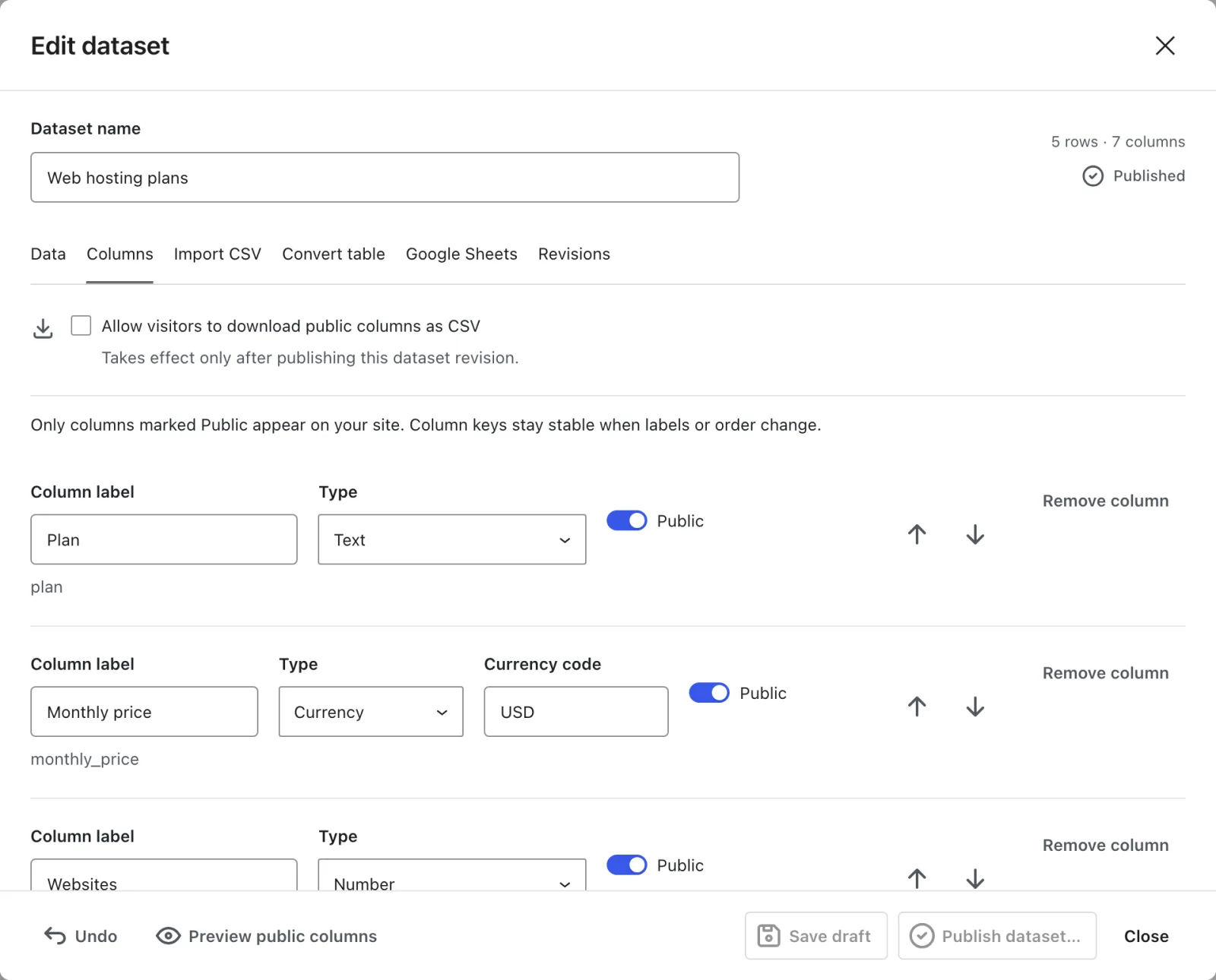
For each column you get:
- Column label, with the column key shown underneath.
- Type.
- Currency code, for Currency columns.
- Public, which decides whether visitors see the column.
- Move earlier and Move later arrows.
- Remove column, which is disabled when only one column is left.
Add column creates a column called “New column” with the Text type. New columns start private, so switch on Public for the ones you want on your site.
Column keys never change once a column exists. Renaming or reordering a column keeps its key, so shortcodes and saved chart settings keep working. You’ll need the key for the label and value shortcode attributes.
The tab also holds Allow visitors to download public columns as CSV. It takes effect only after you publish. Export and CSV Downloads explains what that setting allows.
Column Types
| Type | What it accepts | How it shows on your site |
|---|---|---|
| Text | Any text up to 2,000 bytes | As typed |
| Number | Digits with a decimal point, such as 12 or -3.5 | Up to 8 decimal places, trailing zeros removed |
| Currency | The same as Number, plus a 3-letter Currency code | The code, a space and 2 decimals, such as “USD 1,234.00” |
| Date | A real date as YYYY-MM-DD | As stored, YYYY-MM-DD |
| URL | An http or https address without a username or password | A link showing the full address |
| Yes / No | Yes or No in the editor | “Yes” or “No” |
| Rich text | Bold, italic and links | Formatted text |
| Image | An image from this site’s Media Library | A medium-size image with its Alt Text |
A few rules catch people out:
- Numbers must be plain. No currency symbols, units, % signs or thousands separators. “1,000” or “$5” fails in the editor with “Use a number with a decimal point and no currency symbol or grouping separators (maximum magnitude 1 trillion).” Imports do accept
1,000and$5and clean them up. - The currency code is any 3 capital letters, such as USD, EUR or INR. It defaults to USD.
- Dates must be real dates in
YYYY-MM-DD. Otherwise you’ll see “Use a real date in YYYY-MM-DD format.” - Images must be public images in your Media Library. An image whose parent post is private or trashed counts as unavailable.
- Rich text keeps paragraphs, line breaks, bold, italic, code and links. Links can use
http,httpsormailto.
Changing a column’s Type doesn’t convert the values already in it. The next save checks every cell and stops at the first one that doesn’t fit, with a message such as “Row 3, Price: …”.
Undo and Preview
Undo steps back through your last 20 edits in the open editor. Saving a draft clears that history.
Preview public columns opens Public column preview with the first 10 rows, showing only the columns visitors will see. It reflects your unsaved changes, so it’s a quick check before you publish.
The Other Tabs
The remaining tabs have their own docs:
- Import CSV and Convert table are covered in Import and Convert Tables.
- Google Sheets is covered in Connect Google Sheets.
- Revisions is covered in Drafts, Publishing and Revisions.
Limits
| Limit | Value |
|---|---|
| Rows per dataset | 10,000 |
| Columns per dataset | 1 to 30 |
| Size of one cell | 2,000 bytes |
| Size of a whole dataset or import | 16 MB |
| Dataset name | 200 bytes |
| Column label | 100 bytes |
| Largest number | 1 trillion |
| Rows per editor page | 25 |
| Undo steps | 20 |
A dataset with no rows is allowed, so you can set up columns first and fill them later.
For a step-by-step walkthrough, see How to Build a Table from a CSV or Markdown File.