
Import CSV and Convert Tables
Core Tables has 2 ways to bring rows in from a file. Import CSV fills the columns you already have, and Convert table replaces the columns and rows with whatever you paste or upload.
Both tabs live in the dataset editor. Nothing is saved until you select Save draft, and nothing is public until you publish.
Which Tab to Use
| Tab | What it changes | Detects column types | Formats |
|---|---|---|---|
| Import CSV | Rows only. Your columns, types and public choices stay as they are. | No | CSV |
| Convert table | Columns and rows | Yes, except for HTML | HTML, Markdown, JSON, CSV |
Use Import CSV when the dataset is already set up and you’re refreshing its rows. Use Convert table when you’re starting from someone else’s table and want Core Tables to build the columns for you.
The Import table button on the Datasets screen opens a new dataset straight on the Convert table tab.
Import CSV
The tab reads: “Import UTF-8 CSV up to 16 MB and 10,000 rows. Preview and map columns before replacing the unsaved rows. Publishing is a separate step.”
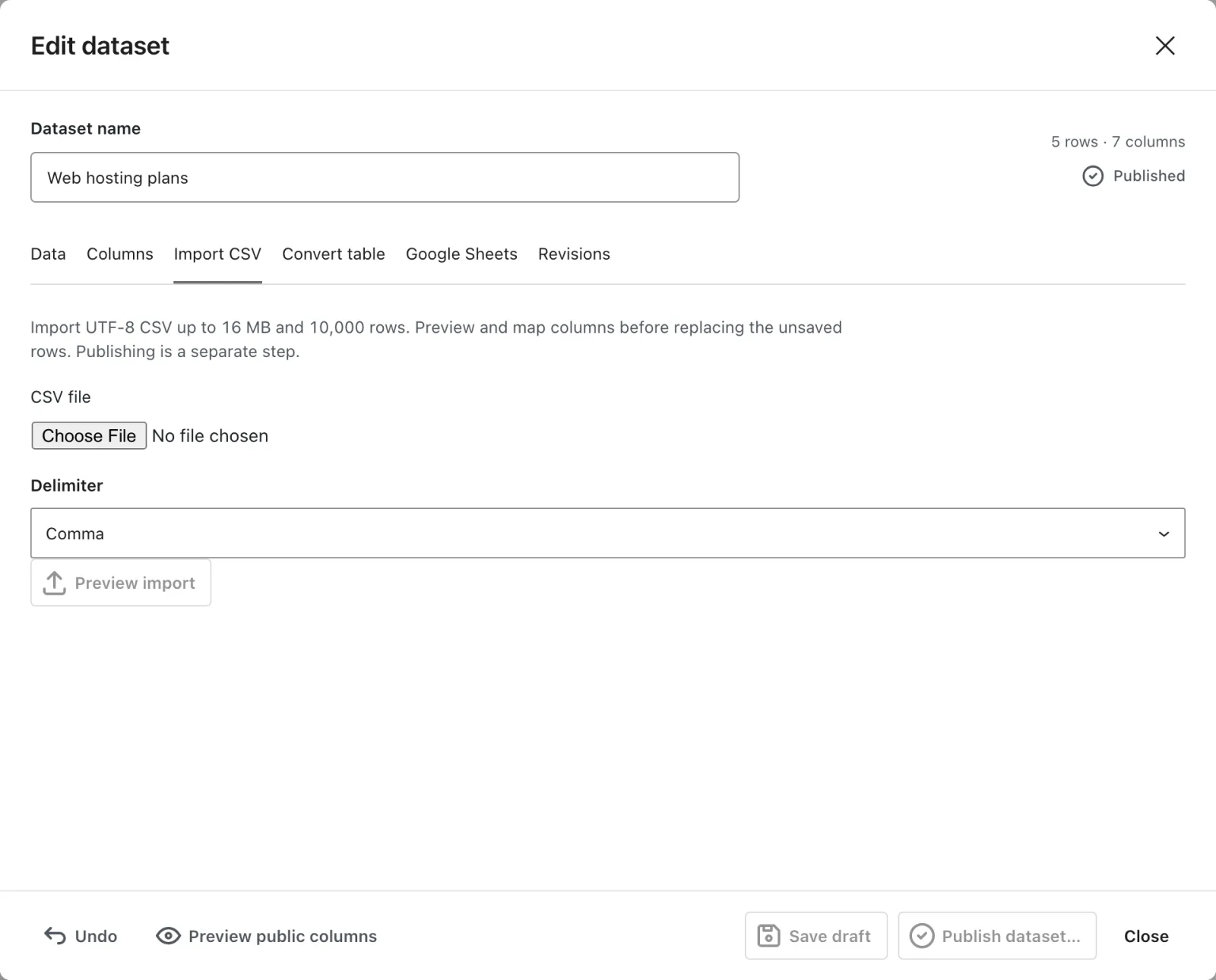
- Open the dataset and select the Import CSV tab.
- Choose a file in CSV file. It accepts
.csvand tab-separated files up to 16 MB. - Pick the Delimiter: Comma (the default), Semicolon or Tab. This tab doesn’t detect the delimiter for you.
- Select Preview import. You’ll see how many rows were found and the First five source rows.
- Map each dataset column to a source column. A column auto-matches when a header equals its key or label. Choose Leave empty to skip one.
- Select Replace unsaved rows, check the rows on the Data tab, then save the draft.
Unmapped columns become empty. The values still have to pass each column’s type rules when you save, so a number column won’t accept $5 or 1,000 from this tab.
CSV Rules
The server checks every CSV the same way:
- The file must be UTF-8 with no NUL bytes. A byte order mark is stripped.
- The header row needs 1 to 30 unique, nonempty column headers.
- Every row needs the same number of columns as the header.
- Blank lines are skipped.
- The file can hold up to 10,000 rows.
- Quoted fields must be quoted completely, with embedded quotes doubled. Broken quoting fails with “Malformed CSV quoting. Quote the entire field and double any embedded quotes.”
Convert Table
The Convert table tab takes one table, previews it and then replaces the unsaved columns and rows.
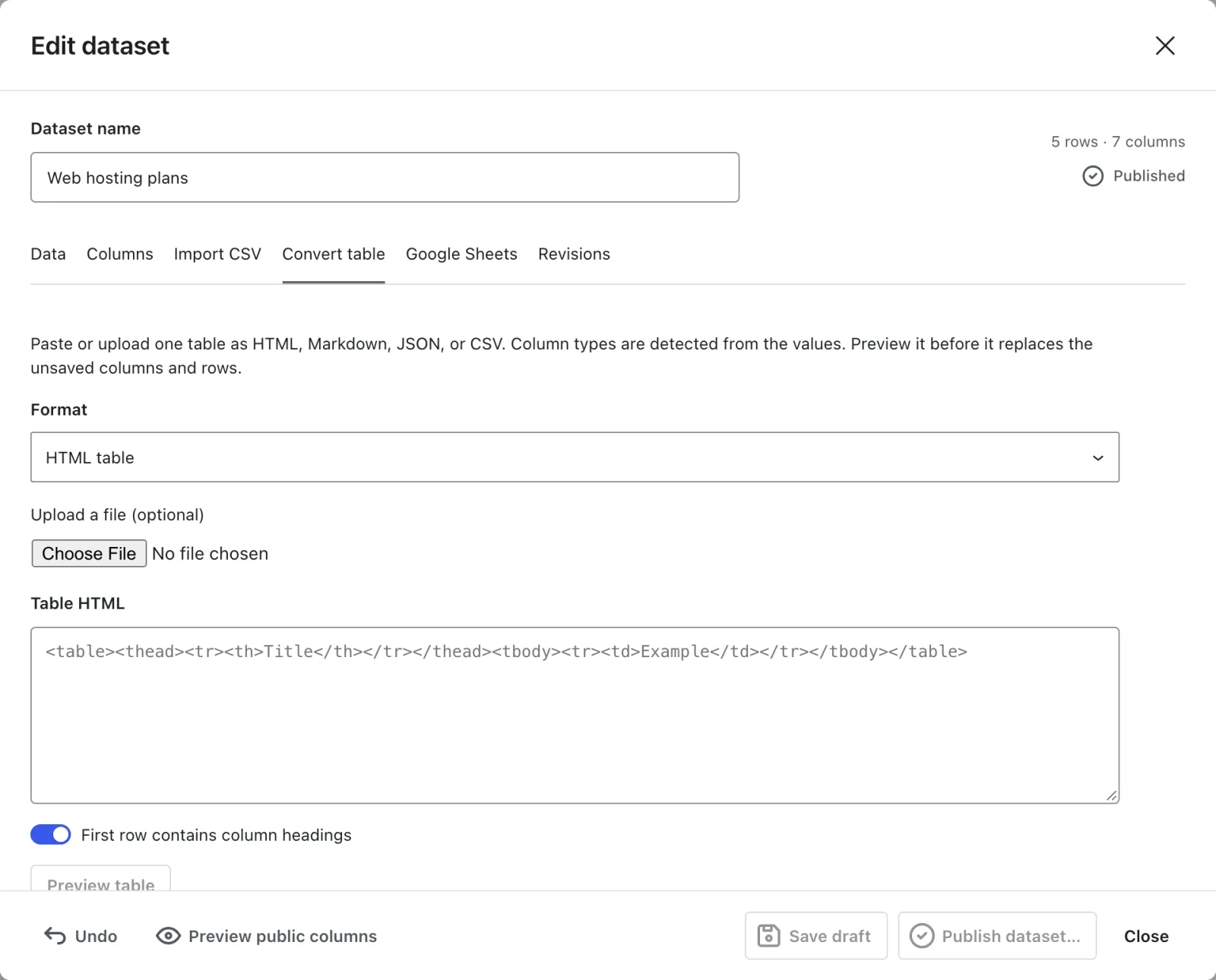
- Choose a Format: HTML table (the default), Markdown table, JSON (Core Tables, TablePress, or rows) or CSV with new columns.
- Paste the table, or use Upload a file (optional). Uploads accept
.html,.htm,.md,.markdown,.json,.csv,.tsvand.txtup to 16 MB. The format switches to match the file extension, except for.txt. - Leave First row contains column headings on if the first row holds labels. The option doesn’t appear for Markdown, where the header row is always used.
- Select Preview table. You’ll see the dataset name, the row and column counts and the first 5 rows.
- Select Use converted table, review the Columns and Data tabs, then save the draft.
On an existing dataset, the conversion keeps 3 things: the dataset name, the CSV download setting and the private setting of any column whose key still exists. If the dataset refreshes from Google Sheets, preview and map the source again after saving.
Format Rules
CSV
- The delimiter is detected from the first line: comma, semicolon or tab, whichever appears most.
- With First row contains column headings off, columns are named “Column 1”, “Column 2” and so on.
HTML
- Paste exactly 1
<table>, with or without a<figure>around it. Nested or multiple tables fail with “Paste one HTML table. Nested or multiple tables are not supported.” - The dataset name comes from the
<caption>, then the figure’s<figcaption>, then “Imported table”. - A
<thead>row is always used as the headings. - Merged cells fail with “Tables with merged cells cannot be converted.” Every row must have as many cells as the first row.
- A column with any
p,strong,b,em,i,a,brorcodetags becomes rich text. - An image cell must hold 1
<img>and nothing else, and the image must already be in this site’s Media Library. Otherwise you’ll see “Import the image into the WordPress media library before converting this table.”
Plain-text HTML columns get the same type detection as CSV, Markdown and JSON. A column of numbers becomes Number, $/€/£/₹/¥ amounts become Currency, true/false becomes Yes / No, YYYY-MM-DD values become Date and links become URL. One value that doesn’t fit keeps the whole column as text. Columns with formatting stay rich text and image columns stay images, so set those types on the Columns tab if you need numbers. HTML type detection needs Core Tables 1.1.1 or newer; older versions bring every HTML column in as text, rich text or image.
Markdown
- Use a GitHub-style pipe table: a header row, a
|---|separator row and one row per line. Alignment colons are fine. - Paste 1 table at a time. Several tables fail with “Paste one Markdown table at a time.”
- A
#heading right before the table becomes the dataset name. \|escapes a pipe, and pipes inside backtick code don’t split cells.**bold**,*italic*, backtick code spans,[text](https://example.com)and<br>become rich text.
JSON
Core Tables reads 4 JSON shapes:
- A Core Tables export. Types, public choices, the CSV setting and values import exactly as exported.
- A TablePress JSON export. Head rows become labels, hidden rows are dropped and hidden columns become private. Merged cells fail: “Unmerge them in TablePress first.”
- A list of row objects, or
{"name": "...", "rows": [ ... ]}. Keys become columns in first-seen order, up to 30. - A list of lists, or
{"columns": [ ... ], "rows": [ [ ... ] ]}. The first row is the headings when that option is on.
How Types Are Detected
CSV, Markdown and JSON row data get their column types from the values. Core Tables checks every nonempty cell in a column and picks the first type that fits all of them:
- Number:
12,8.5,-3,.5or consistent thousands like1,000and12,345.67. A leading zero, as in a ZIP code like02134, keeps the column as text. - Currency: 1 symbol in front, the same in every cell.
$becomes USD,€EUR,£GBP,₹INR and¥JPY. A negative amount is written-$5. - Yes / No:
trueandfalse, in any case. A column of1and0becomes a number. - Date: real dates in
YYYY-MM-DDonly. - URL: http or https links without a user name or password.
- Image: 1
<img>from this site’s Media Library. - Rich text: any cell with
p,strong,b,em,i,a,brorcodetags. - Text: everything else, including empty columns.
One value that doesn’t fit turns the whole column into text. European number formats like 1.000,50 and amounts like 5 USD also stay text.
Labels and Keys
- Blank labels become “Column N”. Labels are cut to 100 bytes and the name to 200 bytes.
- Keys are made from labels: lowercase, with other characters turned into
_, up to 32 characters. A key that doesn’t start with a letter gets acolumn_prefix, and duplicates get_2,_3and so on. - Blank rows are skipped and short rows are padded. A row with more cells than headings fails with “Row N has more cells than there are columns.”
- Imported columns are public unless the source marked them hidden.
Limits
- 10,000 rows, 30 columns and 2,000 bytes per cell.
- 16 MB per file or paste.
- 1 table per conversion, and no merged cells.
If your table lives in another plugin, Import from TablePress, Ninja Tables, wpDataTables and WP Table Builder copies it without exporting a file first. For a start-to-finish walkthrough, see How to Build a Table from a CSV or Markdown File.