
How to Keep a WordPress Table in Sync with Google Sheets
If your team keeps prices, schedules or a product list in Google Sheets, the WordPress copy goes stale the day someone forgets to update it. Copying rows by hand every week is exactly the kind of job that gets skipped.
The fix is to let WordPress read the sheet. You connect the spreadsheet once, map its columns and each refresh pulls the latest rows into your table. By default every refresh arrives as a draft, so nothing goes live until you look at it.
Core Tables is my plugin for reusable tables and charts in WordPress. It reads a selected range from Google Sheets through a service account with view-only access, and it never writes back to the sheet.
Before You Start
This setup touches Google Cloud and your site’s configuration, so check these first:
- Core Tables 1.1.0 or newer, on WordPress 6.9 and PHP 8.3 or newer.
- An administrator account to connect the sheet. Editors can refresh a connected dataset they own, but only administrators can set up or change the connection.
- The PHP Sodium extension and an
AUTH_KEYof at least 32 characters inwp-config.php. Core Tables uses them to encrypt the stored key. Most hosts already meet both. - A Google Cloud project where you can enable the Sheets API and create a service account.
- No image columns in the destination dataset. Sheets refresh doesn’t import images.
Set Up the Service Account
Do this once in Google Cloud:
- Enable the Google Sheets API in your project.
- Create a dedicated service account. Give it no project roles and no domain-wide delegation.
- Create a JSON key for it and download the file.
- Open your spreadsheet, click Share and add the service account’s email address as a Viewer.
Viewer is enough. Core Tables only reads the selected range.
Prepare the Sheet
The sheet needs a clean rectangle of data:
- One heading row with a unique, nonempty heading in every column.
- Up to 10,000 data rows and 30 columns in the range.
- Dates formatted as
YYYY-MM-DD. Core Tables reads the displayed date text. - Prices as plain numbers. A currency column needs a real number in each cell, not text like “$5”.
Formulas are fine. Core Tables reads their calculated values.
Create the Dataset
Create the destination first, because the connection maps sheet headings onto its columns:
- Go to Core Tables and click Create dataset.
- Add one column per sheet column you want, with the right Type and Public setting on the Columns tab.
- Click Save draft. The Google Sheets tab only works on a saved dataset.
Connect the Sheet
Open the dataset and go to the Google Sheets tab, then expand Connect Google Sheets.
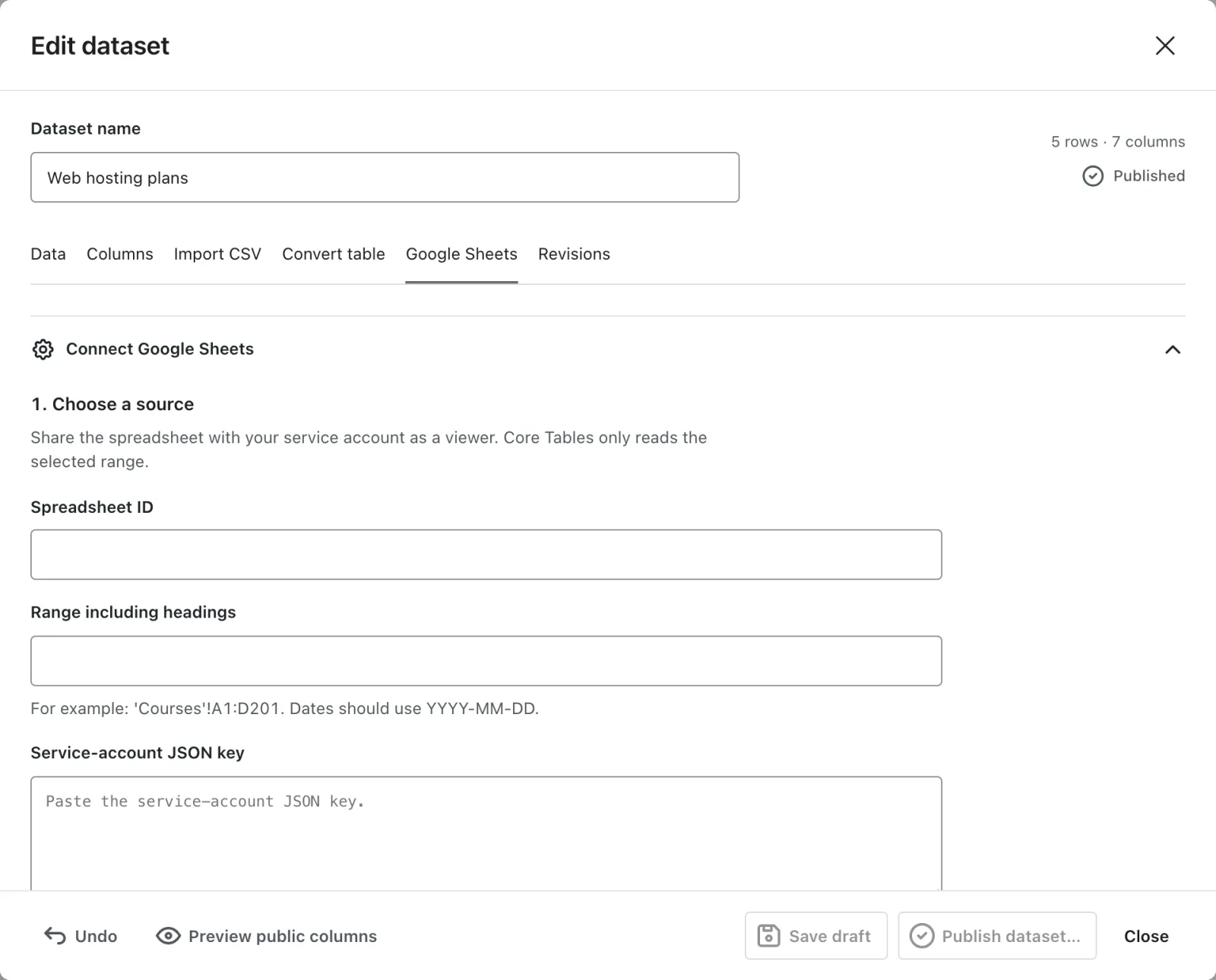
- Under 1. Choose a source, paste the Spreadsheet ID from the sheet’s URL.
- Enter the Range including headings, with the tab name, such as
'Courses'!A1:D201. - Paste the whole JSON key file into Service-account JSON key. It is stored encrypted.
- Click Preview source. You’ll see the row count and the first 5 source rows.
- Under 2. Match columns, pick the source heading for every dataset column. Every column needs a match.
- Under 3. Set refresh behavior, choose a Refresh schedule: Manual, Hourly or Daily.
- Leave Publish successful refreshes automatically off for now, so you can review the first import.
- Click Save connection and mapping.
Run the First Refresh
- Click Refresh now. The job runs right away.
- When Recent refreshes shows Ready, click Load latest draft and check the rows on the Data tab.
- Click Publish dataset… and Confirm publication.
Add a Core Table block or [coretable id=N] to any post and the sheet’s data shows there.
Check It Works
Change a cell in the sheet, then click Refresh now again. After you publish the new draft, the table on your site shows the change.
When you trust the mapping, turn on Publish successful refreshes automatically. Each successful refresh then saves and publishes in one step. A refresh that hits changed headings or a conflicting edit still stops for review.
Make Scheduled Refreshes Run
Scheduled refreshes run through WP-Cron, which checks every 5 minutes but only when someone visits the site. On a quiet site, hourly can easily mean “whenever the next visitor arrives”. It is wise to run a real server cron that calls:
wp cron event run --due-now --path=/path/to/wordpressHourly and daily are measured from the previous due time, not set to the clock.
When Something Is Missing
| What you see | Why it happens | Fix |
|---|---|---|
| “Google denied access. Enable the Sheets API and share the spreadsheet with the service account as a viewer.” | The API is off or the sheet isn’t shared | Enable the API and share with the service account email |
| “Spreadsheet or range not found. Check the ID, tab name, range, and sharing.” | Wrong ID or tab name | Copy the ID again and check the tab name in the range |
| “Source headings changed. Preview and map the source again.” | Someone renamed a heading | Click Preview source and map the columns again |
| Draft needs review under Schedule | You edited the draft by hand, so scheduled refreshes pause | Publish your edited draft, or restore the last Sheets revision from Revisions and save it |
| Retry scheduled | Google was unreachable or its quota was reached | Wait. Core Tables retries on its own, up to 3 attempts in total |
| “The Sheets credential cannot be decrypted.” | AUTH_KEY changed, or the site was restored elsewhere | Paste the JSON key again |
What It Won’t Do
The connection is read-only by design:
- It never writes to the sheet. Edits on WordPress stay on WordPress.
- It doesn’t import images. Datasets with image columns can’t be connected.
- It connects one range per dataset. Use a second dataset for a second tab.
- It doesn’t refresh at an exact time of day. Schedules follow cron, not the clock.
- A failed refresh never replaces the published table. Visitors keep seeing the last good data.
Every field on that tab is explained in the Google Sheets connection reference, and the refresh and troubleshooting reference lists every job state and error.