
How to Move Your TablePress Tables to Core Tables
I get why moving tables feels risky. A table plugin usually sits on dozens of posts, and nobody wants to rebuild 40 tables by hand or break a page that ranks.
The safe way is a copy, not a move. You copy each TablePress table into Core Tables, check it, publish it and swap the shortcode one post at a time. The original table keeps working the whole way through, so you can go back at any point.
Core Tables is my plugin for reusable tables and charts in WordPress. Its Import from plugins tool reads TablePress, Ninja Tables, wpDataTables and WP Table Builder tables straight from the database and creates a Core Tables draft for each one.
Before You Start
Check these first:
- Core Tables 1.1.0 or newer, on WordPress 6.9 and PHP 8.3 or newer.
- An administrator account. Import from plugins is only shown to administrators.
- TablePress can stay active or be deactivated. The importer reads its stored tables either way and never changes them.
- No merged cells. Tables with merged cells are refused, so unmerge them in TablePress first.
It is wise to take a database backup before any migration, even one that only copies.
Import the Tables
- Go to Core Tables and click Import from plugins.
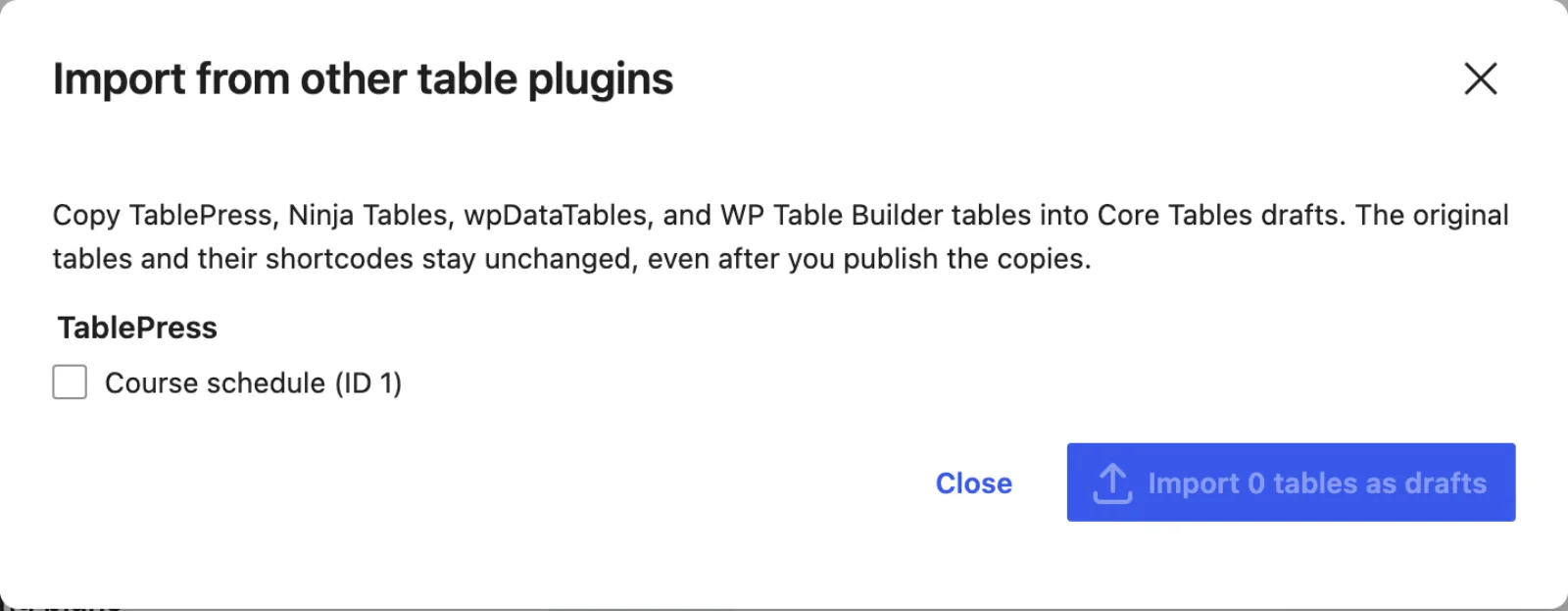
- The Import from other table plugins window lists every table it found, grouped by plugin, as “Table name (ID n)”.
- Tick the tables you want. A table that can’t be imported is disabled, with the reason next to it.
- Click Import 1 table as draft (the count changes with your selection).
- Each result reads “Table name (ID) is now draft dataset N.” Click Review draft to open it.
The importer lists up to 500 tables per plugin. Run it again for the rest.
What Comes Across
TablePress features map like this:
- Table head rows become the column labels.
- Hidden rows are dropped.
- Hidden columns come in as private columns, so they never reach visitors.
- A footer that repeats the headings is dropped.
- Formulas import as their stored text. Core Tables has no formula engine.
Column types are detected from the values. A column of plain numbers becomes Number, $5 style prices become Currency, YYYY-MM-DD values become Date and links become URL. One value that doesn’t fit keeps the whole column as text.
Review the Draft
Open the draft and go through 2 tabs before you publish:
- On Columns, check every Type. A price column that came in as Text usually has one odd value, such as “Free” or “$5/mo”. Fix the value on the Data tab, then change the Type.
- Check each Public toggle. Only public columns appear on your site.
- Click Save draft.
- Click Publish dataset…. The Publish dataset? window lists the row count and every public column. Click Confirm publication.

Core Tables dates must be YYYY-MM-DD. Dates written as “Nov 2, 2026” in TablePress stay as Text, which is fine for display but sorts as text.
Swap the Shortcode
Now point each post at the new dataset:
- On the Datasets screen, click Copy shortcode on the new dataset. It copies
[coretable id=N]. - Open a post that uses the TablePress shortcode, such as
[table id=1 /], and replace it with the copied one. - Add any options you need, such as
pagination=yes per_page=20orlayout=cardsfor stacked rows on phones. - Update the post and check it.
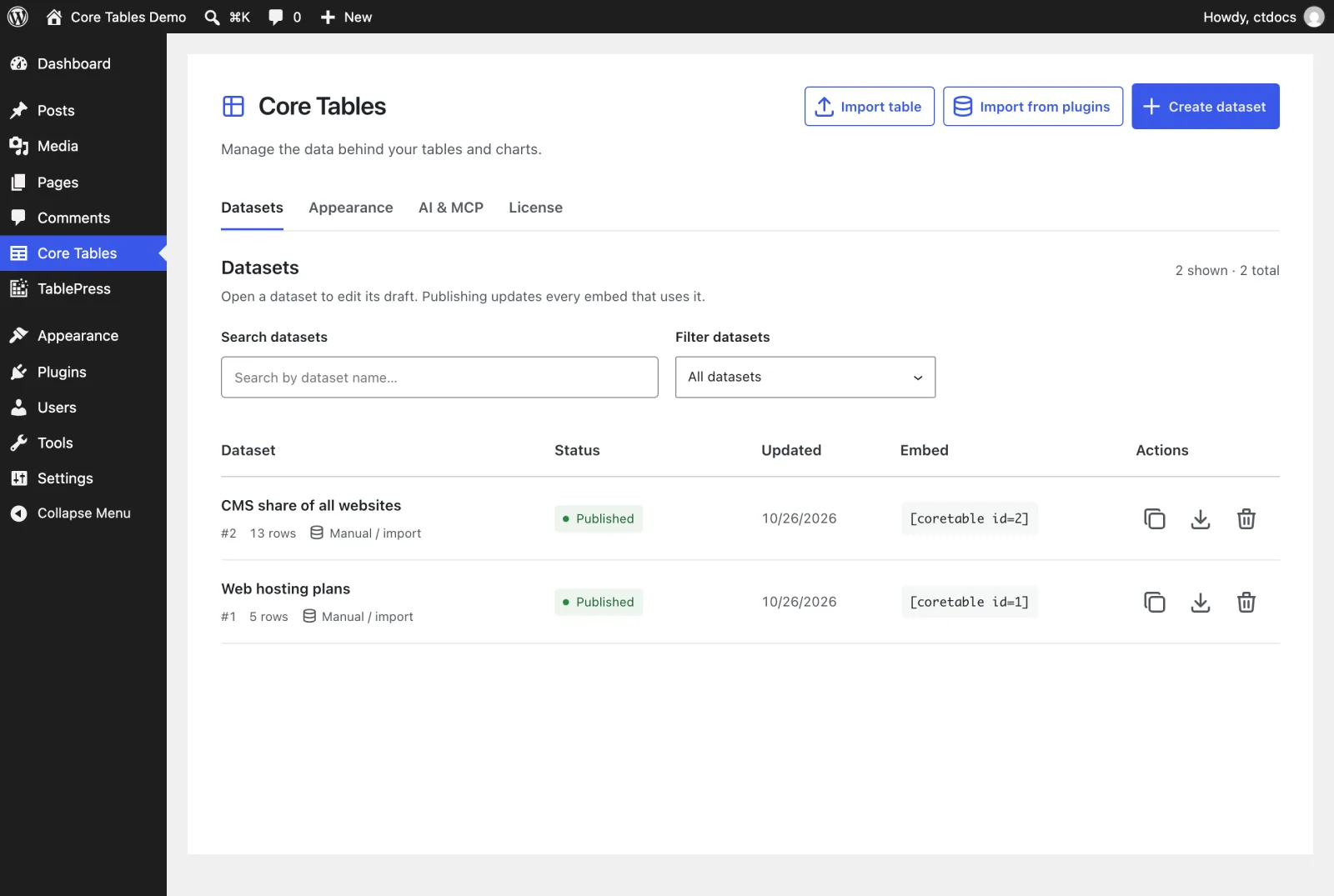
In the block editor you can use a Core Table block instead of the shortcode. Its settings panel has the same options with labels.
Check It Works
On each updated post:
- The table shows with search and sortable headings, both on by default.
- Hidden TablePress columns don’t appear.
- The old TablePress table still works anywhere you haven’t swapped yet.
Once every post uses Core Tables, you can deactivate TablePress. Keep it installed until you are sure, because the importer doesn’t touch it and its tables are your rollback.
When Something Is Missing
| What you see | Why it happens | Fix |
|---|---|---|
| “Has merged cells. Unmerge them in TablePress first.” | Merged cells can’t be stored in a typed dataset | Unmerge in TablePress, then import again |
| A Ninja Tables table marked “Reads from … Import that source instead.” | That table pulls from another source, such as Google Sheets | Import the source data directly, or connect Google Sheets in Core Tables |
| A wpDataTables table with “Linked … source” | It reads a linked file or database | Import the original file through Convert table |
| “No TablePress, Ninja Tables, wpDataTables, or WP Table Builder tables were found on this site.” | No stored tables were found | Check you’re on the right site |
| The new table shows nothing to visitors | The draft isn’t published | Publish it |
What It Won’t Do
A few things stay with you:
- It doesn’t replace shortcodes in your posts. You swap each one, which keeps the move reversible.
- It doesn’t import merged cells, formulas or images from outside your Media Library.
- It doesn’t carry over TablePress styling or extensions. Core Tables uses its own Table style, Row spacing, Corner shape and Accent color settings.
- It doesn’t delete the originals. Remove TablePress yourself when you are done.
Each source plugin’s rules are in the plugin import reference, and every table option is in the Core Table block reference.