
Introduction to Core Tables
Core Tables is a WordPress plugin for publishing tables and charts from reusable datasets. You keep the data in one place, and every table or chart that uses it updates when you publish a change.
It works in the block editor through 2 blocks, and in classic themes and widgets through a shortcode.
How It Works
Everything starts with a dataset. A dataset is a name, a set of typed columns and the rows of data.
- Datasets live in their own database tables, not in posts or post meta.
- Columns have a type, such as Number, Currency, Date or Image, and each column is either public or private.
- Drafts and publishing are separate. Saving a draft never changes what visitors see. Only Publish dataset… does.
- Revisions are kept for every save, so you can restore an older version into the editor.
Visitors only ever see the published revision, and only its public columns. Private columns, such as internal notes or costs, never leave the server.
What You Can Build
Core Tables gives you 2 blocks and a shortcode:
- Core Table shows a dataset as a table with search, sortable headings, column filters, pagination, a sticky header and an optional CSV download.
- Core Chart shows a dataset as a bar or line chart with up to 6 series, and always prints the data table under the chart.
[coretable]renders the same tables and charts in classic themes, widgets and page builders.
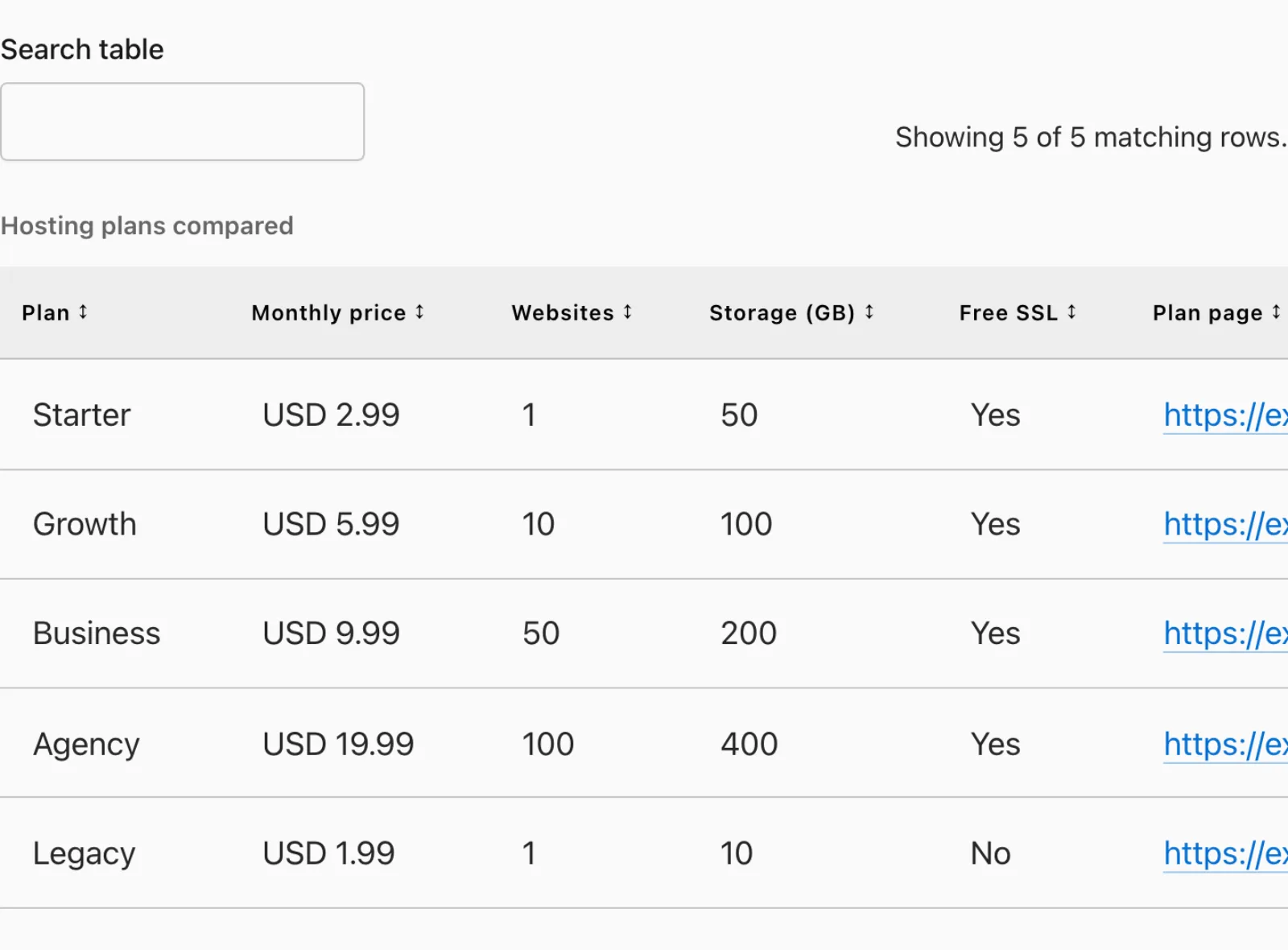
One dataset can feed many blocks across many posts. Change the data, publish it, and every one of them updates.
Where the Data Comes From
You can type rows by hand, or bring data in from somewhere else:
- Templates for a blank dataset, course comparison, resource list, schedule or product comparison.
- Import CSV into the columns you already set up.
- Convert table from pasted or uploaded HTML, Markdown, JSON or CSV.
- Import from plugins to copy tables from TablePress, Ninja Tables, wpDataTables and WP Table Builder.
- Google Sheets for a read-only connection that refreshes on a schedule.
- AI tools through Site Agent, WordPress abilities and the MCP Adapter.
What It Doesn’t Do
A few limits shape how you plan your data:
- No formulas or calculations. Charts don’t sum or group rows. Each row is one data point.
- No merged cells in tables or imports.
- Images only in media columns, and they must be in your Media Library.
- No network activation on multisite. Activate it on each site instead.
- Up to 10,000 rows and 30 columns per dataset.
Next Steps
Start with Install Core Tables and Activate Your License, then follow Create Your First Table and Chart. You can get the plugin from the Core Tables product page.
For step-by-step walkthroughs, see How to Update One Table Across Many Posts at Once and How to Add a Chart with Several Series to a WordPress Post.