
Drafts, Publishing and Revisions
Core Tables keeps your working copy and your live table apart. You can edit and save as often as you like, and visitors keep seeing the last published version until you publish again.
Save Draft
Save draft stores your edits as a new revision. It’s private, and it doesn’t change any table or chart on your site.
- It’s the main button for a new dataset or one with unsaved changes.
- It’s disabled when nothing has changed.
- On success you’ll see “Draft saved. Publish it when you are ready to update every block using this dataset.”
Every save creates a new, permanent revision. Nothing is overwritten.
Publish a Dataset
- Save your draft first. Publish dataset… stays disabled while you have unsaved changes.
- Select Publish dataset….
- Check the Publish dataset? dialog. It lists the number of rows and the public columns that will go live.
- Select Confirm publication.

You’ll see “Dataset published. Blocks now use this revision.” Every block and shortcode using this dataset now shows the new data.
Publishing checks the data again, including whether every image is still available. It also needs at least one public column, or you’ll see “Select at least one public column before publishing.”
Saving the post doesn’t publish the dataset, and publishing the dataset doesn’t need the post to be saved. They’re separate steps.
When 2 People Edit at Once
Core Tables tracks a version number for each dataset. If someone else saved or published since you opened the editor, your save stops with “This dataset changed in another editor. Reload before trying again.”
Reload, then make your change again. Nobody’s work is overwritten silently.
Revision History
The Revisions tab lists every saved revision, 20 per page. Use Newer revisions and Older revisions to move through them.
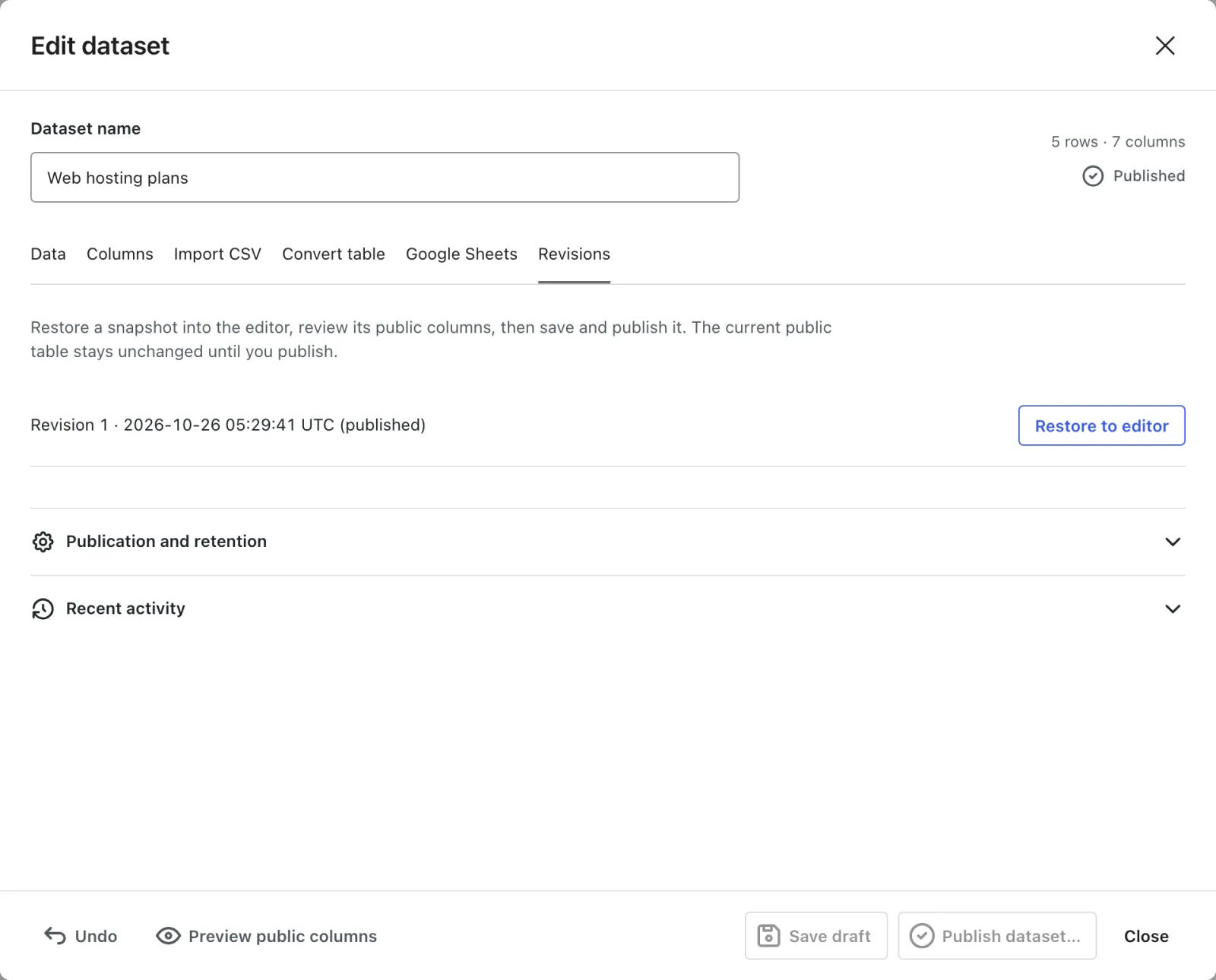
Each entry shows “Revision 12 · date UTC”, and the live one is marked (published).
To bring back an older version:
- Select Restore to editor on the revision you want.
- Review it. It loads as unsaved changes, with the message “Snapshot loaded into the unsaved editor. Review it before saving.”
- Select Save draft, then publish it if you want it live.
Restoring creates a new revision from the old one. The history in between stays.
Unpublish a Dataset
Unpublishing hides the table everywhere without deleting anything. Open Publication and retention on the Revisions tab and select Unpublish dataset.
The Unpublish this dataset? dialog explains what happens:
- Every block and shortcode using the dataset shows nothing to visitors.
- Drafts and revisions stay available.
- A connected Google Sheet switches to manual refresh, automatic publishing turns off, and queued refreshes are cancelled.
The button is disabled while you have unsaved changes. Publish again whenever you want the table back.
Clean Up Old Revisions
Revisions build up over time. Administrators can remove old ones from Publication and retention:
- Set Recent revisions to keep. It accepts 2 to 1,000 and defaults to 20.
- Select Preview revision cleanup.
- Check the count in Remove old revisions? and select Confirm.
Cleanup is permanent, so export the dataset or back up your database first. Each confirmation removes up to 100 of the oldest eligible revisions. Run it again to remove more.
These revisions are always kept:
- The current draft and the published revision.
- The number of recent revisions you chose.
- Revisions from saves in the last 24 hours that could still be retried.
- The last revision a Google Sheets refresh created.
Cleanup is blocked while a Sheets refresh is queued, with “Wait for the queued refresh before cleaning revisions.” Nothing is cleaned up automatically.
Recent Activity
Recent activity on the Revisions tab lists the last 50 events for the dataset. Each one shows the time, the user number and the revision:
- Draft saved
- Dataset published
- Dataset unpublished
- Older revisions removed
- Moved to Trash
- Restored from Trash
Page Caches
Publishing, unpublishing, trashing and restoring clear LiteSpeed Cache and WP Super Cache for the whole site. Saving a draft doesn’t.
Other caches, such as Cloudflare or your host’s cache, aren’t cleared. Purge them yourself after publishing, or connect them to the core_tables_cache_invalidate action described in Hooks, Data and Uninstall.
For a step-by-step walkthrough, see How to Update One Table Across Many Posts at Once.