
Convert WordPress Table Blocks
If your posts already use the WordPress Table block, you don’t have to retype those tables. Core Tables can convert a Table block into a reusable dataset and swap in a sortable Core Table block in its place.
The option is off by default, so an administrator switches it on first.
Turn the Option On
- Go to Core Tables and open the Appearance tab. Only administrators see it.
- Tick Show Core Tables conversion on WordPress Table blocks.
- Select Save appearance.
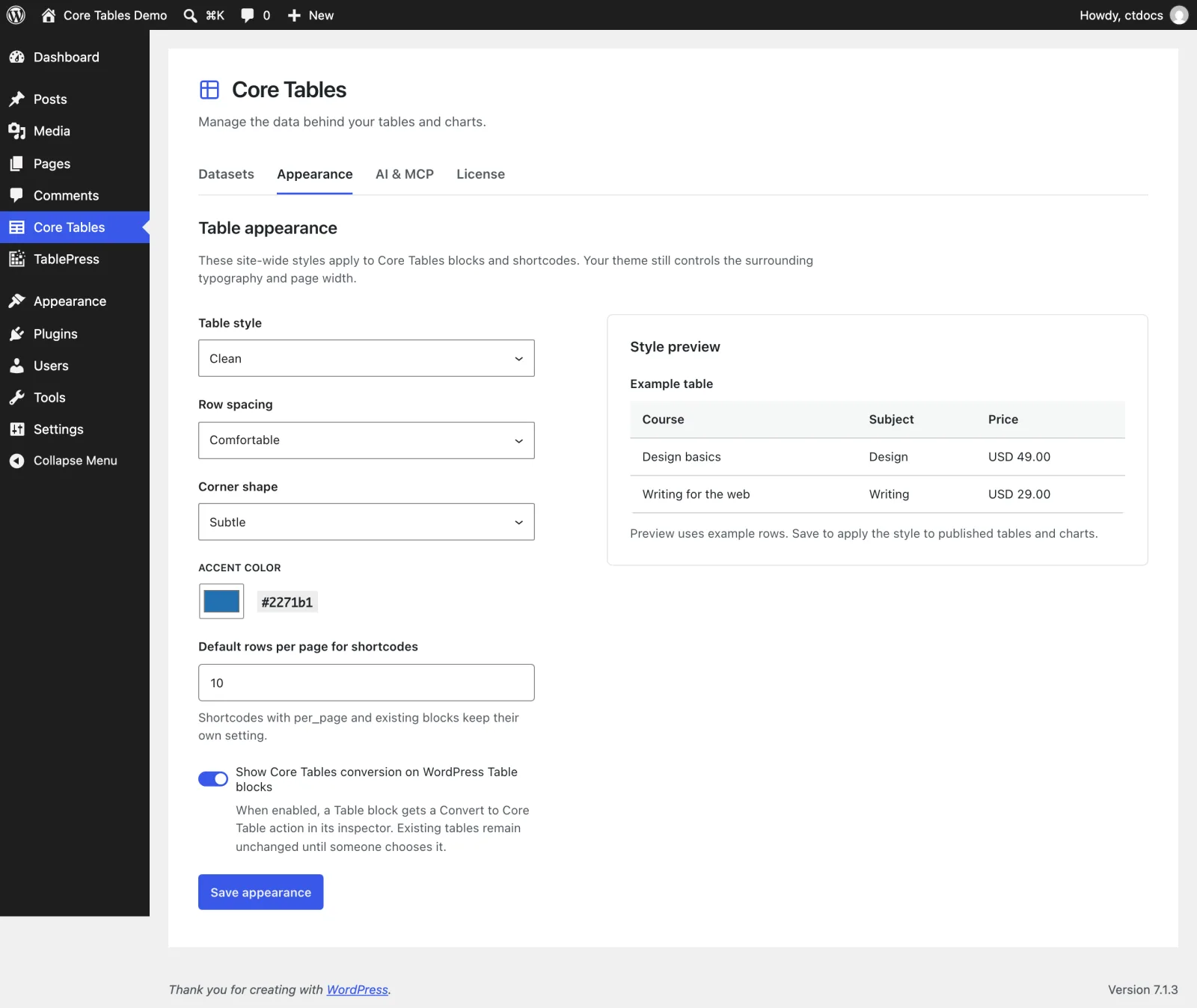
In the editor, the option adds a Core Tables conversion panel to the Table block’s settings. Existing tables stay unchanged until someone uses it.
Convert a Table Block
- Open a post that has a WordPress Table block and select the block.
- In the block settings, open the Core Tables conversion panel. It reads: “Turn this WordPress Table into a reusable, sortable Core Table. The original block stays in place until conversion succeeds.”
- Leave First row contains column headings on if the first row holds labels. It starts on when the table already has a header section.
- Select Preview conversion. You’ll see the dataset name, the column and row counts and the column labels.
- Select Convert and publish.
- Save the post to keep the new block.
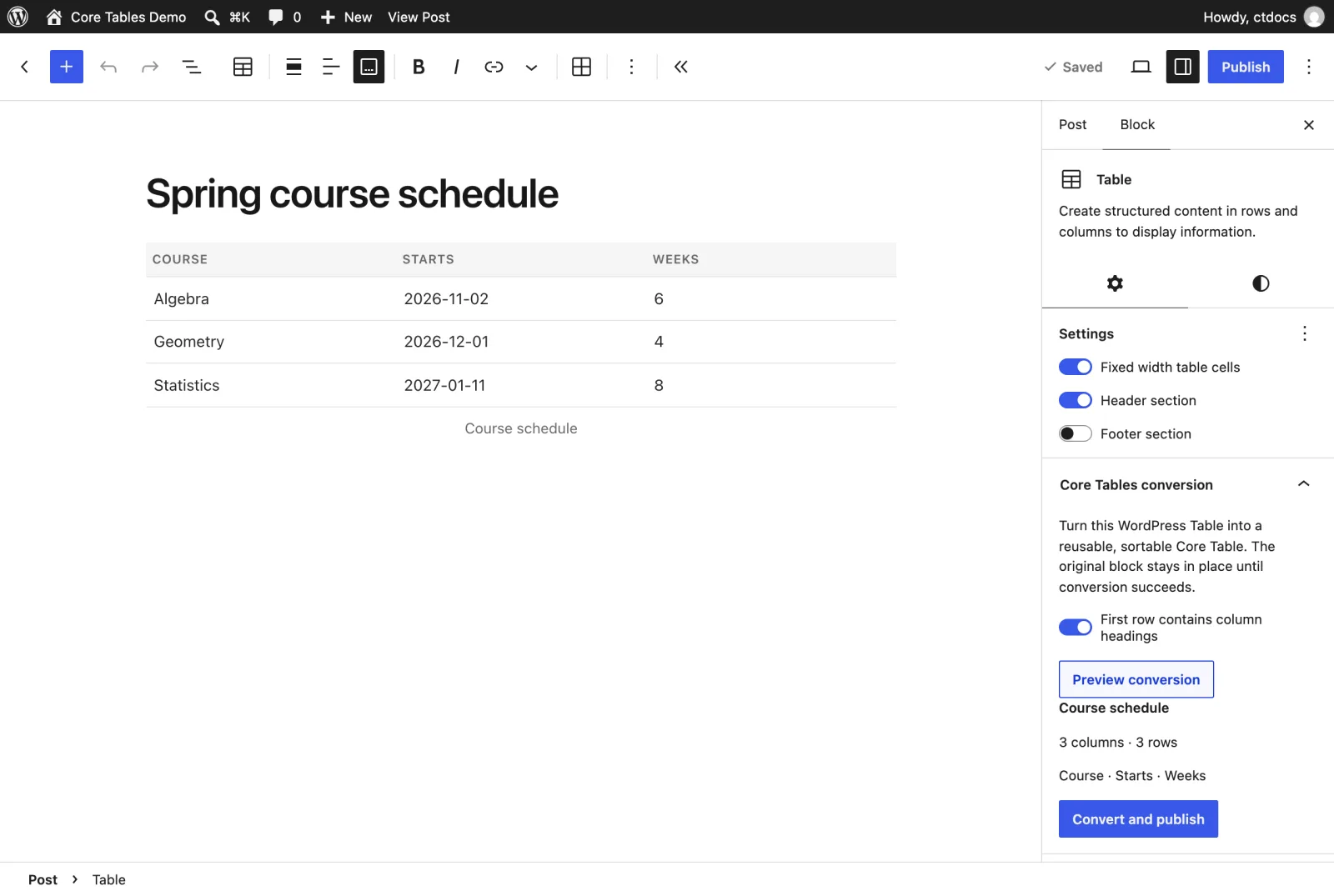
Conversion creates a dataset, publishes it and replaces the Table block with a Core Table block that points at it. The table’s caption becomes the block caption. Until you save the post, the old block is still what’s stored.
Who Can Convert
The panel shows for users with the edit_core_tables capability. Publishing also needs publish_core_tables. Administrators and editors have both, and authors don’t see the panel.
What Converts and What Doesn’t
Conversion reads the table’s HTML, so it follows the HTML rules:
- No merged cells. A table with merged cells can’t be converted.
- Images must be in the Media Library. An image cell has to hold 1 image from this site and nothing else.
- Formatting is kept as rich text. Bold, italic, links, code and line breaks survive. Other markup is stripped.
- Every column is public. Make a column private on the Columns tab afterward if you need to.
Plain columns get their types detected. Numbers, prices, true/false values, YYYY-MM-DD dates and links become Number, Currency, Yes / No, Date and URL columns, so numeric sorting and charts work right away. A column with bold, italic, links or code stays rich text, and one value that doesn’t fit keeps a column as text. Set those types on the Columns tab and publish again if you need them. Type detection on conversion needs Core Tables 1.1.1 or newer.
If Something Goes Wrong
- “The table changed. Preview it again before converting.” means you edited the table after previewing. Select Preview conversion again.
- If conversion fails, the message ends with “The original Table block is unchanged. Check Core Tables for a saved draft before trying again.” A failed publish can leave a draft behind, so look for it on the Datasets screen before you convert a second time.
To bring in tables from outside the editor, see Import CSV and Convert Tables. The block you end up with is covered in Core Table Block.