
How to Add a Chart with Several Series to a WordPress Post
I see a lot of WordPress posts that compare 3 or 4 things over time with 3 or 4 separate charts. The reader has to scroll up and down to compare them, and the point of the comparison gets lost.
One chart with several series fixes that. WordPress, Shopify and Wix share by year sit on the same axes, each as its own line with its own color, and a legend tells the reader which is which.
Core Tables is my plugin for reusable tables and charts in WordPress. Version 1.1.0 lets one Core Chart block plot up to 6 numeric columns from the same dataset, as multiple lines or as grouped bars. This guide builds that chart from scratch and then shows the shortcode route.
Before You Start
You need a few things in place:
- Core Tables 1.1.0 or newer. Older versions chart one column only.
- WordPress 6.9 and PHP 8.3 or newer.
- An administrator or editor account to create and publish the dataset. Authors can add the block and pick a dataset that is already published.
- Your numbers in one table, one row per point and one column per series.
The data shape matters more than anything else here. Each row is one data point, and the chart doesn’t add rows together. If your source has one row per sale, total it per month first.
Shape the Data
A chart with several series needs one category column and 2 to 6 number columns. For a market share chart, that looks like this:
| Year | WordPress | No detectable CMS | Shopify | Wix |
|---|---|---|---|---|
| 2015 | 23.3 | 61.7 | 0.3 | 0.1 |
| 2020 | 35.4 | 43.1 | 1.9 | 1.3 |
| 2025 | 43.6 | 29.6 | 4.7 | 3.3 |
Numbers have to be plain. No % signs, no currency symbols and no thousands separators in the editor. Put the unit in the value axis label instead.
Create the Dataset
- Go to Core Tables in wp-admin and click Create dataset.
- Give it a Dataset name, such as “CMS share of all websites”.
- On the Data tab, add the columns and rows. To paste the table instead, open Convert table, pick CSV with new columns or Markdown table, paste it and click Preview table, then Use converted table.
- Open the Columns tab and check each Type. The series columns must be Number or Currency, and each one needs the Public toggle on.
- Click Save draft, then Publish dataset… and Confirm publication.
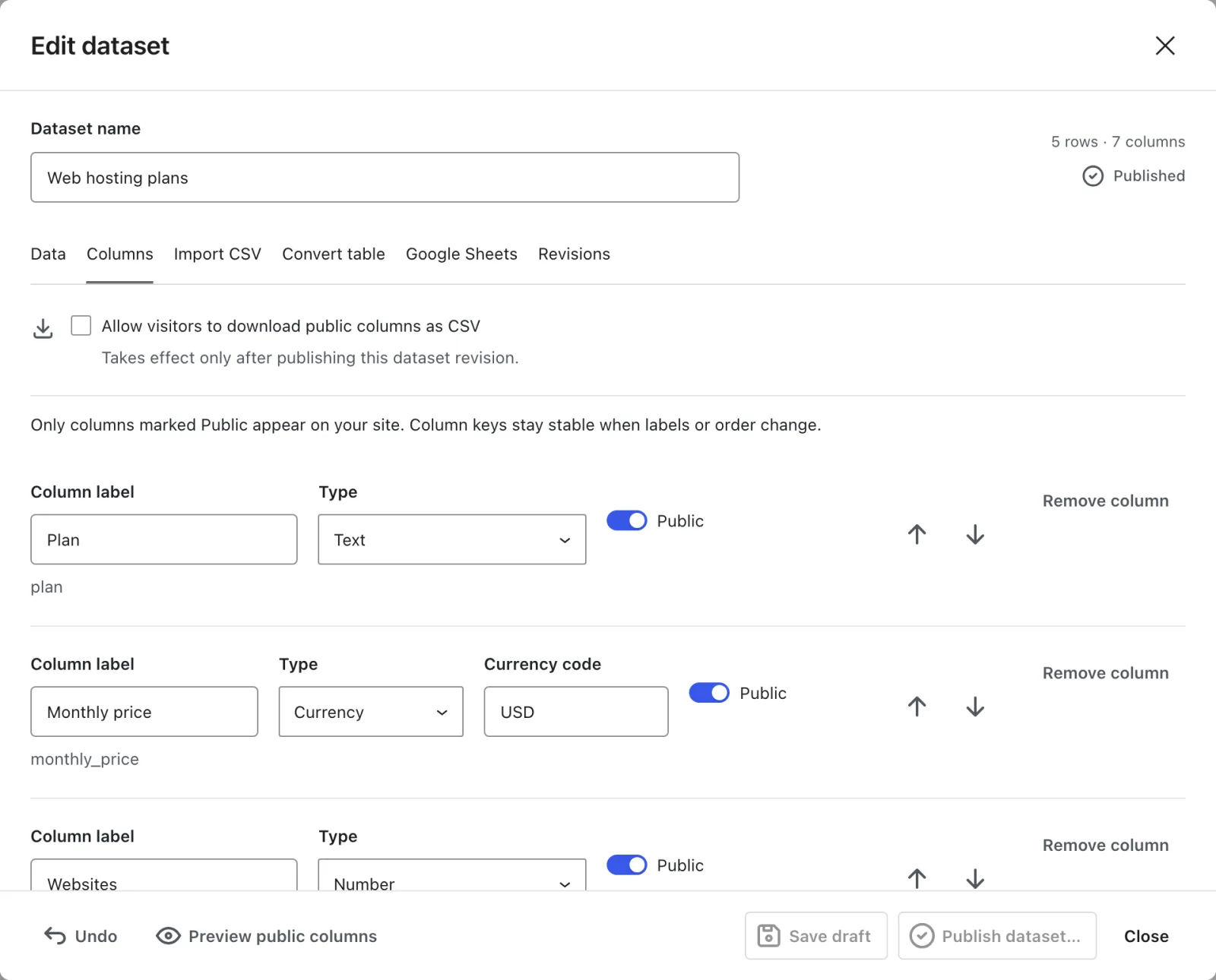
One thing to check on the Columns tab: a year column detected from the values comes in as Number. That’s fine, but it means the block offers it as a series too. It is wise to set its Type to Text before you save, so it only ever acts as the category.
Add the Core Chart Block
- Open the post and add a Core Chart block.
- Click Choose dataset and pick the dataset you just published.
- In the block settings, open Chart data and set Chart type to Line for a trend or Bar for a side-by-side comparison.
- Pick the category in the column select. It is labeled X-axis column for line charts and Y-axis column for bar charts.
- Under Y-axis series (or X-axis series on a bar chart), tick every column you want to compare. You can tick up to 6. The last ticked series can’t be unticked, so a chart always has at least one.
- Type a Value axis label that names the unit, such as “Share of all websites (%)”.
- Under Display, add a Caption if you don’t want the dataset name above the data table.
- Save the post.
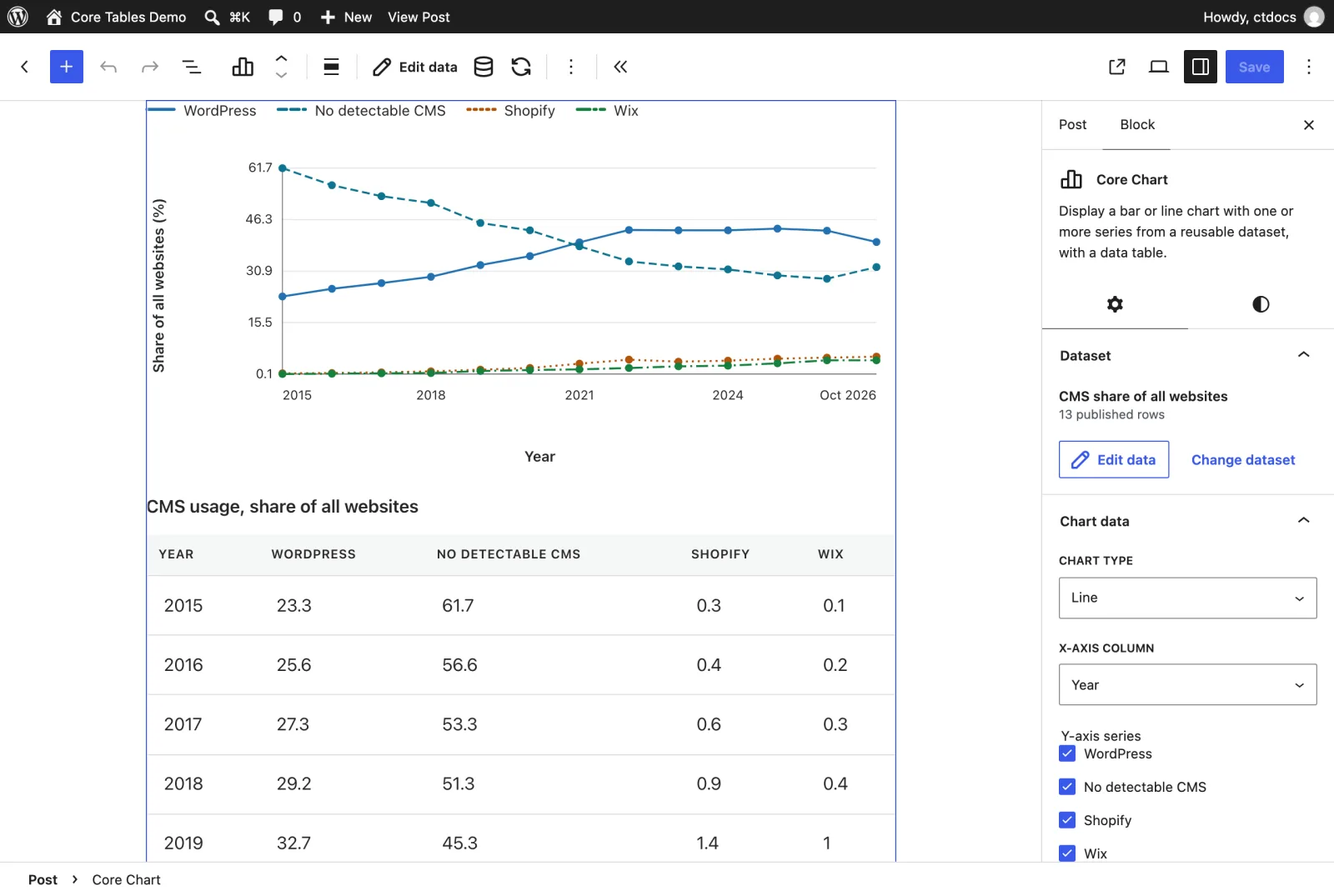
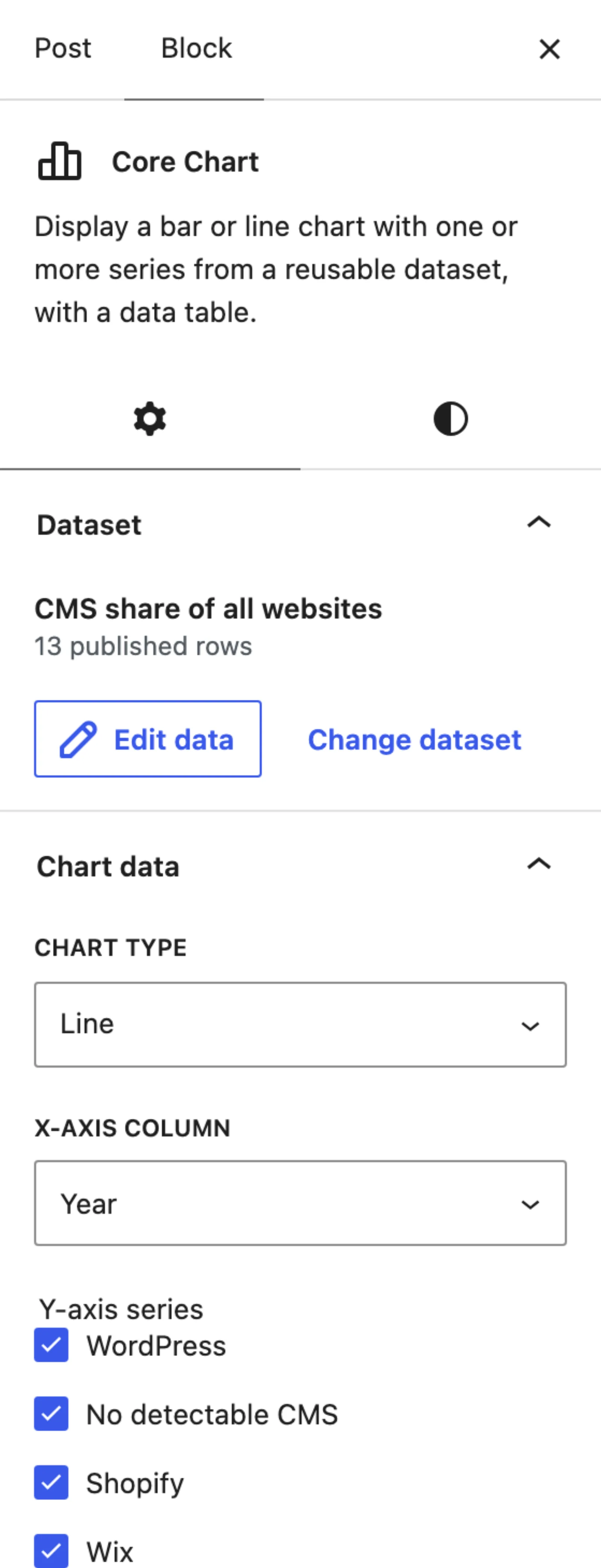
The editor preview uses the published dataset. A bar preview samples up to 8 rows, and the published chart includes every row.
Check It Works
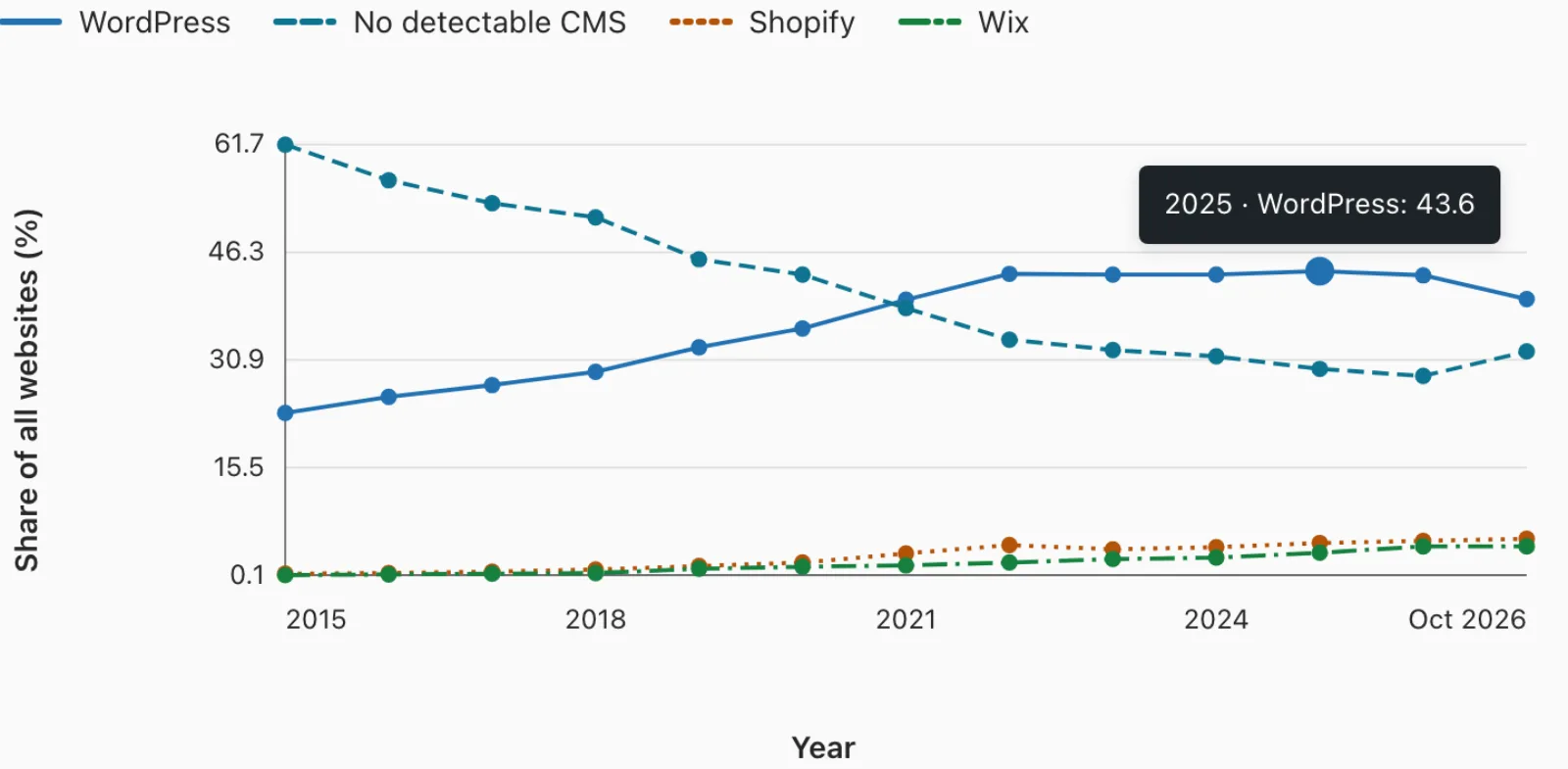
View the post. You should see:
- A legend above the chart with one entry per series.
- One line or one group of bars per series. Lines also differ by dash pattern, so the chart still reads in grayscale.
- A value on hover or keyboard focus, such as “2020 · Shopify: 1.9”.
- The full data table under the chart, with every public column of the dataset.
Use the Shortcode Instead
Classic themes, widgets and page builders can use the [coretable] shortcode. List the series as column keys, separated by commas:
[coretable id=12 type=chart chart=line label=year value="wordpress,shopify,wix" axis="Share of websites (%)"]The shortcode needs column keys, not labels. You’ll find each key under its Column label on the Columns tab. Keys after the sixth are dropped.
With pagination=yes and no per_page, a chart shortcode uses the site’s Default rows per page for shortcodes, which is 10. Add per_page=50 when you want the same page size as the block.
When Something Is Missing
| What you see | Why it happens | Fix |
|---|---|---|
| No legend | Only 1 series is ticked | Tick a second series |
| A column isn’t offered as a series | It isn’t a public Number or Currency column, or it’s the category | Fix its Type or Public toggle, then publish the dataset again |
| “Chart columns are unavailable. The published data is shown below.” | The category is also a series, or a chosen column was removed or made private | Pick the columns again in Chart data |
| “No numeric values to chart. The table is shown below.” | Every series cell is empty | Fill the values and publish |
| A gap in one line | That cell is empty | Expected. Empty values break the line |
What It Won’t Do
The chart is deliberately simple:
- It doesn’t add rows together. Each row is one point, so total your data before you import it.
- It doesn’t stack bars. Several series always render as grouped bars or separate lines.
- It doesn’t force the line chart to start at zero. Line charts use the lowest and highest values in the data. Bar charts always include zero.
- It doesn’t chart more than 6 series in one block.
- It doesn’t offer a download button. The CSV button is for Core Table blocks only.
Every setting on that panel is covered in the Core Chart block reference, and the shortcode reference lists every attribute.