
Create Your First Table and Chart
This walkthrough takes you from an empty site to a published table and chart. It takes about 10 minutes.
You’ll create a dataset, publish it, then add it to a post with the Core Table and Core Chart blocks.
Create a Dataset
- Go to Core Tables and select Create dataset.
- Under Start from a template, pick a starting point. Product comparison gives you Product, Price, Key feature, Available and Official URL columns.
- Type a Dataset name.
Choosing a template replaces any unsaved data. If you change your mind, Undo brings it back.
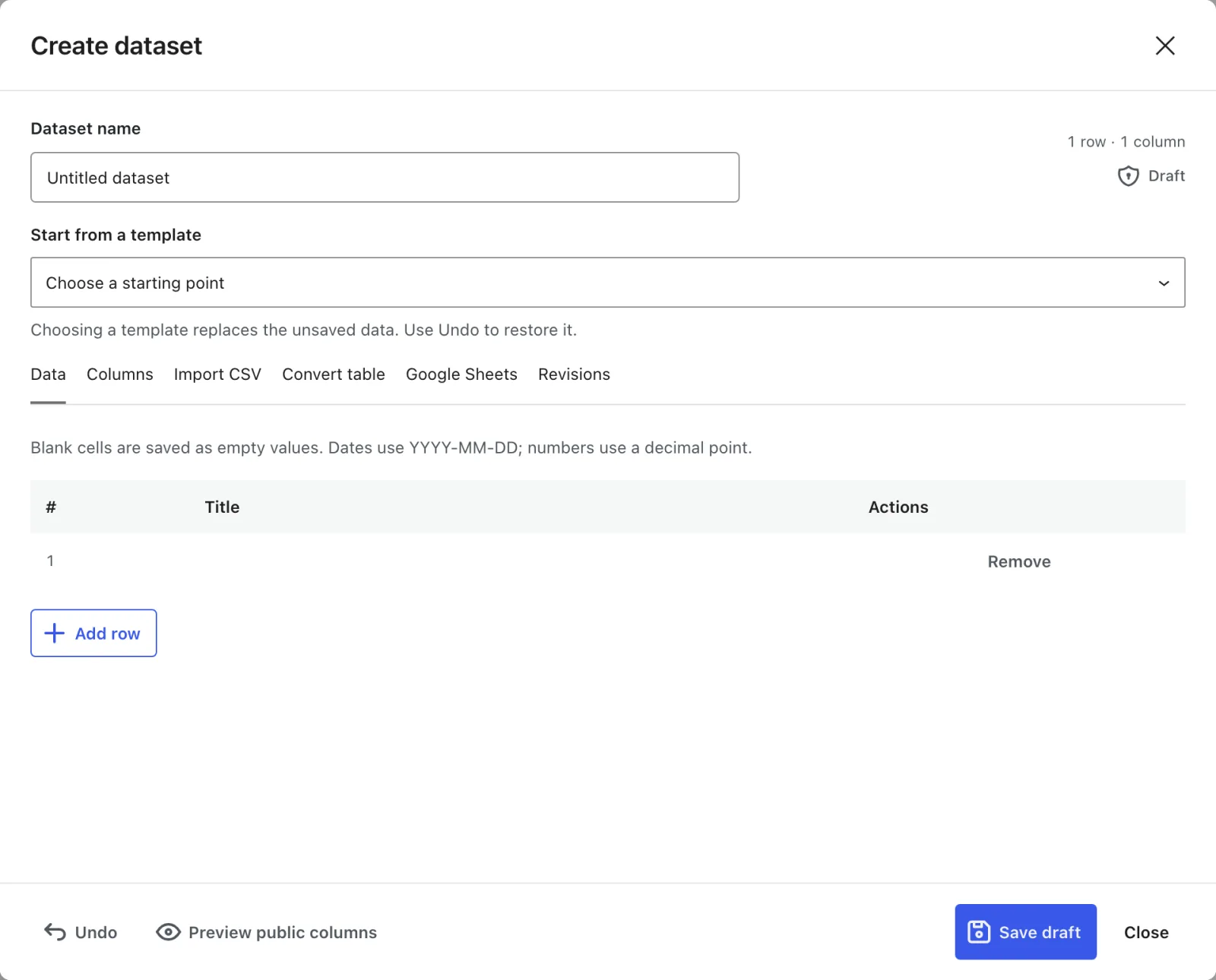
The templates are:
- Blank dataset, with one Title column.
- Course comparison, with Course, Price, Subject and Official URL.
- Resource list, with Resource, Category and Website.
- Schedule, with Session, Date and Location.
- Product comparison, with Product, Price, Key feature, Available and Official URL.
Add Your Columns and Rows
Open the Columns tab to rename columns, change their type or add new ones. Each column has a Public toggle. Only public columns appear on your site.
New columns you add start as private, so switch Public on for the ones visitors should see.
Then open the Data tab and fill in the rows:
- Select Add row for each new row.
- Type numbers with a decimal point and no currency symbol, such as
49.5. - Type dates as
YYYY-MM-DD. - Yes/No columns use a menu with Empty, Yes and No.
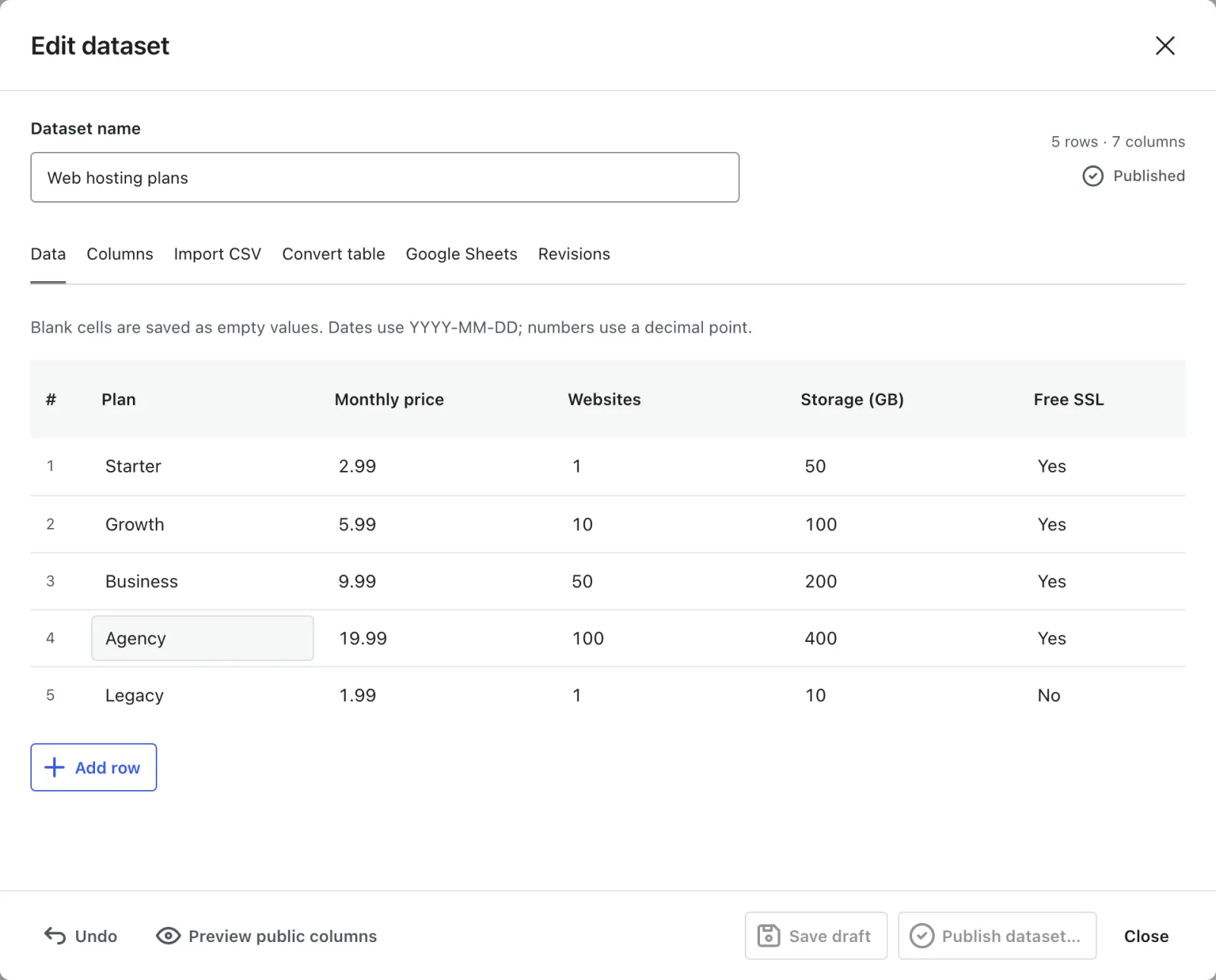
The Dataset Editor and Column Types covers every column type and what it accepts.
Save and Publish
- Select Save draft. A draft is private, and it doesn’t change anything on your site.
- Select Publish dataset….
- Review the rows and public columns in the Publish dataset? dialog.
- Select Confirm publication.

Publishing needs at least one public column. After that, every block and shortcode using this dataset shows the new revision.
Add a Table to a Post
- Open a post or page in the block editor.
- Insert a Core Table block.
- Select Choose dataset and pick the dataset you just published.
- In the block settings, set the Caption, Pagination and Mobile layout you want.
- Save the post.
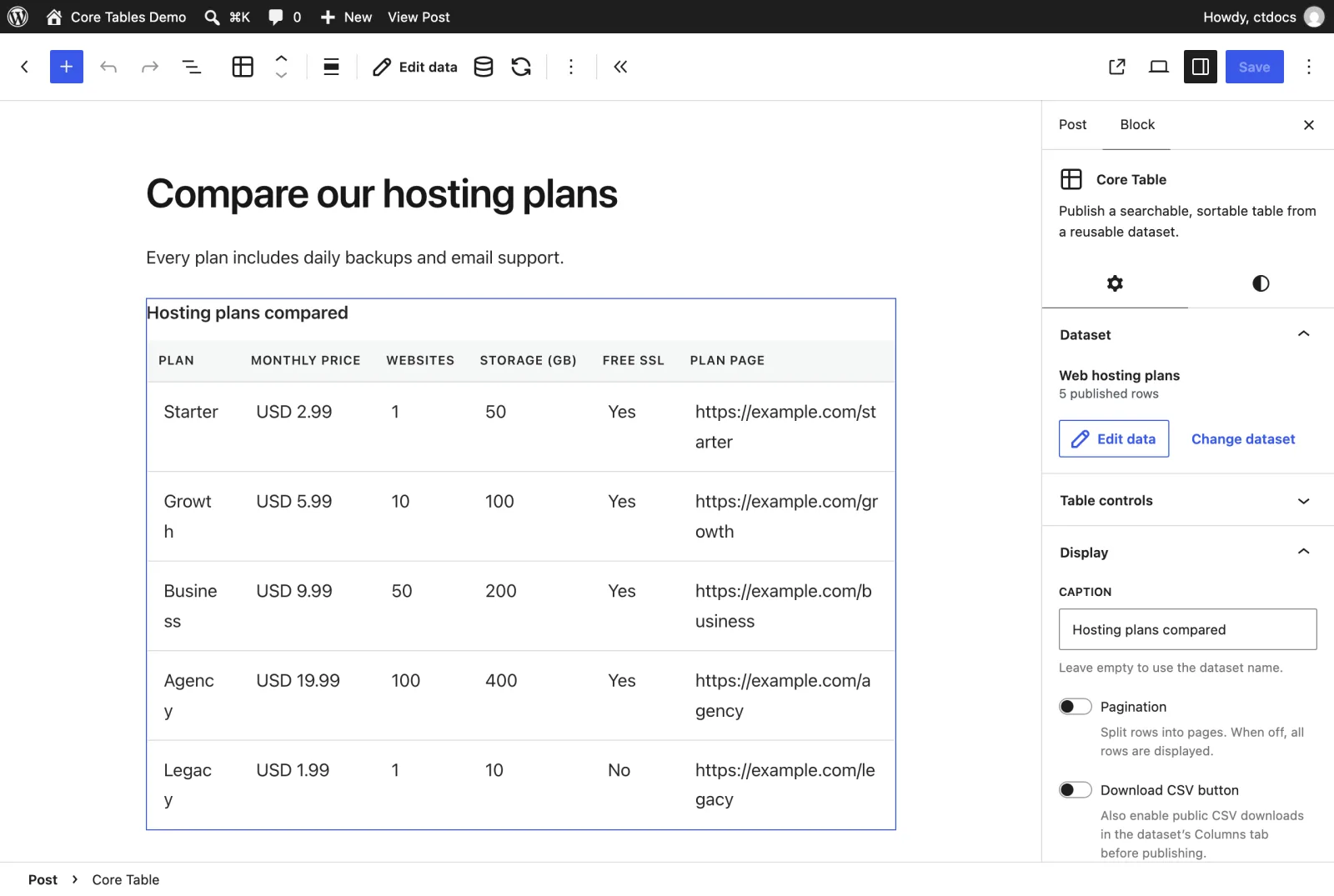
The block preview always shows the published data. If you edit the dataset from the block with Edit data, publish it again to see the change.
Add a Chart
- Insert a Core Chart block and choose the same dataset.
- Under Chart data, pick Bar or Line as the Chart type.
- Pick the category column. For a bar chart that’s the Y-axis column, and for a line chart it’s the X-axis column.
- Tick up to 6 number or currency columns as series.
- Add a Value axis label if the series share a unit, such as “Price (USD)”.
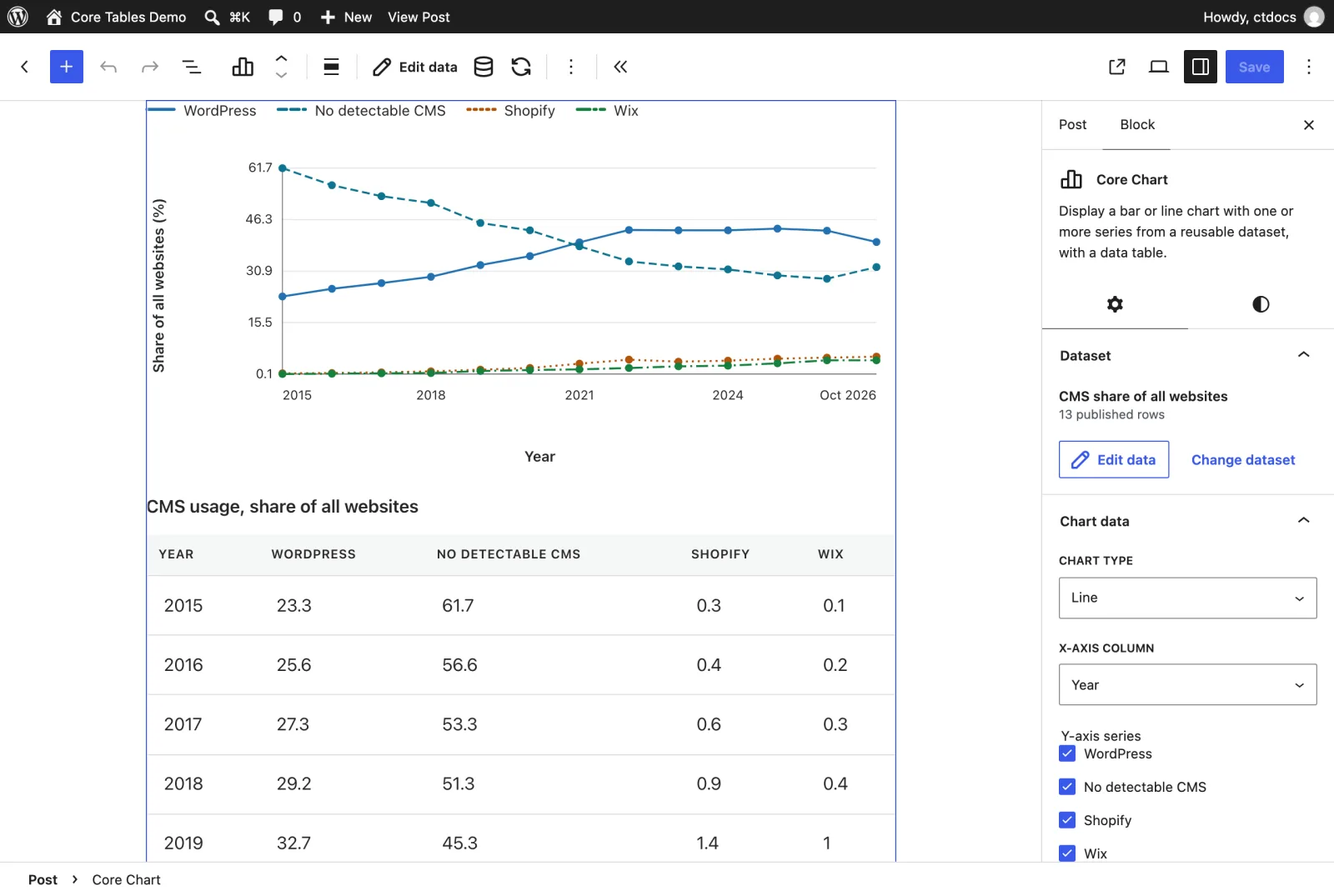
Each row is one point. Charts don’t add rows together, so a chart works best on data that’s already one row per category.
Check It on Your Site
View the post. The table has a search box and sortable headings, and the chart shows its data table underneath.
If nothing shows up, the dataset probably isn’t published, or it has no public columns. Logged-in editors see “Choose and publish a Core Tables dataset to display it here.” in that case. Visitors see nothing.
Next Steps
- The Core Table Block covers search, filters, pagination and mobile layouts.
- The Core Chart Block covers multi-series charts and styling.
- [The [coretable] Shortcode](https://gauravtiwari.org/docs/core-tables/tables-and-charts/coretable-shortcode/) shows the same data in classic themes and widgets.
For step-by-step walkthroughs, see How to Build a Table from a CSV or Markdown File and How to Update One Table Across Many Posts at Once.