
How to Update One Table Across Many Posts at Once
I see the same pricing or comparison table pasted into 10 posts all the time. Then the price changes, 7 posts get updated, and 3 keep showing the old number for months.
The fix is to keep the data in one place. Every post shows the same dataset, and when you publish a change, every table and chart using it updates together. You can also prepare the change as a draft and publish it when the new prices actually start.
Core Tables is my plugin for reusable tables and charts in WordPress. It stores each table as a dataset outside your posts, and blocks and shortcodes only point at it by ID.
Before You Start
You need:
- Core Tables 1.1.0 or newer, on WordPress 6.9 and PHP 8.3 or newer.
- An administrator or editor account to edit and publish datasets. Editors can only edit datasets they created. Administrators can edit all of them.
- One dataset per shared table. If the table already lives in TablePress or a core Table block, import it first.
How It Works
Every dataset keeps 2 versions that matter:
- The draft is what you edit. Every Save draft stores a new revision, and visitors never see it.
- The published revision is what every block and shortcode shows.
So editing is safe. You can save a half-finished change as many times as you like, and nothing on the site moves until you click Publish dataset….
Put the Same Dataset in Every Post
- On the Datasets screen, find the dataset and note its ID, or click Copy shortcode.
- In each post, add a Core Table block and pick the dataset with Choose dataset, or paste
[coretable id=N]. - Set the options per post. One post can show search and pagination while another shows a plain table, and both read the same rows.
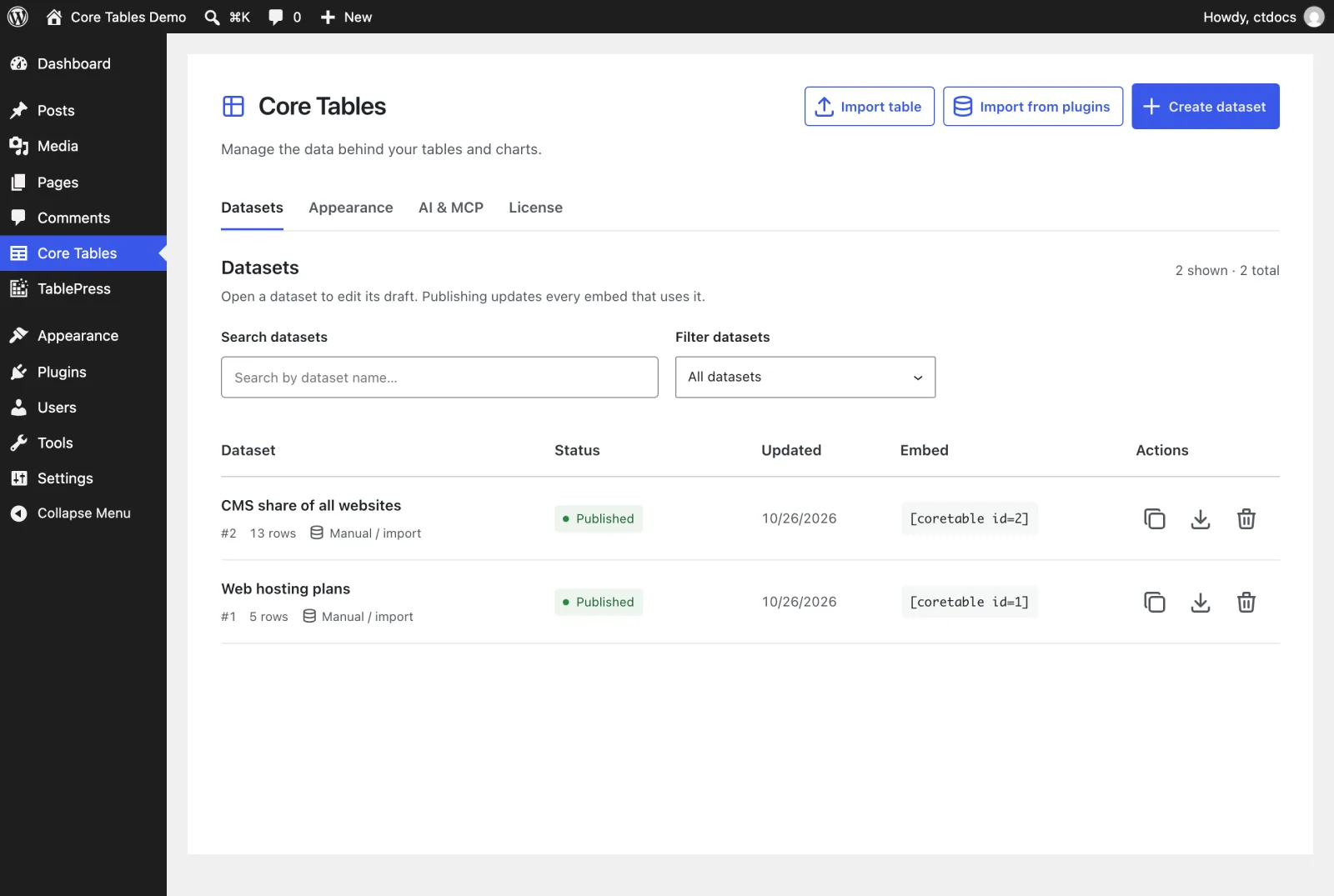
The same dataset can also feed a Core Chart block, so a price table and a price chart never disagree.
Make a Change
- Open the dataset from Core Tables or from Edit data on any block that uses it.
- Change the rows on the Data tab.
- Click Save draft. The editor badge changes to Draft, the Datasets screen shows Published · newer draft, and the site still shows the old data.
- When it’s time, click Publish dataset…. The Publish dataset? window lists the rows and public columns that will go live.
- Click Confirm publication.

Every post that uses this dataset now shows the new rows. You don’t need to open or save any of those posts.
Undo a Bad Publish
Every saved draft is kept, so a mistake is easy to reverse:
- Open the dataset and go to Revisions.
- Click Restore to editor on the revision you want. It loads as unsaved changes.
- Click Save draft, then Publish dataset… and Confirm publication.
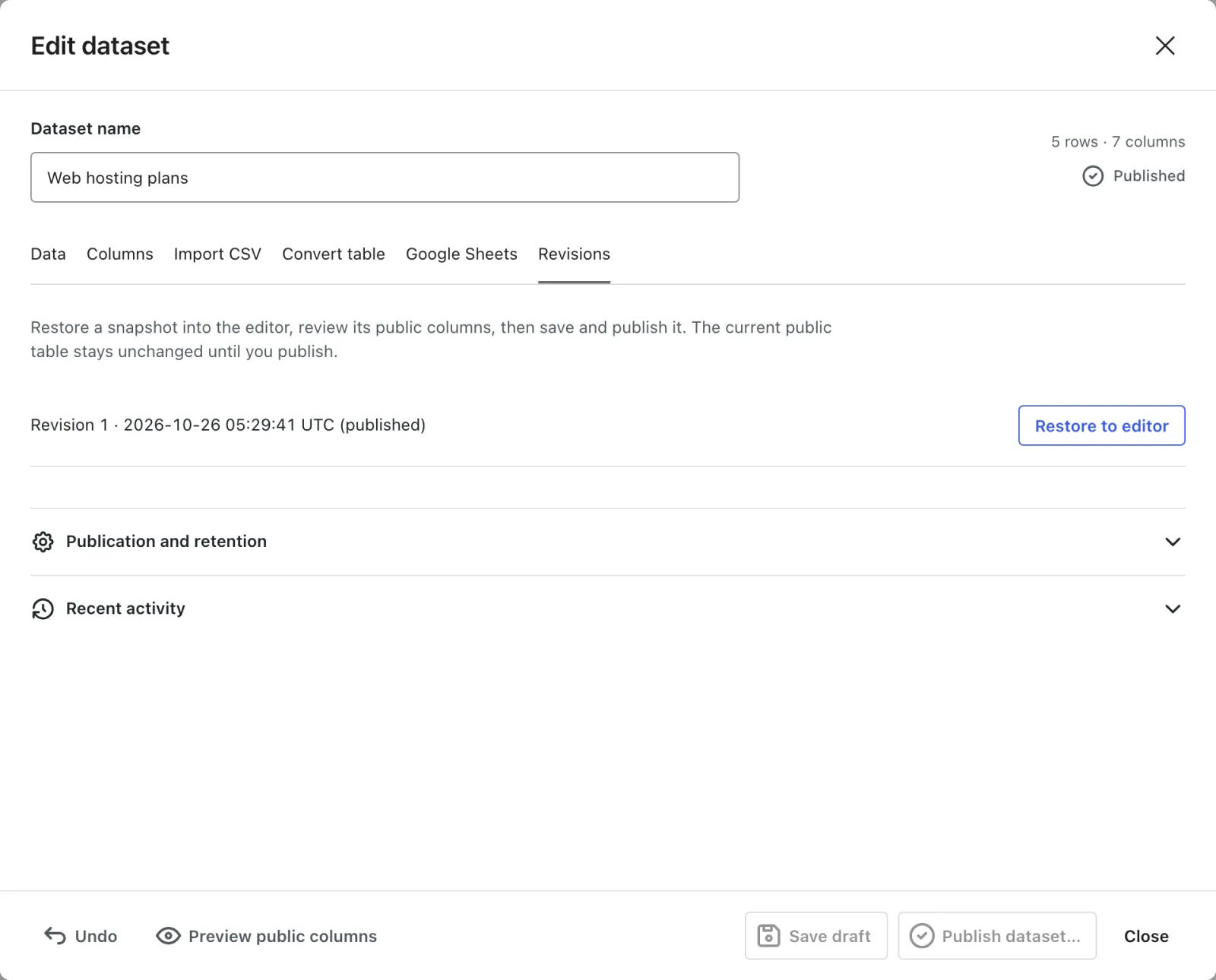
Restoring never overwrites history. It creates a new revision from the old one.
Check It Works
Open 2 posts that use the dataset. Both should show the same new rows. Logged-in editors see a notice in place of the table if the dataset isn’t published.
Mind the Page Cache
Publishing purges LiteSpeed Cache and WP Super Cache automatically. Every other cache needs a hand:
- Cloudflare, host caches and other cache plugins aren’t purged by Core Tables. Purge the affected pages yourself after you publish.
- Developers can purge a CDN from the
core_tables_cache_invalidateaction, which fires after each publish with the dataset ID. - Saving a draft never purges anything, because nothing public changed.
If one post shows the new data and another doesn’t, a cached page is almost always the reason.
What It Won’t Do
Some things are still manual:
- It doesn’t list which posts use a dataset. Keep a note, or search your posts for
coretable id=Nand the block. - It doesn’t schedule a publish. Save the draft early and publish on the day.
- It doesn’t keep a different version per post. Every embed shows the same published revision. Use a second dataset for a different table.
- Unpublishing hides it everywhere. Unpublish dataset removes the table from every post at once.
The drafts, publishing and revisions reference covers every state and button, and the roles and permissions reference explains who can publish.