
Install Core Tables and Activate Your License
Core Tables isn’t on wordpress.org, so WordPress can’t update it by itself. Your license key connects the plugin to its update server. Every table, chart and import keeps working without it.
Requirements
- WordPress 6.9 or newer.
- PHP 8.3 or newer.
- A single site. Network activation on multisite is refused with “Activate Core Tables on an individual site. Network activation is not supported.”
- A MySQL or MariaDB database that supports transactions and JSON functions. Most current hosts do.
- For the license and Google Sheets only: the PHP Sodium extension and an
AUTH_KEYof 32 characters or more inwp-config.php. Core Tables uses them to encrypt the stored key and Sheets credentials.
Install the Plugin
- Buy Core Tables from the Core Tables product page. The ZIP and your license key land in your account on GauravTiwari.org.
- In wp-admin, go to Plugins → Add New Plugin and select Upload Plugin.
- Choose the ZIP file and select Install Now.
- Select Activate Plugin.
The ZIP already includes everything it needs, so there’s nothing to build or install with Composer.
What Activation Sets Up
Activation creates the plugin’s database tables and adds 4 capabilities:
- Administrators get
edit_core_tables,publish_core_tables,export_core_tablesandmanage_core_tables. - Editors get
edit_core_tables,publish_core_tablesandexport_core_tables.
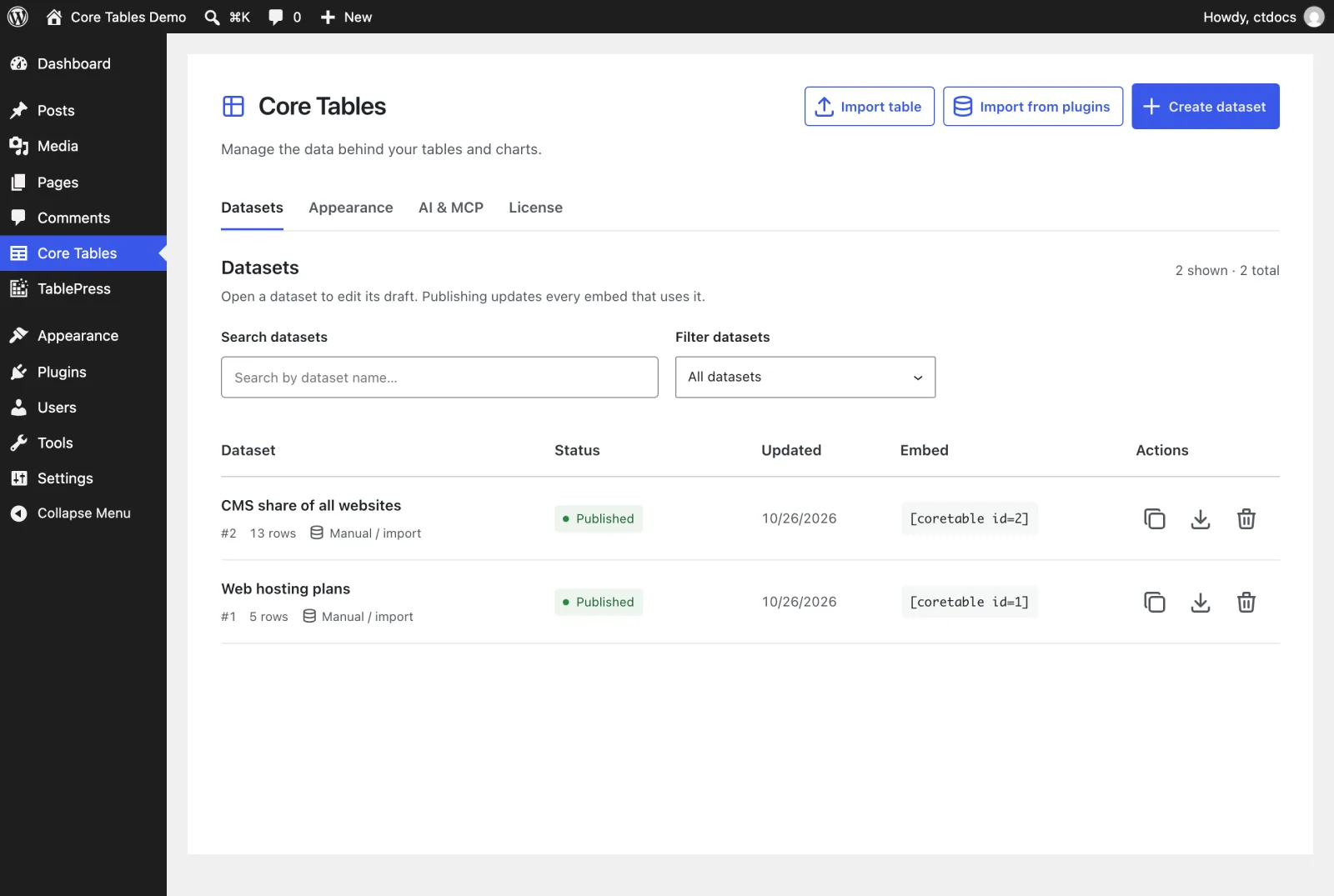
A new Core Tables menu appears below Comments. Administrators and editors see it. Authors don’t, but they can still insert the blocks and pick published datasets. Roles and Permissions explains who can do what.
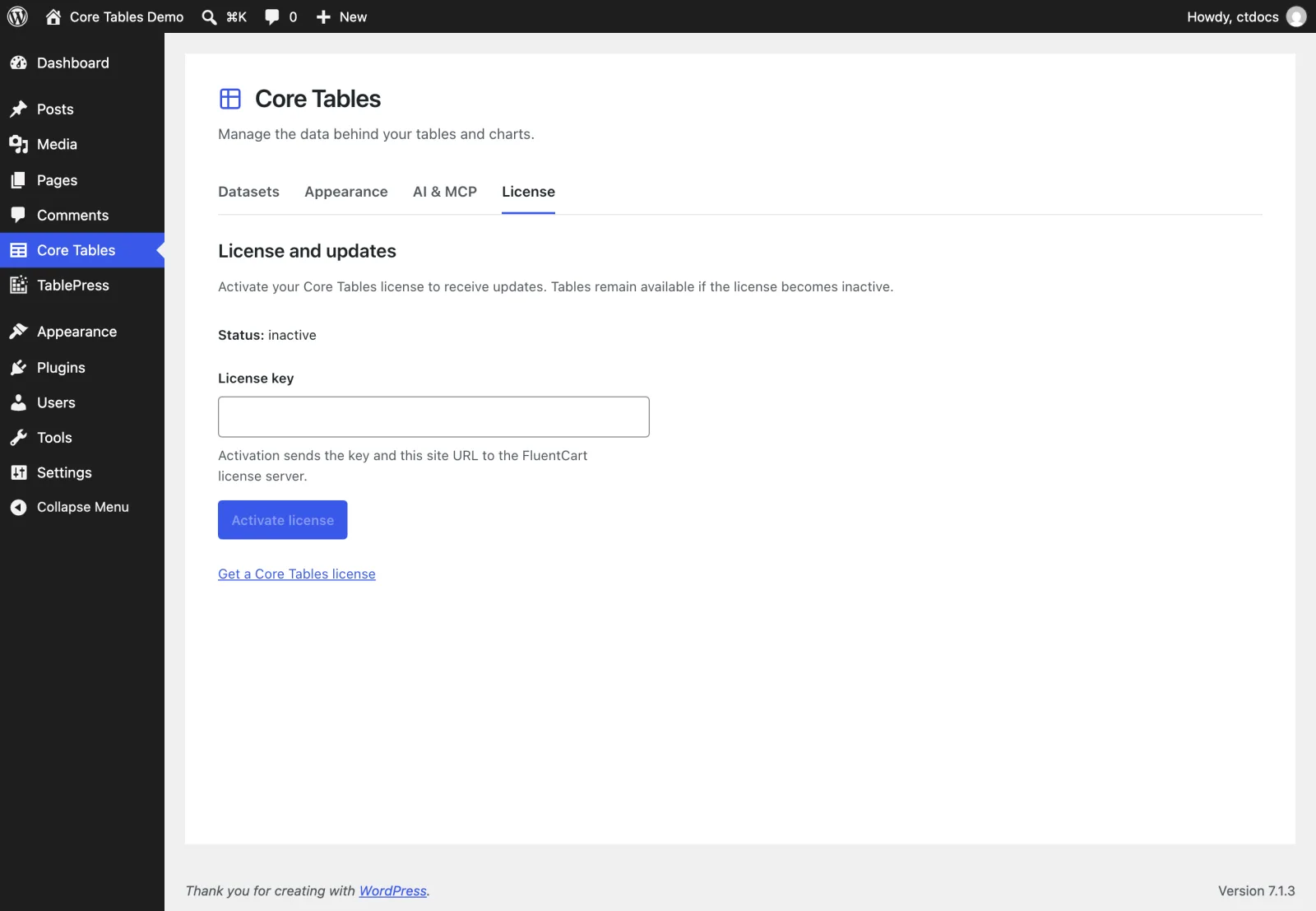
Activate Your License
- Go to Core Tables → License. Only administrators see this tab.
- Paste your key into License key.
- Select Activate license.
Activation sends the key and your site URL to the license server. The key and its activation are stored encrypted, tied to this site’s URL.
Once it’s active, the tab shows the Status, the last 4 characters of the License, the Plan and Valid until. Use Check license to refresh it, or Disconnect license to free the activation for another site.
License States
| Status | What it means | What to do |
|---|---|---|
inactive | No key is stored | Paste a key and select Activate license |
valid | Updates are available | Nothing |
invalid | The store rejected the key or it expired | Check the key, or renew it |
reconnect | The site URL or AUTH_KEY changed, so the stored key can’t be used | Select Remove local license copy, then activate again |
unknown | The last check didn’t get an answer | Select Check license later |
A few messages you might see:
- “Disconnect the current license before activating another.” You already have a key stored.
- “This site needs a strong AUTH_KEY and Sodium before activation.” Your host is missing Sodium, or
AUTH_KEYis shorter than 32 characters. - “This license is not valid for Core Tables.” The key belongs to another product, or it isn’t active.
- “This license is inactive or expired. Existing tables remain available.” Updates stop until you renew. Nothing on your site changes.
Disconnect license needs the license server to answer. If it can’t be reached, the license stays connected and you can try again later.
How Updates Arrive
Core Tables keeps update details for up to 3 hours, so a new version can take a few hours to appear. When your license is valid, the update shows on the Plugins screen like any other plugin.
The package comes straight from the download server, and Core Tables checks that it really is Core Tables at the advertised version before WordPress installs it.
Next Steps
With the plugin active, follow Create Your First Table and Chart.