
Connect a Google Sheet
A dataset can read its rows from a Google Sheet. Core Tables reads the range you choose, saves it as a new draft and, if you allow it, publishes it for you.
The connection is read-only. Core Tables never writes to your spreadsheet, and each dataset has 1 source.
Before You Start
You’ll need a few things in place:
- An administrator account. Only administrators can connect, preview or disconnect a sheet. Editors see “Ask a site administrator to connect Google Sheets.”
- The Sodium PHP extension and an
AUTH_KEYof 32 characters or more inwp-config.php. Core Tables uses them to encrypt the key. - A saved dataset with the columns you want and the right public choices. The tab says “Save this dataset first” until you do.
- No image columns. Sheets can’t fill image columns: “Sheets refresh does not import media IDs. Use a dataset without image columns.”
Set Up Google Cloud
- In Google Cloud, enable the Google Sheets API for a project.
- Create a dedicated service account. Give it no project roles and no domain-wide delegation.
- Create a JSON key for it and download the file.
- Share your spreadsheet with the service account’s email address as a Viewer.
The key must be a service_account JSON file whose email ends in .iam.gserviceaccount.com. Core Tables asks Google for read-only Sheets access and nothing else.
Prepare the Sheet
Core Tables reads raw cell values, so the sheet’s formatting matters:
- One heading row at the top of the range. Every heading must be unique, nonempty text up to 200 bytes.
- Numbers as numbers. A price column should hold
5, not the text$5. Number formatting in Sheets is fine, because Core Tables reads the value underneath. - Dates as
YYYY-MM-DD. Dates arrive as the text Sheets displays, so set the date format toYYYY-MM-DD. - Formulas are fine. Core Tables gets their calculated results.
Connect the Sheet
Open the dataset, select the Google Sheets tab and expand Connect Google Sheets.
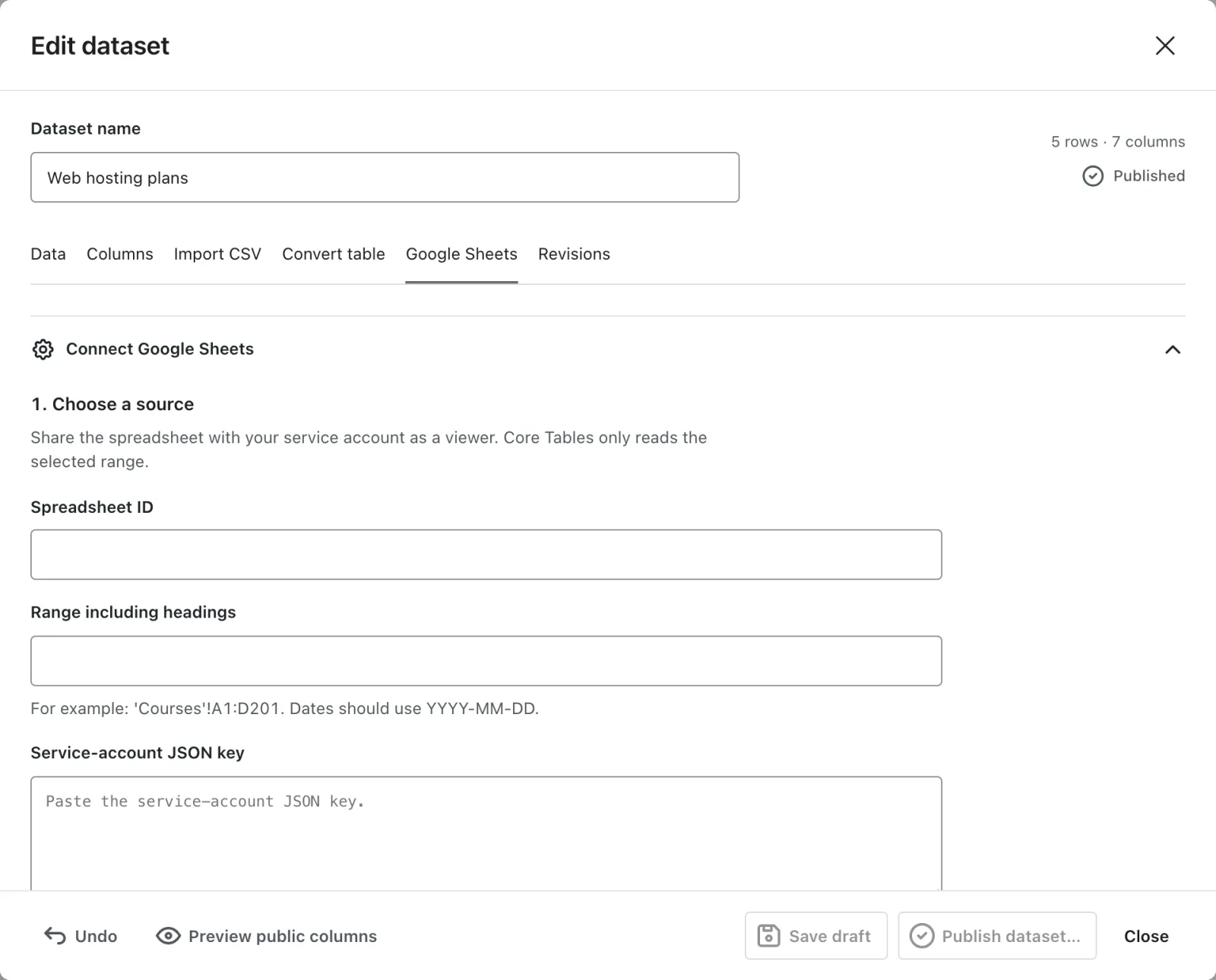
1. Choose a Source
- Enter the Spreadsheet ID. It’s the long code in the sheet’s URL, 10 to 200 letters, digits,
_or-. - Enter the Range including headings, such as
'Courses'!A1:D201. Include the tab name. Quote it if it has anything other than letters, digits,_or spaces, and double any quote inside it. - Paste the whole JSON key into Service-account JSON key. On later edits, leave it blank to keep the stored key.
- Select Preview source. You’ll see the row count and the first 5 source rows.
The range can be 1 to 30 columns wide and hold 1 heading row plus up to 10,000 data rows.
2. Match Columns
Choose the source heading for every dataset column. Each column shows whether it’s a Public column or a Private column. Every column must be mapped before you can save.
3. Set Refresh Behavior
| Setting | Options | Default |
|---|---|---|
| Refresh schedule | Manual, Hourly, Daily | Manual |
| Publish successful refreshes automatically | on or off | off |
With automatic publishing off, each refresh saves a draft for you to review. Turning it on needs the publish_core_tables capability.
Select Save connection and mapping. It’s enabled only after a preview. You’ll see “Source saved. Queue a refresh to import its rows.”
Run the First Refresh
Select Refresh now, then open the dataset’s Data tab to check the rows. Publish when it looks right, or let automatic publishing do it on the next refresh.
How the Key Is Stored
The JSON key is encrypted with a key derived from your site’s AUTH_KEY. It’s never sent back to the browser.
If AUTH_KEY changes, or you restore the database on a site with a different one, the key can’t be decrypted. Paste the JSON key again to reconnect.
Disconnect
Disconnect deletes the stored key and cancels pending refreshes. The dataset and all its revisions stay: “Disconnected. Dataset revisions are retained.”
Schedules, statuses and error messages are covered in Sheets Refresh, Schedules and Errors. For the whole setup as one walkthrough, see How to Keep a WordPress Table in Sync with Google Sheets.