
The Core Chart Block
The Core Chart block draws a bar or line chart from a published dataset. It can show up to 6 series, and it always prints the full data table under the chart.
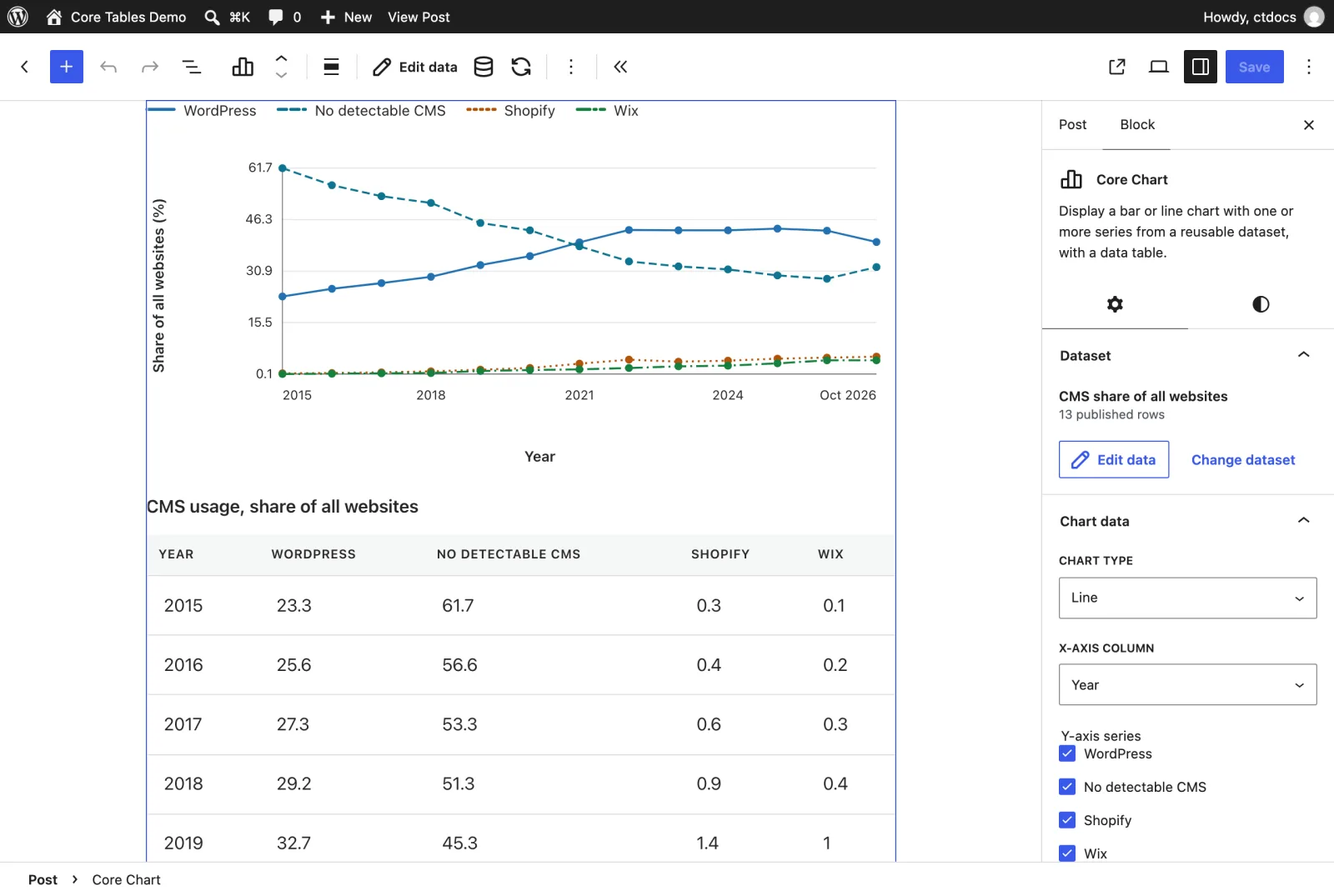
Add the Block
- Insert Core Chart from the Widgets category.
- Select Choose dataset and pick a published dataset.
- Set the chart up in the Chart data panel.
The dataset needs at least one public Number or Currency column to chart. The Dataset panel and toolbar work the same as on the Core Table block.
Chart Data Settings
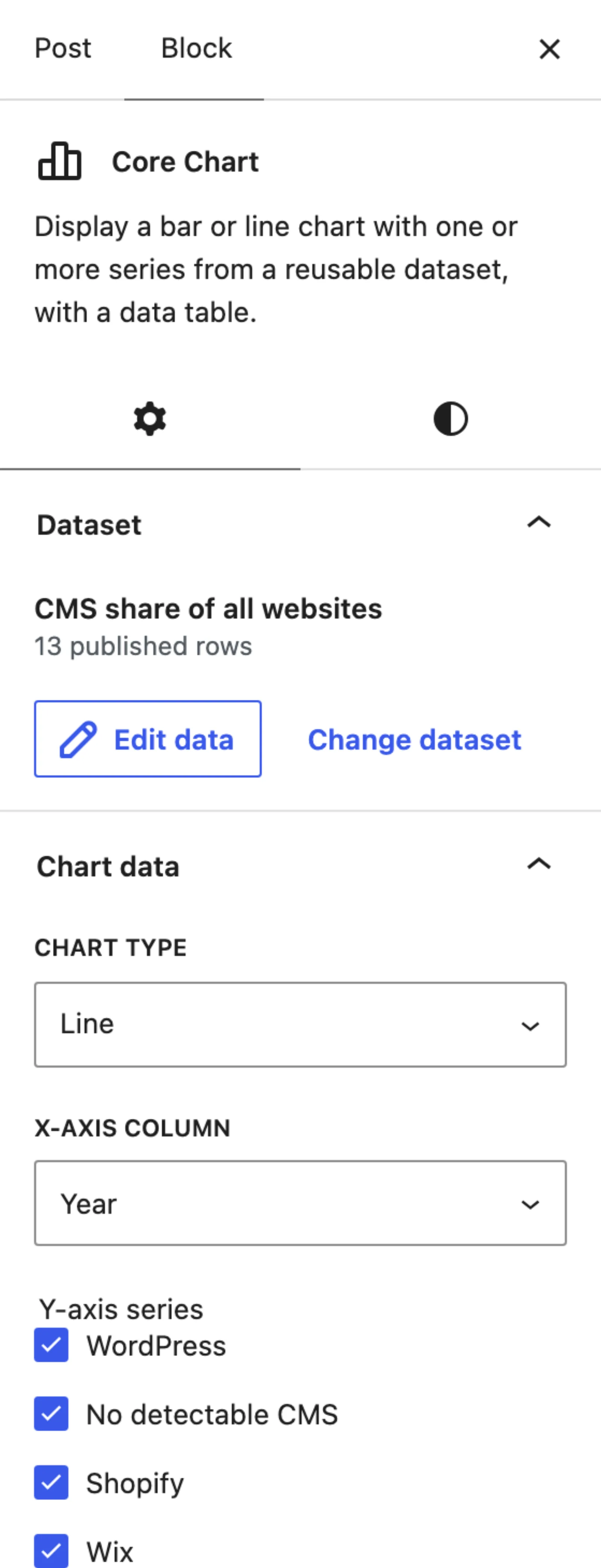
| Setting | What it does |
|---|---|
| Chart type | Bar or Line |
| Y-axis column (bar) or X-axis column (line) | The category column, such as Year or Plan |
| Y-axis series (line) or X-axis series (bar) | The Number or Currency columns to draw, up to 6 |
| Value axis label | Optional text for the value axis, such as “Share of websites (%)” |
A few rules apply:
- The category column can be any public column except rich text and image columns.
- Series must be public Number or Currency columns. A column can’t be both the category and a series.
- You can’t untick the last series, and the other boxes disable once 6 are ticked.
- Each row is one data point. Charts don’t add rows together, so pre-total your data if you need sums.
If you don’t pick anything, the block uses the first public number column as the series and the first other suitable column as the category.
Bar Charts and Line Charts
The 2 types use different layouts:
- Bar charts are horizontal. Each row is a bar down the side, and bar length shows the value. The category column labels the left side.
- Line charts run the rows left to right in their dataset order. Categories sit along the bottom and values up the side.
Bar charts always include zero. Negative values extend to the left of a zero line. Line charts scale from the lowest value to the highest, so the axis may not start at zero.
Empty cells leave a gap in a line. In a bar chart they show as no bar, with a dash as the value.
Multi-Series Charts
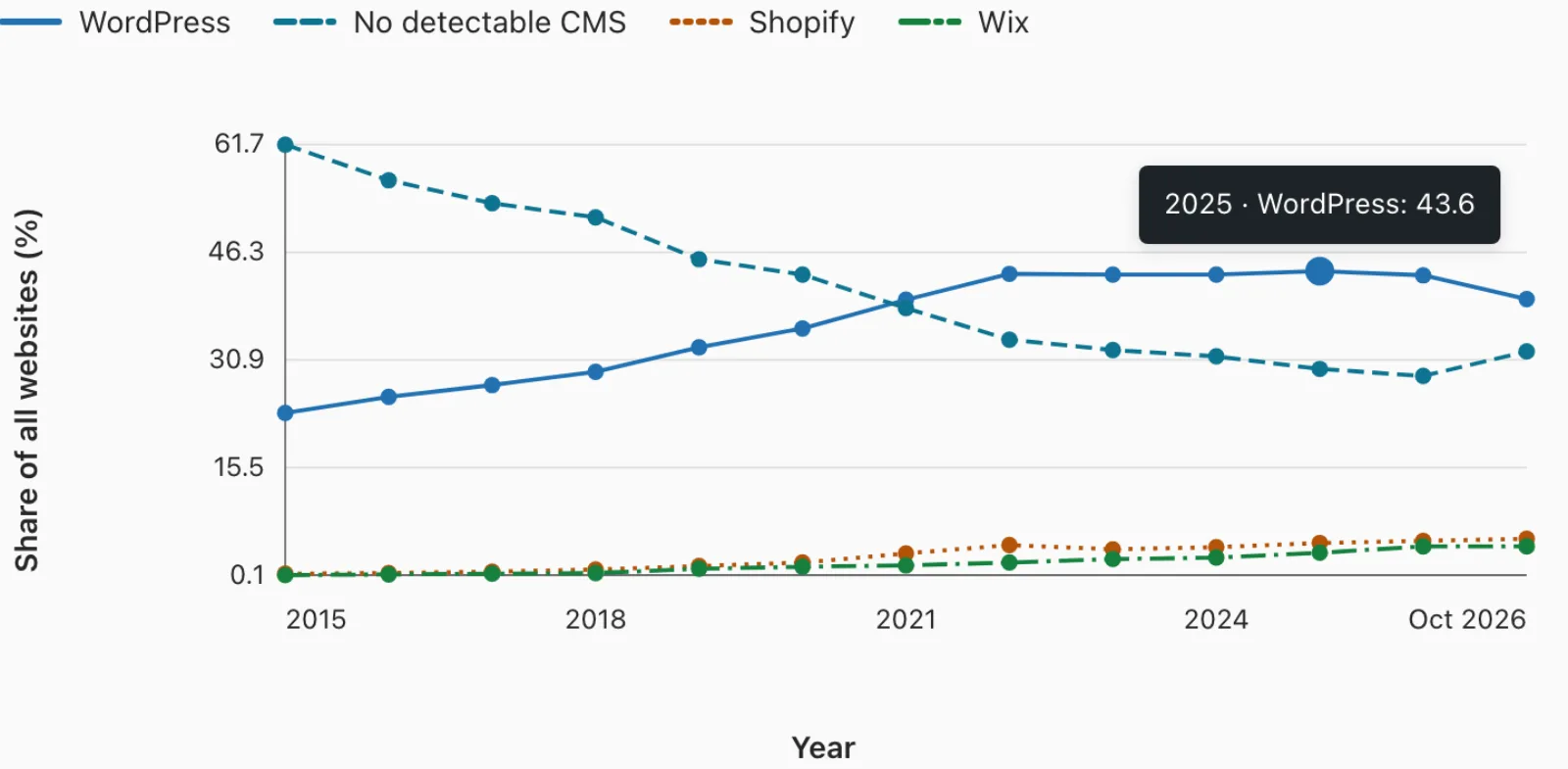
Ticking 2 or more series turns on these extras:
- Grouped bars, with one bar per series in each row.
- Multiple lines, one per series.
- A legend above the chart naming each series.
- A dash pattern per line, so lines stay distinguishable without color.
Value Axis Label
If you leave Value axis label empty, the label comes from your data:
- One series uses that column’s label.
- Several series use “Value”.
- Currency series that share a code add it, such as “(USD)”.
Set your own label whenever the series share a unit the column names don’t mention.
The Data Table
Every chart is followed by a table of the published data, with all public columns and the caption. Screen reader users and anyone who needs exact values get the same information as the chart.
In the editor, the preview table shows only the charted columns and the first 5 rows. The bar preview also samples up to 8 bars. The published chart uses every row.
Hover and Keyboard
Every bar and point shows its value on hover, on tap and on keyboard focus. Multi-series values read like “2020 · WordPress: 35.4”.
Press Tab to move through the points. Escape or scrolling hides the value. Each chart also has a text description for screen readers, such as “Line chart of WordPress and Shopify by Year.”
Pagination
Charts show every published row by default. Turn on Pagination in Display to show one page at a time, with Rows per page from 1 to 50. The default is 50.
Visitors move between pages with Previous and Next links, which reload the page.
Colors and Theme CSS
Series 1 uses the table’s accent color. The other 5 use fixed colors:
| Series | Color | Line dash |
|---|---|---|
| 1 | The accent color | Solid |
| 2 | #0e7490 | 8 4 |
| 3 | #b45309 | 2 4 |
| 4 | #15803d | 12 4 2 4 |
| 5 | #be123c | 4 3 |
| 6 | #475569 | 1 3 |
A theme can change them by setting --ctb-series-1 to --ctb-series-6 on .ctb-chart-shell:
.ctb-chart-shell {
  --ctb-series-2: #0369a1;
  --ctb-series-3: #ca8a04;
}
Change the accent itself with the block’s Accent color, or site-wide in Appearance Settings. Check that each color has enough contrast against your background, especially in dark themes.
When the Chart Doesn’t Draw
- “Chart columns are unavailable. The published data is shown below.” The category is also a series, a chosen column was removed or made private, or a series isn’t a number.
- “No numeric values to chart. The table is shown below.” The series columns are all empty.
- “Choose different public category and value columns in Block settings.” The editor’s version of the first message.
How to Add a Chart with Several Series to a WordPress Post walks through a complete example.