
How to Build a Table from a CSV or Markdown File
Most tables already exist somewhere else, in a spreadsheet export, a Markdown note or a table someone pasted into a doc. Typing them again row by row into WordPress is slow, and it’s how typos end up in prices.
The faster way is to paste the table in and let the column types be detected. Numbers become numbers, prices become prices and links become links, so sorting and charts work from the first save.
Core Tables is my plugin for reusable tables and charts in WordPress. Its Convert table tab reads CSV, Markdown, JSON and HTML, and the Import CSV tab replaces the rows of a dataset you already have.
Before You Start
You need:
- Core Tables 1.1.0 or newer, on WordPress 6.9 and PHP 8.3 or newer.
- An administrator or editor account.
- One table per import, up to 10,000 rows, 30 columns and 16 MB.
- No merged cells. They’re rejected in every format.
- Images already in your Media Library, if the table has any.
Paste or Upload the Table
- Go to Core Tables and click Import table. A new dataset opens on the Convert table tab.
- Pick the Format: HTML table, Markdown table, JSON (Core Tables, TablePress, or rows) or CSV with new columns.
- Paste the table, or use Upload a file (optional). Uploading a
.csv,.mdor.jsonfile switches the format for you. - Leave First row contains column headings on if the first row holds the labels. Markdown always uses its header row.
- Click Preview table. You’ll see the name, row and column counts and the first 5 rows.
- Click Use converted table.
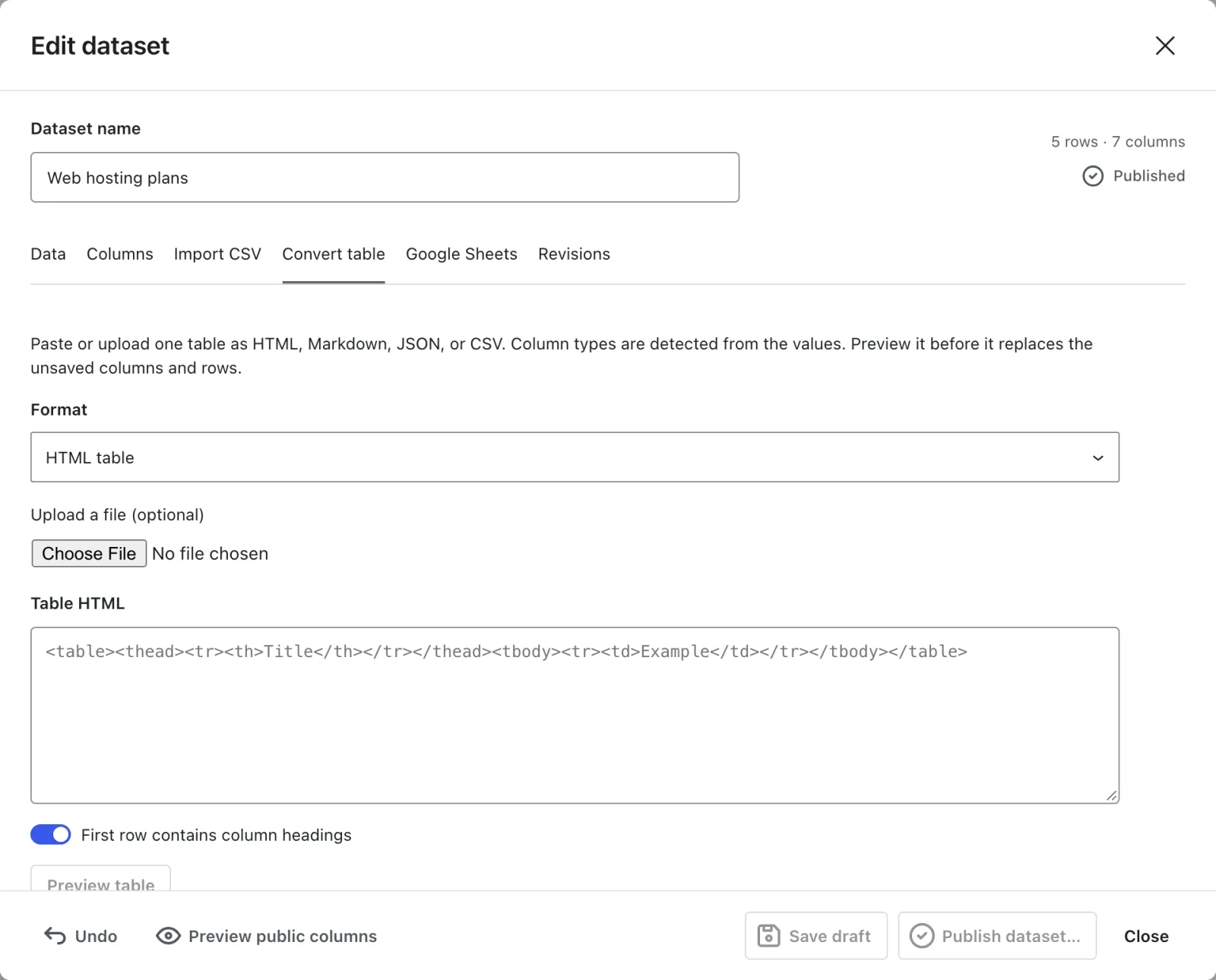
For CSV, the delimiter is detected from the first line: comma, semicolon or tab, whichever appears most. A Markdown # heading above the table becomes the dataset name.
How Types Are Detected
Every column is checked against all its nonempty cells, in this order. The first type that fits every cell wins:
| Values like | Becomes |
|---|---|
12, 8.5, -3, 1,000 | Number |
$2.99, €10, £5, ₹499, ¥300 (one symbol per column) | Currency in USD, EUR, GBP, INR or JPY |
true / false | Yes / No |
2026-11-02 | Date |
https://example.com | URL |
One <img> from your Media Library | Image |
| Bold, italic, links or code | Rich text |
| Anything else | Text |
A few rules catch people out:
- One value that doesn’t fit keeps the whole column as text. A price column with one “Free” stays Text.
- Leading zeros stay text, so ZIP codes like
02134keep their zero. 1and0become numbers, not Yes/No.- European number formats like
1.000,50stay text. - Dates only count in
YYYY-MM-DD. “Nov 2, 2026” stays text. - HTML columns with formatting stay rich text. Bold, italic, links or code in any cell skip number and price detection for that column. Plain HTML columns are detected like CSV (Core Tables 1.1.1 or newer).
Fix What It Guessed Wrong
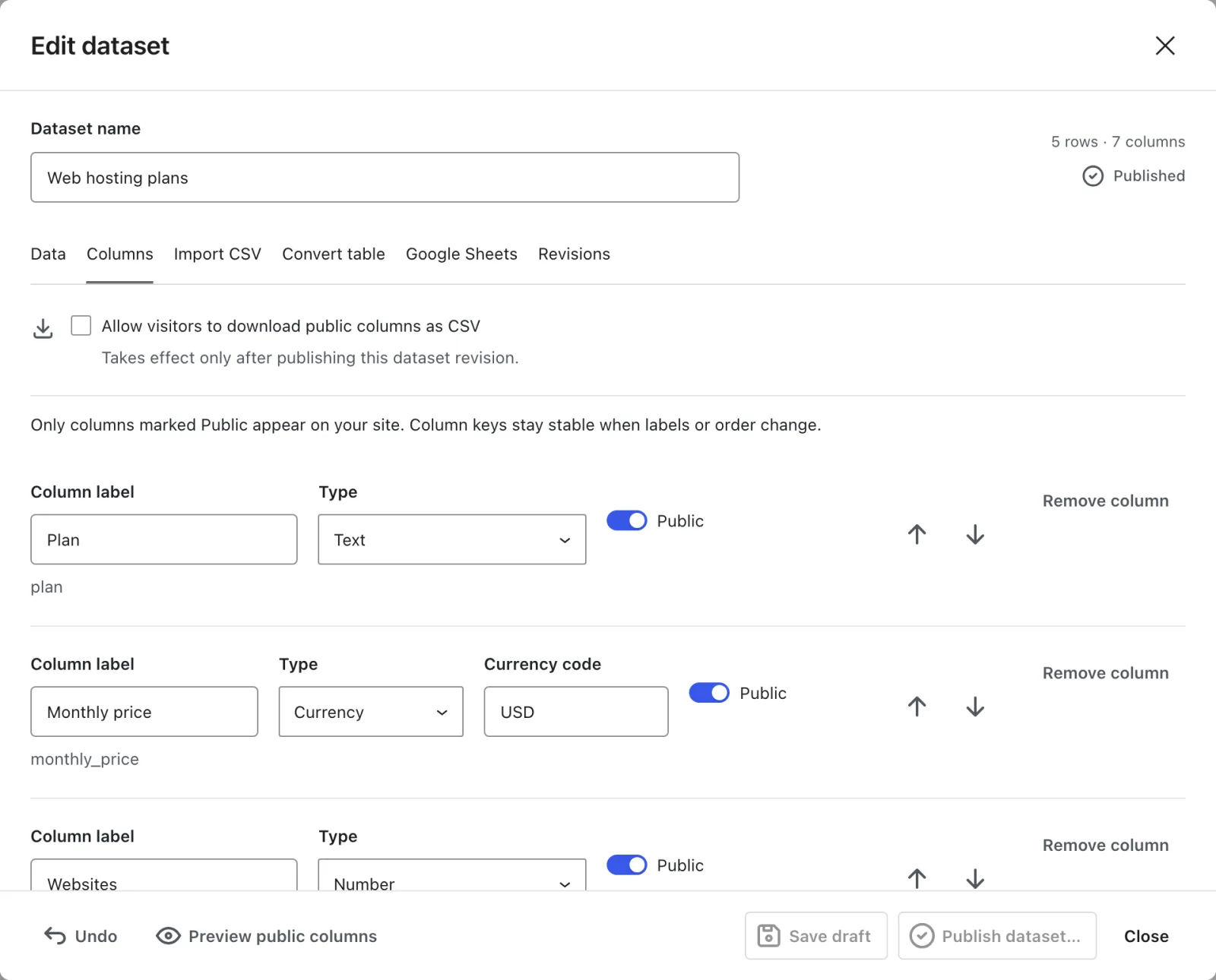
- Open the Columns tab and read down the Type column.
- If a column came in as Text but should be a number, fix the odd values on the Data tab first. Numbers must be plain: no symbols, units or separators.
- Change the Type. Saving checks every cell and stops at the first one that doesn’t fit, naming its row and column.
- Turn off Public for any column visitors shouldn’t see.
- Click Save draft, then Publish dataset… and Confirm publication.
Replace Rows in an Existing Dataset
When the columns already exist and only the rows change, use the Import CSV tab instead:
- Open the dataset and go to Import CSV.
- Choose the CSV file and the Delimiter: Comma, Semicolon or Tab.
- Click Preview import. Each dataset column gets a select, matched automatically when a CSV header equals the column’s label or key. Pick Leave empty for anything you don’t want filled.
- Click Replace unsaved rows, check the Data tab and save the draft.
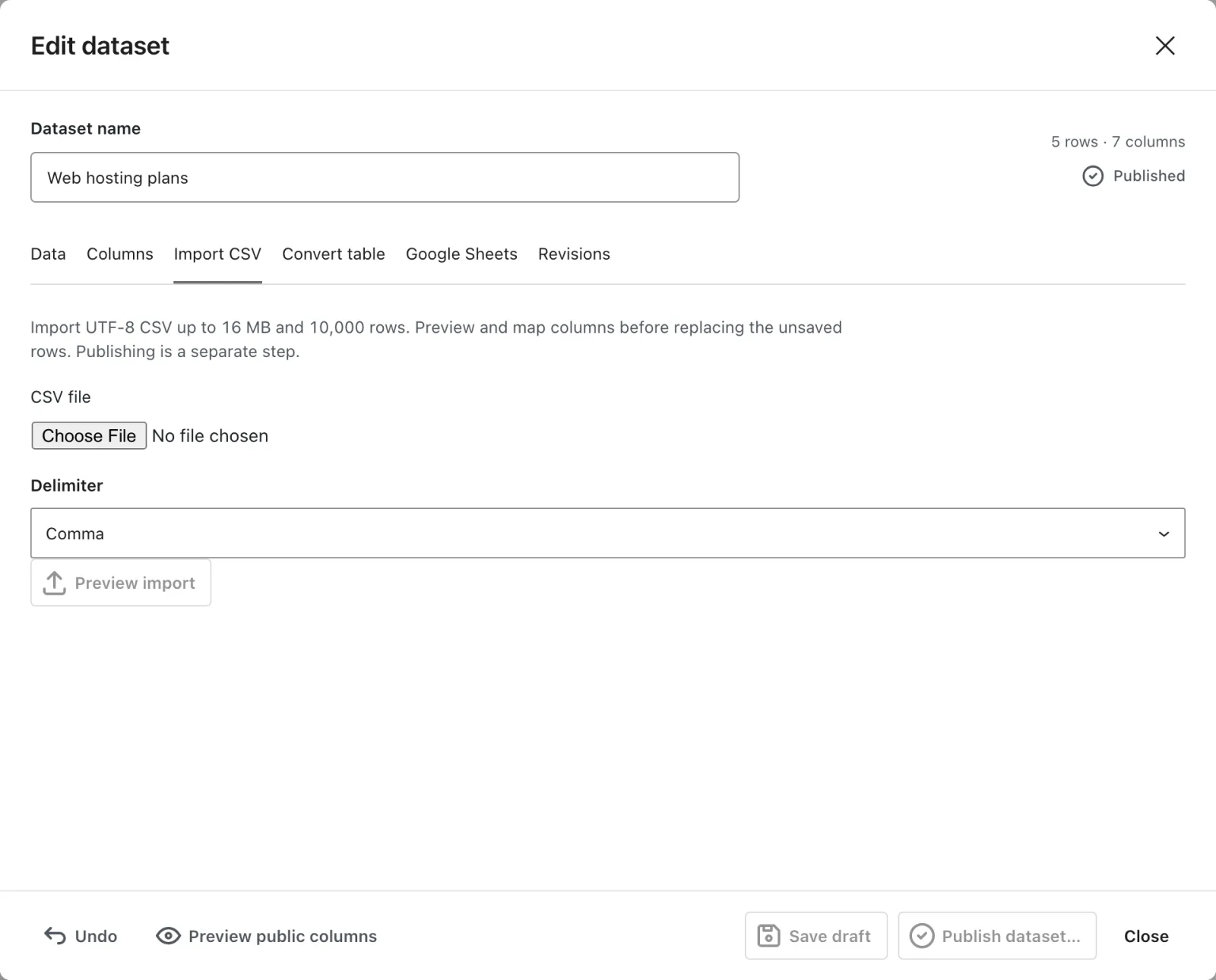
This keeps your column types and privacy settings exactly as they are. The CSV must be UTF-8.
Check It Works
Add a Core Table block to a post and pick the dataset. Click a number column’s heading. If it sorts 2, 10, 100 and not 10, 100, 2, the type is right.
When Something Is Missing
| What you see | Why it happens | Fix |
|---|---|---|
| “Tables with merged cells cannot be converted.” | A cell spans rows or columns | Unmerge it in the source |
| “Paste one HTML table. Nested or multiple tables are not supported.” | More than one table was pasted | Paste one at a time |
| “Import the image into the WordPress media library before converting this table.” | The image isn’t in your Media Library | Upload it first, then convert again |
| “CSV row N has a different number of columns.” | A row is short or long | Fix that row in the file |
| A save error naming a row and column | A value doesn’t fit its column type | Fix the value or change the type |
What It Won’t Do
Conversion has limits worth knowing:
- It doesn’t merge cells or keep spreadsheet formulas. Only values come across.
- It doesn’t detect types in formatted HTML columns. Those stay rich text.
- It doesn’t save anything until you click Save draft, and nothing is public until you publish.
- It doesn’t fetch images from other sites. They must be in your Media Library.
Every format rule is in the import and convert reference, and the dataset editor reference covers each column type.