
Technical SEO Essentials
Your blog runs a caching plugin and the SEO plugin shows green, and somewhere in the settings is a technical mistake that stops a page from being indexed at all. You can’t tell which setting it is from the outside, and most of the advice on this was written for developers of large sites. This lesson is the short list of technical things that decide whether a blog gets crawled, indexed and shown, with the retired advice taken out.
Move: Build. Technical SEO for a blog is a short list you check twice a year, and this lesson is that list with the retired advice taken out.
Your three actions for this lesson:
- Run the Core Web Vitals check on your 3 most-visited pages
- Read your sitemap and confirm every lastmod is honest
- Confirm robots.txt isn’t blocking a page you meant to noindex
The Technical Floor
Before the list, I want to be clear about what this part of the work can do, because a lot of time gets spent here for the wrong reason. Technical SEO is a floor. Google has to be able to fetch the page, read it as a phone would, index it and trust that it is the real version. Once those hold, the page competes on what it says and who says it, which is the work of Anatomy of a Page That Ranks and Gets Cited and First-Hand Proof as the Moat. More technical polish after that point does not lift a page, and Google’s page experience guidance says so in as many words: Search always seeks to show the most relevant content, even when the page experience is sub-par, and a great experience helps mainly when there is a lot of helpful content to choose between.
Technical SEO is a floor. Once the site is crawlable, secure and usable on a real phone, more of it does not lift a page.
The list is short because the floor is short, and I would rather you check it twice a year properly than tune it every week.
The habit that makes the checking easy is the ladder from How Google Decides Now: crawl, then index, then rank. Every technical problem lives on one of those 3 rungs, and the fix for a crawl problem is never a speed plugin.
Mobile Indexing
Google reads your blog as a phone reads it. There is no longer a desktop version of the index to fall back on, and the history matters only because so much advice still describes the change as if it were in progress.
- Google announced that the move to mobile-first indexing was complete on 31 October 2023.
- Since 5 July 2024, Google crawls and indexes every site with Googlebot Smartphone only. A site that cannot be reached on a mobile device is no longer indexed.
- The Mobile Usability report in Search Console, the Mobile-Friendly Test and its API were retired on 1 December 2023.
So “mobile-first” is finished as a project and lives on as the ordinary way indexing works. What it asks of a blog is plain: the mobile page must carry the same content as the desktop page, the same structured data and the same links, and nothing important may load only after a tap or a scroll, because Googlebot does not tap or scroll.
The retired tools leave a gap that people fill with the wrong thing. The replacement for the Mobile-Friendly Test is Lighthouse, which runs inside Chrome DevTools and behind PageSpeed Insights, and it will tell you about tap targets, font sizes and viewport settings. It is a lab tool though, and the old advice still stands: open your blog on your own phone, on mobile data rather than home Wi-Fi, read a full article, tap 5 links, use the menu. A theme can pass every automated check and still push the article under a sidebar, cover it with a popup and hide the navigation behind 3 taps. Technically responsive and practically unusable is a common combination, and no report catches it the way your own thumb does.
Core Web Vitals
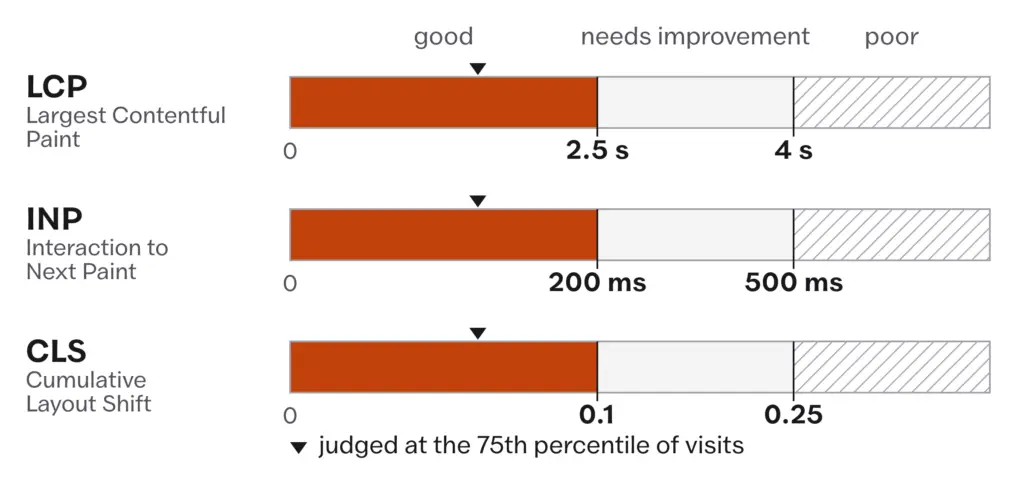
Core Web Vitals are Google’s 3 measurements of how a page feels to load, and they are the one part of page experience that Google says its ranking systems use. They measure real visits and they are judged against fixed thresholds, and they pass or fail per group of pages and per device.
- Largest Contentful Paint (LCP): how long until the biggest visible thing on the screen, usually the hero image or the first block of text, has rendered. Good is 2.5 seconds or less.
- Interaction to Next Paint (INP): how long the page takes to respond visually after a tap, click or keypress. Good is 200 milliseconds or less. INP replaced First Input Delay on 12 March 2024.
- Cumulative Layout Shift (CLS): how much the page jumps around while loading. Good is 0.1 or less.
- Each is measured at the 75th percentile of visits, for mobile and desktop separately. A page passes when all 3 pass at that percentile.
web.dev, Web Vitals, October 2024. Google’s thresholds are LCP within 2.5 seconds, INP of 200 milliseconds or less and CLS of 0.1 or less, measured at the 75th percentile of page loads and segmented by mobile and desktop. The poor line sits above 4 seconds, 500 milliseconds and 0.25, and the band between the two is what the report calls needs improvement. For your blog it means the score is set by your slower quarter of visitors, on their phones and their networks, and a fast test on your own laptop tells you nothing about it.
What passing buys a blog is smaller than the amount written about it, and the page experience line quoted above is the reason: passing does not put a page on top and failing does not keep a good page off it. It is wise to treat the report as a health check: fix a red page group because red pages annoy readers and lose the close calls, and then stop.
Most blogs pass INP without trying, because an article does not have much to interact with. When one fails, the cause is nearly always heavy JavaScript from an ad network, a chat widget or a badly built plugin, and the fix is removing or deferring that script rather than anything in the theme. LCP is where blogs fail, and the reasons are boring: a hero image far larger than the space it fills, a slow server that takes a second to start sending HTML or a font that must download before the headline can paint.
Field Data and Lab Data
There are 2 kinds of numbers in this area and the confusion between them costs people weeks.
Field data is what real Chrome users experienced on your pages. It comes from the Chrome User Experience Report, and the Core Web Vitals report in Search Console is built from it. That is the data Google’s systems use. A page group with too few visits does not appear in the report at all, which is normal for a small blog and not a fault.
Lab data is a simulated load on a fixed device and connection. PageSpeed Insights, Lighthouse and GTmetrix produce it. It is useful for finding the cause of a slow LCP, because it shows you the loading sequence, and it is useless as a score to chase, because nobody visits your site from that machine.
So when the Search Console report and PageSpeed Insights disagree, the report is right about your readers and the lab is right about what to fix, and you read them in that order. A performance score of 62 on a page whose field data is green is not a problem, and there is no reward for turning it into 95.
Fixing Layout Shift
Layout shift on a blog comes from 3 places: images without dimensions, things injected above the content after load and web fonts. The first 2 are easy. Give every image a width and height, which WordPress backfills when it can and which also switches on its default lazy loading, and stop plugins from adding a bar or a notice above the article after it has painted.
Fonts are where old advice does damage. The fix people copy is font-display: swap, which shows the fallback font at once and swaps in the web font when it arrives. That swap is itself a layout shift, because the two fonts have different widths and the whole column reflows. Google’s guidance on CLS, updated February 2025, says the swap can cause the shift and points elsewhere:
font-display: optional, which uses the web font only if it is ready at first paint and otherwise keeps the fallback for that visit, so nothing swaps- fallback font adjustments with
size-adjust,ascent-override,descent-overrideandline-gap-override, so the fallback takes the same space as the web font - preloading the critical font with
<link rel="preload">, so it is more likely to be there in time
Setting font-display: swap to fix CLS. The swap from fallback to web font is a layout shift of its own. Use font-display: optional and adjust the fallback font’s metrics so the two take the same space (web.dev, February 2025).
On a blog with a system font stack there is nothing to fix here at all, which is one argument for a system font stack.
Speed on WordPress
Speed on WordPress is mostly 4 decisions, and none of them needs a product name to explain.
Caching is the first decision. WordPress builds every page from the database on each request unless something stores the finished HTML, so a page cache is the single biggest change most blogs can make, and the difference between the good caching plugins is far smaller than the difference between caching and not caching. One caching plugin, configured once, is enough.
Images are the heaviest thing on most articles. Resize before upload to the width your content area uses, let a plugin compress on upload and serve a modern format. WordPress accepts WebP uploads, and AVIF since version 6.5 (February 2024), where the core team’s note says AVIF files can be up to 50 percent smaller than JPEGs at the same quality, provided the server’s image library supports it. Lazy loading has been on by default since WordPress 5.5 (2020) for images that carry width and height, which is one more reason to give them dimensions.
A CDN puts copies of your static files close to the reader. For a blog whose readers are spread across countries it is worth the free tier of any of the big ones; for a blog whose readers are all in one city it changes less than people expect.
WordPress 6.8 added something new: speculative loading, on by default, using the browser’s Speculation Rules API. In its default setting it prefetches the next page the moment a reader starts to click a link, a fraction of a second before the navigation, so the next article appears almost at once in Chrome, Edge and Opera. It is off for logged-in users and for sites without pretty permalinks, and it can be tuned or disabled through the wp_speculation_rules_configuration filter. You get it by updating WordPress, which makes it the cheapest speed win on this list.
The last decision is the PHP version, and the reason to run a current one is security, which I want to say plainly because the usual pitch is speed. Each new PHP branch does run a little faster, but the gap between 8.1 and 8.3 on a cached blog is nothing a reader would notice. What matters is which branches still receive security fixes.
php.net, supported versions, checked September 2026. PHP 8.1 is no longer supported. PHP 8.2 receives security fixes only, until 31 December 2026. PHP 8.3 is supported until 31 December 2027, 8.4 until 31 December 2028 and 8.5 until 31 December 2029. WordPress recommends PHP 8.3 or greater. A host that still offers 8.1 as the default is running code nobody patches.
Check your version under Tools > Site Health > Info > Server. If it is below 8.3, ask the host to move you; on any decent host this is a dropdown in the control panel, and a plugin that breaks on the new version is telling you something about that plugin.
Sitemaps
A sitemap is a list of the URLs you want Google to find, and on WordPress you already have one. Core has generated a sitemap at /wp-sitemap.xml since version 5.5, covering public post types, taxonomies and author archives, and the common SEO plugins replace it with their own so they can drop the things a single-author blog does not want indexed: tag archives, the author archive, attachment pages. Submit whichever one you use in Search Console under Sitemaps, and then leave it alone.
What is worth knowing is which fields in the file Google reads, because most sitemap advice describes fields it ignores.
lastmodis used, but only when it is consistently and verifiably accurate. Google compares it against the page’s real last change, and when the dates in the file do not match reality it stops trusting the file’s dates.priorityandchangefreqare ignored. Google’s sitemap documentation, updated July 2026, says so directly.- A single sitemap holds at most 50,000 URLs or 50 MB uncompressed, which no blog reaches.
The lastmod point is the one that bites. An SEO plugin that bumps every date when you save a menu, change a sidebar or edit a category description is telling Google that every page changed today. A few weeks of that and the field means nothing. Set it to change only when the content changed, which is a setting in most plugins.
A sitemap date is a promise. Set lastmod only when the page really changed, or Google stops trusting every date in the file.
This connects to the one date rule in Updating, Merging, and Pruning: the visible published date stays, the updated date shows the real revision and lastmod moves with the updated date.
Robots.txt and Noindex
These 2 controls get mixed up more than anything else in technical SEO, and the mix-up produces the opposite of what the blogger wanted. I want to ensure the difference is clear before the settings.
robots.txt controls crawling, and only crawling: it tells Googlebot which paths it may fetch. It does not control indexing, and Google’s own introduction to the file says as much: a page disallowed in robots.txt can still be indexed if other sites link to it, with the URL and the anchor text of those links standing in for the content Google was not allowed to read.
noindex controls indexing: a <meta name="robots" content="noindex"> tag in the page, or an X-Robots-Tag: noindex header, tells Google to drop the page from results. For that to work Google has to fetch the page and read the tag, so the noindex page must not be blocked in robots.txt.
Put the two together and the trap is obvious once seen. A blogger wants a thin tag archive out of Google. They add Disallow: /tag/ to robots.txt and set the archive to noindex in the SEO plugin. Google now cannot crawl the archive, so it never sees the noindex, and the archive stays in the index as a bare URL for as long as anything links to it.
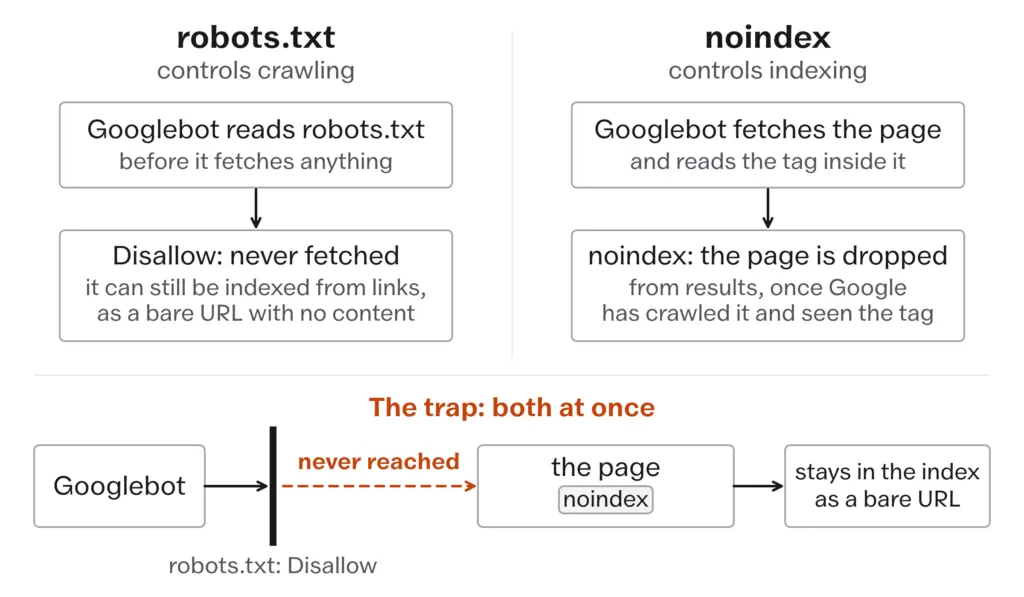
Robots.txt controls crawling. Noindex controls indexing. A page you want out of Google needs noindex, and Google has to be allowed to crawl it to see the tag.
Using Disallow in robots.txt to keep a page out of Google. Blocked pages can still be indexed from links, and a noindex tag on a blocked page is never read. Remove the Disallow, keep the noindex and let Google crawl the page once (Google Search Central, December 2025).
For a blog the sensible robots.txt is the WordPress default, which blocks /wp-admin/ and allows /wp-admin/admin-ajax.php because some plugins need it, plus a line pointing at your sitemap. What to look for is a Disallow that swallows something you need. Disallow: /wp-content/ blocks every uploaded image from image search and is still copied from old tutorials. Disallow: / on a staging site that was then cloned to production is the other classic, and it takes the whole blog out of crawling until somebody notices.
The noindex list for a single-author blog is short and worth setting once in the SEO plugin: tag archives unless you have built them into real pages, the author archive, date archives, attachment pages, search result pages and the paginated comment pages if your theme makes them. Category archives can go either way. A category with a written introduction and a curated list is a real page; an automatic list of excerpts is not.
Canonical URLs
The same article can be reachable at several addresses without anyone meaning it: with and without www, with and without a trailing slash, with a tracking parameter from a newsletter link. A canonical tag tells Google which of those is the address to index, and the SEO plugins put a self-referencing one on every post by default. It is worth viewing the source of 2 or 3 posts once and finding rel="canonical", because a plugin conflict or a migration can leave it pointing at the old domain or the staging site, and then every page is telling Google it is a copy of somewhere else.
Two pieces of older advice on canonicals are now wrong, and both are still common.
The first is pagination. Page 2 of a category archive is not a duplicate of page 1 and should not point its canonical at page 1. Google’s pagination guidance says to give each paginated page its own canonical URL, and it no longer reads rel="next" and rel="prev" at all.
The second is syndication. The old rule was that a copy on Medium or LinkedIn should carry a canonical pointing back at your original. Google’s canonicalization troubleshooting page, updated August 2026, now says the canonical link element is not recommended for syndication because the copies are often very different pages, and that the effective solution is for the partner to block indexing of your content. In practice that means syndicating only where the platform lets the copy be set to noindex, or accepting that the copy competes with you. A canonical on a page you do not control was always a hope rather than a setting.
HTTPS and Security
Your blog has to be on HTTPS, and the reason is what the reader’s browser does with an HTTP page. Google’s page experience page lists HTTPS as something to self-assess and says that beyond Core Web Vitals, the other page experience aspects do not directly help a site rank higher. What HTTPS does is stop the browser from warning your readers away.
- Chrome has labeled every HTTP page “Not secure” in the address bar since Chrome 68 in July 2018.
- With Chrome 154 in October 2026, Chrome turns on “Always Use Secure Connections” by default and asks the user’s permission before the first visit to any public site that does not offer HTTPS.
Google Online Security Blog, 28 October 2025. Google announced that Chrome 154, due in October 2026, enables Always Use Secure Connections for public sites by default and asks the user’s permission before opening a public HTTP site. Google’s own transparency data puts HTTPS at roughly 95 to 99 percent of page loads. An HTTP blog is now in the last few percent, and its readers will meet a warning screen before the article.
Certificates are free through Let’s Encrypt on nearly every host and through the free tier of the big CDNs, so the only real work is the migration of an old site, and the one thing that goes wrong there is mixed content: the page loads over HTTPS while some images, scripts or stylesheets in the content still point at http:// addresses. Browsers block the scripts outright and either upgrade or block the images, so the page looks broken. Chrome’s DevTools console and its Issues tab list each offending URL. On WordPress the fix is a search and replace across the database from http://yourdomain.com to https://yourdomain.com, done with a tool that handles serialized data so widget and theme settings do not break, followed by a check that the site address settings under General also read https.
Two security problems show up in search results directly, and the labels matter because you will search for them when it happens.
- “This site may be hacked” appears under a result when Google believes someone changed pages or added spam pages to the site.
- “This site may harm your computer” appears when Google believes the site may install malicious software.
Both labels stay until the owner fixes the site and requests a review from the Security Issues section of Search Console, which lists the affected URLs and the issue type. The second problem, spam injection, is quieter: a hacked site starts serving hidden pages or links that the reader never sees and Googlebot does. The old check still works, with one caveat. Search site:yourdomain.com now and then and look for titles you do not recognize: pharmacy pages, casino pages, pages in a language you do not write. The site: operator does not return every indexed URL, so it cannot count your index, but it is a fine way to spot a stranger in it.
Prevention is dull and effective: keep WordPress, the theme and every plugin updated, delete plugins you do not use rather than deactivating them, never install a nulled theme or plugin and use strong passwords with two-factor login. Most blog hacks come through an abandoned plugin with a known hole, which is a way of saying most blog hacks were announced in advance.
The 80/20 List
If the lesson feels like a lot, these 5 things carry most of the value, in this order:
- Serve the site over HTTPS with no mixed content.
- Install one caching plugin and configure it once.
- Read the Core Web Vitals report in Search Console and fix any page group that is red on mobile.
- Let one SEO plugin handle the sitemap, canonicals and noindex settings, then check that robots.txt is not blocking anything the plugin is trying to noindex.
- Resize and compress images, and give every image its width and height.
Everything else in this lesson is a check on top of that floor. Run the list when you set the site up and then twice a year, or after any change of theme, host or SEO plugin, which are the 3 events that break it.
What Doesn’t Work
The method in this lesson cannot make a page rank. It clears the way for a page that deserves to, and if the pages behind the floor are thin, a perfect technical setup indexes thin pages faster. The ranking work lives in the lessons on the page and the proof.
It also cannot fix a slow host. Caching hides a slow server for cached visitors and hands the full cost to every uncached one: the first visitor after a purge, everyone with a logged-in cookie, every bot. If the time to first byte is over a second on a plain cached page, the fix is a better host, and no plugin substitutes for it.
And it cannot see your readers before they arrive. The Core Web Vitals report needs enough Chrome visits to a page group before it shows anything, so a new blog will have empty reports for months and will have to use the lab tools and a real phone instead.
Then the habits that quietly cost it.
Chasing the PageSpeed score. The score is a lab number on a simulated phone, and a 95 on it buys nothing that a green field report has not already bought. The hours go into shaving a script that no reader would have noticed.
Skipping the PHP upgrade for a year because the speed gain sounded small. The gain is small. The security patches are the reason, and a year on an unsupported branch is a year of known holes.
Blocking bots in robots.txt to save crawl budget on a 300-post blog. Google’s crawl budget guide, updated July 2026, is written for sites with a million or more pages, or 10,000 or more pages that change daily, and it tells everyone else not to read it. On a blog the extra Disallow lines only risk blocking something you need.
Letting the SEO plugin refresh every lastmod on every save because it feels tidy. It teaches Google to ignore your dates, and then a real update goes unnoticed.
Installing a second SEO plugin, or a second caching plugin, to get one feature. Two plugins writing canonicals or two layers of cache produce the conflicts behind most of the mysterious technical problems on WordPress blogs, and the second plugin is usually the cause of the ticket that reports them.
- Google indexes the mobile page only, with Googlebot Smartphone, since 5 July 2024; a site that fails on a phone is not indexed.
- Core Web Vitals pass at LCP 2.5 s, INP 200 ms and CLS 0.1, measured at the 75th percentile of real visits; used in ranking, no guarantee either way.
- Field data (the Search Console report) decides; lab data (PageSpeed Insights, Lighthouse) diagnoses.
- Fix font layout shift with
font-display: optionaland fallback metrics, neverswap. - Sitemaps:
lastmodonly when accurate;priorityandchangefreqare ignored. - robots.txt controls crawling, noindex controls indexing; a noindex page must not be blocked.
- HTTPS everywhere and PHP 8.3 or newer, both on security grounds: 8.2 gets fixes only until 31 December 2026, and Chrome 154 (October 2026) warns before any public HTTP site.
Open Search Console and go to Core Web Vitals, then note which page groups are red or orange on mobile and which metric fails. Next open your sitemap, pick 5 posts you have not edited in months and compare their lastmod with each post’s real last edit; if the dates have moved, find the setting that moved them. Finally open yourdomain.com/robots.txt and read every Disallow line against the noindex settings in your SEO plugin, looking for any path that appears in both. Fix the robots line first, the sitemap setting second and the red page group last, because that is the order Google meets them.