
Wishlist lets shoppers save a selected product option and return to it later. It is useful for comparing alternatives or keeping a product in mind without committing to a cart.
A saved item does not reserve stock or lock its price. The wishlist checks current product information when it displays items or moves one into the cart.
Create the Wishlist Page
Enable Wishlist under GT Extensions, then create or edit a WordPress page and add:
[gtfc_wishlist]You can also use the supplied Wishlist pattern. Publish the page and link it from your navigation so customers can find their saved items.
Save a Product Option
The product page shows a heart icon and Save to wishlist in a row below the native purchase buttons. It uses the option already selected in FluentCart’s variant controls; customers do not need to choose the option twice.
For example, a customer comparing 2 colors of the same shoe can select a color and save that variation. The saved item identifies the product option rather than only the parent product.
Guest and Signed-In Lists
The storage follows the customer’s sign-in state.
- Guests keep their list in that browser. Clearing browser storage can remove it.
- Signing in merges guest items into that customer’s saved list.
- Signed-in lists belong to the account and can be used across devices.
- Duplicate saved options are kept as a single list entry.
View, Buy or Remove
The wishlist shows the product/variation image where available, its current price and the available actions. View product opens the product page. Move to cart adds a purchasable option to a normal cart and removes it from the wishlist after success. Remove deletes just that saved item.
Out-of-stock or otherwise unavailable items cannot be moved into the cart. Currency selection and restricted price visibility still apply.
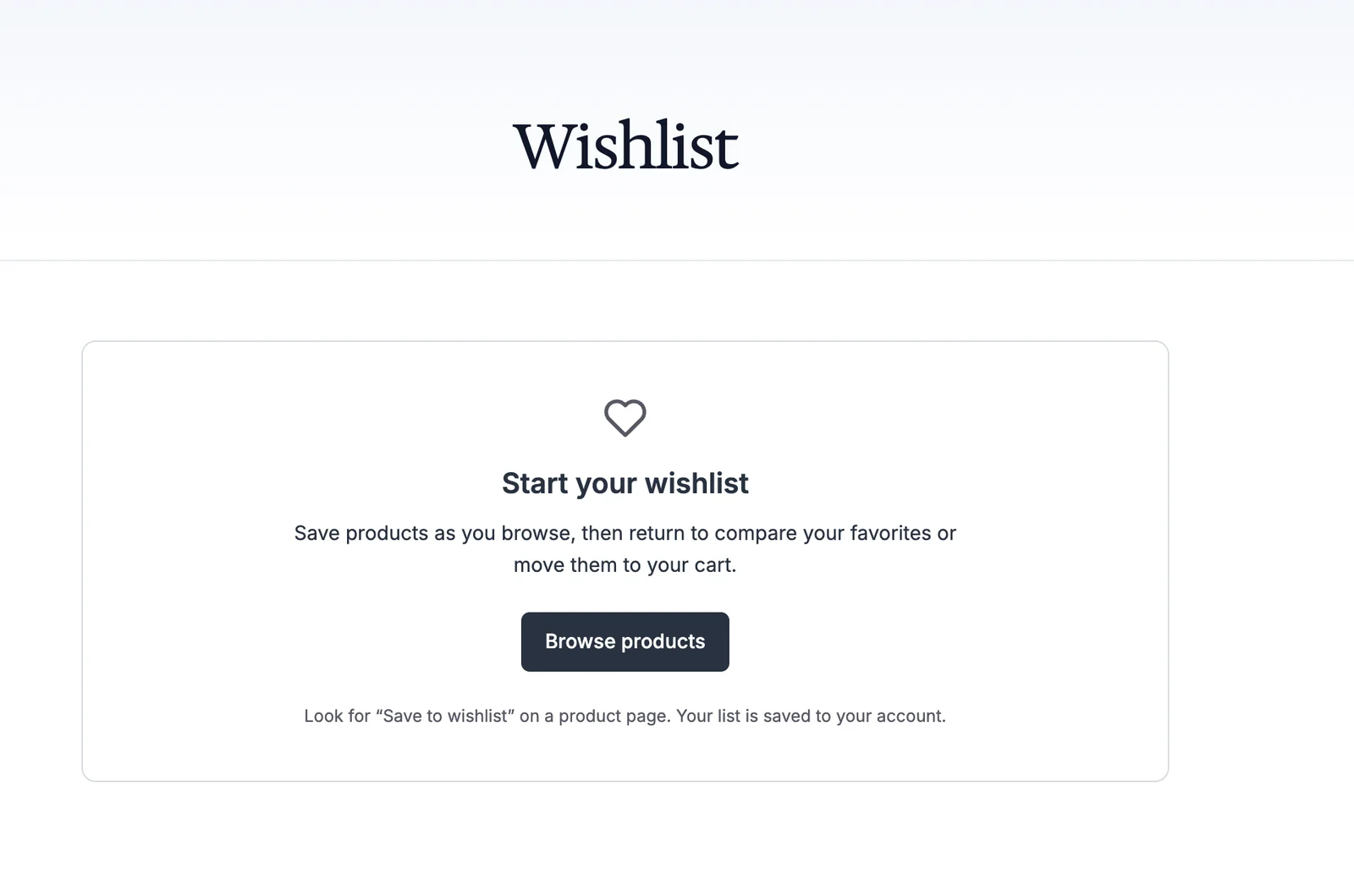
The empty state explains how saving works and links back to the shop. Check that FluentCart’s shop page is configured so Browse products leads to the catalog you want customers to use.