
Product Add-ons and Checkout Fields lets you collect information or charge for selected extras. A free text field can collect a gift message; a paid checkbox can add gift wrapping to the order.
A paid field adds one fee per order when the customer selects or completes it. It is not automatically multiplied by the number of products in the cart.
Add and Organize Fields
Enable the module and open FluentCart → Fields & add-ons. Expand a field to edit it, or choose Add another field.
- Label is the wording the customer sees.
- Price in store currency uses 0 for a free field.
- Field type can be Text, Dropdown or Checkbox.
- Show for targets all carts, carts with physical items, digital-only carts or a specific product.
- Product chooses the catalog product when using product targeting.
- Dropdown options are entered one per line; they share the field’s configured price.
- Required makes a visible applicable field mandatory.
- Taxable add-on marks the fee for the relevant native tax handling.
- Conditional display shows the field only when an earlier field matches the required value.
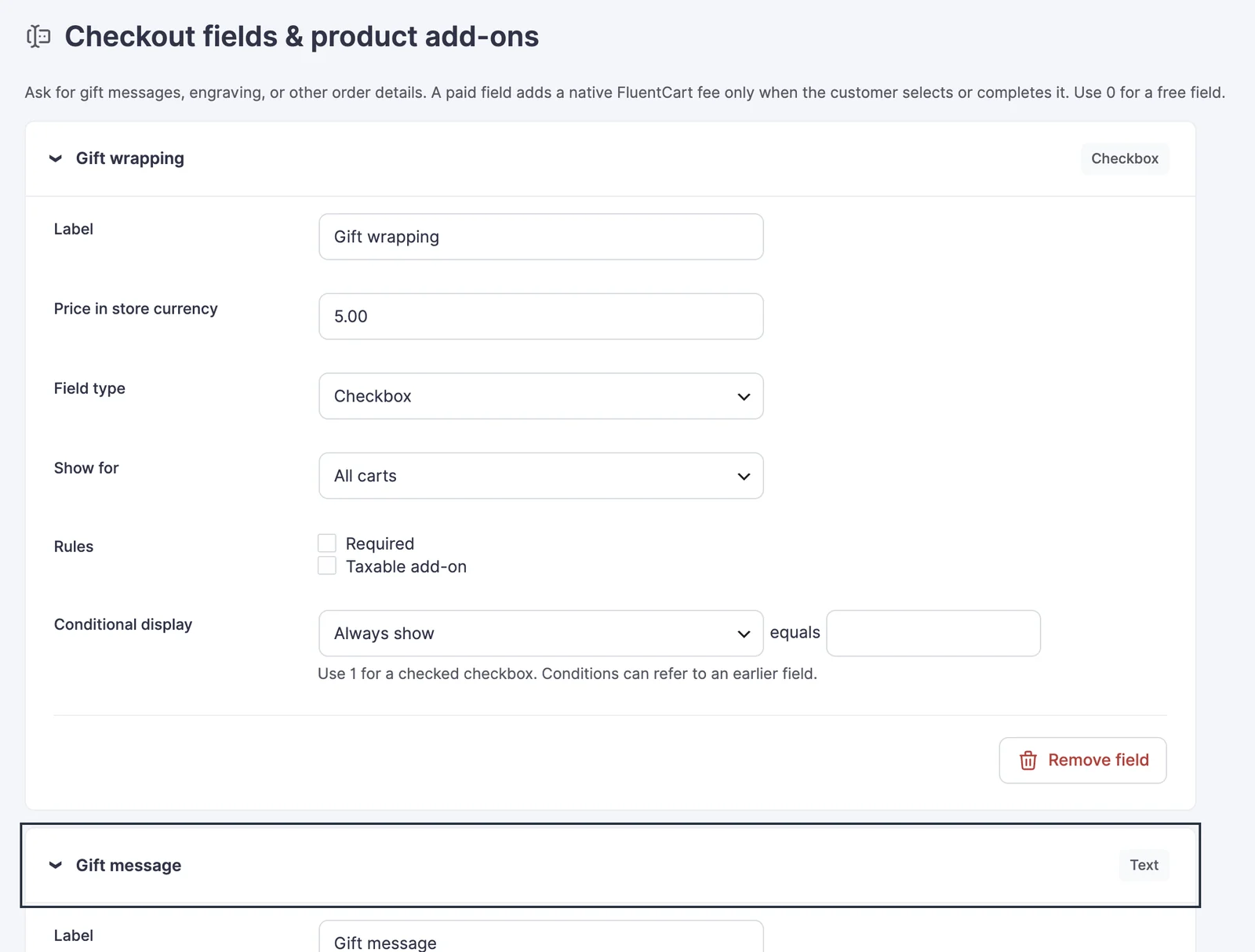
Collapsed fields show their type and a Conditional badge when another field controls their visibility. The badge identifies its dependency. You can keep up to 30 fields.
Start With Demo Fields
Add demo fields inserts editable examples for gift wrapping, a dependent gift message and packaging choices. Review the labels, prices and eligibility before saving. The button does not immediately change checkout, and repeated clicks do not add duplicate demo fields.
Example: Gift Wrapping and a Message
Create the parent checkbox before the dependent text field.
- Add Gift wrapping as a Checkbox priced at 5.00.
- Add Gift message as Text priced at 0.
- Set Gift message to show when Gift wrapping equals 1.
- Mark Gift message Required only if a wrapped order must include a message.
- Save fields and open an eligible checkout.
Checking wrapping adds the fee and reveals the message field. Clearing it hides the dependent field; hidden values and their fees are not applied. Use 1 for a checked checkbox in a condition.
For engraving, choose A specific product and select the item you can engrave. A paid text field charges when the customer enters the engraving request; a dropdown is better when the customer must choose from a controlled set of options.
Save, Remove and Check
Save fields publishes the form changes to checkout. Remove field asks for confirmation and takes effect when you save. Remove dependent conditions before deleting a field that other fields reference.
Checkout saves selected options and updates the native order total. Paid options are not offered on subscription or locked invoice checkouts. Test both visible and hidden states, the final fee and any tax before offering a paid extra to customers.