
Custom Invoices lets you agree on items and prices with a customer, prepare a bill and collect payment through FluentCart. You can combine catalog products with custom work without creating a public product for every line item.
Use a draft while the details are still changing. Issuing the invoice locks the agreed bill and creates its native FluentCart order; emailing the payment link is a separate action.
Create the Draft
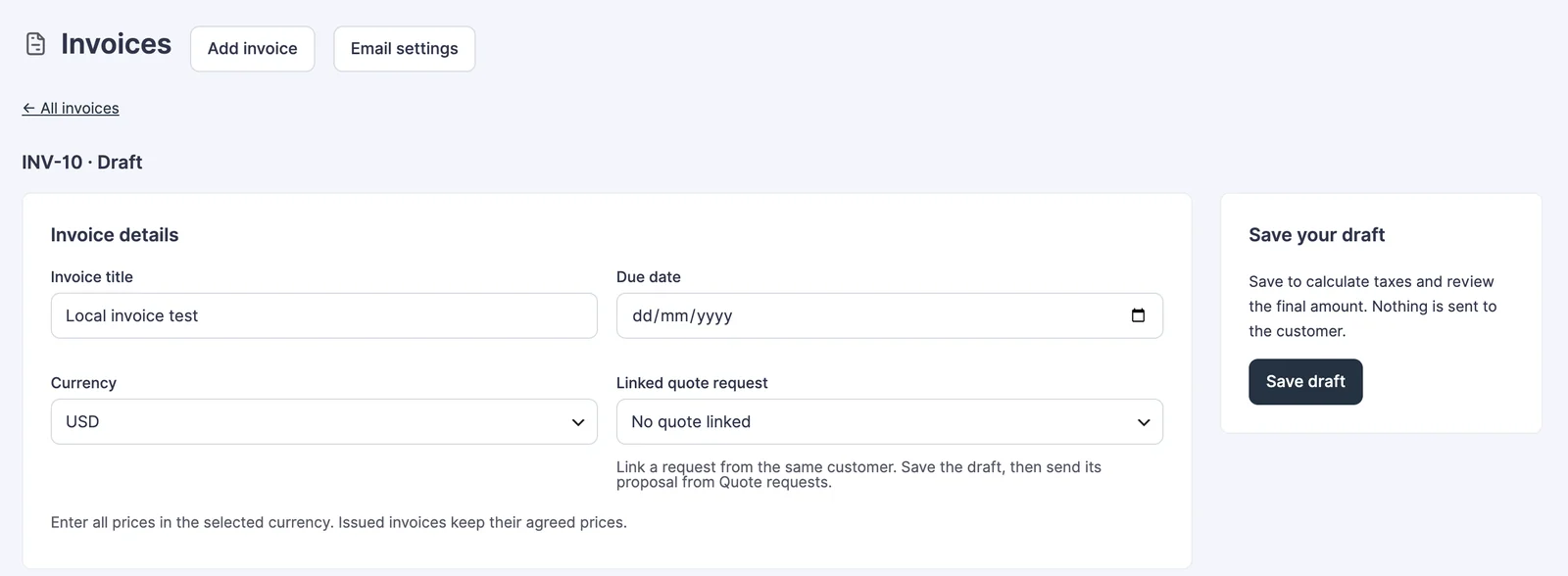
Enable Custom Invoices, then open FluentCart → Invoices → Add invoice.
- Add an invoice title, due date and currency.
- Find an existing customer or enter the customer’s name and email.
- Complete the billing address and any separate delivery address.
- If relevant, choose an eligible Linked quote request for the same customer.
- Add products from the store search or choose Add custom item.
Add Items and Agreed Charges
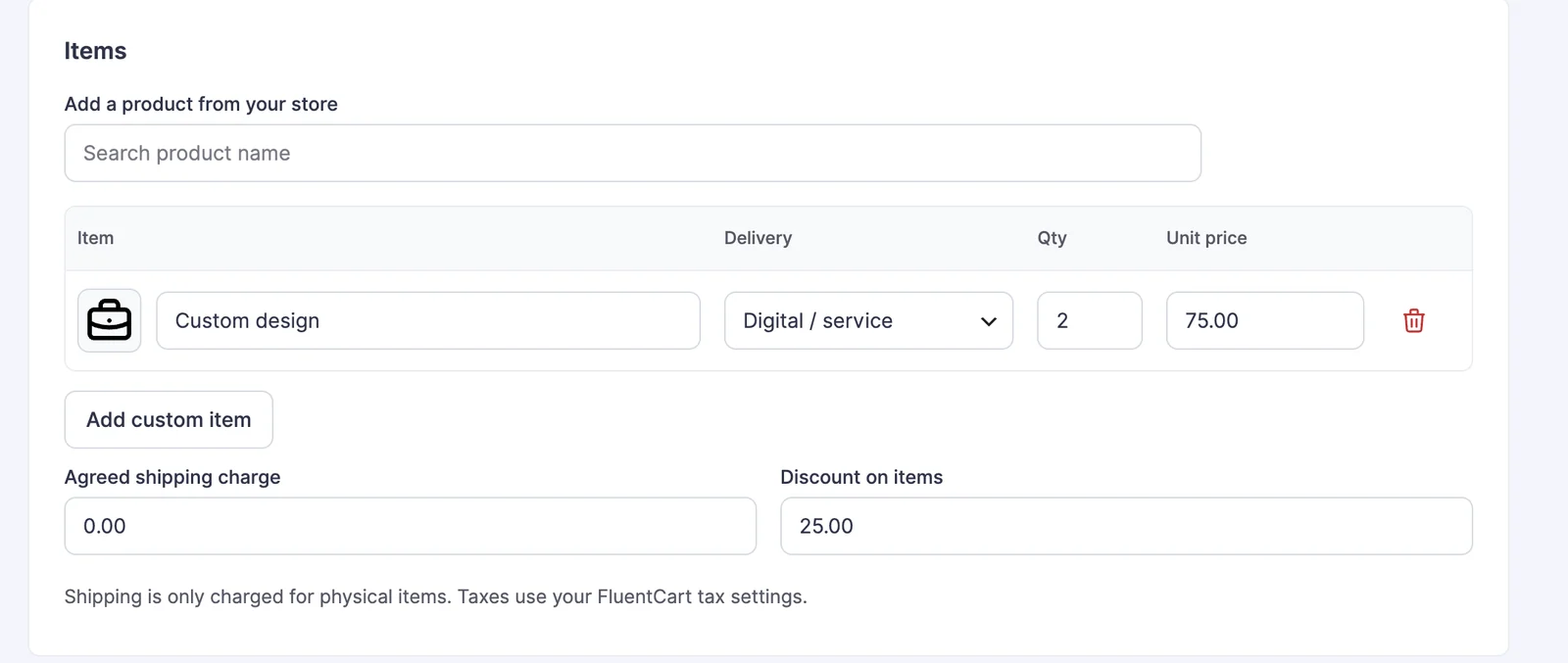
Each item has a title, delivery type, quantity and unit price. Select Physical when the line requires shipping, or Digital / service for work or digital delivery. Enter the unit price in the invoice’s selected currency.
- Catalog products use their product image where available.
- Click an item thumbnail to choose an invoice-specific image or a bundled icon.
- Agreed shipping charge applies to physical items.
- Discount on items reduces the item amount.
- Taxes follow FluentCart’s tax settings and the supplied customer details.
- Message for the customer appears on the customer invoice. Private note is for your team.
For example, 2 design sessions at USD 75 each produce a USD 150 item subtotal. A USD 25 discount brings it to USD 125 before any applicable shipping or tax. The preview should match the amount you agreed with the customer.
Review and Issue
Save the draft to calculate the total, then review the line items, address, tax and amount due. A saved total is the review point; do not rely on an unsaved form.
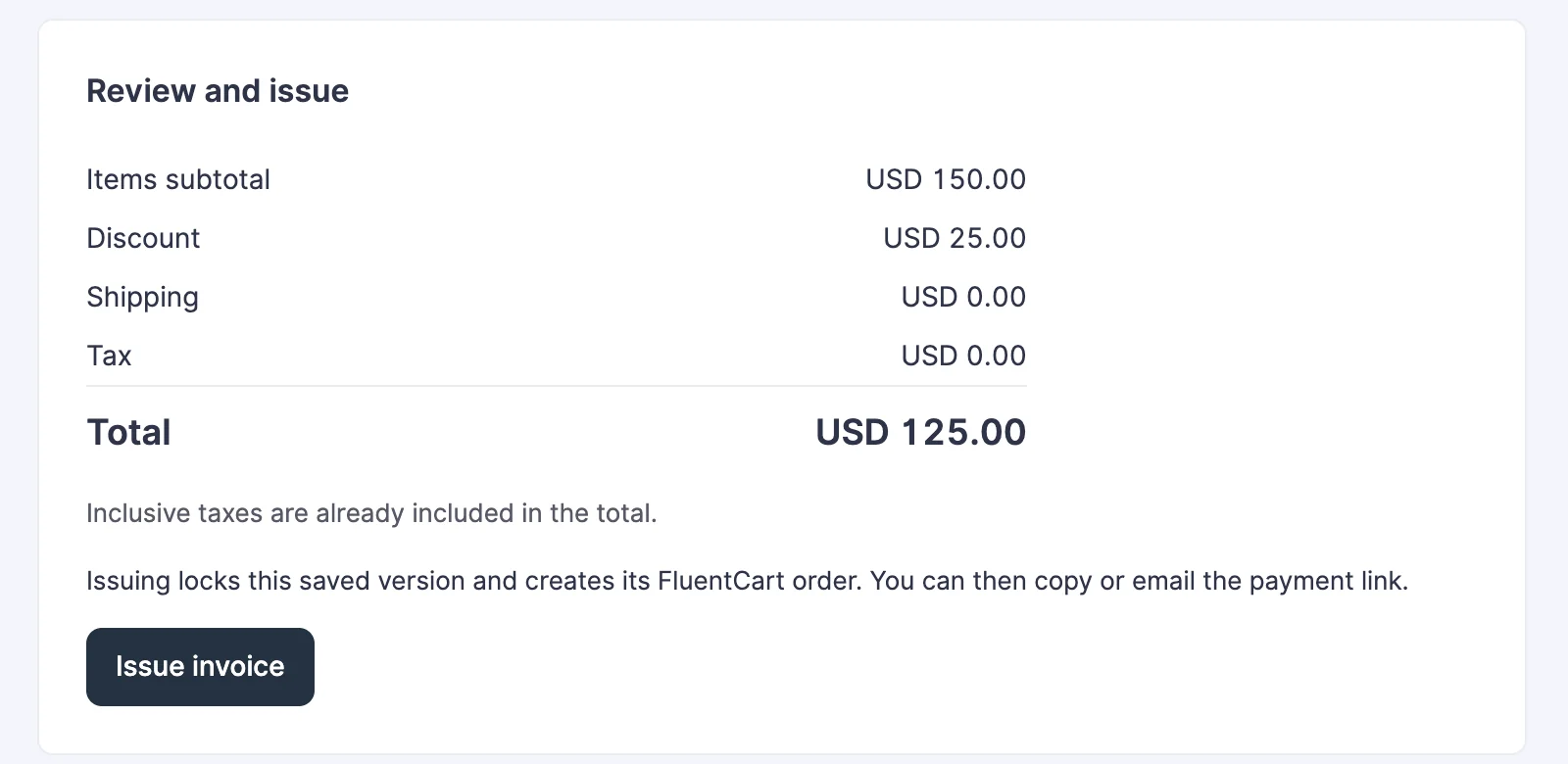
Click Issue invoice when the bill is ready. Repeated issuance uses the same invoice/order relationship instead of creating another bill. Use Duplicate as draft when you need a separate invoice or a starting point for revised work.
Share and Follow Up
Issued unpaid invoices provide Preview invoice, a customer payment link, Email payment link, Send reminder and cancellation controls where applicable.
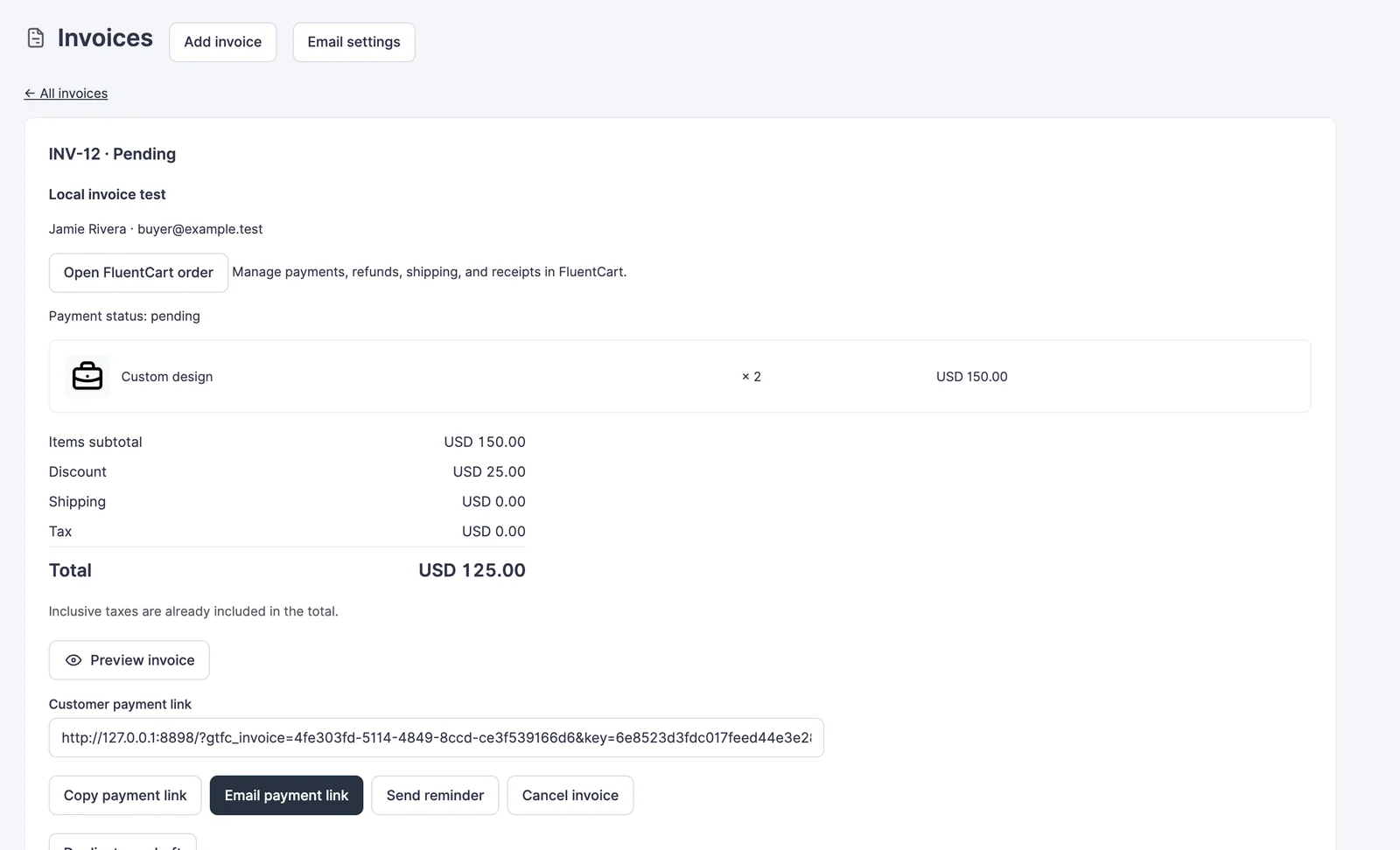
The customer preview shows the bill, status, line items and payment action. It has a print control. Treat the customer link as private: someone holding it can open that invoice.
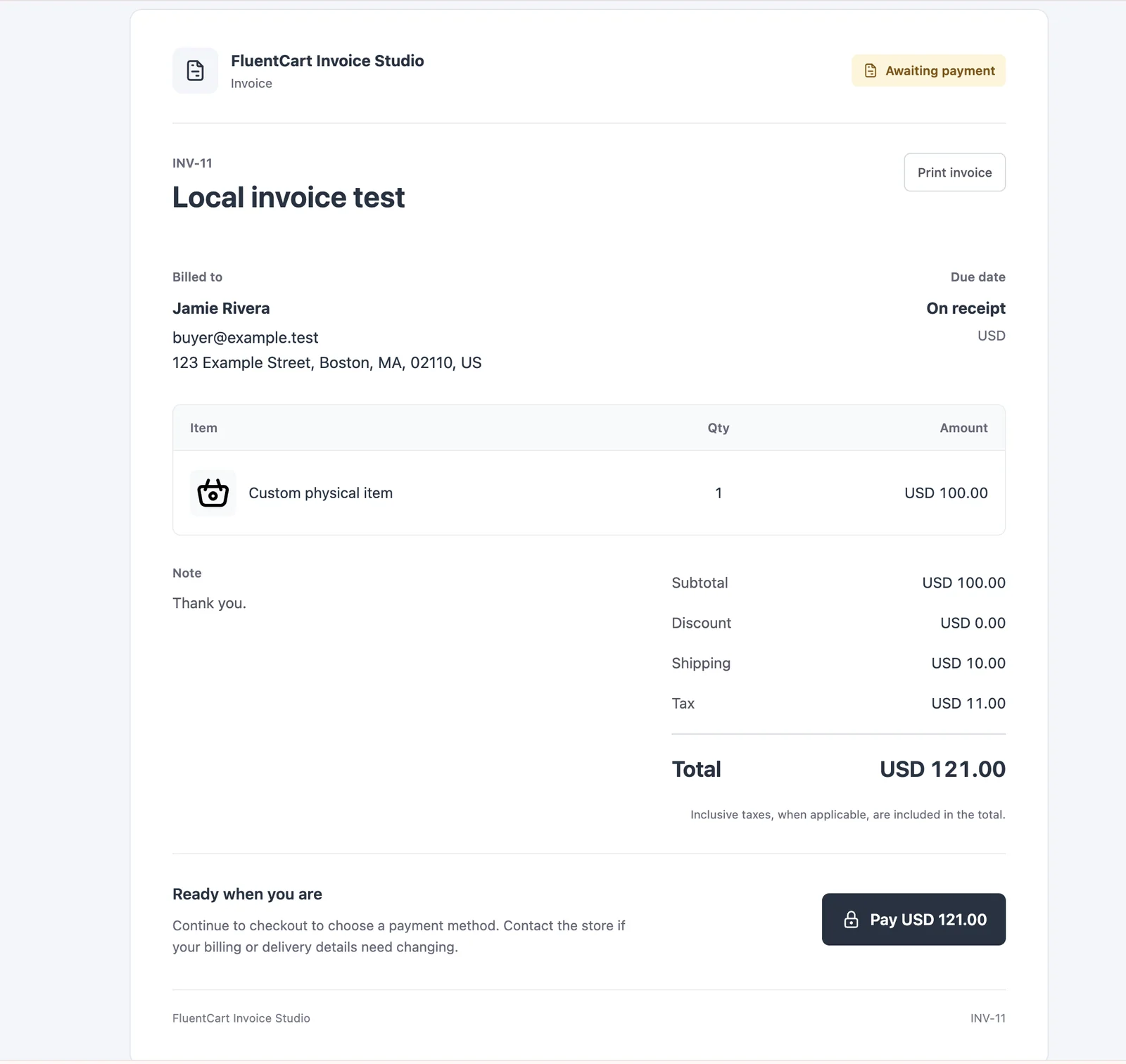
Paid invoices still have a preview link, but no payment button. Open FluentCart order to manage native payment records, refunds, fulfillment and receipts. The invoice list and status filters help you find the relevant record.
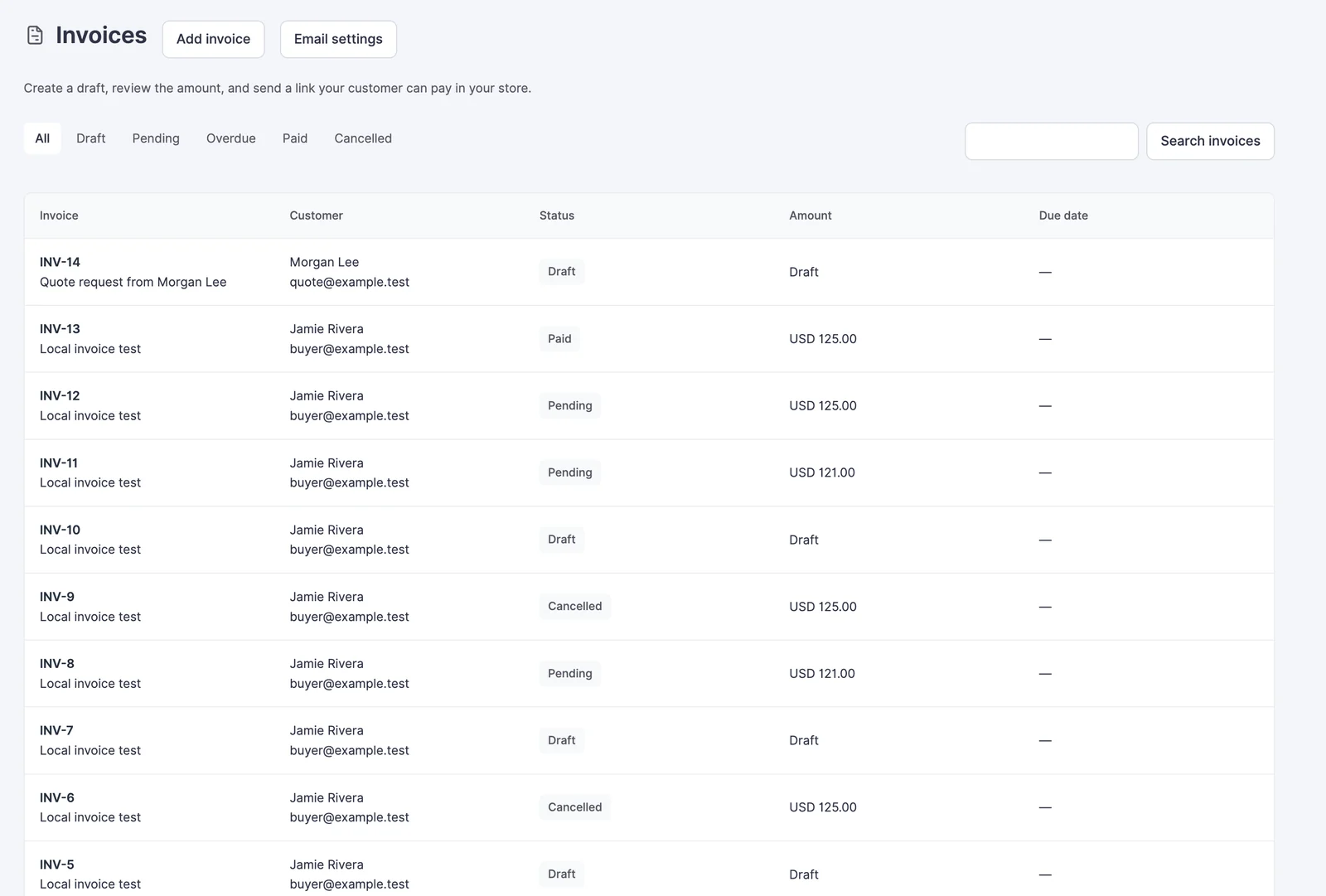
Reuse Customer Details
Keep Save these details to the customer profile for future invoices selected when the billing information should become the customer’s default. Saving the draft creates or updates the native FluentCart customer and primary billing address, including company, apartment or suite, phone and Tax / VAT number. A separately entered delivery address can also be saved.
For the next invoice, search for the customer by name or email. The saved details fill the form and remain editable. Clear the save-to-profile option for an invoice-only change, such as a different billing address for one project. This keeps the reusable customer details intact.
Add Your Seller Identity
Open Invoice appearance from the Invoices screen and choose Import from FluentCart. Review the imported values, then use the visibility checkboxes to choose what appears on the invoice.
- Store name and company logo.
- Company name and store address.
- Legal registration ID, Tax ID and VAT ID.
You can edit these imported values without changing FluentCart Store Setup. Save invoice appearance when ready. For example, a consulting company can show its logo, registered name, office address and VAT ID while leaving an unused registration field hidden.
Seller details are captured when an invoice is issued. Later branding changes apply to newly issued invoices; existing issued invoices keep their original seller details. Empty fields are omitted.
Email Settings
Use Email settings to edit the payment-request subject/body and reminder subject/body. The available tokens include {customer_name}, {invoice_number}, {invoice_title}, {amount}, {due_date}, {pay_url} and {store_name}.
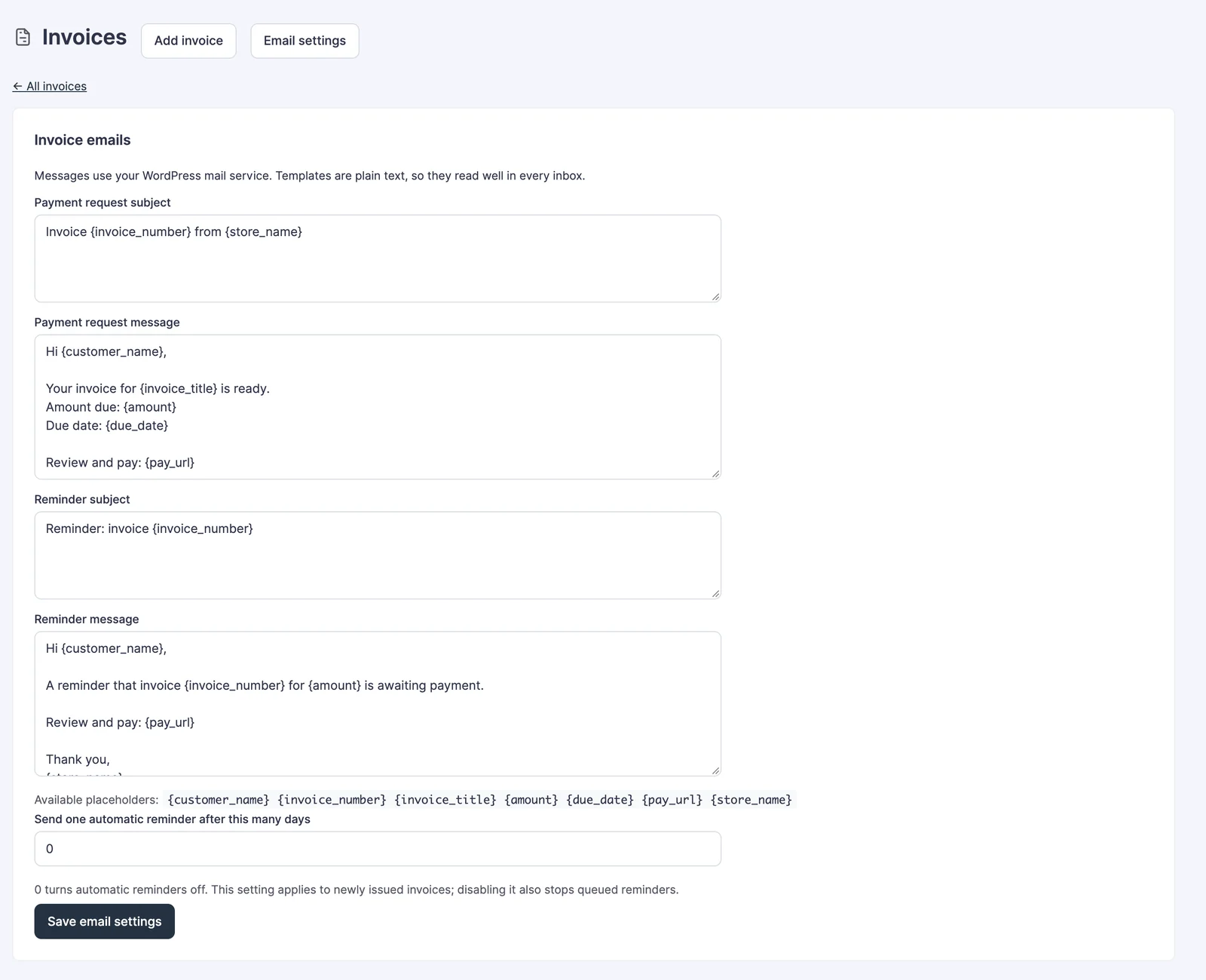
Automatic reminder days set to 0 disables automatic reminders. When enabled, the automatic reminder is a single follow-up for an eligible unpaid invoice, not an endless reminder sequence. Partly paid, refunded, paid or cancelled invoices are excluded from the normal unpaid reminder path. WordPress mail must be configured to deliver the messages.
Limits and Related Workflows
This module handles one-time invoices. It does not provide recurring invoicing or an online partial-balance collection workflow. For an amount that still needs customer approval, start with Request a Quote instead of emailing an invoice as though the proposal were already accepted.