
Request a Quote collects requirements before you agree on a final price. The customer sends an inquiry, you prepare a proposal, and acceptance creates a payable invoice.
Sending the form does not charge the customer. Enable both Request a Quote and Custom Invoices before setting up this workflow.
Add the Request a Quote Block
You can place the form on an ordinary WordPress page without using the Site Editor.
- Edit the page and add the Request a Quote block.
- Open the block’s settings sidebar.
- Search Product (optional) by product name or ID.
- Select a product for a product-specific form, or clear it for a universal form.
- Preview the page, then save or publish it.
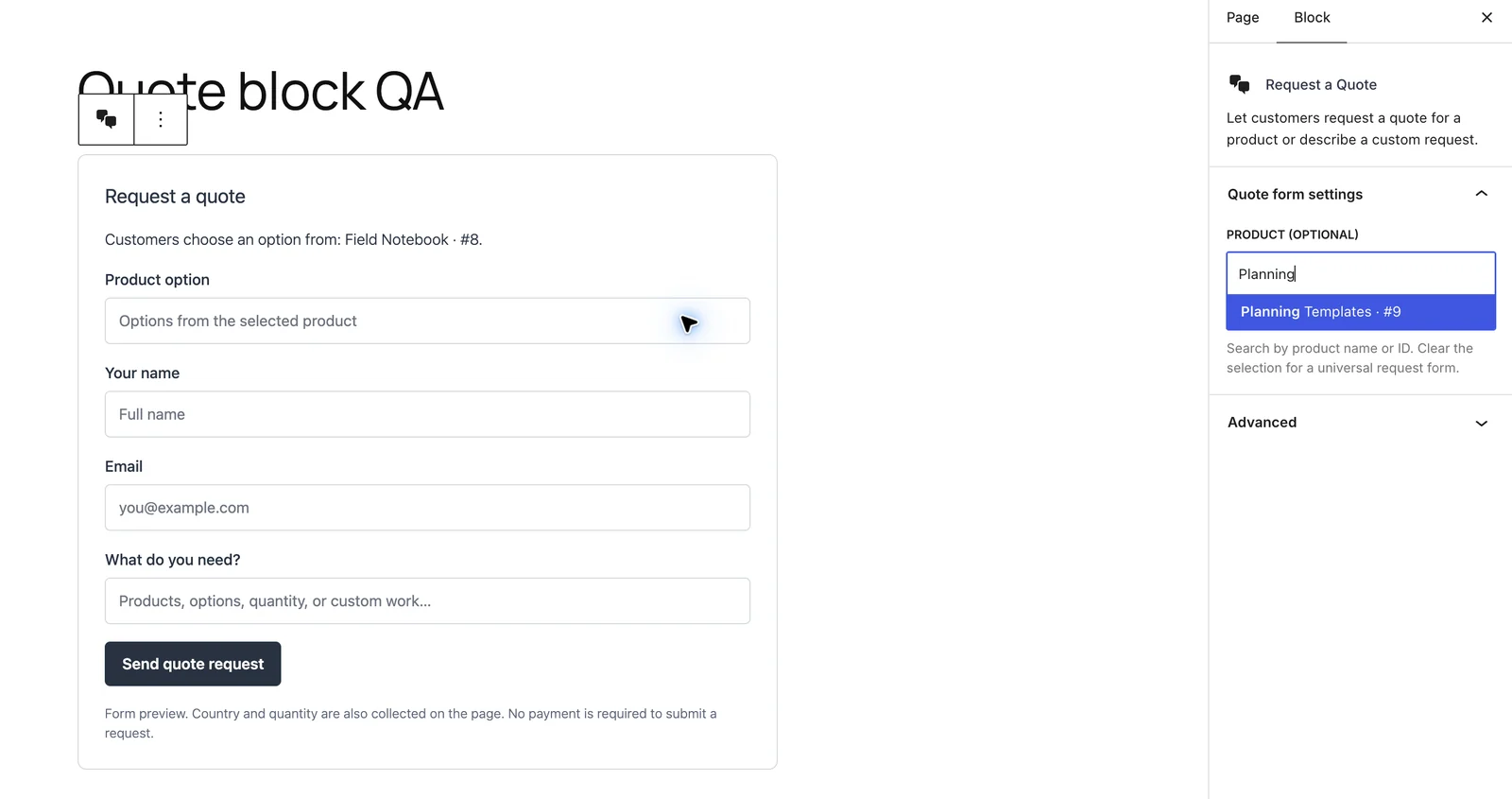
The product picker uses the product ID, not a variation ID. On the public form, customers can choose an available option from the selected product.
Use a Shortcode
For a universal form, paste this into a Shortcode block, classic editor or shortcode-capable page-builder element.
[gtfc_request_quote]For a form tied to one product, use its product ID in the attribute below. Replace 123 with your own product ID.
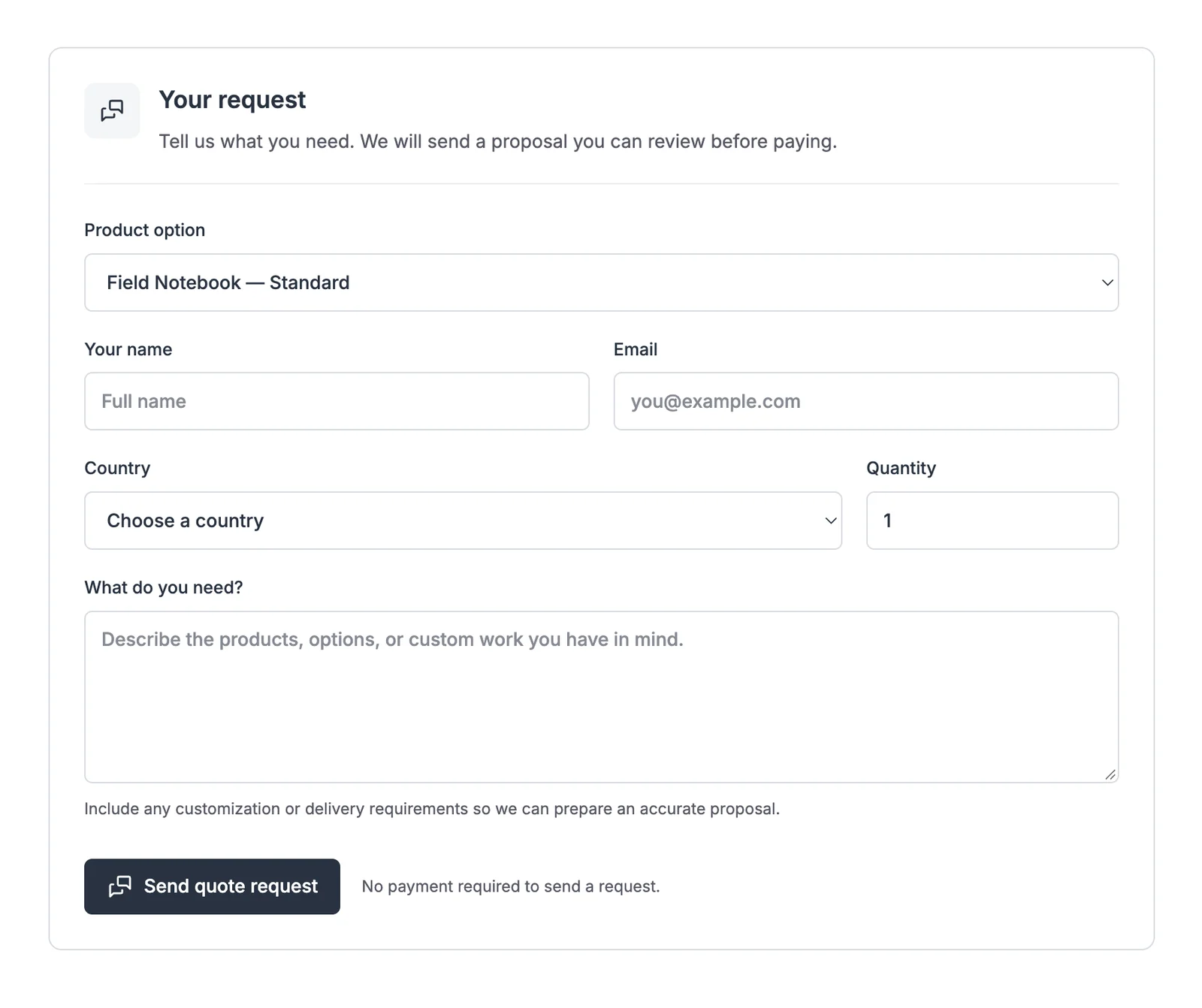
[gtfc_request_quote product="123"]The universal form lets the customer describe custom work or several products without selecting a specific catalog option. FluentCart → Quote requests also includes these examples and a placement guide.
Prepare a Proposal
The form collects the customer’s name, email, country, quantity and requirements. New inquiries appear in Quote requests, where you can also add a request manually for a customer.
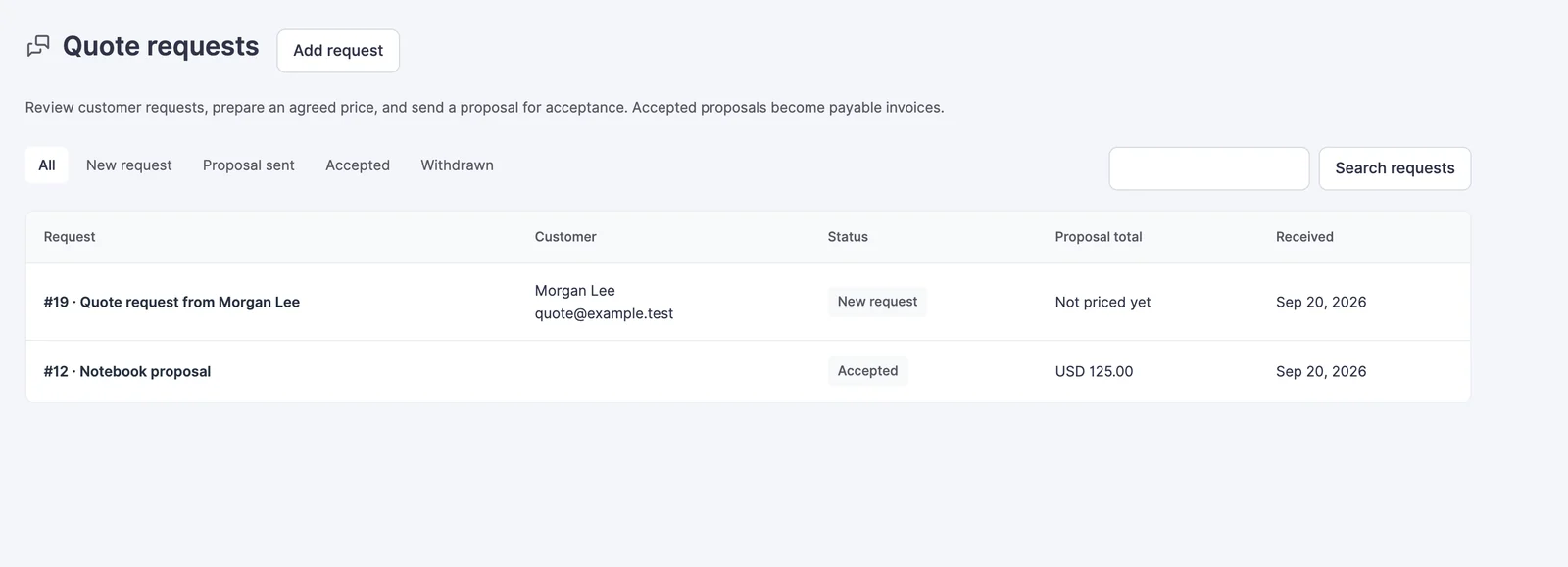
- Open the request and review its requirements.
- Choose Prepare proposal to create the linked invoice draft.
- Enter the customer details, items, prices and relevant shipping details in that draft.
- Save the draft and return to the quote request.
- Set the proposal’s valid-through date.
- Use Email proposal when the offer is ready for the customer to review.
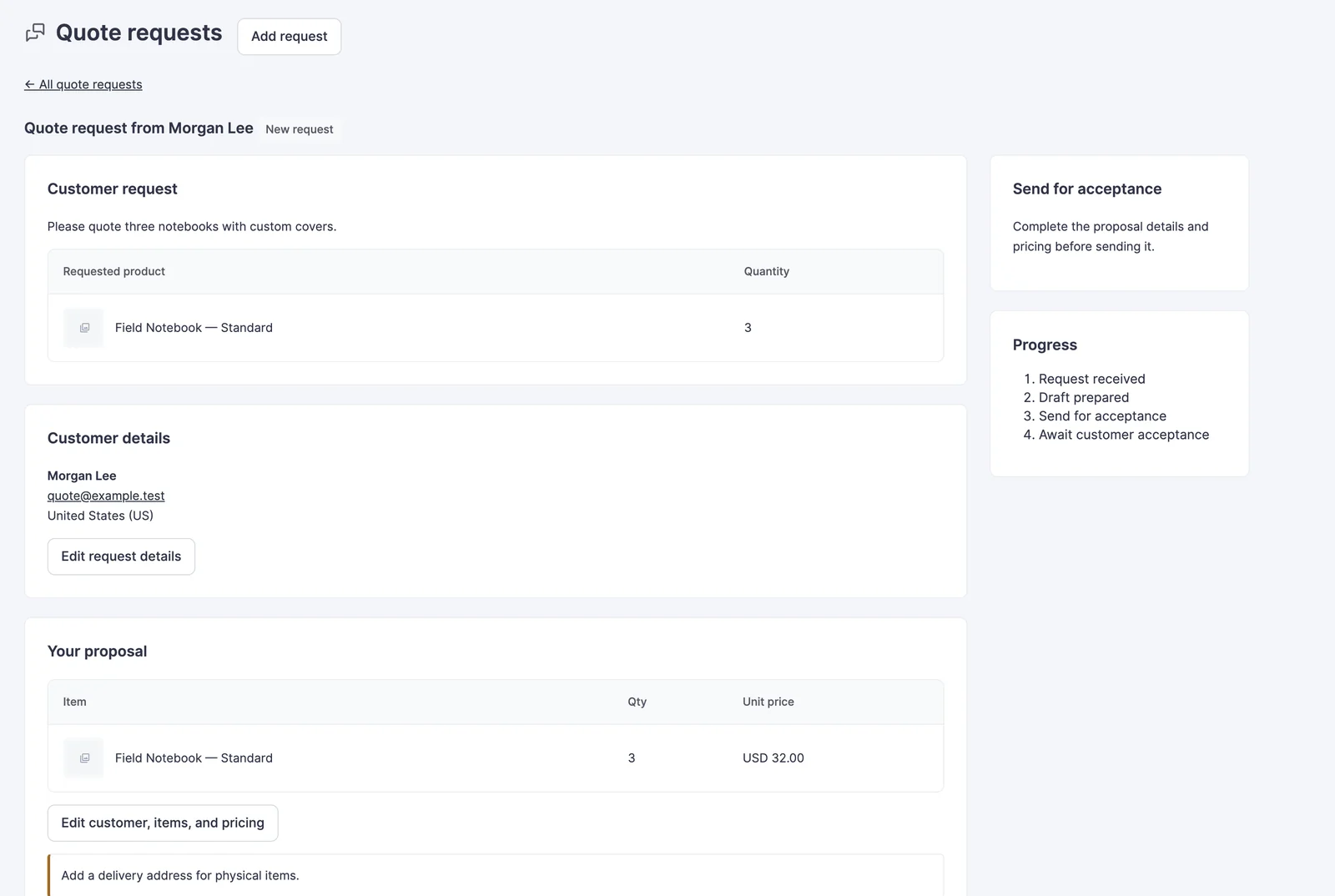
For example, a customer requests 30 notebooks with custom covers. You confirm the printing cost and delivery charge in the draft, then send one proposal containing the agreed total rather than asking the customer to guess which extras to add.
Acceptance and Changes
The customer can review the proposal before accepting it. Acceptance creates the payable invoice; payment then happens through FluentCart checkout.
- A request has one linked proposal invoice.
- An invoice can link to an eligible request for the same customer email.
- Expired or changed proposals cannot be accepted as though they were still current.
- Withdraw a sent proposal before changing its association or replacing the offer.
- An accepted proposal leads to its invoice and native order workflow.
Use the invoice lesson for payment links, reminders, private notes and fulfillment after acceptance.