
How to Turn an HTML or Tailwind Template into a WordPress Page
You bought a landing page template, or a designer handed you one, and it looks perfect as an index.html on your laptop. Then it has to live on your WordPress site. The usual options are to rebuild it in a page builder or paste it into a Custom HTML block and watch half of it break.
To turn an HTML template into a WordPress page, you split its <body> into sections and paste each one into its own HTML, CSS and JS panes. The head assets, images and scripts each get a new home, and the result is a normal WordPress page that keeps your original markup.
GT Page Blocks Builder is built for this. Each section of the page is a block with its own code panes. A template’s hero, features and footer stay as you wrote them, and you edit them later in the same code.
The basics of the builder are in How to Build a Landing Page with HTML, CSS and JavaScript Inside WordPress. This guide covers what’s different when you start from a finished file.
Before You Start
- The template files: the HTML, its stylesheet, its scripts and its images.
- An administrator or editor account, so
<script>and<link>tags survive the save. - A draft page with the builder enabled for pages under Page Blocks → Settings → Enable Builder On.
Plan the Split
Open the template’s HTML and look inside <body>. Most templates already come in blocks, such as <header>, <section class="hero">, <section class="features"> and <footer>. Each of those becomes one builder section.
These parts don’t come over as they are:
<html>,<head>and<body>tags. WordPress and your theme write those. Sections hold only what goes inside<body>.- The template’s own header and footer. If your theme already has a header and footer, drop the template’s. If you want the template’s, use the blank canvas template described below.
- HTML comments. The plugin strips them from the output, which also keeps the page smaller.
Move the Sections Over
- Open your draft page and click Open Page Blocks.
- Click Code in the top bar.
- Click + Add Section and paste the first block of markup, such as the whole
<header>, into HTML. - Paste the CSS rules that style that block into CSS.
- Repeat for each block, top to bottom.
- Double-click each section’s name to rename it, such as “Hero” or “Pricing”.
When the template has one big stylesheet, you don’t have to split it. Paste all of it into the CSS pane of the first section. Section CSS isn’t scoped, so rules in the first section style the whole page.
Bring Over the Head Assets
The template’s <head> usually holds 2 kinds of things, fonts and stylesheets:
- Font and stylesheet links, such as Google Fonts, go at the top of the first section’s HTML as
<link rel="stylesheet" href="...">. Browsers load a stylesheet link in the body just as they do in the head. - Meta tags, the title and favicons stay out. WordPress, your theme and your SEO plugin already write those.
The Preview Head HTML setting under Page Blocks → Settings only affects the builder preview. Anything your live page needs has to sit in a section.
Handle Tailwind
A Tailwind template needs its CSS, and there are two ways to give it that:
- Build the CSS once. Run the Tailwind CLI on the template, so it outputs only the classes the template uses, then paste the built CSS into the first section’s CSS pane. Tick Load CSS from a file on that section, so browsers cache the stylesheet. This is the route for a page that goes live.
- Load the browser build. Add
<script src="https://cdn.jsdelivr.net/npm/@tailwindcss/browser@4"></script>at the top of the first section’s HTML. It generates styles in the visitor’s browser, which is fine for a prototype. Tailwind itself recommends against it in production.
GT Page Blocks Builder also has its own Utility Classes option, with Tailwind-style classes for grid, flex, spacing and type. It isn’t Tailwind, and a template’s class names won’t all match it, so build the CSS instead.
Fix Images and Scripts
Relative paths break first. A template’s img/hero.jpg points at a folder that doesn’t exist on your site.
- Upload the template’s images to Media → Add New.
- Copy each image’s full URL and replace the relative path in your HTML and CSS.
In Visual mode, administrators can also drop up to 20 image files at once onto the canvas, and they go straight into the media library.
Scripts move section by section:
- The template’s own JS goes into the JS pane of the section it controls, with Script on In footer.
- External libraries, such as a slider from a CDN, go at the top of the HTML of the first section that needs them, as
<script src="..."></script>.
Import Many Sections at Once
For a long template, writing a JSON file can be faster than pasting 15 sections by hand. Page settings has Import & add and Import & replace, and both accept a file shaped like this:
{
  "sections": [
    { "name": "Hero", "content": "<section id=\"hero\">...</section>", "css": "#hero { padding: 6rem 1rem; }", "js": "" },
    { "name": "Pricing", "content": "<section id=\"pricing\">...</section>", "css": "", "js": "" }
  ]
}
Import & add adds the sections after the ones already there. Import & replace swaps every section on the page and asks you to confirm first. Either way, click Save afterwards, because the import only changes the builder until you save.
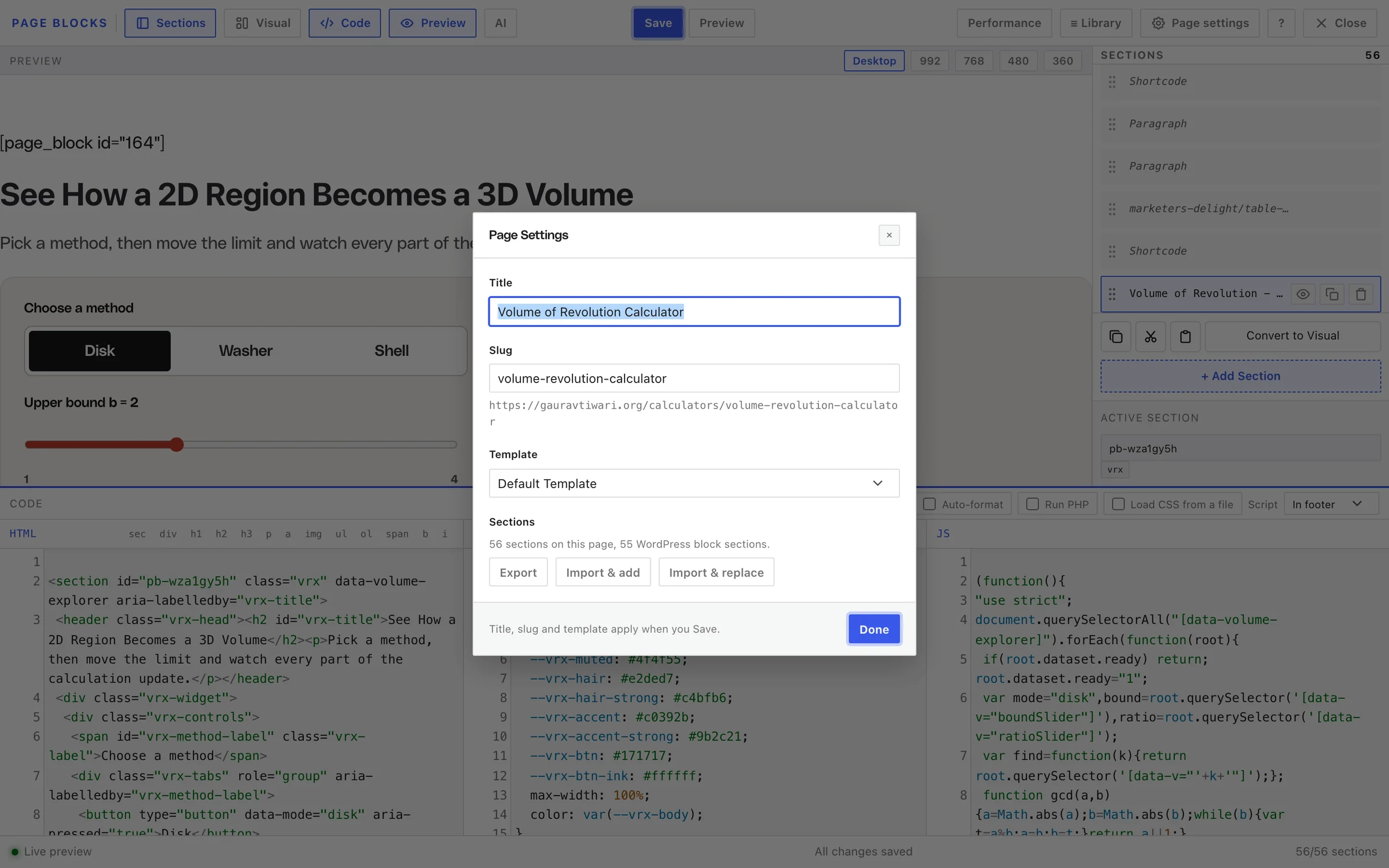
Pick the Template
In the same Page settings dialog, choose Template:
- Blank canvas (no header or footer) when the template brings its own header and footer.
- Page Blocks Builder to keep your theme’s header and footer on a classic theme, without the page title or content width.
Click Done, then Save.
Check It Works
The builder preview always loads the plugin’s reset, typography and utility styles, even when those settings are off for your live site. So a template can look right in the builder and slightly off on the real page.
- Open the page logged out and compare it with the template file, side by side.
- Check 3 widths, because templates often rely on breakpoints set in the
<head>. - Open the console and fix any 404 for an image or script path you missed.
Common Messages
| Message | What it means | Fix |
|---|---|---|
| That file is not valid JSON. | The import file has a syntax error, often an unescaped quote | Escape every " inside HTML as \", or check it in a JSON validator |
| No sections found in that file. | The JSON has no sections list | Wrap your sections in { "sections": [ ... ] } |
| Added 6 sections. Save to keep it. | The import worked in the builder | Click Save |
| Broken images on the live page | Relative paths from the template | Upload the images and use their full URLs |
What It Won’t Do
- It doesn’t import a whole HTML file. You split the body into sections yourself, or write the JSON file.
- It doesn’t write to your site’s
<head>. Fonts and libraries load from the first section instead. - It doesn’t keep the template’s
<title>or meta tags. Set those with your SEO plugin.
Once the page works, How to Reuse One Section Across Many Pages shows how to share its header or footer across your other pages.